How to Blur or Pixelate Sensitive Information on Mac (5 Methods)
You're about to share a screenshot, maybe one taken with ScreenSnap Pro or the built-in macOS tools. Maybe it's a bug report, a tutorial, or just something funny in Slack. Then you notice it: your email address, a client's name, your bank balance, or an API key sitting right there in plain view.
Suddenly, that quick screenshot becomes a privacy nightmare.
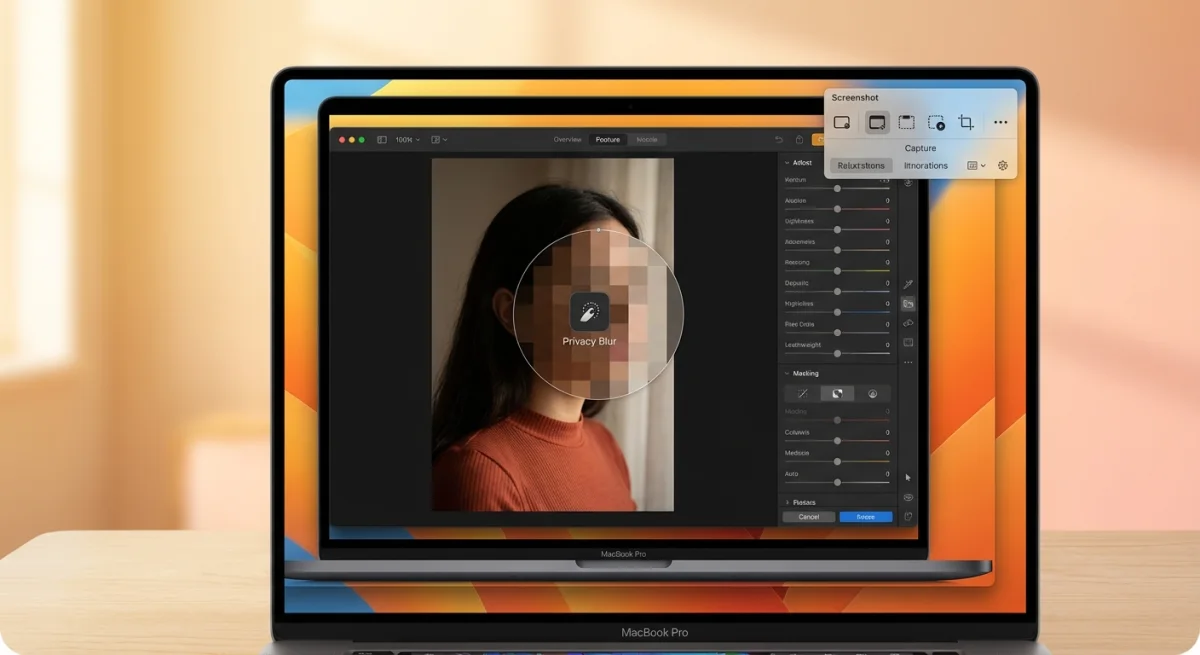
Blurring or pixelating sensitive information should be simple. But on Mac? It's not always obvious how to do it properly. Let's fix that.
Why You Need to Redact Sensitive Information
Screenshots often contain more than you realize:
- Personal data. Email addresses, phone numbers, home addresses
- Financial info. Bank balances, credit card numbers, transaction details
- Work secrets. API keys, passwords, internal URLs, client information
- Other people's data. Names, faces, conversations they didn't consent to share
Before sharing any screenshot publicly (social media, documentation, bug reports), always scan for sensitive content. It takes 10 seconds and can save you from serious problems.
Method 1: Using ScreenSnap Pro (Fastest & Most Secure)
If you take screenshots regularly, a dedicated tool pays for itself in time saved. ScreenSnap Pro has professional blur and pixelate tools built right into the capture workflow, plus 11 other annotation tools for marking up your screenshots.
How to Blur:
- Capture your screenshot with ScreenSnap Pro
- Click the Blur tool in the annotation bar
- Adjust the blur intensity with the slider
- Draw over the sensitive area
- Done, and the image is automatically flattened (no recoverable layers)
How to Pixelate:
- Select the Pixelate tool instead
- Adjust the pixel block size
- Draw over the area to censor
Why This Method is Best:
- Instant workflow. Blur during capture, not as a separate editing step
- Truly secure. Image is flattened; no hidden layers to recover
- Adjustable intensity. Fine-tune exactly how much to obscure
- Multiple styles. Blur, pixelate, or solid cover
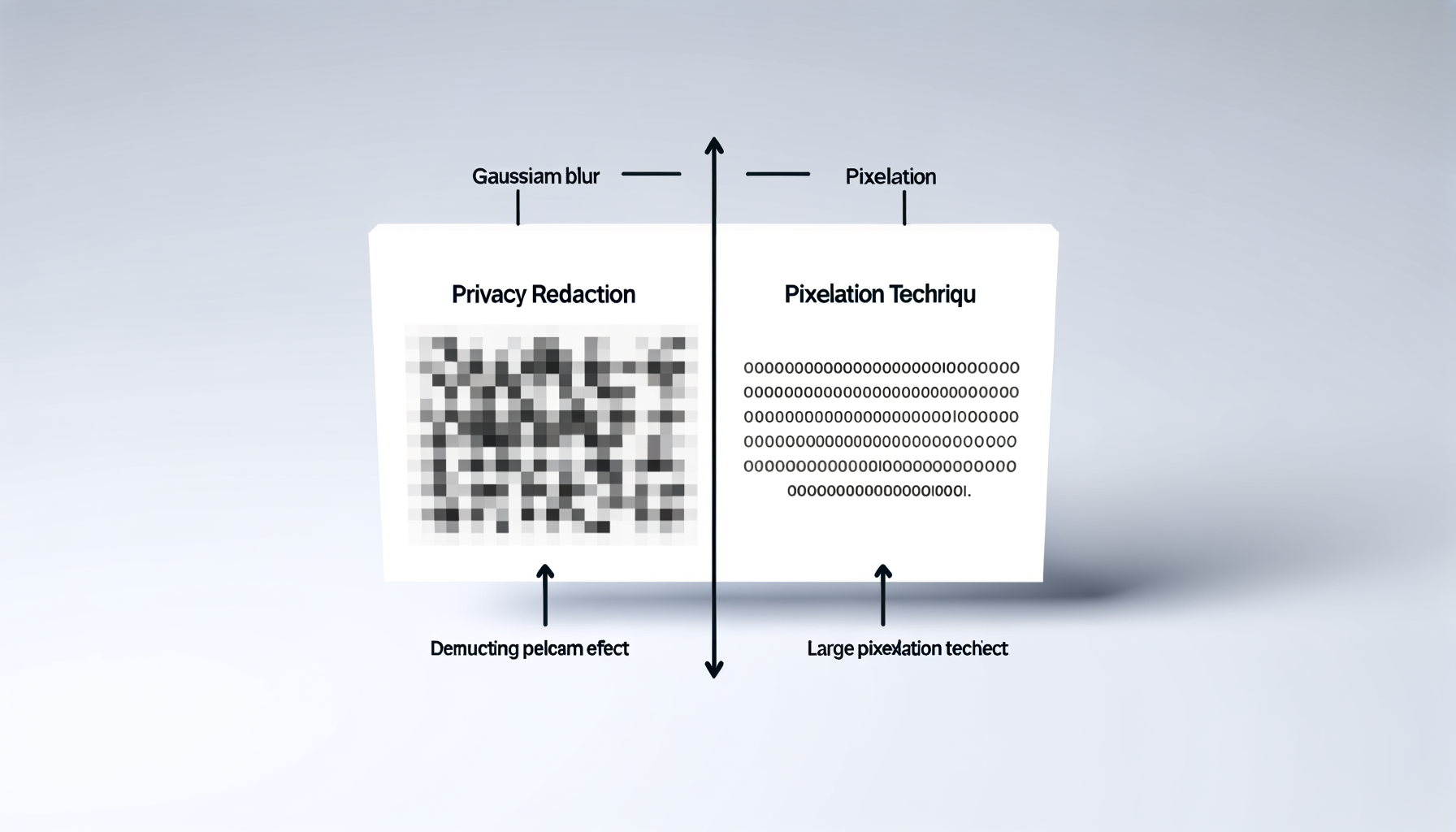
Pro tip: Use pixelation for faces (it's the industry standard) and blur for text (softer appearance).
Looking for alternatives? Check out our comparison of ScreenSnap Pro vs Shottr to see which tool fits your workflow.
Method 2: Using Preview with Shapes (Free, Built-in)
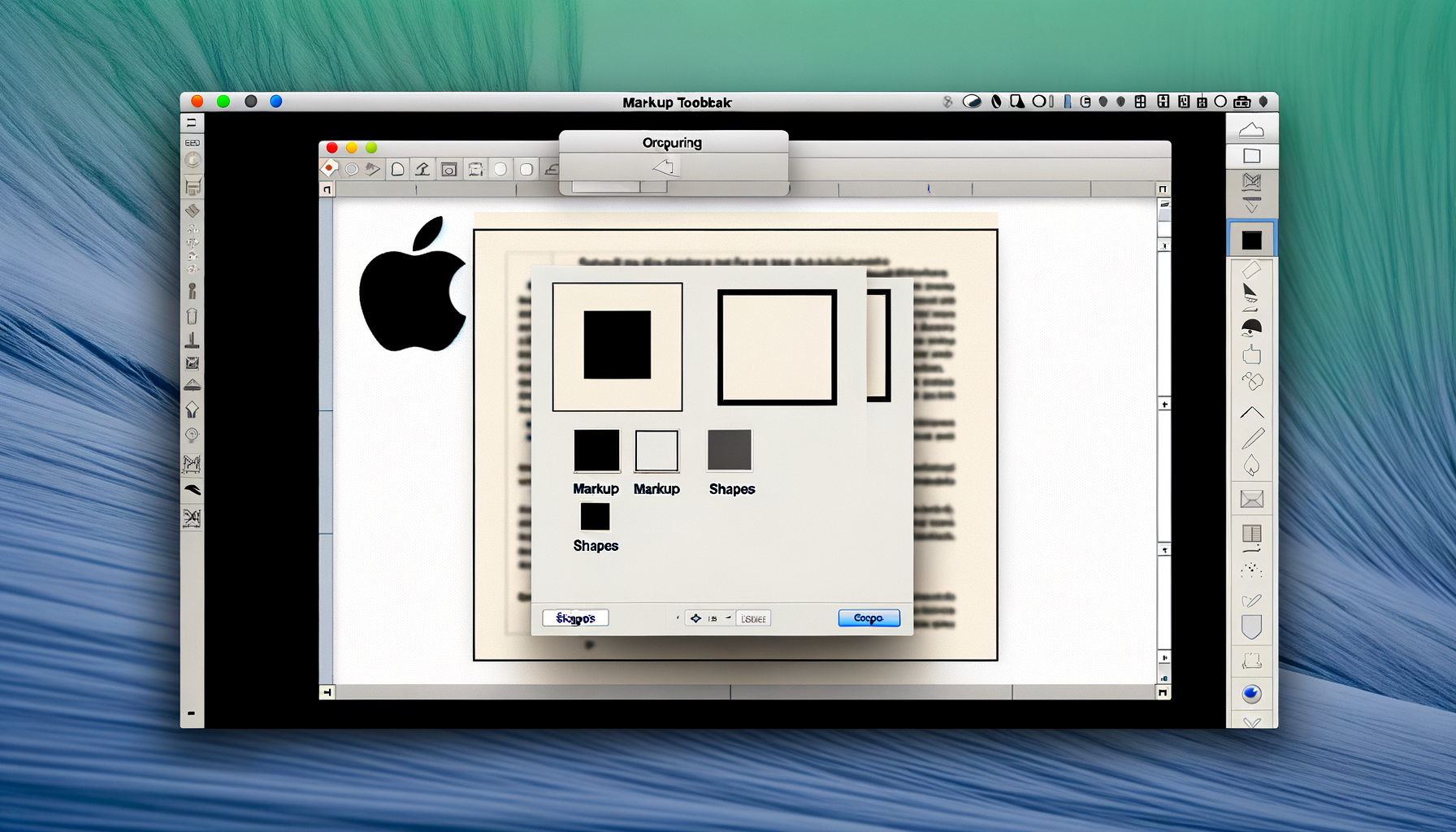
macOS Preview doesn't have a blur tool, but you can cover sensitive areas with shapes. It's not elegant, but it works.
Steps:
- Open your screenshot in Preview (double-click or right-click → Open With → Preview)
- Click the Markup toolbar icon (pencil in a circle)
- Click Shapes and select the rectangle
- Click Fill Color and choose a solid color (black or matching background)
- Set Border to none (the white box with red slash)
- Drag the shape over the sensitive area
- Resize using the corner handles
- Save (Cmd + S) or close to auto-save
Keyboard Shortcut:
Press Cmd + Shift + A to quickly open Markup mode.
Limitations:
- No actual blur effect, just colored shapes
- Shapes can potentially be moved/deleted if someone opens in Preview
- Time-consuming for multiple redactions
Method 3: Using Photos App Retouch Tool (Free, Built-in)
The Photos app has a hidden gem: the Retouch tool. It smudges content rather than blurring, but effectively hides text and details.
Steps:
- Import your screenshot into Photos (drag and drop, or File → Import)
- Double-click to open, then click Edit (top right)
- Select the Retouch tool from the right sidebar
- Adjust the brush size
- Paint over the sensitive information
- Click Done when finished
- Drag the edited image back to Finder
Best For:
Smudging out small text snippets or partially hiding content while keeping context.
Limitations:
- Doesn't create clean blur/pixelate effects
- Results can look messy on larger areas
- Extra steps to import/export
Method 4: Using Skitch (Free Download)
Skitch (by Evernote) is a free app with a dedicated pixelate tool. It's lightweight and gets the job done.
Steps:
- Download Skitch from the Mac App Store
- Open Skitch and drag your screenshot in (or take one directly)
- Click the Pixelate button in the sidebar
- Draw over the area to redact
- Export or share
Why Use Skitch:
- Free and simple
- Actual pixelation (not just shapes)
- Quick for one-off edits
Limitations:
- Requires installing another app
- Limited annotation tools compared to pro apps
- No blur option (pixelate only)

Tired of plain screenshots? Try ScreenSnap Pro.
Beautiful backgrounds, pro annotations, GIF recording, and instant cloud sharing, all in one app. Pay $39 once, own it forever.
See pricing and featuresMethod 5: Using Markup on iPhone/iPad (If You Have One)
If you take screenshots on your Mac but have an iPhone handy, iOS Markup has surprisingly good redaction tools.
Steps:
- AirDrop the screenshot to your iPhone
- Open in Photos and tap Edit
- Tap the Markup icon (pen tip)
- Use the pen tool with full opacity to draw over sensitive areas
- Save and AirDrop back
This is a workaround, but iOS Markup is faster than macOS Preview for quick redactions.
Blur vs. Pixelate: Which Should You Use?
| Use Case | Recommended Method | Why |
|---|---|---|
| Text (emails, passwords) | Blur | Softer look, professional appearance |
| Faces | Pixelate | Industry standard, clearly intentional |
| Numbers | Either | Personal preference |
| Large areas | Solid cover | Cleaner than heavy blur |
| Multiple small items | Blur | Faster to apply |
Common Mistakes to Avoid
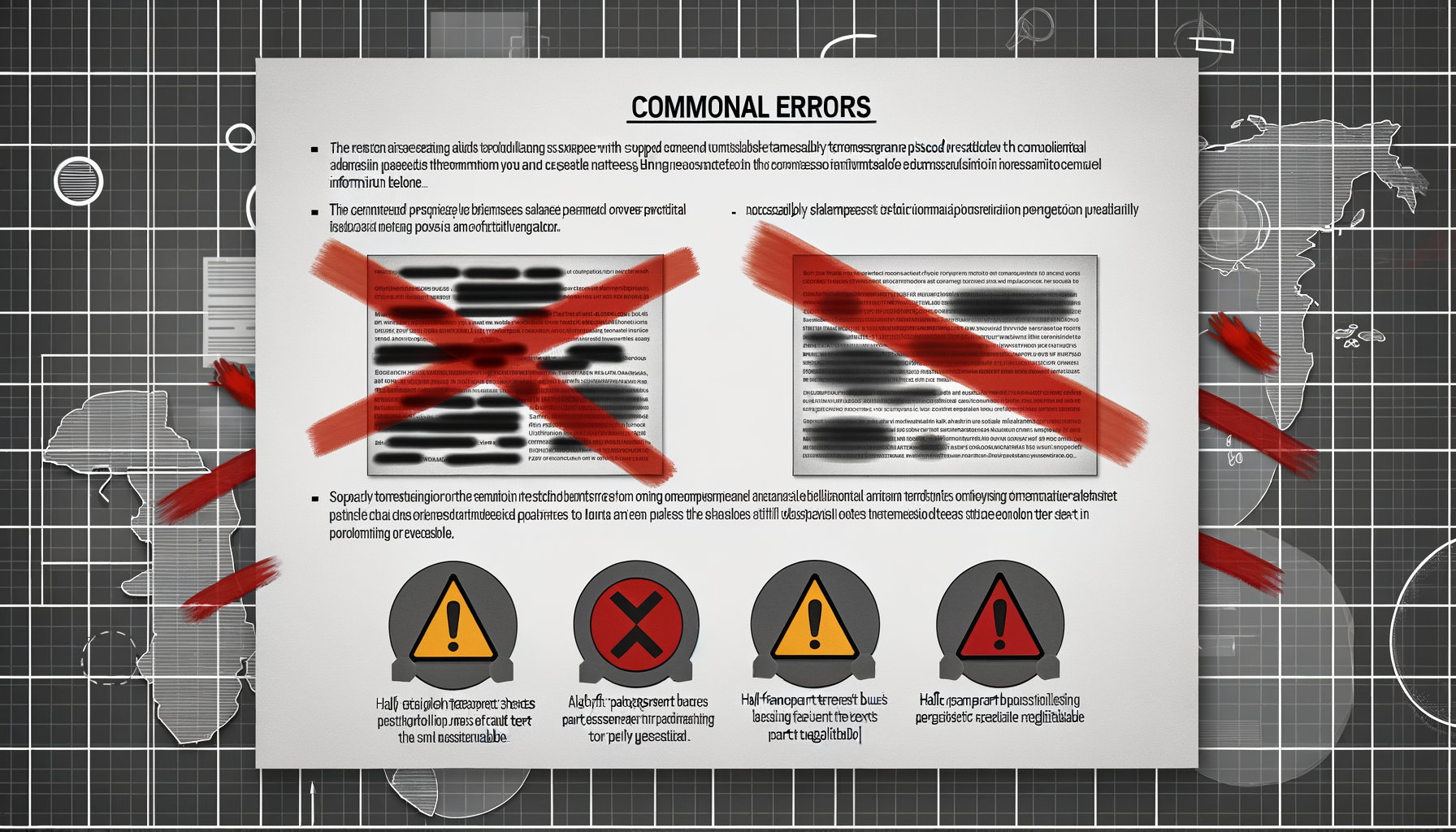
1. Using Transparent or Semi-Transparent Shapes
If someone adjusts levels in Photoshop, they might recover the text. Always use 100% opacity.
2. Not Flattening Layers
Some editors (like Photoshop or Pixelmator) save blur as a separate layer. Always flatten or export as PNG/JPG before sharing.
3. Using Insufficient Blur Intensity
If you can still vaguely read the text, so can others. When in doubt, blur more.
4. Forgetting Window Titles, URLs, or Tabs
Sensitive data hides in unexpected places: browser tabs, file paths, notification badges, menu bars.
5. Leaving Metadata Intact
Screenshots can contain metadata (location, device info, timestamps). For sensitive shares, strip metadata or use an app that does it automatically.
6. Relying on Cropping Alone
Cropping removes context but doesn't protect data that remains in frame. And some apps preserve the original crop area.
Best Practices for Secure Redaction
- Zoom in after editing. Verify nothing is legible at 200%+ zoom
- Use appropriate intensity. Blur until text is completely unrecognizable
- Check the entire image. Scan corners, notifications, tabs, reflections
- Save as a new file. Don't overwrite; some apps preserve history
- Test your redaction. Send to yourself first, open on another device
- Consider the black marker rule. If you wouldn't hold it up on TV, blur it
FAQ
Conclusion
Protecting sensitive information in screenshots isn't optional. It's essential. Whether you're sharing on social media, filing a bug report, or creating documentation, always scan for personal data before hitting send.
For occasional edits: Preview's shape tool or Skitch works fine. You can also try our free blur image tool or pixelate image tool to quickly redact sensitive info directly in your browser, with no install needed.
For regular screenshot work: ScreenSnap Pro's integrated blur and pixelate tools make redaction part of your workflow, not an afterthought.
The best redaction is the one you actually do. Pick a method, make it a habit, and never worry about accidentally leaking sensitive data again.
Related Articles

Morgan
Indie DeveloperIndie developer, founder of ScreenSnap Pro. A decade of shipping consumer Mac apps and developer tools. Read full bio
@m_0_r_g_a_n_