Best Screenshot Apps for Mac (2026): 8 Tested and Ranked
Short answer: macOS Screenshot (Shift-Cmd-5) is fine for a quick grab, and you only need a third-party app once you start annotating, sharing, or recording. For a free upgrade, Shottr is the lightest. For a paid one-time app that also records video and GIFs, ScreenSnap Pro is $39 with no subscription. The eight apps below are ranked on what each one actually does better than the built-in tool.
Taking screenshots on a Mac is easy. Taking great screenshots? That requires the right tool, such as ScreenSnap Pro.
Whether you're a developer documenting bugs, a content creator sharing tutorials, or a professional communicating with clients, the built-in macOS screenshot tool probably isn't cutting it anymore.
In this guide, I've tested and compared the best screenshot apps for Mac in 2026, from free options to professional tools, so you can find exactly what fits your workflow. Every app here was run against the same set of captures, so the comparisons are like for like. If you want the wider market instead of a head-to-head, our price-sorted directory of 10 Mac screen capture tools lists everything including the recording-focused options.
Quick Comparison: Best Mac Screenshot Apps 2026
| App | Price | Cloud Upload | GIF Recording | Backgrounds | OCR | Scrolling | Best For |
|---|---|---|---|---|---|---|---|
| ScreenSnap Pro | $39 once | ✅ | ✅ | 150+ | ✅ | ❌ | Content creators |
| CleanShot X | $29/year | ✅ | ✅ | Limited | ✅ | ✅ | Power users |
| Shottr | Free | ❌ | ❌ | ❌ | ✅ | ✅ | Developers |
| Snagit | $63 once | ✅ | ✅ | ❌ | ✅ | ✅ | Enterprise |
| Xnapper | $15 once | ❌ | ❌ | ✅ | ❌ | ❌ | Quick beautification |
| Lightshot | Free | ✅ | ❌ | ❌ | ❌ | ❌ | Basic needs |
| Monosnap | Free tier | ✅ | ❌ | ❌ | ❌ | ❌ | Quick sharing |
| macOS Built-in | Free | ❌ | ❌ | ❌ | ❌ | ❌ | Quick captures |
What to Look for in a Screenshot App
Before diving into each app, here's what actually matters when choosing a screenshot tool:
Must-Have Features
- Capture flexibility. Full screen, window, region, and timed captures
- Annotation tools. Arrows, text, shapes for pointing things out (our free image annotation tool covers those in the browser when you only need them now and then)
- Easy sharing. Whether that's quick copy-paste or cloud links
Nice-to-Have Features
- Cloud upload. Get shareable links instantly without file attachments
- GIF recording. Create quick demos and tutorials
- Beautiful backgrounds. Make screenshots presentation-ready
- OCR text recognition. Copy text from any image
- Scrolling capture. Capture entire web pages
Pricing Model Matters
Screenshot apps follow different pricing models:
- One-time purchase. Pay once, own forever
- Subscription. Ongoing payments for continued access
- Free with limitations. Basic features free, pay for more
I'll be upfront: subscription pricing for a screenshot app feels like overkill to most users. Unless you need constant updates, a one-time payment makes more sense.
Free is not automatically the safe choice either. Skitch for Mac is still free to download and has not shipped an update since 2016, which is what an abandoned free app eventually looks like.
#1: ScreenSnap Pro, the Best Pick for Content Creators
Price: $39 one-time | Platform: macOS, Windows
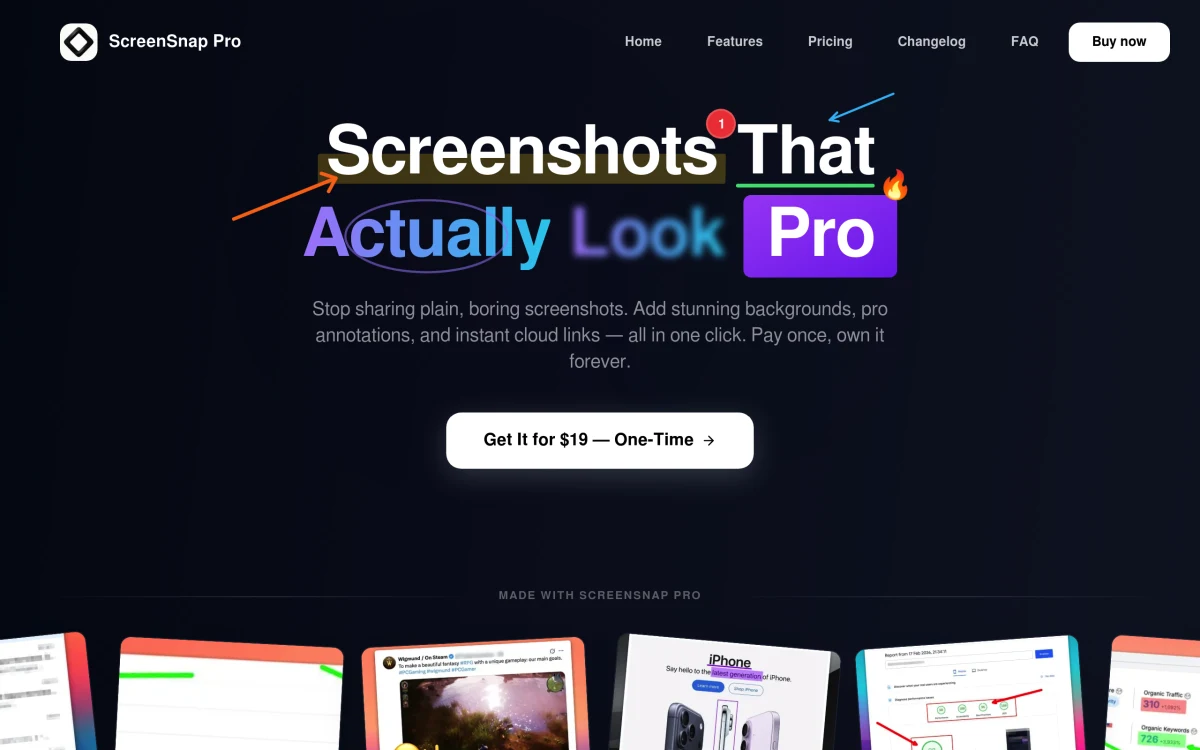
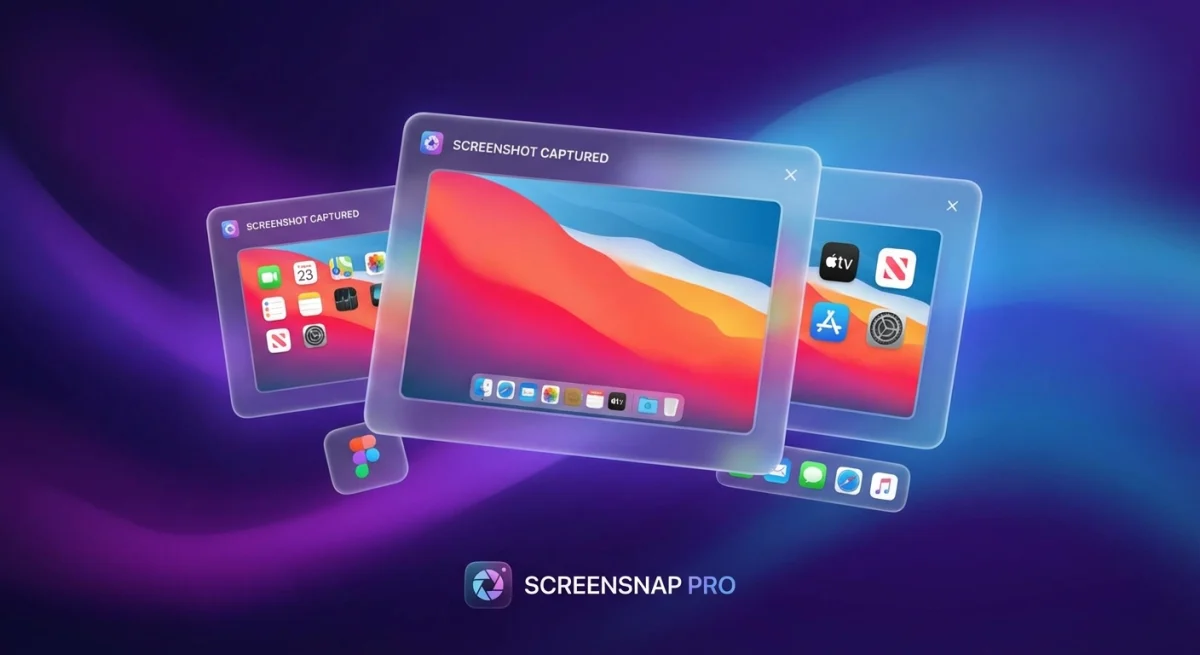
ScreenSnap Pro is the screenshot app I wish existed years ago. It focuses on what most users actually need: capturing screenshots, making them look professional, and sharing them instantly.
What Makes It Stand Out
Beautiful Backgrounds
With 500+ wallpapers, you can transform plain screenshots into polished visuals. No Figma, no Photoshop, just click and apply.
Instant Cloud Sharing
Take a screenshot, hit upload, and you've got a link ready to paste. No account required, no file size limits getting in your way.
Pin Screenshot
Pin a capture so it floats above every other window, which is the simplest way to keep a reference always on top on Mac without installing a separate window manager.
GIF & Video Recording
Create quick tutorials or bug reports with the built-in GIF recorder, or capture full video screen recordings. Both are lightweight and produce optimized files.
One-Time Payment
$39 once and it's yours forever. No subscriptions, no renewal reminders, no "your trial is expiring" notifications.
Key Features
- Quick Access Overlay for instant editing
- 15 annotation tools (arrows, shapes, text, blur, highlight)
- Privacy blur for sensitive information
- Keyboard shortcuts for power users
- No watermarks ever
Limitations
- No scrolling capture (yet)
Verdict
Best for: Content creators, marketers, indie developers, and anyone who shares screenshots regularly. If you want your screenshots to look professional without spending time in design tools, this is it.
#2: CleanShot X, the Best Pick for Power Users
Price: $29/year (subscription) | Platform: macOS
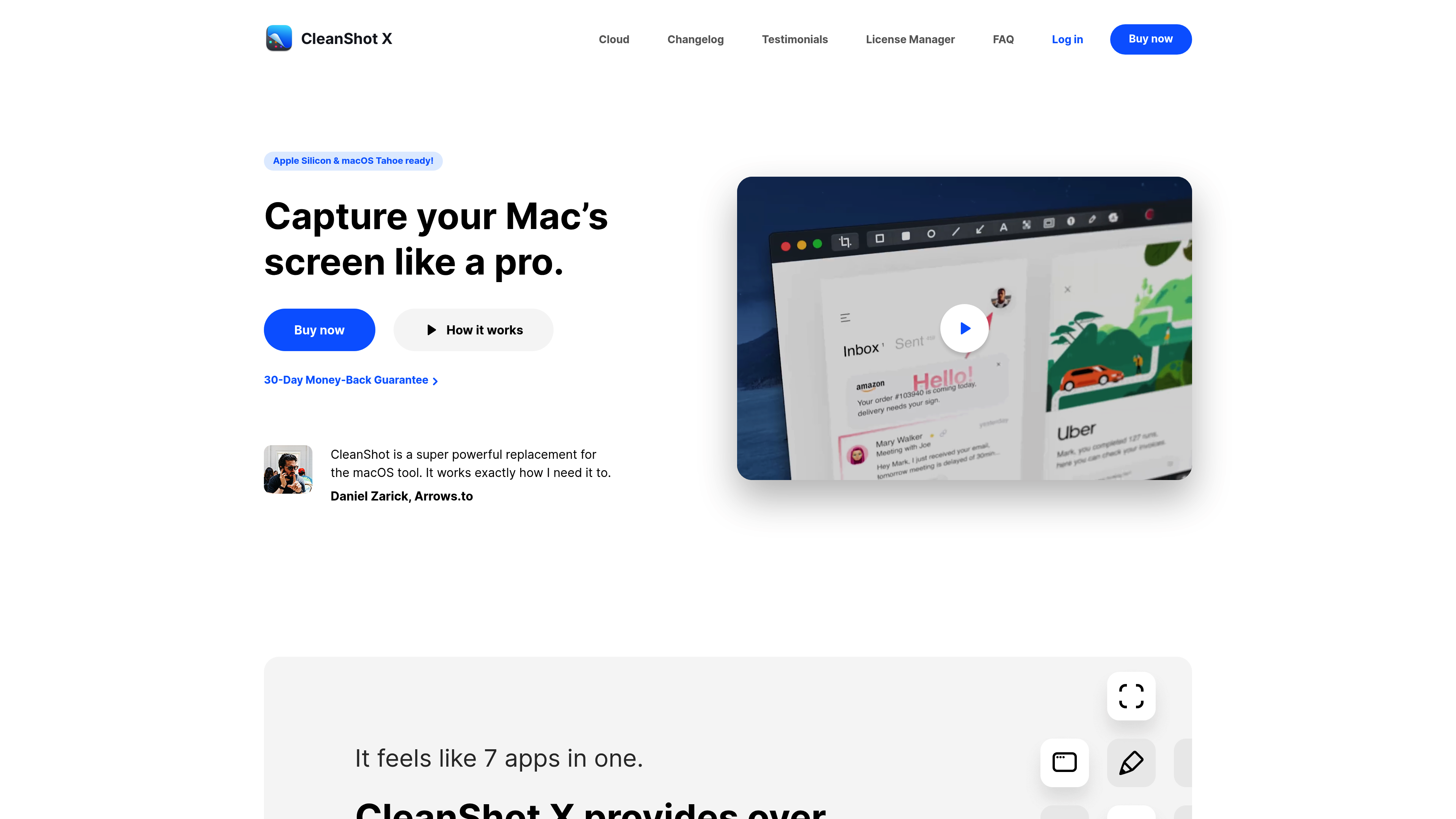
CleanShot X has been the dominant screenshot app for Mac users for years, and for good reason. It's packed with features that power users love.
What Makes It Stand Out
Feature-Complete
If a screenshot feature exists, CleanShot X probably has it. Scrolling capture, OCR, annotations, cloud upload, GIF recording, screen recording: it's all there.
Polish and Refinement
The app feels native to macOS. Every interaction is smooth, every feature is well-thought-out.
Cloud Integration
Their cloud service works seamlessly. Screenshots upload quickly and you get clean, short links.
Key Features
- Scrolling capture for long web pages
- OCR text recognition
- Screen recording with audio
- Annotation tools
- Pin screenshots on screen
- Quick access overlay
Limitations
- Subscription pricing. $29/year means $87 over 3 years, $145 over 5 years
- Feature bloat: many users only need 20% of what it offers
- Learning curve: so many features can be overwhelming
Verdict
Best for: Power users who need every feature and don't mind subscription pricing. If you use screenshots heavily in your daily workflow and want the most complete toolset, CleanShot X delivers.
Considering CleanShot X? Read our detailed CleanShot X vs ScreenSnap Pro comparison.
#3: Shottr, the Best Free Option for Developers
Price: Free | Platform: macOS
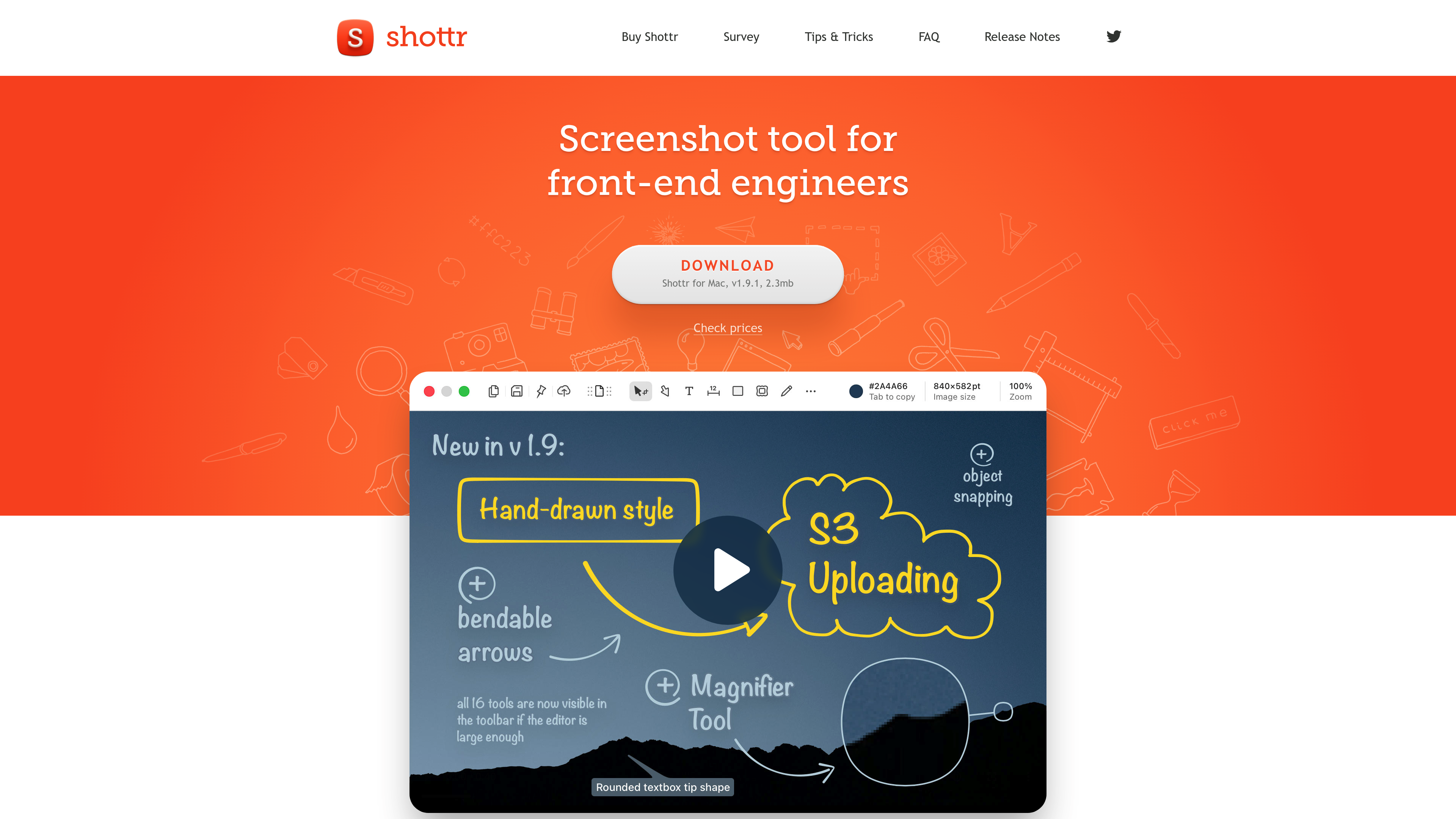
Shottr is the developer's secret weapon. It's completely free, surprisingly powerful, and built by a developer who clearly understands developer needs.
What Makes It Stand Out
Pixel-Perfect Measurements
Measure distances between elements, get exact pixel dimensions, overlay rulers, all essential for UI/UX work.
OCR That Actually Works
Copy text from any screenshot. It's fast and accurate, even with tricky fonts.
Scrolling Capture
Grab entire web pages or long documents in a single screenshot.
It's Actually Free
No premium tier, no feature gates, no "free trial" bait-and-switch.
Key Features
- Pixel measurements and rulers
- OCR text recognition
- Scrolling capture
- Basic annotations
- Color picker
- QR code reader
Limitations
- No cloud sharing
- No GIF recording
- No beautification or backgrounds
- Minimal/utilitarian design
Verdict
Best for: Developers, UI/UX designers, and anyone who needs precise measurements. If aesthetics don't matter and you want powerful features for free, Shottr is unbeatable.
See how it stacks up: ScreenSnap Pro vs Shottr: Which One is Right for You?
#4: Snagit, the Best Pick for Enterprise
Price: $63 one-time (+ optional maintenance) | Platform: macOS, Windows
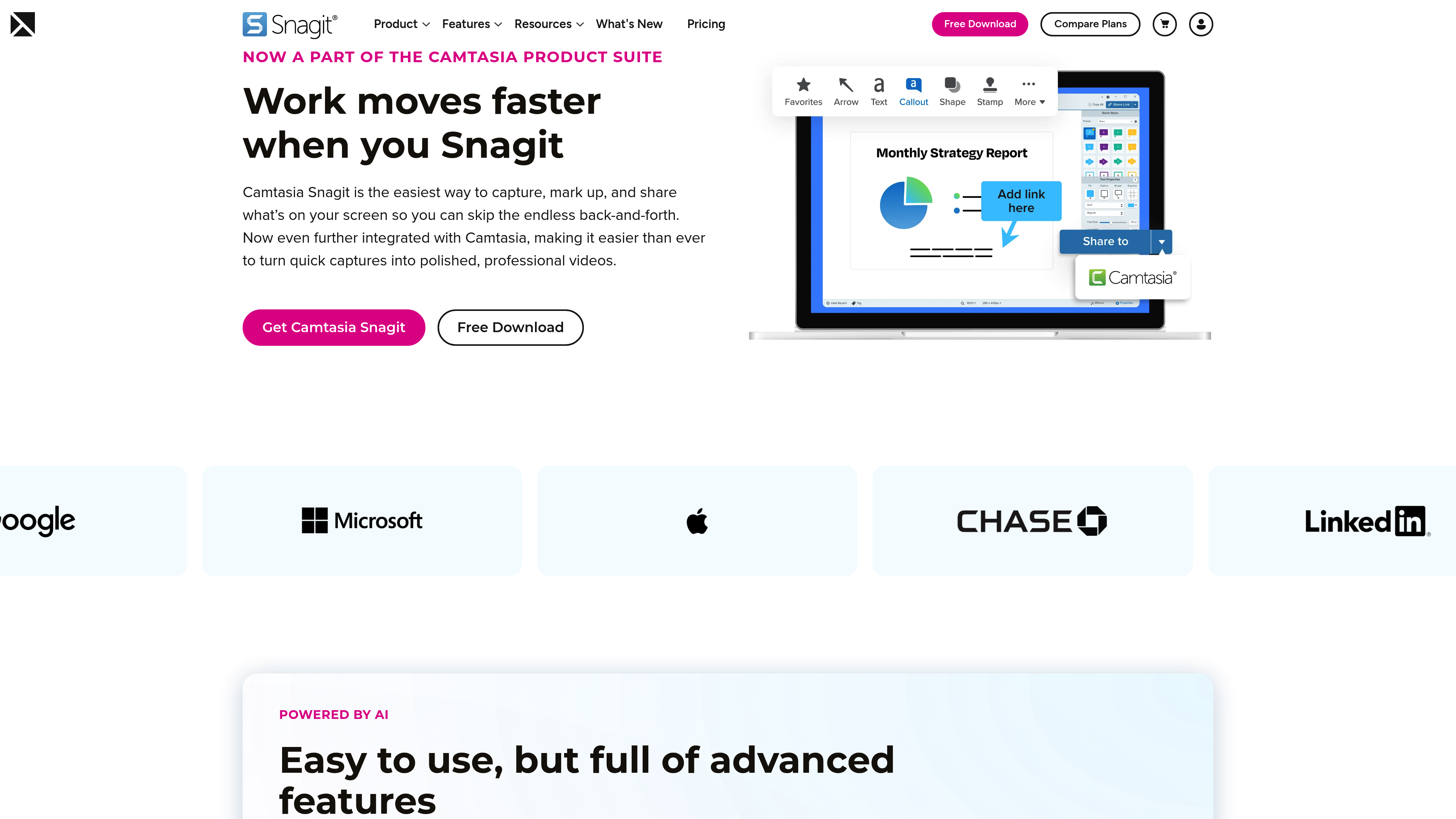
Snagit is the enterprise standard. It's been around forever, it works on both Mac and Windows, and IT departments love it.
What Makes It Stand Out
Cross-Platform
If your team uses both Mac and Windows, Snagit ensures everyone has the same tool.
Video Recording
Full screen recording with webcam overlay, audio narration, and basic editing.
Templates and Stamps
Pre-built elements for creating consistent documentation.
Key Features
- Screen recording with audio
- Scrolling capture
- OCR text recognition
- Templates and stamps
- Integration with popular tools
Limitations
- Expensive. $63 base, plus recurring fees for maintenance
- Heavy. Uses more system resources than competitors
- Dated design. Interface feels stuck in 2015
- Mac version is weaker. Windows version gets more attention
Verdict
Best for: Enterprise teams that need cross-platform consistency and don't mind the price. If your company is buying, Snagit is a safe, proven choice.
Looking to switch? Check out Best Snagit Alternative for Mac in 2026.

Tired of plain screenshots? Try ScreenSnap Pro.
Beautiful backgrounds, pro annotations, GIF recording, and instant cloud sharing, all in one app. Pay $39 once, own it forever.
See pricing and features#5: Xnapper, the Best Pick for Quick Beautification
Price: $15 one-time | Platform: macOS
Xnapper does one thing well: it makes screenshots beautiful with minimal effort.
What Makes It Stand Out
Automatic Beautification
Screenshots are automatically centered with padding and backgrounds applied. It's the fastest way to make a screenshot shareable.
Simple and Focused
No feature bloat. Capture, beautify, share. That's it.
Affordable
At $15, it's the cheapest paid option that does beautification well.
Key Features
- Automatic background application
- Padding and rounded corners
- Quick capture shortcuts
- Multiple background options
Limitations
- No cloud sharing
- No GIF recording
- Limited annotation tools
- No scrolling capture or OCR
Verdict
Best for: Users who only need beautified screenshots and nothing else. If your workflow is "screenshot → make pretty → share," Xnapper is efficient.
#6: Lightshot, the Best Free Basic Tool
Price: Free | Platform: macOS, Windows
Lightshot is the "good enough" option. It's free, cross-platform, and handles the basics well.
What Makes It Stand Out
Simple Cloud Sharing
Take a screenshot, upload to their servers, get a link. No account needed.
Cross-Platform
Works on Mac and Windows with the same interface.
Truly Free
No premium tier nagging you to upgrade.
Key Features
- Quick region capture
- Basic annotations
- Cloud upload to prnt.sc
- Image search
Limitations
- Basic annotation tools only
- No GIF recording
- No backgrounds or beautification
- Privacy concerns (uploads go to their servers)
Verdict
Best for: Users with basic needs who want quick sharing. If you just need to capture → annotate → share occasionally, Lightshot works.
#7: Monosnap, the Best Free Tool with Cloud
Price: Free tier available | Platform: macOS, Windows
Monosnap offers a solid free tier with cloud storage included, making it a good option for casual users.
What Makes It Stand Out
Free Cloud Storage
2GB free storage for screenshots. Share links without paying.
Screen Recording
Basic screen recording included in the free tier.
Third-Party Integrations
Upload to Dropbox, Google Drive, S3, and more.
Key Features
- Cloud storage (2GB free)
- Screen recording
- Basic annotations
- Third-party cloud integration
Limitations
- Watermarks on some features in free tier
- Dated interface
- Limited beautification options
Verdict
Best for: Users who want free cloud storage for screenshots. If you share screenshots frequently but don't want to pay, Monosnap's free tier is generous.
#8: macOS Built-in Screenshot, the Best Pick for Quick Captures
Price: Free (built into macOS) | Platform: macOS
Every Mac comes with screenshot tools built in. For quick, no-frills captures, they work.
Keyboard Shortcuts
- ⌘ + Shift + 3. Full screen capture
- ⌘ + Shift + 4. Region selection
- ⌘ + Shift + 4 + Space. Window capture
- ⌘ + Shift + 5. Screenshot toolbar
What It Does Well
- Always available
- No installation required
- Basic markup in Preview
- Screen recording (⌘ + Shift + 5)
Limitations
- No instant sharing
- No cloud upload
- No beautification
- Basic annotations only
- No GIF recording
Verdict
Best for: Quick captures when you don't need to share or annotate. Good for taking a quick screenshot and pasting into a document.
Feature Comparison Matrix
Capture Features
| Feature | ScreenSnap Pro | CleanShot X | Shottr | Snagit |
|---|---|---|---|---|
| Region capture | ✅ | ✅ | ✅ | ✅ |
| Window capture | ✅ | ✅ | ✅ | ✅ |
| Timed capture | ✅ | ✅ | ✅ | ✅ |
| Scrolling capture | ❌ | ✅ | ✅ | ✅ |
| GIF recording | ✅ | ✅ | ❌ | ✅ |
| Video recording | ✅ | ✅ | ❌ | ✅ |
Editing Features
| Feature | ScreenSnap Pro | CleanShot X | Shottr | Snagit |
|---|---|---|---|---|
| Arrows/shapes | ✅ | ✅ | ✅ | ✅ |
| Text annotations | ✅ | ✅ | ✅ | ✅ |
| Blur/pixelate | ✅ | ✅ | ✅ | ✅ |
| Highlight | ✅ | ✅ | ✅ | ✅ |
| Background gradients | ✅ (150+) | Limited | ❌ | ❌ |
| OCR text recognition | ❌ | ✅ | ✅ | ✅ |
Sharing Features
| Feature | ScreenSnap Pro | CleanShot X | Shottr | Snagit |
|---|---|---|---|---|
| Cloud upload | ✅ | ✅ | ❌ | ✅ |
| Shareable links | ✅ | ✅ | ❌ | ✅ |
| Direct copy | ✅ | ✅ | ✅ | ✅ |
Which Screenshot App Should You Choose?
Choose ScreenSnap Pro if:
- You share screenshots regularly and want them to look professional
- You hate subscriptions and prefer one-time payments
- You need cloud sharing without file attachments
- You create tutorials or demos with GIFs or screen recordings
- You work on both Mac and Windows
Choose CleanShot X if:
- You need every possible feature (OCR, scrolling capture, webcam overlay)
- Subscription pricing doesn't bother you
- You're a power user who'll use 80%+ of the features
Choose Shottr if:
- You're a developer or designer who needs pixel measurements
- You need OCR text recognition
- You want powerful features for free
- Aesthetics don't matter for your screenshots
Choose Snagit if:
- You're in an enterprise environment
- You need cross-platform (Mac + Windows) consistency
- Your company is paying
Choose macOS Built-in if:
- You rarely take screenshots
- You don't need to share them online
- Simple captures are enough
The Bottom Line
There's no universally "best" screenshot app, because it depends on your workflow.
For most users who share screenshots regularly and want them to look professional without fiddling with design tools, ScreenSnap Pro offers the best balance of features, aesthetics, and value at $39 one-time.
If you need the absolute most features and don't mind subscriptions, CleanShot X is the power user's choice.
If you're a developer on a budget, Shottr is free and surprisingly capable.
Whatever you choose, stop settling for the basic macOS screenshot tool. Your screenshots deserve better.
👉 Want the full deep-dive? See our comprehensive comparison guide with detailed specs and pricing.
Frequently Asked Questions

Morgan
Indie DeveloperIndie developer, founder of ScreenSnap Pro. A decade of shipping consumer Mac apps and developer tools. Read full bio
@m_0_r_g_a_n_