







Screenshot tool for Mac & Windows

ScreenSnap Pro is a screenshot tool for Mac and Windows. Capture any region, window or screen, mark it up with 17 annotation tools, blur what’s private and share it in seconds. Pay $34 once, own it forever.

All 17 annotation tools

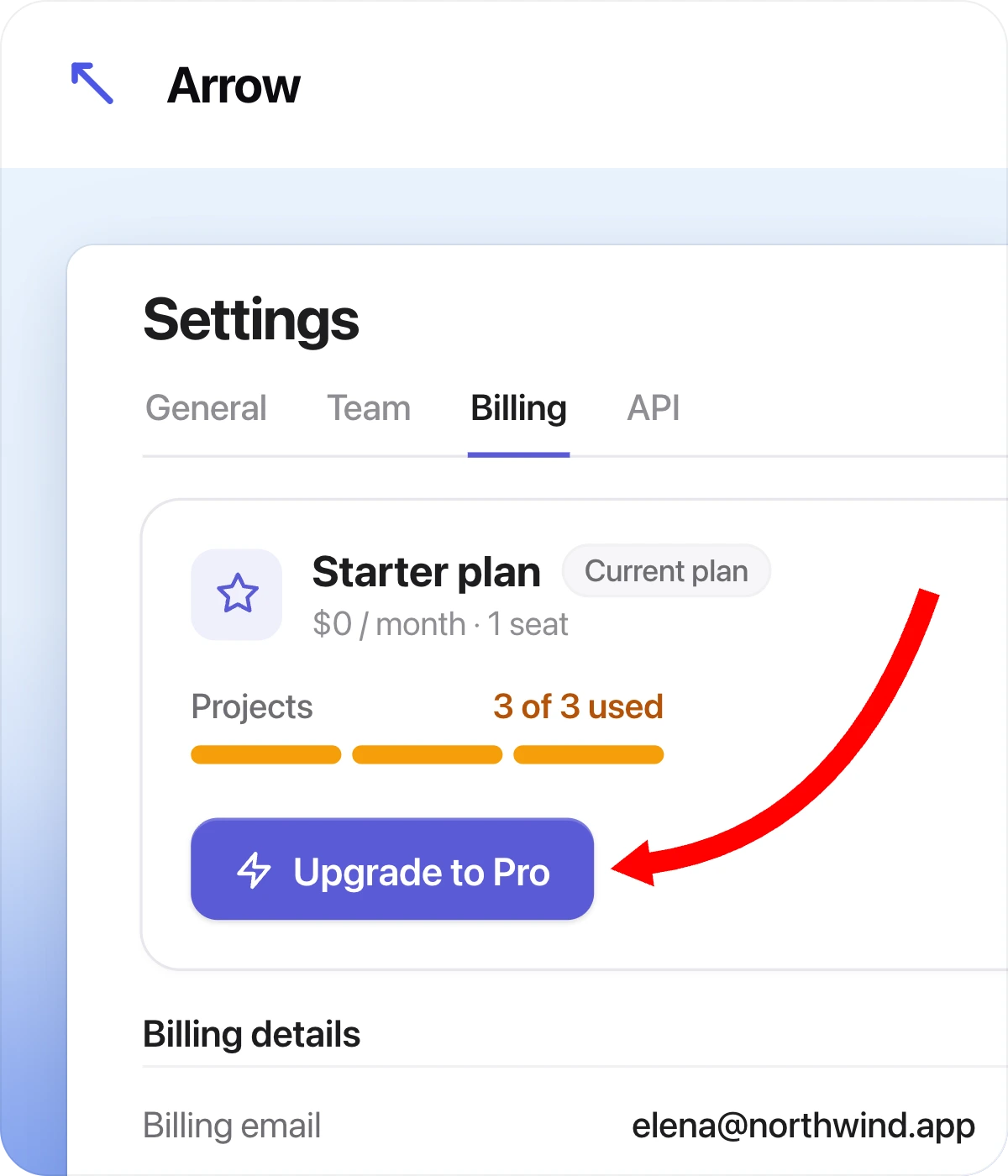
  • Arrow: a curved arrow pointing to the Upgrade to Pro button in billing settings
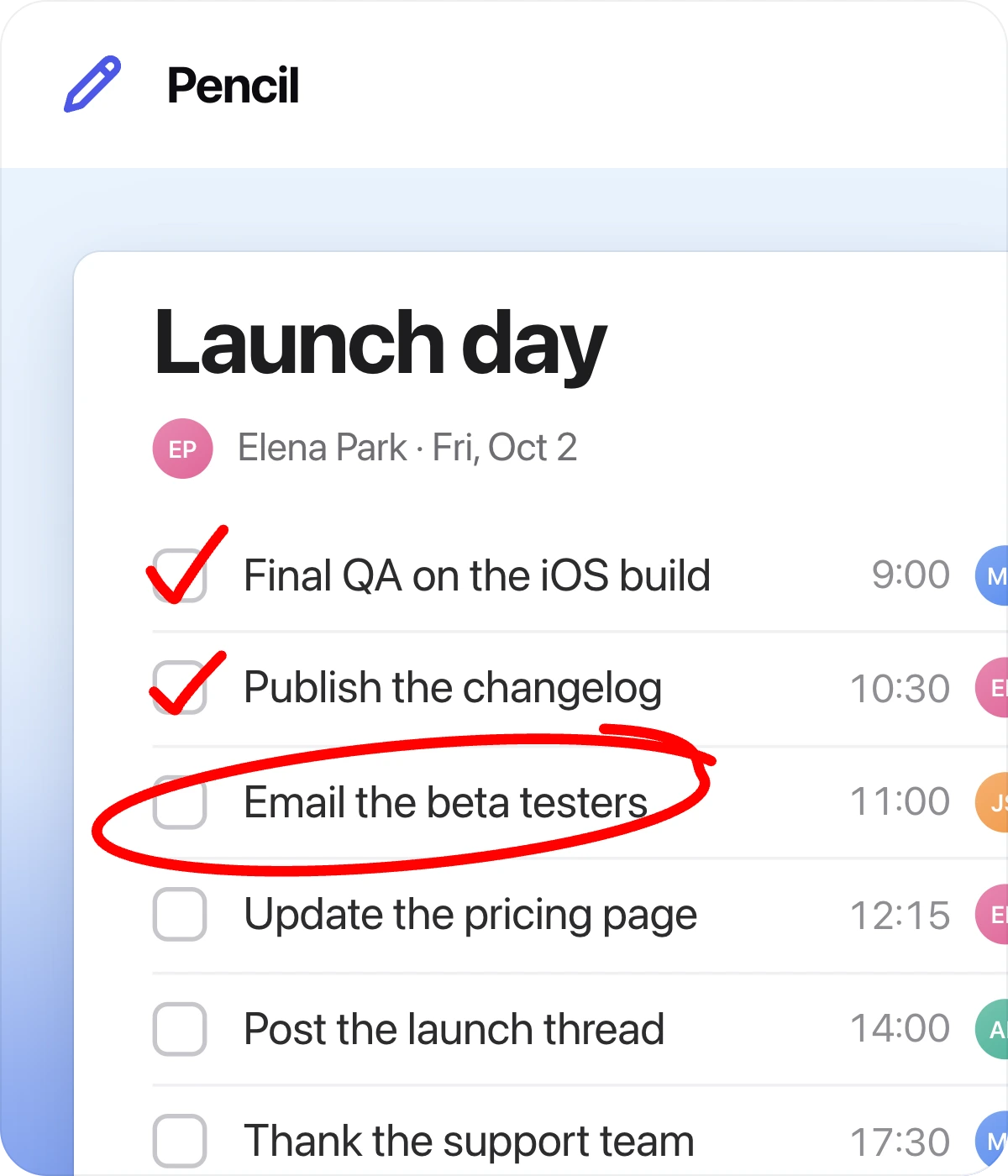
  • Pencil: hand-drawn check marks and a loop on a launch-day to-do list
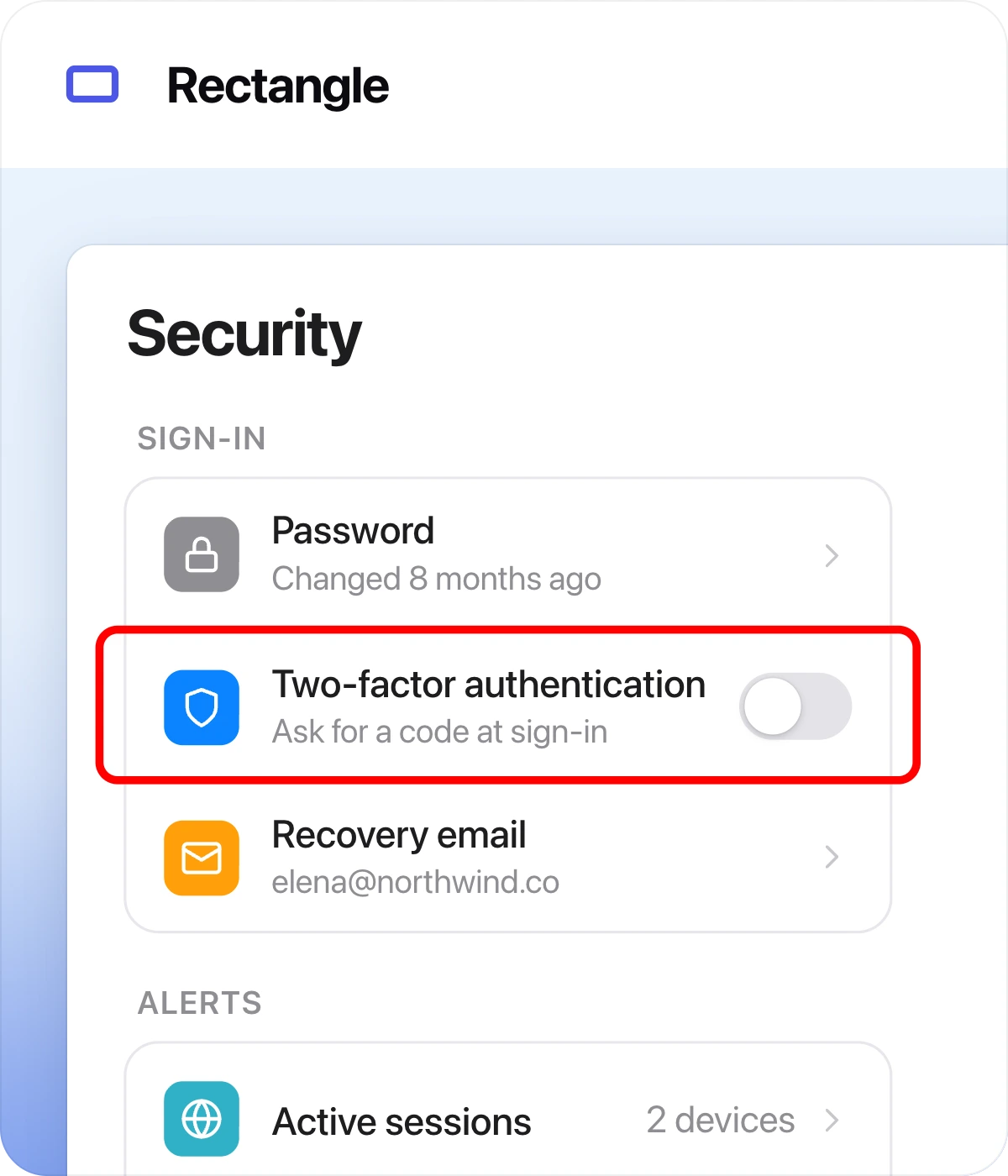
  • Rectangle: a red outline around the two-factor authentication setting
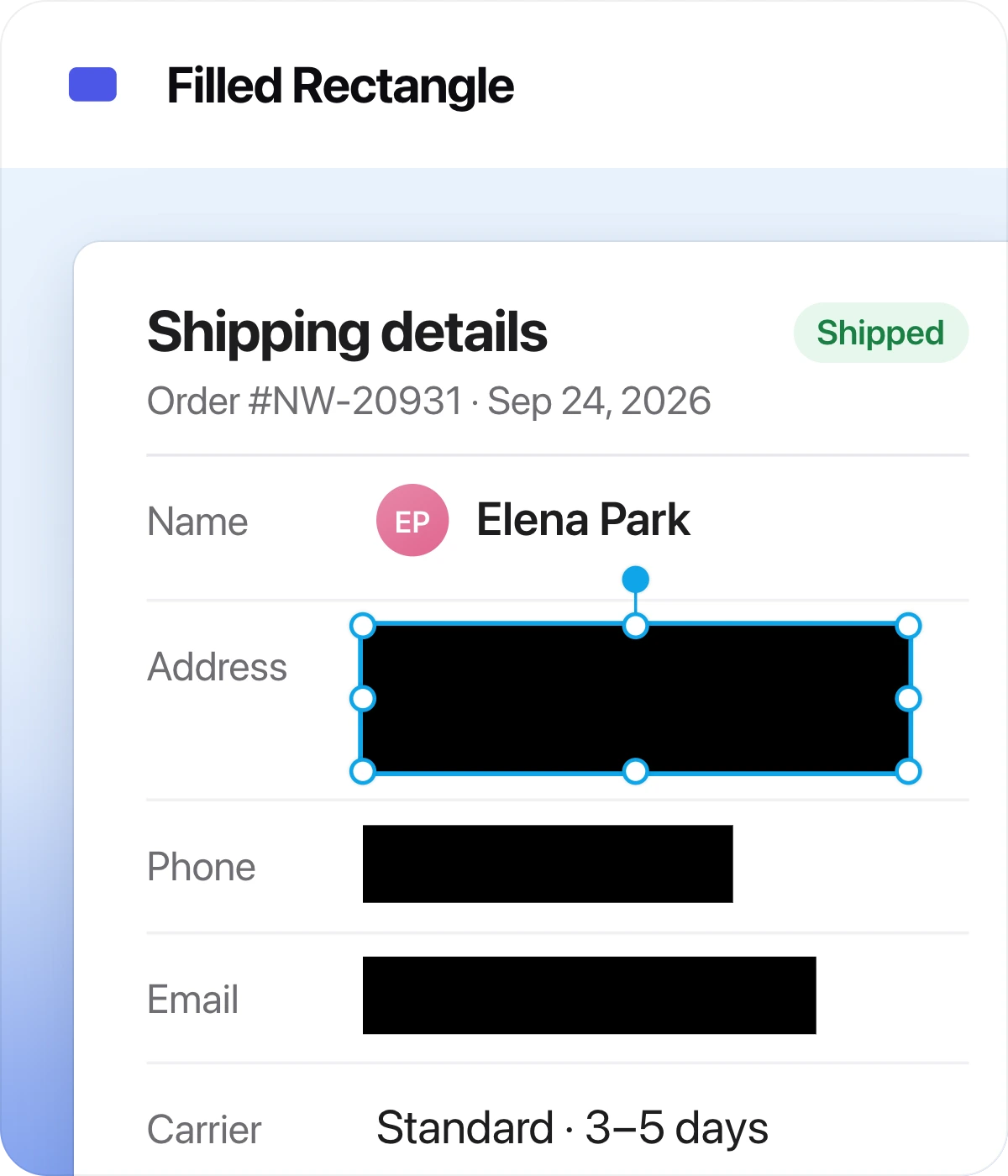
  • Filled Rectangle: solid bars hiding the address, phone, and email on an order
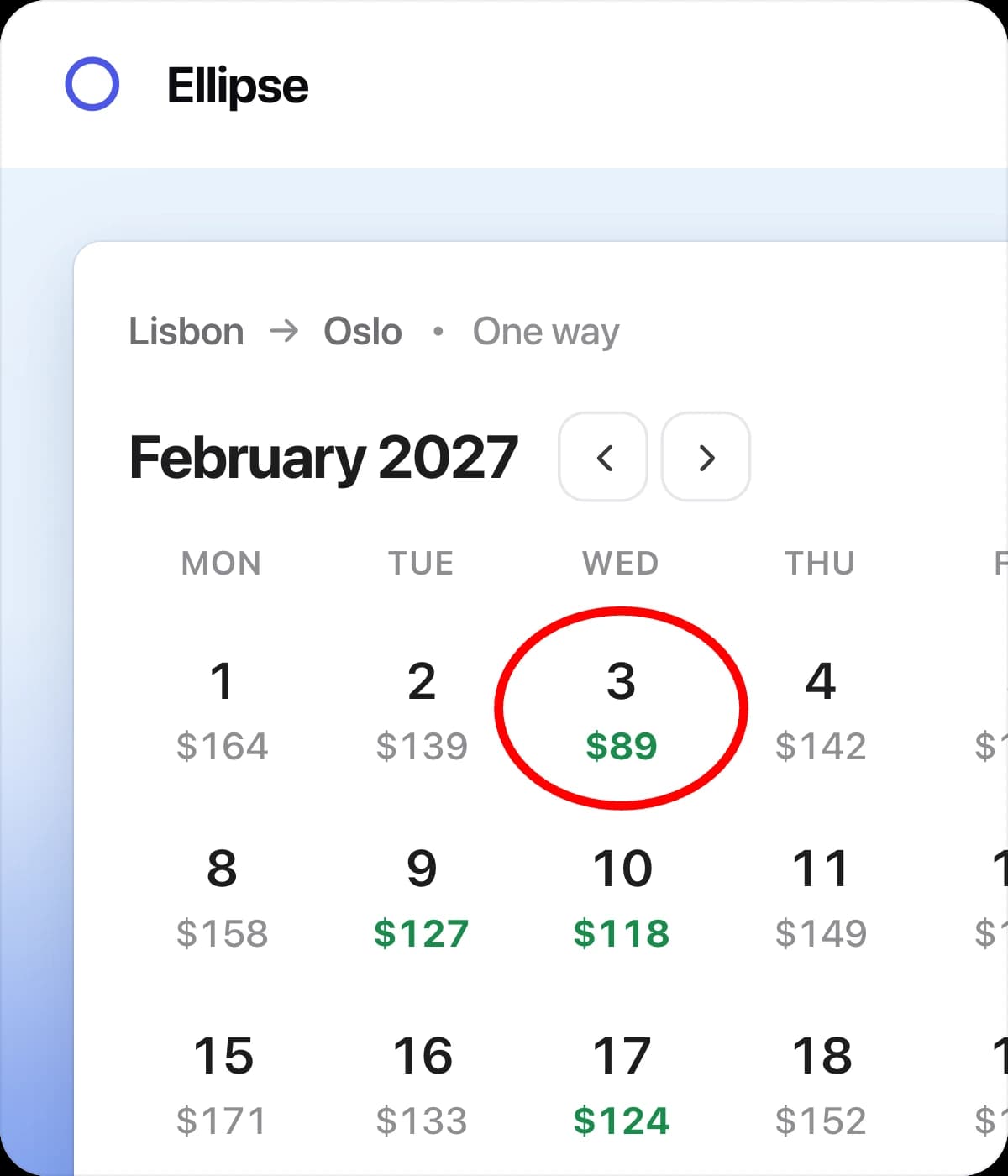
  • Ellipse: the cheapest fare circled on a flight calendar
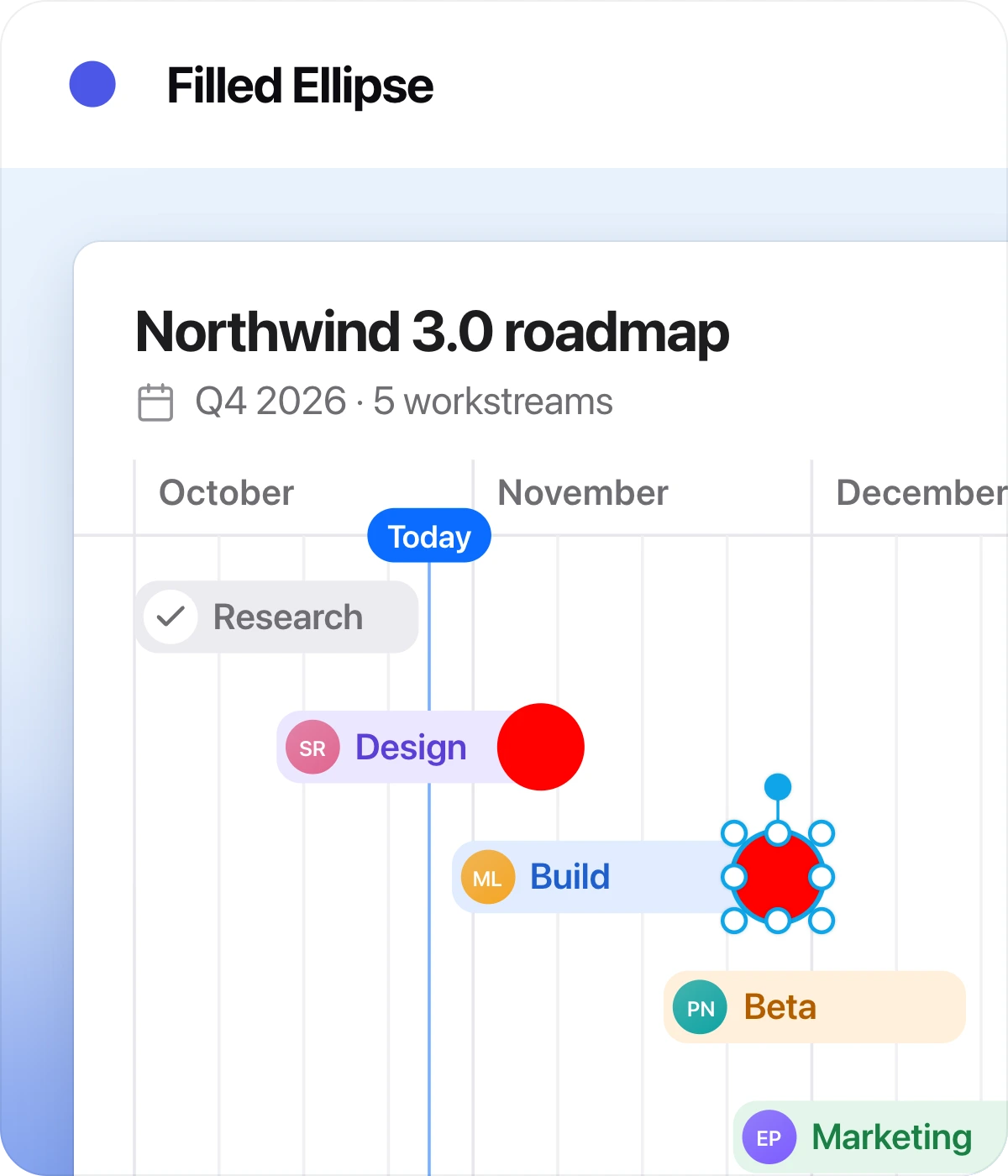
  • Filled Ellipse: filled markers on a product roadmap timeline
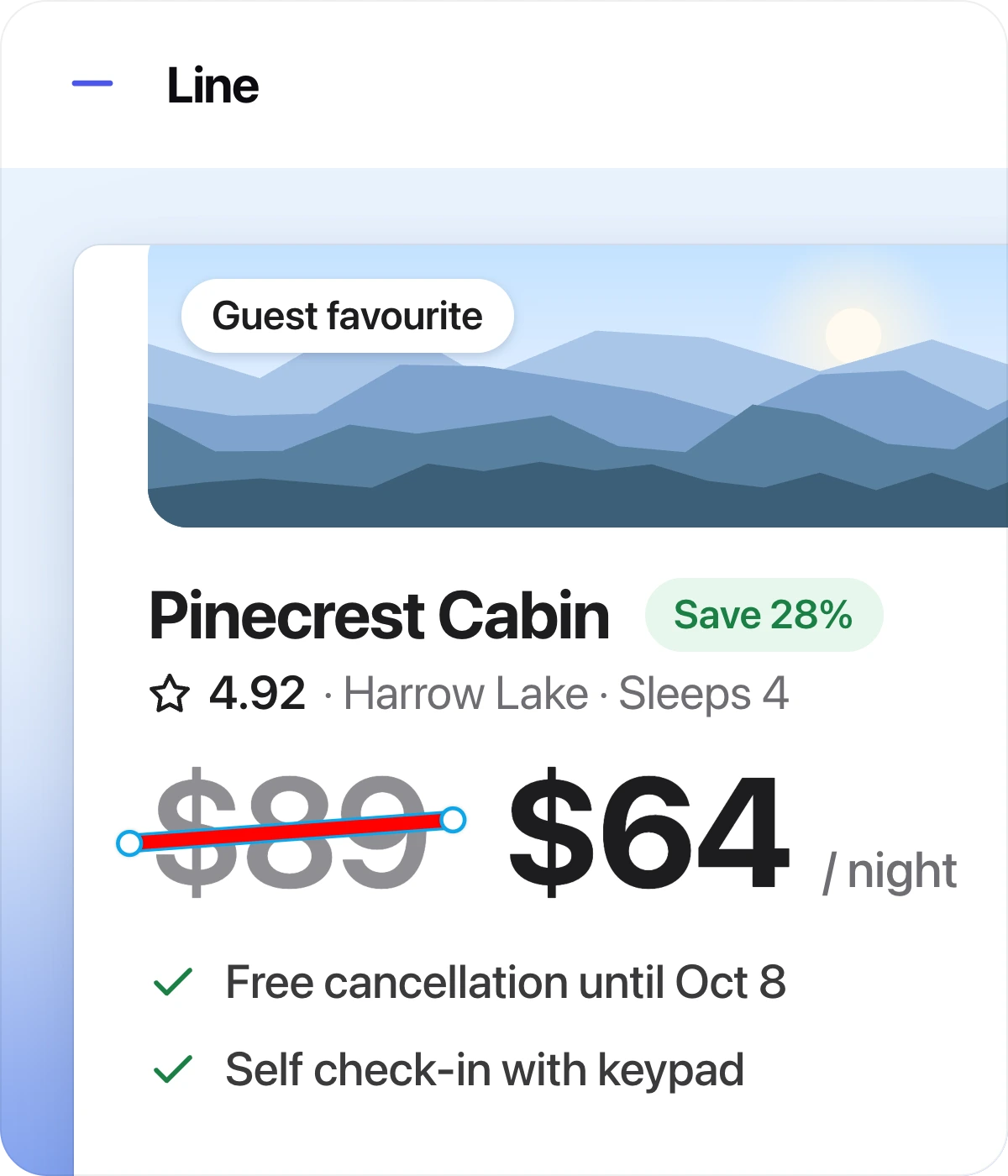
  • Line: the old price struck through on a booking card
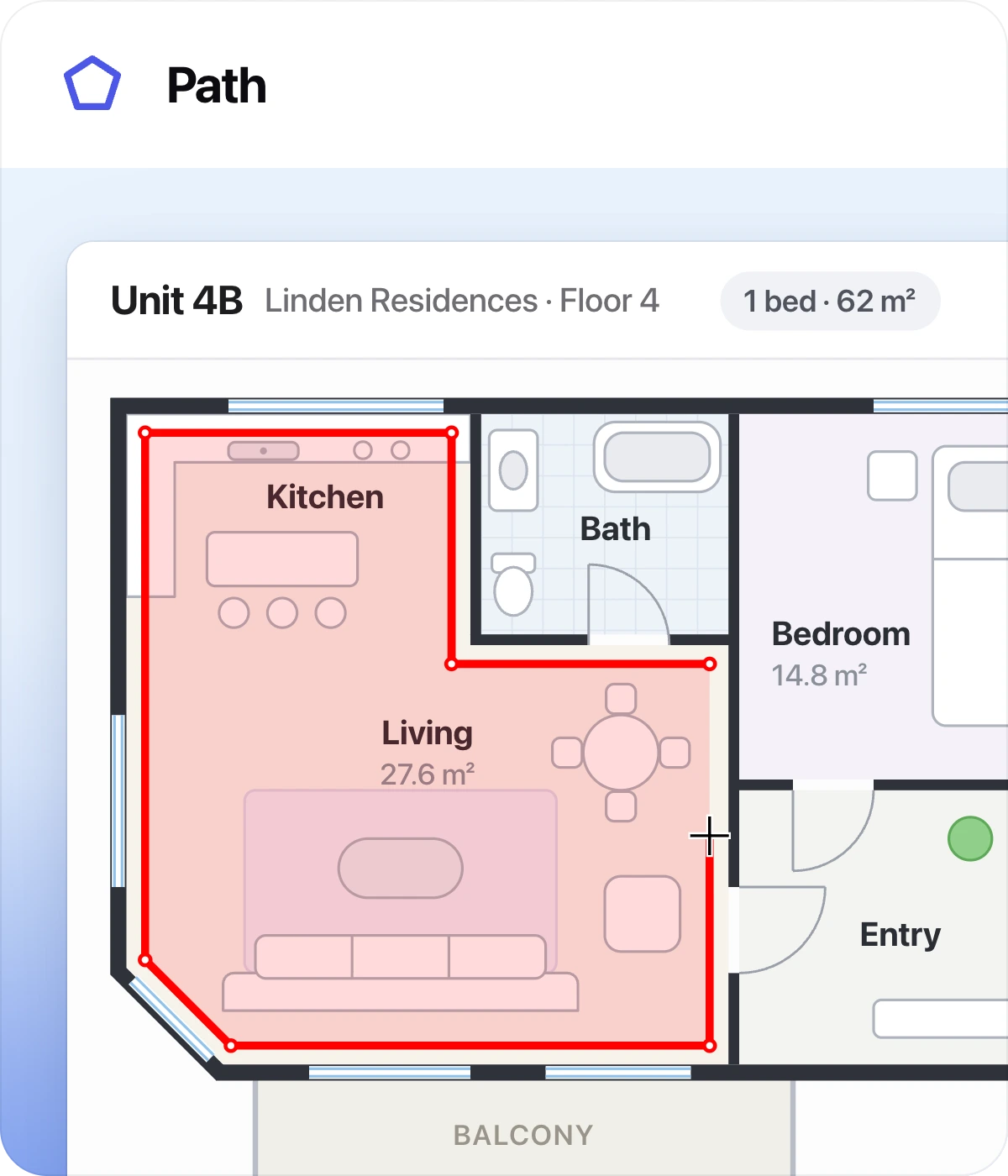
  • Path: a room outline traced on a floor plan
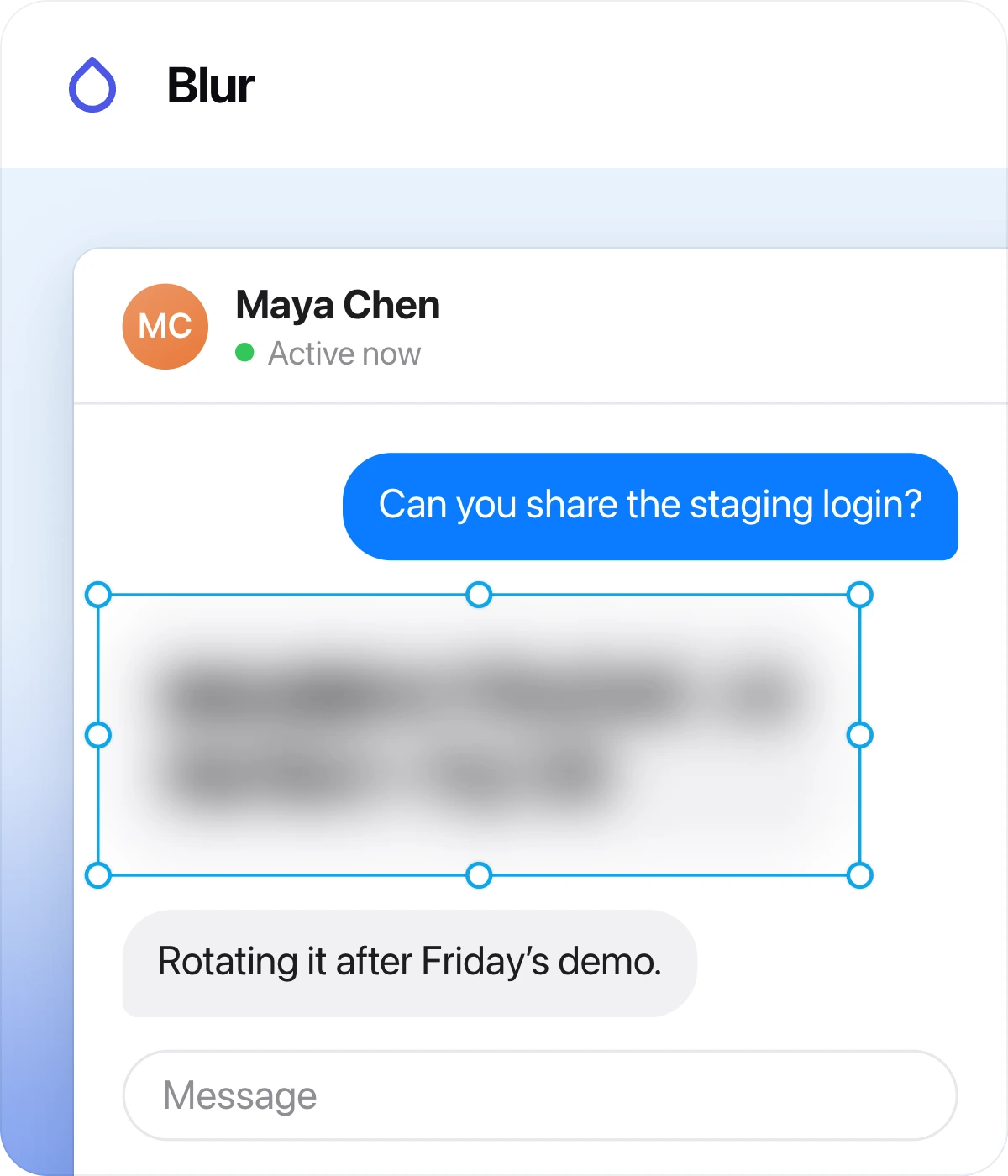
  • Blur: login details in a chat blurred before sharing
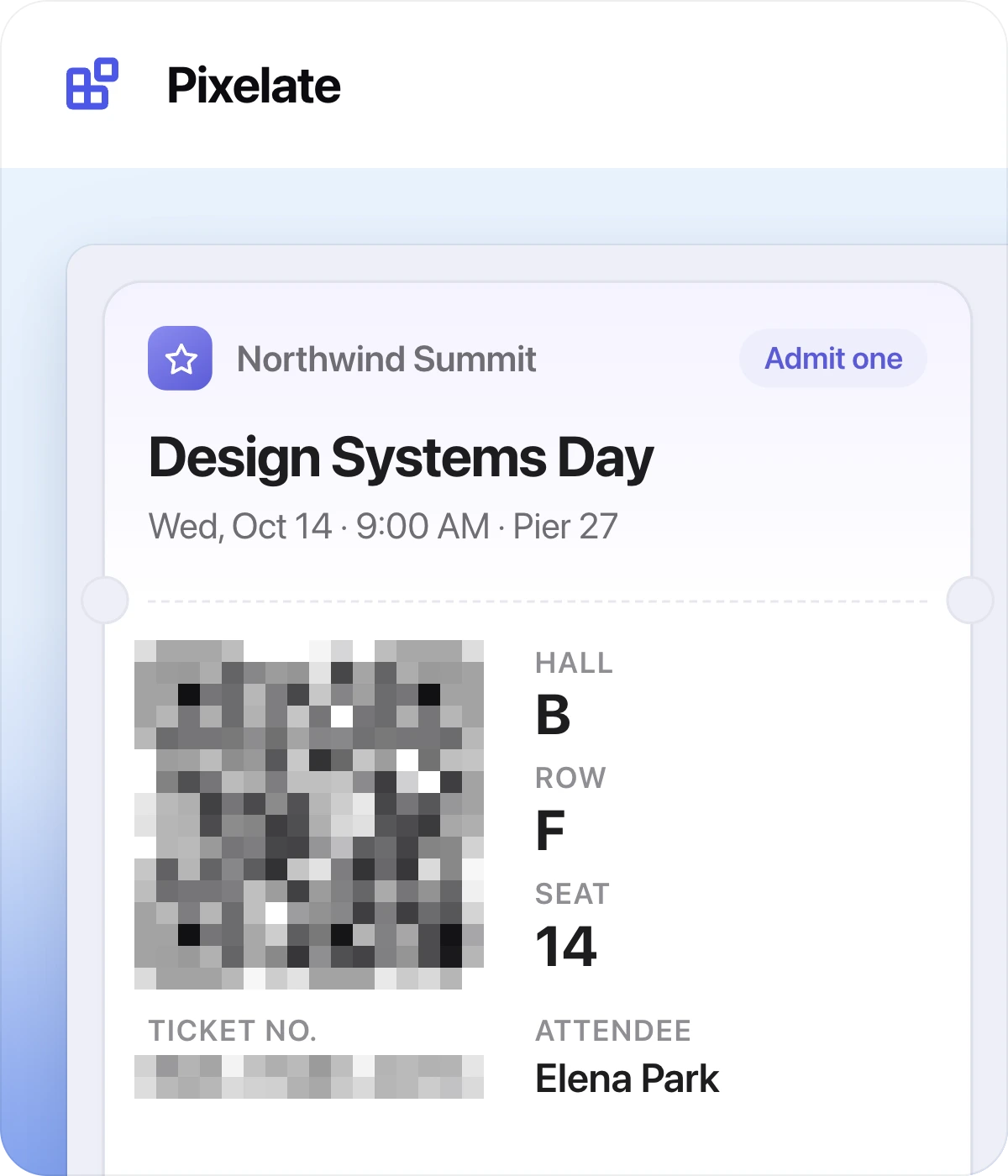
  • Pixelate: a ticket QR code and number pixelated
  • Magnifier: a lens enlarging the fine print on a flight booking
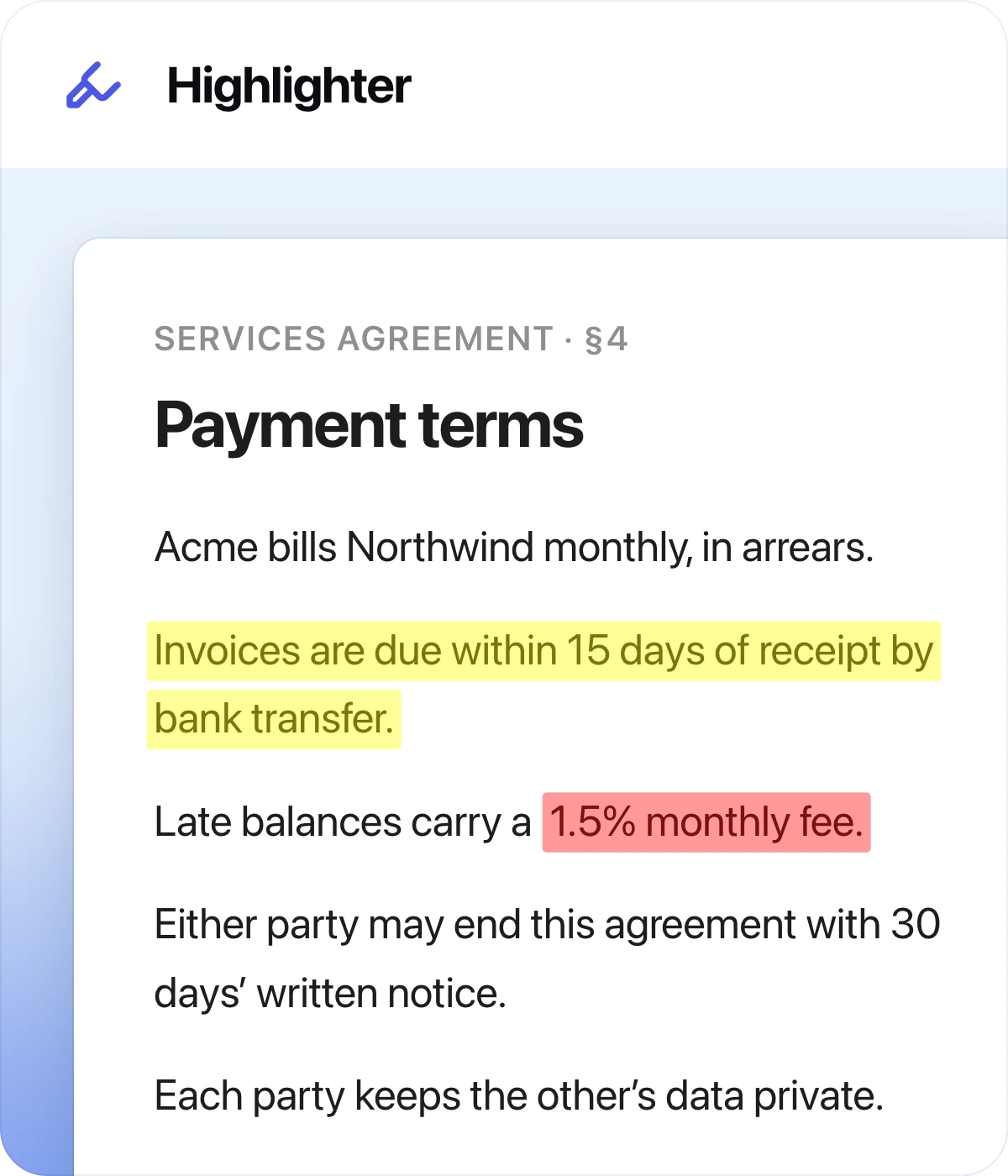
  • Highlighter: key clauses highlighted in a services agreement
  • Text: the note “Meet here at 7!” written on a map
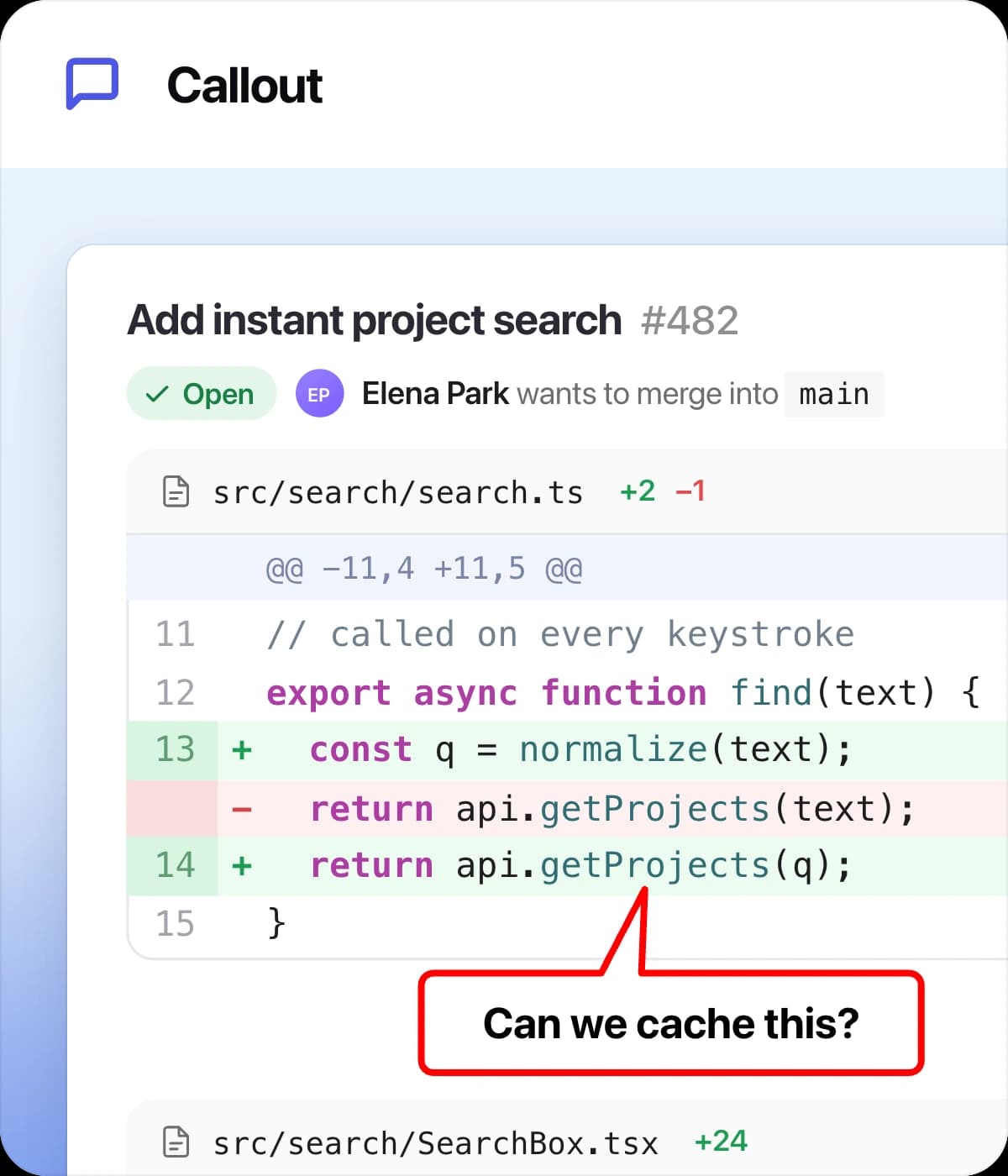
  • Callout: a “Can we cache this?” callout on a code review
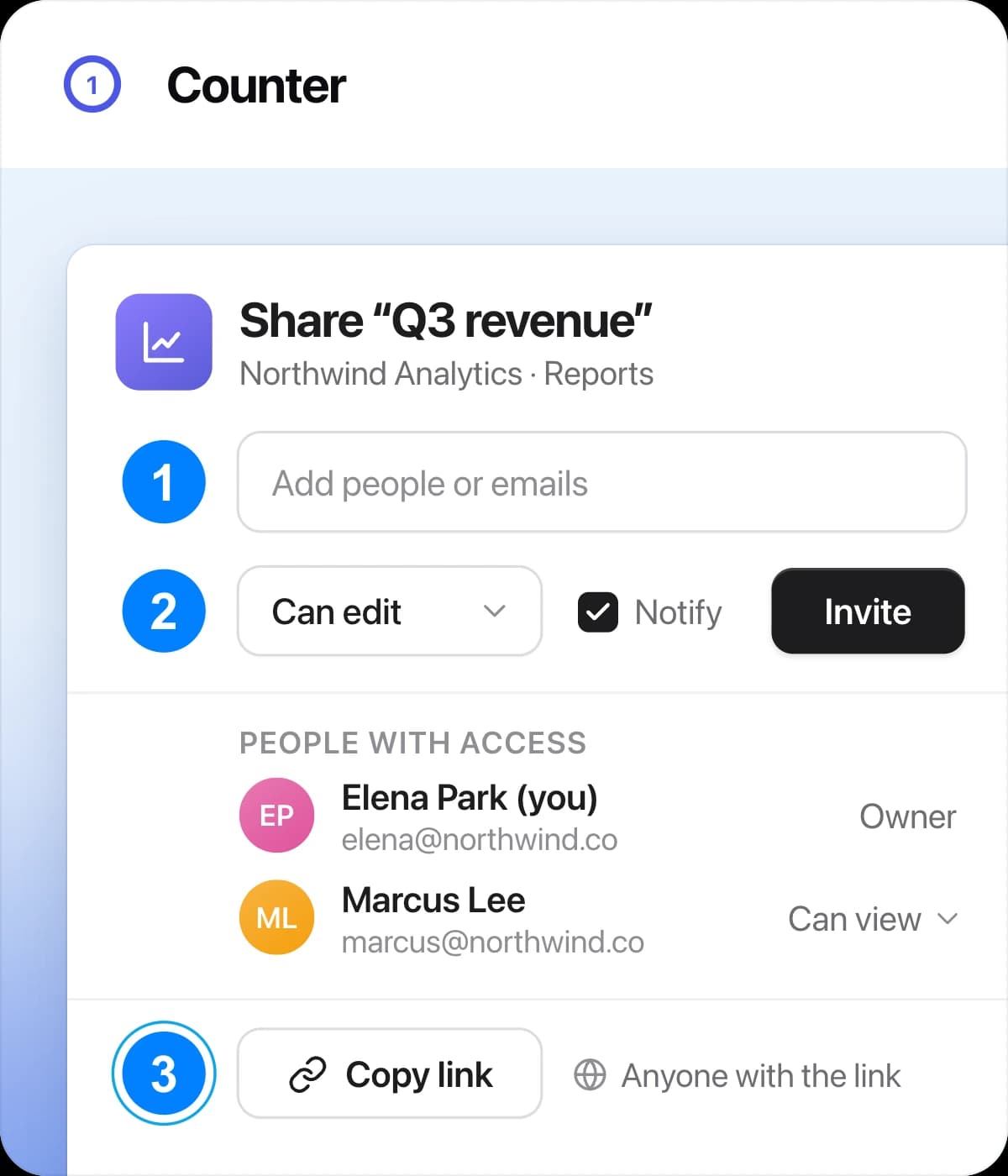
  • Counter: numbered steps 1, 2, 3 in a share dialog
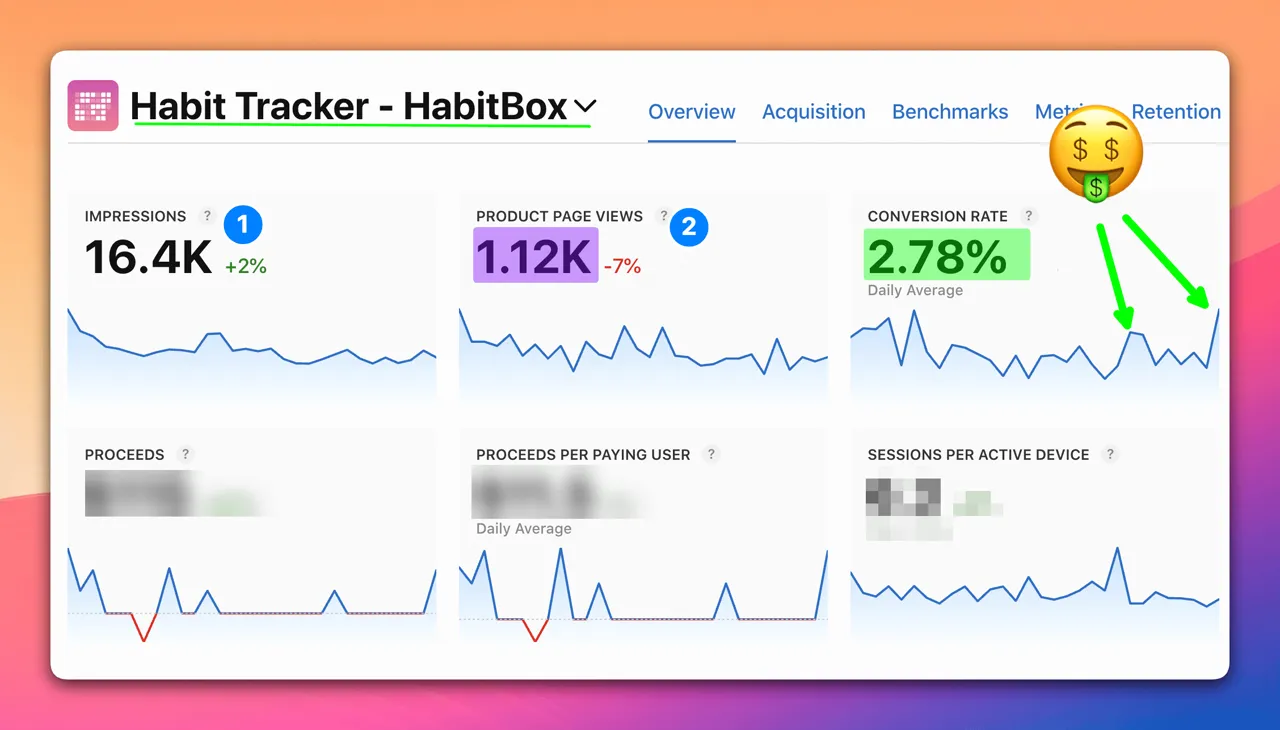
  • Emoji: party, fire, and rocket emojis on a launch dashboard
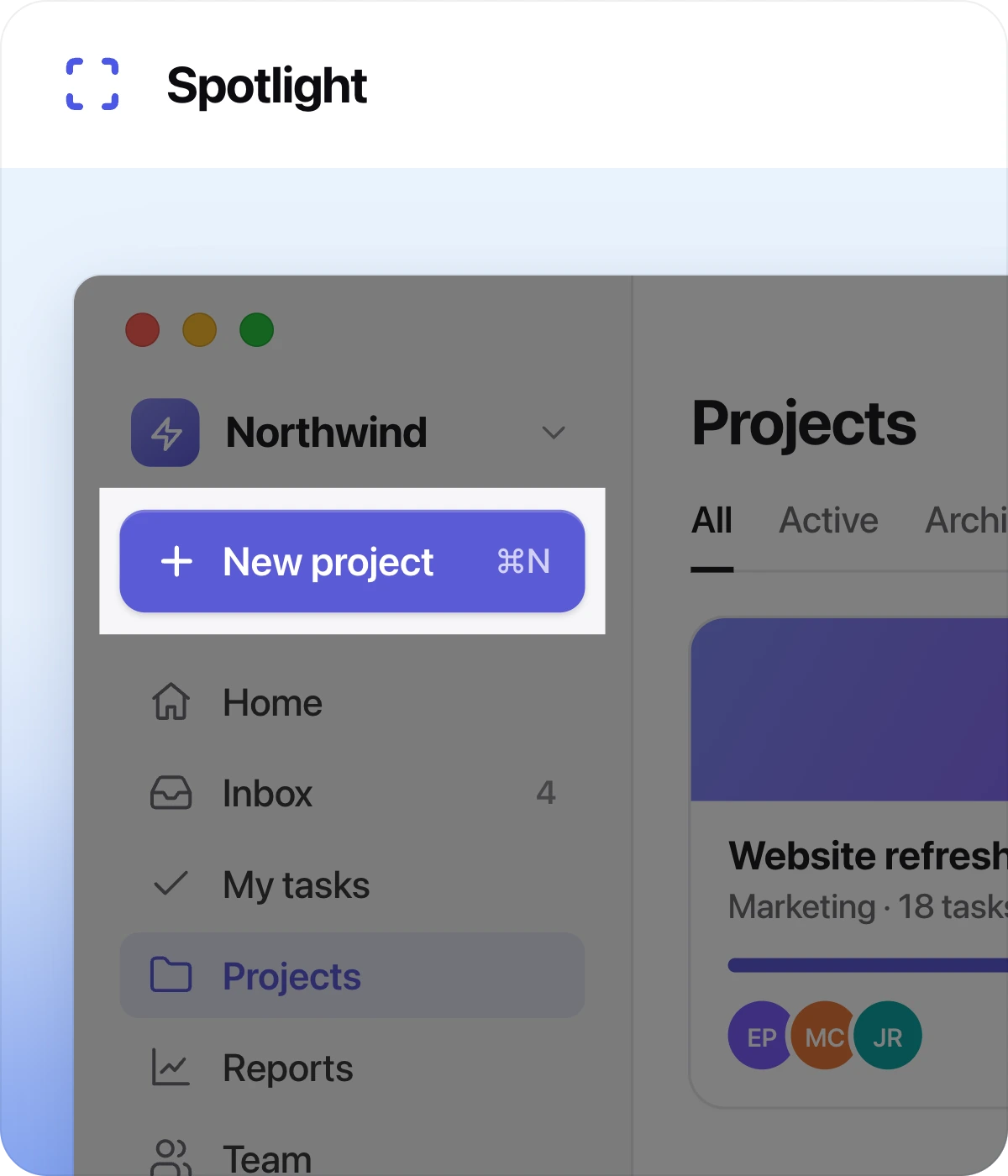
  • Spotlight: a spotlight on the New project button

How it works

How to take a screenshot with ScreenSnap Pro

Three steps and a few seconds, and the other person sees exactly what you mean.

  1. Capture

    Press Cmd+Shift+1 on a Mac or Ctrl+Shift+1 on Windows and drag across the area you need. Pick a window or the whole screen from the menu bar or tray, or add a delay of up to 10 seconds.

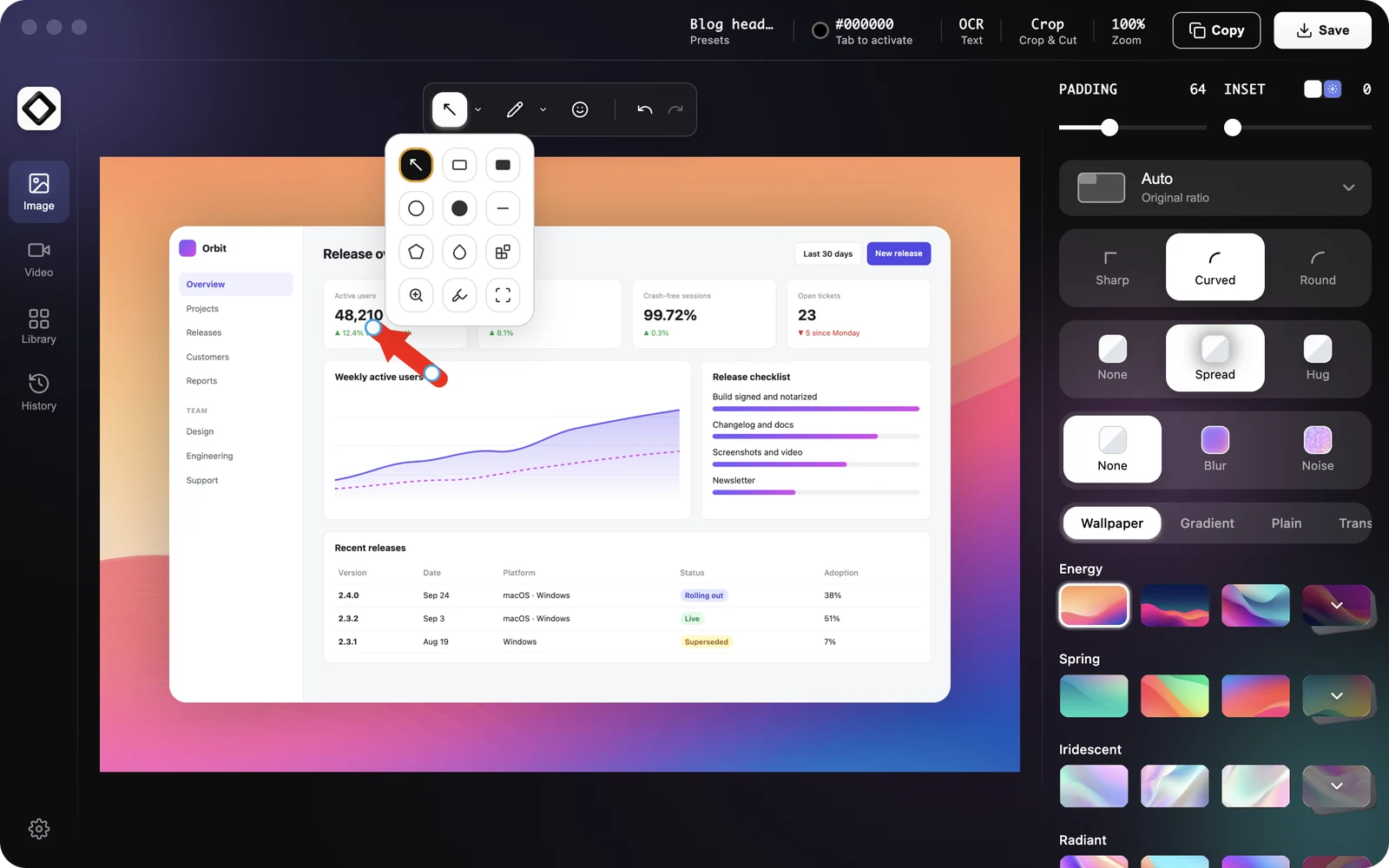
  2. The ScreenSnap Pro editor with the shape tools menu open and a red arrow pointing at a number on a dashboard

    Annotate

    Click Edit on the Quick Preview thumbnail, or capture with Cmd+Shift+2 or Ctrl+Shift+2 to go straight to the editor. Single keys pick the tools: 1 for an arrow, 9 for text, 0 for numbered steps, 6 to blur.

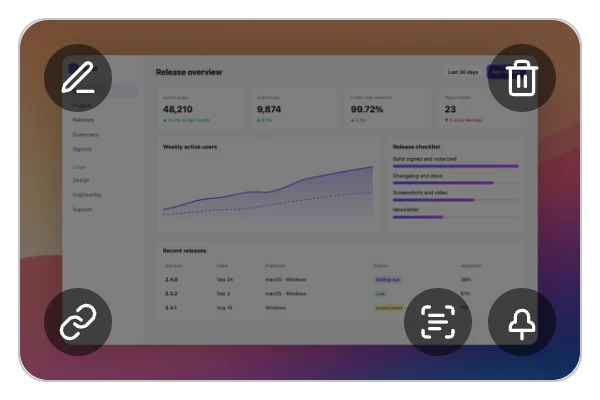
  3. The Quick Preview thumbnail after a capture, with buttons to edit, delete, upload for a share link, copy text and pin

    Share

    Drag the thumbnail into Slack, Jira or an email, or just paste: a quick capture is already saved as a PNG and on your clipboard. Want a link instead? Turn on Cloud Upload, click the link button and paste the short link.

Capture

Capture any region, window or screen

ScreenSnap Pro is a screen capture tool that stays out of your way. Two shortcuts work out of the box, most other modes are one click away in the menu bar or tray, and any mode can get a hotkey you choose.

ScreenSnap Pro Capture Controls bar with Area, Window, Display, Editor and Capture Delay (3s) buttons
Capture Controls · open it from the menu bar or tray
  • Capture Area

    Drag over any part of the screen. Cmd+Shift+1 or Ctrl+Shift+1.

  • Capture Area (Editor)

    The same selection, opened straight in the editor. Cmd+Shift+2 or Ctrl+Shift+2.

  • Capture Window

    Pick a window from thumbnails. On a Mac it comes out clean, without the shadow or the windows in front of it.

  • Capture Screen

    The whole display under your pointer, on any monitor you have connected.

  • Capture Area with Delay

    Select the area, then ScreenSnap Pro waits 1, 2, 3, 5, 7 or 10 seconds while you open a menu or show a tooltip.

  • Repeat Last Screenshot

    The same area, window or screen again, on a shortcut you assign. Made for before and after shots.

  • Recognize Text

    Select any area and copy its text, no screenshot file needed.

  • Capture Website

    Paste a URL and get the full page as one image, without scrolling.

On Windows the Print Screen key works too: in Windows Settings, turn off “Use the Print Screen button to open screen capture”, then assign Print Screen in ScreenSnap Pro under Settings > Shortcuts. More in the capture guide and shortcuts guide.

Quick Preview

Saved, copied and ready to drag

Capture Area, Capture Window and Capture Screen save each shot to a ScreenSnap Pro folder on your Desktop (PNG by default), copy it to your clipboard and show it in Quick Preview. Drag the thumbnail into any app or folder, or open it in the editor first.

  1. Capture
  2. Thumbnail pops up
  3. Drop it into any app

Website Capture

Full-page screenshots from a URL

Paste a public URL and ScreenSnap Pro saves the full page, or just the first screen, as one image. Pick a desktop, tablet or phone size, and cookie banners stay out of the shot. No scrolling, no stitching.

  1. Paste a URL
  2. Pick a mode and a device
  3. Capture

Works with public pages. For a page behind a login, open it in your browser and use Capture Area or Capture Window. Website Capture guide

Annotate

Screenshot and annotate in one step

Arrows, numbered steps, callouts, blur and a spotlight, each on a single key. Then frame it on a background, ready for a doc or a deck.

The same dashboard marked up in ScreenSnap Pro with an underline, numbered steps, highlights, arrows, an emoji, and pixelated figures, framed on a wallpaper background
After
Plain screenshot of an analytics dashboard, straight from a standard capture
Before
Drag the slider to compare a plain screenshot with one enhanced by ScreenSnap Pro.

Annotate · 17 tools

Every tool is one key away

Mark up a screenshot in seconds: shapes and text snap to the center of the canvas, style presets keep every capture consistent, and the color picker copies any HEX value. Blur or pixelate emails, tokens and customer data before the image leaves your screen.

  • Arrow 1
  • Rectangle 2
  • Filled Rectangle 3
  • Ellipse 4
  • Filled Ellipse O
  • Line 5
  • Path G
  • Pencil P
  • Blur 6
  • Pixelate 7
  • Highlighter 8
  • Text 9
  • Counter 0
  • Callout C
  • Emoji J
  • Spotlight S
  • Magnifier M

Annotation tools guideBlur and SpotlightTry the free browser version

Editor · 500+ wallpapers

A screenshot editor built in

Crop, or cut a strip out of the middle of a tall capture. Then put it on one of 500+ wallpapers, a gradient, a solid color, your own image or a transparent canvas, and set the padding, rounded corners and shadow.

  • Crop & Cut
  • Blur & Pixelate
  • Spotlight
  • Magnifier
  • Padding & inset
  • Rounded corners
  • Shadow
  • Aspect presets
  • Style presets

Crop & Cut guideBackgrounds guideFree background generator

Share

Turn a screenshot into a link, or into text

Paste a short link instead of an attachment, copy the words out of any capture, and keep a reference pinned above your work.

Share links

Share a screenshot with a link

Turn on Cloud Upload and every Quick Preview gets a link button: click it and a short share link lands on your clipboard. Anyone with the link can open it, and it is not listed anywhere. Auto Upload skips the click. Cloud is optional, your files stay on your computer, and you can delete any upload.

  1. Capture
  2. Upload
  3. Paste the link

Share links guideAuto Upload

Recognize Text · OCR

Copy text from any screenshot with OCR

Select an error dialog, a slide or a paused video and the text is ready to paste. Recognition runs on your computer, so nothing is uploaded.

  1. Select the text
  2. Text copied
  3. Paste it anywhere

Text recognition guideTry the free browser version

  • Pin to screen

    Keep a capture above every other window while you code or fill in a form. Pin several and resize them.

  • Capture History

    Private copies of recent captures on your computer, kept from 1 day up to 1 month, or turned off.

  • PNG, JPEG, WebP or AVIF

    Save in the format you need. From the editor, Copy puts the image on your clipboard without a file.

Who it's for

Screenshot software for bug reports, QA and docs

Built for people who mark up screenshots every day and need the other person to get it the first time.

  • Bug reports and QA

    Number the repro steps with the Counter, blur tokens and emails, then drag the shot into Jira or Linear. When a still image is not enough, record the repro with system audio.

    Bug report templateScreenshots in JiraExploratory testing

  • Docs and user manuals

    Callouts and numbered steps explain each screen. Presets give every image the same look, and Website Capture gives clean, device-sized shots for a help center.

    Write a user manualProcess documentation tools

  • Developers and IT support

    Copy the text of an error dialog with OCR, pin the spec beside your editor, and use one screen capture app, on one license, on your Mac and your Windows test machine.

    Screenshot to text

  • Client and design feedback

    Point at the exact pixel with arrows, highlights and Spotlight, blur client data, then send a short link instead of a 20 MB attachment.

    Annotate like a proBlur sensitive info on Mac

Compare

ScreenSnap Pro vs other screenshot tools

Built-in tools and free screenshot utilities are great for quick grabs. Here is how the main screenshot tools compare when you annotate and share every day.

Feature comparison of ScreenSnap Pro, Snipping Tool, macOS Screenshot, Lightshot, Greenshot, ShareX, Snagit and CleanShot X
FeatureScreenSnap ProSnipping ToolmacOS ScreenshotLightshotGreenshotShareXSnagitCleanShot X
PlatformsMac + WindowsWindows 11MacWindows + MacWindows (old Mac app)WindowsMac + WindowsMac
Price$34 onceFree, built inFree, built inFreeFree, open source (Windows)Free, open source$39/yr subscription$35 once + $19/yr for updates
Region, window, full screenYesYesYesRegion, full screenYesYesYesYes
Scrolling capture in appsNoNoNoNoLegacy, IE onlyYesYesYes
Full page from a URLYes, desktop to phone sizesNoNoNoNoNoNoNo
Annotation17 toolsBasicBasicBasicBasic + counterExtensiveExtensiveExtensive
Blur or pixelateYesText redactionNoNoYesYesYesYes
Backgrounds500+ wallpapersNoNoNoNoImage beautifierNoYes
OCR text copyYes, on deviceYesLive Text in PreviewNoYes, Windows OCR pluginYesYesYes
Screen recordingSystem audio, mic, webcamSystem audio, micMic, system audio (macOS 27+)NoNoYesYes, with webcamYes, with webcam
GIFYesYes, up to 30 sNoNoNoYesYesYes
Share linkUnlisted short linkNoNoPublic linkVia pluginsMany destinationsYesYes

Competitor details checked on their websites in October 2026. Prices in USD.

Which screenshot tool should you choose?

  • Quick grabs with no markup: the built-in Snipping Tool (Win+Shift+S) or macOS Screenshot (Cmd+Shift+5).
  • Free, Windows only, and you like to configure everything: ShareX.
  • Only inside the browser: an extension such as Awesome Screenshot. See the best screenshot extensions for Chrome.
  • Scrolling capture of long app windows: Snagit (subscription), ShareX on Windows or CleanShot X on a Mac.
  • Mac only, with a team cloud plan: CleanShot X.
  • One screenshot tool on Mac and Windows, no subscription, with polished annotated screenshots and OCR: ScreenSnap Pro.

The basics

What is a screenshot tool?

A screenshot tool, also called a screen capture tool, is software that captures an image of what’s on your screen: the full screen, one window or a selected region. Most tools also let you annotate the capture with arrows, text and blur, then save, copy or share it. Many add screen recording, OCR text extraction and full-page web capture.

  • Built into your system

    Snipping Tool on Windows and the Screenshot app on macOS. Free and always there, with basic markup.

    How to screenshot on any computer

  • Desktop apps

    A screenshot program you install, such as ScreenSnap Pro, ShareX, Snagit or CleanShot X. Global shortcuts, a real editor, recording and sharing.

    Best for WindowsBest for Mac

  • Browser extensions

    Capture what is inside a browser tab, often as a full page. They can't see the rest of your desktop.

    Chrome extensions

  • Website capture

    Render a whole web page from its address, top to bottom, with no scrolling. ScreenSnap Pro includes it.

    How Website Capture works

Built-in screenshot shortcuts on Windows and Mac

Windows

Win+Shift+S
Snip a region, a window or the full screen
Win+PrtSc
Save the full screen to Pictures > Screenshots
Alt+PrtSc
Copy the active window to the clipboard
PrtSc
Open Snipping Tool (Windows 11 default)

In Chrome, open DevTools, press Ctrl+Shift+P and run “Capture full size screenshot”. All Windows shortcuts

Mac

Cmd+Shift+3
Capture the full screen
Cmd+Shift+4
Capture a region
Cmd+Shift+4thenSpace
Capture a window
Cmd+Shift+5
Open the toolbar with recording and a timer

Add Ctrl to Cmd+Shift+3 or Cmd+Shift+4 to copy to the clipboard instead of saving a file. All Mac shortcuts

Get ScreenSnap Pro

Make your next screenshot explain itself

One license for your Mac and your PC, with every feature and every future update included. See what you get on the pricing page.

  • One-time payment
  • 2 computers, Mac or Windows
  • Lifetime updates
  • 30-day money-back guarantee

FAQ

Screenshot tool FAQ

How do I capture a screenshot on my computer?

On Windows, press Win+Shift+S to snip a region, a window or the full screen, or Win+PrtSc to save the whole screen. On a Mac, press Cmd+Shift+3 for the full screen, Cmd+Shift+4 for a region or Cmd+Shift+5 for every option. With ScreenSnap Pro, press Cmd+Shift+1 or Ctrl+Shift+1 and drag over the area.

Every way to take a screenshot

What is the best tool for screenshots?

It depends on your system and how much you edit. For quick grabs, the built-in Snipping Tool or macOS Screenshot is enough, and ShareX is the strongest free option on Windows. If you annotate screenshots every day on a Mac, a PC or both, ScreenSnap Pro adds 17 annotation tools, 500+ backgrounds, full-page Website Capture and unlisted share links for $34 once.

Best screenshot tools for WindowsBest screenshot apps for Mac

How do I get the screenshot tool?

Windows 11 includes Snipping Tool (press Win+Shift+S) and every Mac includes the Screenshot app (press Cmd+Shift+5). To get ScreenSnap Pro, buy a license for $34, download the Mac or Windows installer and enter your license key. One license activates on two computers, in any mix of Mac and Windows.

Does Chrome have a built-in screenshot tool?

Yes, inside DevTools. Press F12 (Cmd+Option+I on a Mac), open the command menu with Ctrl+Shift+P or Cmd+Shift+P, type “screenshot” and choose Capture full size screenshot, Capture area screenshot or Capture screenshot. For anything outside the browser, or to mark the capture up, use a desktop screenshot tool.

How to screenshot in Chrome

Is there a free screenshot tool?

Yes. Snipping Tool on Windows and the Screenshot app on macOS are free and built in, and ShareX, Lightshot and Greenshot for Windows are free downloads. ScreenSnap Pro is not free: it costs $34 once, with no subscription and a 30-day money-back guarantee instead of a trial. For a one-off edit, our free browser tools can annotate or blur an image.

Free image annotationFree blur toolFree screenshot tools for Mac

What has replaced the Snipping Tool?

On Windows 11, the new Snipping Tool app replaced both the classic Snipping Tool and Snip & Sketch. It adds screen recording, text extraction and basic shapes. People who need richer markup, backgrounds or share links usually move to a third-party app such as ShareX (free, Windows only), Snagit or ScreenSnap Pro. Snagit and ScreenSnap Pro also run on a Mac, so you can use the same app on both.

Snipping Tool alternatives

Is Greenshot better than the Snipping Tool?

For marking up screenshots, usually yes. Greenshot is a free, open-source Windows app with shapes, text, a step counter and obfuscation, and it can send captures straight to other apps. The Snipping Tool is built into Windows 11 and adds screen recording, but its markup is basic and it runs on Windows only. Greenshot's separate Mac App Store app has far fewer features and has not been updated since 2020.

ScreenSnap Pro vs Greenshot

How do I take a screenshot and send it?

Capture it, then drag the Quick Preview thumbnail straight into Slack, Jira, an email or any other app. Screenshots from Capture Area, Window or Screen are also copied to your clipboard by default, so you can paste them right away. For a large image or someone outside your team, upload it and paste the short share link instead of attaching the file.

Sharing screenshots with a link

Does ScreenSnap Pro work on both Mac and Windows?

Yes. ScreenSnap Pro runs on macOS 15 Sequoia or later, on Apple Silicon and Intel Macs, and on 64-bit Windows 10 and 11. One license includes two seats, so you can use it on a Mac and a PC, two Macs or two PCs. Capture, annotation, backgrounds, OCR, recording and share links work on both.

Is ScreenSnap Pro a subscription?

No. ScreenSnap Pro is a one-time $34 purchase with lifetime updates and no monthly or yearly fee. There is no free trial. Instead, every purchase comes with a 30-day money-back guarantee: if it does not fit your workflow, email support within 30 days for a full refund.

Can ScreenSnap Pro take scrolling screenshots?

Not of app windows. For web pages, Website Capture turns any public URL into one full-page screenshot at desktop, tablet or phone size, without cookie banners. To shorten a tall screenshot you already have, Crop & Cut removes a strip from the middle. If you need scrolling capture inside apps, Snagit, ShareX and CleanShot X offer it.

Scrolling screenshots on Windowson a Mac