Exploratory Testing: Charters, Sessions and Templates
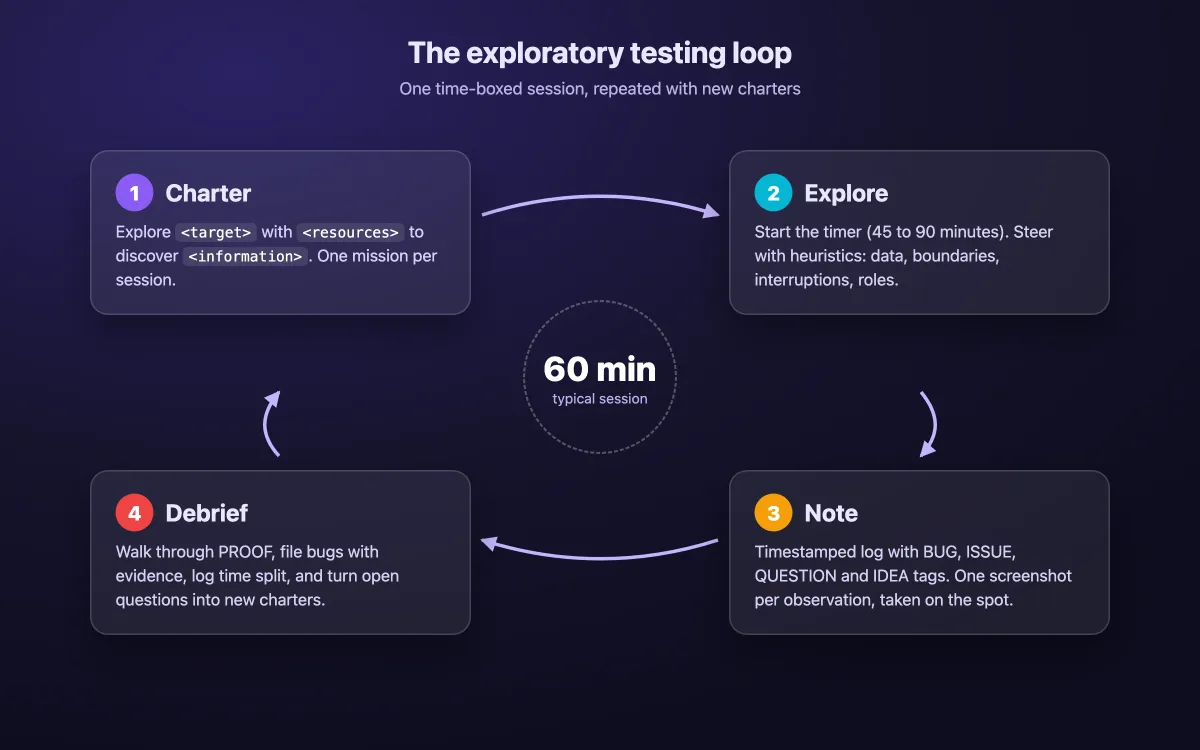
Exploratory testing is a software testing approach where you learn the product, design tests and run them at the same time, without a pre-written script. You work in time-boxed sessions (usually 45 to 90 minutes) guided by a charter, capture notes and screenshots as you go, then debrief to turn findings into bugs and new test ideas.
The definition is the easy part. What makes a session worth its hour is the evidence: a clear charter, readable notes and screenshots a developer can act on. Below you get a charter formula, a session sheet to copy, a capture and redaction workflow, and a worked 60-minute session.
What is exploratory testing?
Exploratory testing in software testing goes back to Cem Kaner, who coined the term in 1984. James Bach later framed it as testing while you learn things that change what you test next. The ISTQB glossary puts it formally: testers design and run tests on the fly, based on what they know, what they see and what earlier tests showed.
A quick example: an hour before code freeze, a tester tries a new invite feature with an expired link, a duplicate email and a fast double-click on Send. The double-click creates two invites. That test did not exist until the tester saw the button stay active after the first click.
The core principles, and why teams use it:
- Tester judgment over scripts. Each test is designed from what the last one revealed.
- Freedom inside a frame. A charter sets the mission and a timer sets the limit.
- Fast feedback. Bugs reach developers the same day, with steps and screenshots.
- Finds what scripts miss. Interaction bugs, odd sequences, edge cases and permission gaps nobody wrote a case for.
- Evidence makes it real. Notes and captures make a session easy to review.
Exploratory vs scripted vs ad hoc vs regression testing
These four get mixed up all the time. Here is how they differ.
| Exploratory | Scripted | Ad hoc | Regression | |
|---|---|---|---|---|
| Goal | Learn the product, find unknown risks | Confirm known requirements | Quick poke, no plan | Prove old behavior still works |
| Prep | A charter and a time-box | Written cases with expected results | None | An existing suite, often automated |
| Documentation | Session notes, evidence, debrief | Pass or fail per step | Usually none | Run logs and reports |
| Repeatability | Low by design, but the charter can be rerun | High | None | High |
| Who runs it | Skilled testers, developers, pairs | Any tester, or a script | Anyone | CI pipeline or QA |
| Best moment | New or changed features, pre-release sweeps | Compliance, acceptance, stable flows | A smoke check after a deploy | Every build or release |
The key line is between exploratory and ad hoc testing. Ad hoc testing leaves no record, so nobody can say what was covered. Exploratory testing has a charter, a time-box, notes and a debrief, so you can plan it, review it and repeat it.
It also complements automation. Visual regression testing catches pixel changes against a baseline. An exploratory session catches the behavior nobody thought to check.
Two related practices sit nearby. In UAT, business users confirm the product meets their needs, and exploratory sessions often run first so they do not trip over obvious bugs. A bug bash is the team-event version: many people explore at once, right before a release.
When to use exploratory testing (and when not to)
Use it when learning matters as much as checking:
- New or changing features, where specs are still moving and test cases do not exist yet.
- Pre-release risk sweeps on the flows that would hurt most if they broke.
- Right after a bug fix, to probe the area around the fix, not only the fix.
- Onboarding a new tester, who learns faster with a charter than with a test plan.
Exploratory testing in agile teams often follows a simple rhythm: one or two sessions per story before it moves to Done.
Do not rely on it alone when compliance or an audit needs repeatable, scripted proof of coverage. Use scripted cases there and add sessions on top.
It has limits too. Results depend on the tester's skill, and coverage is hard to prove later. Good notes and evidence shrink both problems, which is why documentation gets its own section below.
Types of exploratory testing
Most teams mix these five styles:
- Freestyle: no charter, a quick look at a fresh build. Keep it short, since it is close to ad hoc testing.
- Scenario-based: follow a real user journey end to end, such as "a new admin invites a team."
- Strategy-based: steer with heuristics and techniques like boundary values, SFDIPOT or a risk list.
- Session-based (SBTM): session based test management adds a charter, a time-box, a session sheet and a debrief. This guide uses this style.
- Pair or mob: two or more people share one screen. One drives, one takes notes and asks "what if?"
A bug bash is the multi-person, one-off event built on the same ideas.
How to run an exploratory testing session
Five steps take you from a blank page to a debrief.
Step 1: Write a charter
Use Elisabeth Hendrickson's format from her book Explore It!: Explore [target] with [resources] to discover [information]. The target sets the scope. The resources say how you will push on it, and the information says what a good result looks like.
Three good examples of a test charter:
- Explore the team-invite flow with expired links, duplicate emails and role changes to discover permission and notification errors.
- Explore CSV import with 10,000-row files, mixed encodings and missing headers to discover data loss and unclear error messages.
- Explore the search API's filters with empty, huge and conflicting values to discover wrong results and server errors.
Too vague: "Explore the app." It has no target and no method, so the tester drifts back to the happy path that scripts already cover.
Step 2: Set up the session
Spend five minutes on setup before the clock starts:
- Build and environment: write down the version and where it runs (staging, a review app, a local build).
- Test data: use fake accounts and seeded data, never real customer records. Fake data keeps screenshots safe to share.
- Capture tool ready: know your screenshot and recording shortcuts.
- Timer running: a time-box only works if something tells you it ended.
The free screen recording timer can run the clock. Countdown mode gives you the time-box: type a custom 60 or 90 minutes, since the presets stop at 30. Stopwatch mode gives you laps to use as note timestamps, but the modes do not run at once, so pick one.
Step 3: Explore with heuristics
Heuristics keep you moving when ideas run dry:
- SFDIPOT: James Bach's product checklist of Structure, Function, Data, Interfaces, Platform, Operations and Time.
- Boundaries: zero, one, the max, the max plus one, empty strings and very long strings.
- CRUD: create, read, update and delete the same object, then try them out of order.
- Interruptions: refresh mid-flow, drop the network, open a second tab, let the login expire.
- Follow the data: track one record through every screen, email and export it touches.
- Tours: walk the product with a theme, such as the area with the most past bugs.
Step 4: Take notes as you go
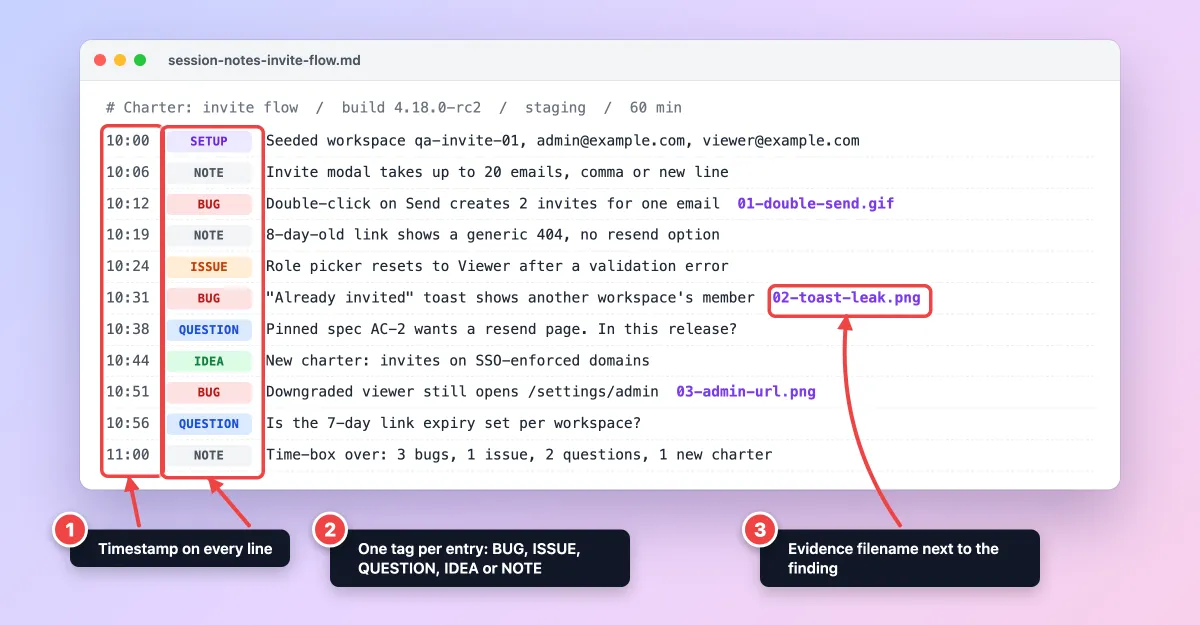
Keep a plain-text log with a timestamp and one tag per line:
- SETUP: build, data and tools prepared before the clock starts.
- BUG: behavior that is wrong.
- ISSUE: something that blocks testing, or a concern that is not clearly a bug.
- QUESTION: something only a PM or developer can answer.
- IDEA: a test or a whole charter for later.
- NOTE: what you covered and what you saw.
The capture rule: one screenshot per observation, taken the moment you see it. Put the file name in the log line so you can find it in the debrief.
Step 5: Debrief
Debrief the same day. Jonathan Bach's Session-Based Test Management paper gives a five-part agenda called PROOF:
- Past: what happened during the session?
- Results: what did you achieve?
- Obstacles: what got in the way of good testing?
- Outlook: what still needs to be done?
- Feelings: how does the tester feel about the area?
Then log the TBS split: the share of time spent on test design and execution, bug investigation and reporting, and session setup. If half the session went to bugs, the area needs more sessions.
The filled session sheet is your exploratory testing report. Each bug goes into a full bug report, each question goes to its owner, and each IDEA becomes a new charter.

Tired of plain screenshots? Try ScreenSnap Pro.
Beautiful backgrounds, pro annotations, GIF recording, and instant cloud sharing, all in one app. Pay $34 once, own it forever.
See pricing and featuresHow to document exploratory testing
Good evidence lets a developer reproduce a bug without a call, and lets a lead see what you covered. This workflow works with any capture tool.
What to capture
Match the evidence to what you saw:
| You observed | Capture as | Why it works |
|---|---|---|
| Wrong UI state, layout or copy | Region or window screenshot | Fast. Easy to mark up. |
| A short interaction bug | A GIF of 5 to 10 seconds | Shows timing. |
| A long or flaky flow | Screen recording with mic narration | You explain each step. |
| Error text or request IDs in a toast | OCR from a screenshot | Copies text you cannot select. |
| A long page behind login, on localhost or a VPN | Full-page capture in browser DevTools | Uses your own session. |
| Console errors and failed requests | DevTools screenshot plus a HAR export | Network detail. Sanitize it first. |
How-tos: GIF capture on Mac and on Windows, screen recording on a MacBook and on Windows, and copying text from a screenshot on Mac or with OCR software on Windows.
For long pages, Chrome DevTools has a full-size screenshot command. See full-page screenshots on Mac and on Windows.
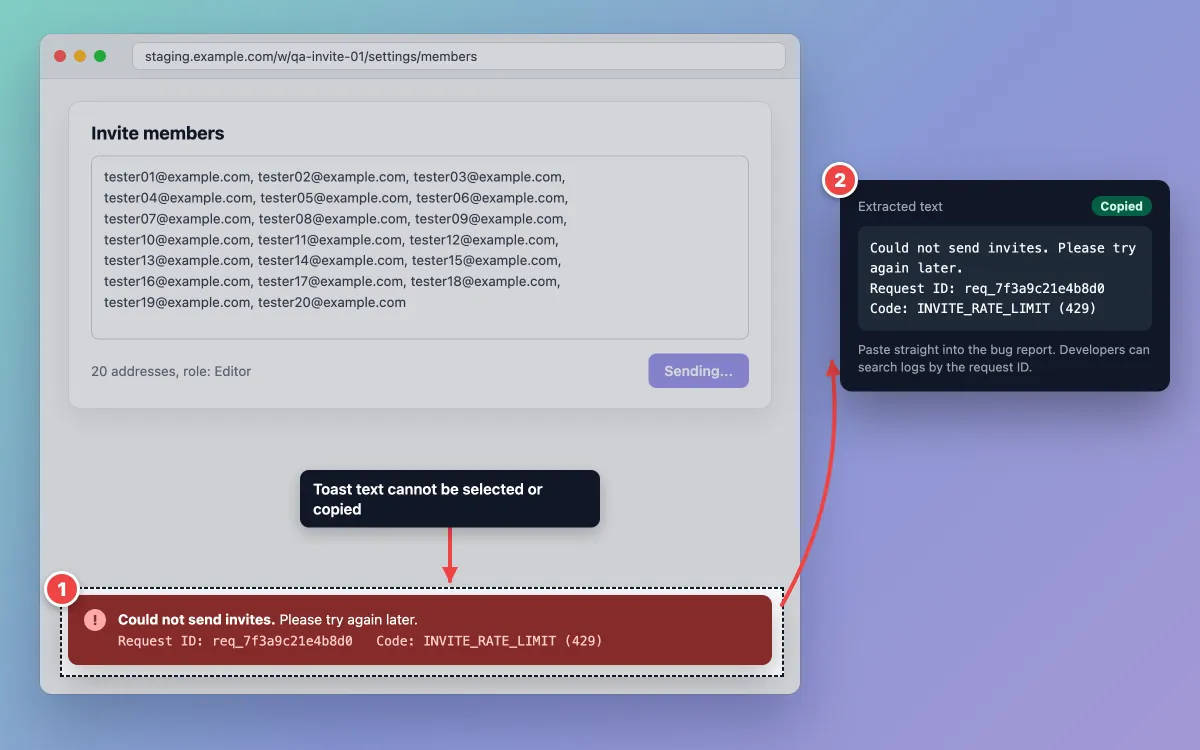
Any fast capture tool works. ScreenSnap Pro, for example, covers most of the table in one app: a region shortcut, GIF and screen recording with mic, OCR, pinning, and 17 annotation tools with a counter and a solid-fill rectangle.
One caveat: its Website Capture renders a URL on a server, so it fits public pages only. For logged-in, localhost or VPN-only pages, use region capture or DevTools.
Pin the spec while you test
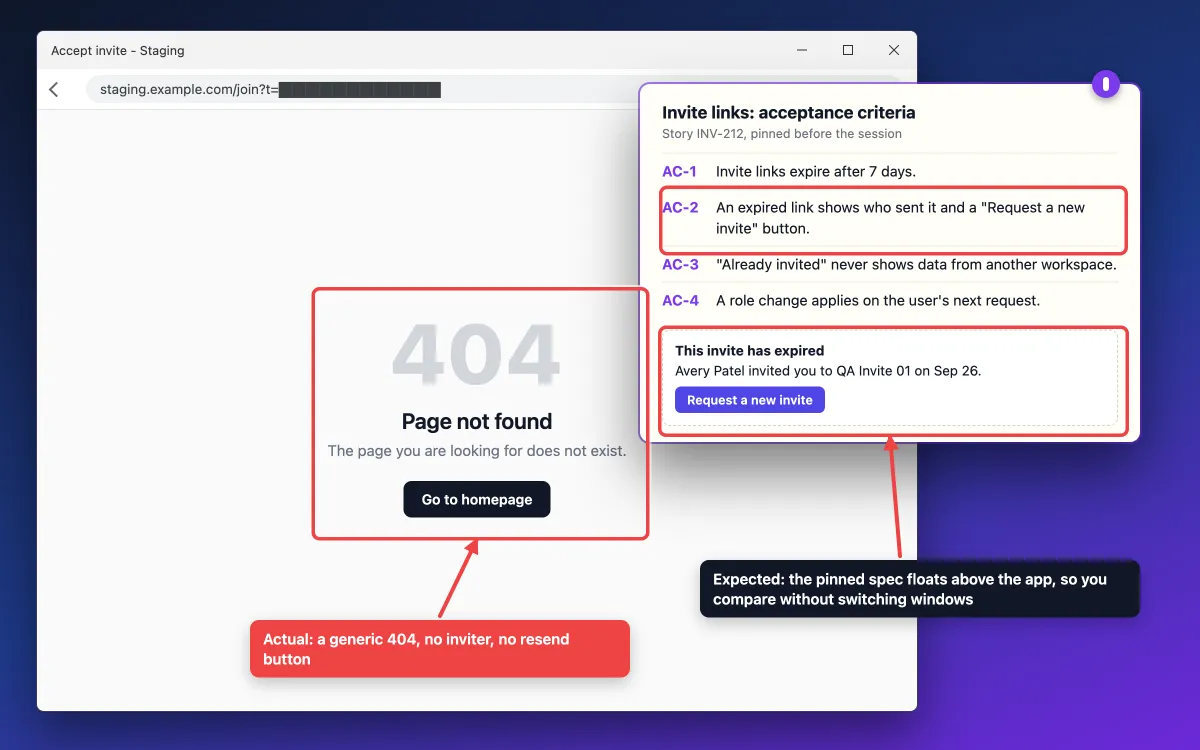
Before the session, screenshot the mockup or acceptance criteria and pin it so it floats above the app under test. You compare in place instead of switching windows, which catches small mismatches. Here is how to keep a window always on top on Mac and always on top on Windows.
Annotate so developers can reproduce
Use one finding per image, then add only what a developer needs:
- Numbered counters on each repro step, matching the numbered steps in the ticket.
- An arrow to the exact control or text that is wrong.
- A highlight or box around the broken state.
- A short text callout with expected vs actual in under ten words.
Step-by-step guides: annotating screenshots on Mac and editing screenshots on Windows.
Redact before sharing
Privacy bugs are common finds, and the screenshot often holds the leaked data itself. Before you attach anything:
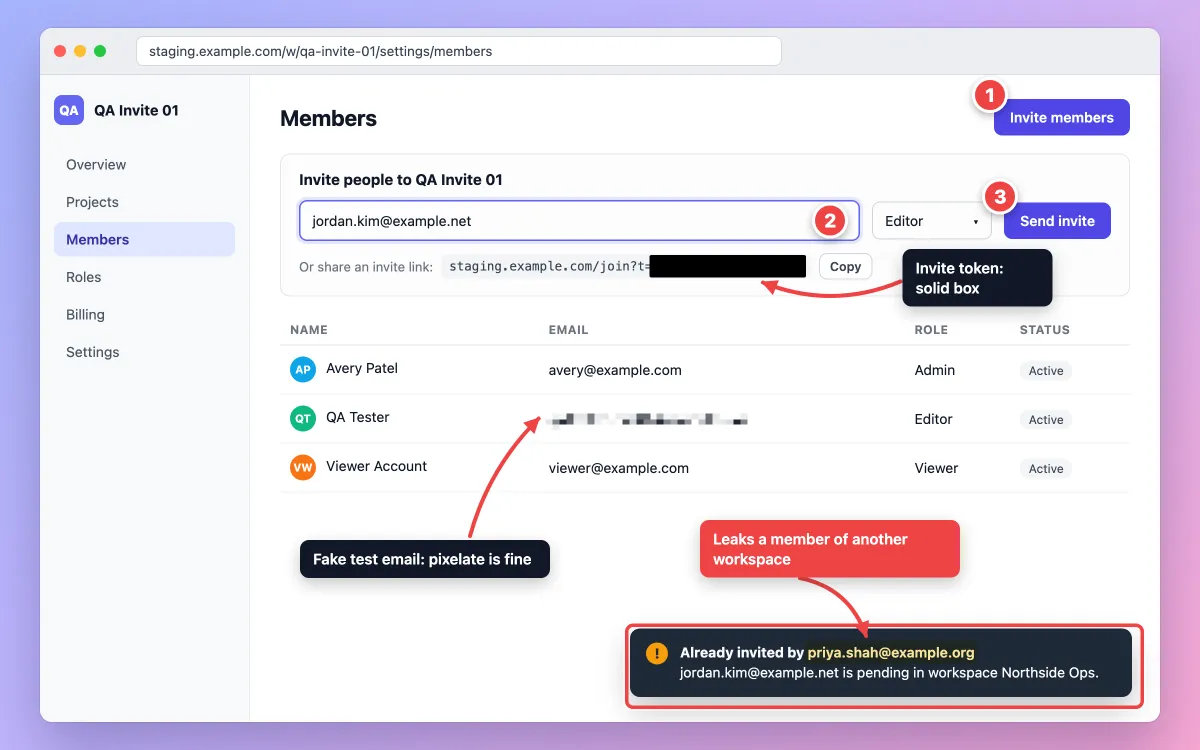
- Secrets get a solid, opaque box: API tokens, session IDs, invite links and passwords. Blur and pixelate can be reversed, as this guide to redact text explains.
- Blur or pixelate only low-risk details, such as fake test names, avatars and test emails. The guide to blurring or pixelating on Mac shows both.
- Fake data can stay visible as evidence. If real customer data shows up, box it and describe it in words.
- HAR files carry secrets too. They can hold cookies, auth headers and tokens in request URLs and bodies. Use a sanitized export where you can (Chrome DevTools drops cookie and auth headers), then check URLs and bodies for tokens.
- Rotate any real secret that appears in a capture. Covering the image does not undo the leak.
Turn findings into bug reports and test cases
Each BUG line becomes one ticket with the annotated image and repro steps. For wrong copy or output, paste expected and actual text into a text compare tool and attach the diff. Once a bug is fixed, turn it into a regression test case.
Share the session report
Attach the image and GIF files to the Jira issue, test run or GitHub issue itself. Atlassian explains how to add an attachment to a Jira work item, GitHub Docs covers attaching files, and there is a full walkthrough of screenshots in Jira.
A quick share link is fine for the Slack debrief, but it is not the record. Share links are for quick sharing and uploads can be removed over time, so the attached files are the evidence.
If a finding changes the user docs, see the technical documentation screenshots guide.
Exploratory testing charter and session sheet templates
Copy these into a Markdown file, a wiki or your test tool. They follow the SBTM session sheet: charter, tester, start time, task breakdown, data, notes, issues and bugs.
Exploratory test charter template
## Charter
Explore: [target area or feature]
With: [resources, data, techniques or heuristics]
To discover: [the risk or information you are after]

Time-box: 60 min
Build / environment:
In scope:
Out of scope:
Starting test ideas:
-
-
Session sheet template
# Session sheet

## Charter
Explore ... with ... to discover ...

## Session
- Tester:
- Build:
- Environment:
- Start: YYYY-MM-DD HH:MM
- Duration: 60 min (short 45 / normal 90 / long 120)

## Task breakdown (TBS)
- Test design and execution: __%
- Bug investigation and reporting: __%
- Session setup: __%
- On charter / opportunity: __% / __%

## Data and files used
-

## Notes log
HH:MM  TAG       Note                                  Evidence
10:00  SETUP
10:05  NOTE

## Bugs
- BUG-1:  (evidence: 01-name.png)

## Issues
-

## Questions
- Q-1:  (owner: )

## Evidence files
- 01-name.png
Filled example
# Session sheet: invite flow

## Charter
Explore the team-invite flow with expired links, duplicate emails
and role changes to discover permission and notification errors.

## Session
- Tester: Jane Doe (jane@example.com)
- Build: 4.18.0-rc2
- Environment: staging, seeded workspace qa-invite-01
- Start: 2026-10-05 10:00
- Duration: 60 min

## Task breakdown (TBS)
- Test design and execution: 60%
- Bug investigation and reporting: 30%
- Session setup: 10%
- On charter / opportunity: 85% / 15%

## Data and files used
- admin@example.com, viewer@example.com (fake), 8-day-old link

## Notes log
HH:MM  TAG       Note                                                      Evidence
10:00  SETUP     Seeded workspace qa-invite-01, admin@example.com, viewer@example.com
10:06  NOTE      Invite modal takes up to 20 emails, comma or new line
10:12  BUG       Double-click on Send creates 2 invites for one email      01-double-send.gif
10:19  NOTE      8-day-old link shows a generic 404, no resend option
10:24  ISSUE     Role picker resets to Viewer after a validation error
10:31  BUG       "Already invited" toast shows another workspace's member  02-toast-leak.png
10:38  QUESTION  Pinned spec AC-2 wants a resend page. In this release?
10:44  IDEA      New charter: invites on SSO-enforced domains
10:51  BUG       Downgraded viewer still opens /settings/admin             03-admin-url.png
10:56  QUESTION  Is the 7-day link expiry set per workspace?
11:00  NOTE      Time-box over: 3 bugs, 1 issue, 2 questions, 1 new charter

## Bugs
- BUG-1: Double-click on Send creates 2 invites (01-double-send.gif)
- BUG-2: "Already invited" toast shows another workspace's member (02-toast-leak.png)
- BUG-3: Downgraded viewer still opens /settings/admin (03-admin-url.png)

## Issues
- Role picker resets to Viewer after a validation error

## Questions
- Q-1: Is the AC-2 expired-link page in this release? (owner: PM)
- Q-2: Is the 7-day link expiry set per workspace? (owner: dev lead)

## Evidence files
- 01-double-send.gif
- 02-toast-leak.png
- 03-admin-url.png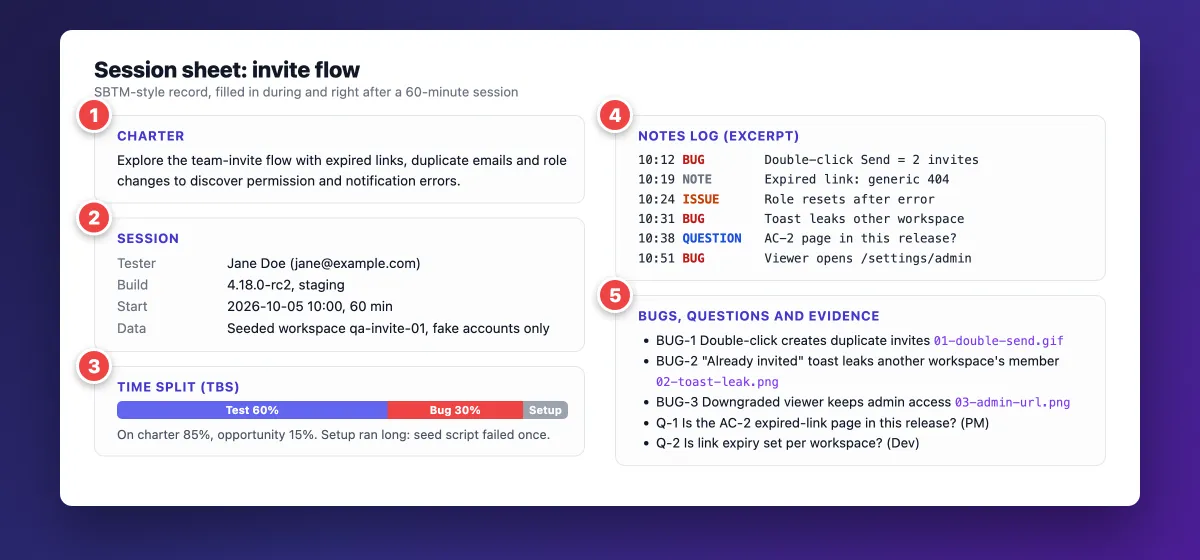
The numbers map to the sheet: (1) the charter, (2) session details, (3) the TBS split, (4) the tagged notes log and (5) bugs, questions and evidence files.
Exploratory testing example: a 60-minute session walkthrough
This is the session behind the filled sheet, using the invite-flow charter above. The timeline:
- 10:00 to 10:05: setup with a seeded workspace and two fake accounts.
- 10:05 to 10:20: duplicate emails and fast clicks. Found BUG-1.
- 10:20 to 10:40: expired links and "already invited" paths across two workspaces. Found BUG-2 and raised Q-1.
- 10:40 to 10:55: role changes between Admin, Editor and Viewer. Found BUG-3.
- 10:55 to 11:00: tidied notes and wrote one new charter.
The three bugs:
- BUG-1: a double-click on Send creates two invites for one email (inv-2231 and inv-2232). Evidence: the short GIF below.
- BUG-2: the "already invited" toast names the sender, even when that person belongs to another workspace. That leaks an email across tenants. Evidence: the annotated screenshot above.
- BUG-3: after an admin downgrades a user to Viewer, that user can still open /settings/admin by URL until they sign in again.
The two questions: Q-1 came from the pinned spec, which wants a resend page on expired links while the build shows a 404. The PM must confirm that story is in this release. Q-2 asks whether link expiry is set per workspace.

The BUG-2 screenshot comes from a Mac and the BUG-1 GIF from Windows, but the rules are the same: fake data, one finding per file, secrets boxed out.
Tools for exploratory testing
You do not need a special suite:
- Built-in capture: on a Mac,
Shift + Command + 4grabs a region andShift + Command + 5opens the screenshot and recording toolbar (Apple Support). On Windows,Win + Shift + Sopens Snipping Tool (Microsoft Support). Both are free. - Browser DevTools: console, network tab, device emulation and full-page screenshots.
- Test management: TestRail and Xray both offer session templates or apps that store charters next to scripted runs.
- Note tools: Rapid Reporter, a small note-taker built for SBTM, or a plain Markdown file with the template above.
- A capture and annotate layer: where you save the most time per finding.
If you mark up evidence every day, ScreenSnap Pro puts capture, GIF and screen recording, OCR, pinning and annotation behind one set of shortcuts. It costs $34 once: 1 license, 2 seats (2 computers, Mac or Windows), handy when you test on both platforms. See pricing.
Frequently Asked Questions
Wrap-up checklist
Run through this before and after every session:
- Charter written as Explore, With, To discover
- Build, environment and fake test data noted
- Timer running for 45 to 90 minutes
- Tagged, timestamped notes, with one screenshot per observation
- Secrets boxed out, low-risk test data blurred or pixelated
- Debrief done with PROOF and a TBS split
- Bugs filed with attached files, questions sent to owners, new charters added to the backlog

Morgan
Indie DeveloperIndie developer, founder of ScreenSnap Pro. A decade of shipping consumer Mac apps and developer tools. Read full bio
@m_0_r_g_a_n_