Best OCR Software for Windows (2026) | Free & Paid
OCR software for Windows lets you extract text from images, screenshots, scanned documents, and PDFs without retyping a single word. Whether you need to pull a phone number from a photo, grab code from a tutorial screenshot from ScreenSnap Pro, or digitize a stack of paper invoices, the right OCR tool handles it in seconds.
Windows users have more built-in OCR options than most people realize. Between PowerToys Text Extractor and the Windows 11 Snipping Tool, you can copy text from your screen without installing anything extra. But when you need batch handling, better accuracy, or multi-language support, third-party tools fill the gap.
We tested seven OCR tools on real-world tasks (screenshots, scanned receipts, low-contrast images, and multi-language documents) to find which ones work best for different needs and budgets.
Quick comparison table
| Tool | Price | Best for | Accuracy | Batch mode |
|---|---|---|---|---|
| PowerToys Text Extractor | Free | Quick screen grabs | Good | No |
| Snipping Tool (Win 11) | Free (built-in) | Screenshot + OCR | Good | No |
| ScreenSnap Pro | $49 one-time | Screenshot + extract text | Very good | No |
| Microsoft OneNote | Free | Document OCR | Good | No |
| Google Lens | Free | Photos and web images | Very good | No |
| ABBYY FineReader | $99/year | Professional documents | Excellent | Yes |
| Tesseract OCR | Free (open source) | Developer workflows | Good | Yes |
1. PowerToys Text Extractor (free, built-in)
PowerToys Text Extractor is the most underrated OCR tool on Windows. It ships as part of Microsoft PowerToys, a free utility pack, and lets you grab text from anywhere on your screen with a single keyboard shortcut.
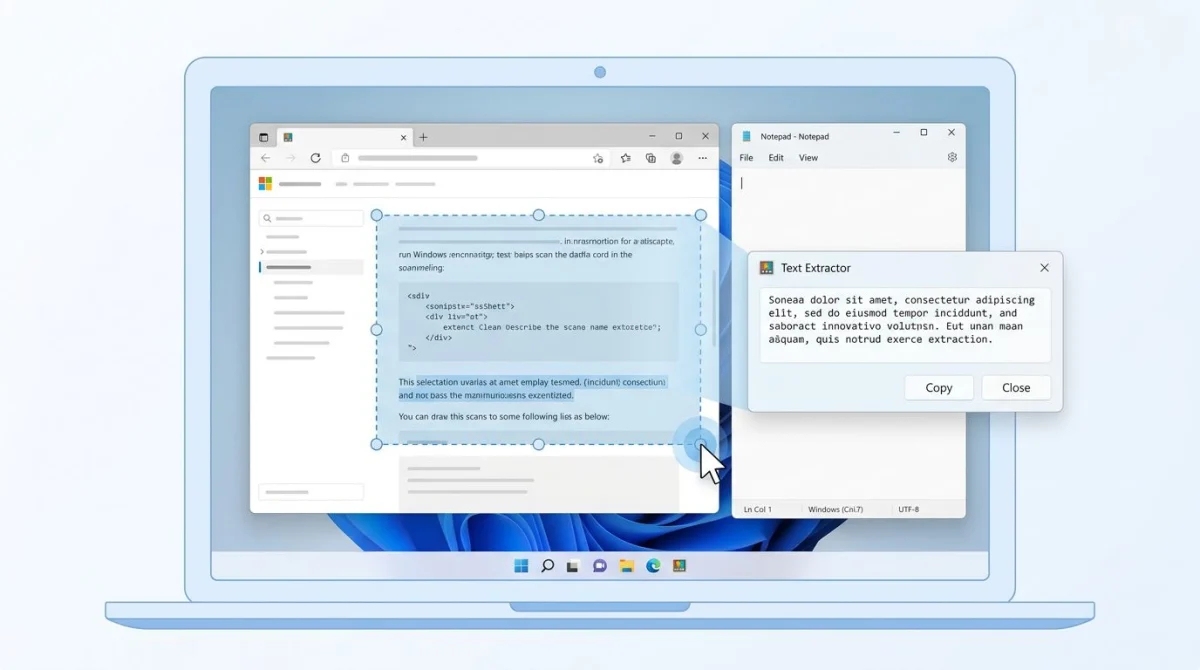
How to use it:
- Install PowerToys from the Microsoft Store or GitHub
- Open PowerToys Settings and make sure Text Extractor is enabled
- Press
Win + Shift + Tto activate the overlay - Click and drag to select the area containing text
- The extracted text is copied straight to your clipboard
What it does well:
- Works on any screen content, including apps, images, videos, and locked dialogs
- Zero-click workflow after the shortcut (text goes right to clipboard)
- Supports multiple languages through Windows OCR language packs
- No internet connection required
Where it falls short:
- No preview or editing before the text hits your clipboard
- Accuracy drops on low-resolution images or unusual fonts
- Only works on text currently visible on screen (can't process files)
- No batch mode for multiple images
PowerToys Text Extractor is the fastest way to copy text from your screen on Windows. If you need OCR a few times a day for quick grabs, this is all you need. For heavier use, keep reading.
Pro tip: You can install additional OCR language packs through Windows Settings under Time & Language. This lets Text Extractor recognize text in dozens of languages beyond English.
2. Snipping Tool text actions (Windows 11)
Windows 11's updated Snipping Tool gained text reading in late 2023. After you take a screenshot, you can select and copy any text found in the image. No extra software needed.
How to use it:
- Press
Win + Shift + Sto open Snipping Tool - Capture your screenshot
- Click the "Text actions" button in the toolbar
- Select the text you want or click "Copy all text"
What it does well:
- Built into Windows 11 (no install needed)
- Combines screenshot capture and text extraction in one step
- Includes a "Quick Redact" option to hide sensitive data like emails and phone numbers
- Clean, modern interface
Where it falls short:
- Windows 11 only (not available on Windows 10)
- Can't process existing image files (only new screenshots)
- Limited language support compared to PowerToys
- No batch mode
If you already take screenshots with Snipping Tool, the text actions feature saves you from switching to another app. It pairs screenshot capture with OCR into one smooth flow, which is exactly what most people need for everyday screenshot to text conversion on Windows.
The Quick Redact feature is worth a closer look. After OCR reads text in your screenshot, it can find and hide email addresses and phone numbers on its own. This is helpful when you need to share a screenshot with private details: you can copy the text you need while blocking out what should stay hidden.
3. Dedicated screenshot tools with built-in OCR
Some screenshot apps bundle OCR as part of a broader capture-and-share workflow. Instead of taking a screenshot in one app and running it through a separate text extractor, you handle everything in a single window.
ScreenSnap Pro is one example: it combines screen capture, 17 annotation tools, and OCR in a single app. Capture a region, extract text from the image, annotate it with arrows or blur tools, and share via a cloud link. It costs $49 once with no subscription, and it works on both Mac and Windows.
This approach fits best when you regularly capture screenshots and need to extract text from images as part of your workflow: documenting bugs, pulling data from locked interfaces, or creating annotated tutorials. Instead of juggling two or three apps, everything happens in one place.
4. Microsoft OneNote OCR
OneNote has a hidden OCR feature that many people overlook. Paste or insert any image into a note, and OneNote can extract all the text from it, including handwritten notes.
How to use it:
- Open OneNote and create a new note
- Insert your image (drag and drop or Insert > Pictures)
- Right-click the image
- Select "Copy Text from Picture"
- Paste the extracted text wherever you need it
What it does well:
- Free with any Microsoft account
- Handles scanned documents and handwritten text
- Works with images already saved as files (not just screen content)
- Syncs across devices through OneDrive
Where it falls short:
- Requires opening OneNote (clunky if you don't already use it)
- Slower than dedicated OCR tools
- No batch mode
- Accuracy varies with handwritten text quality
- Needs an internet connection for OCR
OneNote OCR works best when you already use OneNote for note-taking. If you get a scanned PDF or a photo of a whiteboard, pasting it into a note and extracting the text is quick. But if OCR is a frequent task, a dedicated tool is faster. Mac users looking for similar functionality can copy text from screenshots on Mac using built-in Live Text.
5. Google Lens (browser-based, free)
Google Lens brings powerful OCR to any Chrome browser window. Right-click an image on any website, and you can extract text from it instantly. No downloads or extensions required.
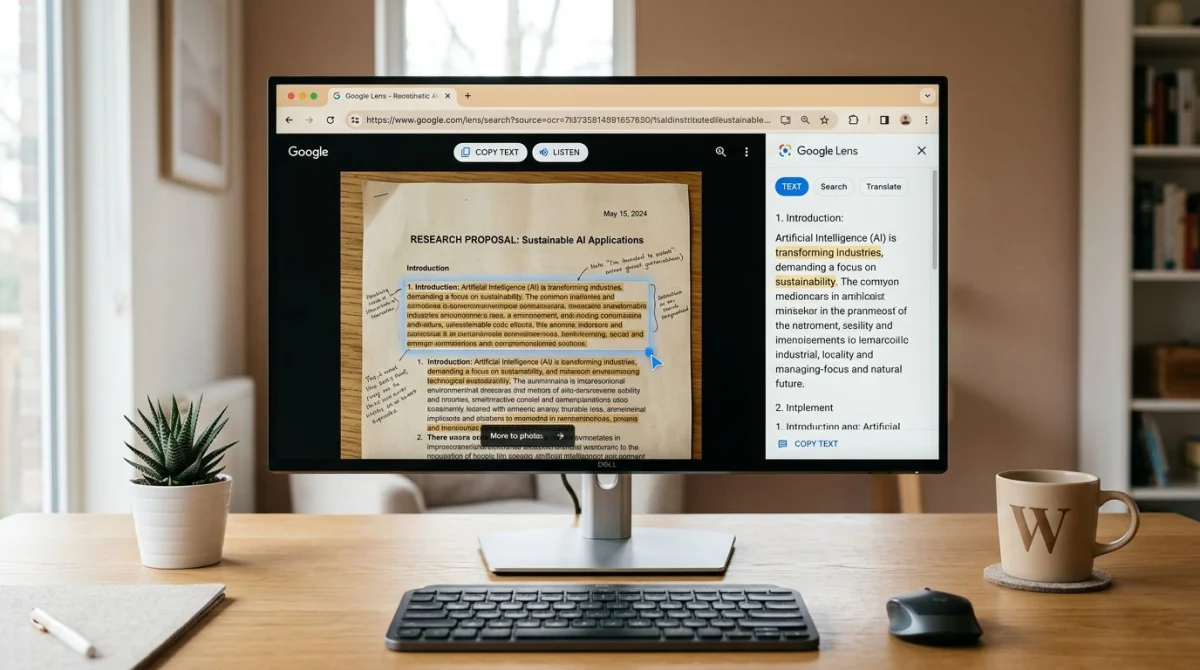
How to use it:
- Open an image in Google Chrome
- Right-click the image and select "Search image with Google Lens"
- Click the "Text" tab in the Lens panel
- Select and copy the recognized text
What it does well:
- Free and works in Chrome (no install)
- Strong accuracy across many languages
- Handles photos, screenshots, and web images
- Built-in translation for foreign text
Where it falls short:
- Requires an internet connection
- Only works in Chrome (not system-wide)
- Privacy consideration: images are sent to Google's servers
- Can't process files in bulk
Google Lens is handy for quick text grabs from web images or photos you open in the browser. If privacy matters to you, stick with offline tools like PowerToys that keep your images on your machine.

Tired of plain screenshots? Try ScreenSnap Pro.
Beautiful backgrounds, pro annotations, GIF recording, and instant cloud sharing, all in one app. Pay $49 once, own it forever.
See pricing and features6. ABBYY FineReader (professional-grade)
ABBYY FineReader is the heavy-duty option. It's built for offices that handle large volumes of scanned contracts, invoices, and multi-language paperwork.
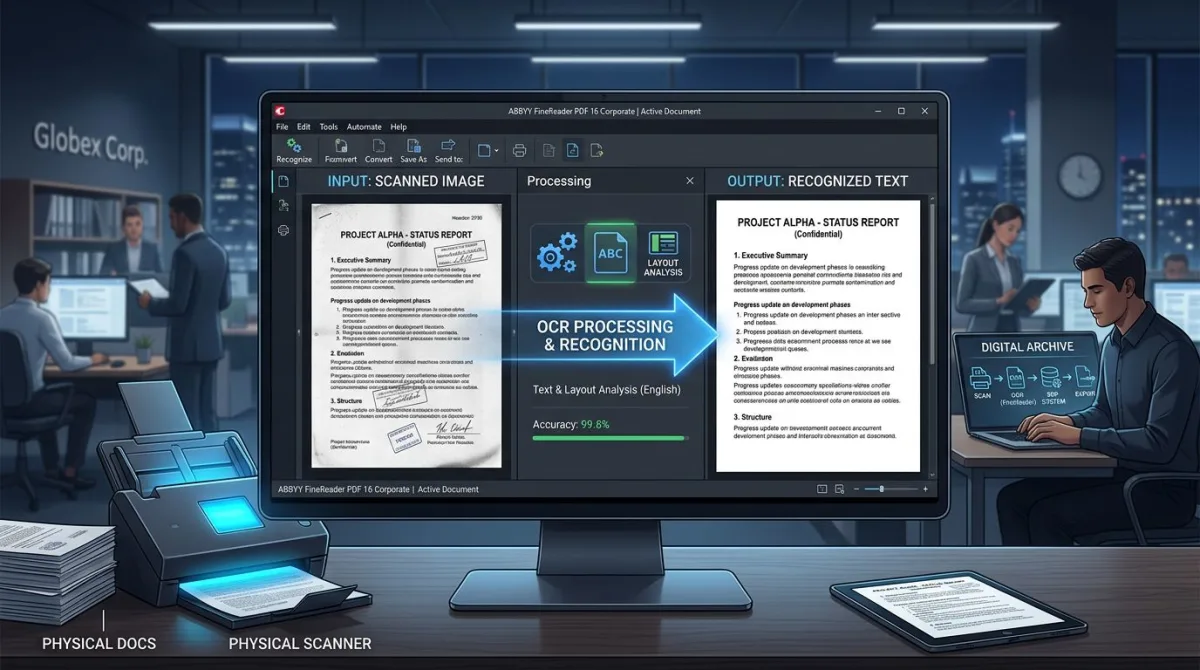
Key features:
- 198 language support: the widest coverage of any OCR tool
- Batch mode for folders full of scanned files
- PDF editing, comparison, and conversion
- Keeps document layouts intact (tables, columns, formatting)
- Screenshot OCR via the built-in Screenshot Reader
Pricing: $99/year (Windows), $69/year (Mac)
Best for: Legal offices, accounting firms, and anyone who scans dozens of pages each week. If you handle receipts, contracts, or invoices in bulk, FineReader's accuracy and batch mode pay for themselves fast.
Where it's overkill: If you only grab text from a screenshot once or twice a day, the free tools above work fine. ABBYY's yearly fee makes sense when OCR is a daily, high-volume task.
7. Tesseract OCR (open source, developer-focused)
Tesseract is the open-source OCR engine behind many of the tools on this list. It's free, very capable, and runs on your machine with no cloud needed. The catch: it's a command-line tool, not a point-and-click app.
How to use it:
- Install Tesseract via the Windows installer
- Open a terminal and run:
tesseract image.png output - Find the extracted text in
output.txt
What it does well:
- Completely free and open source
- Runs offline, so no data leaves your machine
- Supports 100+ languages
- Batch mode through shell scripts
- Can be added to custom apps and workflows
Where it falls short:
- Command-line only, with no graphical interface
- Requires manual install and setup
- Accuracy depends on image quality
- No PDF support without extra libraries
Tesseract is the right choice for developers who want OCR built into their apps or scripts. If you're at ease with the command line, it's the most flexible tool on this list. For everyone else, the visual tools above are faster to start with.
How to choose the right OCR tool
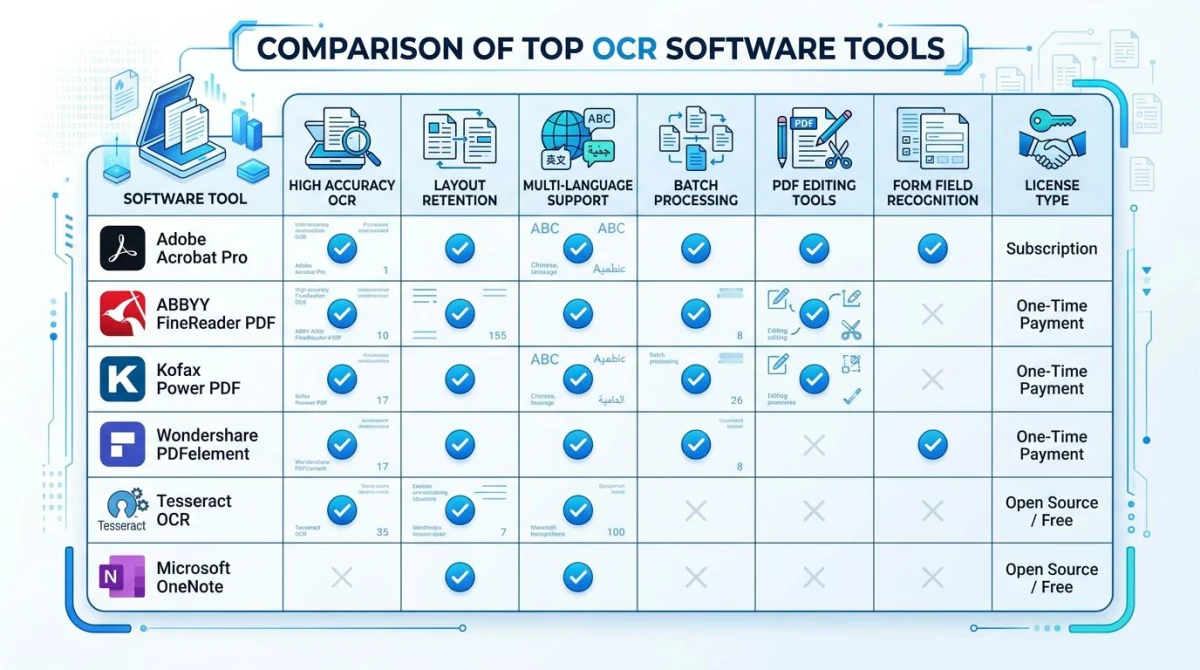
Your best pick depends on how often you need OCR and what kind of content you're extracting:
For quick screen grabs: Start with PowerToys Text Extractor. The Win + Shift + T shortcut is the fastest way to copy text from anything on your screen. If you're on Windows 11, the Snipping Tool text actions work well too.
For screenshot-heavy workflows: A dedicated screenshot tool with built-in OCR keeps everything in one app. If you regularly take screenshots on Windows and need to extract text from them, having capture and OCR in a single tool saves time.
For scanned documents and business use: ABBYY FineReader handles batch jobs, 198 languages, and keeps document layouts intact. It's the best pick when accuracy and volume matter.
For developers: Tesseract gives you full control. Automate OCR in scripts, integrate it into apps, or process thousands of images in a pipeline.
For casual web use: Google Lens works without installing anything. Right-click an image in Chrome and grab the text.
Tips for better OCR accuracy
No matter which tool you choose, these tips help you get sharper images and cleaner text results:
- Use high-res images. 300 DPI or higher gives the best results. You can use our free DPI converter tool to check and adjust DPI before running OCR.
- Boost contrast. Dark text on a light background reads best. Light gray text on a slightly lighter gray background will trip up most OCR engines, even though your eyes can read it fine.
- Straighten the image. Tilted text lowers accuracy. Crop and level the image first. Most image editors include a rotation tool for this.
- Pick the right language pack. Most tools default to English. If your document mixes languages, set the OCR language to match. PowerToys and Tesseract both let you add more language packs.
- Use PNG or TIFF over JPG. JPEG can blur text edges, mostly at lower quality settings. PNG keeps sharp text details that help OCR engines read well.
- Proofread the output. Even the best OCR tools make mistakes on unusual fonts, watermarks, or low-quality scans. A quick read-through catches errors, especially in numbers, email addresses, and proper nouns.
When to use free vs. paid OCR tools
The free options on this list cover most everyday needs. If you copy text from a screenshot once or twice a day, PowerToys Text Extractor or the Snipping Tool handle it well. Google Lens works for grabbing text from photos you find online.
Paid tools earn their price in specific situations:
- High volume: Handling 50+ pages per day with ABBYY FineReader is faster than doing each one by hand with a free tool.
- Complex layouts: Scanned pages with tables, columns, and mixed formats need ABBYY's layout tools. Free options grab the text but lose the structure.
- Multi-language work: If you often handle documents in languages beyond English, ABBYY's 198-language support gives the most reliable results.
- All-in-one workflow: Tools that combine screenshot capture and OCR in one step (like the Windows screenshot tools with built-in text grabbing) save time when you often copy text from your screen.
For most people, the free route works. Start with PowerToys, and upgrade only when you hit a limitation that slows you down.
If you're on a Mac, we have a separate guide covering the best OCR software for Mac with tools like Live Text and TextSniper. And if you want a quick way to extract text from any image on Mac, that guide walks through seven different methods.
You can also use our free OCR text extraction tool to pull text from images right in your browser. No signup needed.
Common use cases for OCR on Windows
Knowing when OCR helps most can guide your tool choice:
Copying text from screenshot images. You take a screenshot of an error message, a chat conversation, or a settings panel. Instead of retyping what you see, OCR copies the exact text to your clipboard. PowerToys or Snipping Tool handles this instantly with a keyboard shortcut.
Turning scanned pages into text. Paper receipts, business cards, contracts, and invoices that you scan become searchable text. ABBYY FineReader excels here because it keeps table structure and column layouts that free tools lose.
Grabbing text from locked apps. Some apps don't let you select or copy their text: dialog boxes, images in PDFs, older software. A screen-based OCR tool like PowerToys gets around this by reading the pixels on screen.
Reading foreign text in images. You get a screenshot in another language. Google Lens can pull the text and translate it in one step. For offline work, Tesseract with the right language pack grabs the text, and you translate on your own.
Reading photos of whiteboards and notes. After a meeting, you snap a photo of the whiteboard. OneNote can pull the text, even from slightly messy handwriting, and save it with your other meeting notes.
Frequently Asked Questions

Morgan
Indie DeveloperIndie developer, founder of ScreenSnap Pro. A decade of shipping consumer Mac apps and developer tools. Read full bio
@m_0_r_g_a_n_