7 Best OCR Software for Mac (2026) - Free & Paid
For most Mac users who grab text off the screen every day, ScreenSnap Pro ($34 once) is the best OCR pick: draw a box over any part of the screen and the text lands on your clipboard, in the same app you use for screenshots and screen recording. macOS Live Text is the free baseline for images in Preview, Photos, and Quick Look. TextSniper is the cheapest focused OCR app, and ABBYY FineReader is the one for batches of scanned PDFs and tricky tables.
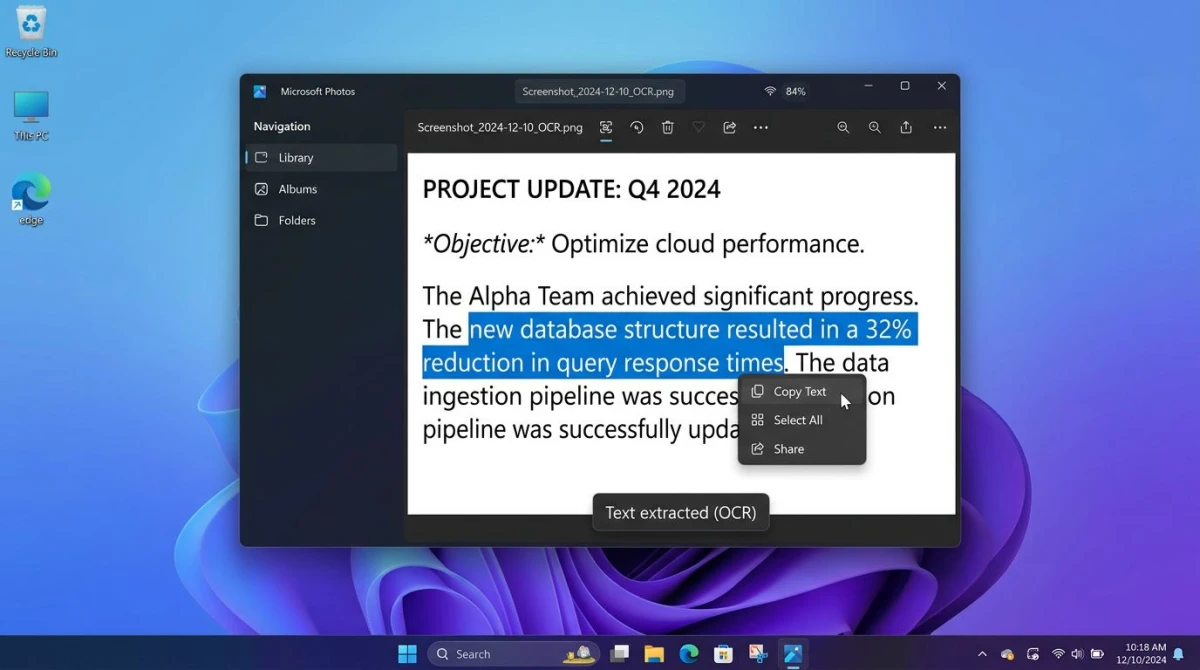
OCR software for Mac lets you grab text from images, screenshots, PDFs, and even video frames. Instead of typing out what you see on screen, a good OCR app such as the one built into ScreenSnap Pro reads the text for you and copies it to your clipboard. It saves hours of work every week.
Whether you need to copy text from a screenshot, pull data from a scanned receipt, or grab a code block from a tutorial image, the right tool makes it easy. The hard part is picking between free built-in options, cheap one-time apps, and premium tools with yearly fees.
We tested seven OCR tools on real tasks (screenshots, scanned docs, video frames, and locked PDFs) to help you find the best one for how you work and what you want to spend.
Quick comparison table
| Tool | Price | Best for | Works offline | Accuracy |
|---|---|---|---|---|
| ScreenSnap Pro | $34 one-time | Screenshot + OCR workflow | ✅ | Very good |
| macOS Live Text | Free (built-in) | Quick text grabs | ✅ | Good |
| TextSniper | $7.99 one-time | Focused OCR tool | ✅ | Good |
| CleanShot X | $35 one-time or $10/month Pro | Screenshot power users | ✅ | Good |
| OwlOCR | Free / $19.99 per year Pro | Free OCR with PDF export | ✅ | Good |
| ABBYY FineReader PDF | $69.99/year | Heavy document work | ✅ | Excellent |
| Adobe Acrobat Pro | $19.99/month (yearly plan) | Enterprise PDF editing | ❌ | Excellent |
1. ScreenSnap Pro ($34 one-time)
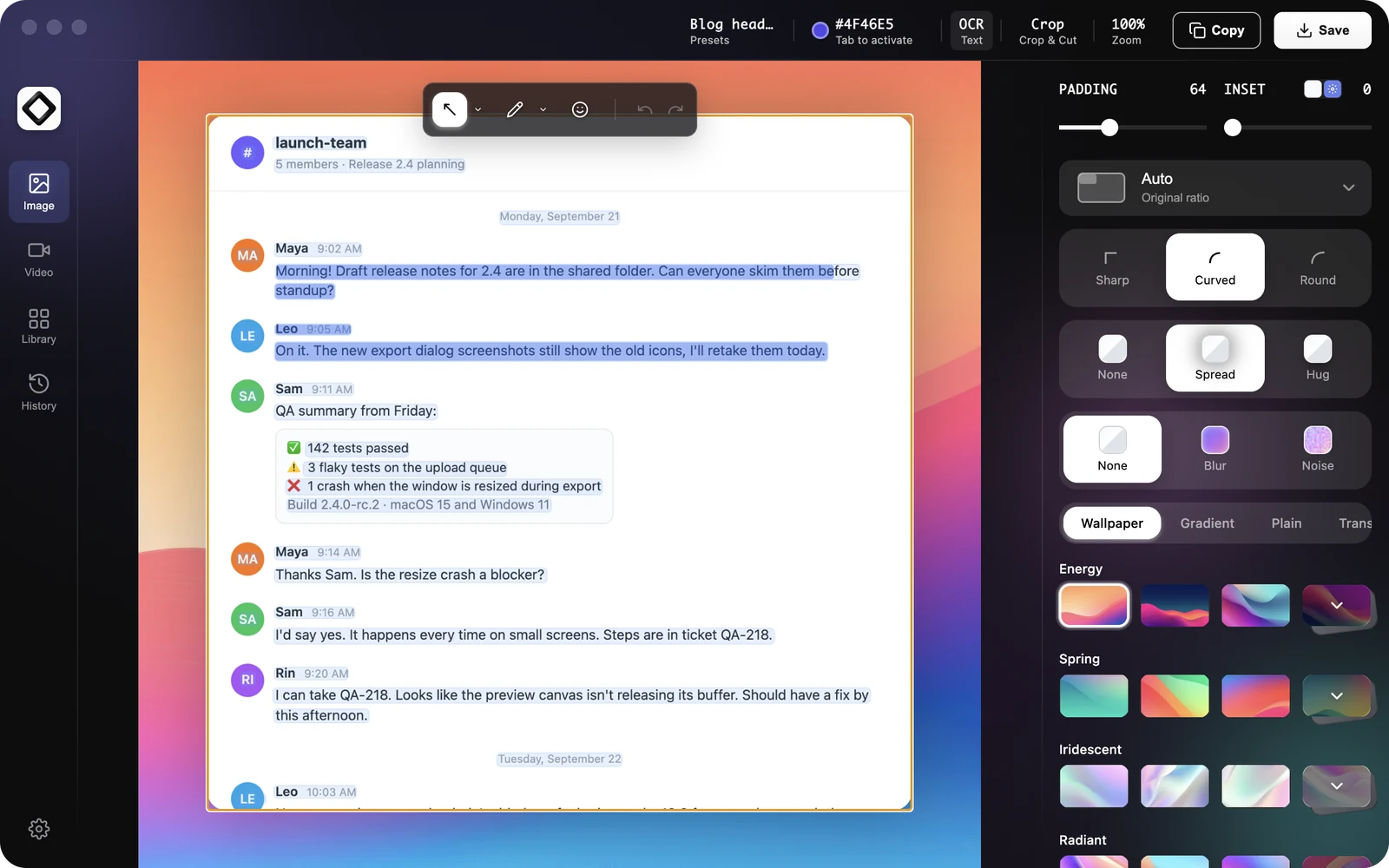
If you take lots of screenshots, ScreenSnap Pro puts capture and OCR in one place. No need to screenshot, open in Preview, then select text: you draw a box and get the text in one step.

Key OCR features:
- Pick
Recognize Textfrom the menu bar, drag over any part of the screen, and the text goes straight to your clipboard - Works on anything you can see: locked PDFs, images, paused video frames, slides, error dialogs
Copy Text (OCR)on the Quick Preview thumbnail or a pinned screenshot grabs all of its text in one click- The editor's OCR mode highlights each line, so you copy only the lines you need
- Runs on your Mac with the text recognition built into macOS, detects the language on its own, and never uploads your images
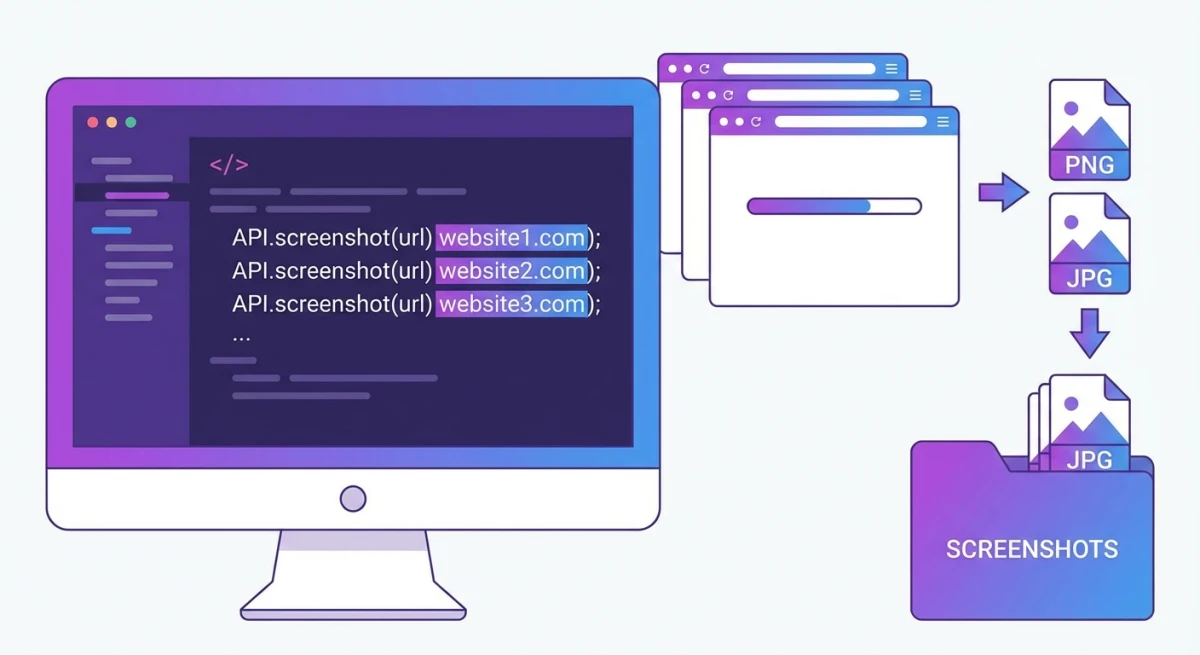
Why it's first: It's the only app here that pairs screen OCR with a full screenshot editor and a screen recorder for one payment. You get 17 pro-level markup tools, 500+ screenshot backgrounds, pinned screenshots, full-page website capture from a URL, and quick cloud share links. The recorder saves MP4 at up to 60fps with webcam, mic, and system audio, or records GIFs directly. A built-in video editor handles trims, cuts, speed changes, silence removal, and auto zoom that follows your cursor.
Best for: Devs, designers, and writers who screenshot a lot and want OCR built right in. If you already edit screenshots on Mac, having OCR in the same app cuts out extra steps.
Price edge: Unlike tools that charge every month or year, ScreenSnap Pro is a one-time buy with free updates for life. One license covers 2 seats, in any mix of Mac and Windows, and comes with a 30-day money-back guarantee.
What to keep in mind: OCR works on one screenshot or screen area at a time, so there's no batch mode for folders or long scanned PDFs. It also can't do scrolling capture of native app windows. For stacks of paper scans, ABBYY FineReader is the better tool.
How it fits your workflow: Pair it with clipboard screenshots for a fast copy-paste loop. Take a screenshot, extract the text, and paste it where you need it, all without saving a single file.
2. macOS Live Text (free, built-in)
Apple's Live Text feature comes with every Mac running macOS Monterey or later. It reads text right inside Preview, Photos, Safari, and Quick Look, with no extra app needed.
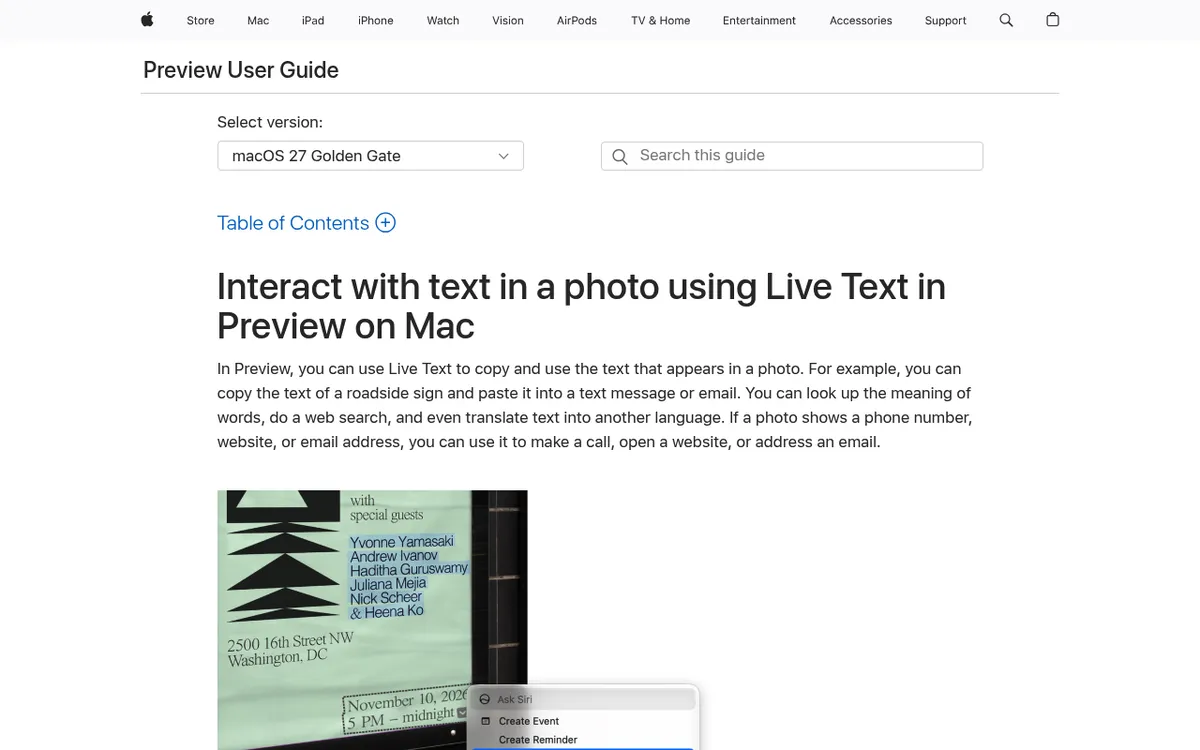
How to use it:
- Open an image in Preview or Photos
- Hover over the text until the cursor changes
- Click and drag to select the words you want
- Press
⌘ + Cto copy
What it does well:
- Clear text in photos and screenshots
- Website images in Safari
- Quick Look previews (press Space on any file)
- Look up, translate, or search selected text, and call or email detected phone numbers and addresses
Where it falls short:
- Doesn't work with all image types
- Can't handle scanned PDF pages
- No batch mode for many files at once
- Fewer languages than ABBYY FineReader, and Apple says it isn't available in all regions or languages
- Can't grab text from random screen areas
Live Text works great for the odd text grab here and there. If you do it many times a day, a dedicated app will be faster. You can also use keyboard shortcuts to speed up your screenshot-to-text flow.
Pro tip: Live Text also works in the macOS screenshot preview. Take a screenshot with ⌘ + Shift + 4, open the thumbnail that pops up, and you can select text right away. This is handy for apps that don't let you copy text the normal way.
3. TextSniper ($7.99 one-time)
TextSniper is a simple OCR app for Mac that does one thing and does it well: grab text from your screen. Press a hotkey, draw a box, and the text goes to your clipboard.
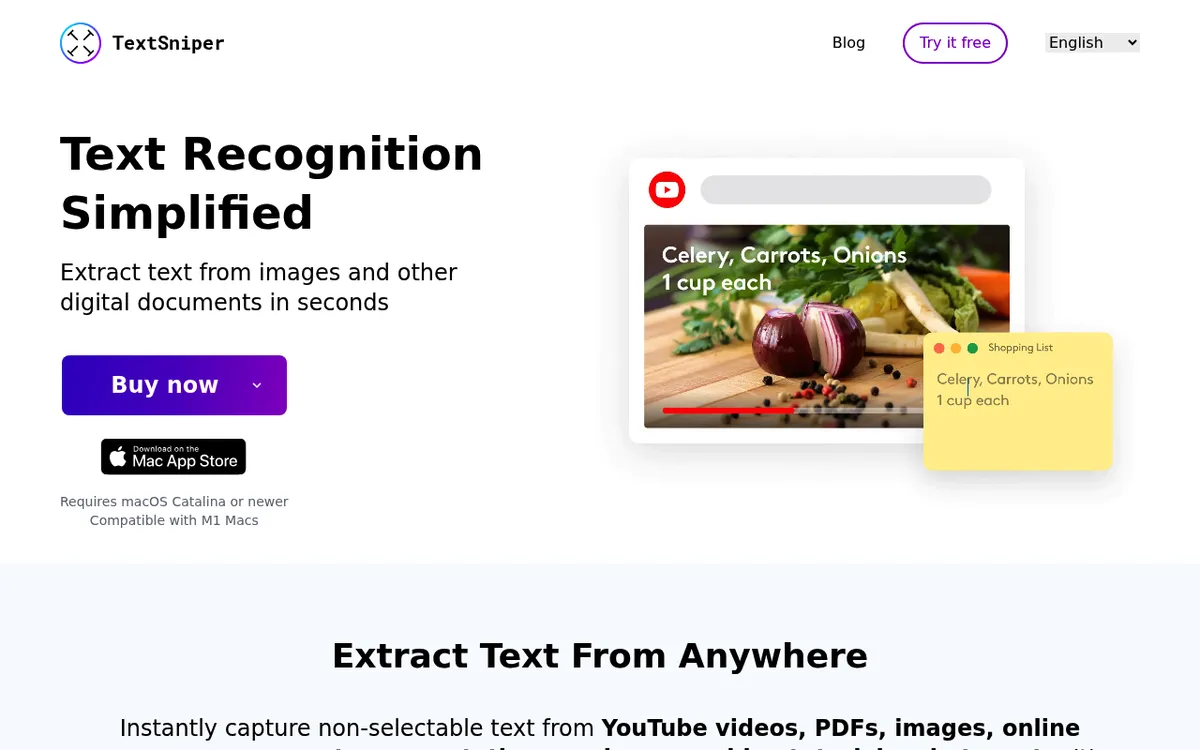
What stands out:
- Runs on keyboard shortcuts
- Reads text in images, videos, and slides
- Can scan QR codes and barcodes too
- Works fully offline
- Tiny menu bar app that stays out of your way
What it lacks:
- No markup or screenshot tools
- Gives you plain text only (no bold, tables, etc.)
- One selection at a time (no batch mode)
- Each license covers 1 Mac ($9.99 for 3 Macs or on the Mac App Store)
At $7.99, TextSniper is a cheap and solid choice if all you need is OCR. It won't take screenshots or add notes to images, but that's the point. It's lean by design. Its site points you to a free week through Setapp, and buying direct comes with a 7-day money-back guarantee.
If you need both OCR and screenshot tools, you'd end up running two apps. ScreenSnap Pro or CleanShot X bundle both in one place. But if you just want quick text grabs and nothing else, TextSniper nails it.
4. CleanShot X ($35 one-time or $10/month Pro)
CleanShot X is a well-known screenshot tool for Mac that also reads text. It has a text capture mode: select an area and the text goes to your clipboard.
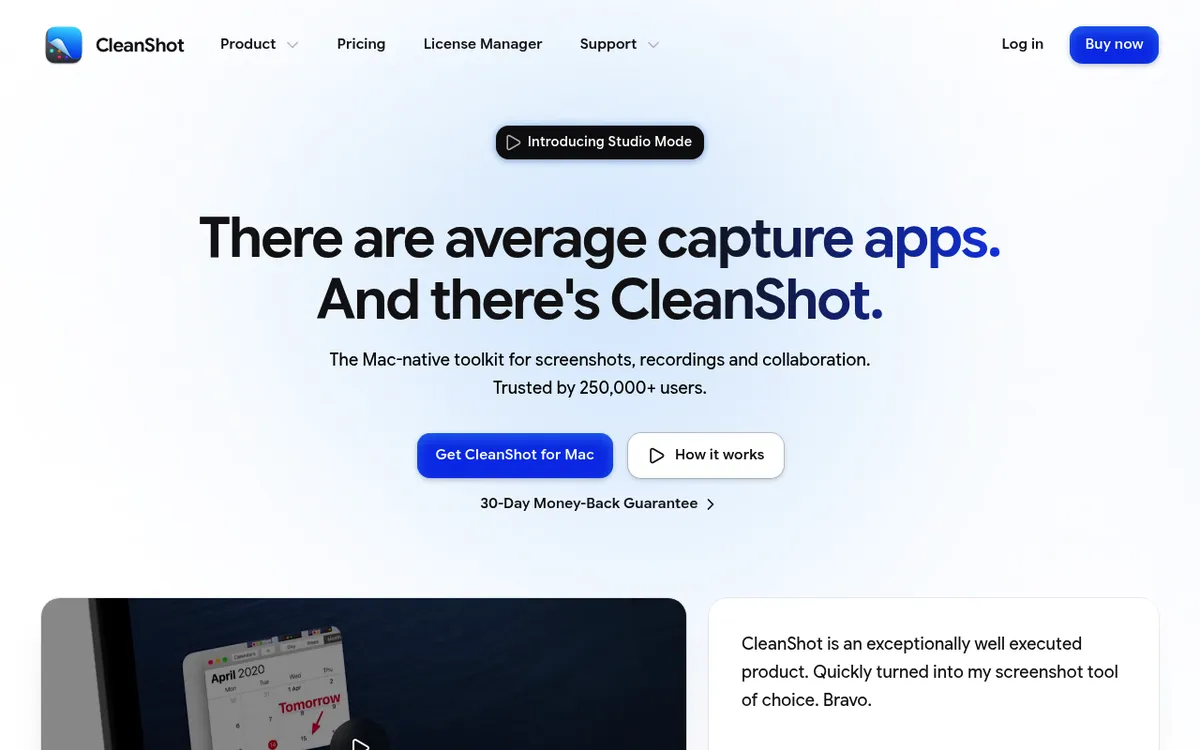
OCR workflow:
- Start a text capture (OCR) from the menu bar or its shortcut
- Select the area with the text
- Text goes to your clipboard
What it does well:
- Great screenshot and markup tools
- Scrolling capture for long pages
- Built-in cloud sharing
- On-device OCR in 30+ languages
- Gets updates often, including a new video editor in version 5.0
What to keep in mind:
- OCR isn't the main focus, just a bonus
- The $35 Basic plan includes 1 year of updates ($19/year to renew) and 1 GB of cloud storage
- Unlimited cloud storage needs Pro at $10 per user/month, billed yearly
- Pricier than pure OCR tools
If you want CleanShot X for screenshots anyway, the built-in OCR is a nice perk. For a full look at how it stacks up, read our CleanShot X alternatives guide. You can also check out how Shottr compares to CleanShot X if you're on the fence.

Tired of plain screenshots? Try ScreenSnap Pro.
Beautiful backgrounds, pro annotations, GIF recording, and instant cloud sharing, all in one app. Pay $34 once, own it forever.
See pricing and features5. OwlOCR (free / $19.99 per year Pro)
OwlOCR is a small Mac app built just for text reading. The free Core version covers a lot. The paid Pro version adds batch processing, a command line tool, and a local AI mode for messy scans.
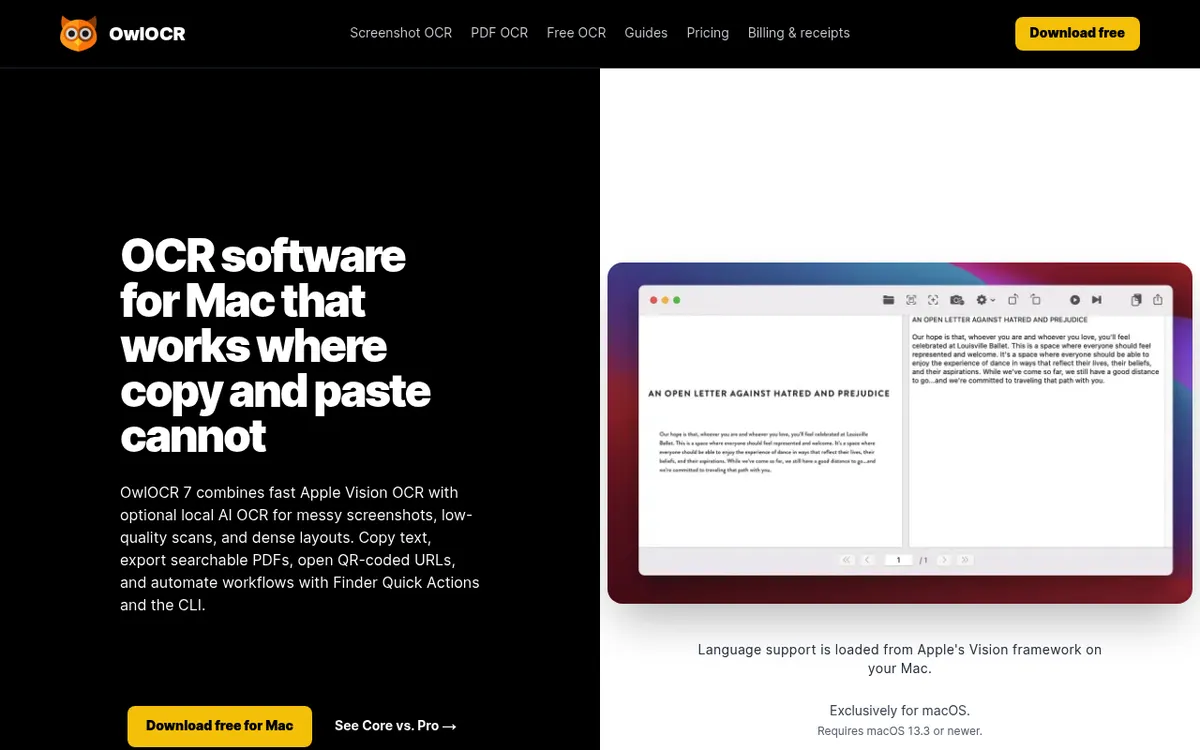
Features:
- Grab text from a screen area with a shortcut
- Drag and drop any image or PDF to read it
- Export searchable PDFs and text files, even on the free tier
- Reads the languages Apple's Vision engine supports on your macOS version
- Uses Apple's Vision engine, so it runs on your device, not in the cloud
Free version limits:
- No batch OCR of whole PDFs or many files at once
- No command line tool
- No local OCR AI for low-quality scans
Pro costs $19.99 per year, or $49.99 once for a lifetime license on the version you buy. OwlOCR needs macOS 13.3 or newer.
OwlOCR is a good pick if you want a free app that does more than Live Text but don't need screenshot or markup features. Since it uses Apple's on-device tech, your data never leaves your Mac. That matters when you work with private docs or company files.
Tip: OwlOCR reads PDF, HEIC, PNG, JPEG, TIFF, and WebP files. If you have an image in another format, run it through our free image format converter first.
6. ABBYY FineReader PDF ($69.99/year)
ABBYY FineReader PDF is built for serious document OCR. If you scan contracts, invoices, research papers, or handwritten notes, its 99.8% accuracy suits demanding document work.
Why it's so accurate:
- Over 20 years of OCR engine work
- Keeps the original layout (fonts, tables, columns)
- Reads 198 languages
- Handles bad scans and dim lighting
- Batch mode for many files at once
Best use cases:
- Lawyers scanning legal docs
- Accountants turning receipts into data
- Students working with research papers
- Anyone turning stacks of paper into searchable PDFs
The catch: It's a subscription: $69.99 per year on the Mac App Store, or 69 EUR per year direct. And it's made for document work, not quick screen grabs. If you mainly need to read text from screenshots or on-screen content, a lighter tool is a better fit. The Mac version also has fewer PDF tools than the Windows one and runs on Apple Silicon through Rosetta 2. You can try it free for 7 days.
Worth noting: ABBYY shines with complex layouts: think multi-column PDFs, tables with merged cells, and forms. No screen-based OCR tool comes close for this kind of work. But for day-to-day text grabs from your Mac screen, it's way more than you need.
7. Adobe Acrobat Pro ($19.99/month, yearly plan)
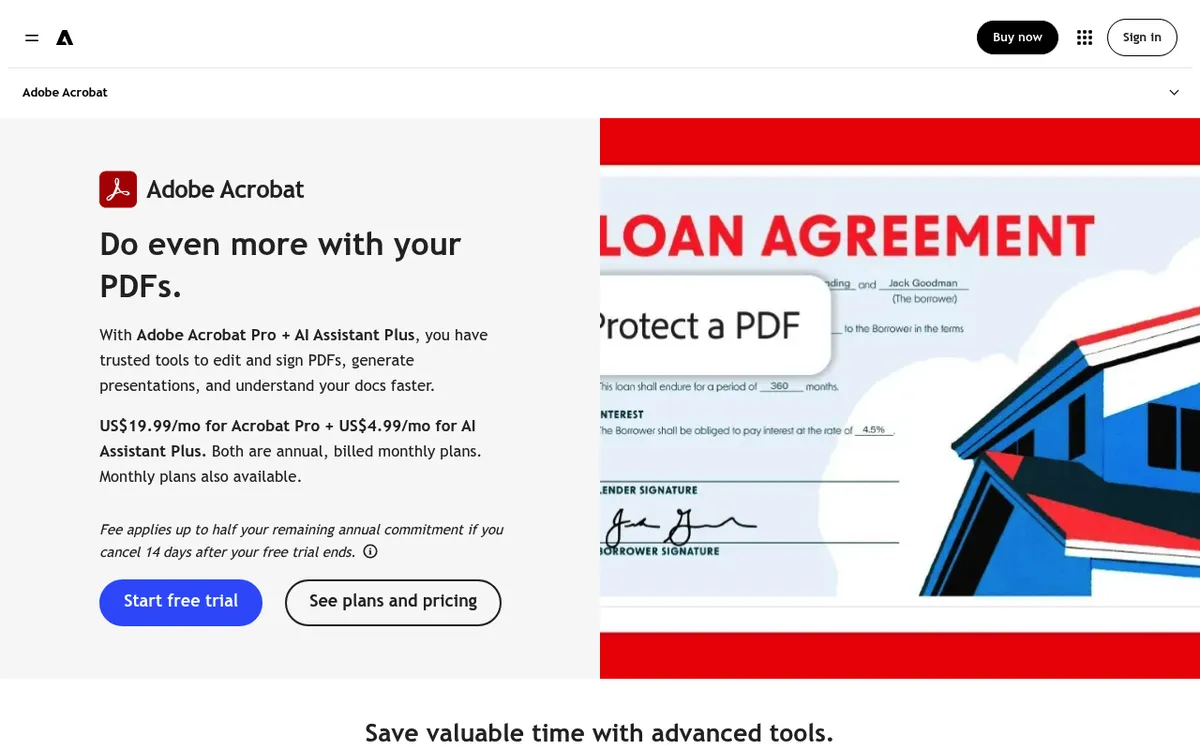
Adobe Acrobat Pro has strong OCR built into its full PDF editing suite. It's common in large companies, but the price tag shows it.
OCR features:
- Turn scanned PDFs into searchable, editable files
- Batch OCR across many files at once
- Great with tricky layouts
- Works with other Adobe tools
Why most Mac users skip it:
- $19.99/month on a yearly plan ($239.88/year) is a lot just for OCR, and month to month it's $29.99
- Big, slow app that takes time to start up
- Needs an Adobe account and internet check
- Way too much unless you already use Adobe apps
Acrobat Pro makes sense if your team already pays for Creative Cloud. For solo Mac users, the other tools here give you more bang for your buck. If you want to test it first, Adobe offers a 7-day free trial.
If PDFs are your main focus, you might also want our guide on turning screenshots into PDFs or the free image to PDF tool for fast jobs.
Free vs paid OCR: what you really need
Most Mac users don't need pricey OCR software. Here's a simple way to decide:
Get a one-time purchase app like ScreenSnap Pro if you:
- Pull text from screenshots every day
- Want OCR built into your capture flow
- Prefer to pay once with no yearly fees
Stick with free (Live Text) if you:
- Grab text from images a few times a week
- Work with clear, easy-to-read text
- Don't need to process many files at once
Think about a subscription if you:
- Scan hundreds of documents each month
- Need near-perfect accuracy on hard layouts
- Work with docs in many languages
Tips for getting better OCR results on Mac
No matter which tool you use, a few simple tricks will give you cleaner text output:
- Use high-res images. The sharper the source, the better the read. If you take partial screenshots, zoom in first for cleaner captures.
- Good lighting matters. For photos of paper docs, bright and even light cuts way down on errors.
- Crop tight. Remove extra space around the text. Less noise means fewer mistakes. Our free image cropper can help.
- Pick the right language. Most OCR tools default to English. If your text is in another language, set that in the app first.
- Check the output. Even the best OCR misses things: special characters, odd fonts, and small text trip up every tool. A quick scan of the result saves headaches later.
How to pick the right OCR app for your workflow
Your ideal tool depends on what you do most. The Mac OCR world splits into three groups: built-in (free), screenshot-based (one-time buy), and document-focused (subscription). Most people only need the first two.
Screenshot-first workflow: If you capture screens often and need to read text as part of that, ScreenSnap Pro or CleanShot X put both tools in one app. You can also try our free OCR text extraction tool for quick one-off jobs.
OCR only: TextSniper or OwlOCR are light, cheap, and laser-focused on text reading. No bloat, no extras.
Document scanning: ABBYY FineReader PDF handles complex pages, tables, and long scans far better than any screen-grab tool. If you turn paper into PDFs often, it's worth the yearly cost.
Many languages: ABBYY (198 languages) leads here. ScreenSnap Pro, TextSniper, OwlOCR, CleanShot X, and Live Text use the text recognition in macOS, so the languages they read depend on your macOS version.
On a budget: macOS Live Text costs nothing and covers basic needs. Pair it with our free image format converter if you need to change file types before OCR.
Frequently Asked Questions

Morgan
Indie DeveloperIndie developer, founder of ScreenSnap Pro. A decade of shipping consumer Mac apps and developer tools. Read full bio
@m_0_r_g_a_n_