Best Process Documentation Tools in 2026 | Free & Paid
A process documentation tool helps you record how work gets done, step by step and with screenshots, so anyone can follow along. Whether you're training new hires, building SOPs, or creating help docs, these tools turn messy workflows into clear guides, especially paired with a screenshot app like ScreenSnap Pro.
The best tools auto-capture your screen as you click through a process. Others focus on manual screenshot annotation for more control. We tested both types to help you pick the right fit for your team.
What is process documentation?
Process documentation is a written record of how to complete a task or workflow. Good process docs include clear steps, screenshots at each stage, and notes on what to watch out for.
Think of it as a recipe. A recipe without photos leaves room for guesswork. A recipe with step-by-step images makes it easy for anyone to follow, even if they've never cooked before. Business process documentation works the same way.
Common types include:
- SOPs (standard operating procedures). Formal step-by-step guides for repeated tasks
- Training docs. Onboarding materials for new team members
- Knowledge base articles. Self-serve help for customers or internal teams
- Process flow docs. Visual maps of how work moves between people and systems
- Troubleshooting guides. How to fix common issues with screenshots of each step
Most teams create process docs using a mix of text and screenshots. The tools below make that process faster: some record your screen as you work, others give you better ways to annotate and organize your captures.
Best process documentation tools at a glance
| Tool | Best For | Auto-Capture | Price | Platform |
|---|---|---|---|---|
| Scribe | Auto-generated guides | ✅ | Free / $12/seat/mo | Web, Chrome, Desktop |
| Tango | Free auto-capture | ✅ | Free / $22/user/mo | Chrome extension |
| ScreenSnap Pro | Mac screenshot docs | ❌ (manual) | $39 one-time | Mac |
| Document360 | Knowledge bases | ❌ | Custom pricing | Web |
| Whale | SOPs & training | ❌ | $6/user/mo | Web |
| Stepshot | IT documentation | ✅ | Custom pricing | Windows, Mac |
| Process Street | Recurring workflows | ❌ | Custom pricing | Web |
| Whatfix | In-app guides | ✅ | Custom pricing | Web |
Scribe: auto-generated step-by-step guides
Best for: Teams that document processes often and want to save time
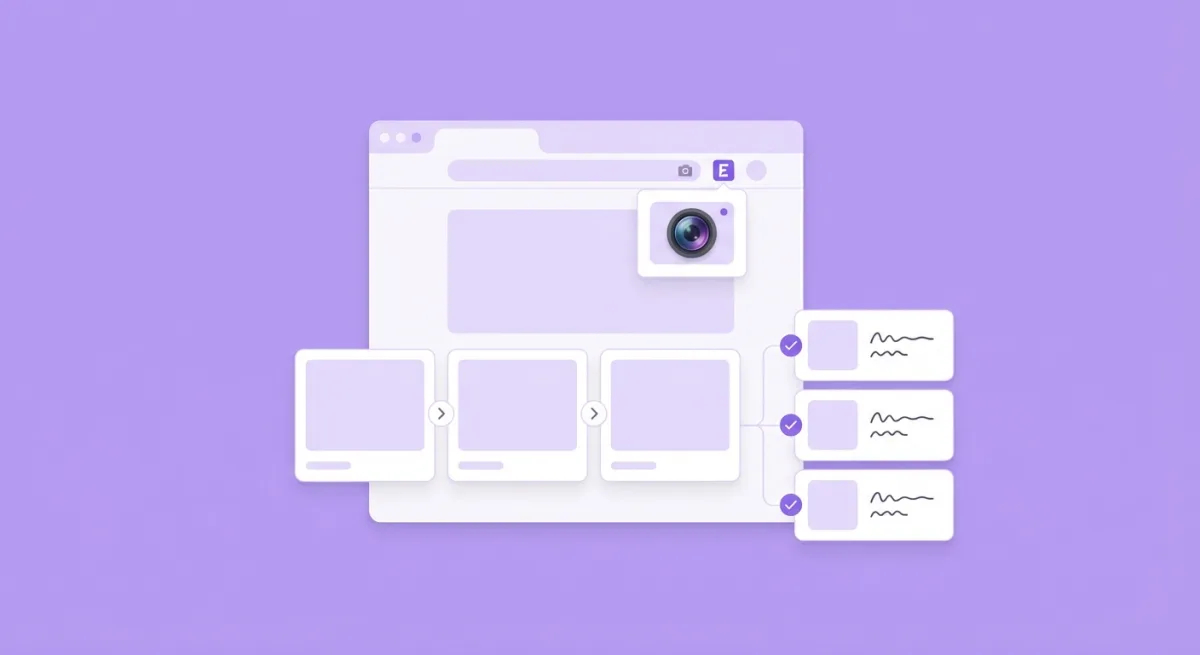
Scribe watches you complete a task and builds the guide for you. Turn on the recorder, click through your process, and Scribe creates a doc with numbered steps and screenshots, with no manual work.
What makes it stand out:
- Auto-capture records every click, scroll, and page change
- AI-written descriptions explain each step in plain English
- One-click editing lets you blur data, crop screenshots, or rewrite steps
- Chrome extension + desktop app captures web and desktop workflows
- Export to PDF, HTML, or embed in your wiki or knowledge base
How it works: Install the Chrome extension or desktop app. Click "Start Recording." Do the task. Click "Stop." Scribe gives you a finished guide in seconds. You can then edit, share, or embed it.
Pricing: Free plan with basic guides. Pro at $12/seat/month adds branding, custom domains, and more exports. Enterprise pricing for large teams.
Limits: The free plan adds Scribe branding. Desktop app (for non-browser workflows) requires a paid plan. Auto-generated text sometimes needs editing for clarity.
Best for: Support teams, ops managers, and anyone who documents the same processes over and over. The time savings are real: what takes 30 minutes by hand takes 2 minutes with Scribe.
Tango: free auto-capture option
Best for: Small teams that need free auto-generated docs
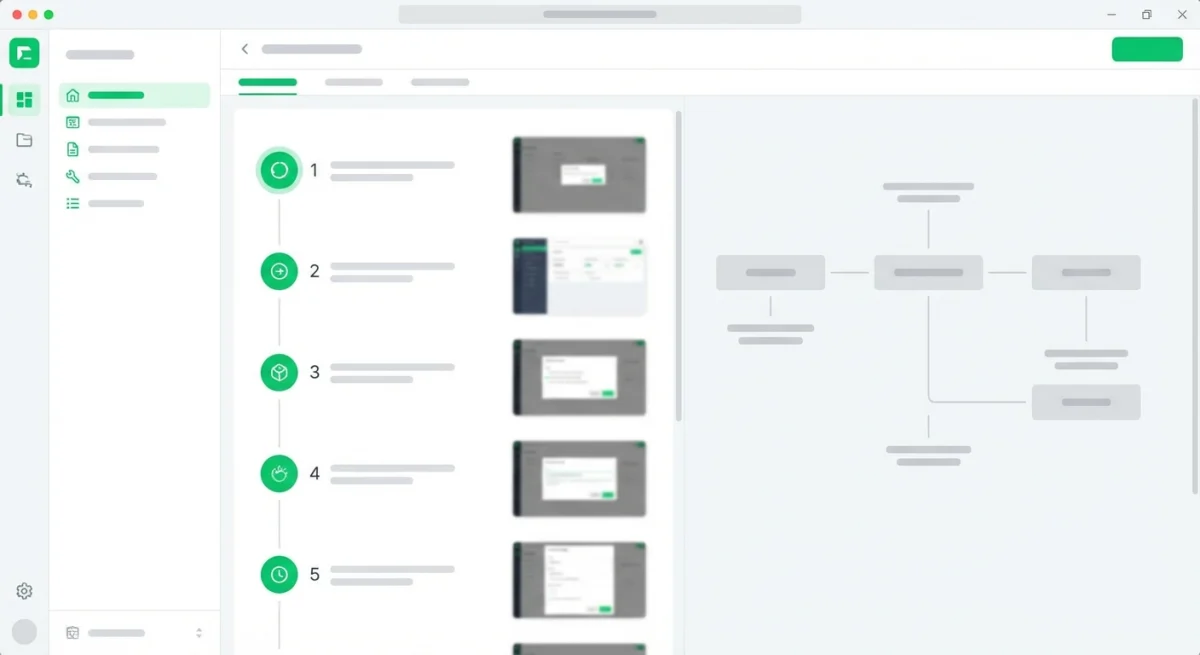
Tango works like Scribe: record your workflow and get a step-by-step guide with screenshots. The free plan is more generous, making it a solid choice for teams watching their budget.
What makes it stand out:
- Free plan with unlimited guides (Scribe limits free guides)
- AI step descriptions that you can edit
- Blur and crop tools for hiding sensitive data
- Team sharing with permissions and folders
- Integrations with Notion, Confluence, Slack, and Google Drive
Pricing: Free plan with unlimited captures. Pro at $22/user/month adds custom branding, analytics, and priority support.
Limits: Chrome-only and no desktop app, so you can't capture non-browser workflows. The editor is simpler than Scribe's. Export options are more limited on the free plan.
Best for: Teams that mostly document web-based tools (SaaS apps, admin panels, CRMs). If your workflows live in the browser, Tango covers everything for free.
ScreenSnap Pro: Mac screenshot documentation
Best for: Mac users who want full control over their screenshots
ScreenSnap Pro takes a different approach. Instead of auto-recording, you capture screenshots manually and annotate them with arrows, numbered steps, text, and blur. This gives you more control over what to include and how it looks.
What makes it stand out:
- 15 annotation tools including arrows, step counters, blur, and text
- 500+ wallpapers to make screenshots look polished
- OCR text extraction pulls text from any screenshot
- Cloud sharing with instant links, without email attachments
- GIF recording for short process demos
- Pin screenshots to keep reference images visible while you work
Pricing: $39 one-time. No monthly fees. No per-seat costs.
Limits: Mac only. No auto-capture, so you take and annotate each screenshot yourself. No built-in guide builder (you'd pair it with a wiki or doc tool).
Best for: Mac-based teams that want polished, branded screenshots for docs and guides. The one-time price beats monthly costs from Scribe or Tango within two months. Works great alongside a tech docs workflow using any wiki or CMS.
Document360: knowledge base builder
Best for: Teams building customer-facing or internal knowledge bases
Document360 is a full knowledge base platform with an editor, categories, versioning, and search. It's not a screenshot tool, but it's where your process docs live once you've created them.
What makes it stand out:
- AI writing assistant helps draft and improve articles
- Category and version management keeps docs organized
- Built-in analytics show which articles get read and which don't
- Custom domain for public-facing knowledge bases
- API access for programmatic doc management
Pricing: Custom pricing (starts around $149/month for the base plan). Free trial available.
Limits: Expensive for small teams. No screenshot capture, so you need a separate tool like ScreenSnap Pro or Scribe for the images. The editor is powerful but has a learning curve.
Best for: Companies that need a full-featured knowledge base, not just a docs folder. Pairs well with Scribe or ScreenSnap Pro for the screenshot side.

Tired of plain screenshots? Try ScreenSnap Pro.
Beautiful backgrounds, pro annotations, GIF recording, and instant cloud sharing, all in one app. Pay $39 once, own it forever.
See pricing and featuresWhale: SOPs and training
Best for: Teams focused on standard operating procedures and employee training
Whale focuses on SOPs and training materials. It has a clean editor, pre-built templates, and a system for assigning docs to team members and tracking who's read what.
What makes it stand out:
- SOP templates get you started fast
- Assign and track who has read which procedures
- Quiz feature tests understanding after reading
- Screen recording built into the editor
- Integrations with Slack, Teams, and Chrome
Pricing: Starts at $6/user/month. Free trial.
Limits: Smaller feature set than Document360. No auto-capture like Scribe. Better suited for internal SOPs than customer-facing docs.
Best for: Small to mid-size teams that need SOPs with read tracking. The quiz feature is unique and great for compliance training where you need proof that staff read the docs.
Stepshot: IT documentation
Best for: IT teams creating internal how-to guides
Stepshot auto-captures screenshots as you perform tasks, similar to Scribe. It's aimed at IT teams who need to document software setups, admin procedures, and troubleshooting steps.
What makes it stand out:
- Auto-capture with step descriptions
- Desktop app for Windows and Mac
- Export to Word, PDF, HTML, and WordPress
- Built-in editor for annotations and cropping
- Batch editing for fixing multiple screenshots at once
Pricing: Custom pricing. Free trial.
Limits: Older interface than Scribe or Tango. Smaller user community means fewer integrations and templates. Updates are less frequent.
Best for: IT departments that export to Word or PDF for internal distribution. The desktop app captures non-browser workflows that Chrome extensions miss.
Process Street: recurring workflow checklists
Best for: Teams that run the same processes on a schedule
Process Street turns your processes into reusable checklists. Each run tracks progress, assigns tasks, and logs completion. It's more of a workflow runner than a doc tool.
What makes it stand out:
- Checklist-based workflows with conditional logic
- Recurring runs on schedules (daily, weekly, monthly)
- Form fields for collecting data during each run
- Integrations with 1,000+ apps via Zapier
- Role assignments for multi-person processes
Pricing: Custom pricing (previously started at $25/user/month).
Limits: Not a screenshot tool, so you add images manually. Better for running processes than documenting them. Overkill for simple SOPs.
Best for: Ops teams that need to run the same checklist (onboarding, monthly close, QA checks) with tracking and accountability.
Whatfix: in-app guidance
Best for: Enterprise teams creating interactive in-app walkthroughs
Whatfix overlays guides directly inside your web apps. Instead of sending users to a separate doc, the guide appears on top of the actual software with arrows pointing to each button they need to click.
What makes it stand out:
- In-app walkthroughs guide users step by step inside live software
- Analytics track where users drop off or get stuck
- Multi-format output from one source (in-app, PDF, video)
- Self-help widget lets users search for guides without leaving the app
Pricing: Enterprise pricing (custom quotes). No public pricing.
Limits: Expensive. Complex setup. Aimed at large orgs rolling out new software to hundreds of users.
Best for: Enterprise software rollouts where you need to train thousands of users inside the app, not with static docs.
How to choose the right process documentation tool
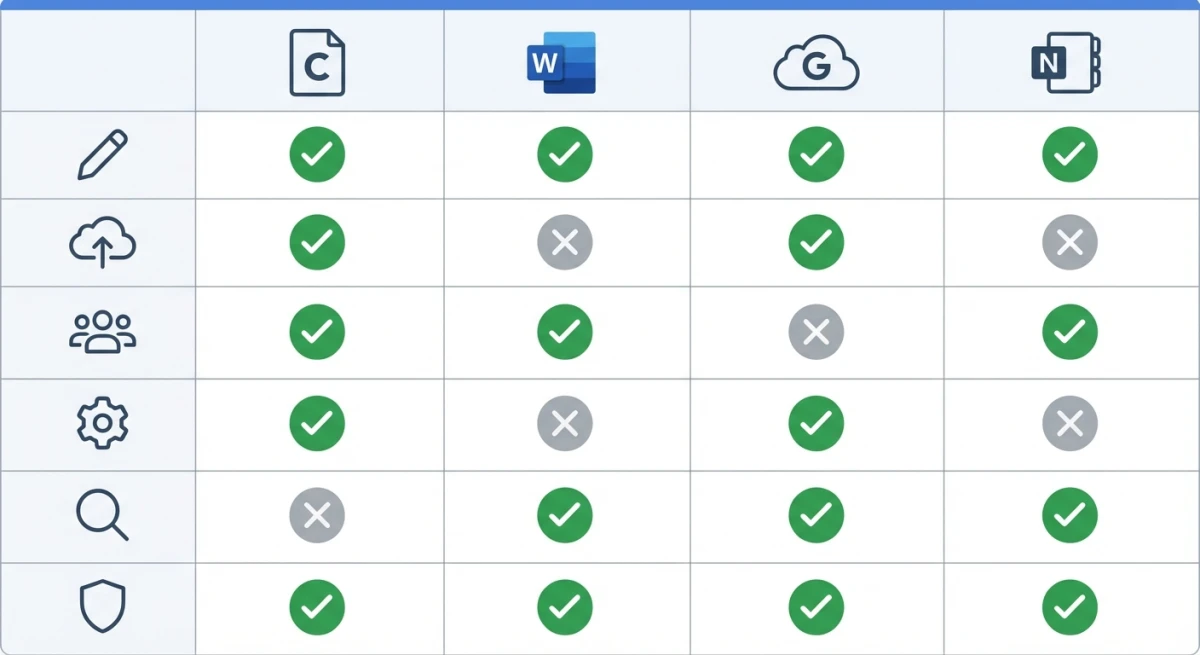
Ask these questions to narrow down your options:
Do you need auto-capture? If you document processes often and speed matters, pick Scribe or Tango. They record your clicks and build the guide for you. If you prefer manual control over every screenshot, ScreenSnap Pro or Stepshot give you that.
What's your budget? Tango's free plan is the best no-cost option for browser workflows. ScreenSnap Pro's $39 one-time fee is the cheapest paid option long-term. Scribe, Whale, and Process Street charge per seat per month, so costs add up with larger teams. If Scribe's per-seat pricing is the blocker specifically, our Scribe alternatives breakdown compares what each option costs at 1, 5 and 25 users.
Where do your workflows live? Browser-only workflows work with any Chrome extension (Scribe, Tango). Desktop apps, terminal commands, or native software need a desktop tool (Scribe desktop, Stepshot, or ScreenSnap Pro).
Who reads the docs? Customer-facing docs need a knowledge base like Document360. Internal SOPs work well in Whale or Process Street. Quick one-off guides are best shared as PDFs or links from Scribe or Tango.
Do you need tracking? Whale tracks who read each SOP. Process Street tracks checklist completion. Most other tools don't track readership.
Process documentation templates: where to start
You don't need to start from scratch. Here's a simple process documentation template you can use with any tool:
1. Title: Name the process clearly (e.g., "How to Add a New User in Salesforce")
2. Purpose: One sentence on why this process exists and who it's for.
3. Prerequisites: What the reader needs before starting (access, permissions, software).
4. Steps: Numbered list with one action per step. Include a screenshot for each step that involves a UI interaction.
5. Expected outcome: What success looks like. Include a screenshot of the final state.
6. Troubleshooting: Common issues and how to fix them.
7. Owner and review date: Who maintains this doc and when it was last checked.
This structure works for SOPs, training guides, and knowledge base articles. Keep each section short. If a process has more than 15 steps, consider splitting it into sub-processes.
Tips for better process docs with screenshots
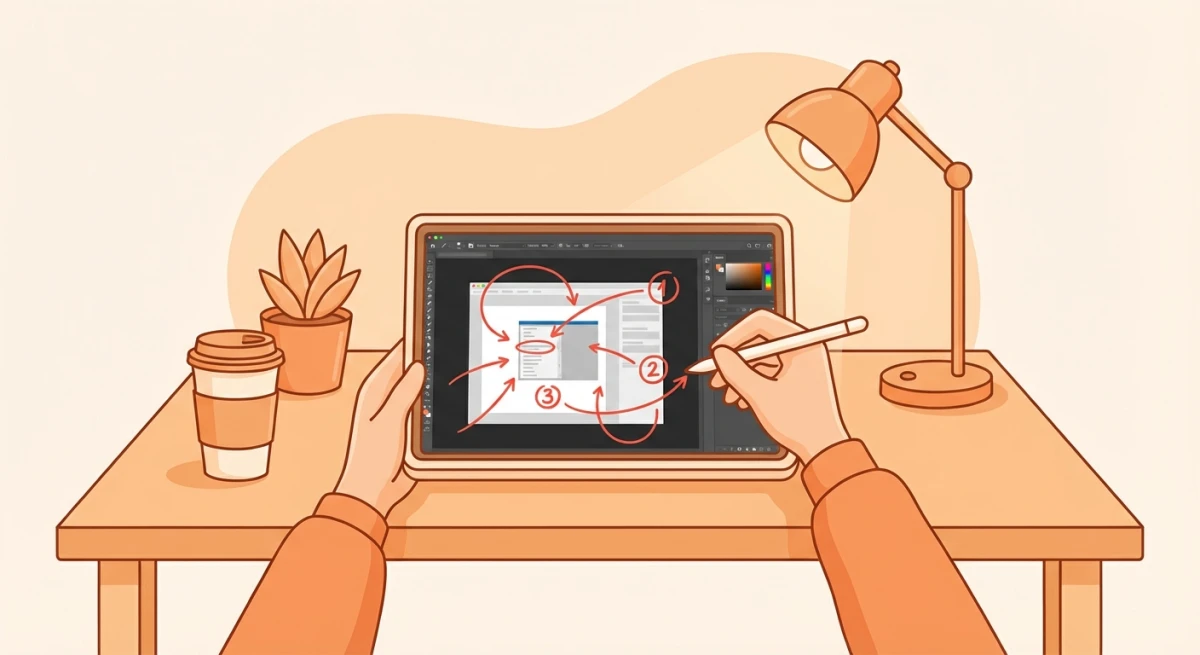
Good tools help, but technique matters too. Here's how to make your process docs clear and useful.
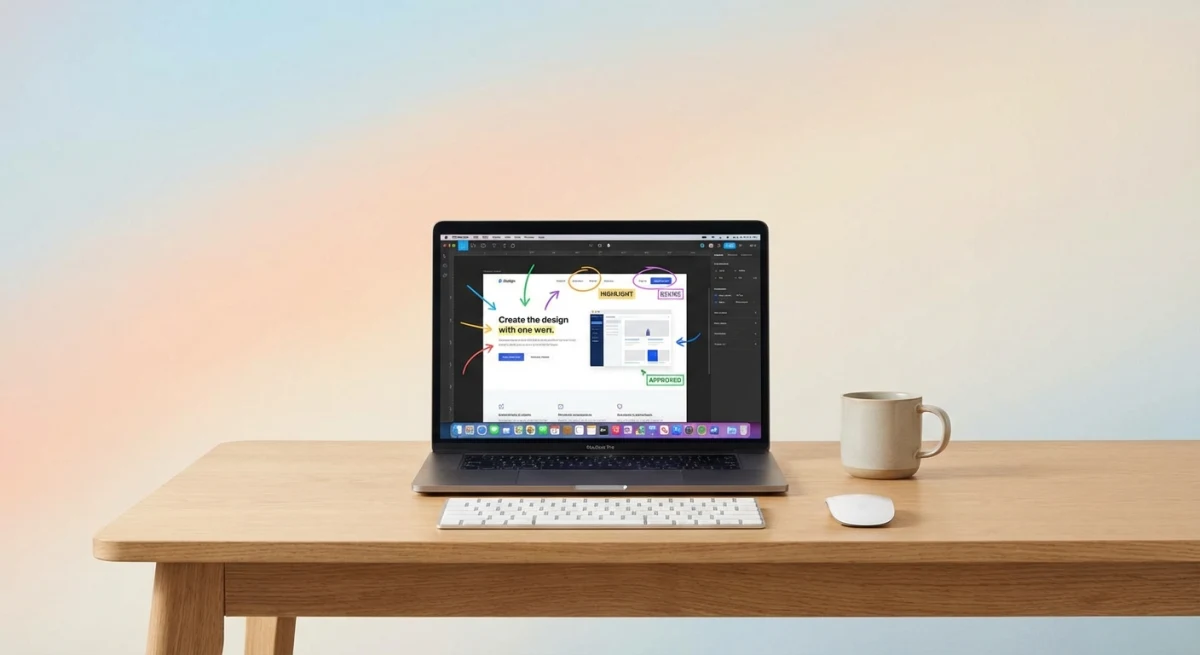
Number every step. Use step counters or numbered badges on your screenshots. Readers should see the order at a glance. Tools like ScreenSnap Pro and Snagit have built-in counters. In Scribe and Tango, steps are auto-numbered.
One action per screenshot. Don't cram three clicks into one image. Each screenshot should show one thing: one button to click, one field to fill, one setting to change.
Blur private data every time. Process docs get shared widely. Any screenshot with names, emails, passwords, or account numbers needs blur or pixelation before sharing. Make this a habit, not an afterthought.
Add context, not just steps. Don't just say "Click Submit." Say "Click Submit to save your changes. You'll see a green success message." Context helps readers know they're on the right track.
Use consistent formatting. Same screenshot size, same arrow style, same font. Readers should focus on the content, not wonder why each image looks different. Pick a tool and stick with it.
Keep docs up to date. Outdated screenshots cause more confusion than no screenshots at all. When software changes, update the docs. Set a reminder to review your most-used docs every quarter.
Export in the right format. PDF for offline access and printing. HTML for wikis and knowledge bases. Markdown for developer docs. Match the format to how your team will read it.
Combine screenshots when needed. Some processes span multiple screens. Combining screenshots into one image can show a full flow in a single visual, which is great for process overviews.
If you need to share screenshots across your team quickly, cloud screenshot sharing tools let you paste a link instead of attaching files.
Frequently Asked Questions

Morgan
Indie DeveloperIndie developer, founder of ScreenSnap Pro. A decade of shipping consumer Mac apps and developer tools. Read full bio
@m_0_r_g_a_n_