13 Best Tools to Annotate Images in 2026 (Free & Paid)
Looking for the best way to annotate images for bug reports, design feedback, or docs? You're not alone. Whether you need to mark up screenshots, add arrows to charts, or blur private info before sharing, the right tool (such as ScreenSnap Pro) can save hours of back-and-forth.
Short answer: ScreenSnap Pro ($34 one-time, Mac and Windows) is the best all-round pick, with 17 markup tools, a screen recorder, and a video editor in one app. Greenshot is the best free option on Windows. Preview and iOS Markup are free built-ins on Apple devices, and Markup Hero or Annotely work in any browser.
Here's the thing: when you search for "image markup tool," most results show AI/ML data labeling platforms. That's not what you need. This guide focuses on visual markup tools, the kind that let you add text, arrows, shapes, and highlights to talk to humans, not train robots.
What is Image Markup (And Why It Matters)
Image markup means adding visual bits to images to share info. For work and creative tasks, this includes:
- Arrows and lines pointing to key areas
- Text labels saying what needs fixing
- Shapes (circles, boxes) to highlight parts
- Blur or pixelate effects for private data
- Highlights to draw eyes to key content
- Numbers/counters for step-by-step guides
This is not AI labeling (bounding boxes for training models). We're talking about the screenshot markup tool you use to explain a bug, give design feedback, or make tutorials.
The impact is huge. A marked-up screenshot shows in seconds what might take paragraphs of text to explain. "See the red circle? That button should be blue" beats "In the header, the third button from the left on the nav bar..."
Why Visual Sharing Wins
Visuals are quicker to scan than text. When you mark up images with arrows and highlights, you're tapping into that speed boost. A dev seeing a circled UI part knows exactly where to look. A designer seeing numbered callouts can fix things in order. A client seeing blurred parts trusts you with their data.
The best screenshot markup software removes friction from this flow. Instead of switching between capture, a separate edit app, and your sharing platform, you capture, mark up, and share in one go.
Common Use Cases for Image Markup
Before diving into tools, let's look at how people use image markup tools daily:
Bug Reports and QA Feedback
Devs and QA teams mark up screenshots to log issues clearly. A circled button, an arrow pointing to off-kilter text, a numbered list of problems: these visuals turn vague bug reports into clear tasks. The best tools for this include blur (for hiding test logins) and numbered markers (for pointing out many issues).
Design Review and Client Feedback
Designers use markup to gather and give feedback on mockups. Clients can circle areas they want changed without learning design software. Teams can mark approved parts green and change requests red. Tools with layered marks work best here.
Tech Docs and Tutorials
Tech writers mark up screenshots to make step-by-step guides. The counter/number tool is key: "Step 1: Click here, Step 2: Enter your info." Screenshot backgrounds add polish for public-facing docs.
Support and Customer Success
Support teams mark up screenshots to guide users through fixes. "Click the button I've circled" is clearer than paragraphs of text. Cloud sharing features help here, since you paste a link instead of attaching files.
Social Media and Content Creation
Creators mark up screenshots for social proof, reviews, and teaching content. Gradient backgrounds, clean fonts, and pro styling matter when the markup itself becomes content.
Quick Look: Best Image Markup Tools
| Tool | Price | Platform | Best For |
|---|---|---|---|
| ScreenSnap Pro | $34 one-time | Mac/Windows | Markup + screen recording in one app |
| CleanShot X | $35 one-time or $10/user/mo (Pro) | Mac | Mac power users |
| Snagit | $39/year (subscription) | Mac/Windows | Big teams |
| Greenshot | Free | Windows | Windows users on a budget |
| Preview | Free (built-in) | Mac | Basic needs |
| Skitch | Free (no updates since 2020) | Mac | Simple legacy markup |
| Markup Hero | Free (25 markups)/Premium | Web, desktop | Shareable links |
| Annotely | Free | Web | No-signup markup |
| Google Photos / Apple Photos | Free (built-in) | Mobile, Mac | Personal photos |
| iOS Markup | Free (built-in) | iPhone/iPad | Mobile quick edits |
| Android markup | Free (built-in) | Android | Android quick edits |
| Awesome Screenshot | Free/from $5/mo | Browser | Browser screenshots |
| Nimbus Capture | Free/$60/year Pro | Browser | Screen recording + markup |
Best Desktop Markup Tools
Desktop apps offer the most power for anyone who marks up screenshots for work. Here are the top picks.
ScreenSnap Pro (Mac and Windows): Best Overall
ScreenSnap Pro puts screenshots, markup, screen recording, GIF recording, and a video editor in one app for Mac and Windows. It has 17 markup tools: arrow, rectangle, filled rectangle, ellipse, filled ellipse, line, path, blur, pixelate, magnifier, highlighter, spotlight, pencil, eraser, text, callout, and counter, plus emoji.

It takes the top spot because no other tool here pairs this many markup tools with a recorder and a video editor, on both Mac and Windows, for a one-time price.
Key features:
- Press
Cmd + Shift + 1(Ctrl + Shift + 1on Windows) to capture an area, orCmd + Shift + 2(Ctrl + Shift + 2) to open it straight in the editor - Area, window, full screen, and delayed capture, plus full-page capture of a website from its URL
- Blur private info with one drag
- Spotlight, magnifier, and callouts to point at the exact spot
- OCR to copy text from any screenshot, and pinned screenshots that float above other windows
- 500+ backgrounds with padding and shadow for polished shots
- Optional cloud links for quick sharing, and no watermark
- Screen recording to MP4 at up to 60fps with webcam, mic, and system audio, plus direct GIF recording
- Built-in video editor with a timeline, silence removal, and auto zoom that follows the cursor
Pricing: $34 one-time with lifetime updates. One license covers 2 seats in any mix of Mac and Windows, and there's a 30-day money-back guarantee. See pricing.
Limits: No mobile app, browser extension, or Linux version, and no team workspaces. Full-page capture works for websites from a URL, not for scrolling native app windows.
Best for: Devs, designers, QA testers, and writers on Mac or Windows who want pro markup and screen recording in one app, with no monthly fee.
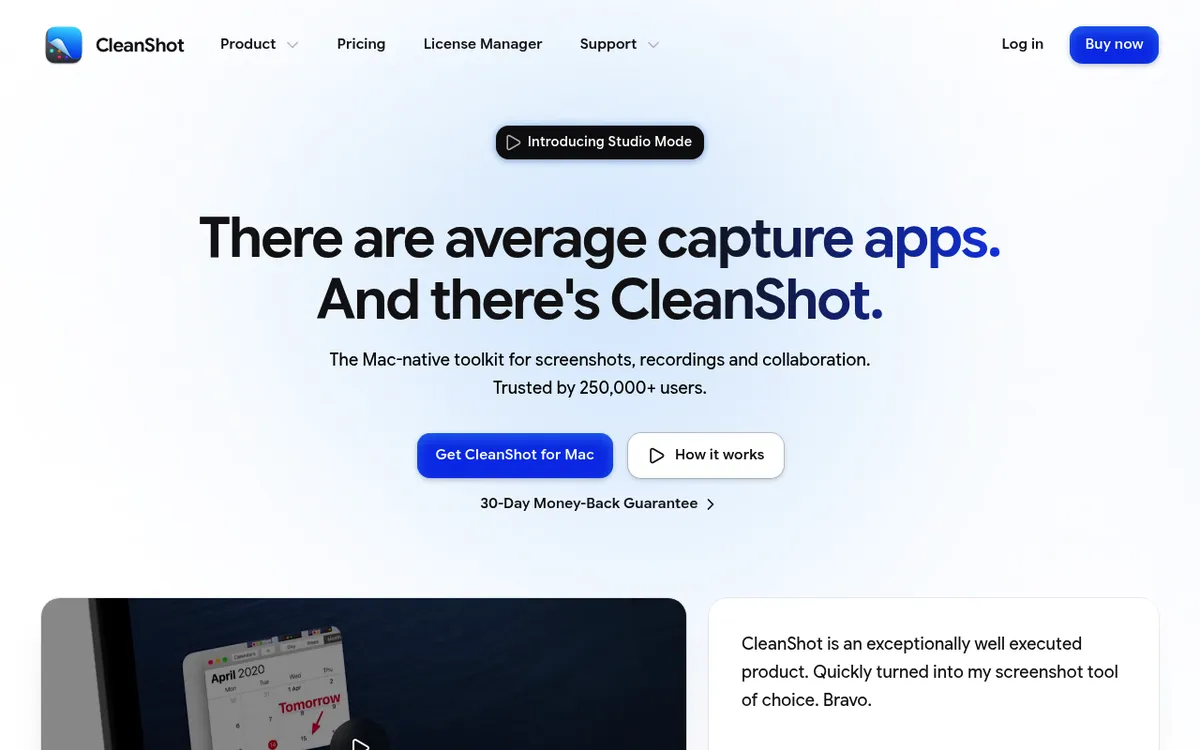
CleanShot X (Mac): Feature-Rich Option
CleanShot X offers similar features with a slightly different spin. The markup suite includes standard tools plus scrolling capture and text reading. It runs on Mac only.
Key features:
- Markup with arrows, text, shapes, blur
- Scrolling screenshots for long pages
- Quick access overlay
- Cloud storage (1 GB on Basic, unlimited on Pro)
Pricing: $35 one-time for CleanShot Basic (1 year of updates, then $19/year to renew). CleanShot Pro is $10 per user/month, billed yearly.
Best for: Mac users who want lots of screenshot options and don't mind paying more for cloud features. Check our CleanShot X options guide for more details.
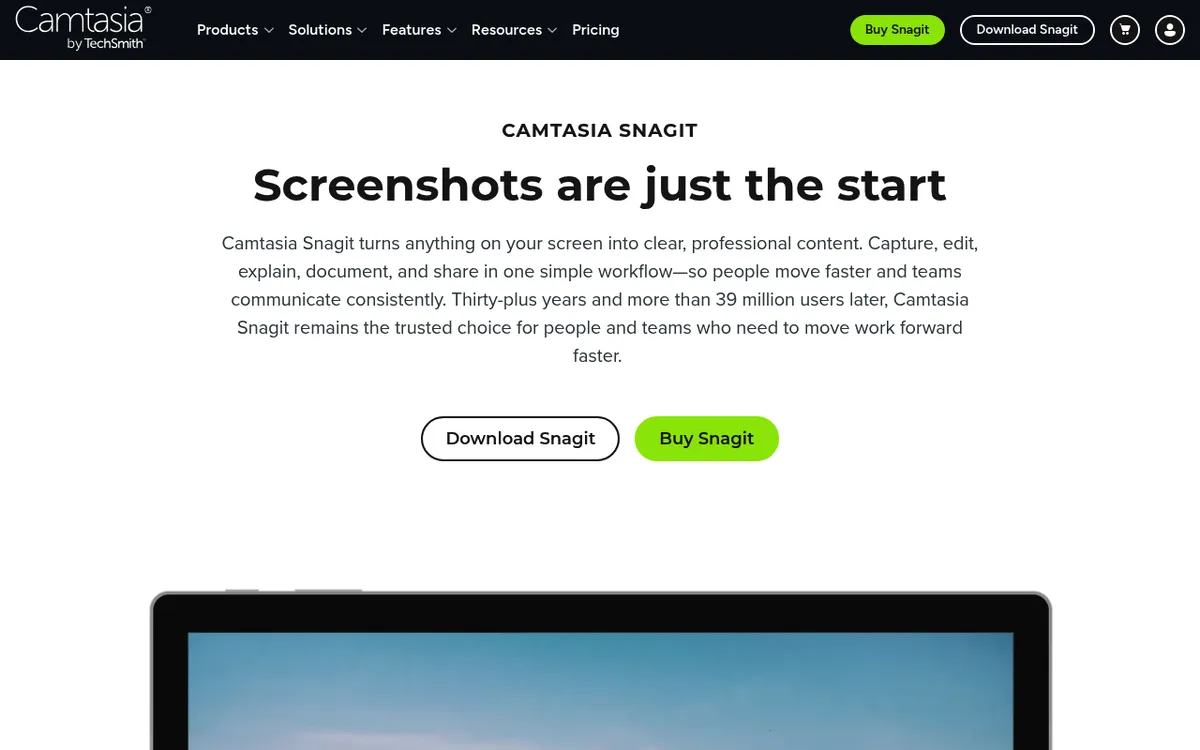
Snagit (Mac/Windows): Big Team Standard
Snagit from TechSmith (now branded Camtasia Snagit) has long been a standard image markup software for big teams. It's powerful but comes with big-team pricing to match.
Key features:
- Full markup toolkit
- Screen recording with webcam and audio
- Templates and stamps library
- Works with Microsoft Office, Google Drive
Pricing: $39 per user per year (Snagit Individual). Since Snagit 2025 it's subscription only, with no one-time license.
Best for: Big teams with budget for premium tools. See our Snagit options guide if you want similar features without the big-team pricing.
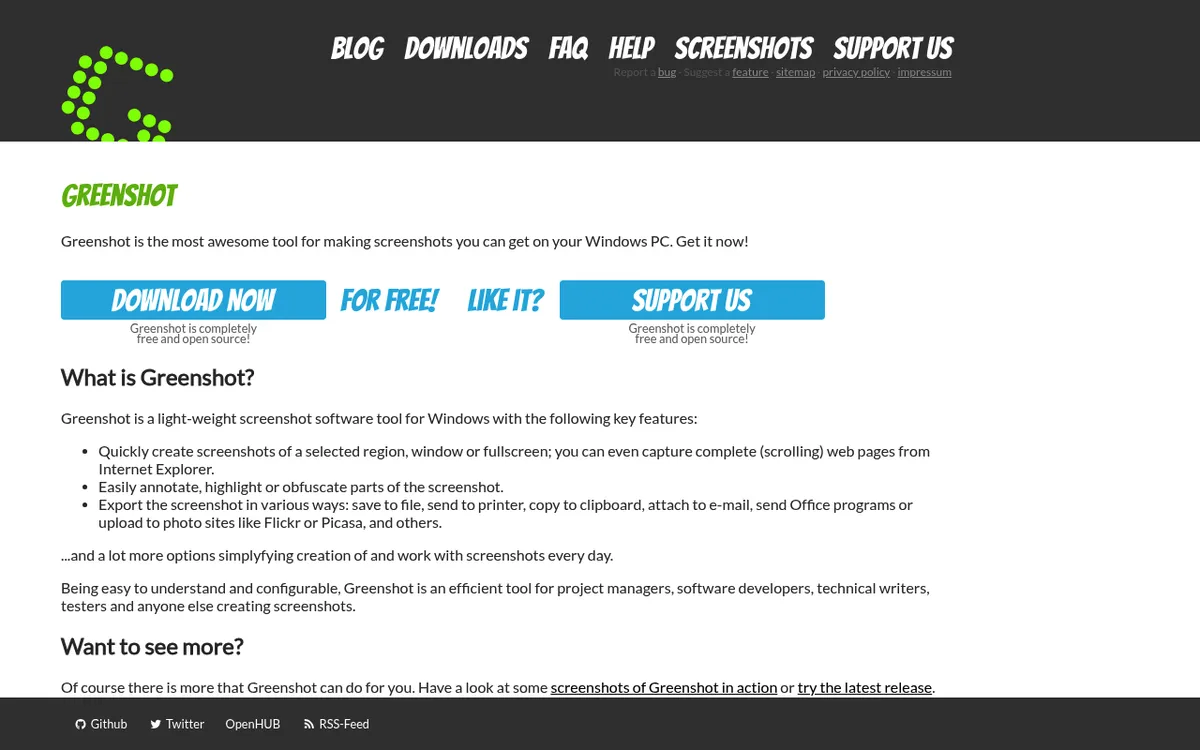
Greenshot (Windows): Best Free for Windows
If you're on Windows and need a free screenshot markup tool, Greenshot delivers. It's open-source, light, and handles the basics well. It's still actively maintained, with version 1.3.323 out in October 2026.
Key features:
- Capture with Print Screen shortcuts
- Mark up with arrows, text, shapes, blur
- Quick export to clipboard, file, or printer
- Plugin system for add-ons
Pricing: Fully free.
Best for: Windows users who need solid markup at no cost. Mac users looking for Greenshot-like features should check our Greenshot for Mac options.
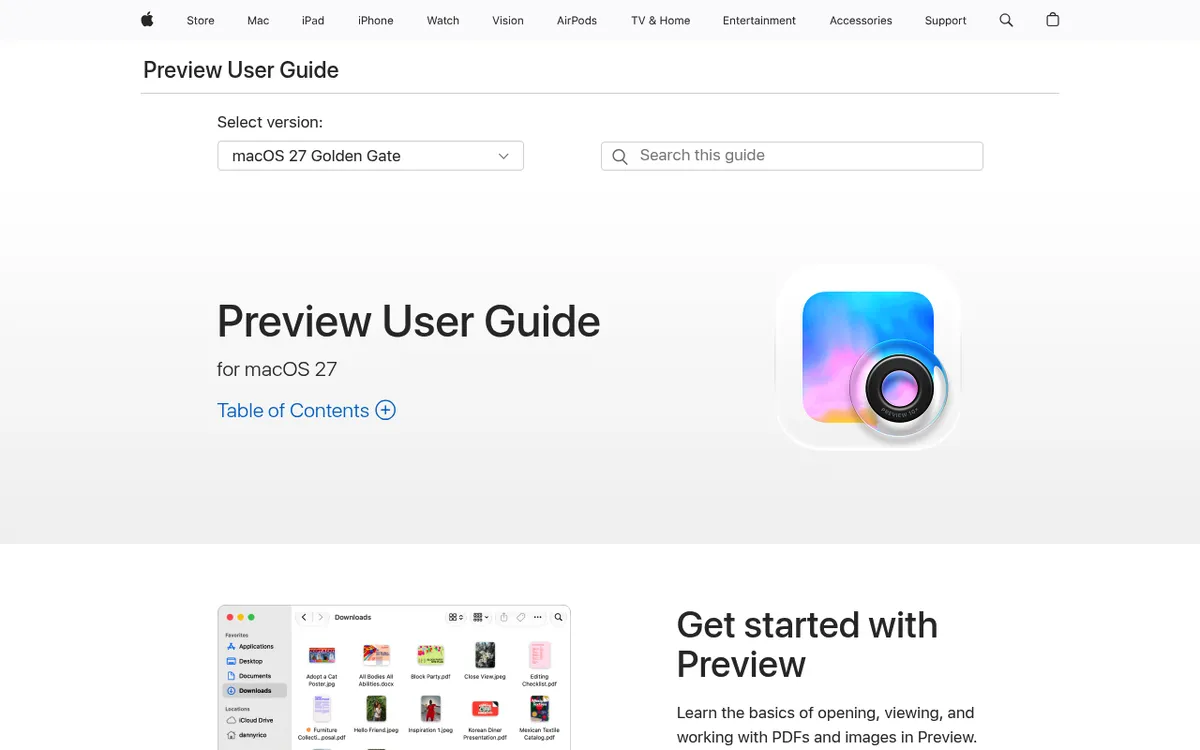
Preview (Mac): Built-In Basic Option
Every Mac includes Preview, and its Markup toolbar handles basic markup needs. If you're just getting started or only sometimes add text to screenshots, it's worth trying first.
Key features:
- Shapes, arrows, text
- Signature capture
- Color tweaks
- Works with PDFs too
Pricing: Free (comes with macOS).
Best for: Casual users with simple markup needs. When you outgrow it, apps like ScreenSnap Pro offer faster workflows and more tools.
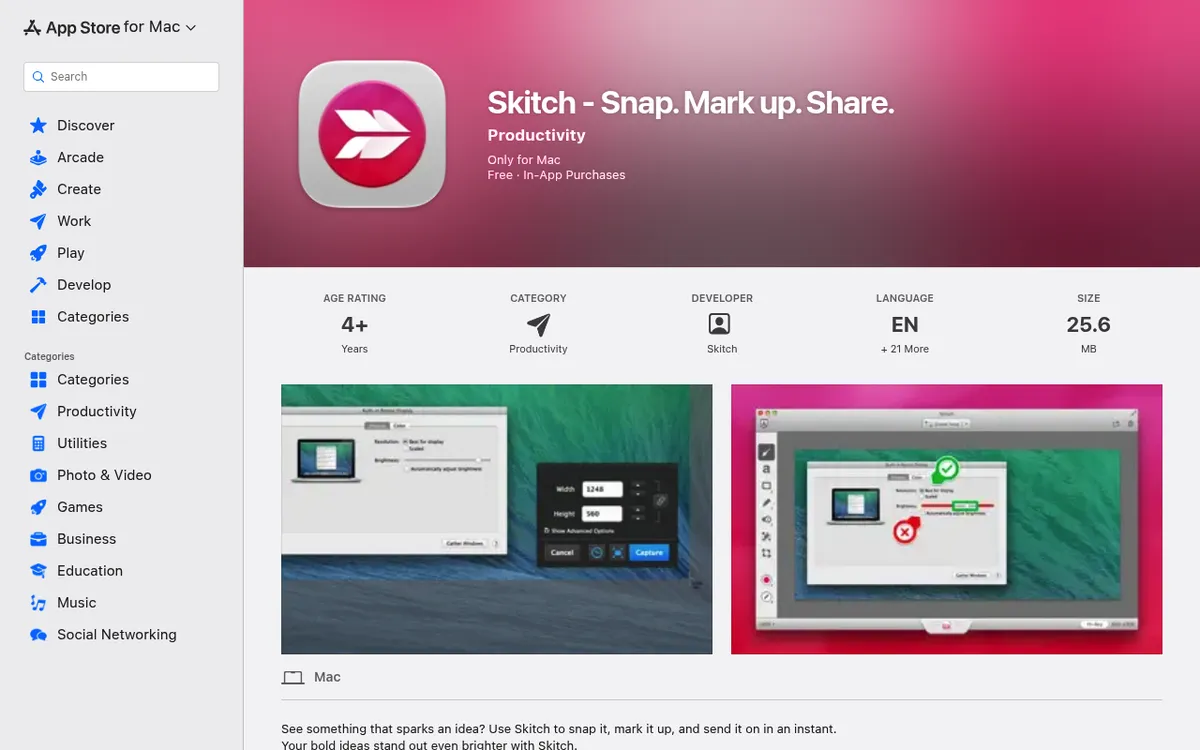
Skitch (Mac): Free but No Longer Updated
From the Evernote team, Skitch offers quick markup with arrows, shapes, and text. Evernote shut down the iOS, Android, and Windows apps in 2015. The Mac app is still on the Mac App Store, but its last update (version 2.9) came out in July 2020.
Key features:
- Arrows, shapes, text, stamps, and highlights
- Snap a screenshot or photo and mark it up in one window
- PDF markup (needs Evernote Premium)
Pricing: Free (the in-app purchases are Evernote subscriptions).
Best for: Mac users who want a simple free markup app and don't mind that it's no longer maintained. For a tool that still gets updates, ScreenSnap Pro or Preview is a safer bet.
Best Online Markup Tools
Sometimes you need to mark up images online without installing anything. These web-based tools work in any browser.
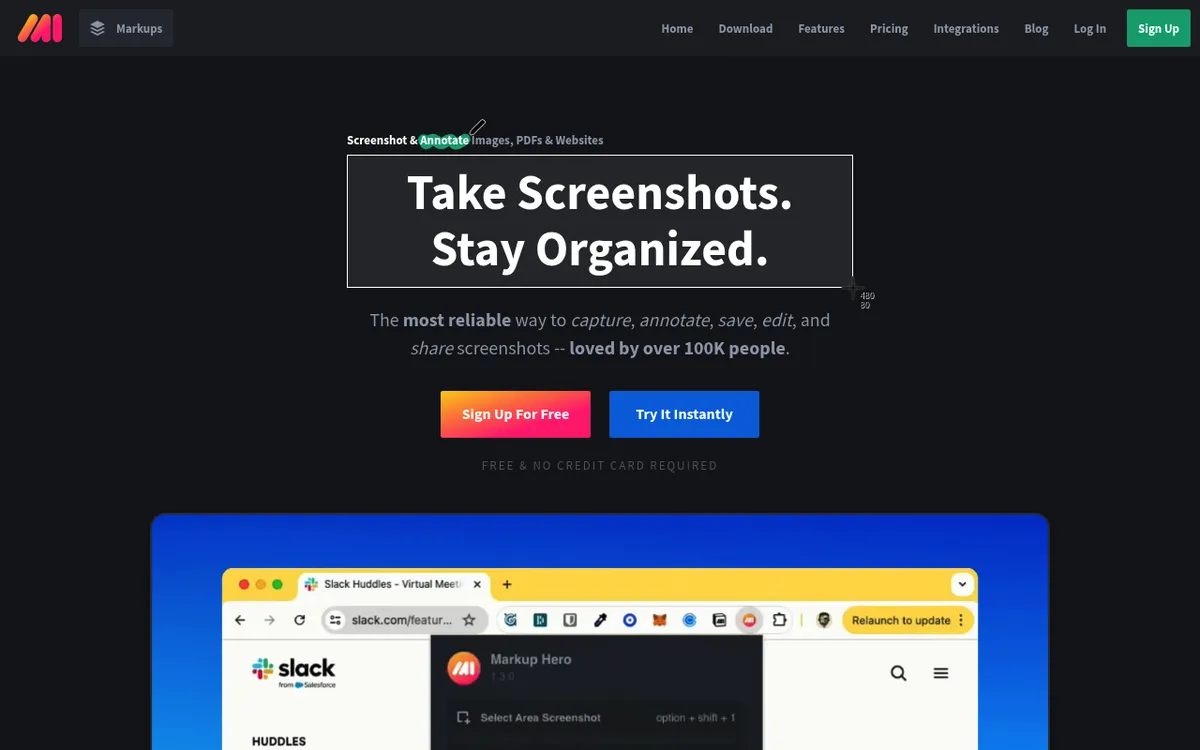
Markup Hero: Best for Shareable Links
Markup Hero lets you upload any image, mark it up, and make a shareable link. The free plan includes every feature, but it caps you at 25 markups and you can only edit annotations for 24 hours.
Key features:
- Drag-and-drop upload
- Text, arrows, highlights, shapes, blur
- Shareable links with privacy settings
- Chrome add-on for full-page captures, plus desktop apps for Mac, Windows, and Linux (beta)
Pricing: Free for 25 markups. Premium is $36/year (about $3/month), monthly billing is also offered, and a lifetime license is $199.
Best for: Teams sharing marked-up screenshots via links rather than file attachments.
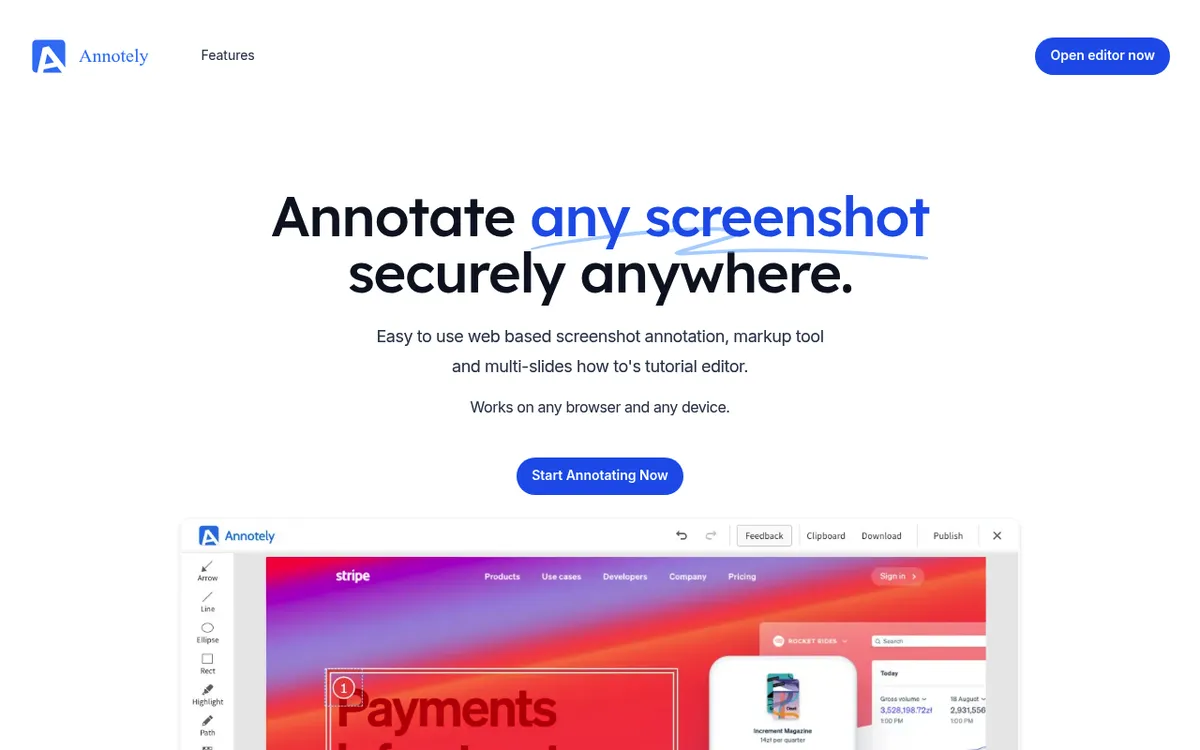
Annotely: Best for Privacy
Annotely offers browser-based markup with a focus on privacy. No account needed, no content scanning, just upload, mark up, and download. Updates have slowed (the last release was in January 2025), but the editor still works.
Key features:
- Zero install needed
- Multi-slide tutorial editor
- Works on any browser/device
- Images stay in your browser unless you publish them
Pricing: Free to use.
Best for: Quick one-off marks when you don't want to create accounts or install software.
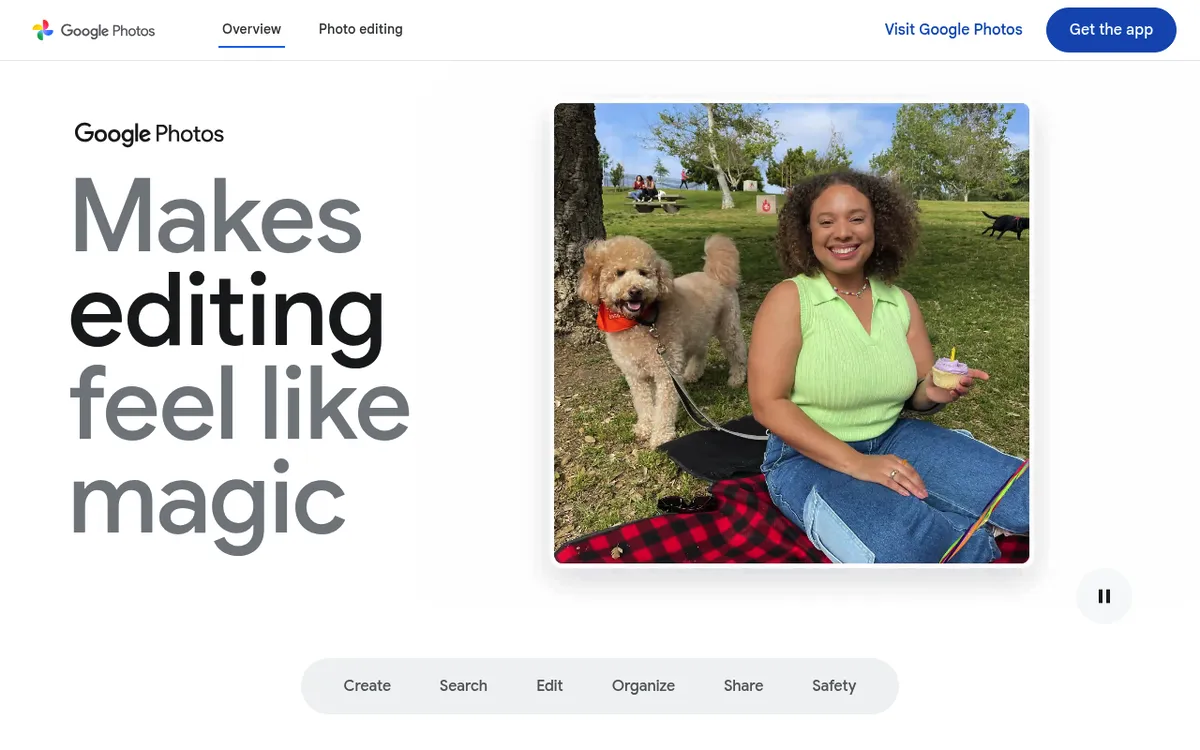
Google Photos / Apple Photos
Both major photo platforms include basic markup features. Google Photos has Markup in its Android app. Apple Photos has Markup on iPhone and iPad, and on a Mac you open it from the Extensions button in the edit view (Apple's guide). For mobile-first users already in these systems, they're handy options.
Key features:
- Drawing tools and text
- Ties into your photo library
- Auto sync across devices (with backup or iCloud Photos turned on)
Pricing: Free (with your Google/Apple account). A Google Account includes 15 GB of storage shared with Gmail and Drive.
Best for: Marking up personal photos for sharing with friends and family.

Tired of plain screenshots? Try ScreenSnap Pro.
Beautiful backgrounds, pro annotations, GIF recording, and instant cloud sharing, all in one app. Pay $34 once, own it forever.
See pricing and featuresBest Mobile Markup Tools
Need to mark up images on iPhone, iPad, or Android? These mobile options have you covered.
iOS Markup: Built Into Every iPhone/iPad
Apple's Markup tool is easy to reach from Photos, Mail, Messages, Notes, and other apps that handle images. It's quite capable for quick mobile markup. Apple has a full guide to Markup covering all its features.
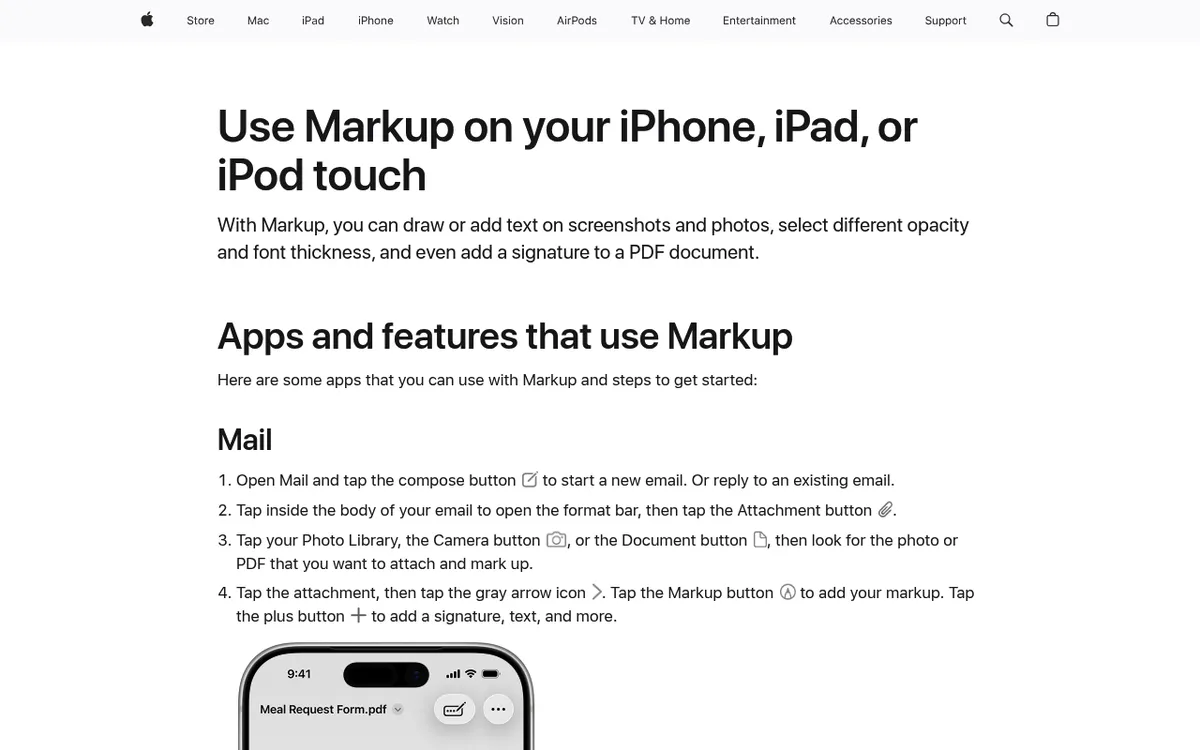
Key features:
- Drawing with your finger, or Apple Pencil on iPad
- Text and signature adding
- Magnifier tool for zooming details
- Shape fixing (draw a rough shape and pause, and a clean one snaps into place)
How to access: Open a photo in Photos → tap Edit → tap the Markup button.
There's no blur or pixelate tool, so cover private info with a filled shape instead.
Best for: iPhone/iPad users who need quick marks without extra apps.
Android Markup Options
Android doesn't have one markup tool like iOS, but Google Photos and Samsung's Gallery app include markup features.
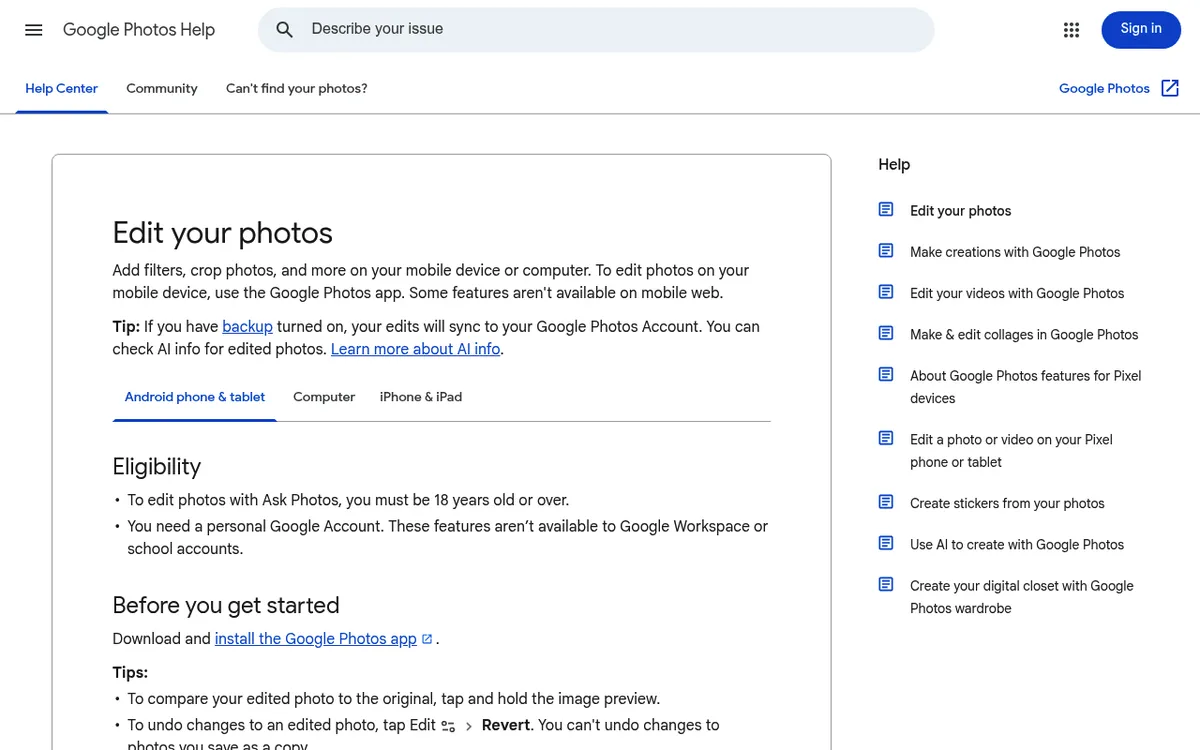
Google Photos:
- Open photo → Edit → Markup (on some versions, Edit → Tools → Markup)
- Pen, highlight, and text (filters sit in a separate tab)
Samsung Gallery:
- Open photo → Edit → Decorations (smiley icon) → Draw (Samsung's guide)
- Text and stickers sit in the same Decorations menu
Best for: Android users already using these apps for photo handling.
Best Browser Add-On Markup Tools
For marking up web pages and browser-based screenshots, add-ons tie right into your workflow. These are great for web designers, UX researchers, and anyone who often logs web pages.
Awesome Screenshot
Awesome Screenshot captures visible areas, full pages, or picked regions, then opens a markup editor. It's been popular since Chrome add-ons became a thing and keeps getting better.
Key features:
- Capture full-page screenshots (scrolling)
- Mark up with shapes, arrows, text, blur
- Record screen as video
- Direct sharing to cloud services
- Delayed capture for dropdown menus
Pricing: Free plan with up to 100 cloud screenshots and 20 recordings at 720p. Basic is $5/month and Professional is $6/month, both billed yearly.
Best for: Capturing and marking up web pages without leaving the browser. The scrolling capture is great for logging long pages that don't fit on one screen.
Nimbus Capture
Nimbus Capture combines screenshot capture with markup and screen recording. Nimbus now goes by FuseBase, so you'll see that name on the site. The markup tools include everything from arrows to numbered markers, making it handy for doc work.
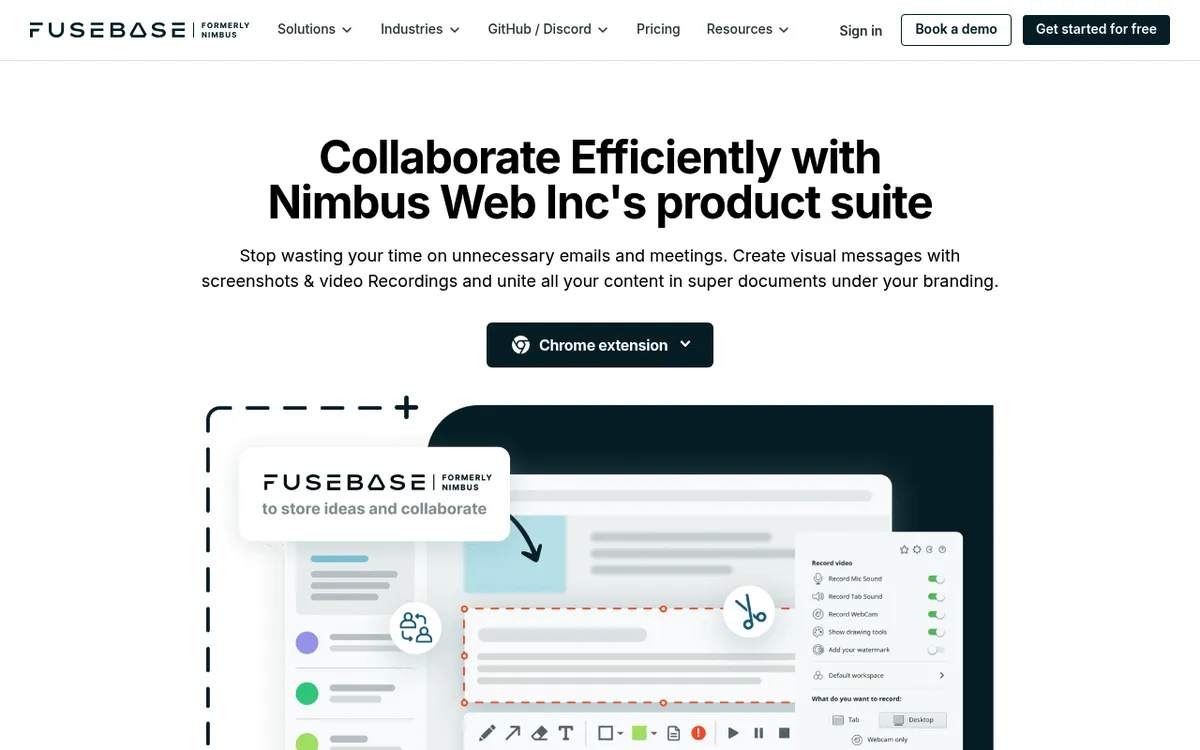
Key features:
- Screenshot and video capture
- Full markup suite
- Cloud storage with shareable links
- Chrome extension (it also installs in Edge)
- Webcam overlay for video recordings
Pricing: Free, with video capped at 5 minutes. Capture Pro is $60/year or $99 lifetime and records up to 10 hours.
Best for: Users who need both static screenshots and video recordings with marks, right inside the browser.
Add-On Limits to Know
Browser add-ons have built-in limits versus desktop apps:
- No system-wide capture. Only works inside the browser
- Speed varies. Heavy add-ons can slow your browser
- Privacy risks. Some add-ons access page content
- Fewer markup tools. Usually less options than desktop apps
For quick web page marks, add-ons work well. For daily pro use, a desktop tool like ScreenSnap Pro or CleanShot X offers more power and speed.
How to Choose the Right Markup Tool
Not every image markup tool fits every workflow. Here's how to pick the right one:
Think About Your Platform
- Mac? ScreenSnap Pro (also on Windows) or CleanShot X (Mac only) are the strongest desktop picks
- Windows? ScreenSnap Pro (one-time), Greenshot (free), or Snagit (yearly subscription). See more screenshot tools for Windows
- Mixed Mac and Windows team? ScreenSnap Pro covers both, since one license includes 2 seats in any mix. Web-based tools like Markup Hero or Annotely work too
- Mobile-first? iOS Markup, Google Photos, or Samsung Gallery
Match Features to Needs
| If you need... | Look for... |
|---|---|
| Bug reports/feedback | Arrows, shapes, blur, text |
| Tutorials/docs | Numbered steps, highlights |
| Design review | Precise placing, layers |
| Quick shares | Cloud ties, shareable links |
| Private data handling | Blur/pixelate tools |
Think About Pricing Model
One-time buy tools (ScreenSnap Pro, CleanShot X Basic) cost more upfront but save money over time. After a year of monthly fees, you've usually paid more for less.
Subscription tools (Snagit, CleanShot X Pro) make sense if you need big-team features, team controls, or assured ongoing updates.
Free tools work for light use but often lack polish, speed, or extra features.
Team Size Matters
- Solo users: Any tool works; tune it for your workflow
- Small teams (2-10): Shared cloud links and same tools help teamwork
- Large teams (10+): Look at big-team options with admin controls and tie-ins
Pro Tips for Better Image Markup
Once you've picked your photo markup app, these habits improve your marks:
Use steady colors. Pick one color for problems (red), one for ideas (blue), one for questions (yellow). Your team will learn the system. Most markup tools let you set default colors, so set them once and save time on every screenshot.
Number your callouts. When marking many issues, use numbered markers so refs are clear: "See item #3: the spacing is off." This is where a counter tool shines. ScreenSnap Pro includes one, and so do CleanShot X, Snagit, and Annotely.
Blur before you share. Any screenshot with personal data, API keys, or passwords should be blurred or pixelated before sharing. Get in the habit of scanning every screenshot for private content before hitting send.
Crop to focus. Don't send full-screen screenshots when the key area is one corner. Crop your screenshots to focus eyes. Smaller images load faster and share better.
Add backgrounds for polish. For docs or social sharing, gradient backgrounds make screenshots look pro. Learn how to add backgrounds. This turns a raw screenshot into show-ready content.
Use keyboard shortcuts. Every second saved on shortcuts adds up when you mark up dozens of screenshots daily. Learn your tool's shortcuts for the marks you use most, since arrows, text, and blur tend to be the heavy hitters.
Match arrow styles to purpose. Thin arrows for subtle ideas. Thick arrows for key issues. Colored arrows to group feedback. Steady styling makes your marks easy to scan.
Save markup templates. If you often mark up the same type of content (bug reports, tutorials, client feedback), create templates with your standard colors, arrow styles, and text formatting. Some tools support this built-in; others need manual effort.
When to Use Built-In vs. Focused Tools
Built-in tools (Preview, iOS Markup) work for:
- Quick one-off marks
- Simple shapes and text
- Personal use cases
- Getting started before buying a paid tool
Focused tools are worth it when you:
- Mark up screenshots daily
- Need speed and keyboard shortcuts
- Require features like OCR, blur, or cloud sharing
- Want steady quality across your work
For pros who edit screenshots on Mac often, the time saved with a focused tool pays for itself within weeks.
Frequently Asked Questions
Final Thoughts
The best image markup tool is the one that fits your workflow. If you mark up screenshots often on Mac or Windows, ScreenSnap Pro offers the best mix of features and value: 17 markup tools, a screen recorder, and a video editor for a one-time $34. On Windows, Greenshot is the free pick and Snagit covers big team needs. Web-based tools like Markup Hero and Annotely work when you need cross-platform ease.
Whatever you choose, the goal is the same: share with visuals instead of words. A well-marked screenshot saves everyone time. See ScreenSnap Pro pricing if you want markup, recording, and editing in one app.
Looking for more screenshot tips? Check out our guides on the best screenshot apps for Mac or learn how to copy text from screenshots using OCR.

Morgan
Indie DeveloperIndie developer, founder of ScreenSnap Pro. A decade of shipping consumer Mac apps and developer tools. Read full bio
@m_0_r_g_a_n_