Best GIF Screen Capture Tools 2026 (Free & Paid)
GIF screen capture tools let you record your screen and save it as an animated GIF. No video conversion needed. They're perfect for quick tutorials, bug reports, and social media content, and apps like ScreenSnap Pro bake GIF recording right into the screenshot workflow. GIFs auto-play, loop on repeat, and keep file sizes small.
The catch? Dozens of gif screen recorder options exist across Mac, Windows, and the web. Finding the right one feels like a chore. Some are bloated. Others are too basic. Many haven't been updated in years.
This guide breaks down the best gif capture tools by platform. You'll find the right one for your workflow, whether you want free and simple or paid and polished.
Short answer: ScreenSnap Pro is the best all-round pick for Mac and Windows. ScreenToGif is the best free tool on Windows. Kap and GIPHY Capture are good free Mac options, and Gifcap works in any browser.
What Makes a Great GIF Screen Capture Tool?
Before looking at specific tools, here's what sets good animated screen capture apps apart from the rest:
Recording quality matters. Look for frame rate controls (15 to 30 FPS works best) and size options. Higher quality means larger files. The best tools help you strike the right balance.
Built-in editing saves time. Cropping, trimming, and speed changes should happen in one app, not in a separate editor. Timeline editors let you cut frames, add pauses, or create smooth loops.
File size control is a must. Raw screen recordings can grow past 20MB fast. Good gif capture tools offer ways to shrink files:
- Color limits to reduce palette size
- Frame skipping to cut extra data
- Smart compression to keep things sharp
Aim to keep files under 5MB for most platforms.
Platform fit matters too. Mac users need desktop apps that work with macOS access rules. Windows users have more open-source picks. On a managed work computer? Browser-based tools might be your only choice.
Easy sharing rounds out the workflow. The best screen recording gif tools go beyond capture. They help you share fast: cloud upload, copy-to-clipboard, or Slack and Discord support.
Best Overall GIF Screen Capture Tool (Mac and Windows)
One app covers both platforms, so it gets its own spot before the platform lists.
ScreenSnap Pro
Best for: Mac and Windows users who want polished GIFs, screenshots, and edited recordings in one app

ScreenSnap Pro combines a screenshot tool and a gif screen recorder in one desktop app for Mac and Windows. It focuses on making captures look great with minimal effort.
Key features:
- Direct screen-to-GIF recording (no conversion step)
- Built-in video editor: trim, split, cut, change speed, and add auto zoom, then export as MP4 or GIF
- 17 markup tools including blur, arrows, spotlight, and counters
- 500+ backgrounds with padding and shadow to style your captures
- Optional cloud share links for quick sharing
- Screenshots, OCR, and pinned screenshots in the same app
Most tools on this list do one job. ScreenSnap Pro records GIFs, takes screenshots, marks them up, and edits video in one place. Record a quick GIF, or record a video, polish it in the editor, and export it as a GIF. Then grab a share link in seconds. Great for polished tutorial content or product demos.
The price model fits GIF work too. You pay $34 once and get lifetime updates. One license covers 2 seats in any mix of Mac and Windows. No monthly fees.
Limits to know: Direct GIF recordings stop at 1 minute and run at 12 FPS to keep files small. They also skip the editor. For longer or smoother GIFs, record a video and export it as a GIF (up to 1080p and 50 FPS). Screen recording needs a paid license, and there's no Linux version or browser extension.
Who it's best for: Mac and Windows users who create GIFs often and value clean output with minimal friction.
Price: $34 one-time purchase (2 seats, lifetime updates, 30-day money-back guarantee)
Best GIF Screen Capture Tools for Windows
Windows has the strongest lineup of free, open-source screen to gif tools. ScreenSnap Pro (above) runs on Windows too. Here are the top free picks. Our Windows GIF screen capture guide walks through them step by step.
ScreenToGif
Best for: Power users who want full control over their GIF recordings
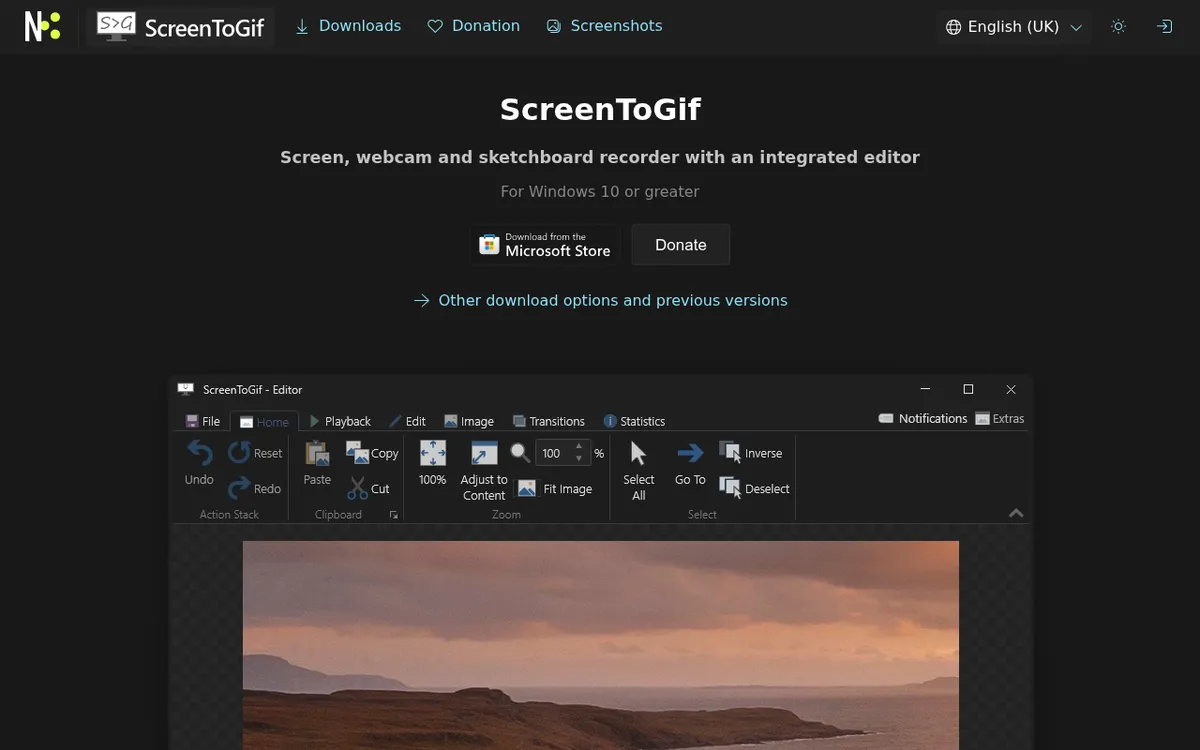
ScreenToGif is a free, open-source Windows gif screen capture tool that's packed with features rivaling paid options. It runs on Windows 10 or later.
Key features:
- Multiple capture modes: screen region, webcam, or digital whiteboard
- Built-in editor with frame-by-frame controls
- Export as GIF, APNG, WebP, or video
- Hotkey support for hands-free recording
- No watermarks or limits
The built-in editor is where ScreenToGif shines. Add text overlays, draw on frames, tweak timing, and shrink file size, all before export. It's strong enough for pro use, though the menus can feel like a lot at first.
The export settings deserve a mention too. Reduce colors, apply dithering, skip frames, and choose between encoding methods. For sites with strict file size limits, this level of control is a must.
One thing to know: the same developer now offers N-Studio, billed as the successor to ScreenToGif, with free and paid plans. ScreenToGif itself is still free and maintained (v2.43.2 shipped in July 2026), so you don't need to switch.
Who it's best for: Tech-savvy users who like detailed settings and want full control over their animated screen capture output.
Price: Free (open-source, no ads)
ShareX
Best for: Users who need screenshots AND GIF recording in one free tool
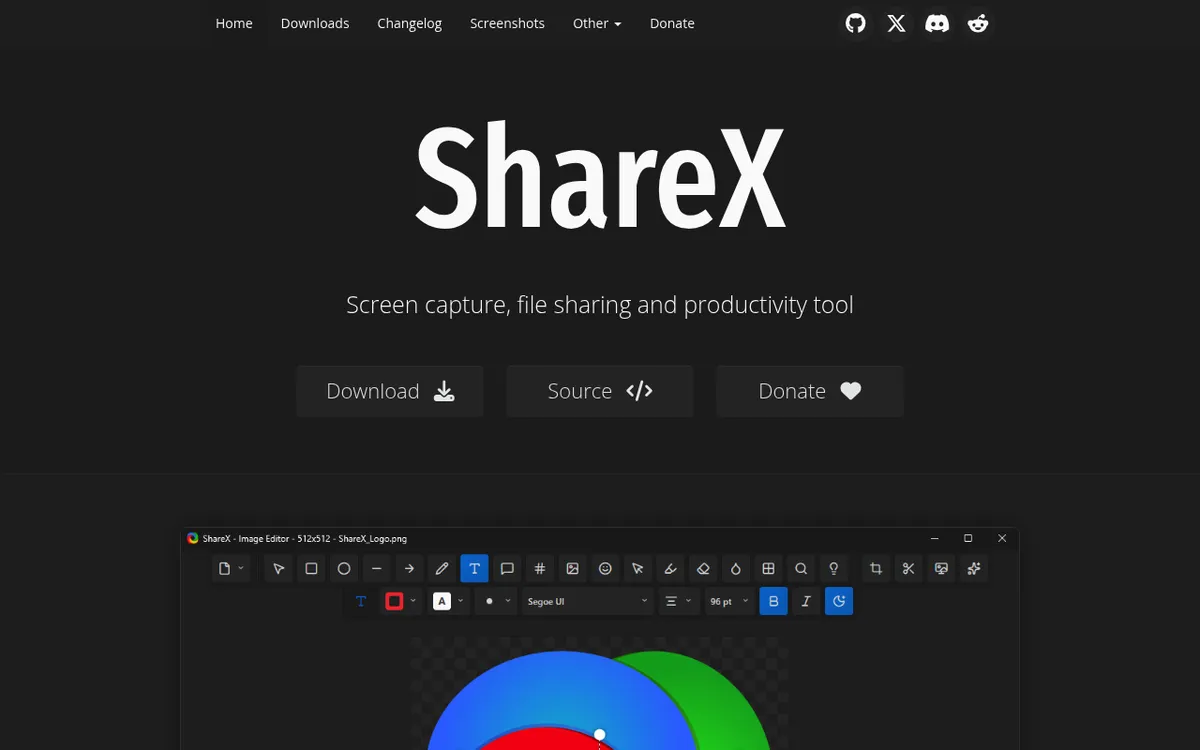
ShareX is a feature-packed screenshot and screen recording tool for Windows. While it does much more than gif capture, its GIF recording is solid.
Key features:
- Quick GIF capture with custom hotkeys
- Auto-upload to 70+ destinations (Imgur, Google Drive, Dropbox, and more)
- Scrolling capture for long pages
- Built-in image editor with 18 annotation tools
- Workflow setup for repeated tasks
ShareX has a steeper learning curve than ScreenToGif. There are a lot of menus and options. But once set up, it's very fast. The auto-upload feature is great for sharing bug reports in seconds. It's off by default on new installs, so turn it on in settings.
You can also build workflows to handle captures on their own. Resize, add watermarks, upload to cloud, and copy the link, all from a single hotkey.
There's no video editor in the stable release, and current versions need 64-bit Windows 10 or later.
Who it's best for: Users who need an all-in-one capture toolkit and don't mind spending time on setup.
Price: Free (open-source)
LICEcap
Best for: Simple, lightweight GIF capture without the bloat
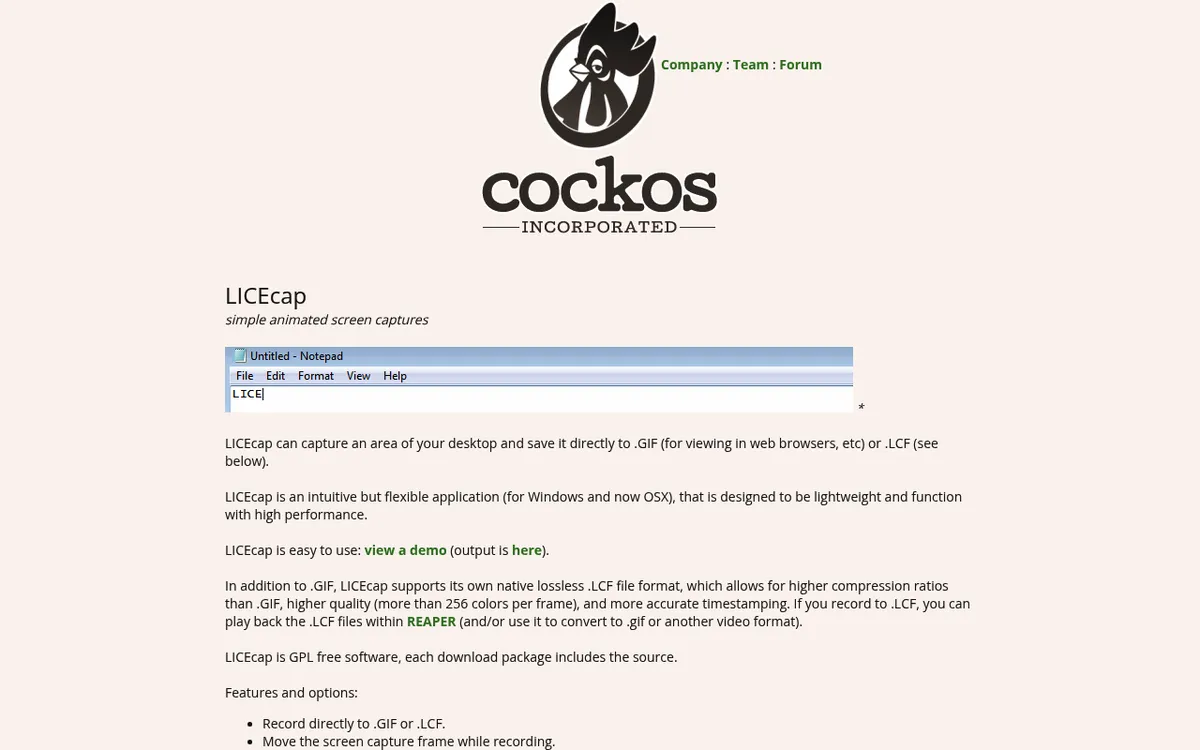
LICEcap is as minimal as gif screen capture gets. Under 1MB, zero setup, and records straight to GIF.
Key features:
- Ultra-light (250KB Windows installer)
- Cross-platform (Windows and macOS)
- Frame rate control during recording
- Title frames for added context
- Saves to GIF or LCF (lossless format)
LICEcap won't win design awards, but it's perfect for quick GIFs. Resize the see-through window over what you want to capture and hit record. Done.
Price: Free (open-source)
Best GIF Screen Capture Tools for Mac
Mac users have fewer options than Windows, but the tools tend to be more polished. ScreenSnap Pro (above) is the top Mac pick too. Here are the other tools worth using for capture gif mac workflows:
GIPHY Capture
Best for: Casual users making GIFs for social media
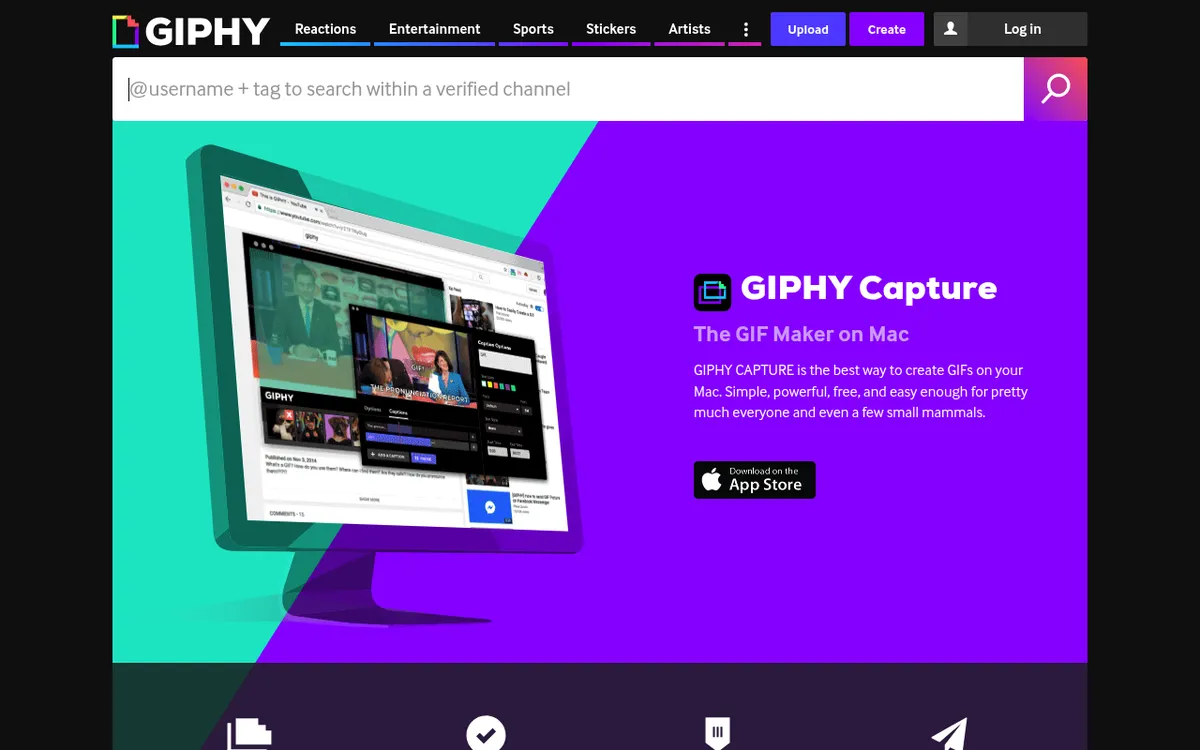
GIPHY Capture is free and dead-simple. Made by the company behind the world's largest GIF library. If you need basic screen recording gif without fuss, it works. It needs macOS 10.13 or later and got a 2026 update with Apple Silicon support.
Key features:
- Simple drag-to-resize capture area
- Loop trimming and caption overlay
- GIFs up to 30 seconds long
- Direct export to GIPHY library
- Standard GIF export option
- Free with no account needed
Limits show up fast: no markup tools, basic editing only, and uneven export quality. But for quick social media GIFs, it's hard to beat free.
Price: Free
Kap
Best for: Developers who want an open-source Mac option
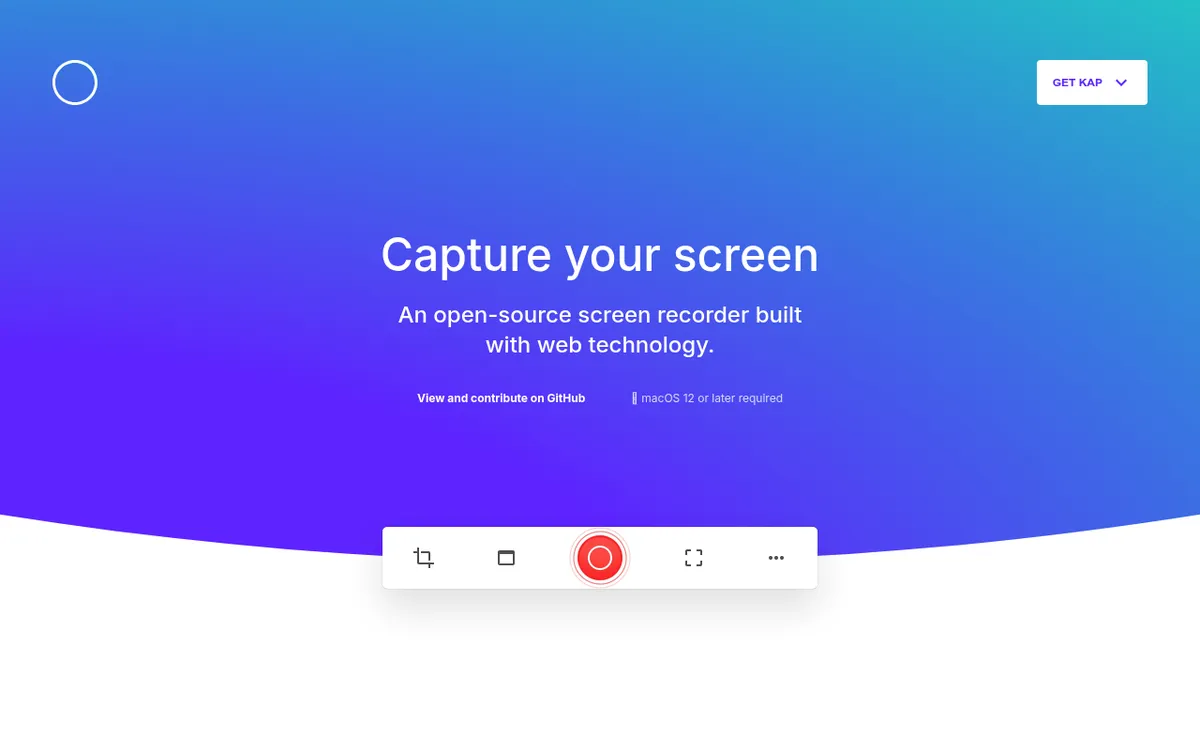
Kap is an open-source screen recorder built with web tech. It exports to GIF, MP4, WebM, and APNG with good quality. It needs macOS 12 or later.
Key features:
- Clean, minimal layout
- Export format choices
- Plugin system for add-ons
- Highlight click option for tutorials
- Trim controls before export
Kap is solid for devs who prefer open-source. The plugin system adds upload targets or extra steps. It lacks the polish of paid apps, though. Updates are also slow: the latest release (v3.6.0) came out in 2022.
Price: Free (open-source)
LICEcap (Mac Version)
The same lightweight tool from the Windows section runs on macOS too. If you need a quick, no-frills gif capture tool, LICEcap supports macOS 10.7 through 12 on Intel and Apple Silicon Macs.
Note: LICEcap's latest release (v1.32) came out in 2022, and the official page doesn't list macOS 13 or later. It may not work well with newer macOS versions. For more Mac options, see our how to record GIFs on Mac guide.

Tired of plain screenshots? Try ScreenSnap Pro.
Beautiful backgrounds, pro annotations, GIF recording, and instant cloud sharing, all in one app. Pay $34 once, own it forever.
See pricing and featuresBest Web-Based GIF Screen Capture Tools
Can't install apps? Working on a locked-down computer? Browser-based tools have you covered, with no downloads needed.
One note on scope before the list: these tools record your screen to GIF. If your frames already exist as separate image files, you want an assembler rather than a recorder, and our image to GIF converter does that job in the browser with frame reordering and adjustable timing.
Gifcap
Best for: Quick captures without installing anything
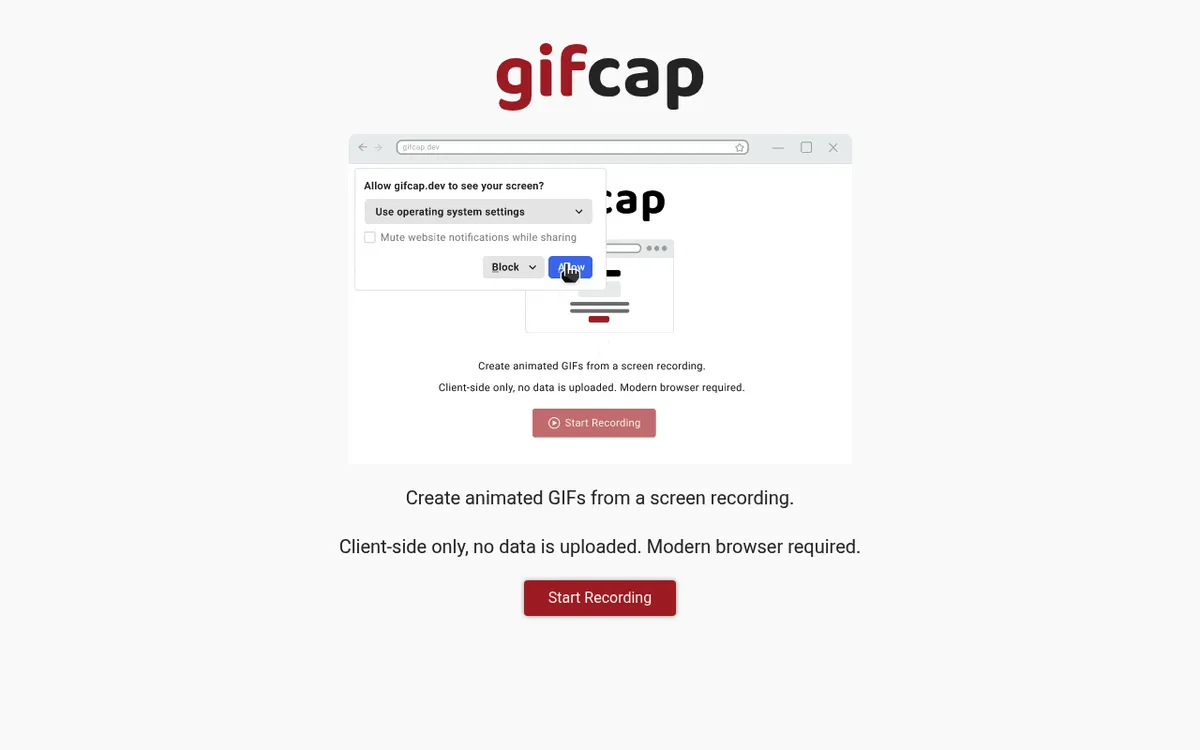
Gifcap runs fully in your browser using the Screen Capture API. Select a screen, window, or tab, then record and download your GIF.
Key features:
- No install or sign-up
- Records browser tabs, windows, or full screens
- Privacy-first (all work happens locally in your browser)
- Basic trim and crop tools
- Free with no limits
Quality is decent for docs and quick demos. Since all work runs in-browser, your recordings stay private. Nothing uploads to a server unless you choose to share.
Limits to know: Frame rates top out lower than desktop apps. There are no markup tools. Results vary by browser and hardware, and Chrome tends to work best.
Tip: For the best results with Gifcap, close other tabs to free up memory. Browser-based recording uses more resources than desktop apps. If your GIFs look choppy, try capturing a smaller area or using a lower frame rate.
Chrome Add-Ons for GIF Capture
Several Chrome add-ons offer gif screen capture, though quality varies quite a bit. Here are the most popular ones:
#### Gyazo
Gyazo offers quick capture with cloud hosting, as a Chrome extension or a Windows and Mac app. The free plan records clips up to 7 seconds and auto-uploads them to Gyazo's servers. Good for fast bug reports. Gyazo Pro ($6.99/month, or $5.99/month billed yearly) raises the limit to 10 minutes. In September 2026, Gyazo disclosed a data breach and asked all users to change their passwords.
#### Nimbus Capture (now FuseBase)
Nimbus Capture now lives under the FuseBase brand. It's feature-rich with markup tools, but pushes you toward the paid tier for GIF exports. The free version covers basic screenshots well and records video up to 5 minutes. Capture Pro costs $60/year or $99 for lifetime access and raises that to 10 hours.
#### Awesome Screenshot
Awesome Screenshot started as a screenshot tool, with screen recording added later. Good for marked-up captures. Recordings save as WebM or MP4, so GIF isn't its main strength. The free plan saves local recordings up to 5 minutes, and paid plans start at $5/month billed yearly.
When to use add-ons vs desktop apps:
- Add-ons work well for quick, one-off captures
- Desktop apps give better frame rates and smoother output
- Add-ons can't access content outside the browser
- Desktop apps offer more editing and export options
Chrome add-ons work in a pinch. But for regular gif screen capture work, a desktop app gives you better quality and more control. If you mainly need screenshots with a rare GIF, add-ons might be enough. Mac users can also check our Mac screenshot shortcuts guide.
GIF Screen Capture for Specific Use Cases
Not sure which tool fits your workflow? Here's what works best for common tasks:
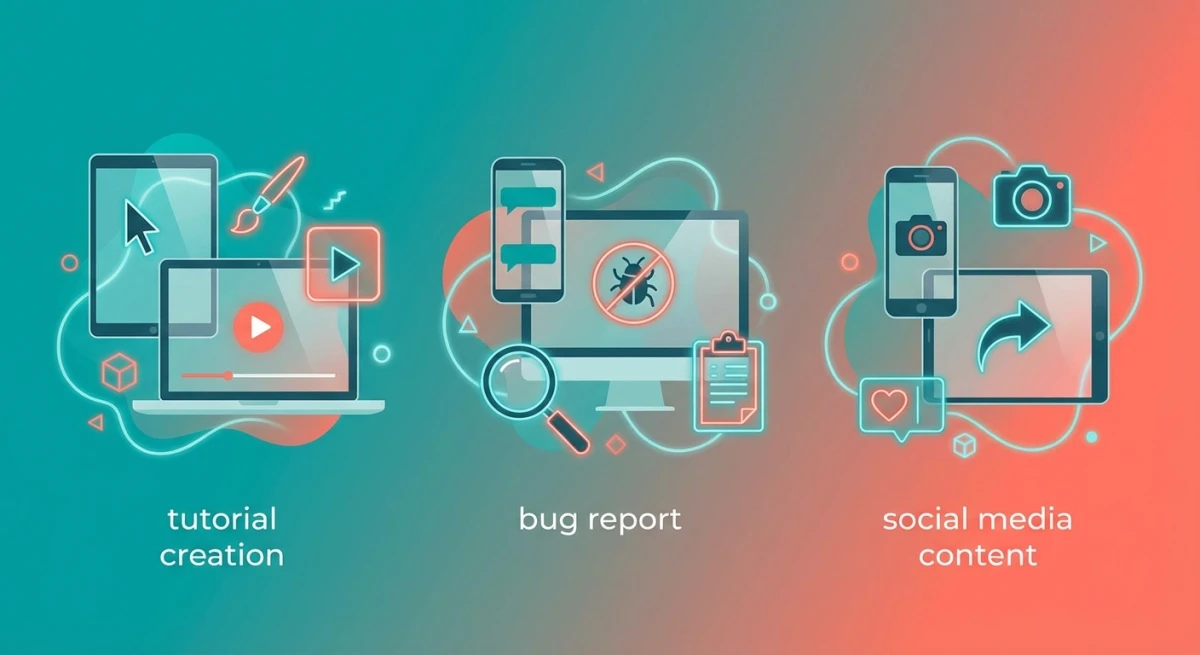
Tutorial Creation
Top picks: ScreenSnap Pro (Mac and Windows), ScreenToGif (Windows)
Tutorials need clear, polished visuals. Look for:
- Frame-by-frame editing to remove mistakes
- Markup tools to point out key steps
- Counter tool to number steps on screen
- Steady quality across recordings
ScreenSnap Pro's backgrounds and auto zoom make tutorial GIFs look polished without a separate editor. ScreenToGif's drawing tools let you mark up frames directly. For written guides, also check out screenshot markup tips for static images.
Bug Reports
Top picks: ScreenSnap Pro (Mac and Windows), ShareX (Windows)
Bug reports need context and speed. Look for:
- Instant sharing via URL
- Cloud upload built in
- Quick capture hotkeys
- Timestamp or system info overlays
On Mac or Windows, ScreenSnap Pro's optional cloud share links get bugs to your team in seconds. ShareX's auto-upload and share link features are unmatched among free Windows tools.
Social Media Content
Top picks: ScreenSnap Pro (Mac and Windows, polished), GIPHY Capture (Mac, simple)
Social content needs to look good and load fast. Look for:
- Background options to make captures pop
- File size control for platform limits
- Quick export workflow
- Loop trimming for smooth playback
ScreenSnap Pro's background options turn plain recordings into shareable pieces. No Photoshop needed. GIPHY Capture works for casual content.
Docs and Knowledge Bases
Top picks: ScreenSnap Pro (Mac and Windows), ScreenToGif (Windows)
GIFs for docs need to be clear, steady, and not too large. A 50MB GIF slows readers on weak connections.
Look for:
- Same capture size across recordings
- Good file shrinking that keeps things readable
- Markup for pointing out UI elements
- Frame delay control to slow down fast steps
Most QuickTime screen recordings need converting to GIF, while dedicated tools skip this step.
Free vs Paid GIF Screen Capture Tools
The best gif maker screen tool isn't always the priciest. Sometimes free is the better choice. Here's how to decide.
When free is enough:
- You need GIF recordings now and then, not daily
- Basic editing covers your needs
- File size and quality aren't make-or-break
- You have time to learn open-source tools
- You'd rather support open-source projects
When paid tools earn their keep:
- You create GIFs for work on a regular basis
- You need polished output without extra editing steps
- Instant sharing and cloud features save you real time
- You value a polished desktop app over open-source freedom
- Your time costs more than the tool
Free tools like ScreenToGif (Windows) and Kap (Mac) are truly great. ScreenToGif rivals paid apps in raw power. It's not as smooth in daily use, though.
Making content for work? The time saved with a polished tool often pays for itself. Spend 5 extra minutes per GIF on export and sharing. Make 20 GIFs per month. That's nearly 2 hours lost. A one-time purchase (not a monthly fee) starts looking smart.
Key point about gif capture tools: GIF is a stable format. Unlike video editing, you don't need ongoing codec updates. A one-time purchase makes sense, with no paying forever for features that work today.
If you have large GIF files taking up space, our free GIF compressor tool can help shrink them without losing too much quality. Need to turn GIFs into video for sites that don't support them? Try our GIF to MP4 tool.
Quick Comparison: All Tools at a Glance
| Tool | Platform | Price | Editing | Sharing | Best For |
|---|---|---|---|---|---|
| ScreenSnap Pro | Mac, Windows | $34 one-time | Video editor (trim, speed, auto zoom), 17 markup tools, backgrounds | Optional cloud share link | All-in-one, polished output |
| ScreenToGif | Windows | Free | Deep frame editor | Manual export | Power users, full control |
| ShareX | Windows | Free | Image editor, no video editor | Auto-upload to 70+ destinations | Screenshots + GIFs combo |
| LICEcap | Win/Mac | Free | None | Local save only | Quick, light captures |
| GIPHY Capture | Mac | Free | Basic trim/caption | GIPHY or local | Simple social media GIFs |
| Kap | Mac | Free | Trim, plugins | Plugin-based uploads | Devs, open-source |
| Gifcap | Web | Free | Basic trim/crop | Local download | No-install browser captures |
| Chrome add-ons | Web | Free/Paid | Varies | Cloud (varies) | Quick one-off captures |
How to read this table:
- Editing tells you how much you can tweak recordings after capture
- Sharing shows how easy it is to get your GIF to someone else
- If you care most about editing, go with ScreenSnap Pro or ScreenToGif
- If sharing speed matters most, ScreenSnap Pro or ShareX lead the pack
Frequently Asked Questions
Wrapping Up
The best gif screen capture tool depends on your platform and needs:
- Best overall (Mac and Windows): ScreenSnap Pro for polished GIFs, a built-in video editor, and instant share links
- Windows power users on a budget: ScreenToGif for full control and editing
- Quick and simple: LICEcap (Windows and Mac) or GIPHY Capture (Mac)
- No install needed: Gifcap in your browser
Create GIFs on the regular, on Mac or Windows? ScreenSnap Pro lets you capture, edit, and share GIFs for a one-time $34. Pay once and own it forever, with lifetime updates and no monthly fees. 30-day money-back guarantee.
Looking for more options? See our complete comparison of the best screenshot apps for Mac in 2026.

Morgan
Indie DeveloperIndie developer, founder of ScreenSnap Pro. A decade of shipping consumer Mac apps and developer tools. Read full bio
@m_0_r_g_a_n_