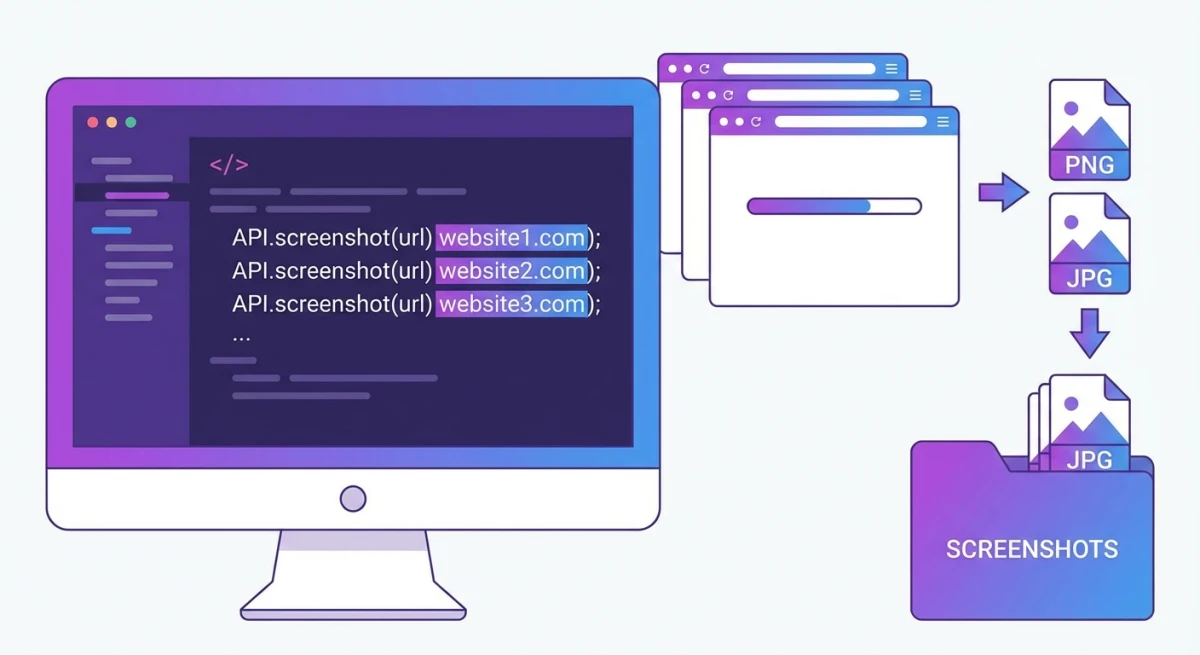
7 Best Free Screenshot Tools for Mac (2026)
Looking for a free screenshot tool mac users can trust? You're not alone. macOS has built-in capture tools. But many users want more features without paying for paid apps like ScreenSnap Pro.
The good news: great free options exist. They go far beyond what Apple offers. We tested dozens of tools. Here are the seven best free screenshot apps that work.
Can You Get Good Screenshot Tools for Free on Mac?
Yes, for sure. macOS has solid built-in capture features. And free third-party apps can match paid ones.
The key is knowing which tools are truly free. Not freemium traps. Some excel at quick captures. Others shine at markup. A few offer scrolling captures and OCR text copy.
Here's what we found after testing over 20 free screenshot apps for Mac.
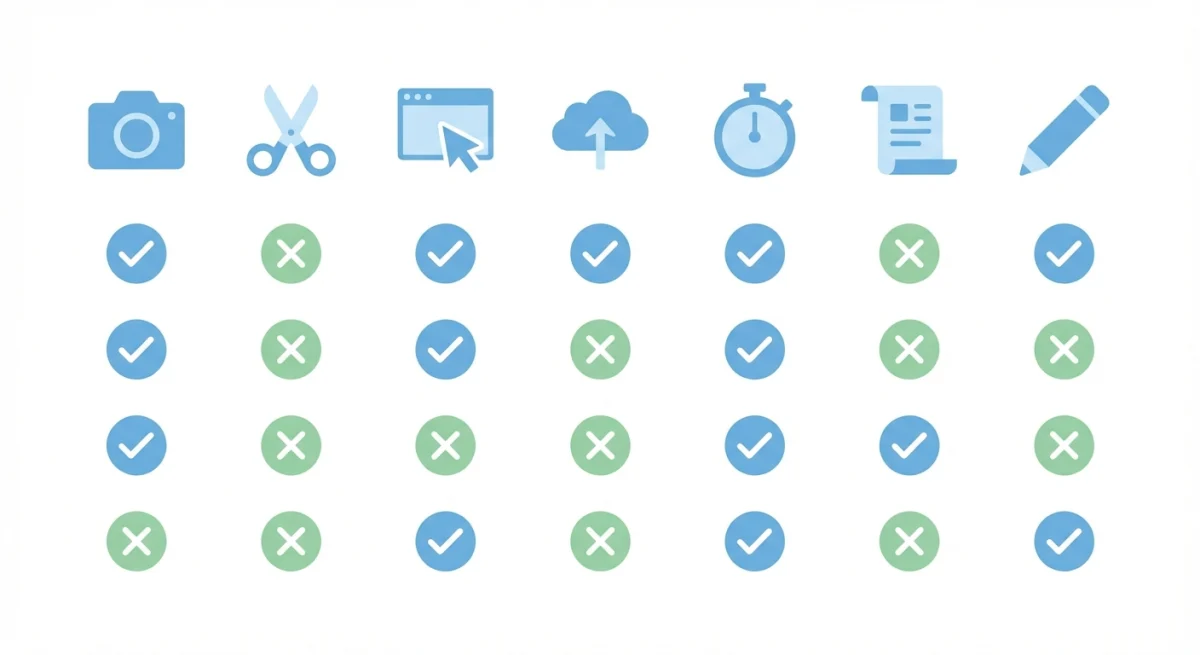
Quick Comparison: Free Screenshot Tools for Mac
| Tool | Price | Best Feature | Best For | Key Limitation |
|---|---|---|---|---|
| macOS Built-in | Free | Zero setup | Basic needs | Limited annotation |
| Shottr | Free* | OCR + measurements | Designers/devs | Nag screens after 30 days |
| Lightshot | Free | Quick sharing | Fast captures | Privacy concerns |
| Monosnap | Free tier (non-commercial) | Cloud storage | Personal sharing | Paid plan for work use |
| Skitch | Free | Simple annotations | Beginners | Abandoned development |
| Flameshot | Free | Customizable | Privacy-focused users | Less polished UI |
| Ksnip | Free | Cross-platform | Linux/Mac users | Not Mac-native |
*Free with optional $12 license to remove nag screens after 30 days.
1. macOS Built-in Screenshot (Truly Free)
Every Mac has Apple's built-in screenshot tool. It does more than most people think. Take a fresh look, and you might be surprised.
How to access it:
- Press
⌘ + Shift + 3to capture the entire screen - Press
⌘ + Shift + 4to capture a selected area - Press
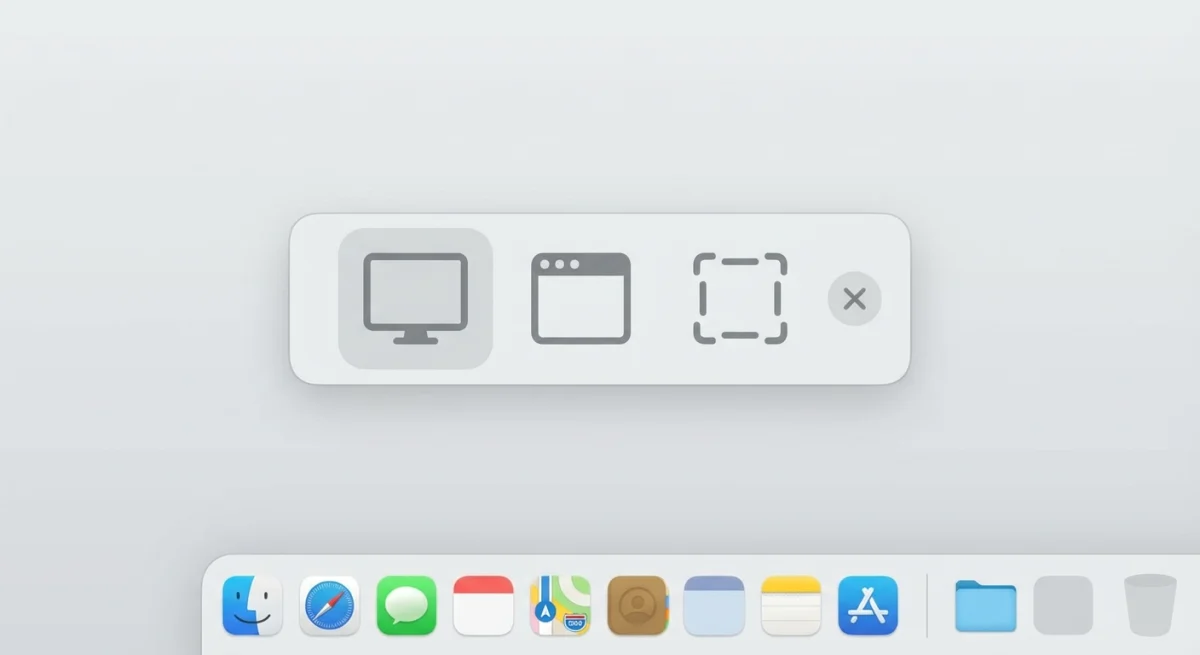
⌘ + Shift + 5to open the screenshot toolbar with all options
The ⌘ + Shift + 5 shortcut opens a toolbar. It shows options for full screen, window, or area captures. You also get screen recording. Set a timer or pick where to save files.
Getting started: Press ⌘ + Shift + 5 right now. Click "Options" to change the save location from Desktop to a Screenshots folder. This alone keeps your workspace cleaner.
A few hidden shortcuts most people miss:
- Press
⌘ + Shift + 4, then hitSpaceto switch to window capture mode. Click any window for a clean shot with a shadow. - Hold
Controlwhile capturing to copy straight to clipboard instead of saving a file. - Press
⌘ + Shift + 4, then holdSpaceafter dragging to move your selection without resizing it. - Change the default save format with a Terminal command:
defaults write com.apple.screencapture type jpg(supports png, jpg, pdf, tiff).
For basic markup, open any capture in Preview. Use the Markup tools. It's not as strong as other apps. But it handles arrows, shapes, and text well enough.
Pros:
- No install needed
- Works on any Mac screen
- Has screen recording
- Opens in Preview for quick edits
Cons:
- Basic markup tools
- No cloud sharing
- No scrolling capture
- No OCR text copy
For more keyboard shortcuts and hidden features, check our complete guide.
2. Shottr (Free with Optional License)
Shottr is the top free screenshot app for Mac in 2026. It was built for designers who need exact pixel counts. Now it's a rich tool that rivals paid apps.
Pricing clarity: Shottr is free to download and use with all features available. After 30 days, it shows occasional "please consider buying" prompts. A $12 one-time license removes these nag screens and supports the developer. All features work without paying, so all you see are reminders.
What makes Shottr special? It has pro features that free tools often skip. Think scrolling capture, OCR text copy, color picker, and ruler tools. It's fast on Apple Silicon Macs.
The 1.9 update added S3 upload, a magnifier, and hand-drawn styles with bendable arrows. Version 1.8 added the Backdrop tool. It puts gradient backgrounds, shadows, and rounded corners on your captures. You normally pay for these features.
Key features:
- Scrolling captures for full web pages
- OCR to copy text from any image
- Pixel ruler and measure tools
- Quick blur to hide private data
- Pin captures to stay on top
- Backdrop tool for nice backgrounds
Pros:
- All features free (nag screens only)
- Fast on M1/M2/M3 Macs
- Active updates
- Pro-grade markup tools
Cons:
- Mac-only (no Windows)
- No built-in cloud sharing
- Prompts to buy after 30 days
Getting started: Download Shottr from shottr.cc. Open System Settings → Privacy & Security → Screen Recording and grant access. Then press ⌘ + Shift + 2 to take your first capture with the full annotation toolbar.
If you need scrolling screenshots or want to copy text from images, Shottr handles both beautifully.
3. Lightshot (Free)
Lightshot focuses on speed. It's one of the fastest ways to capture, mark up, and share a screenshot. All in seconds.
After you grab a selection, a small toolbar appears. Add arrows, text, shapes, and highlights right there. No extra editor needed. Click the cloud icon to upload. Get a share link fast.
Key features:
- Two-click capture flow
- Simple markup toolbar
- Fast cloud upload with links
- Browser add-on ready
Pros:
- Very fast to use
- Works on Mac, Windows, browser
- No signup for basic use
Cons:
- Few markup options
- Uploads go to public servers (privacy risk)
- Not as polished on Mac
- No scrolling capture or OCR
Getting started: Download the Mac app from app.prntscr.com. After install, press your assigned hotkey (default varies) to start a selection. Drag, mark up, and click the cloud icon to share.
Lightshot works for quick captures you need to share now. For private screenshots, pick other tools. Want Lightshot options with better privacy? We have ideas.
4. Monosnap (Free Tier)
Monosnap offers a nice free tier with cloud storage. That's rare among free tools. You get 2GB of space. Share via links without third-party uploads.
The markup editor is clean and easy to use. It has arrows, text, shapes, blur, and a step counter. Great for how-to guides. Monosnap also has screen recording and GIF capture for free.
Key features:
- 2GB free cloud space
- Captures and video recording
- Built-in markup editor
- Dropbox and Google Drive uploads on paid plans
Pros:
- Cloud sharing, no monthly fees
- Clean, modern look
- Video and GIF recording built in
- Good markup tools
Cons:
- Free plan is for non-commercial use only
- Pushes paid upgrades
- Needs an account
- Can lag on older Macs
Getting started: Sign up at monosnap.ai and download the Mac app. Open Preferences to set your capture hotkey and connect cloud storage. Your first 2GB of uploads are free.
For personal, non-commercial capture with cloud sharing, Monosnap's free tier is worth a look. Work and team use needs a commercial plan ($10/month, or $60 a year).
5. Skitch (Free)
Skitch, owned by Evernote, was once the top markup app for Mac. It's still free and works for quick tasks. But updates have stopped.
The look is simple and friendly. Grab a screen area, then mark up with arrows, stamps, shapes, and text. The blur tool works well for hiding private info.
Key features:
- Simple arrow and shape markup
- Blur tool for privacy
- Works with Evernote
- Drag-and-drop sharing
Pros:
- Very easy to learn
- Clean, friendly look
- Free with no ads
Cons:
- No longer updated
- No scrolling capture or OCR
- Evernote tie-in can feel forced
- Looks dated now
Skitch still works for users who want simple markup. Skip it if you need more features.

Tired of plain screenshots? Try ScreenSnap Pro.
Beautiful backgrounds, pro annotations, GIF recording, and instant cloud sharing, all in one app. Pay $34 once, own it forever.
See pricing and features6. Flameshot (Free, Open Source)
Flameshot brings Linux-style power to Mac. It's open source and respects your privacy. You can change most settings. Great for devs who want control.
The capture UI shows up on screen with markup tools. Mark up before you save. Export to clipboard, files, or Imgur.
Key features:
- On-screen markup mode
- Lots of settings to tweak
- Open source (no tracking, no ads)
- Imgur upload built in
Pros:
- Privacy-first, no telemetry
- Mark up while you capture
- Active open-source team
- Free forever
Cons:
- UI not as smooth as Mac apps
- Install via Homebrew
- Some features work better on Linux
- No cloud service link
Getting started: Install via Homebrew: brew install --cask flameshot. Launch the app, then press the capture hotkey to see the on-screen markup toolbar. Customize your default tools in Preferences.
7. Ksnip (Free, Open Source)
Ksnip is another open-source pick. It works on Mac, Windows, and Linux. The team still updates it. It works the same on every platform.
The markup tools are full-featured. Arrows, text, numbers, shapes, blur, and stickers. Ksnip also has screen recording and built-in OCR.
Key features:
- Same on every platform
- Built-in OCR text copy
- Full markup tools
- Active updates
Pros:
- Works the same on all platforms
- No account or cloud needed
- Strong markup features
- Gets regular updates
Cons:
- Doesn't feel Mac-native
- UI can be cluttered
- Manual install needed
- Some features lag behind Shottr
Ksnip is ideal if you switch between Mac, Windows, and Linux. You get the same tool on all of them.
Honorable Mentions
A few more free screenshot apps worth knowing about:
Xnapper. A newer Mac app focused on making screenshots look beautiful. The free version adds gradient backgrounds and device frames automatically. It's great for social media posts and portfolio pieces. The free tier has limited exports per month, but it covers casual use.
Screenshot Path. A lightweight utility that gives you more control over where macOS saves screenshots. Set custom save locations per app or use rules. Not a capture tool itself, but a perfect companion to the built-in macOS screenshot tool.
Cleanshot X Free Trial. While CleanShot X is a paid app, it offers a trial period. If you want to test pro features like scrolling capture, annotations, and cloud before committing, the trial gives you the full experience. Read our CleanShot X review for a deeper look.
Free vs Paid: What You Actually Need
Not sure if a free tool is enough? Here's a quick breakdown to help you decide.
Free tools cover you if you:
- Take fewer than 10 screenshots a day
- Only need basic markup (arrows, text, shapes)
- Don't mind managing files manually
- Rarely need to share via links
Consider paid tools if you:
- Capture dozens of screenshots daily for work
- Need instant cloud links for team chats or docs
- Want polished backgrounds for presentations or social media
- Record GIFs for bug reports or how-tos
- Need advanced annotation tools like step counters and device frames
The gap between free and paid narrows every year. Apps like Shottr prove you can get professional features without spending money. But when your workflow demands speed (instant upload, one-click beautification, integrated GIF capture), a paid tool saves more time than it costs.
Most paid Mac screenshot apps charge monthly. That adds up. Look for tools with one-time pricing if you want to avoid subscription fatigue.
What Free Tools Are Missing
After testing all these free screenshot apps, we found they cover most basic needs well. But they often lack what power users want:
- Cloud sharing: Most free tools lack cloud storage. You upload to public servers (privacy risk) or handle files by hand.
- Nice backgrounds: Adding gradient backgrounds (great for social posts) often needs paid tools.
- GIF capture: Monosnap has this. Most free tools only do static images.
- Pro markup sets: Step counters, device frames, and watermark tools are rare in free apps.
- Quick share links: Getting a share link without signup or public uploads is hard to find.
When to Consider a Paid Tool
Free tools work great for rare screenshots. But if you capture dozens daily (for docs, how-tos, bug reports, or social posts), you'll outgrow them.
Signs you might need more:
- You spend time cropping and editing in other apps
- You need instant share links for team chats
- Your screenshots look plain next to polished rivals
- You want GIF capture without video steps
Paid options like ScreenSnap Pro offer one-time pricing (no monthly fees). You get instant cloud links, nice gradient backgrounds, GIF capture, and pro markup tools. For power users, the time saved is worth the one-time cost.
For more Mac screenshot tool comparisons, see our guide to the best snipping tool alternatives for Mac.
Frequently Asked Questions
Wrapping Up
You don't need to pay for a good Mac screenshot tool. Shottr is the best free pick for most users. macOS built-in tools cover basic needs with no install.
For quick sharing, try Lightshot. For cloud storage, Monosnap's free tier works. For privacy and open-source, Flameshot and Ksnip are solid.
If you need more later (nice backgrounds, instant cloud links, GIF capture, pro markup), ScreenSnap Pro has you covered. Pay once, own it forever. No monthly fees.
The right tool should fit your workflow. It should make captures easier, not harder.

Morgan
Indie DeveloperIndie developer, founder of ScreenSnap Pro. A decade of shipping consumer Mac apps and developer tools. Read full bio
@m_0_r_g_a_n_