Best Lightshot Alternative for Mac in 2026 (7 Options)
Looking for a Lightshot alternative for Mac? You're not alone. While Lightshot works fine on Windows, the Mac version is notoriously limited: missing features, occasional crashes, and an interface that feels stuck in 2015. Modern options like ScreenSnap Pro close those gaps with native macOS support and richer annotation tools.
The good news: several excellent alternatives offer better Mac integration, more powerful annotation tools, and modern features like cloud sharing and scrolling screenshots. This guide covers the 7 best options, from free open-source tools to polished paid apps.
Quick answer: For most Mac users, ScreenSnap Pro offers the best balance of features and value, with a one-time payment, no subscription, and better annotation tools than Lightshot. Shottr is the best free option for power users.
Why Look for Lightshot Alternatives?
Lightshot gained popularity as a simple, free screenshot tool. Capture an area, annotate quickly, share via link. The formula works, at least on Windows.
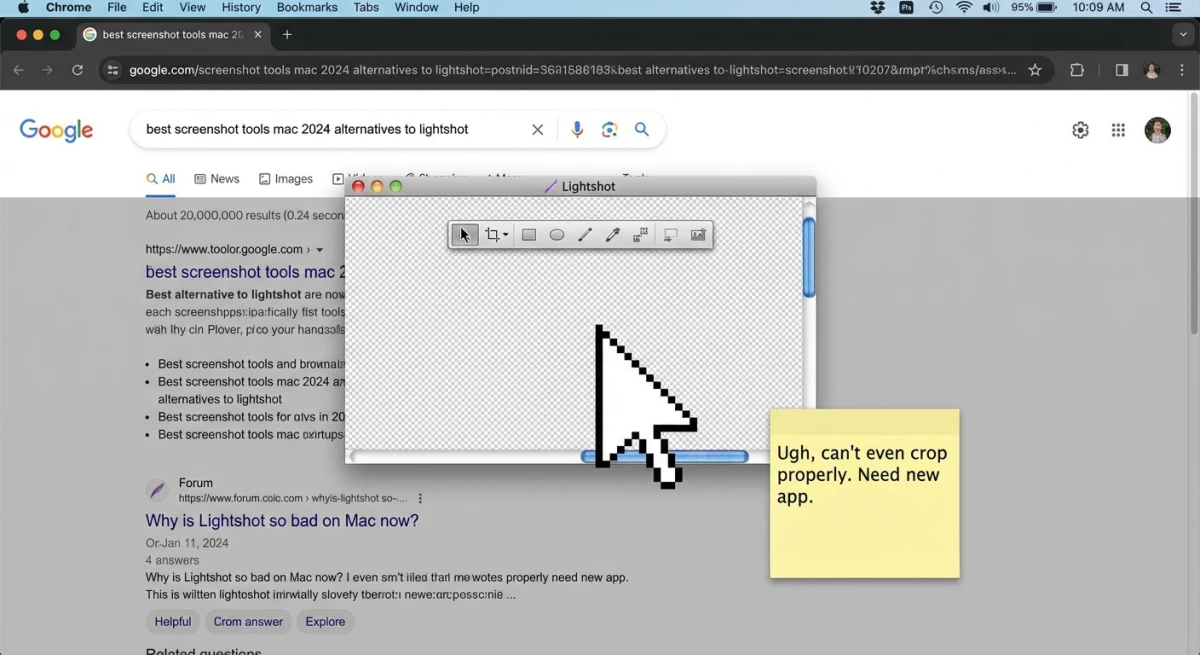
On Mac, users consistently report issues:
- Limited annotation tools. Basic arrows and text, but no blur, pixelate, or numbered steps
- No scrolling screenshots. Can't capture long webpages or documents
- Buggy behavior. Crashes on macOS Sonoma, conflicts with system shortcuts
- No GIF recording. Modern workflows often need quick screen recordings
- Outdated interface. Feels clunky compared to native Mac apps
- Privacy concerns. Automatic cloud upload without clear consent options
If you're taking screenshots daily for work, documentation, or bug reports, these limitations add up fast. A proper Mac screenshot app should feel native and handle modern use cases.
Quick Comparison Table
Before diving into details, here's how the top alternatives stack up:
| Tool | Price | Annotations | Cloud Sharing | Scrolling | OCR | Best For |
|---|---|---|---|---|---|---|
| ScreenSnap Pro | $39 one-time | ✅ 15 tools | ✅ Optional | ❌ | ✅ | Professionals |
| Shottr | Free/Paid | ✅ Full toolkit | ✅ S3 upload | ✅ | ✅ | Power users |
| CleanShot X | $29+ | ✅ Comprehensive | ✅ Built-in | ✅ | ✅ | Heavy users |
| Flameshot | Free | ✅ Basic | ❌ | ❌ | ❌ | Linux converts |
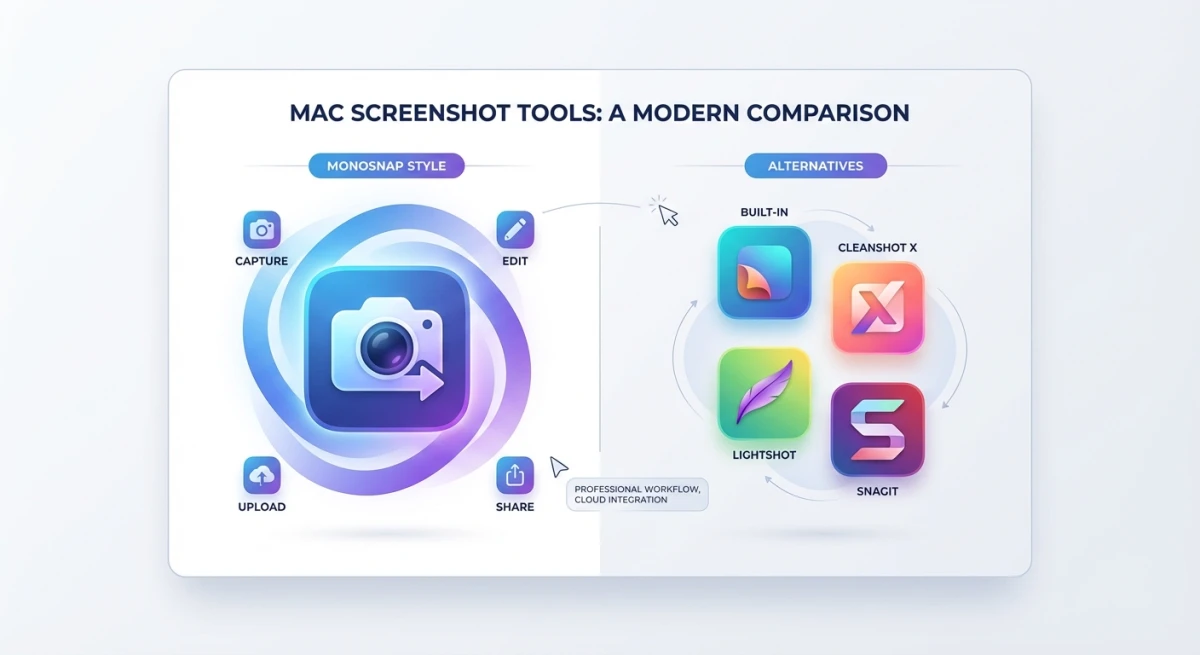
| Monosnap | Free/Paid | ✅ Basic | ✅ Built-in | ❌ | ❌ | Quick sharing |
| Skitch | Free | ✅ Basic | ✅ Evernote | ❌ | ❌ | Evernote users |
| macOS Built-in | Free | ✅ Markup | ❌ | ❌ | ✅ | Casual use |
1. ScreenSnap Pro (Best Overall)
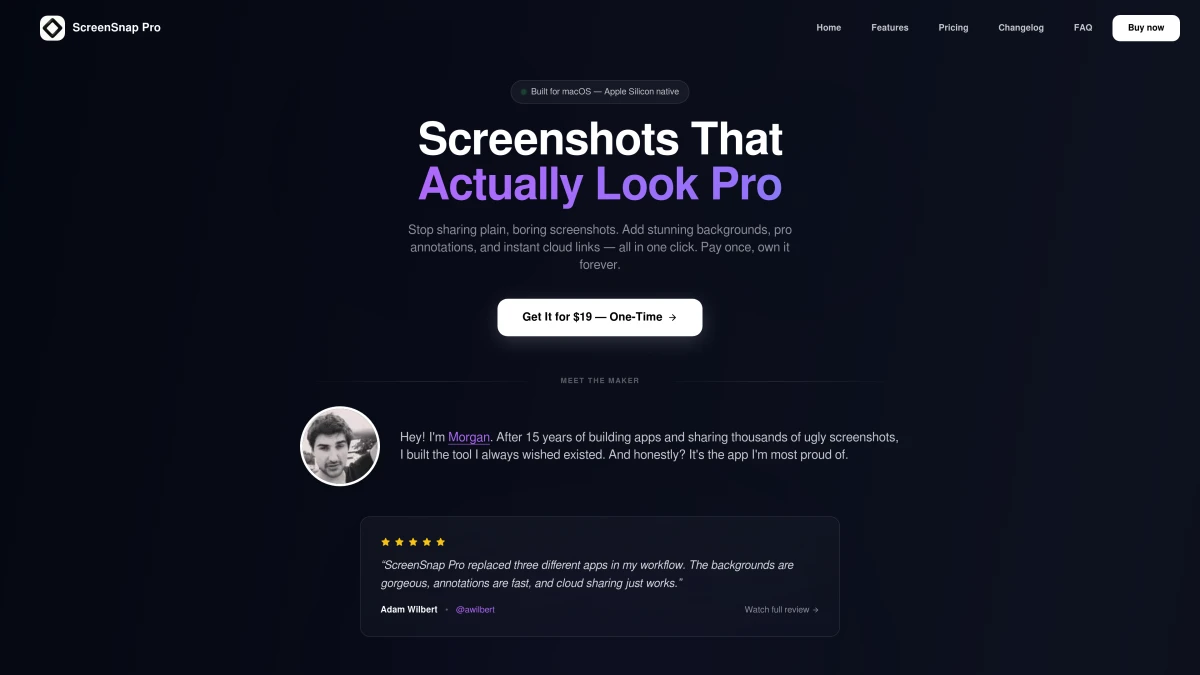
ScreenSnap Pro takes a refreshingly simple approach: pay once, own forever, no subscription required.
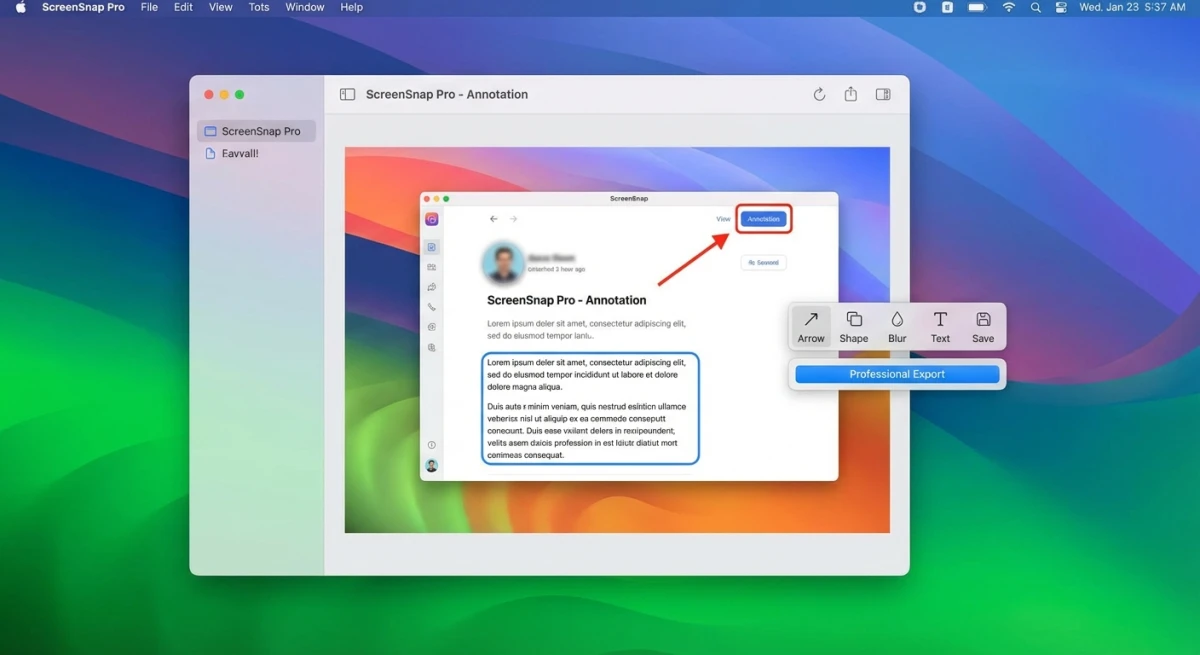
What makes it stand out:
- 500+ wallpapers. Transform boring screenshots into polished visuals with one click
- 15 annotation tools. Arrows, shapes, text, blur, pixelate, highlighter, emojis, and numbered steps
- Optional cloud sharing. Instant links when you need them, local-only when you don't
- GIF recording. Capture screen recordings as shareable GIFs
- OCR text extraction. Copy text directly from screenshots
- Quick Access Overlay. Edit and share without leaving your workflow
The one-time $39 price is refreshing in an era of subscriptions. Cloud storage is included and optional, so you're not forced to upload everything.
Pricing: $39 one-time (lifetime updates included)
Best for: Professionals who want polished screenshots without recurring costs.
2. Shottr (Best Free Option)
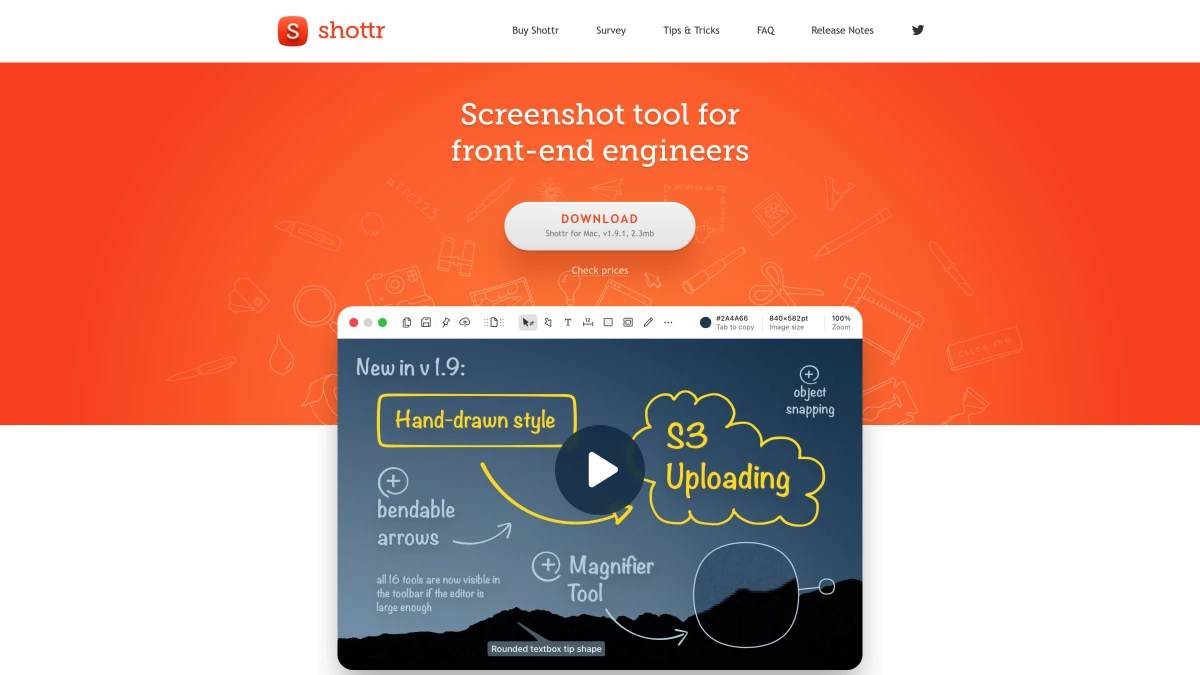
Shottr is what happens when a developer builds the screenshot tool they actually want to use. It's absurdly feature-rich for a free app.
Key features:
- Scrolling screenshots. capture entire webpages beyond the visible area
- Backdrop tool. Add gradient backgrounds, shadows, and rounded corners
- Measurement tools. Pixel-perfect spacing and sizing for designers
- OCR with search. Extract and find text across your screenshot history
- Pin screenshots. Keep captures floating above other windows
- Self-timer and delay. Capture tooltips and hover states
Shottr's interface is minimal but powerful. Most features hide behind keyboard shortcuts, which takes some learning but rewards power users.
Pricing: Free (donations encouraged), Club membership for S3 upload
Best for: Designers and developers who need precision tools without paying.
3. CleanShot X (Most Features)
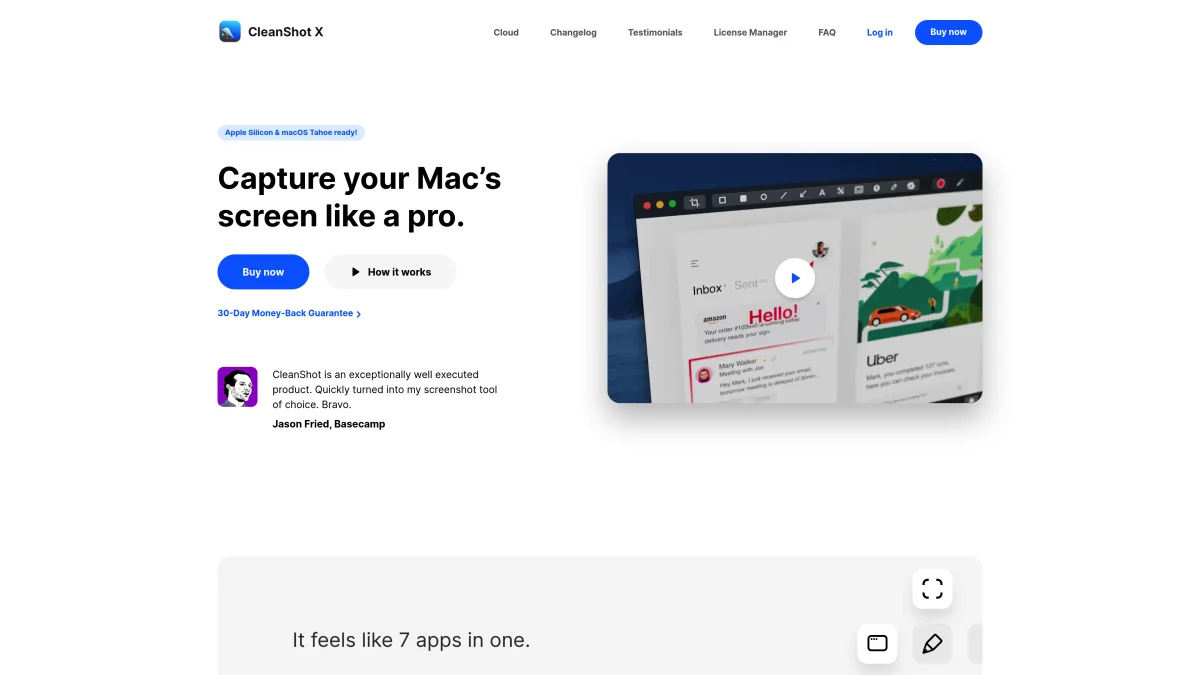
CleanShot X is one of the most feature-packed Mac screenshot apps. If there's a screenshot-related feature you want, CleanShot probably has it.
Standout features:
- Everything capture. Area, window, fullscreen, scrolling, self-timer, video, GIF
- CleanShot Cloud. Instant sharing with custom domains and branding (Pro)
- Background tool. Beautiful presets for social media screenshots
- Hide desktop icons. Capture clean screenshots even with a messy desktop
- Text recognition (OCR). On-device, fast, private
- Annotation suite. Every tool you'd expect plus counters and callouts
The interface is polished and intuitive. New users can be productive immediately while power users discover deeper features over time.
Pricing: $29 one-time (basic) or $8/month for CleanShot Cloud Pro
Best for: Users who want maximum features and don't mind paying for them.
4. Flameshot (Open Source)
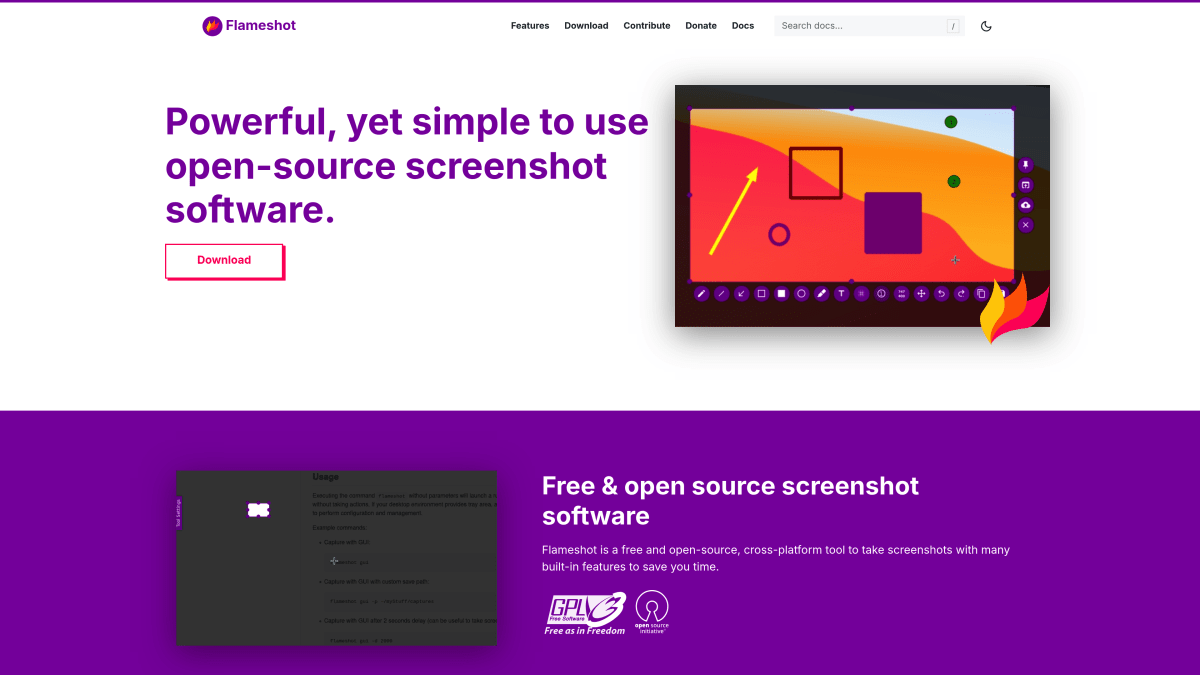
Flameshot is the open-source choice. Originally built for Linux, it now runs on Mac and brings a no-nonsense approach to screenshots.
What you get:
- Intuitive capture interface. Selection handles with built-in toolbar
- Core annotation tools. Arrows, text, shapes, blur, numbered markers
- Imgur upload. Quick sharing to a public image host
- Highly customizable. Configure every aspect via settings or config files
- Cross-platform. Same tool on Mac, Windows, and Linux
Installation requires Homebrew (brew install flameshot), which might intimidate non-technical users. The interface is functional rather than beautiful, but it gets the job done.
Pricing: Free and open source
Best for: Linux users switching to Mac, or anyone who prefers open-source tools.

Tired of plain screenshots? Try ScreenSnap Pro.
Beautiful backgrounds, pro annotations, GIF recording, and instant cloud sharing, all in one app. Pay $39 once, own it forever.
See pricing and features5. Monosnap (Cloud-First)
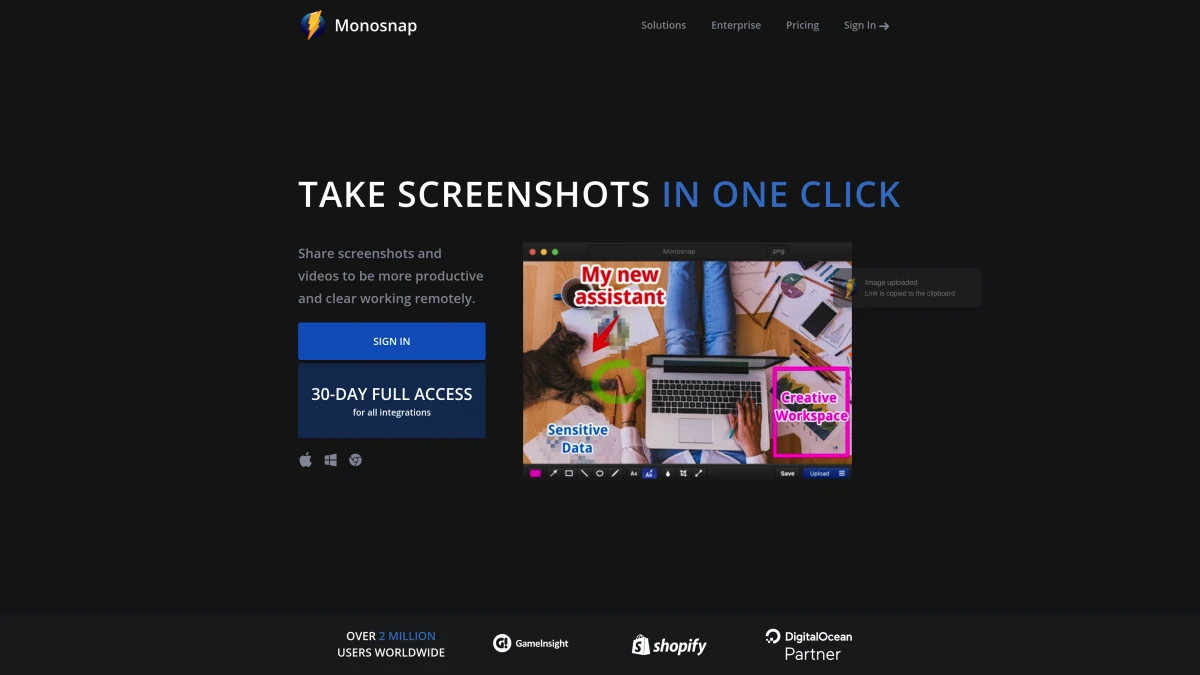
Monosnap prioritizes sharing speed. Capture something, get a link, and that's the core workflow.
Key features:
- Instant cloud upload. Every capture gets a shareable link automatically
- Video recording. WebM and GIF output with audio support
- External storage support. Connect to Amazon S3, Dropbox, Google Drive
- Browser extension. Capture directly from Chrome or Firefox
- Basic annotations. Arrows, shapes, text, blur
The free tier is generous for personal use. Teams can upgrade for additional storage and management features.
Pricing: Free personal use, paid plans for teams
Best for: Users who share screenshots constantly and want minimal friction.
6. Skitch (Evernote Integration)
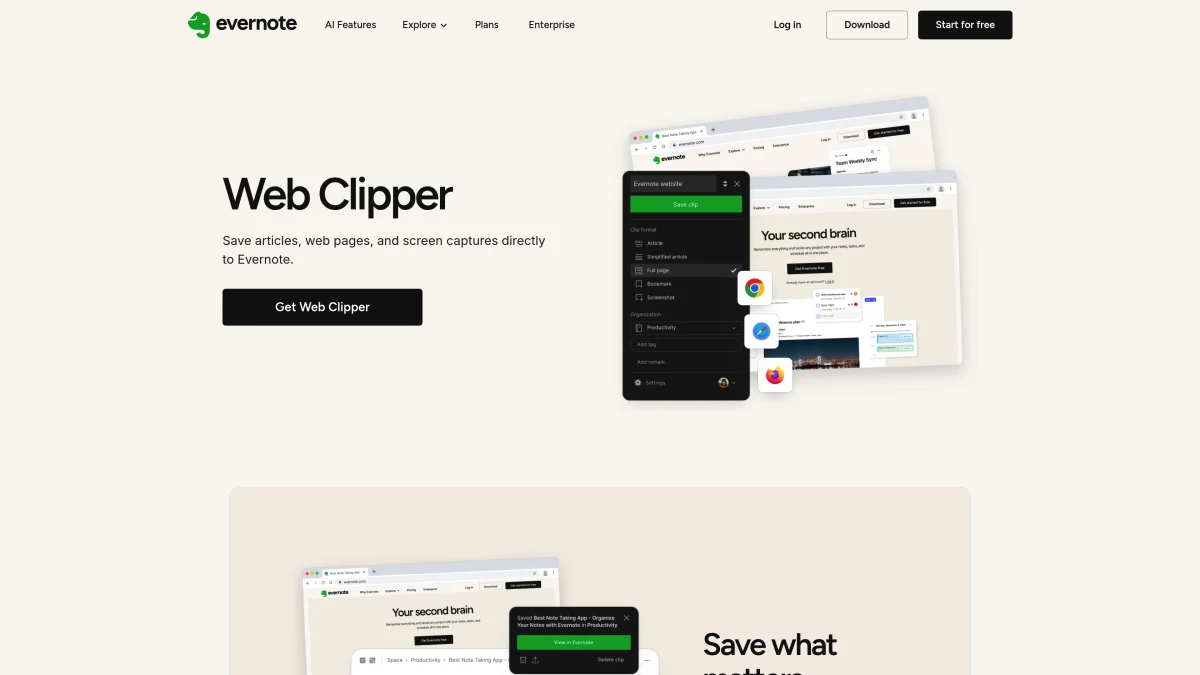
Skitch was once the go-to Mac screenshot app. Evernote acquired it, and development slowed significantly. It's still available but feels dated.
What it offers:
- Simple annotation. Arrows, shapes, stamps, text
- Evernote sync. Screenshots automatically save to your Evernote account
- Pixelate tool. blur sensitive information with one click
- Maps and URLs. Capture and annotate maps or webpage snapshots
The Evernote integration is the main selling point. If you're already in the Evernote ecosystem, Skitch fits naturally. Otherwise, newer tools offer more.
Pricing: Free (Evernote account required)
Best for: Existing Evernote users who want seamless screenshot integration.
7. macOS Built-in Screenshot
Before installing anything, consider what your Mac already offers. The built-in Screenshot app (press ⌘ + Shift + 5) has improved significantly in recent macOS versions.
Built-in capabilities:
- Area, window, and fullscreen capture. Covers basic needs
- Screen recording. Video with or without audio
- Timer options. 5 or 10 second delay
- Markup integration. Annotate via Preview's markup tools
- Live Text (OCR). Extract text from images system-wide on macOS Monterey+
For a complete guide to keyboard shortcuts, see our Mac screenshot shortcuts reference.
Limitations:
- No scrolling screenshots
- Basic annotation tools
- No cloud sharing built-in
- Can't customize background or add polish
Pricing: Free (included with macOS)
Best for: Casual users with simple needs who don't want additional apps.
How We Tested
Each tool was tested on macOS Sonoma 14.3 for:
- Capture reliability. Does it capture what you select, every time?
- Annotation quality. Are the tools precise and easy to use?
- Performance. Does it slow down your Mac or hog memory?
- Workflow integration. Hotkeys, clipboard support, drag-and-drop
- Mac integration. Does it feel native and respect system conventions?
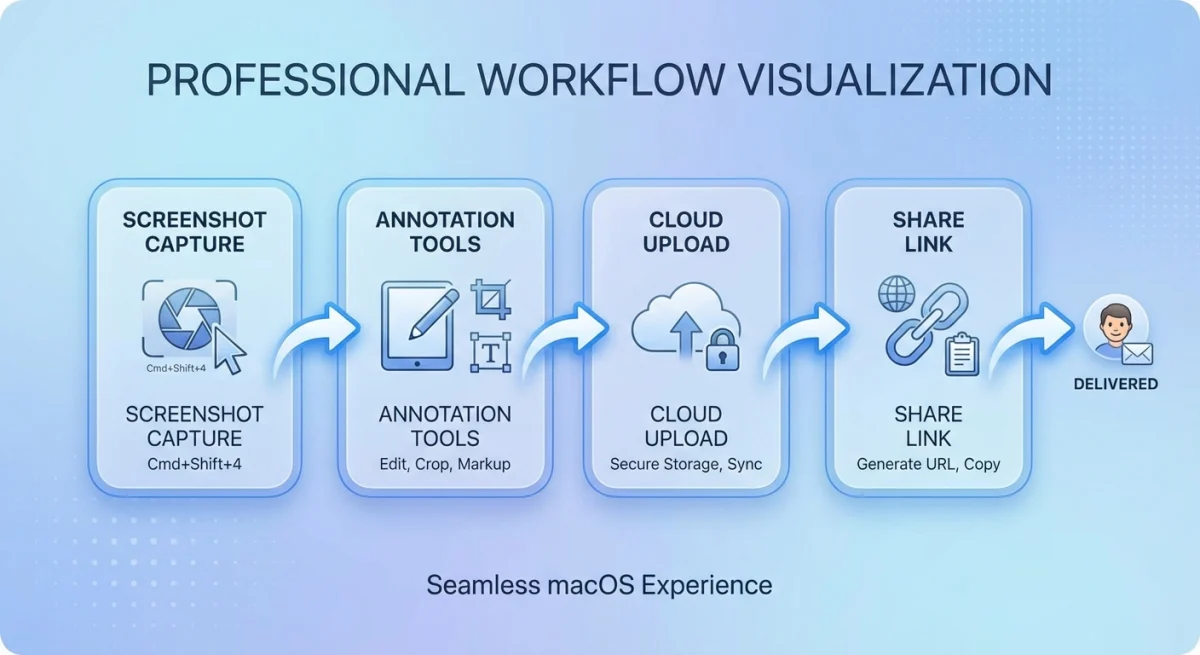
We prioritized tools that respect Mac conventions: proper hotkey support, system notifications, and integration with features like Universal Clipboard and Handoff where applicable.
Which Lightshot Alternative Should You Choose?
Your best choice depends on how you use screenshots:
For professional documentation and bug reports: ScreenSnap Pro offers the best annotation toolkit with cloud sharing when needed. The gradient backgrounds make screenshots look polished without extra effort.
For designers and pixel-perfect work: Shottr's measurement tools and precision features are strong for the price. The learning curve pays off quickly.
For maximum features regardless of cost: CleanShot X has everything. If you can justify $29 plus potential cloud subscription, it's extremely capable.
For open-source philosophy: Flameshot respects your privacy and works well once configured. Installation is the main hurdle.
For quick sharing without fuss: Monosnap's cloud-first approach means links are ready instantly. Great for remote teams and async communication.
For Evernote users: Skitch's integration saves steps if you're already in that ecosystem.
For minimal needs: The built-in macOS Screenshot handles basics competently. Try it before installing anything.
If you're specifically comparing premium options, our ScreenSnap Pro vs Shottr comparison goes deeper on the differences.
Frequently Asked Questions
Conclusion
Lightshot served its purpose, but Mac users deserve better. Whether you choose the polished simplicity of ScreenSnap Pro, the power-user depth of Shottr, or the feature abundance of CleanShot X, you'll find a tool that actually feels at home on macOS.
Start with the free options if you're unsure. Shottr and the built-in Screenshot app cover most needs. When you hit their limits (and you will if you take screenshots regularly), the paid options justify their price quickly.
Your screenshots represent your work. Make them count.

Morgan
Indie DeveloperIndie developer, founder of ScreenSnap Pro. A decade of shipping consumer Mac apps and developer tools. Read full bio
@m_0_r_g_a_n_