Copy Text from Screenshots on Mac (3 Free OCR Methods)
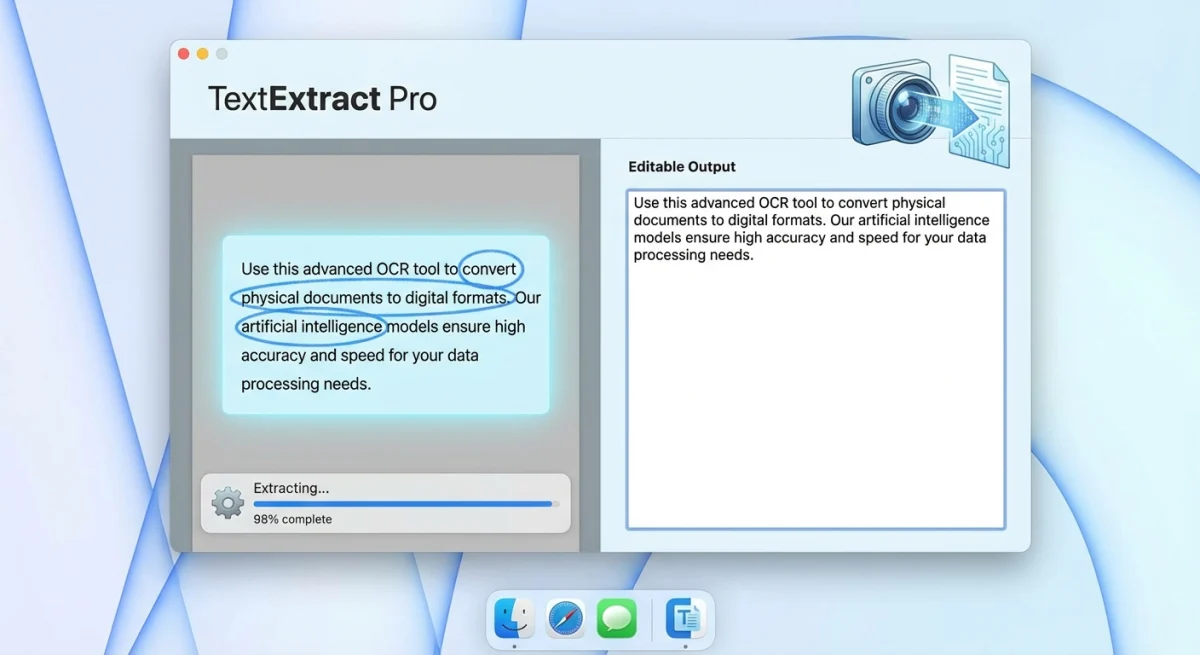
Optical Character Recognition (OCR) lets you copy text from screenshot images on Mac. It turns what looks like static pixels into editable, searchable text you can paste anywhere. Whether you're extracting a phone number from a photo, copying code from a tutorial video, or digitizing a receipt, OCR makes it possible. Pair it with a screenshot tool like ScreenSnap Pro to grab the source image cleanly before running OCR.
The good news? If you're running macOS Monterey or later, you already have basic OCR built into your Mac. But for more demanding workflows (capturing text from videos, transcribing handwritten notes, or extracting text from areas your cursor can’t reach), you’ll need something more powerful.
This guide covers every method to copy text from screenshots on Mac, from free built-in tools to dedicated OCR apps. You'll learn which approach works best for different scenarios and how to build a workflow that saves hours of manual typing. If you would rather compare the apps side by side first, start with our ranked list of the best OCR software for Mac.
What is OCR and why you need it to copy text from screenshots
OCR (Optical Character Recognition) is technology that converts images of text into actual, editable text. When you take a screenshot on Mac, the text in that image isn’t selectable, because it is just pixels. OCR analyzes those pixels, identifies characters, and outputs text you can copy, paste, search, and edit.
You need OCR when you encounter:
- Error messages that can't be selected with your cursor
- Text in images from websites, PDFs, or presentations
- Code snippets in tutorial videos or screenshots
- Receipts and documents you need to digitize
- Phone numbers and addresses embedded in photos
- Text in video calls or screenshares you want to reference
Without OCR, you're stuck manually typing everything you see. With it, you select an area and instantly have the text in your clipboard. The time savings add up quickly, especially if you work with screenshots regularly.
Method 1: Live Text (built-in, free)
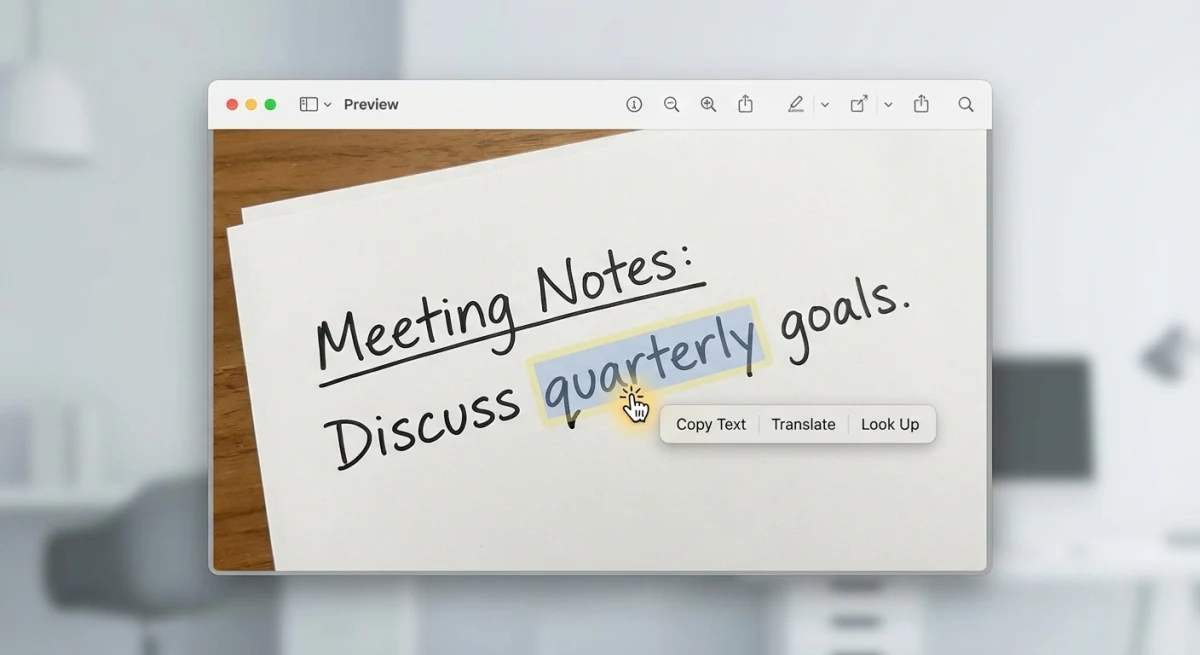
Apple's Live Text feature brings OCR to every Mac running macOS Monterey (12.0) or later. It works automatically in Preview, Safari, Photos, and Quick Look, with no setup required.
Requirements
- macOS Monterey (12.0) or later. Check Apple menu > About This Mac (system requirements)
- Apple Silicon or Intel Mac. Works on both
- Supported apps: Preview, Safari, Photos, Quick Look
Using Live Text in Preview
- Open any image containing text in Preview
- Hover your cursor until it changes to an I-beam cursor
- Click and drag to select text, just like in a document
- Press
⌘ + Cto copy, then⌘ + Vto paste anywhere
If text selection isn't working, go to Tools > Text Selection to enable the Text Selection tool.
Using Live Text in Safari and Photos
Live Text works the same way across Apple's apps:
- Safari: Hover over images on web pages to select embedded text
- Photos: Open any photo and select text directly
- Quick Look: Press Space on any image file in Finder, then select text
Live Text limitations
While convenient, Live Text has restrictions:
- Static images only. Doesn't work on video or live content
- Must be openable in supported apps. Can't capture from arbitrary screen areas
- No keyboard shortcut. Requires manual clicking and dragging
- Limited to Apple apps. Doesn't work in third-party apps
- Accuracy varies. Struggles with stylized fonts, handwriting, and low-resolution images
For basic image-to-text extraction, Live Text is perfect. For anything more, such as capturing text from video, screen regions, or non-standard sources, you’ll need a dedicated tool.
Method 2: TextSniper (best dedicated OCR)
TextSniper is a purpose-built OCR tool that extracts text from anywhere on your Mac screen. Unlike Live Text, it works on video, live content, protected PDFs, and any application, including areas where text selection is blocked.
How TextSniper works
- Press
⌘ + Shift + 2(or customize your shortcut) - Drag a rectangle around any text on screen
- The text is instantly copied to your clipboard
- Press
⌘ + Vto paste
That's it. No opening apps, no importing files: just select and copy. TextSniper handles:
- Video and livestreams. Pause not required
- QR codes and barcodes. Automatically decoded
- Multiple languages. 20+ supported on macOS Ventura
- Text-to-speech. Have captured text read aloud
TextSniper pricing
- One-time purchase: $9.99 from the Mac App Store
- Setapp subscription: Included with 250+ other Mac apps
For users who regularly extract text from screenshots, TextSniper pays for itself within a day of use.
Method 3: CleanShot X (screenshot + OCR)
CleanShot X is a premium screenshot tool that includes OCR as one of its many features. If you already use CleanShot X for annotating screenshots or capturing scrolling content, its OCR feature is a natural addition.
Using CleanShot X for OCR
- Click the CleanShot X icon in your menu bar
- Select Capture Text (OCR)
- Drag a rectangle around the text you want
- The text is copied to your clipboard automatically
CleanShot X also lets you:
- Save OCR results directly to CleanShot Cloud
- Combine text capture with annotations
- Extract text from recorded video clips
CleanShot X pricing
- One-time purchase: $29 (includes 1 year of updates)
- Subscription: $8/month with cloud storage
If you need both screenshots and OCR, CleanShot X is excellent value. For OCR alone, TextSniper is more cost-effective. Check our CleanShot X alternatives guide for more options.
Method 4: ScreenSnap Pro (all-in-one)
ScreenSnap Pro combines screenshot capture, annotation, and OCR in a single Mac-native app. The built-in text recognition works on any screen content: images, videos, apps, and even protected areas where copying is normally disabled.
Key OCR features
- One-click text capture from any screen region
- Works with video content. No pausing required
- Automatic clipboard copy. Paste immediately
- Integrates with annotation tools. Capture, extract, then markup
For Mac users who want screenshot tools and OCR in one app without subscription fees, ScreenSnap Pro offers the complete package. The one-time purchase includes all features with lifetime updates.

Tired of plain screenshots? Try ScreenSnap Pro.
Beautiful backgrounds, pro annotations, GIF recording, and instant cloud sharing, all in one app. Pay $39 once, own it forever.
See pricing and featuresMethod 5: Google Docs (online, free)
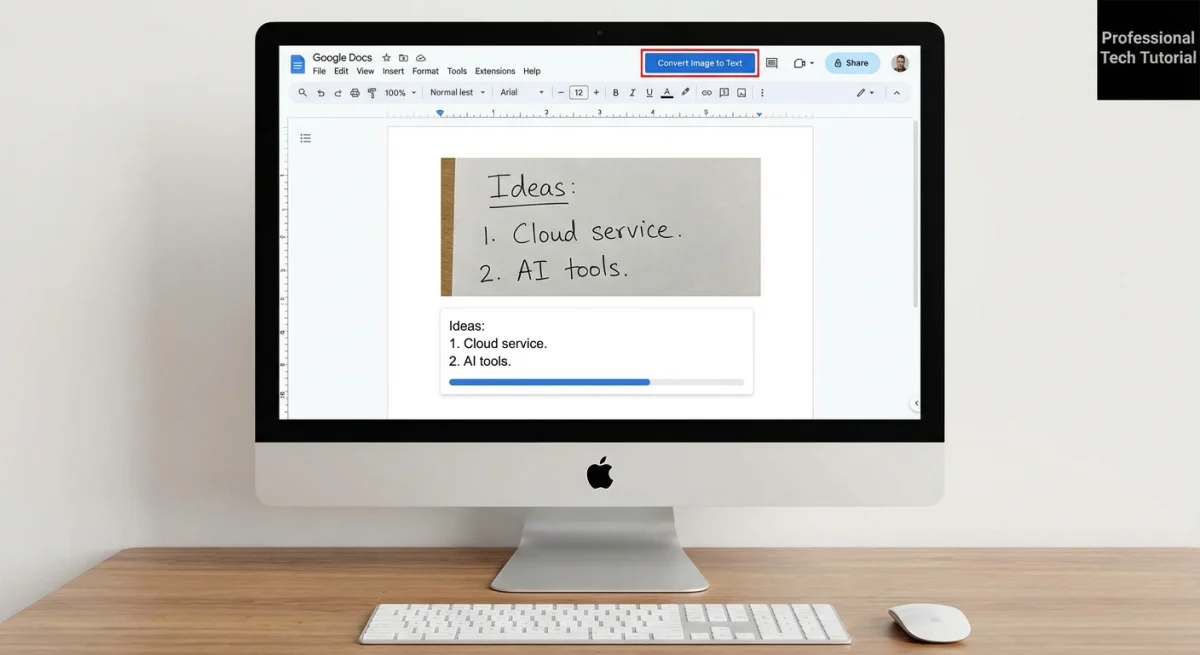
If you don't want to install any apps, Google Drive's built-in OCR provides a free alternative. It works entirely in your browser and handles most common image formats.
How to extract text with Google Docs
- Upload your screenshot or image to Google Drive
- Right-click the uploaded file
- Select Open with > Google Docs
- Wait for Google to process the image
- The extracted text appears below the original image
Google Docs OCR tips
- Use high-resolution images. Better input means better output
- Avoid stylized fonts. Standard fonts convert more accurately
- Split large documents. Process in smaller sections for better results
- Check formatting. You may need to fix line breaks and spacing
This method is slower than dedicated tools but costs nothing and requires no downloads. It's ideal for occasional use or when you're on a borrowed computer.
For a faster browser-based alternative, try our free extract text from image tool, which runs OCR directly in your browser without uploading files to any server.
Accuracy comparison
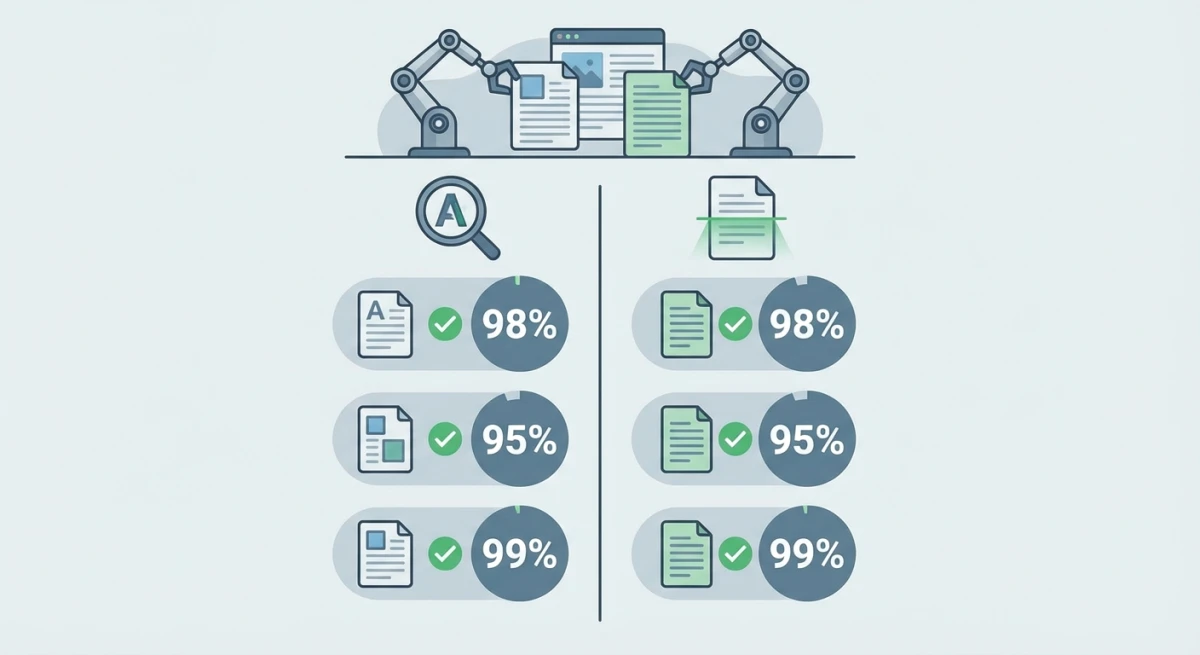
Not all OCR tools perform equally. Here's how they compare on common text extraction tasks:
| Tool | Standard text | Code/symbols | Handwriting | Video capture |
|---|---|---|---|---|
| Live Text | ★★★★☆ | ★★★☆☆ | ★★☆☆☆ | ❌ Not supported |
| TextSniper | ★★★★★ | ★★★★☆ | ★★★☆☆ | ✅ Excellent |
| CleanShot X | ★★★★★ | ★★★★☆ | ★★★☆☆ | ✅ Good |
| ScreenSnap Pro | ★★★★★ | ★★★★☆ | ★★★☆☆ | ✅ Excellent |
| Google Docs | ★★★★☆ | ★★★☆☆ | ★★☆☆☆ | ❌ Upload only |
Key findings:
- Standard printed text: All tools perform well with clean, high-contrast text
- Code and symbols: Dedicated apps handle special characters better than Live Text
- Handwriting: No tool excels here, so expect 60-70% accuracy at best
- Video capture: Only third-party apps can capture from live video
For most users, TextSniper or ScreenSnap Pro offer the best balance of accuracy, speed, and convenience.
Real-world use cases
OCR isn't just for tech enthusiasts. Here's how different professionals use text extraction daily:
Digitizing receipts and expenses
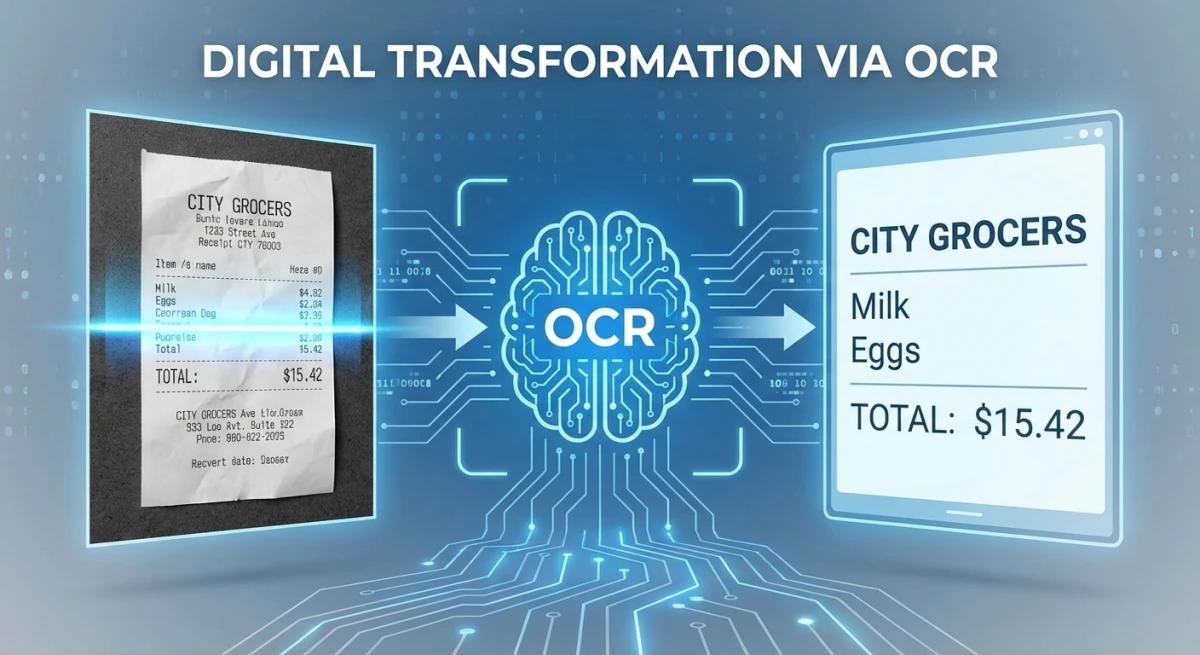
Photograph receipts with your iPhone, then extract merchant names, dates, and amounts on your Mac. Apps like TextSniper can even read QR codes on receipts for payment verification. Once the numbers land in a spreadsheet, sharing often goes the other way, and our guide on taking clean screenshots of Excel spreadsheets covers that side of the workflow.
Copying error messages
When an app crashes, the error dialog often blocks text selection. With OCR, you can capture the entire error message (including stack traces) and paste it into Google or a support ticket. No more retyping cryptic error codes. If you need the message to stay visible while you work through the fix, pin the capture as a floating window using one of the methods in our guide to keeping a window always on top on Mac.
Extracting code from tutorials
Video tutorials and screenshots often contain code you need. Instead of pausing and typing each line, use OCR to grab entire code blocks. Just watch for special characters that might not convert perfectly.
Research and note-taking
Academic papers, ebooks, and scanned documents often have text you can't select. OCR lets you extract quotes, data, and references directly into your notes, with proper attribution, of course.
Accessibility
For users with motor impairments that make typing difficult, OCR provides an alternative input method. Combined with text-to-speech, it can also assist users with reading difficulties.
Tips for better OCR results
OCR accuracy depends heavily on image quality. Follow these guidelines for best results:
- Maximize contrast: dark text on light backgrounds converts best
- Avoid shadows and glare: uneven lighting causes recognition errors
- Use high resolution: more pixels means more detail for analysis
- Keep text horizontal: angled text reduces accuracy
- Skip decorative fonts: standard fonts like Arial, Helvetica, and Times convert reliably
If OCR fails on a particular image, try adjusting the screenshot. Sometimes a slightly different crop or better lighting makes all the difference. If your screenshots aren't working at all, fix that first before attempting OCR.
Which method should you choose?
Here's a quick decision guide:
- Occasional use, static images only → Live Text (free, built-in)
- Frequent use, any screen content → TextSniper ($9.99 one-time)
- Screenshots + OCR in one tool → CleanShot X ($29) or ScreenSnap Pro
- No installation, browser only → Our free text extractor or Google Docs
- Long documents, batch processing → Prizmo or Adobe Acrobat
For most Mac users, Live Text covers basic needs. Power users who extract text regularly will save hours with TextSniper or ScreenSnap Pro, and the small investment pays off immediately.
Frequently Asked Questions
Next steps
Now that you know how to copy text from screenshots on Mac, put these tools to work:
- Try Live Text first: open an image in Preview and see if text is selectable
- Install a dedicated tool if you need more power: TextSniper or ScreenSnap Pro are excellent choices
- Build a workflow: set up keyboard shortcuts for instant text capture
- Optimize your images: better screenshots mean better OCR results
Whether you're digitizing documents, capturing code, or just avoiding manual typing, OCR transforms how you work with visual content on Mac. Start with the free options, then upgrade as your needs grow.

Morgan
Indie DeveloperIndie developer, founder of ScreenSnap Pro. A decade of shipping consumer Mac apps and developer tools. Read full bio
@m_0_r_g_a_n_