How to Take a Scrolling Screenshot on Mac: 8 Methods Ranked by Speed (2026)
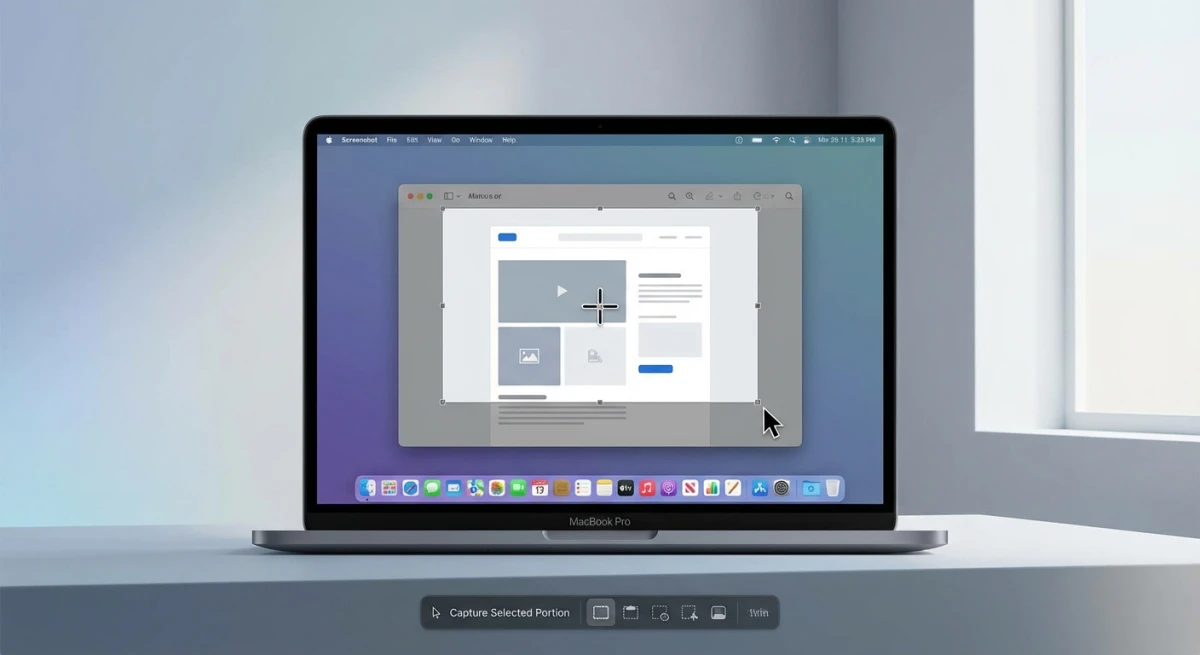
The fastest way to take a scrolling screenshot on Mac is the GoFullPage browser extension. Install it, click the icon, and you're done in under 30 seconds. macOS has no native scrolling screenshot tool. You'll use a browser feature, a Mac app like Shottr or CleanShot X, or a PDF export. Here are 8 tested methods, ranked by speed.
Coming from Windows? Snipping Tool has scrolling capture built in. Android and iOS have it too. The gap on Mac is real. The good news: workarounds exist, and a few are better than what Apple would ship natively.
Quick comparison: which method should you use?
| Method | Type | Cost | Speed | Captures | Best for |
|---|---|---|---|---|---|
| GoFullPage | Browser extension | Free | 30 sec | Web pages | Most people, fastest setup |
| Firefox built-in | Browser feature | Free | 45 sec | Web pages | Already using Firefox |
| Shottr | Mac app | Free | 1 min | Any scrollable area | Free, beyond browsers |
| CleanShot X | Mac app | $29/yr | 1 min | Any scrollable area | Power users, prefer one tool |
| Xnapper | Mac app | $24 one-time | 1 min | Any scrollable area | Native Mac feel, no subscription |
| Chrome DevTools | Browser feature | Free | 2 min | Web pages | Developers |
| Safari Web Inspector | Browser feature | Free | 2 min | Web pages | Safari users |
| Print to PDF | Built-in macOS | Free | 30 sec | Any web page | Need searchable text, not an image |
If you only want to remember one: install GoFullPage for browser pages, install Shottr for everything else. That covers 95% of use cases for free.

Tired of plain screenshots? Try ScreenSnap Pro.
Beautiful backgrounds, pro annotations, GIF recording, and instant cloud sharing, all in one app. Pay $39 once, own it forever.
See pricing and featuresMethod 1: GoFullPage extension (fastest free option)
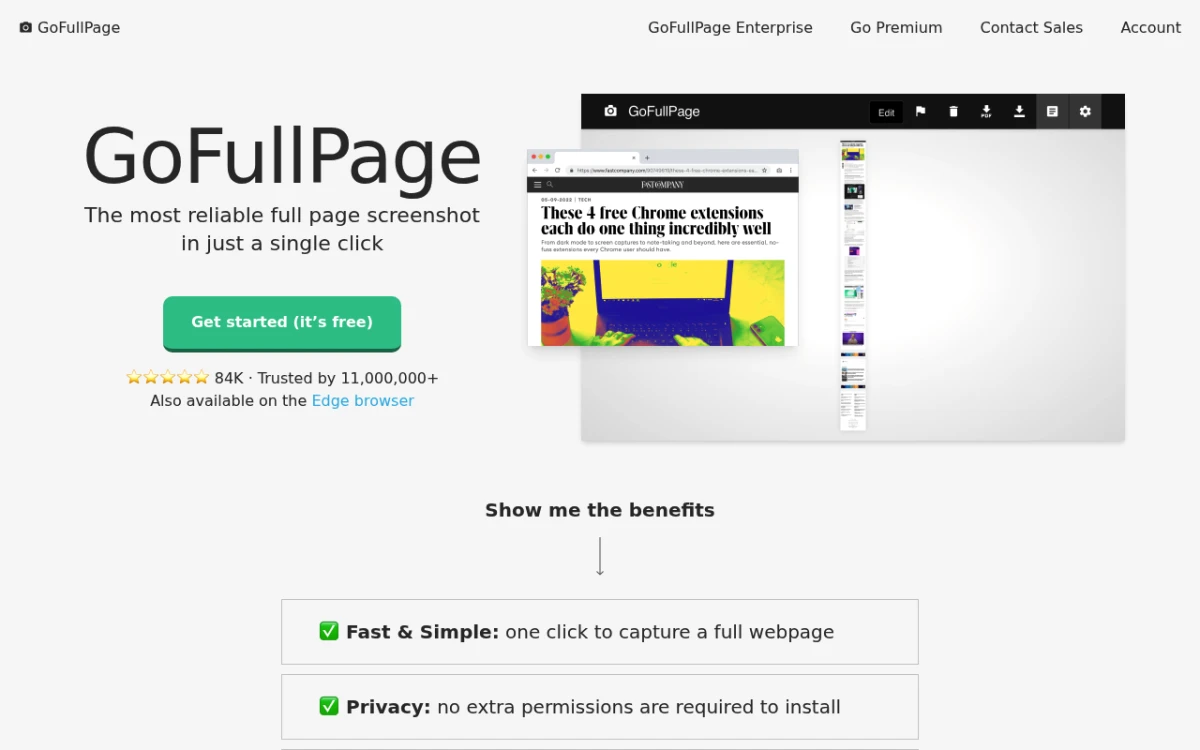
GoFullPage is a free browser extension for Chrome, Firefox, Edge, and Safari. It captures any web page in one click. No DevTools. No hidden menus.
How to use it:
- Install GoFullPage from the Chrome Web Store, Firefox Add-ons, or Safari Extensions
- Navigate to the page you want to capture
- Click the GoFullPage camera icon in your toolbar (or press the shortcut you assigned)
- Wait 2-5 seconds while it auto-scrolls and stitches
- Download as PNG, JPG, or PDF, or copy directly to clipboard
Why it wins:
- Works in every major browser
- Handles sticky headers and dynamic content well
- Lets you crop and edit before download
- Free for basic use; paid tier adds annotation and cloud storage
Limitations:
- Web pages only, so it can't capture Slack threads, Pages docs, or PDFs in Preview
- Some heavy JavaScript pages (infinite scroll feeds) need scrolling manually first
- The free tier has occasional upgrade prompts after heavy use
Prefer not to install anything? WebsiteScreenshot Online captures a full page from any browser with no login. Paste a URL, choose PNG, JPG, or PDF, and download. It also records a scrolling video of the page, which helps when a static image does not show how a long page actually behaves. Public URLs only, so anything behind a login still needs one of the methods below.
Method 2: Firefox built-in (no extensions needed)
If you already have Firefox installed, you don't need any extension at all.
How to capture a full page in Firefox:
- Open the webpage in Firefox
- Right-click anywhere on the page
- Select Take Screenshot
- Click Save full page in the top-right corner
- Click Download to save the image
Pro tip: You can also access this by clicking the three-dot menu in the address bar and selecting Take Screenshot.
Firefox handles most sites well. It deals with sticky headers and complex layouts. The output is a clean PNG file.
Limitations:
- Firefox-only, so you'd need to install it just for this if Chrome/Safari is your daily driver
- Some JavaScript-heavy sites may not render perfectly
- Very long pages can create massive files (10,000+ pixels tall)
Method 3: Shottr (best free Mac app)
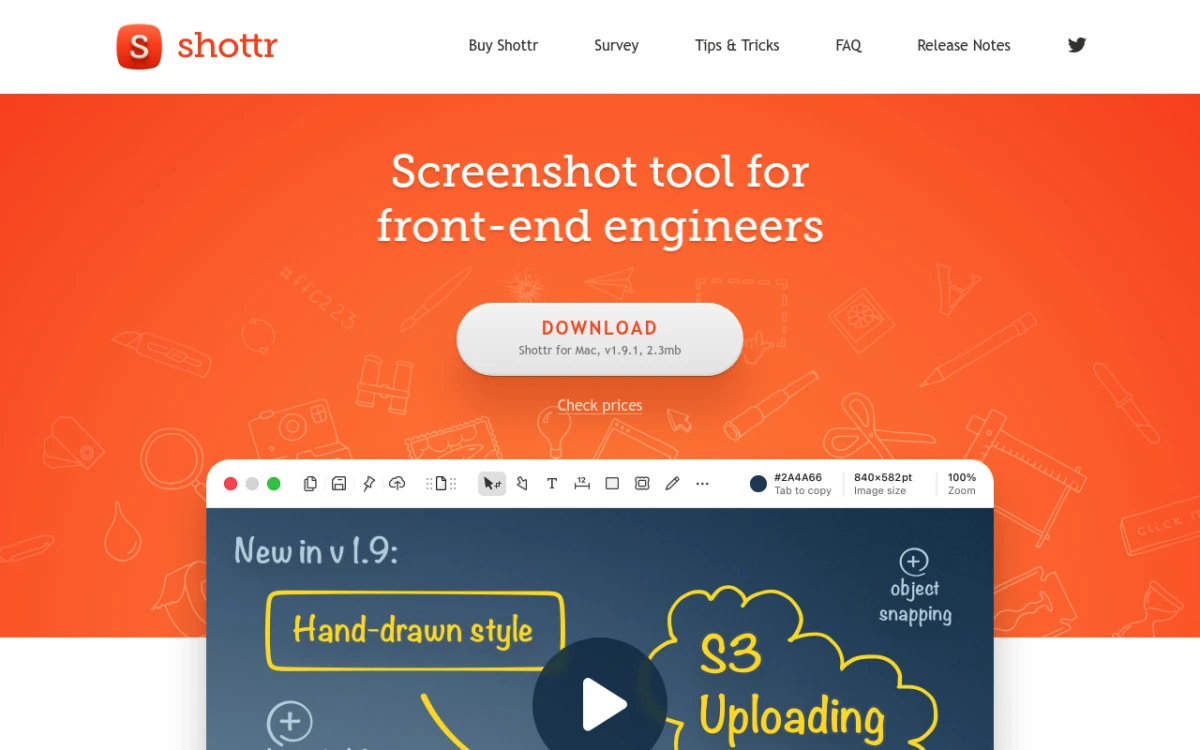
Shottr is a free Mac screenshot app. It's tiny (~3MB) and was built by a developer for developers. The scrolling capture works beyond browsers. It grabs Slack threads, Pages docs, Preview PDFs, and anything you can scroll.
How to take a scrolling screenshot with Shottr:
- Press
Ctrl + Shift + 7(the default Shottr scrolling capture shortcut, customizable in settings) - Drag to select the scrollable area on screen
- Click Start, then scroll down with the trackpad or mouse wheel
- Shottr auto-stitches each section as you scroll
- Press
Escor click Done to finish, then save
Shottr is great if you want one Mac-native tool. It handles regular screenshots, scrolling capture, OCR text extraction, and pixel measurements. No cost.
Price: Free (paid Basic tier at $12 one-time removes occasional upgrade prompts)
Method 4: CleanShot X (premium power-user app)
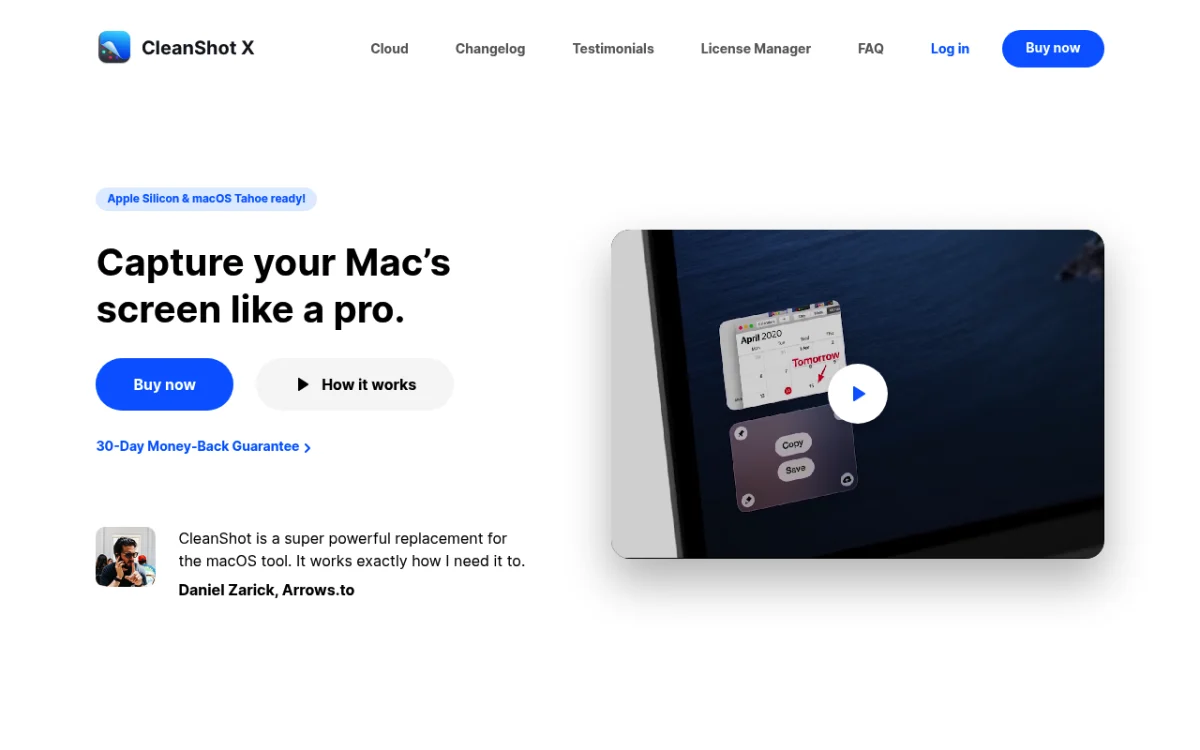
CleanShot X is a feature-rich Mac screenshot app. Its scrolling capture is fast and polished. It also ties into built-in annotation tools and CleanShot Cloud sharing.
How to take a scrolling screenshot with CleanShot X:
- Press your CleanShot X hotkey (default:
⌘ + Shift + 4, thenSfor scrolling) - Drag to select the scrollable area
- Click Start Capture, then scroll manually or let it auto-scroll
- Click Done when finished
- The capture opens in CleanShot's editor for annotation or one-click sharing
Price: $29/year subscription (includes CleanShot Cloud) or $59 one-time for the Setapp-free version
Worth it if you take dozens of screenshots a week and want a polished editor + cloud sharing in one app. If you only need scrolling capture occasionally, Shottr is the better value.
Method 5: Xnapper (Mac-native, one-time price)
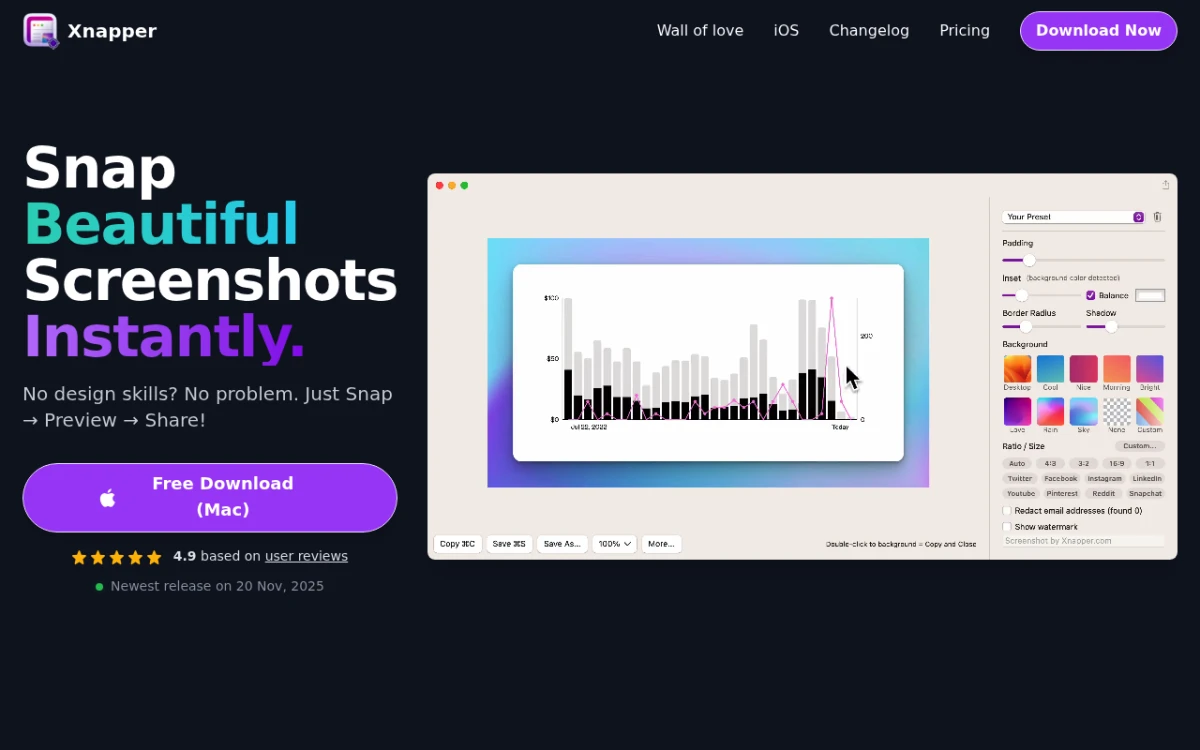
Xnapper is a newer Mac-native app that includes scrolling capture along with beautification features (gradient backgrounds, window borders, automatic data privacy blur).
How to take a scrolling screenshot with Xnapper:
- Open Xnapper and pick Scrolling Capture from the menu bar icon
- Drag to select the scrollable area
- Scroll down while Xnapper records each frame and stitches
- Click Done; the result opens in Xnapper's editor
Price: $24 one-time purchase (no subscription)
A good middle ground between Shottr (free, minimal) and CleanShot X (subscription, polished). Pick this if you want one-time pricing and care about post-capture beautification.
Method 6: Chrome DevTools (technical, free)
Chrome has a hidden full-page screenshot feature in DevTools. It's more technical than the other methods. But no install needed.
How to capture a scrolling screenshot in Chrome:
- Open the webpage in Chrome
- Press
⌘ + Option + Ito open DevTools - Press
⌘ + Shift + Pto open the Command Menu - Type "screenshot" and select Capture full size screenshot
- Chrome automatically downloads the image
Limitations:
- DevTools knowledge required
- Fixed elements (sticky headers) may appear multiple times in the output
- No annotation or editing tools
- Output respects current browser width, so resize first if you want a different aspect
Method 7: Safari Web Inspector
Safari has a similar full-page capture hidden in the developer tools.
How to enable the Develop menu in Safari:
- Open Safari → Settings (or press
⌘ + ,) - Click the Advanced tab
- Check Show features for web developers
How to capture a full page in Safari:
- Open the webpage you want to capture
- Right-click on the page and select Inspect Element
- In the Web Inspector, right-click on the
tag in the Elements tab - Select Capture Screenshot
- Safari saves a full-page screenshot
Safari's method is less intuitive than Firefox or DevTools. It works for occasional use, but it isn't worth setting up as a daily workflow.
Method 8: Print to PDF (universal fallback)
If you need a print-ready document instead of an image, export to PDF. It works in every browser. Searchable text is preserved.
How to print any web page to PDF on Mac:
- Open the webpage in Safari, Chrome, or Firefox
- Press
⌘ + Pto open the Print dialog - Click the PDF dropdown in the bottom-left corner
- Select Save as PDF
- Choose your save location
When PDF beats screenshots:
- You need to preserve text (searchable, copyable)
- The page has multi-column layouts
- You're archiving content for later reference
- You'll print the document on paper
Limitations:
- Output is PDF, not an image, so you can't paste it inline into Slack or a doc
- Some dynamic content (animations, embedded videos) won't render
- Page breaks can split content awkwardly mid-paragraph
After you've captured: annotate and share
A scrolling screenshot isn't the finished artifact. It usually needs annotation before you share it: arrows, callouts, and blur on sensitive info.
ScreenSnap Pro is a Mac and Windows screenshot tool. It has 15 annotation tools, 500+ gradient backgrounds, and one-click cloud sharing via short links. It doesn't have scrolling capture itself, so use Shottr or GoFullPage for that. But it's built for the next step. Open any scrolling capture, annotate it, add a background, or blur sensitive data. Share via a cloud link in one click.
Price: $39 one-time purchase, one licence for two computers (Mac + Windows). No subscription. Get ScreenSnap Pro.
If you also record GIFs on Mac for tutorials, ScreenSnap Pro handles that too in the same app.
Which method should you choose?
For occasional web page captures:
GoFullPage extension. 30-second setup, works in every browser, no DevTools needed.
For frequent web page captures:
Firefox's built-in feature if you're already a Firefox user; GoFullPage in any browser if not.
For non-browser content (Slack, Pages, PDFs in Preview, Figma boards):
Shottr (free) covers most cases. CleanShot X or Xnapper if you want a polished editor and don't mind paying.
For developers comfortable in DevTools:
Chrome DevTools or Safari Web Inspector. No install, fixed-width control.
For searchable archives or print:
Print to PDF. Preserves text, layout, and metadata.
For sharing annotated captures with colleagues:
Capture with any method above → open in ScreenSnap Pro → annotate, add background, copy share link. Whole workflow takes under a minute.
Tips for better scrolling screenshots
Getting a clean output takes a bit of prep. Here's what I've learned from hundreds of captures.
Before capturing
- Close pop-ups, cookie banners, and chat widgets. They'll appear multiple times in the stitched image
- Dismiss sticky/floating elements that repeat as you scroll (live chat bubbles, sticky CTAs, newsletter pop-ups)
- Wait for lazy-loaded content. Scroll through the page once before capturing so images and embeds finish loading
- Resize your browser to the width you want. Output respects your current viewport width
- Use Reader Mode in Safari or Firefox to strip ads and distractions for a cleaner capture
After capturing
- Crop unnecessary headers and footers to focus on the content
- Annotate key sections with arrows and highlights to guide viewers
- Compress the image before sharing online, because a 10,000-pixel-tall PNG can be several megabytes. Tools like TinyPNG or our own image compressor shrink them dramatically
- Consider splitting very long captures into multiple images for readability, or use our free combine images tool to stitch existing screenshots back together
Common gotchas
- Duplicate headers in your scrolling capture = the page has sticky elements. Firefox and GoFullPage handle this better than Chrome DevTools.
- Missing sections = the page uses infinite scroll or lazy loading and you didn't scroll all the way down first
- Blurry text = the page rendered at a lower pixel density; try resizing the browser larger before capture
Frequently asked questions
Final thoughts
macOS doesn't include a native scrolling screenshot feature. But you have plenty of free alternatives. For occasional web page captures, GoFullPage gets you set up in 30 seconds. For non-browser content, Shottr is the best free option. CleanShot X or Xnapper are worth the money if you want a polished editor too.
Once captured, ScreenSnap Pro handles the next step. Annotation, gradient backgrounds, and one-click cloud sharing via short link. Get it for $39 once to streamline the post-capture side of your workflow.
If your Mac screenshot is not working at all, fix that first before trying these scrolling methods. And if you take a lot of screenshots, our roundup of the best screenshot apps for Mac covers the full landscape, including which apps include scrolling capture and which don't.

Morgan
Indie DeveloperIndie developer, founder of ScreenSnap Pro. A decade of shipping consumer Mac apps and developer tools. Read full bio
@m_0_r_g_a_n_