Greenshot for Mac Doesn't Exist: 5 Apps That Do the Job
Looking for Greenshot for Mac? Here's the reality: while Greenshot exists in the Mac App Store, it's a completely different app from the beloved Windows version, and it hasn't been updated in years. If you're a Windows user switching to Mac (or just looking for a reliable screenshot tool), you'll need a proper alternative like ScreenSnap Pro.
The good news? macOS has excellent screenshot apps that match or exceed what Greenshot offers on Windows. I've tested the best options so you can find your perfect fit, whether you want something free, feature-packed, or somewhere in between.
Why Greenshot Isn't Really Available on Mac
Let's clear up the confusion first.
Greenshot is a fantastic free and open-source screenshot tool for Windows. It's been a go-to choice for millions because it's:
- Completely free
- Lightweight and fast
- Packed with annotation tools
- Customizable with keyboard shortcuts
But here's the catch: there's no official Mac version.
The Greenshot you'll find in the Mac App Store is a separate app made by a different developer. It costs $2.99, has limited features compared to the Windows version, and, most importantly, hasn't seen a meaningful update since 2019.
The Windows version itself hasn't been updated in over 7 years (last major release was in 2017). This matters because:
- No support for modern display resolutions
- Missing features that newer screenshot tools offer
- Potential security concerns with outdated software
If you loved Greenshot on Windows, you need a true alternative for your Mac: something actively maintained with a similar workflow.
What Made Greenshot Great (Features to Look For)
Before diving into alternatives, let's identify what makes Greenshot valuable. Your Mac replacement should offer these core features:
Quick Region Capture
Greenshot's strength was capturing exactly what you wanted (a specific region, window, or full screen) with a single keyboard shortcut. No fumbling through menus.
The best alternatives let you hit a shortcut, draw a selection, and you're done.
Built-in Annotation

This is where Greenshot shined. Immediately after capture, you could:
- Add arrows pointing to important elements
- Draw shapes to highlight areas
- Add text labels and callouts
- Blur sensitive information
- Apply numbering for step-by-step guides
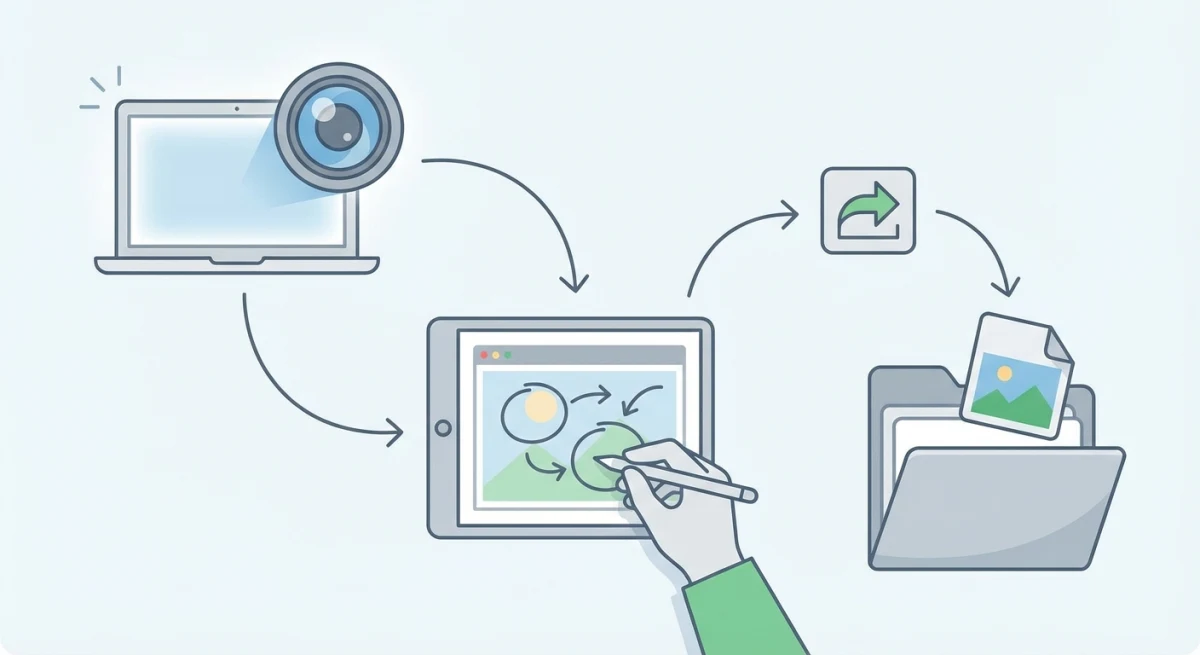
The key was the immediate part. You didn't have to open a separate app or go through multiple steps. Capture → annotate → save happened in one fluid motion.
Good alternatives offer a similar editing experience right after capture. Check out our guide on how to annotate screenshots on Mac professionally for more details.
Direct Folder Saving
Greenshot users love the ability to save screenshots directly to a specific folder rather than just the desktop. This keeps your workflow organized, especially if you take dozens of screenshots daily.
Think about it: if you're documenting a software bug, you want those screenshots in a "Bug Reports" folder, not cluttering your Desktop. Greenshot made this automatic: you set it up once and never think about it again.
Customizable Shortcuts
Power users rely on muscle memory. Greenshot let you configure exactly which keys trigger which capture modes. The best Mac alternatives offer the same flexibility.
Common shortcuts Greenshot users rely on:
- Print Screen. Capture full screen
- Alt + Print Screen. Capture active window
- Ctrl + Print Screen. Capture selected region
On Mac, you'll be mapping similar functions to ⌘ + Shift combinations, but the principle remains the same: quick access without touching the mouse.
Best Greenshot Alternatives for Mac
I've tested numerous screenshot tools to find the ones that truly replicate, and often improve on, the Greenshot experience. Here are the top 5 options:
1. ScreenSnap Pro: Best Overall (One-Time Purchase)
Price: $39 one-time | My Pick
If you're looking for the most complete Greenshot replacement on Mac, ScreenSnap Pro is my top recommendation.
Why It Feels Like Greenshot:
- Instant annotation. Capture and edit in one smooth flow
- Keyboard shortcuts. Customizable hotkeys for all capture modes
- Direct save options. Choose exactly where files go
- One-time payment. Just like Greenshot's "free forever" model, but with professional support
What You Get That Greenshot Doesn't Have:
- 500+ beautiful gradient backgrounds for presentation-ready screenshots
- GIF recording for quick tutorials (see our guide to recording GIFs on Mac)
- Instant cloud upload with shareable links
- Quick Access Overlay for lightning-fast edits
- Native Apple Silicon support
Annotation tools include: Arrows, rectangles, circles, lines, text, highlight, blur, pixelate, numbering, and more.
The Quick Access Overlay deserves special mention. After capturing a screenshot, it appears right where your cursor is, so there's no need to switch apps or navigate menus. This mirrors Greenshot's immediate-editing philosophy perfectly.
Pricing Comparison with Greenshot:
While Greenshot is free, it's also abandoned. ScreenSnap Pro costs $39 once, which breaks down to less than $0.50/month if you use it for five years. And unlike Greenshot, you get ongoing updates and support.
Best for: Content creators, professionals, and anyone who wants a polished screenshot workflow without subscription fees.
For a detailed comparison with other premium tools, check out our best screenshot apps for Mac guide.

Tired of plain screenshots? Try ScreenSnap Pro.
Beautiful backgrounds, pro annotations, GIF recording, and instant cloud sharing, all in one app. Pay $39 once, own it forever.
See pricing and features2. Shottr: Best Free Option
Price: Free | Download
Shottr is the closest thing to a "Greenshot for Mac" in terms of philosophy: it's free, fast, and doesn't try to do too much.
Greenshot-Like Features:
- Quick region and window capture
- Built-in annotation tools
- OCR text recognition (bonus!)
- Scrolling capture for long pages
- Lightweight and fast
The scrolling capture feature is something Greenshot never quite nailed on Windows. Shottr lets you capture entire web pages or documents that extend beyond your screen, which is incredibly useful for documentation.
Limitations:
- No cloud upload, so you share files manually
- No GIF/video recording
- Basic backgrounds only
- Limited sharing options
Why It's Great for Developers:
Shottr includes a pixel measurement tool and color picker, which are perfect for UI/UX work. It also copies colors in various formats (HEX, RGB, HSL), features that make it popular in the dev community.
Best for: Developers and power users who want free and functional without the extras.
We wrote a detailed ScreenSnap Pro vs Shottr comparison if you're torn between these two.
3. Flameshot: Best Open Source
Price: Free (Open Source) | Download
If you loved Greenshot because it was open-source, Flameshot is your spiritual successor. It's available on Mac, Windows, and Linux.
Greenshot-Like Features:
- Region selection with on-screen annotation
- Arrows, shapes, text, and blur tools
- Customizable keyboard shortcuts
- Direct save to folder
- Active development and community
The annotation interface appears directly on your screen after selection: you draw your region, and editing tools pop up immediately along the edge. This feels very similar to Greenshot's workflow.
Limitations:
- Interface can feel a bit clunky on Mac (it was designed for Linux first)
- No cloud integration (except Imgur uploads)
- Relies heavily on keyboard shortcuts, confusing at first
- No GIF recording capability
Installation Note:
On Mac, you'll install Flameshot via Homebrew (brew install --cask flameshot). It works well but may require granting screen recording permissions in System Settings.
Best for: Open-source advocates and users who want cross-platform consistency.
4. CleanShot X: Most Features
Price: $29/year subscription | Download
CleanShot X is the "everything and the kitchen sink" option. It has every screenshot feature you could want.
What It Offers:
- Scrolling capture
- OCR text recognition
- GIF and video recording
- Cloud storage with shareable links
- Self-hiding desktop icons during capture
- History browser for past captures
Why It's Different from Greenshot:
- Subscription pricing (ongoing cost)
- More complex interface
- Powerful but potentially overwhelming
Best for: Power users and professionals who need every feature and don't mind subscriptions.
For more affordable alternatives to premium tools, see our best CleanShot X alternatives guide.
5. macOS Built-in Screenshot: Simplest Option
Price: Free (Built into macOS)
Don't overlook what's already on your Mac. The built-in screenshot tool has improved significantly since macOS Mojave.
What macOS Offers:
⌘ + Shift + 3: Full screen capture⌘ + Shift + 4: Region selection⌘ + Shift + 5: Screenshot toolbar with options- Basic markup in Preview app
- Timer options for delayed capture
The ⌘ + Shift + 5 shortcut brings up a toolbar at the bottom of your screen where you can choose capture type, set a timer, and select where to save. It's much more intuitive than the old method.
Limitations:
- No instant annotation (have to open in Preview first)
- No cloud upload functionality
- Basic editing only, so no blur, pixelate, or numbering
- No backgrounds or beautification options
- Two-step workflow for any annotation
Best for: Casual users with simple screenshot needs who don't want to install additional software.
If you're coming from Windows and want something familiar, check out our snipping tool for Mac guide.
Feature Comparison Table
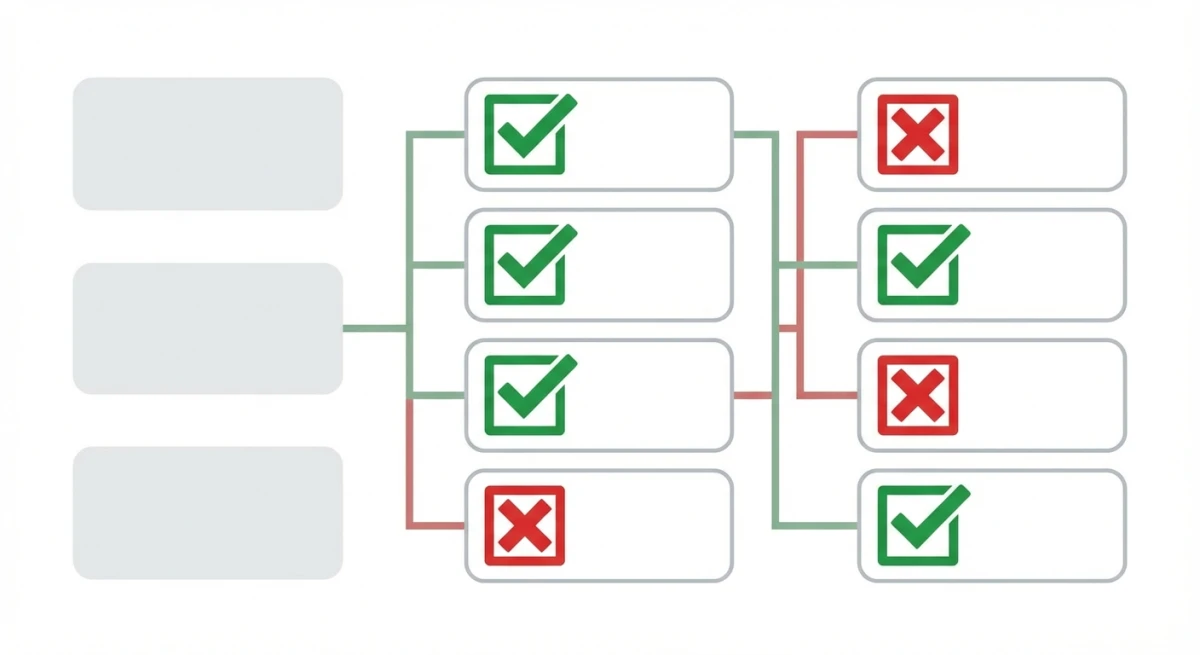
Here's how these Greenshot alternatives stack up:
| Feature | ScreenSnap Pro | Shottr | Flameshot | CleanShot X | macOS Built-in |
|---|---|---|---|---|---|
| Price | $39 once | Free | Free | $29/year | Free |
| Region Capture | ✅ | ✅ | ✅ | ✅ | ✅ |
| Window Capture | ✅ | ✅ | ✅ | ✅ | ✅ |
| Instant Annotation | ✅ | ✅ | ✅ | ✅ | ❌ |
| Arrows & Shapes | ✅ | ✅ | ✅ | ✅ | ✅ (Preview) |
| Blur/Pixelate | ✅ | ✅ | ✅ | ✅ | ❌ |
| Numbering | ✅ | ✅ | ❌ | ✅ | ❌ |
| OCR Text | ❌ | ✅ | ❌ | ✅ | ❌ |
| Scrolling Capture | ❌ | ✅ | ❌ | ✅ | ❌ |
| GIF Recording | ✅ | ❌ | ❌ | ✅ | ❌ |
| Cloud Upload | ✅ | ❌ | Imgur only | ✅ | ❌ |
| Custom Shortcuts | ✅ | ✅ | ✅ | ✅ | Limited |
| Backgrounds | 150+ | Basic | ❌ | Limited | ❌ |
| One-Time Payment | ✅ | N/A | N/A | ❌ | N/A |
Which Alternative Should You Choose?
Your ideal Greenshot replacement depends on what you prioritize:
Choose ScreenSnap Pro if:
- You want the most polished Greenshot-like experience
- Beautiful screenshots matter (backgrounds, clean exports)
- You prefer one-time payment over subscriptions
- GIF recording and cloud sharing are important
Choose Shottr if:
- Budget is $0
- You need scrolling capture and OCR
- Simplicity matters more than polish
- You're a developer who values efficiency
Choose Flameshot if:
- Open source is non-negotiable
- You use multiple operating systems
- You're comfortable with keyboard-driven workflows
- You want community-driven development
Choose CleanShot X if:
- You need every feature possible
- Subscription pricing doesn't bother you
- You take hundreds of screenshots weekly
- You want the most powerful option available
Stick with macOS built-in if:
- Your needs are truly basic
- You rarely annotate screenshots
- You don't want to install anything
For enterprise users looking for Snagit alternatives, we've covered that in our best Snagit alternative for Mac guide.
Frequently Asked Questions
Final Thoughts
Greenshot was great for its time, but the screenshot landscape has evolved. Mac users now have excellent options that not only match Greenshot's core features but often surpass them.
The biggest adjustment for Windows-to-Mac switchers is usually the keyboard shortcuts. Once you've remapped your muscle memory from Print Screen to ⌘ + Shift + 4, the workflow becomes second nature.
My recommendation:
If I had to recommend just one: ScreenSnap Pro offers the best balance of Greenshot-like simplicity with modern features. The one-time $39 payment means you own it forever (no subscriptions), and it's built specifically for Mac. The instant annotation, beautiful backgrounds, and cloud sharing make it worth the investment.
For zero-budget situations, Shottr delivers impressive functionality for free, especially the OCR and scrolling capture features.
If you're torn, start with Shottr (it's free) and upgrade to ScreenSnap Pro when you want polish and cloud features.
Either way, you don't have to miss Greenshot on your Mac. You can have something better.
Looking for more screenshot tips? Check out our guide to the best screenshot apps for Mac for a complete comparison of all your options.

Morgan
Indie DeveloperIndie developer, founder of ScreenSnap Pro. A decade of shipping consumer Mac apps and developer tools. Read full bio
@m_0_r_g_a_n_