




Screen recorder with audio for Mac & Windows

ScreenSnap Pro is a screen recorder with audio for Mac and Windows. Record your screen with your computer’s sound, your microphone and your webcam, then trim it, cut the silences and add zoom-ins in the built-in video editor. Export an MP4 or a GIF, or share a link. Pay $34 once, own it forever.

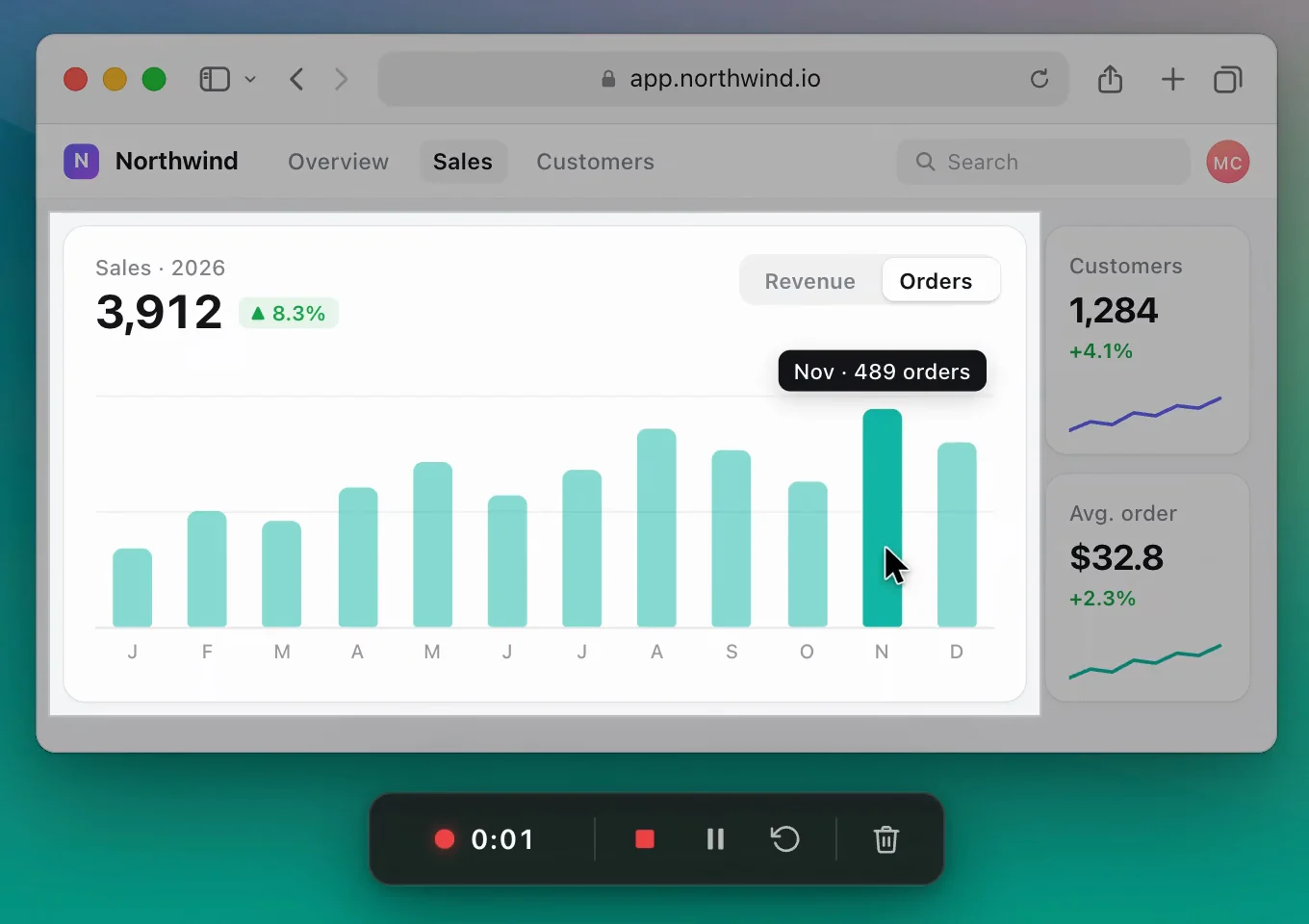
An area of a sales dashboard being recorded with ScreenSnap Pro: the area stays bright, the rest of the screen is dimmed, and the recording controls show 0:01 with stop, pause, restart and delete buttons

How it works

How to record your screen with ScreenSnap Pro

Three steps from the first click to a finished video.

  1. The Screen Recording tab of the ScreenSnap Pro capture controls with the Video format menu, the Display and Area buttons, and the camera, microphone and system audio toggles

    Record

    Click the ScreenSnap Pro icon in the menu bar (Mac) or right-click it in the tray (Windows) and choose “Record Screen”. Pick a camera, a microphone and “System audio”, then click “Display” or “Area”. A 3-second countdown runs first: click it or press Esc to skip it.

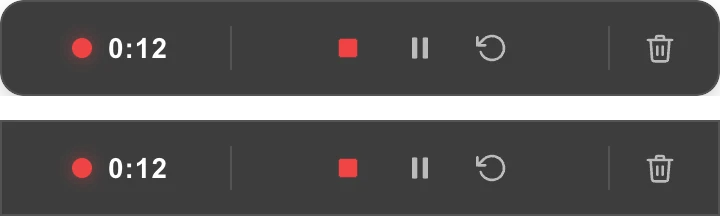
  2. The recording controls with the timer, Stop and save, Pause, Restart and Delete buttons, on Mac (top row) and Windows (bottom row)

    Edit

    Pause, restart or delete a take from the recording controls, then click the red square to stop. Click “Open Video Editor” on the Quick Preview: zoom-ins are already placed from your pointer. Drag an edge to trim, press S to split and cut the pauses with “Remove silence”.

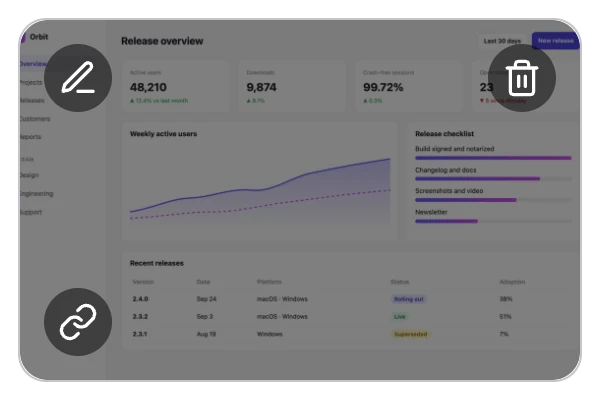
  3. The Quick Preview thumbnail of a finished recording with buttons to open the video editor, delete the recording and create a link

    Share

    Export an MP4 or a GIF, or click “Create Link” on the Quick Preview to upload an MP4 and copy its link. In a hurry? Let the preview close and a plain MP4 is saved next to the recording project, ready to drag into any app.

Record

Screen recorder with audio: system sound and your mic

Record the sound your computer plays and your voice in the same take, on Mac and Windows, without a virtual audio driver.

System audio · Microphone

Your voice on its own track

Turn on “System audio” to record what your computer plays, such as a video, a call or an app alert, and pick a microphone for your voice. There is no BlackHole to install on a Mac and no Stereo Mix to set up on Windows. The mic is saved as its own track, so in the editor you can lower it, mute it or clean it up without touching the rest.

  • System audio, no driver
  • Mic on its own track
  • Enhance mic (Studio Sound)
  • Normalize volume
  • Volume 0 to 200%
  • Separate V, A and M lanes

Audio and webcam setupTest your mic first

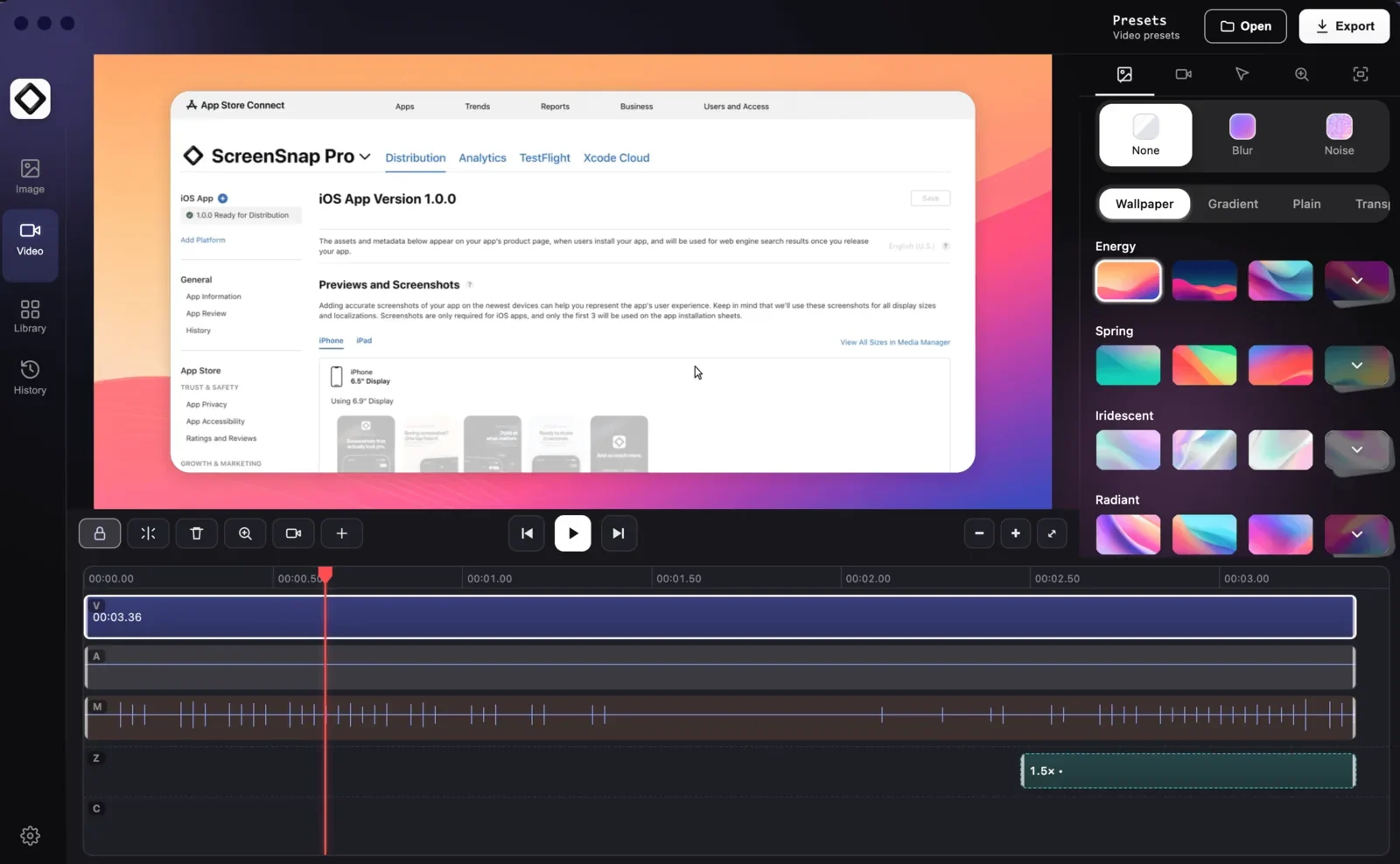
The ScreenSnap Pro video editor with a recording on a wallpaper and a timeline split into video (V), system audio (A) and microphone (M) lanes, with a zoom region on the Z lane
  • Record Display

    Record a whole screen. With several monitors connected, click the one you want.

  • Record Area

    Drag over any part of the screen. Everything outside is dimmed while you record, and the dimming is not in your video.

  • Pause and resume

    Pause while you find the next window, then click again to carry on in the same recording.

  • Restart

    Flubbed the intro? Restart throws away what you have so far and starts over.

  • Delete

    Stop and discard a take in one click, with nothing left to clean up.

  • Recording Recovered

    If the app or your computer quits mid-recording, the footage is recovered on the next launch.

Video recordings have no length cap, only your free disk space. GIF recordings stop at 1 minute. Recording shortcuts start unassigned: set “Record Screen”, “Record Area” or “Record Display” in Settings > Shortcuts. Screen recording guide

Webcam

Screen recorder with webcam: picture in picture or full screen

Record your screen and webcam at the same time. The camera is saved as its own track, so you decide where your face goes after you record.

Webcam overlay

A facecam you can move after recording

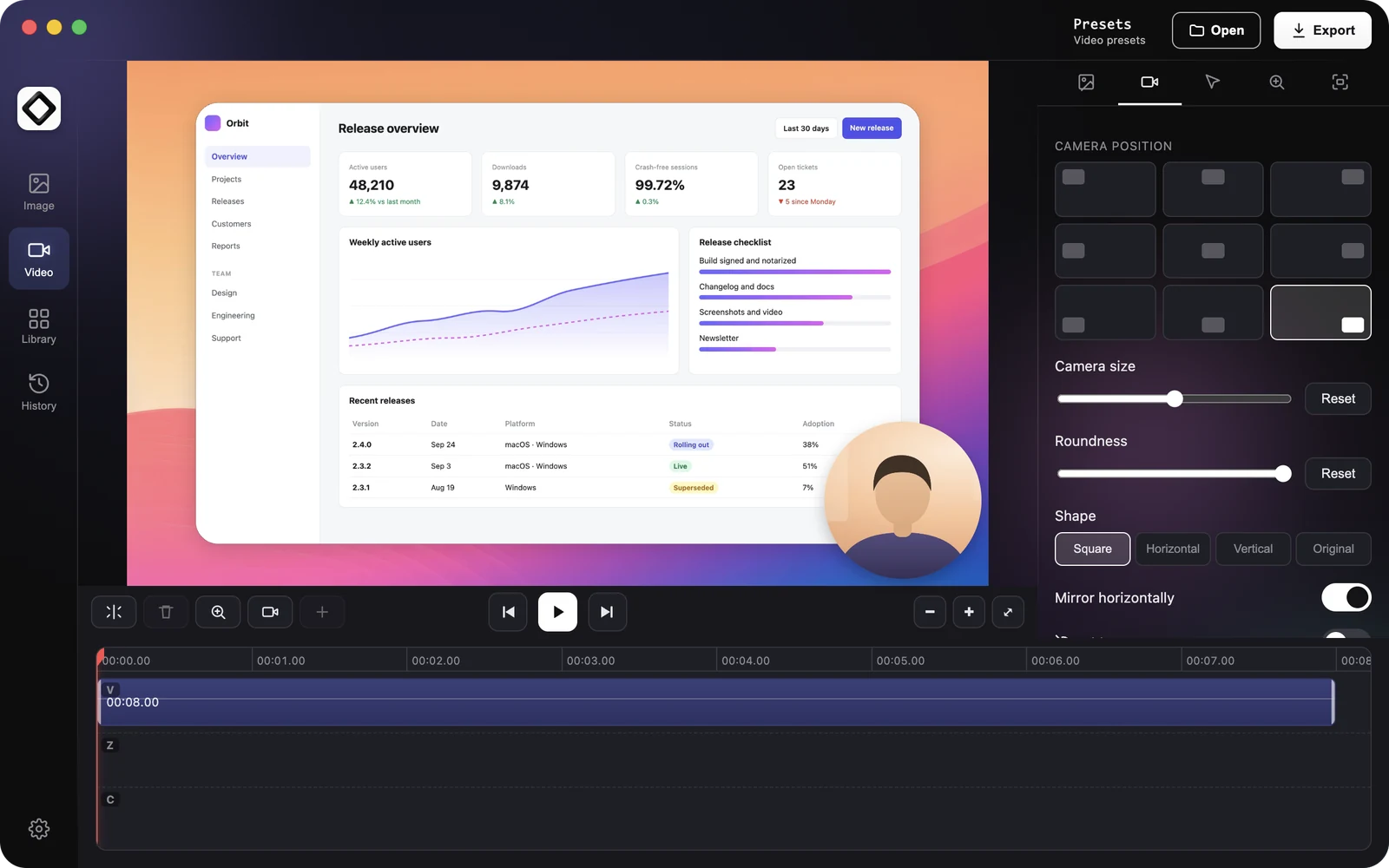
Pick a camera before you click “Display” or “Area”. A small self view shows your framing, and it is not burned into the screen video. In the editor, your webcam starts as a round overlay in the bottom right: move it to any of nine spots, resize it, change its shape or hide it.

  • 9 positions
  • Size and roundness
  • Square, horizontal or vertical
  • Mirror horizontally
  • Border, shadow, opacity
  • Add webcam video…

Webcam and cam scenes guideTest your webcam

The video editor Camera tab with a round webcam overlay in the bottom right corner of a recording and the nine-spot camera position grid

Cam scenes

Go full screen for the intro and outro

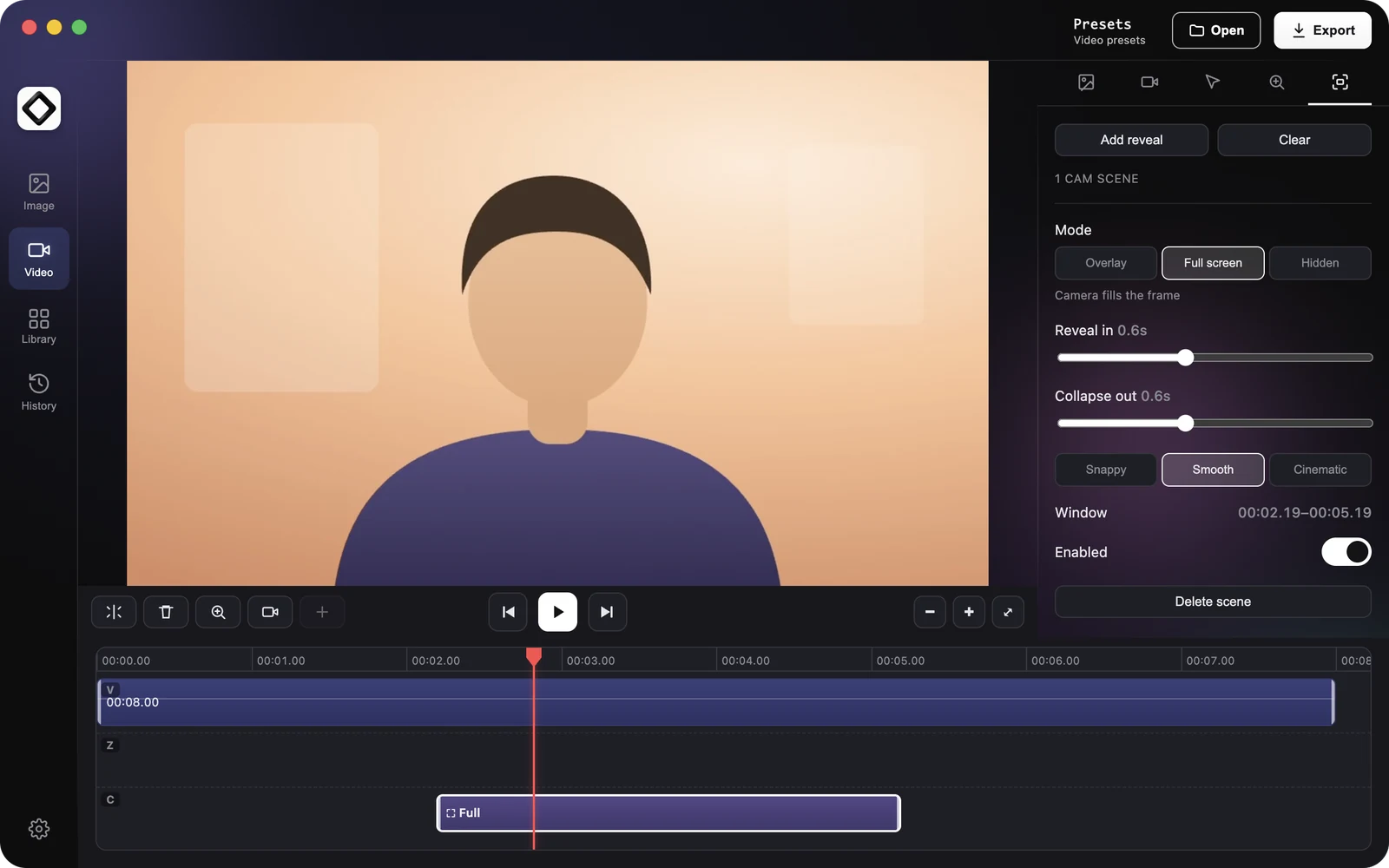
Cam scenes switch the webcam between “Overlay”, “Full screen” and “Hidden” for part of the video. Open on your face, cut to the screen, then come back for the sign-off, with a “Snappy”, “Smooth” or “Cinematic” transition.

  1. Move the playhead
  2. Click “Add reveal”
  3. Pick a mode

Camera, microphone and system audio are for video recordings. They are switched off in GIF mode.

A cam scene set to Full screen in the video editor, with the webcam filling the frame and the scene on the C lane of the timeline

Edit

A screen recorder and video editor in one app

Stop recording and the clip is waiting on a timeline with zoom-ins already placed. Trim it, speed it up, cut the silences and give it a background without exporting to another app.

Auto zoom · Timeline

Zoom-ins placed for you, cuts in a keystroke

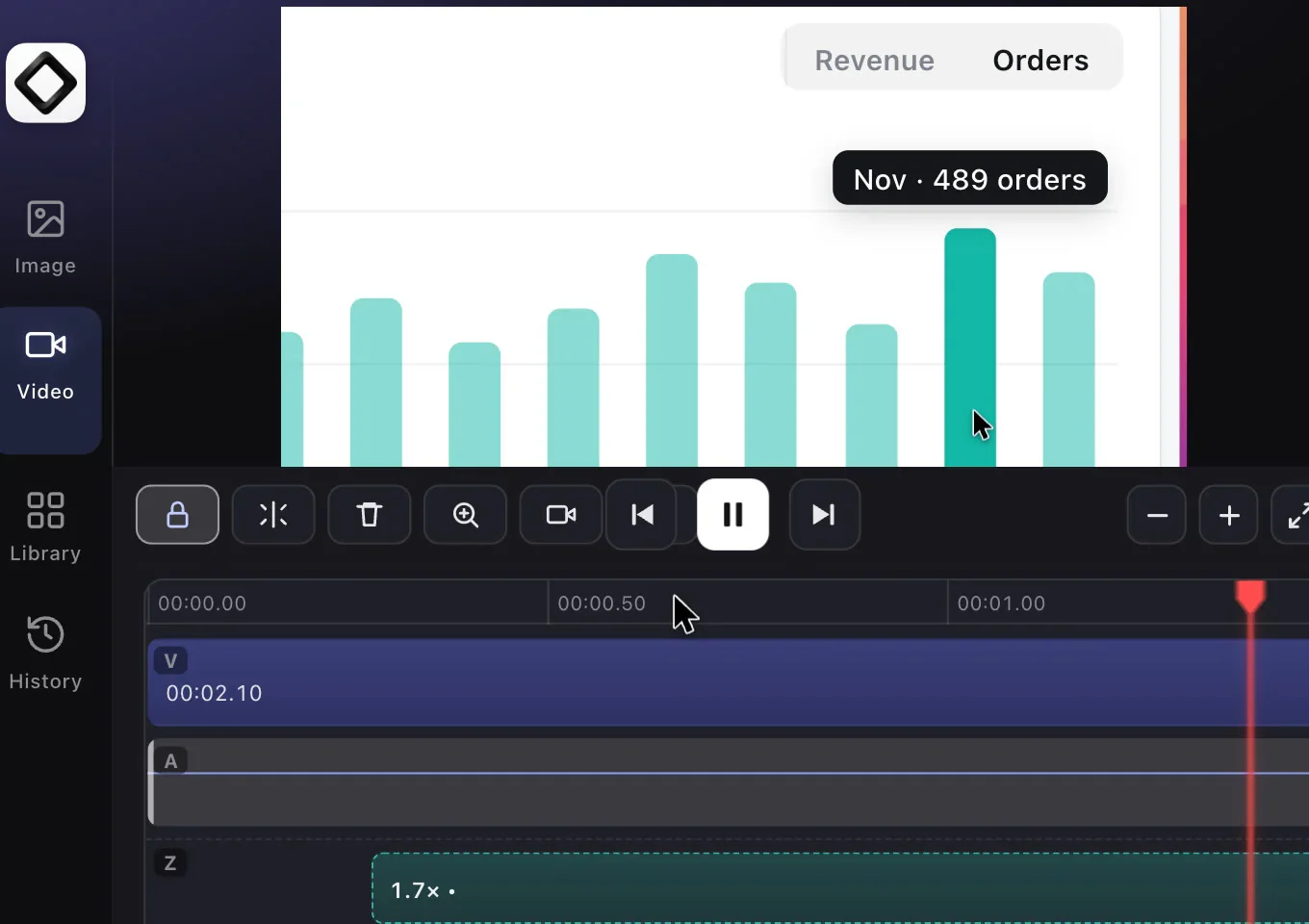
The first time you open a recording, ScreenSnap Pro adds zoom regions from your pointer activity. Keep them, tweak them or add your own from 1x to 4x, following the cursor or a fixed point. Then trim the ends, press S to split, change the speed and let “Remove silence” cut the quiet parts in one undo step.

  • Auto-zoom
  • Manual zoom 1x to 4x
  • Trim and split
  • Speed 0.25x to 2x
  • Remove silence
  • Add music or B-roll

Video editor guideZoom-ins guide

The ScreenSnap Pro video editor with a 1.7x zoom region on the Z lane of the timeline, below the video and audio lanes

Background · Frame

Make every recording look finished

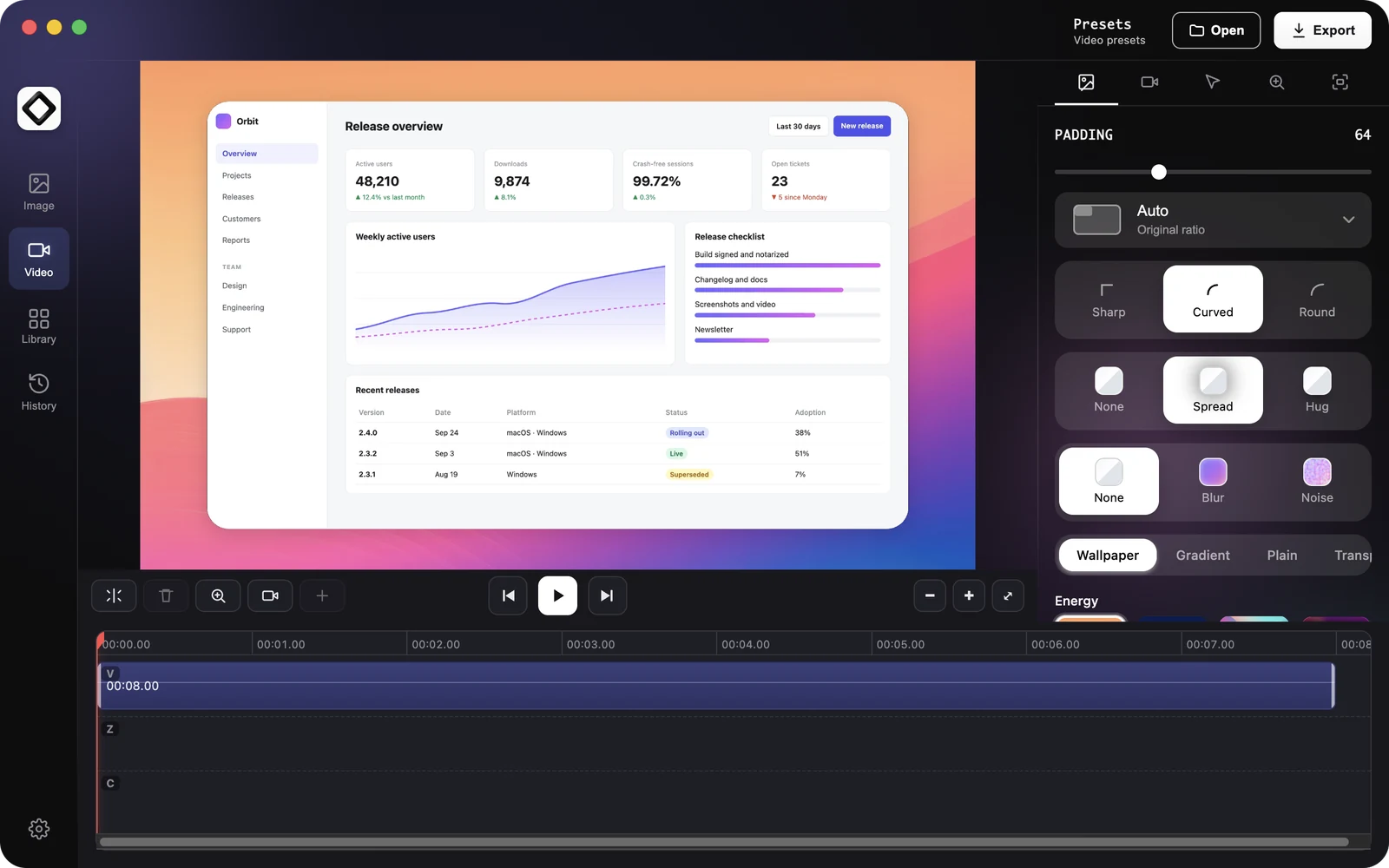
New recordings open on a wallpaper from the same library as the screenshot editor, with padding, rounded corners and a shadow. Swap in a gradient, a plain color or your own image, pick 16:9, 1:1 or 9:16 for social, and save the look as a preset for the next video. Your original tracks never change.

  • Wallpaper, gradient or plain
  • Padding 0 to 200
  • 10 aspect ratios
  • Corners and shadow
  • Background blur or noise
  • Cursor styles, usually on Mac
  • Video presets

Backgrounds and frame guide

The video editor Background tab with padding, aspect ratio, corner, shadow and wallpaper options next to a recording framed on a sunset wallpaper

Export

Export an MP4 with audio, or a GIF

Pick the format, size, frame rate and quality, and see the estimated file size before you export.

MP4 · GIF export

One dialog, two formats

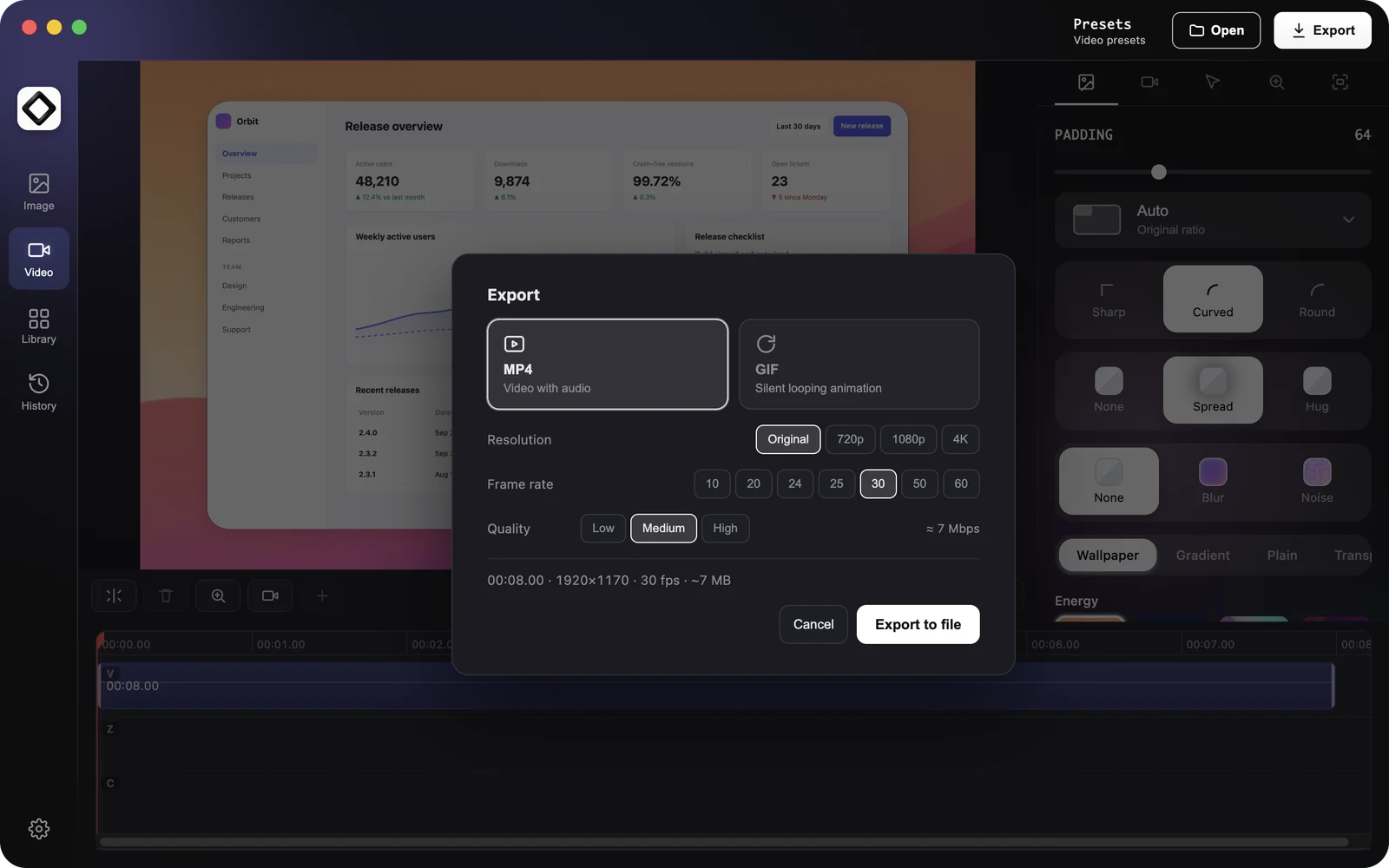
An MP4 is “Video with audio”: it mixes system sound, your mic and any music you added. Choose Original, 720p, 1080p or 4K, 10 to 60 fps, and Low, Medium or High quality, and the dialog shows the approximate bitrate and the estimated file size. Resolution only scales down, so a size above your recording keeps its original size. GIF exports are silent, from 480p to 1080p.

  1. Click “Export”
  2. Pick MP4 or GIF
  3. Click “Export to file”

Export guideFree MP4 to GIF converterGIF compressor

The video editor Export dialog with MP4 and GIF, resolutions from Original to 4K, frame rates from 10 to 60 fps, Medium quality and the estimated file size

GIF recording

Or record straight to GIF

For a quick loop in a pull request or a chat, switch the format menu to “GIF”. GIF recordings are silent, include the pointer, run at 12 fps up to 1200 px and stop at 1 minute. They are saved as finished files and don’t open in the editor.

Need zoom-ins, a webcam or a clip longer than a minute? Record a video and export it as a GIF instead.

GIF recording guide

The recording bar with GIF picked in the format menu and the camera, microphone and system audio buttons grayed out

Share

Share a screen recording with a link

Paste a short link instead of a heavy attachment, or drag the file straight into the conversation.

Create Link

Record, click, paste

Click “Create Link” on the Quick Preview and ScreenSnap Pro makes an MP4, uploads it and copies a short share.screensnap.pro link. Anyone with the link can open it, and it is not listed anywhere. It’s made for quick sharing in a chat, a ticket or an email. The upload is a copy: delete it in the Library and the link stops working.

  1. Stop recording
  2. Click “Create Link”
  3. Paste the link

Files up to 300 MB. Cloud is optional and needs a license, and video recordings never upload on their own. Rather send the file? Drag the Quick Preview into Slack, Jira or an email.

Share links guideLibraryLoom alternatives

The Quick Preview thumbnail of a finished recording with buttons to open the video editor, delete the recording and create a link

Mac and Windows

One screen recorder for Mac and Windows

The same capture controls, editor and share links on both, with a few differences that come from each system.

  • On a Mac

    macOS 15 Sequoia or later, on Apple Silicon and Intel, recording at up to 60 fps. Allow ScreenSnap Pro once under “Screen & System Audio Recording” and system sound needs no driver. The pointer is recorded separately, so you can enlarge or restyle it later, and “Hide desktop icons” keeps a cluttered desktop out of the shot.

    Screen recording software for Mac

  • On Windows

    64-bit Windows 10 and 11. System audio uses the loopback capture built into Windows, so there is no Stereo Mix or virtual cable to set up. Allow desktop apps to use your mic and camera under Settings > Privacy & security. If a capture comes out black on an HDR display or a dual-GPU laptop, the app offers “Relaunch in Compatibility Mode”. The pointer can be part of the video itself.

    Screen recorder for Windows

One license, two computers, any mix: a Mac and a PC, two Macs or two PCs. Recording and editing work offline once the app is activated. Screenshots too: the same app is a screenshot tool with 17 annotation tools.

Who it's for

Screen recording software for tutorials, demos and bug reports

Built for people who explain things on screen every week and want the video done in one pass.

  • Tutorials and training

    Record the steps with your voice on its own track, let the zoom-ins follow your pointer and cut the pauses with Remove silence. A full-screen cam scene gives the lesson a face-to-camera intro.

    Make a tutorial videoTraining video software

  • Product demos

    Auto zoom follows your pointer through the app, a wallpaper frames it, and 9:16 or 1:1 turns the same demo into a social clip. Speed up the slow parts at 1.5x or 2x.

    Screen Studio alternatives for MacScreen Studio for Windows

  • Bug reports and QA

    Drop a silent GIF into a pull request, or send an MP4 with system audio when the sound is part of the bug. Paste the share link straight into Jira or Linear.

    Bug report templateExploratory testing

  • Meetings and lectures

    Record a call, a webinar or a lecture with system audio and your mic, with no length cap beyond your disk space. Always ask everyone for consent before you record.

    Record a video callLecture recording software

Compare

ScreenSnap Pro vs other screen recorders

Built-in recorders are fine for a quick clip. Here is how the main screen recorders compare when you record, edit and share every week.

Feature comparison of ScreenSnap Pro, Loom, OBS Studio, QuickTime Player, Snipping Tool, Camtasia, Screen Studio and CleanShot X
FeatureScreenSnap ProLoomOBS StudioQuickTime PlayerSnipping ToolCamtasiaScreen StudioCleanShot X
PlatformsMac + WindowsMac, Windows, web, mobileWindows, Mac, LinuxMac, built inWindows 11, built inWindows + MacMacMac
Price$34 onceFree plan, or $15/user/mo billed yearlyFree, open sourceFree, built inFree, built inFrom $39/yr$9/mo yearly or $29/mo$35 once + $19/yr for updates
Free or entry plan limitsOne plan, 2 computers5 min per video, 25 videosNoneNoneNoneStarter exports have a watermarkNo export without a planNo trial
Full screen, window, areaFull screen, areaYesYes, area by croppingFull screen, areaArea; window in newer versionsYesYesYes
System audioYes, no extra driverYes, desktop appYesYes, macOS 27+YesYesYesYes
Webcam overlayYes, with full-screen scenesYesYes, as a scene sourceNoNot listedYesYesYes
Video editorYes, timeline: trim, split, speedTrim and stitch on BusinessNoTrim and splitTrim in newer versionsYes, multitrack timelineYes, timelineYes, trim and zooms
Auto zoomYes, from pointer activityNoNoNoNoYes, SmartFocusYesNot listed; Smart Zooms follow the cursor
Silence removalYesBusiness + AI planNoNoNoYes, Essentials and upYes, plus filler wordsNot listed
GIF exportYes, or record straight to GIFThumbnails onlyNoNoNewer versions, up to 30 sYesYes, up to 1080pYes
Share linkYes, unlisted linkYesNoNoNoYes, 25 videosYes, videos up to 30 minYes
Live streamingNoNoYesNoNoNoNoNo

Competitor details checked on their websites in October 2026. Prices in USD.

Which screen recorder should you choose?

  • Live streaming and scenes: OBS Studio, free and open source, or Streamlabs. See OBS vs Streamlabs.
  • Editing by transcript, with filler words removed: Screen Studio on a Mac, or Loom on its Business + AI plan. See Screen Studio vs Loom.
  • Long courses on a multitrack timeline: Camtasia, on a yearly plan. See the Camtasia alternatives.
  • Mac only, with a team cloud plan: CleanShot X.
  • A quick clip with no editing: Snipping Tool on Windows 11 or Cmd+Shift+5 on a Mac, both built in.
  • Record with audio and webcam, edit and share on Mac and Windows, with one payment: ScreenSnap Pro.

The basics

What is a screen recorder?

A screen recorder is software that captures a video of what’s on your screen, usually with your voice, your computer’s sound and sometimes your webcam, and saves it as an MP4 or a GIF. Most add basic editing and a way to share the result.

  • Built into your system

    Snipping Tool and Xbox Game Bar on Windows, the Screenshot toolbar and QuickTime Player on a Mac. Free and always there, with little or no editing.

    Record on WindowsRecord on a MacBook

  • Desktop apps

    A screen recorder you install, such as ScreenSnap Pro, OBS Studio, Camtasia or Screen Studio. System audio, a webcam, shortcuts and usually an editor.

    Free for WindowsBest for Mac

  • Browser extensions and online recorders

    Record from Chrome or a web page and upload straight to the vendor's cloud. Handy on a locked-down computer, though system sound is often limited to the browser tab.

    Free Loom alternatives

  • Phones

    iPhone records from Control Center and Android from Quick Settings. ScreenSnap Pro is desktop only: it runs on Mac and Windows, not on phones.

    System requirements

Built-in screen recording shortcuts on Windows and Mac

Windows

Win+Shift+R
Record a screen area with Snipping Tool
Win+Alt+R
Start or stop a Game Bar recording
Win+G
Open Xbox Game Bar

Snipping Tool saves recordings to Videos > Screen Recordings, and Game Bar to Videos > Captures. Snipping Tool recording guide

Mac

Cmd+Shift+5
Open the Screenshot toolbar to record the screen
Cmd+Ctrl+Esc
Stop the recording
Cmd+Ctrl+N
New Screen Recording in QuickTime Player

In the toolbar, Options picks a microphone and, on macOS 27 or later, Include System Audio. All Mac recording shortcuts

Get ScreenSnap Pro

Record it once, send it finished

One license for your Mac and your PC, with every feature and every future update included. See what you get on the pricing page.

  • One-time payment
  • 2 computers, Mac or Windows
  • Lifetime updates
  • 30-day money-back guarantee

FAQ

Screen recorder FAQ

How can I record my screen with audio?

Use a recorder that captures both your microphone and your computer's sound. On Windows 11, Snipping Tool (Win+Shift+R) has mic and system audio toggles. On a Mac, Cmd+Shift+5 records the mic, and system audio needs macOS 27 or later. In ScreenSnap Pro, choose Record Screen, turn on your microphone and System audio, then click Display or Area, the same on both systems.

Record with audio on a Macon Windows

Can a screen recording have audio?

Yes, from two sources: the sound your computer plays and your microphone. In ScreenSnap Pro the mic is saved on its own track, so you can lower it, mute it or clean it up with Enhance mic. Turn System audio on before you start, because it can't be switched on during a recording. GIF recordings never have sound.

Why is there no sound when I screen record on Windows?

Usually system audio was off when the recording started: in ScreenSnap Pro it must be on before you click Display or Area. Other causes are a disconnected or wrong microphone, Windows privacy settings that block desktop apps from the mic (Settings > Privacy & security > Microphone), or a clip that is muted in the editor or your player.

Fix a recording with no soundRecord computer audio on Windows

How do I screen record on a Mac with audio?

Press Cmd+Shift+5, open Options and pick a microphone; system audio appears there only on macOS 27 or later. In ScreenSnap Pro, system audio is one button with no driver to install, on macOS 15 and later. It needs the Screen & System Audio Recording permission, plus Microphone for your voice, and it is captured independently of your speaker volume.

Mac screen recorderRecord with audio on a Mac

Does Windows 11 have a free screen recorder?

Yes. Snipping Tool records MP4 video with your mic and system audio, and newer versions add trimming and GIFs of up to 30 seconds, but Microsoft lists no webcam option. Xbox Game Bar (Win+Alt+R) records the app or game you are in. ScreenSnap Pro adds a webcam, a multi-track editor, auto zoom and share links for $34 once.

Snipping Tool screen recordingScreen recorder for Windows

How do I record my screen and webcam at the same time?

Pick your camera in the capture controls, then click Display or Area to start. In ScreenSnap Pro the self view on your screen is not burned into the video: the webcam is saved as its own track and appears as a round overlay that you can move to nine spots, resize, reshape or switch to full screen with cam scenes.

Test your webcam

Can I screen record for 2 hours?

Yes. ScreenSnap Pro puts no length cap on video recordings beyond your free disk space, and only GIF recordings stop at 1 minute. You can pause and resume, and if the app or your computer quits, the footage is recovered on the next launch. Share links take files up to 300 MB, so a long recording is better shared as a file.

How big is a 1 hour screen recording?

It depends on the resolution, the frame rate and how much changes on screen, so there is no single number. In ScreenSnap Pro, the Export dialog shows the approximate bitrate and the estimated file size before you export. Choosing 1080p or 720p, 30 fps or Low quality makes the file smaller, and a mostly still screen compresses far better than video playback.

Video bitrate calculatorReduce video file size

Is OBS still free?

Yes. OBS Studio is free and open source on Windows, Mac and Linux, and it is the usual choice for live streaming and scene-based recording. It has no built-in video editor, so trimming happens in another app. ScreenSnap Pro doesn't stream: it records your screen with audio and webcam, then edits and shares the result in one app.

OBS alternatives for Windowsfor Mac

Can I record my screen without an Internet connection?

Yes. Once ScreenSnap Pro is activated, recording, editing and exporting all work offline, and every recording is saved on your computer. You need a connection only to activate your license, check for updates and create share links. A video recording is uploaded only when you click Create Link or a link button yourself.

Is ScreenSnap Pro free?

No. ScreenSnap Pro costs $34 once, with no subscription and no free trial, and screen recording needs an active license. Every purchase covers two computers and includes lifetime updates and a 30-day money-back guarantee. For free recording, use Snipping Tool or Xbox Game Bar on Windows, QuickTime Player or Cmd+Shift+5 on a Mac, or OBS Studio on either.

Free screen recorders for Windows