8 Best OBS Alternatives for Windows (Free & Paid, 2026)
Looking for a solid OBS alternative on Windows? You are not alone. OBS Studio is free, open source, and genuinely powerful. It is also a lot. The scenes and sources model, encoder settings, and missing timeline editor turn away a lot of people who just want to record a tutorial or go live on Twitch without a three-hour setup.
We tested eight of the most popular OBS Studio alternatives for Windows in 2026. Some are free. Some are paid. A few are built for live streaming. Others are built for recording and editing. This guide groups them by use case so you can pick the right one in under five minutes. No fluff. No "top 20" padding.
If you only want the short version: pick ScreenSnap Pro if you record tutorials, demos, or bug reports and want to edit them in the same app. Pick ShareX if you need a free recorder, or Camtasia for long course production. Pick Streamlabs, XSplit, or Meld Studio if you stream live. Pick Bandicam if you capture games at high FPS. The rest of this guide explains why.
Why people look for OBS alternatives
OBS Studio is the default pick for a reason. It is free forever, runs on Windows 10 and Windows 11, and handles almost any streaming or recording job. But the same traits that make it powerful also make it hard to use.
- Scenes and sources feel confusing. New users start with a blank scene and no "just record my screen" button. A first-run wizard picks output settings, but nothing is captured until you add a Display Capture source and pick a monitor. Skip that step and you record a black screen.
- Encoder settings are a rabbit hole. CBR vs VBR. x264 vs NVENC vs QuickSync. Keyframe intervals. Bitrate tuning. Most creators just want "looks good, file is not huge."
- No built-in editor. OBS records the raw file. To trim or cut a pause, you need a second app like DaVinci Resolve or Clipchamp.
- Heavy on older hardware. OBS is smooth on modern cards. On older laptops, the wrong encoder settings can make it stutter or drop frames mid-stream.
- The 2-minute job turns into 30 minutes of setup. That is the real reason people switch.
None of this means OBS is bad. For advanced multi-scene streams with custom plugins, it is still the best free tool on Windows. But for tutorials, meetings, or bug reports, there are simpler paths.
Before you switch, check our guide to free screen recorders for Windows to see what ships for zero dollars. You can also learn how to record screen with audio on Windows using built-in tools. Sometimes you do not need OBS at all.
What to look for in an OBS alternative
Not every "OBS alternative" fits every job. Use these five questions to narrow the list before you download anything.
- Do you stream live or record only? Live streaming needs RTMP support, bitrate control, and platform presets. Pure recording does not.
- Do you want a built-in editor? If yes, pick ScreenSnap Pro, Camtasia, or ScreenPal. If no, a lightweight recorder saves disk space and RAM.
- What is your budget model? One-time purchases cost more up front but save money long term. Subscriptions feel cheaper each month but add up fast.
- How much hardware do you have? Bandicam and ShareX are light on resources (current ShareX needs 64-bit Windows 10 or 11). Streamlabs and Camtasia want a decent GPU and plenty of RAM.
- Do you need a webcam overlay or just the screen? Most tools support both. A few (like older Fraps) do not.
Answer these five and the list below shrinks fast.
Quick comparison table
Here is a side-by-side look at the eight OBS alternatives for Windows covered in this guide. Prices were checked on each official site in October 2026.
| Tool | Best for | Price | Streaming | Built-in editor |
|---|---|---|---|---|
| ScreenSnap Pro | Record and edit in one app | $34 one-time | No | Yes (timeline) |
| Streamlabs Desktop | Streaming beginners | Free (Ultra $27/mo) | Yes | Basic (clips) |
| XSplit Broadcaster | Paid streaming polish | Free / $59.99/yr | Yes | No |
| ShareX | Free power-user capture | Free | No | Image editor only |
| Bandicam | High-FPS game capture | $33.26/yr or $53.90 one-time | No | Basic trim |
| Camtasia | Long course production | $179.88/yr | No | Yes (full) |
| ScreenPal | Record, edit, and host | Free / $4 to $10/mo | No | Yes |
| Meld Studio | Modern streaming UI | Free (Pro $20/mo) | Yes | No |
Now let us walk through each tool in detail.

Tired of plain screenshots? Try ScreenSnap Pro.
Beautiful backgrounds, pro annotations, GIF recording, and instant cloud sharing, all in one app. Pay $34 once, own it forever.
See pricing and features1. ScreenSnap Pro: best OBS alternative for recording and editing
Price: $34 one-time. Lifetime updates. One license with 2 seats (2 computers, Windows or Mac).
Best for: Tutorials, demos, and bug reports you want to record, edit, and share without touching scenes or encoder settings.
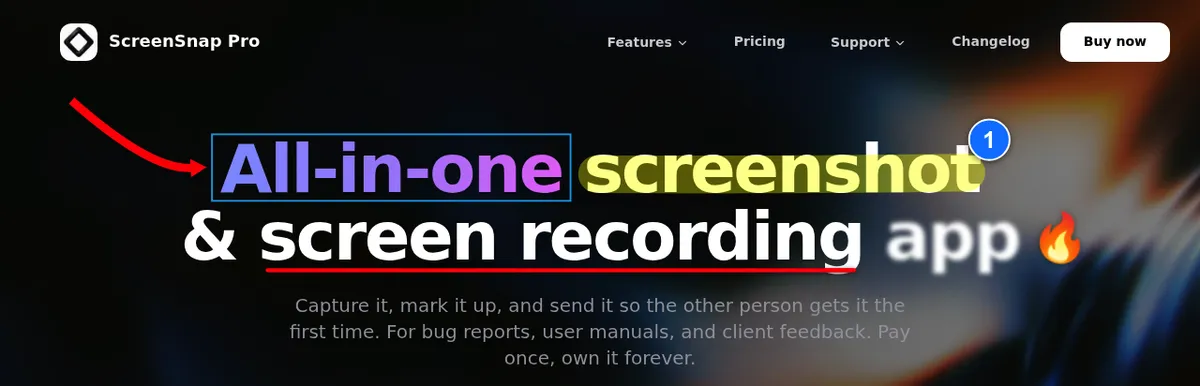
Most people who search for an OBS alternative do not want to stream. They want to press record, capture the screen with their voice and webcam, cut the mistakes, and send the video. ScreenSnap Pro is a screen recorder for Windows built for exactly that job. There is no scene to build and no encoder to tune. Pick a display or an area, switch on webcam, mic, and system audio, and hit record.
Where it pulls ahead of OBS is after you hit stop. OBS hands you a raw file and leaves the editing to another app. ScreenSnap Pro opens the recording in its own video editor, with a multi-track timeline, one-click silence removal, and automatic zoom that follows your cursor. You finish the video in the same app you recorded it in.
What you get for $34 one-time:
- Screen recording to MP4, with webcam, mic, and system audio
- One shortcut to start and stop a recording
- Built-in video editor: trim, split, cut, change speed, and remove silence in one click
- Automatic zoom that follows your cursor, plus manual zoom regions
- Backgrounds, padding, and shadows, with aspect presets such as 16:9, 1:1, and 9:16 for YouTube and social
- Extra tracks for B-roll, music, and voiceover
- Direct GIF recording for short clips in Slack, Discord, or a pull request
- No watermark on any video, GIF, or screenshot
- 17 annotation tools, 500+ backgrounds, and OCR for screenshots
- Optional cloud upload with instant share links
- Works on both Windows and Mac with one license
Honest limitations: no live streaming (no RTMP, no live scene switching), no captions or subtitles in the editor, and no Linux version. If you go live on Twitch every week, pick Streamlabs, XSplit, or Meld Studio below.
Why it is #1: it is the only pick on this list that records and edits on a real timeline for a one-time price. Camtasia does both too, but watermark-free exports start at $179.88 a year. If streaming is not on your roadmap, this is the shortest path from "record" to a finished video on Windows. You can also record as GIF instead if you need a tiny shareable clip.
Pick this if: you record tutorials, product demos, or bug reports and want to finish them in one app, without a subscription.
2. Streamlabs Desktop: OBS with a friendlier face
Price: Free. Streamlabs Ultra is $27/month or $189/year.
Best for: Twitch and YouTube streamers who want OBS power without the setup.
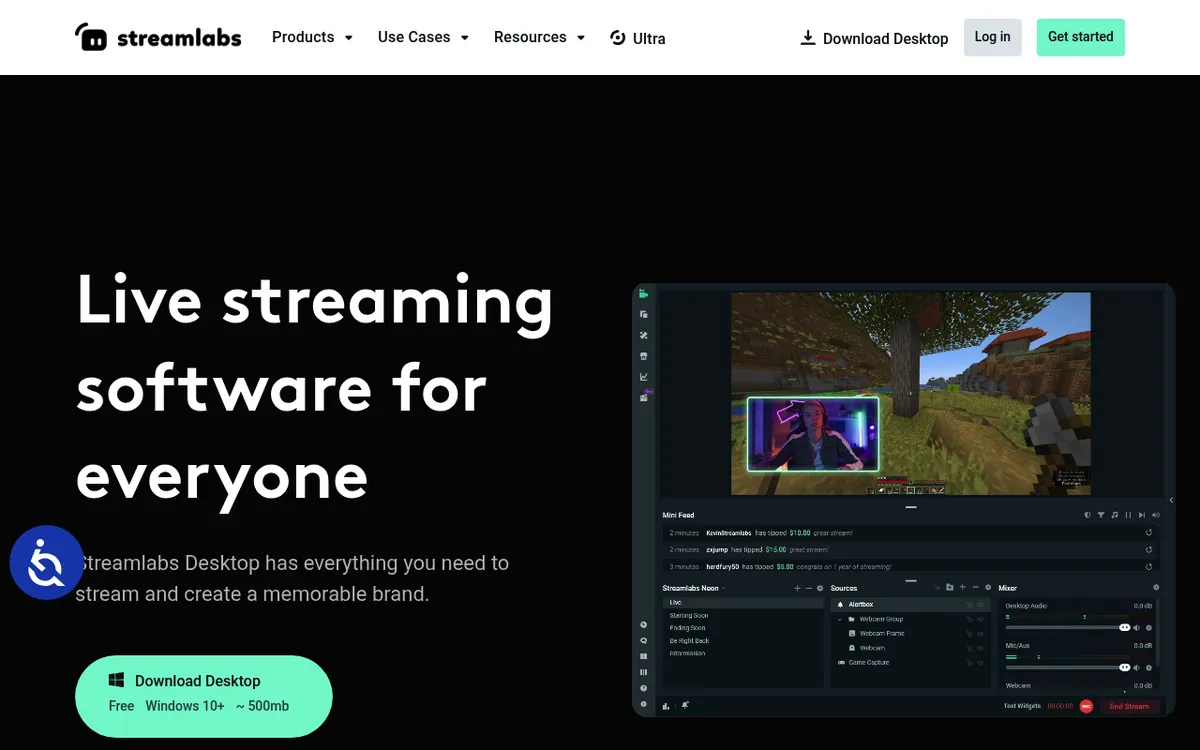
Streamlabs Desktop is built on the OBS core: it forks the OBS source code and wraps it in a cleaner interface. You get the same scene and source model, but with themed overlays, alert widgets, and tipping tools baked in.
The big win is onboarding. Streamlabs detects your PC specs, picks a sensible encoder, and sets your bitrate based on your internet speed. That gets you live in minutes instead of an evening of setup. For a deeper head-to-head, see our OBS vs Streamlabs comparison.
Pros:
- Same engine as OBS, so you can import your OBS scene collections on first run
- Built-in alerts, overlays, and chat widgets
- Multistream to Twitch, YouTube, and TikTok at once (Ultra tier)
- Built-in clip editor for trimming stream highlights
Cons:
- Users often report it is heavier on CPU and RAM than vanilla OBS
- OBS plugins do not install; it has its own app store instead
- Best features require the Ultra subscription
Pick this if: you want to stream on Twitch or YouTube and the OBS interface made you quit on day one.
3. XSplit Broadcaster: polished paid streaming
Price: Free up to 720p and 30 FPS (a small logo appears above that). Premium is $59.99/year or $14.99/month, and a one-time Lifetime license lists at $199.99.
Best for: Serious streamers who do not mind paying for polish.
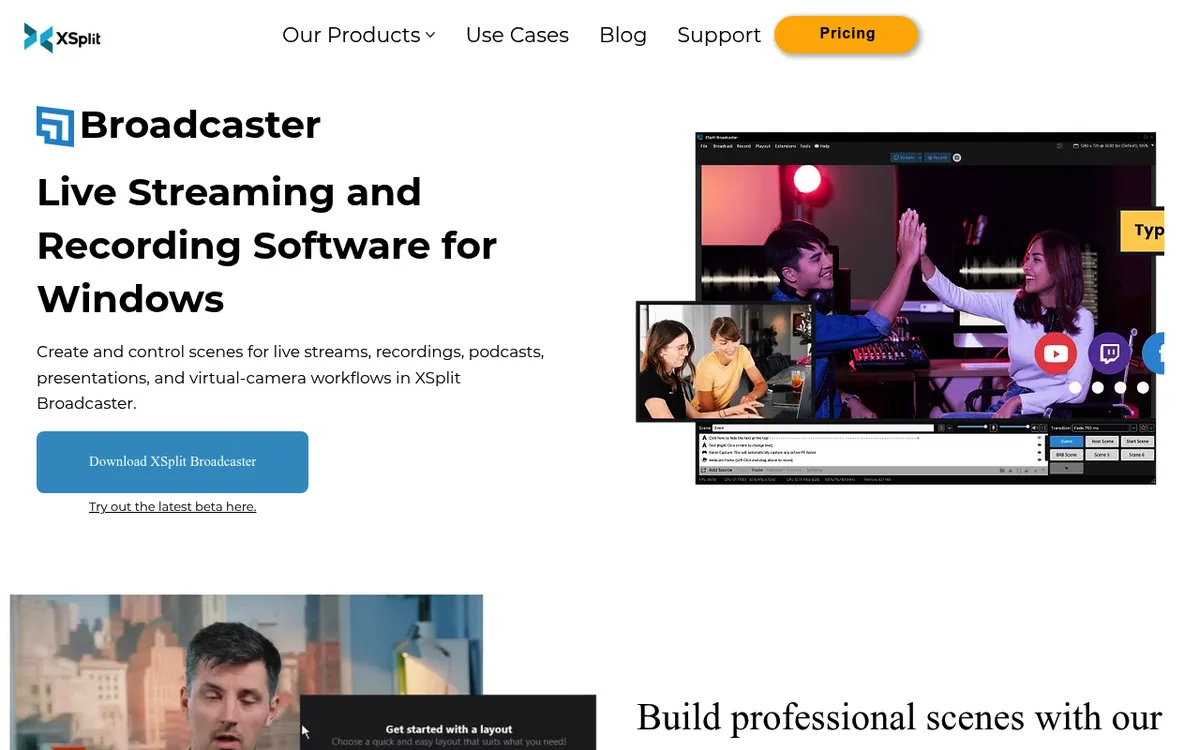
XSplit Broadcaster has been around since 2009 and it shows. The interface feels more like a pro broadcast app than a hobby tool. You get chroma key, scene transitions, remote guest support, and high-resolution output without any plugin installs.
The paid tier is what makes XSplit worth it. The free version adds a small XSplit logo above 720p or 30 FPS and limits you to four scenes. Premium removes the logo and unlocks unlimited scenes, multistreaming, and commercial use. At $59.99 a year, it costs far less than Streamlabs Ultra at $189 a year.
Pros:
- Clean, stable interface built for Windows
- Unlimited resolution and up to 240 FPS on Premium
- Built-in multi-camera support and chroma key
- NVIDIA NVENC encoding (including AV1) to take load off the CPU
Cons:
- Free tier adds a logo above 720p or 30 FPS and caps you at 4 scenes
- Windows only (no Mac or Linux)
- Smaller plugin ecosystem than OBS
Pick this if: you stream for a living or want a paid tool that feels professional from day one.
4. ShareX: the free Windows power-user pick
Price: Free. Open source.
Best for: Developers and power users who love hotkeys.
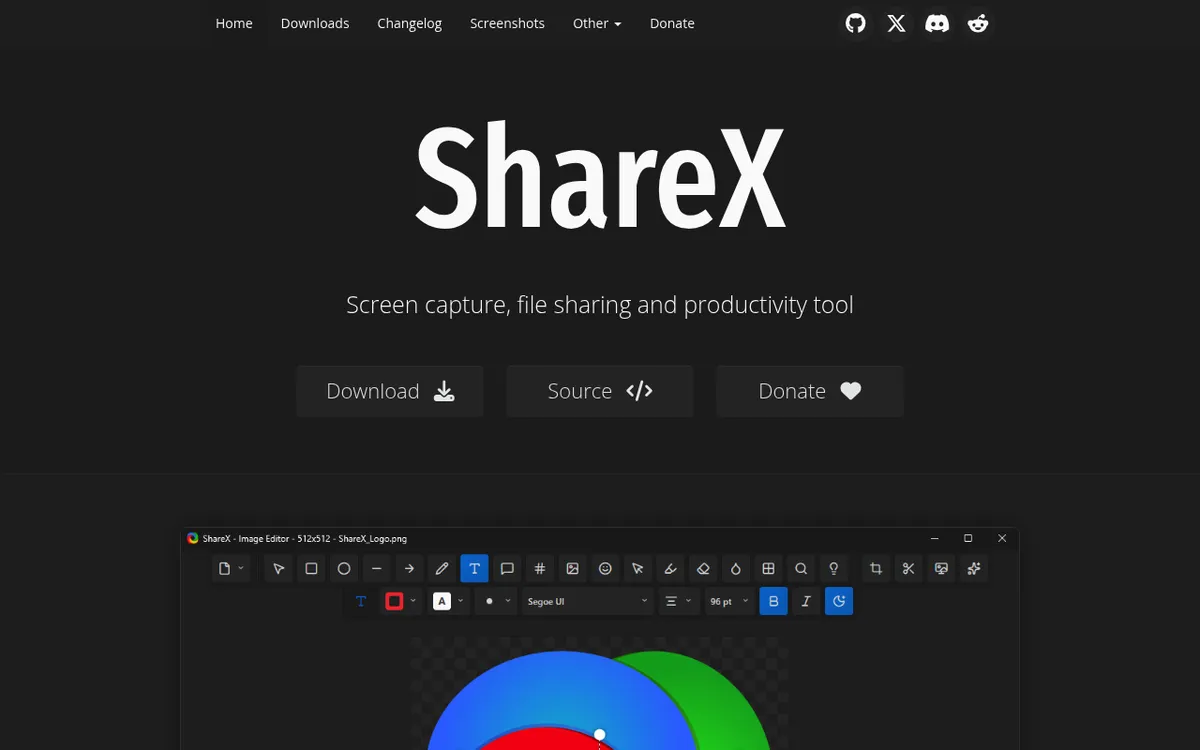
ShareX is one of the most feature-packed free screenshot and recording tools on Windows. It captures regions, windows, full screen, and scrolling content. It records video and GIFs. It has OCR, a color picker, image effects, and dozens of upload destinations. All for zero dollars and no ads.
The catch? ShareX is not a streaming tool, and it has no video editor in its stable release. It records to file, and that is it. No RTMP output, no scene switcher, no live overlay. For the full breakdown of setup and features, see our ShareX review.
Pros:
- Totally free, no watermark, no limits
- Huge feature set for zero dollars
- Scriptable with custom workflows
- Active open-source community
Cons:
- No live streaming support
- Main window and settings still feel dense, though the image editor was rebuilt in 2026
- Windows only
Pick this if: you want a free tool that does almost everything and you enjoy tweaking settings.
5. Bandicam: lightweight high-FPS recording
Price: Personal license $33.26/year, or $53.90 one-time for a Bandicam 2027 perpetual license. The free version stops each recording at 5 minutes.
Best for: Gamers and anyone capturing high-FPS gameplay.
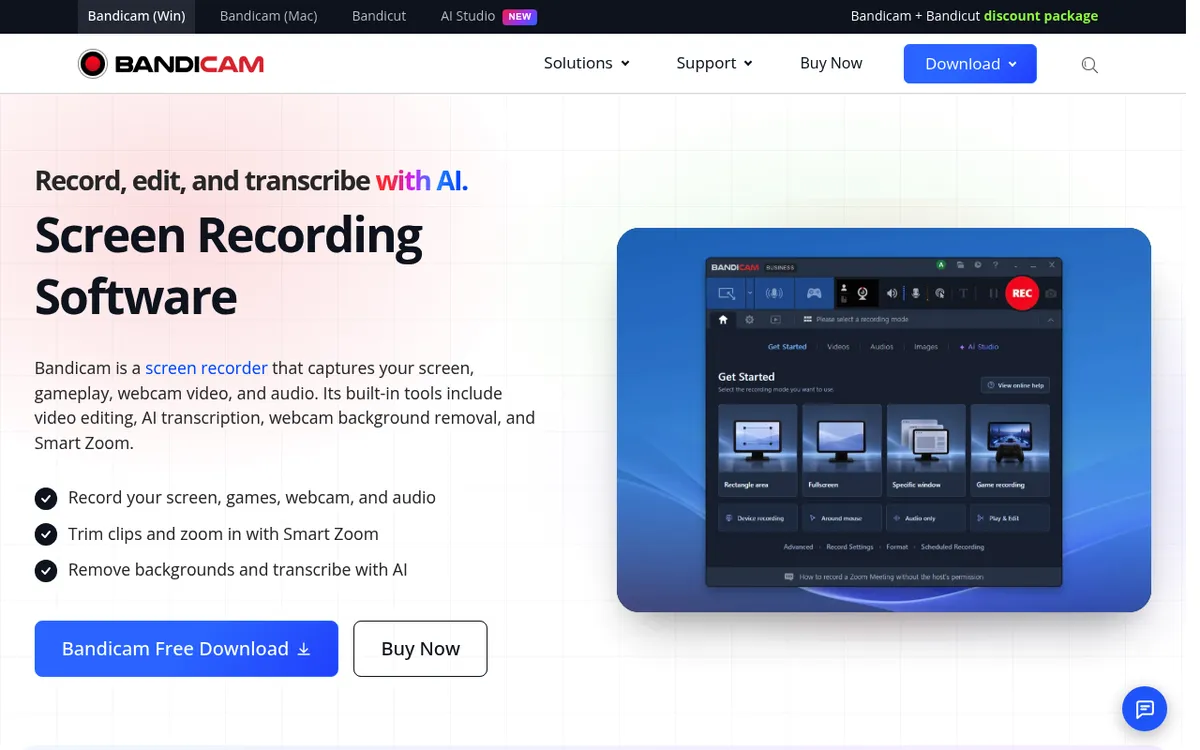
Bandicam has one job and does it well: record screen or game footage at high frame rates with minimal system load. It records up to 4K at 480 FPS on capable hardware and encodes with NVIDIA, Intel, or AMD hardware to keep CPU use low.
What Bandicam is not: a streaming tool or a full editor. Bandicam 2027 added basic trimming, Smart Zoom, and AI subtitles, but for multi-clip editing you still need a separate editor like Bandicut.
Pros:
- Hardware-accelerated encoding for NVIDIA, Intel, and AMD keeps system load low
- Up to 4K at 480 FPS on capable hardware
- Game mode locks onto a specific app
- One-time perpetual license available, with no monthly plan
Cons:
- Free version stops recordings at 5 minutes and watermarks edited exports
- Built for Windows (the Mac version is a separate subscription app)
- Basic trim editor only, and no live streaming
Pick this if: you record games, DirectX apps, or anything that needs high frame rates on modest hardware.
6. Camtasia: record and edit for course creators
Price: $179.88/year for Essentials, the cheapest plan with watermark-free exports. Starter is $39/year, but its editor exports carry a watermark. No one-time license is sold anymore.
Best for: Course creators, educators, and anyone who builds long training videos.
Camtasia combines screen recording with a full timeline editor. You record, trim, add transitions, drop in callouts, export, and share without leaving the app. For training videos, that is a huge time saver.
The price is the catch. At $179.88 a year, Camtasia is one of the priciest picks here. If you build courses for a living, the cost pays back fast. For a weekly tutorial, it is overkill. We cover cheaper options in our Camtasia alternatives for Windows guide.
Pros:
- Full timeline editor with transitions, callouts, and music
- Large library of royalty-free assets
- Interactive quizzes for course creators
- Drag-and-drop editor that is easier to learn than DaVinci Resolve
Cons:
- Pricey: $179.88/year, subscription only
- Fewer advanced color and effects tools than Premiere or DaVinci Resolve
- No live streaming
Pick this if: you build training videos or courses and need quizzes and a large asset library.
7. ScreenPal (formerly Screencast-O-Matic): record, edit, and host
Price: Free (15-minute recordings, 10 hosted videos). Solo Deluxe is $4/month and Solo Max is $10/month, billed annually.
Best for: Teachers and marketers who want quick recordings with a hosted share link.
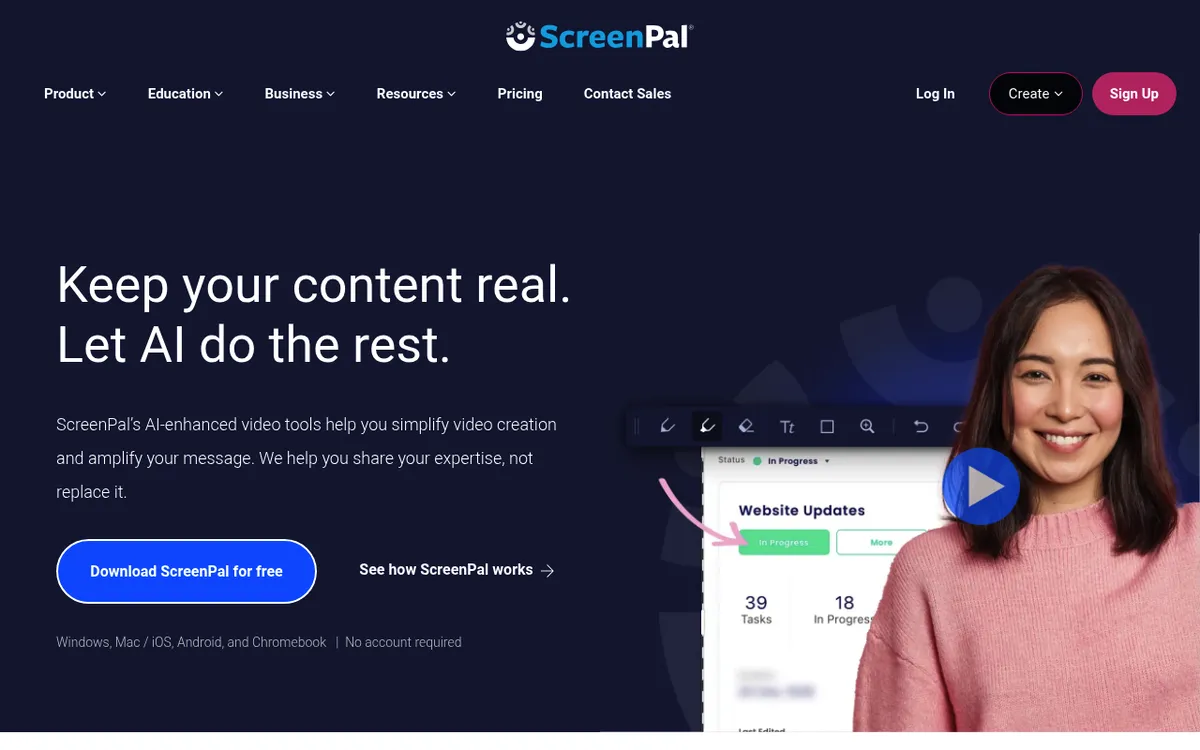
ScreenPal went through a rebrand, and old-timers still call it Screencast-O-Matic. It is a screen recorder and video editor for Windows, Mac, mobile, and Chromebook, with built-in cloud hosting and a Chrome extension. You record, trim, add text, and share a link in minutes.
The free plan records up to 15 minutes and hosts 10 videos. Paid plans unlock unlimited recording and hosting, system audio, automatic captions, and a bigger stock library. There is no live streaming, but the hosting is nice for educators who want to skip YouTube.
Pros:
- Free tier works for most short videos
- Cloud hosting with shareable links
- Chrome extension for quick browser recordings
- Basic editor handles trim, text, and music
Cons:
- 15-minute cap on the free tier
- System audio and automatic captions need a paid plan
- Free editor is basic; the full editor needs Solo Deluxe
Pick this if: you need quick recordings that live on a hosted page for students or clients.
8. Meld Studio: the new drag-and-drop streaming tool
Price: Free, with no watermark and no limits. Optional Meld Pro ($20/month) adds Meld Spark AI features.
Best for: Streamers who want a modern, clean OBS alternative.
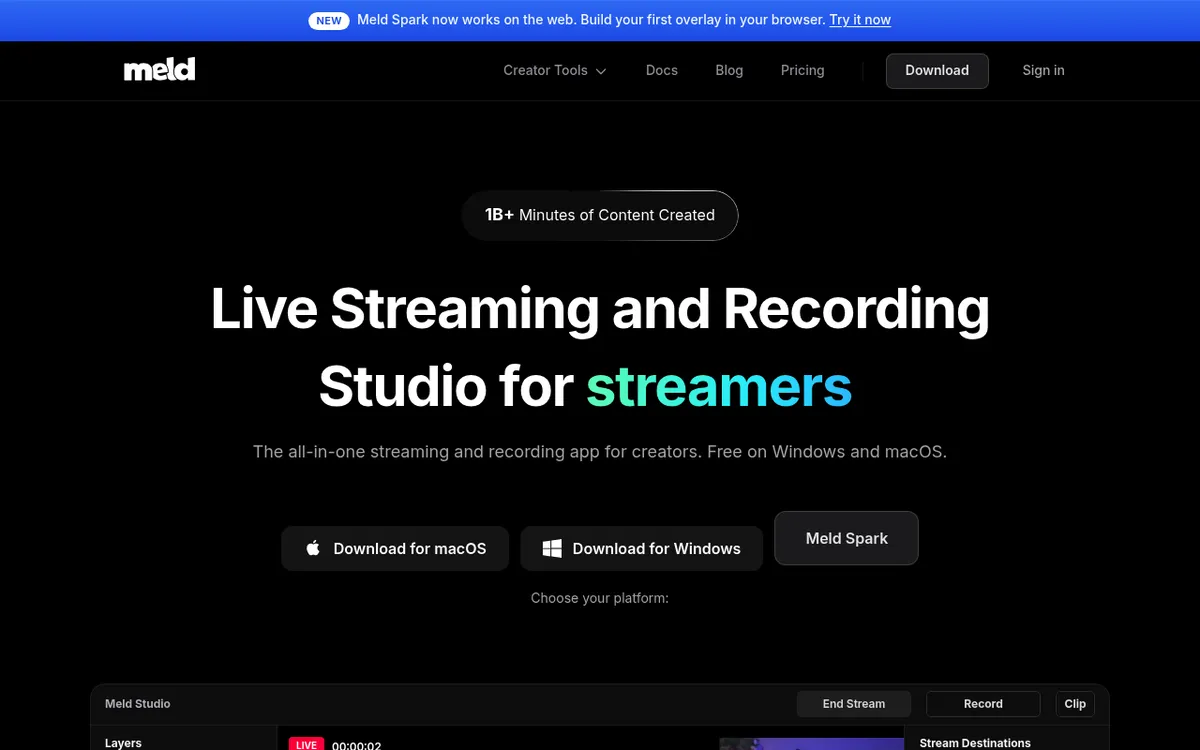
Meld Studio is one of the newer picks here. It was built from scratch, not on OBS code, by streamers who used OBS for years. Transitions, effects, alerts, and multistreaming are built in, so you do not need plugins to get a polished stream.
Meld is still young (it is pre-1.0), and it cannot run OBS plugins. But you can import your OBS scenes in one click, and for a clean streaming setup it punches above its weight.
Pros:
- Modern, clean interface built from scratch
- Built-in multistreaming to Twitch, YouTube, Kick, TikTok, and X
- Easy drag-and-drop scene builder
- Free app with no watermark, on Windows and macOS
Cons:
- Cannot run OBS plugins
- Still pre-1.0, so some features are still arriving
- AI Spark features require a paid plan
Pick this if: you want a clean, modern streaming tool and do not need niche OBS plugins.
When OBS itself is still the right pick
Before you install anything, ask: is OBS actually the problem? It might still be the best tool for your job.
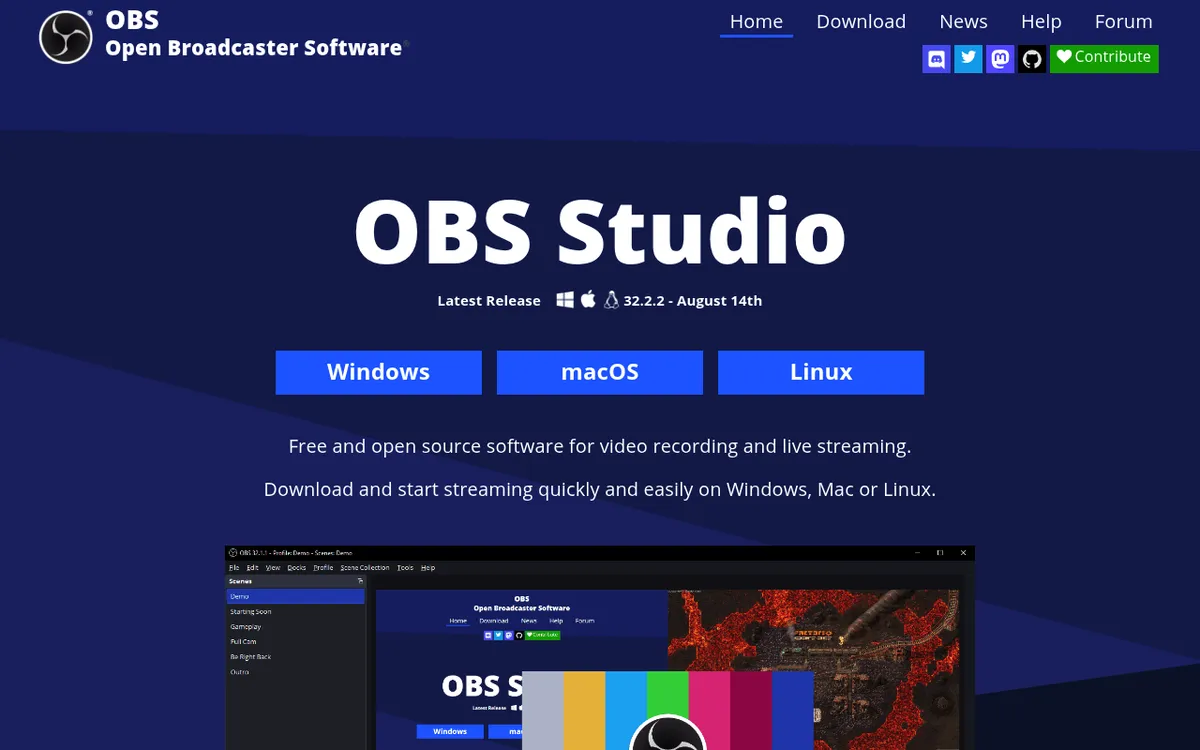
OBS is the right pick when:
- You need custom plugins. OBS has the largest plugin ecosystem of any tool here, with hundreds of plugins and scripts on its forum. If you need a specific browser source, filter, or integration, it probably exists.
- You build complex multi-source scenes. Streaming a game plus a webcam plus a chat overlay plus a replay buffer? OBS handles it without breaking a sweat.
- You want zero ongoing cost. OBS is free forever, no subscriptions, no Pro tier. For long-term streamers, that adds up.
- You do not mind the setup time. If you already learned OBS and it works, switching tools is rarely worth the cost.
The TL;DR: OBS is perfect for advanced users and people who love to tinker. For everyone else, one of the eight tools above will save hours of setup. If OBS gives you trouble, our OBS black screen fix covers the most common problem.
For official docs, the OBS Project website has setup guides and community forums. You can also check Microsoft Support for the Snipping Tool if you just need a quick capture without any third-party app.
How to pick: a 30-second decision tree
- Do you record tutorials, demos, or bug reports? Pick ScreenSnap Pro ($34 one-time, recorder plus timeline editor). For free, pick ShareX. For long courses with quizzes, pick Camtasia.
- Do you stream live? Pick Streamlabs (free or paid), XSplit (free up to 720p, Premium from $59.99/year), or Meld Studio (free).
- Do you capture high-FPS games? Pick Bandicam.
- Do you want videos hosted on a share page? Pick ScreenPal.
- Do you already know OBS and it works? Stick with OBS.
For a broader look at recording tools, see our list of free screen recorders for Windows or the full screen record on Windows guide. Both cover built-in options before you install anything.
Frequently Asked Questions
Wrapping up
There is no single best OBS alternative on Windows. The right pick depends on what you are doing. For recording and editing, ScreenSnap Pro and Camtasia lead, and ShareX is the free pick for recording alone. For live streaming, Streamlabs, XSplit, and Meld lead. For games, Bandicam rules high-FPS capture.
If you want to press record, cut the mistakes, and share a finished video, ScreenSnap Pro is the shortest path. $34 once, no subscription, and it works on Windows and Mac with one license. You get a screen recorder and video editor without the scenes and sources maze.
If streaming is your main job, start with the free tiers of Streamlabs or Meld Studio. If you record and edit, get ScreenSnap Pro and go from first recording to a finished, shareable video in one app.

Morgan
Indie DeveloperIndie developer, founder of ScreenSnap Pro. A decade of shipping consumer Mac apps and developer tools. Read full bio
@m_0_r_g_a_n_