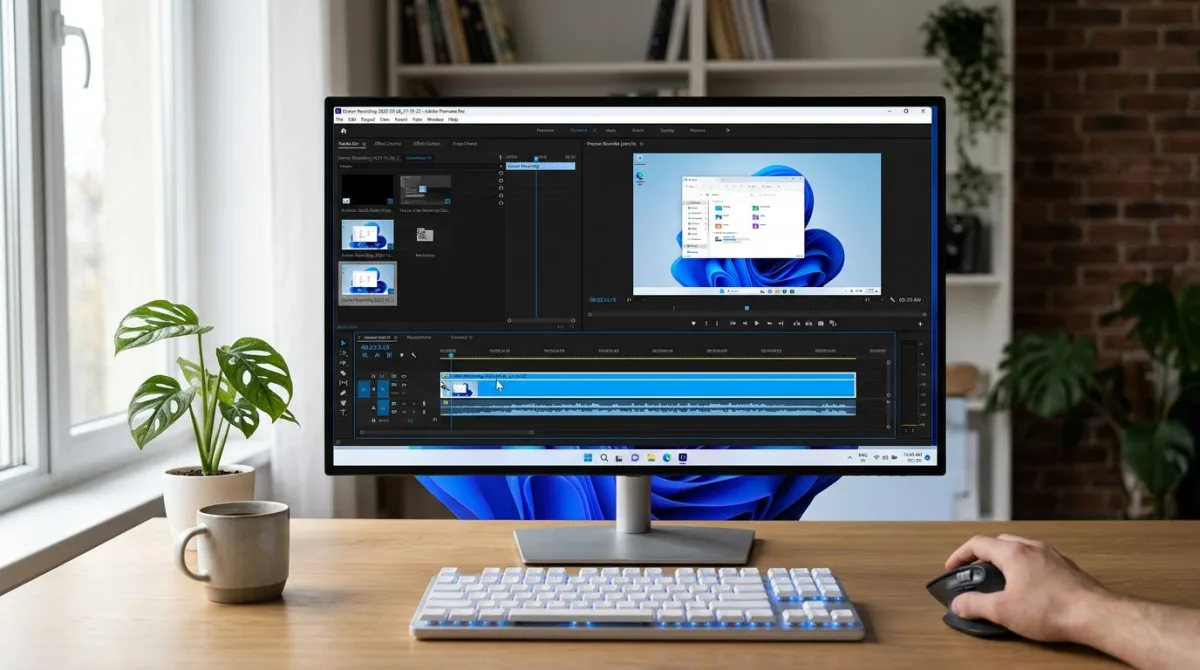
OBS Black Screen on Windows: 8 Fixes (2026)
# OBS Black Screen on Windows? 8 Fixes That Actually Work (2026)
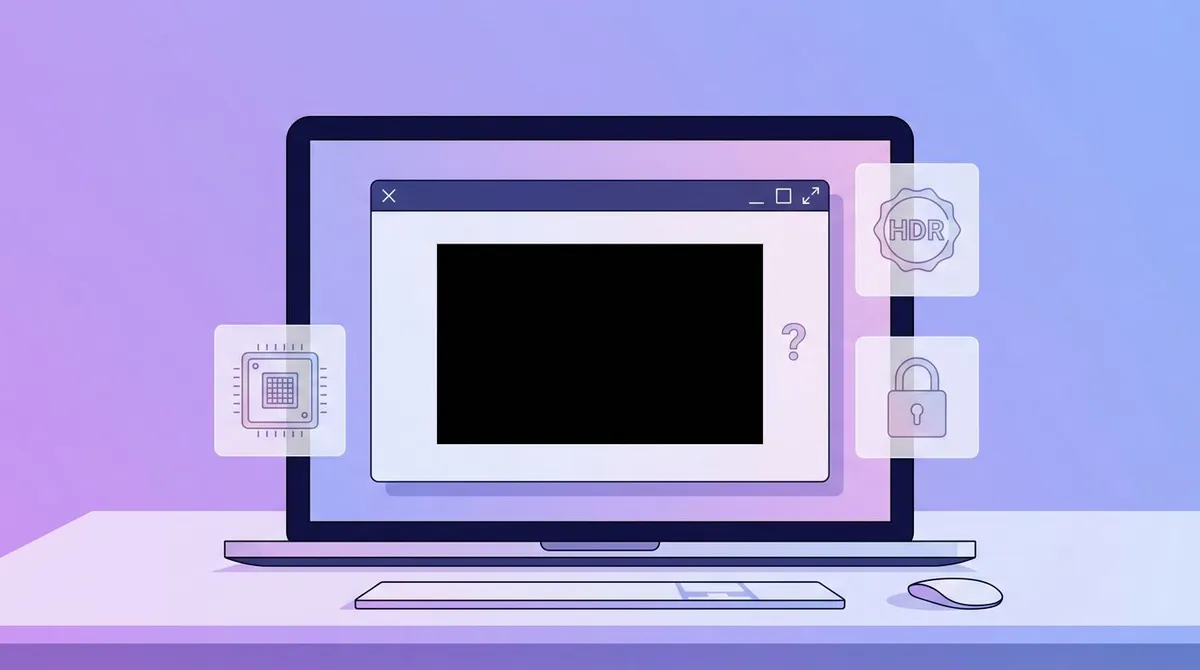
You hit Start Recording in OBS Studio. The preview goes black. No error. Just a black box where your screen should be. The OBS black screen bug is the top-reported issue in OBS forums, and it comes down to three root causes: GPU switching, permission levels, or the wrong capture source.
Good news: you can fix this in under five minutes. This guide walks through eight proven fixes in the order you should try them. Start with Fix 1, then move down.
Why OBS shows a black screen on Windows
OBS uses DirectX and the Windows Desktop Duplication API to grab frames from your screen. Three things can block that grab:
- GPU mismatch. Most Windows laptops have two GPUs: a low-power Intel chip and a high-power NVIDIA or AMD card. OBS runs on one, your app runs on the other, and Windows hides the other GPU's output. Result: black screen.
- Permission level. If OBS runs as a plain user, it can't see admin-elevated apps. This hits Task Manager, some games, and UAC-protected windows.
- Wrong capture source. OBS has three capture types: Display Capture, Window Capture, and Game Capture. Pick the wrong one and you get black.
DRM-protected content (Netflix, Disney+) also shows as black by design. Everything else on this list is fair game.
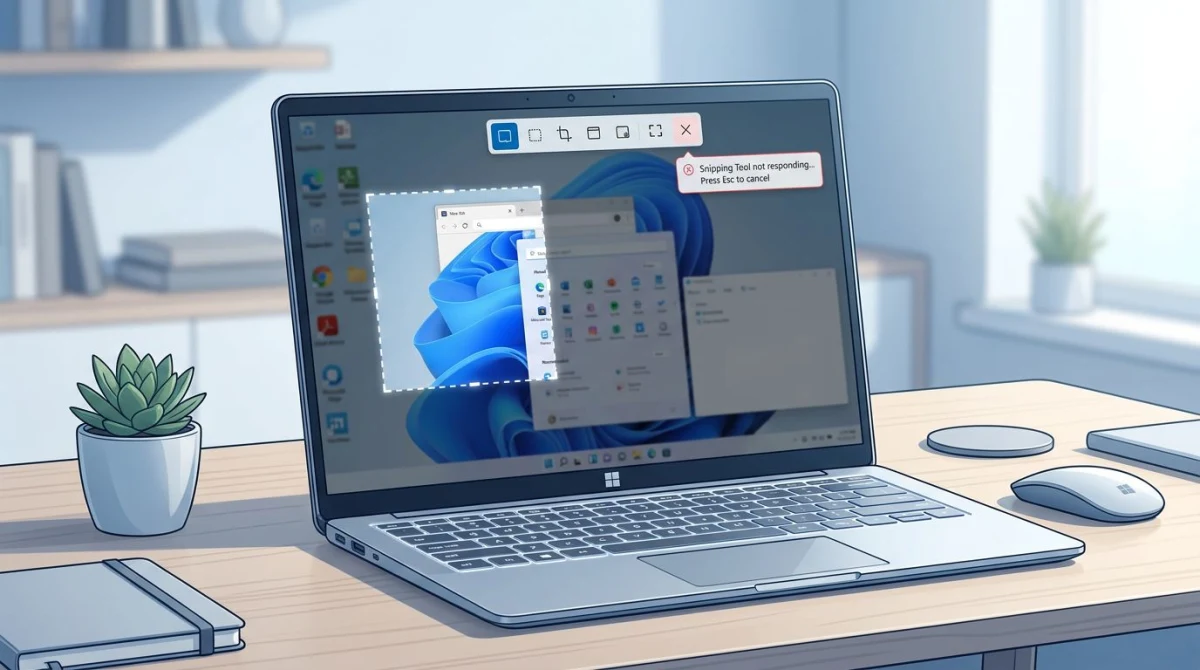
If plain screenshots come out black as well, and not only OBS, the cause list is a bit different. Start with why a screenshot comes out black.
Fix 1: Run OBS as administrator
This is the fastest fix and it solves about 30% of black screen cases. Many Windows apps run with elevated permissions by default. If OBS is a plain user-level app, it can't see them.
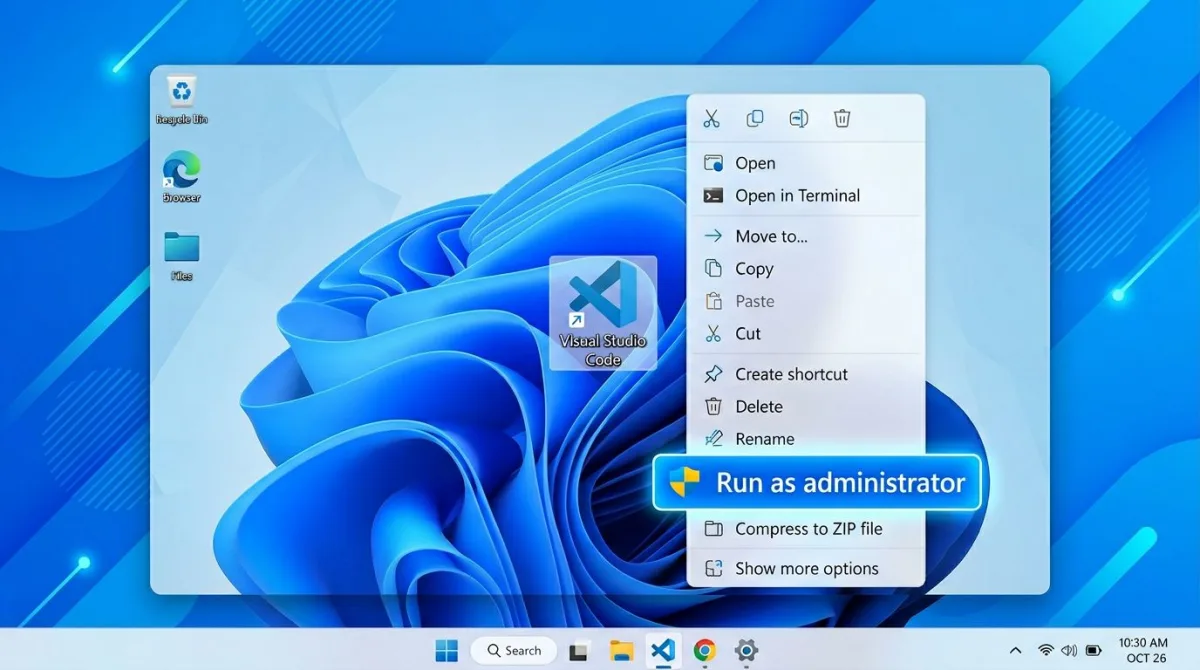
Here is how to run OBS as admin on Windows 11 (and Windows 10):
- Close OBS if it is open.
- Find the OBS Studio shortcut on your desktop or in the Start menu.
- Right-click it and pick Run as administrator.
- Click Yes on the UAC prompt.
- Open your scene and check the preview.
To make this permanent, right-click the shortcut, pick Properties, go to the Compatibility tab, and tick Run this program as an administrator. Click OK. OBS will now ask for admin rights every launch.
Still black? Move to Fix 2.
Fix 2: Switch between Display Capture and Game Capture
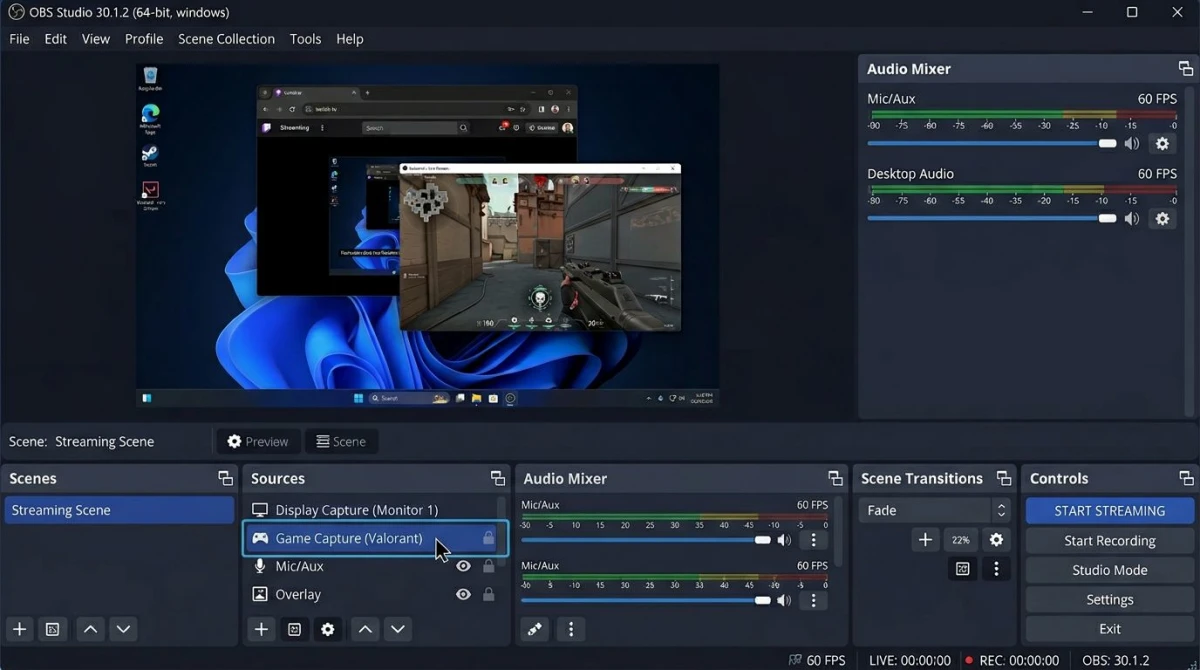
OBS has three source types that each use a different method. If one fails, another often works.
- Display Capture grabs the whole monitor. Fastest, but fails on multi-GPU laptops.
- Window Capture grabs one specific window. Good for browsers and apps. Fails on some games.
- Game Capture hooks into DirectX or Vulkan games. Best for fullscreen games. Fails on anything not running a 3D API.
To switch sources:
- In OBS, right-click your current source in the Sources panel.
- Pick Remove (your scene layout stays).
- Click the + button under Sources.
- Add a different type. If Display Capture was black, try Game Capture. If Game Capture was black, try Window Capture.
- In the source properties, pick the right window or game from the dropdown.
- Click OK and check the preview.
Rule of thumb: Game Capture for fullscreen games, Window Capture for browsers and apps, Display Capture for the whole desktop.
Fix 3: Change GPU in Windows graphics settings
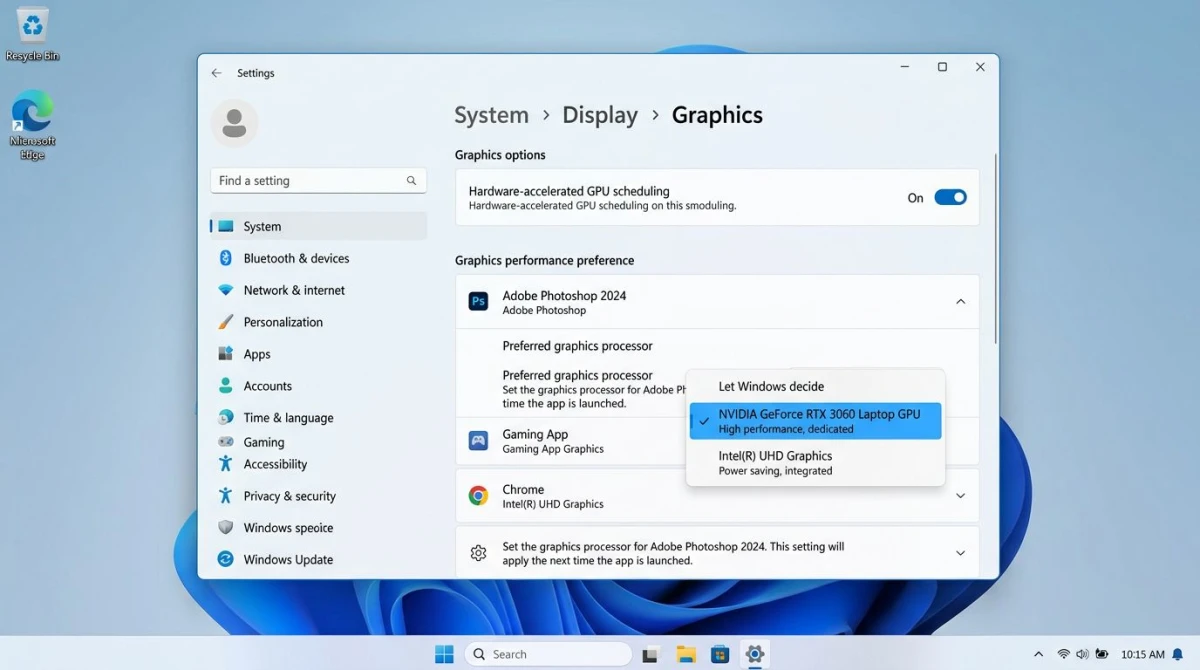
This is the fix for multi-GPU laptops. It solves most "Display Capture works but Game Capture is black" cases (and the reverse). Force OBS to run on the same GPU as the app you are capturing.
Here is how to set the GPU for OBS on Windows 11:
- Press Win + I to open Settings.
- Go to System > Display > Graphics.
- Click Browse and pick the OBS64.exe file (usually in
C:\Program Files\obs-studio\bin\64bit\). - Click Options on the OBS entry in the list.
- For Display Capture to work, pick Power saving (integrated GPU).
- For Game Capture to work, pick High performance (dedicated GPU).
- Click Save.
- Restart OBS and check the preview.
On Windows 10, the path is Settings > System > Display > Graphics settings. Same choices after that.
You cannot capture both types at once on a laptop. For tutorials that mix a game and browser, record in two passes or use a simpler tool like ScreenSnap Pro that handles GPU switching for you.
Fix 4: Disable hardware acceleration in Chrome or Edge
If OBS shows black only when you try to capture a browser window, the cause is almost always hardware acceleration. Modern browsers use your GPU to render pages. This makes scrolling smooth but hides the window from OBS Window Capture.
Here is how to turn it off in Chrome (Edge uses the same path under Settings > System and performance):
- Open Chrome and click the three-dot menu (top right).
- Pick Settings > System.
- Toggle off Use hardware acceleration when available.
- Click Relaunch, then switch to OBS and check the preview.
The downside: pages may feel slightly slower and videos may use more CPU. Turn it back on after recording. Or use Display Capture (which does not need hardware acceleration off) or one of the free screen recorders for Windows that work around this automatically.
Fix 5: Use the "Capture third-party overlays" option
Discord, Steam, NVIDIA GeForce Experience, and MSI Afterburner all run overlays that block OBS from seeing the window behind them. Result: a black box in the middle of your capture, or a fully black preview.
OBS has a fix built in. In Game Capture properties, tick Capture third-party overlays (such as Steam). In Display Capture, tick Allow transparency.
- In OBS, right-click your capture source.
- Pick Properties.
- Find the checkbox Capture third-party overlays or Allow transparency.
- Tick it.
- Click OK and check the preview.
Still black? The overlay app might need to close. Exit Discord, Steam, or GeForce Experience overlays and try again.

Tired of plain screenshots? Try ScreenSnap Pro.
Beautiful backgrounds, pro annotations, GIF recording, and instant cloud sharing, all in one app. Pay $39 once, own it forever.
See pricing and featuresFix 6: Update your GPU drivers
Old GPU drivers cause many black screen issues on Windows 11, especially after a big Windows update.
- NVIDIA: Open GeForce Experience, click Drivers, hit Check for updates, install, reboot.
- AMD: Open AMD Software: Adrenalin Edition, click Drivers & Software, pick Check for Updates, install, reboot.
- Intel: Download the Intel Driver and Support Assistant from intel.com, run it, install, reboot.
After the reboot, open OBS and test. If the black screen is gone, the fix is permanent. If not, move to Fix 7.
Fix 7: Try Window Capture instead
If Display Capture and Game Capture both fail, Window Capture often works. It uses a different Windows API (BitBlt or WGC, short for Windows Graphics Capture) that bypasses most GPU issues.
- Click the + under Sources in OBS.
- Pick Window Capture, name it, click OK.
- Pick your target window from the Window dropdown.
- Under Capture Method, try Windows 10 (1903 and up), the WGC method.
- Tick Capture Cursor if you want the mouse shown, then click OK.
WGC (Windows 10 1903+) fixes many black screen bugs that hit the old BitBlt method. If WGC fails, switch to BitBlt (Windows 7 and up). One of the two usually works.
Heads up: Window Capture shows a small yellow border around the captured window in some Windows 11 builds. You can turn it off under Settings > Privacy & Security > App permissions. For a cleaner capture out of the box, check our guide to screen recording on Windows.
Fix 8: If nothing works, try a simpler tool
OBS is powerful but it is a lot. If seven fixes in and your preview is still black, you may not need OBS at all. For tutorials, bug reports, or short recordings, simpler tools just work without the setup.
Three solid OBS alternatives for Windows that avoid the black screen trap:
- ScreenSnap Pro. Windows and Mac. Captures screenshots, GIFs, and video with one shortcut. Handles GPU switching for you. $39 one-time, 500+ gradient backgrounds, 15 annotation tools.
- ShareX. Free and open source. Windows only. Best for power users who want macros and custom workflows.
- Xbox Game Bar. Built into Windows. Press Win + G to open. Records games and most apps. Free.
For a full rundown, see our OBS Studio alternatives for Windows guide.
Quick comparison: which fix to try first
| Fix | Best for | Time | Success rate |
|---|---|---|---|
| Run as admin | UAC-protected windows | 30 sec | 30% |
| Switch capture type | Wrong source chosen | 1 min | 25% |
| Change GPU | Laptop with two GPUs | 2 min | 20% |
| Disable hardware accel | Browser capture | 2 min | 10% |
| Third-party overlays | Discord, Steam, Afterburner | 30 sec | 5% |
| Update GPU drivers | After a Windows update | 10 min | 5% |
| Window Capture (WGC) | When all else fails | 1 min | 3% |
| Try a simpler tool | Any | 5 min | Always works |
Start at the top and move down. Most users fix the issue by Fix 3.
Bonus tip: edit your screenshots after capture
Once OBS works again, you often want to mark up a frame before sharing. Blur a password, circle a button, add a step counter. You can edit your screenshots on Windows with free tools, or crop a screenshot on Windows to focus on one detail. ScreenSnap Pro bundles both plus a partial screenshot tool for Windows.
You can also compress images online for free before sharing in Slack or email.
Frequently Asked Questions
Final thoughts
The OBS black screen on Windows is annoying, but it is almost always one of eight fixes. Start with Run as administrator. If that fails, switch capture types. If that fails, change your GPU. By Fix 3, most users are up and running.
If you keep hitting walls with OBS and you mostly record tutorials or bug reports, a simpler tool saves hours. ScreenSnap Pro captures screenshots, GIFs, and video with one shortcut on Windows and Mac: $39 one-time, no scenes, no encoder menus. Lifetime updates, 30-day money-back, license for two computers.
Pick the fix that matches your setup and get back to recording.

Morgan
Indie DeveloperIndie developer, founder of ScreenSnap Pro. A decade of shipping consumer Mac apps and developer tools. Read full bio
@m_0_r_g_a_n_