The Pay-Once Loom Alternative
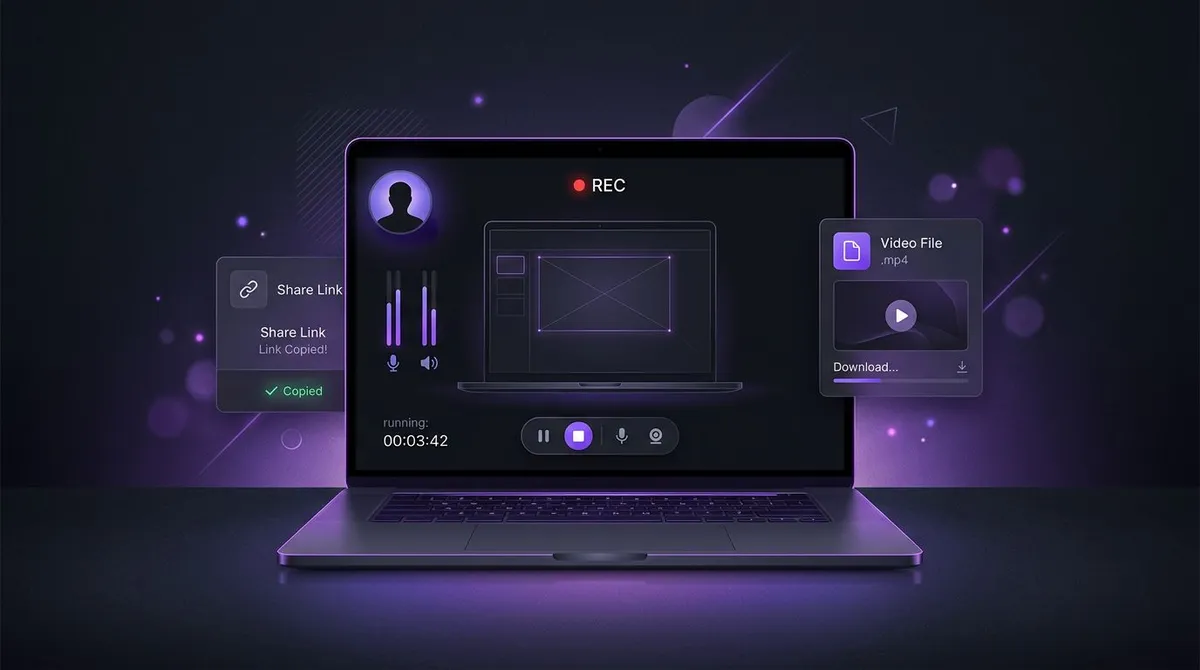
ScreenSnap Pro records your screen with webcam, microphone, and system audio, saves the file on your computer, and hands you an instant private share link. $34 once, no per-user monthly fees, no 5-minute cap, no video quota.
Why people go looking for Loom alternatives
Let's be fair to Loom: it is a genuinely good product. Async video with a shared team library, comments, and viewer analytics changed how a lot of teams communicate. If that describes how your company works, Loom earns its keep.
The friction shows up when you are an individual, a freelancer, or a small team. The free plan caps you at 25 videos of 5 minutes each. Going past that means a per-user monthly subscription that keeps billing whether you record forty videos that month or one. And your recordings live in Loom's cloud library rather than on your own machine.
ScreenSnap Pro takes the opposite deal. You pay $34 one time and record as much as you want, for as long as you want. Every video is a regular file on your disk, and when you need the Loom-style magic link, one click uploads a copy and gives you a private cloud URL. On top of that you get an entire screenshot toolkit that Loom simply does not have: annotation, gradient backgrounds, GIF recording, and OCR.
Want the wider survey first? We keep an honest roundup of free Loom alternatives on the blog, including tools that beat us on price because they cost nothing.
What this Loom alternative actually does
Everything below ships in the app today. No feature gates, no upsell tiers, no watermarks on anything you capture.
Screen recording with webcam, mic, and system audio
Record a region, a window, or your full screen as video. Add your webcam bubble, narrate over the microphone, and capture system audio so app sounds and call audio make it into the recording.
Straight-to-GIF recording
Record your screen directly as a GIF, no video conversion step. Perfect for bug reports, pull requests, and docs where an autoplaying loop beats a video link.
Screenshots with 15 annotation tools
Capture a region, window, or full screen, then mark it up with arrows, shapes, text, highlighter, step counters, emojis, and blur or pixelate for anything sensitive. Loom does not do screenshots at all.
500+ gradient backgrounds
Wrap any capture in a polished gradient background with one click. Marketing pages, social posts, and changelogs stop looking like raw screen grabs.
OCR text extraction
Copy text out of any screenshot or image, including error dialogs, PDFs, and content you cannot select. One shortcut, text on your clipboard.
Instant private share links, files stay yours
Every capture is saved as a normal file on your computer. When you want to share, one click uploads a copy and puts a private cloud link on your clipboard. The cloud is optional, so everything works offline too.
How to record with a screen recording tool like Loom
The workflow will feel familiar within a minute of switching. Here is the whole loop, from install to shared link.
Install ScreenSnap Pro on Mac or Windows
Get ScreenSnap Pro and open it. It lives in your menu bar or system tray, so recording is one shortcut away instead of a browser tab away.
Pick what to record and switch on your sources
Choose a region, a window, or the full screen, then toggle the webcam overlay, microphone, and system audio as needed. That is the same recording setup people use Loom for.
Record, then stop when you are done
There is no 5-minute ceiling and no monthly video quota. When you stop, the video is written to your own disk as a regular file you can keep, rename, or archive.
Share a private link or send the file
Hit share and a private cloud link is copied to your clipboard, ready for Slack, email, or a ticket. Prefer full control? Just send the file itself, it is already on your machine.
Before an important recording, it is worth a ten-second check of your gear with our free webcam test and microphone test. On a Mac, capturing app sound has some OS quirks; our guide to screen recording with audio on Mac covers them.
Loom vs ScreenSnap Pro: an honest comparison
These are different products with overlapping cores. Loom is async team video with a workspace around it. ScreenSnap Pro is a capture toolkit you own. The table calls both out plainly.
| ScreenSnap Pro | Loom | |
|---|---|---|
| Pricing | $34 one time | Per user, per month subscription |
| Free tier limits | No free tier, 30-day money-back guarantee | 25 videos, 5 minutes each |
| Recording length | Unlimited | 5 min on free, longer on paid plans |
| Where videos live | Your disk, plus optional private cloud links | Loom's cloud library |
| Webcam + mic + system audio | Yes | Yes |
| GIF recording | Yes, screen straight to GIF | No |
| Screenshots + 15 annotation tools | Yes | No |
| OCR text extraction | Yes | No |
| Gradient backgrounds | 500+ | No |
| Watermarks | Never | None on recordings |
| Team library, comments, viewer analytics | No | Yes, this is Loom's core strength |
| Platforms | macOS and Windows | macOS, Windows, web, mobile |
Loom details reflect its published plans as of mid 2026 and may change.
What about Cap and Screen Studio?
Two other names come up in every apps-like-Loom thread. Cap is an open source recorder with a slick interface; its instant-link cloud sharing sits behind a subscription, and it is a video tool only, with no screenshot or annotation side. Screen Studio makes the most beautiful product demos in the business thanks to automatic zooms and smooth cursor motion, but it is Mac only, costs noticeably more, and is really a video production tool rather than a daily capture utility. We wrote up the contrast in Screen Studio vs Loom.
Hunting by platform instead? See our roundups of Loom alternatives for Mac and Loom alternatives for Windows.
When Loom is the better fit
Honesty cuts both ways. If your team runs on a shared video library, needs viewer analytics to see who watched what, or lives in the comments and emoji reactions under each video, stay with Loom, that workspace layer is the product and we do not build one. The same goes if you record from a phone or a browser tab on a locked-down machine. Comparing team-video suites against each other instead? Our Loom vs Vidyard breakdown covers that matchup.
Pricing: $34 once vs a subscription that never ends
Loom Business is about $150 per creator per year on annual billing. ScreenSnap Pro is$34, full stop. Here is how a single seat compares over time.
| ScreenSnap Pro | Loom Business, 1 seat | |
|---|---|---|
| Year 1 | $34 | ~$150 |
| Year 2 | $34 total, nothing new to pay | ~$300 |
| Year 3 | $34 total, still nothing | ~$450 |
- $34 one-time purchase, no subscription, ever
- One license with 2 seats, activate on 2 computers
- Mac and Windows in any combination on the same purchase
- Lifetime updates included
- 30-day money-back guarantee, no questions asked
Full details, including what the optional cloud does, are on the pricing page.
Loom alternative FAQ
Is ScreenSnap Pro a free Loom alternative?
No, and we would rather be upfront about that. ScreenSnap Pro costs $34 as a one-time purchase with no subscription afterwards. Unlike Loom's free plan there is no 5-minute recording cap, no 25-video library limit, and no watermarks, and there is a 30-day money-back guarantee if it is not for you.
What can ScreenSnap Pro do that apps like Loom cannot?
ScreenSnap Pro is a full capture toolkit, not only a video recorder. Alongside screen recording with webcam, microphone, and system audio, it takes screenshots of a region, window, or full screen, annotates them with 15 tools, adds 500+ gradient backgrounds, records GIFs directly, and extracts text from any image with OCR. Loom does not offer screenshots, annotation, GIF capture, or OCR.
How does Loom vs ScreenSnap Pro pricing compare over time?
Loom Business runs roughly $150 per creator per year on annual billing, which is about $450 over three years for a single seat. ScreenSnap Pro is $34 once and includes one license key with 2 seats, so you can activate it on 2 computers in any mix of Mac and Windows, with lifetime updates and a 30-day money-back guarantee.
Where do my recordings live with this screen recording tool like Loom?
Every recording is saved as a normal video file on your own computer, so it is yours to keep, move, or archive. When you want to share, ScreenSnap Pro uploads a copy and gives you an instant private cloud link. The cloud is optional and can be disabled, so the app works fully offline too.
Does this Loom alternative work on both Mac and Windows?
Yes. ScreenSnap Pro runs natively on macOS and on Windows 10 and 11, and one purchase covers both platforms. Your license has 2 seats, so you can activate one on a Mac and the other on a Windows PC. It does not run on Linux or on mobile devices.
When is Loom the better choice?
If your team needs a shared video library, viewer analytics, transcripts, and comments or emoji reactions on videos, those workspace features are the point of Loom and ScreenSnap Pro does not try to replicate them. For individuals and small teams who mostly record, share a link, and move on, a pay-once tool is usually the better fit.
Stop renting your screen recorder
One payment of $34 gets unlimited recordings, GIFs, screenshots, annotation, and OCR on 2 computers, Mac or Windows, backed by a 30-day money-back guarantee.