Best Loom Alternatives for Mac (2026): 9 Picks
# Best Loom Alternatives for Mac in 2026 (Mac-Native Picks, $39 to Free)
The best Loom alternative Mac users can grab in 2026 are Screen Studio for polished demos, Tella for browser-based async video, CleanShot X for fast quick-record and sharing, QuickTime Player for zero-cost basics, and ScreenSnap Pro ($39 one-time) if you also need screenshots, GIFs, and annotations in one app. Skip Loom's $15/month plan if any of these fit.
We picked these tools because they feel native on macOS. No Electron lag. Apple Silicon support. Most use Apple's ScreenCaptureKit API for smooth, low-CPU capture on macOS 13 and later. That matters when you record three demos a day on a MacBook Air and want the fans to stay quiet.
Why look for a Loom alternative on Mac
Loom works on Mac, but a few real pain points push people to look elsewhere:
- Subscription fatigue. Loom Business is $15 per seat per month. That's $180 a year, forever, for each person on your team.
- 5-minute cap on Loom Free. The free plan stops you mid-demo. Almost no other tool does this.
- You don't own your recordings. Videos live on Loom's servers. If your account lapses, your library goes too.
- The Loom desktop app on Apple Silicon is fine, not great. It's an Electron build. Mac users with Apple Silicon Macs have crisper, native options.
- Privacy and on-device recording. Regulated industries (health, legal, finance) often can't ship raw screen video to a third-party cloud.
If any of those hit home, this guide is for you. We tested every tool below on macOS Sequoia and Sonoma, on both M-series and Intel Macs.
Loom alternative Mac picks at a glance
| Tool | Price | Mac-Native | Webcam Bubble | Instant Share Link | Editing | Best For |
|---|---|---|---|---|---|---|
| ScreenSnap Pro | $39 one-time | Yes (Universal) | Yes | Yes | Light | Screenshots + GIFs + recording in one |
| Screen Studio | $149 one-time | Yes (Mac-only) | Yes | No | Strong (auto-zoom) | Polished product demos |
| Tella | $19/mo | Yes (M-series) | Yes | Yes | AI editing | Async messaging with polish |
| CleanShot X | $29 one-time | Yes (Mac-only) | Yes | Yes (Cloud add-on) | Light | Fast record-and-share |
| QuickTime Player | Free | Yes (built-in) | No | No | None | Bare-bones screen capture |
| Zight | Freemium | Mac app | Yes | Yes | Light | Cloud-first sharing |
| OBS Studio | Free | Yes (Universal) | Yes | No | Manual | Streamers and power users |
| Vidyard | Freemium | Browser + Mac app | Yes | Yes | Light | Sales and outbound video |
| Descript | $19/mo | Yes (Universal) | Yes | Yes | Heavy AI | Edit-by-text workflow |
The 9 best Loom alternatives for Mac (2026)
1. ScreenSnap Pro: the $39 Swiss Army knife for Mac creators
- Price: $39 one-time. License covers Mac and Windows.
- Platforms: macOS (Apple Silicon native) and Windows.
- Why it beats Loom on Mac: One purchase covers screen recording (video), GIF capture, screenshots, webcam, system audio, and 15 annotation tools. The optional cloud share is on by default but can be turned off for local-only work. Loom does only async video, charges $180 a year, and has no screenshot tool.
- Limitations: Honest call: this is not a Loom clone. No auto-zoom on cursor. No in-video AI summaries. No transcript editing.
- Best for: Mac users whose Loom usage is mostly short clips, GIFs, and screenshots rather than 20-minute polished demos. Devs, designers, and PMs who want one app for everything visual.
You'll also get 500+ gradient backgrounds and OCR text extraction in the same app. That last one alone has saved us hours of retyping text from PDFs and locked content.
2. Screen Studio: polished cinematic demos
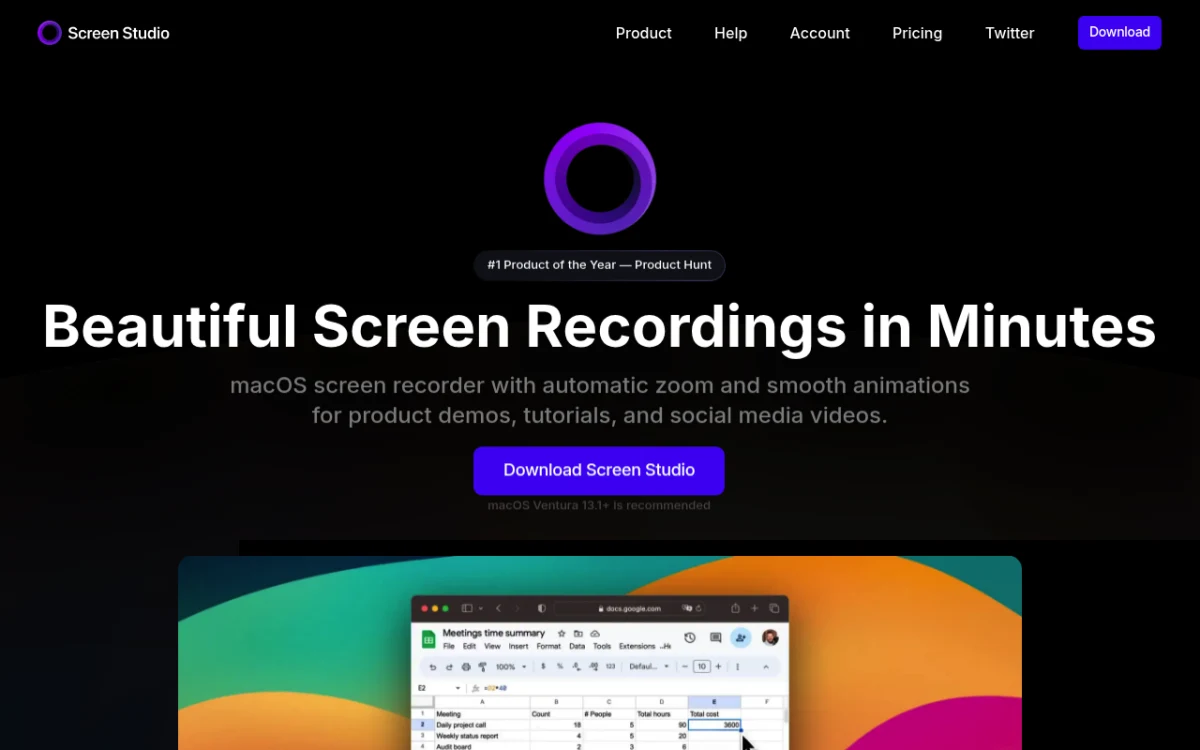
- Price: $149 one-time.
- Platforms: Mac-only. Apple Silicon native.
- Why it beats Loom on Mac: Auto-zoom on cursor, mouse smoothing, broadcast-grade export. Recordings look like polished marketing videos with zero editing skill required. Loom can't touch this output quality.
- Limitations: No instant share link, so you export an MP4. No webcam bubble overlay during editing in the same fluid way Loom does it. Higher upfront cost.
- Best for: Product demos, landing-page videos, marketing tutorials. We have a deeper breakdown in our Screen Studio vs Loom comparison.
If you want the Screen Studio output style but with more flexibility on price, we also list a few options in our Screen Studio alternatives for Mac roundup.
3. Tella: browser-based async video with polish
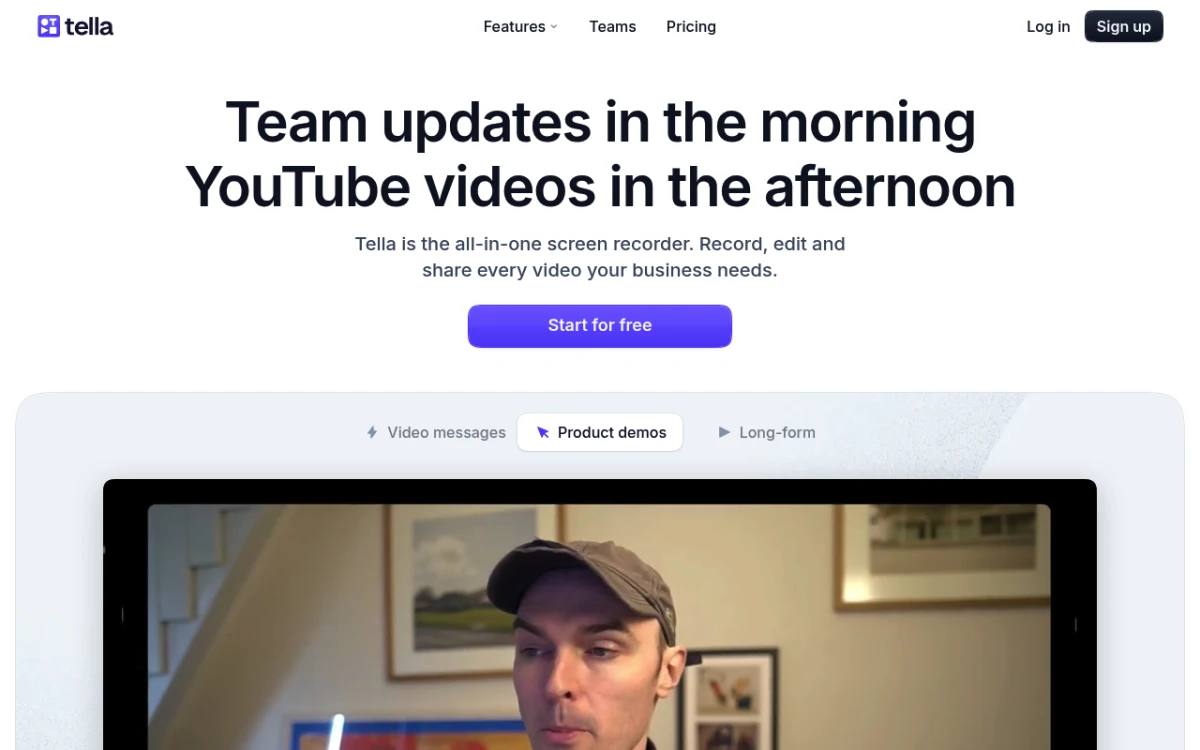
- Price: $19/month or $190/year. Free plan with limits.
- Platforms: Mac desktop app plus web browser. Apple Silicon supported.
- Why it beats Loom on Mac: Multi-layout templates (split-screen, picture-in-picture, side-by-side). Instant share links like Loom, but with built-in AI editing that trims filler words and silence. The polish is closer to Screen Studio while keeping the share workflow Loom users expect.
- Limitations: Subscription pricing. No native screenshot tool. Cloud-first design, so recordings live on Tella's servers.
- Best for: Founders, marketers, and customer-success teams who want async messaging that doesn't look amateur.
4. CleanShot X: fast record-and-share for the Setapp crowd
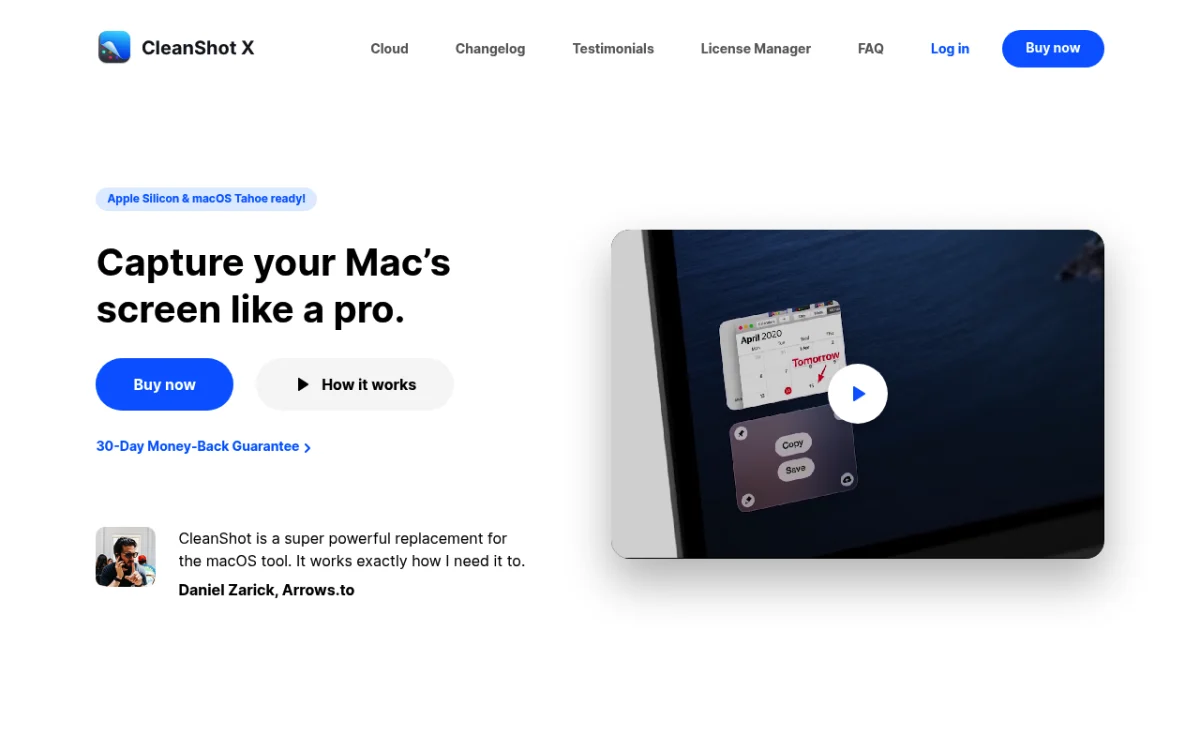
- Price: $29 one-time. Optional CleanShot Cloud at $8/month for cloud sharing.
- Platforms: Mac-only. Apple Silicon native.
- Why it beats Loom on Mac: Fast hotkey-driven workflow. Record a quick clip, drop it on someone's screen via a link. Also does scrolling captures and OCR. Already lives on a lot of Mac dev laptops via Setapp.
- Limitations: Cloud is a paid add-on. Less suited for long-form recordings, since it's built for short clips.
- Best for: Mac devs and designers who already use it for screenshots and want recording in the same app. We compare it to other Mac options in our best CleanShot X alternative guide.
5. QuickTime Player: free and built-in
- Price: Free. Ships with every Mac.
- Platforms: Mac-only. Built-in.
- Why it beats Loom on Mac: Zero cost. Zero install. Records the full screen or a region with mic audio. For about 80% of Loom use cases (quick screen clip, send it over), this is enough.
- Limitations: No webcam bubble. No instant share link. No annotation. No auto-zoom. System audio capture needs a workaround (BlackHole or similar virtual driver).
- Best for: Anyone on a tight budget. Students. One-off captures where polish doesn't matter. Walk through it step by step in our how to screen record on a MacBook guide.
QuickTime uses Apple's native capture stack, so it's lighter on CPU than any Electron app. That alone makes it worth keeping in your toolkit.
6. Zight (formerly CloudApp): cloud-first sharing
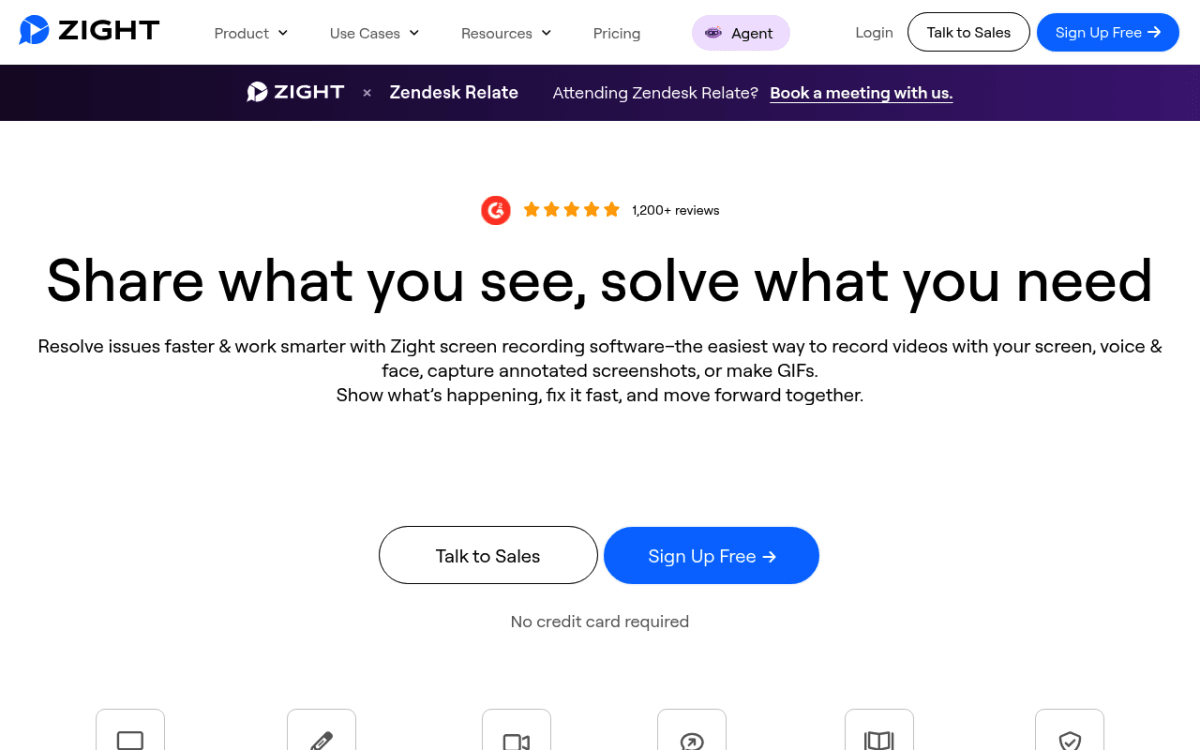
- Price: Free plan with limits. Paid plans from around $9.95/month.
- Platforms: Mac app, Windows app, browser extension.
- Why it beats Loom on Mac: Built around the cloud-share workflow. Record, get a link, paste it in Slack. Includes screenshots, GIFs, and recording in one app, which puts it closer to ScreenSnap Pro in scope, but on a subscription model.
- Limitations: Subscription only. The Mac app is an Electron build, so it feels a touch less native than CleanShot X. Recordings live on Zight's servers.
- Best for: Teams that want a centralized cloud library and don't mind subscriptions. Similar pitch to Droplr (which Zight now overlaps with).
7. OBS Studio: free, open source, power-user
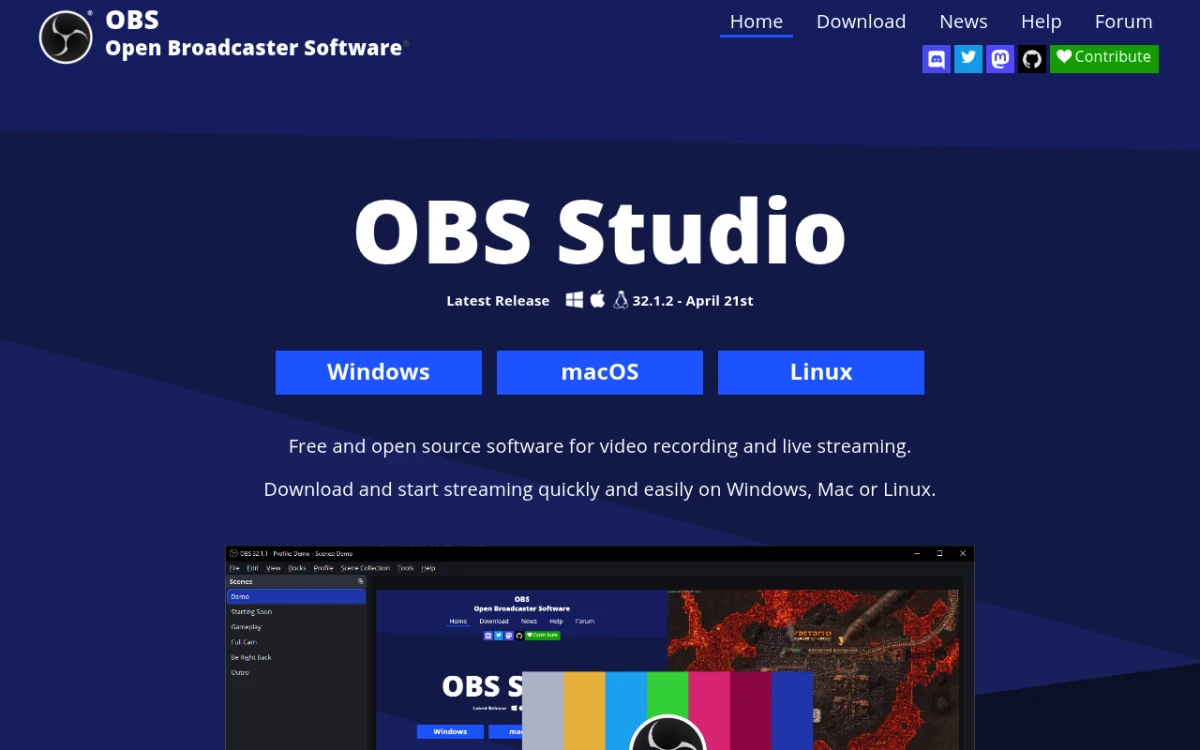
- Price: Free. Open source.
- Platforms: Mac (Universal), Windows, Linux. Native build for Apple Silicon.
- Why it beats Loom on Mac: Total control. Multiple scenes, sources, overlays, audio filters. Can stream to Twitch and YouTube in the same session. The native Mac build uses ScreenCaptureKit on macOS 13+, so quality is excellent.
- Limitations: Steep learning curve. No instant share link. No built-in editing. You'll watch a tutorial before recording your first clip.
- Best for: Streamers, advanced creators, and anyone doing live demos. Overkill for most async video.
8. Vidyard: sales-focused video on Mac
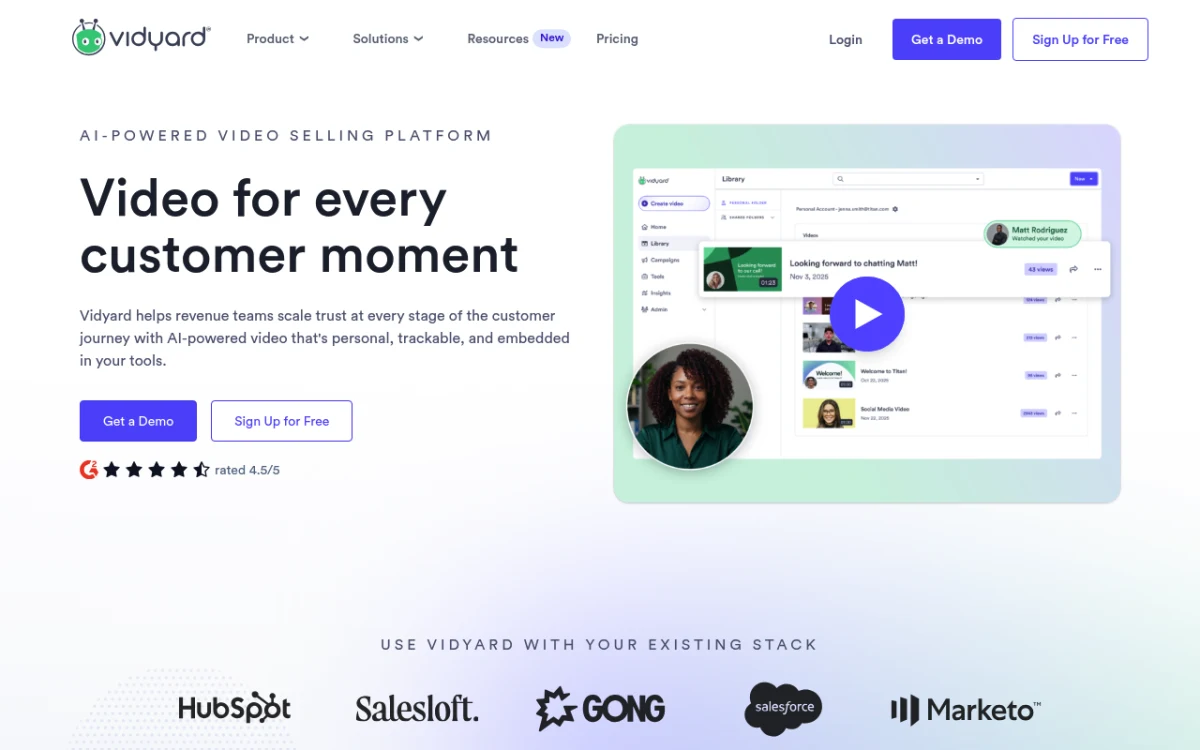
- Price: Free plan available. Paid plans from $19/month.
- Platforms: Browser extension, Mac desktop app, mobile.
- Why it beats Loom on Mac: Built for sales outreach. View tracking, viewer alerts, CRM hooks (HubSpot, Salesforce, Outreach). The free plan has more head room than Loom's for prospecting clips.
- Limitations: Not built for tutorials or polished demos. Editing is light. UI is Electron.
- Best for: SDRs, account execs, and customer-success teams sending personalized video at scale. We do a deeper feature-by-feature breakdown in Loom vs Vidyard.
9. Descript: edit-by-text and AI cleanup
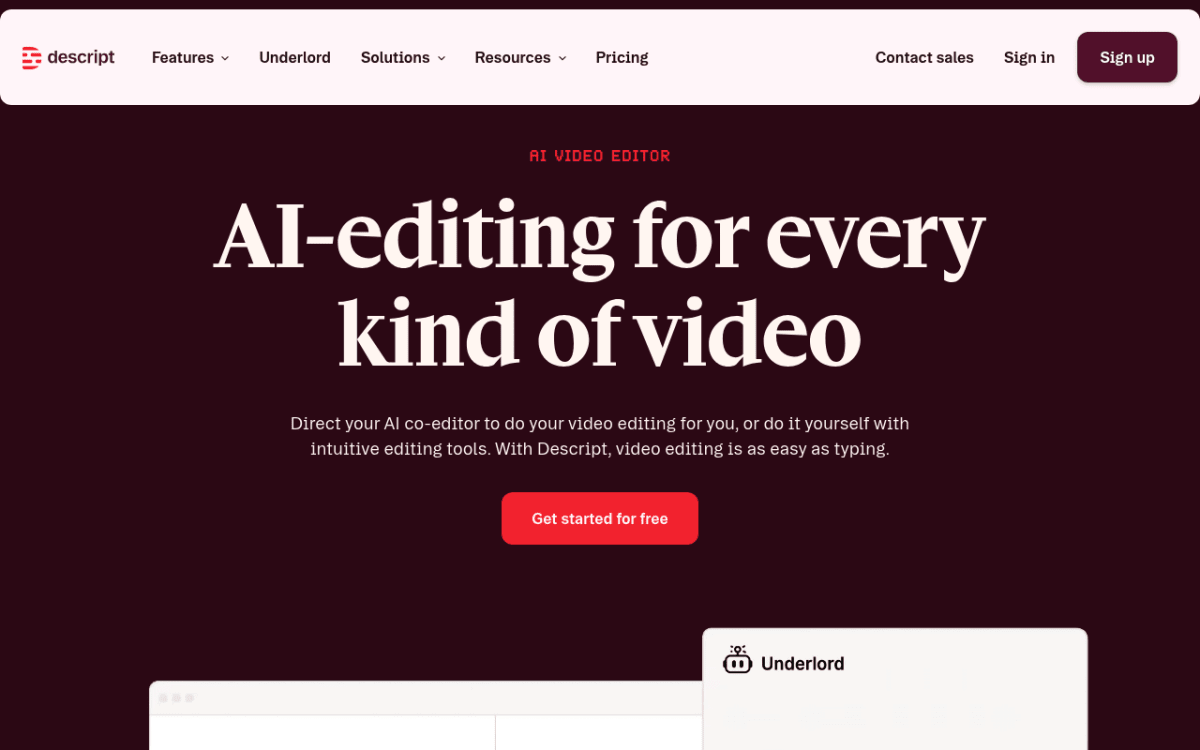
- Price: Free plan with limits. Creator plan $19/month.
- Platforms: Mac (Universal) and Windows.
- Why it beats Loom on Mac: Records, then lets you edit the video by editing the transcript. Filler-word removal in one click. Studio Sound cleans bad audio. AI voice cloning if you flub a line.
- Limitations: Subscription. AI features eat your monthly transcription quota fast. Heavier app than Loom, so not great for quick 30-second clips.
- Best for: Podcasters, course creators, and anyone who heavily edits before publishing. If most of your video time is post-production, Descript saves hours per video.
How to pick: a decision flow
No top SERP result has a decision section, so here's ours. Skim by use case:
- "I want polished demo videos for my landing page." → Screen Studio. Worth the $149.
- "I want fast async messaging with a Mac app." → Tella or CleanShot X. Pick Tella for AI editing, CleanShot X for one-time pricing.
- "I'm allergic to subscriptions." → ScreenSnap Pro ($39) or CleanShot X ($29). Both one-time. Both Mac-native.
- "I just need basic screen recording, no frills." → QuickTime Player. Free. Already on your Mac.
- "I do heavy post-edit and care about audio." → Descript. Edit-by-text is a different way of working.
- "I'm in sales and need view tracking." → Vidyard. Built for the sales motion.
- "I'm a streamer or do live demos." → OBS Studio. Free and powerful.
- "I want screenshots + GIFs + recording in one app for $39." → ScreenSnap Pro. That's the whole pitch.
Mac permissions cheat sheet
Every screen recorder on macOS needs a few specific permissions before it'll capture anything. Here's the short version, with the menu paths.
- Screen Recording permission. Open System Settings → Privacy & Security → Screen & System Audio Recording. Toggle on the app you just installed. Apple has the official permission guide if you get stuck.
- Camera permission. Same Privacy & Security pane, then Camera. Toggle the app on for webcam bubbles.
- Microphone permission. Same pane, then Microphone. Required for voiceover.
- Accessibility permission (optional). Some apps need this for global hotkeys. Privacy & Security → Accessibility.
- Restart the app. macOS often won't apply new permissions until you quit and relaunch.
A few extra things worth knowing:
- ScreenCaptureKit vs legacy capture. macOS 13 Ventura introduced ScreenCaptureKit, Apple's native screen recording API. Apps that use it (Screen Studio, CleanShot X, ScreenSnap Pro, OBS on macOS 13+) have better quality and lower CPU than older Electron apps that rely on the legacy capture path.
- Apple Silicon vs Intel. If you're on an M-series Mac, prefer apps with "Universal" or "Apple Silicon native" binaries. Rosetta 2 works, but native is cooler and quieter.
- System audio capture. macOS does not let apps capture system audio out of the box. Most tools above include a small driver to do it. QuickTime does not, so you'll need BlackHole or a similar virtual audio driver.

Tired of plain screenshots? Try ScreenSnap Pro.
Beautiful backgrounds, pro annotations, GIF recording, and instant cloud sharing, all in one app. Pay $39 once, own it forever.
See pricing and featuresCloud vs local recording: a privacy quick take
Loom is cloud-first. So is Tella, Vidyard, and Zight. Your recording uploads to a third-party server the moment you hit stop. That's great for instant share links. It's less great if you record customer data, internal roadmaps, or anything covered by HIPAA or SOC 2 controls.
Local-first options keep the file on your Mac until you choose to share it: Screen Studio, QuickTime, OBS, CleanShot X (without Cloud), ScreenSnap Pro (cloud is optional). Pick one of these if privacy is non-negotiable.
Cloud-first options save the file straight to the vendor's servers: Loom, Tella, Vidyard, Zight, Descript. Pick one of these if instant share links are non-negotiable.
The honest middle ground: ScreenSnap Pro and CleanShot X let you toggle cloud sharing on or off per recording. You get instant links when you want them, and on-disk-only when you don't.
Pricing math: a year with each tool
Loom Business is $180/year/seat. Here's what you'd pay for one year on each Mac alternative:
- ScreenSnap Pro: $39 total. Forever.
- CleanShot X: $29 total. ($96 if you add Cloud.)
- Screen Studio: $149 total. Forever.
- QuickTime Player: $0.
- OBS Studio: $0.
- Tella: $190/year.
- Vidyard Plus: $228/year.
- Descript Creator: $228/year.
- Zight Pro: ~$120/year.
The one-time tools (ScreenSnap Pro, CleanShot X, Screen Studio) pay for themselves in months one to three. After that, every year you keep Loom is money you didn't need to spend.
A small caveat for teams: the per-seat math gets steeper if you have 10 or 20 people. Ten seats of Loom Business is $1,800 a year. Ten copies of ScreenSnap Pro is ten times $39, paid once. Even if you bought three rounds of upgrades over five years, you'd still pay less than a single year of Loom for the same team.
What we tested on (and how we tested it)
A quick word on how we shortlisted the tools above:
- Hardware. A 16-inch MacBook Pro with the M3 Pro chip, plus an older Intel-based MacBook Air for the Apple Silicon vs Intel notes.
- OS. macOS Sequoia (15.x) and Sonoma (14.x), both fully patched.
- Workload. Three real recording tasks: a 30-second async clip for a teammate, a 90-second product walkthrough, and a 5-minute tutorial with webcam overlay.
- What we watched. CPU load (Activity Monitor), final file size, time from "stop recording" to "shareable link," and how the export looked on a 4K external monitor.
That's also why the article focuses on Mac-native tools. Apps that lean on ScreenCaptureKit ran cooler and exported faster than Electron-only builds. Battery life on the MacBook Air made the difference real.
Mac-only roundups worth bookmarking
A few more guides for Mac users shopping for capture and recording tools:
- Best screen recorder for Mac: broader roundup beyond async video.
- Free screen recorder for Mac: the no-budget angle.
- Best screenshot apps for Mac: sister category to recording.
- Screencast on Mac: how-to for educators and trainers.
Frequently Asked Questions
Final pick
If you want one Mac-native tool that handles screenshots, GIFs, and recordings on a one-time license, ScreenSnap Pro is the easiest call at $39. If you only record polished product demos, get Screen Studio. If you want async messaging with cloud share links and AI editing, Tella is the closest spiritual successor to Loom on Mac.
Whichever you pick, you'll save real money compared to a year of Loom, and your fans will thank you for ditching the Electron app.

Morgan
Indie DeveloperIndie developer, founder of ScreenSnap Pro. A decade of shipping consumer Mac apps and developer tools. Read full bio
@m_0_r_g_a_n_