




Screen recorder for Windows 10 & 11

ScreenSnap Pro is a screen recorder for Windows 10 and 11 that records the whole desktop, File Explorer included, with system audio, your mic and your webcam. Edit with auto zoom and export MP4 or GIF with no watermark. Pay $34 once.

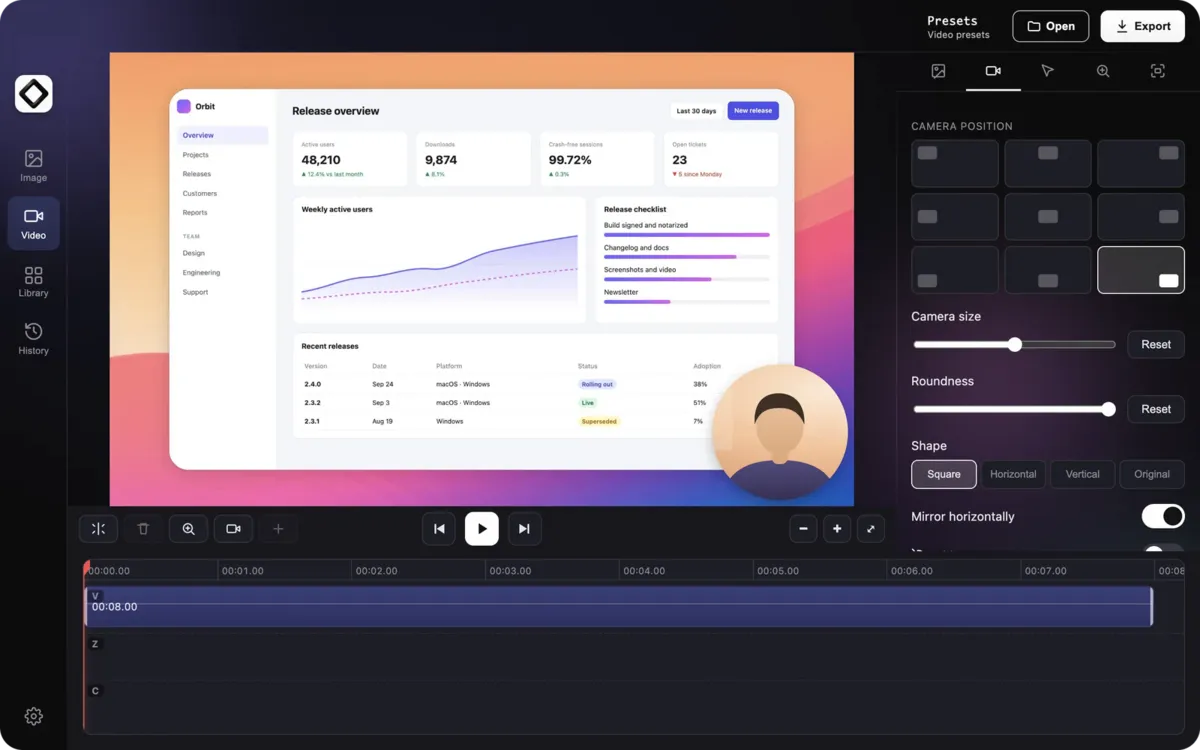
The ScreenSnap Pro video editor with a webcam overlay on a screen recording and the Camera settings

How it works

How to screen record on Windows with ScreenSnap Pro

From the system tray to a finished video in three steps, with no driver to install and no watermark.

  1. The ScreenSnap Pro recording controls on Windows: a timer with a red dot, Stop and save, Pause, Restart and Delete

    Record

    Right-click the ScreenSnap Pro icon in the system tray and choose “Record Screen”. Turn on “System audio”, a microphone or a camera, then click “Display” or “Area”. After a 3-second countdown, a small bar shows the timer, pause, restart and delete.

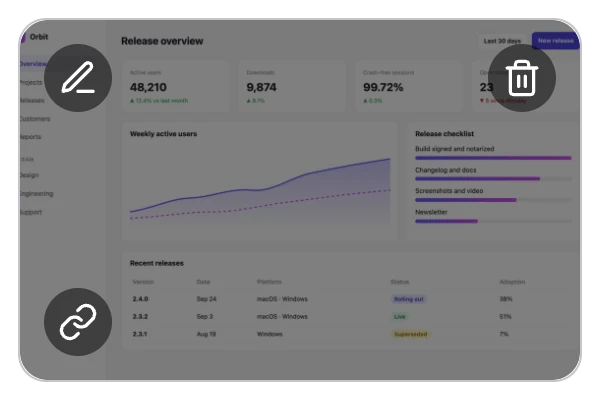
  2. The Quick Preview of a finished recording with buttons to open the video editor, delete the recording and create a link

    Edit

    Click the timer or the red square to stop and save. Click the Quick Preview thumbnail to open the video editor, where zoom-ins are already placed and you can trim, split, speed up or remove silence.

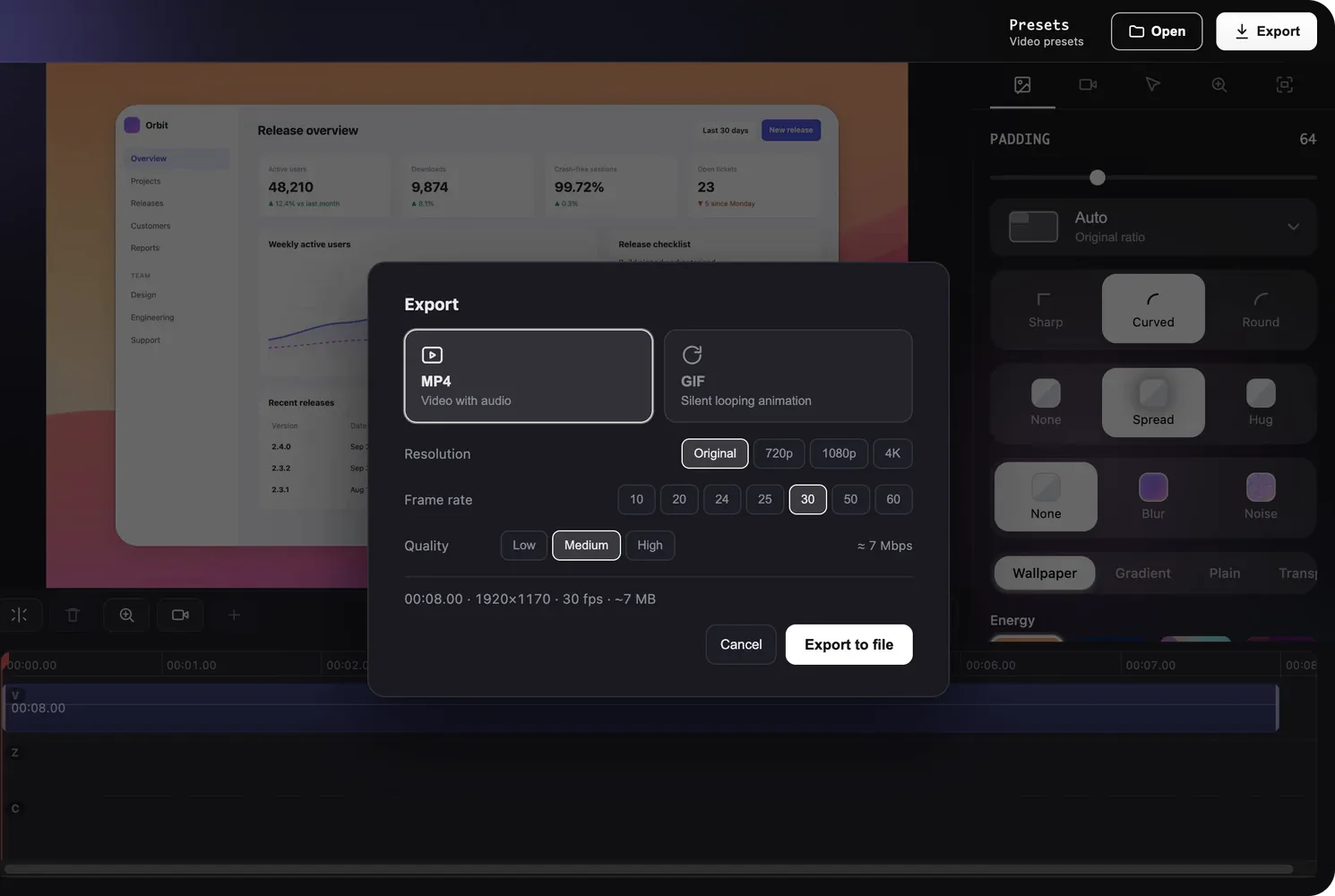
  3. The video Export dialog with MP4 and GIF formats and the resolution, frame rate and quality options

    Share

    Click “Export” and choose MP4 or GIF, the resolution and the quality. In a hurry? Click “Create Link” on the thumbnail to upload an MP4 and paste an unlisted link into a chat or a ticket.

Record

Record the desktop, File Explorer and every app

A Windows screen recorder for everything on your PC: a whole display or an area you drag, on any monitor, started from the tray or from your own keys.

  • The whole desktop and File Explorer

    Xbox Game Bar records one app at a time, not the desktop or File Explorer. ScreenSnap Pro records whatever is on the screen: the desktop, File Explorer, your browser and every app.

  • Display or Area

    Click “Display” to record a whole screen, or “Area” and drag over the part you need. Everything outside the area is dimmed while you record.

  • Pick a monitor

    With several monitors, click “Display”, then the screen you want (“Click to record this display”). The “Record Screen” shortcut takes the one under your pointer.

  • Dim Recording Display Only

    The dimming is never part of your video. Turn on “Dim Recording Display Only” in Settings > Screen Recording to leave your other monitors untouched.

  • Controls kept out of the video

    The bar with the timer, pause, restart and delete stays on screen but out of the recording. So does the self view of your webcam.

  • Your own shortcuts, Print Screen too

    Recording shortcuts start unassigned: set them in Settings > Shortcuts, PrtSc included. If Windows claims it, turn off “Use the Print Screen button to open screen capture”.

Audio and webcam

Record system audio and your mic, no Stereo Mix or virtual cable

A screen recorder for Windows with audio built in: the sound your PC plays and your voice, two buttons, no extra driver.

System audio · Microphone

Computer sound and your voice, one click each

Click “System audio” before you start and ScreenSnap Pro records what your PC plays: a video, a call, an app alert. Your microphone is saved as its own track, so you can set its volume apart and clean it up with “Enhance mic (Studio Sound)”.

  1. Turn on “System audio”
  2. Pick a microphone
  3. Click “Display” or “Area”

System audio can’t be switched on mid-recording. If your mic or camera is missing from the list, open Settings > Privacy & security > Microphone or Camera (Settings > Privacy on Windows 10) and allow desktop apps to use it.

Audio and webcam guideRecord with audio on WindowsRecord computer audio

The Screen Recording tab of Capture Controls with the Video menu, Display, Area, and the camera, microphone and system audio buttons

Webcam · Cam scenes

Your webcam in the corner, or full screen

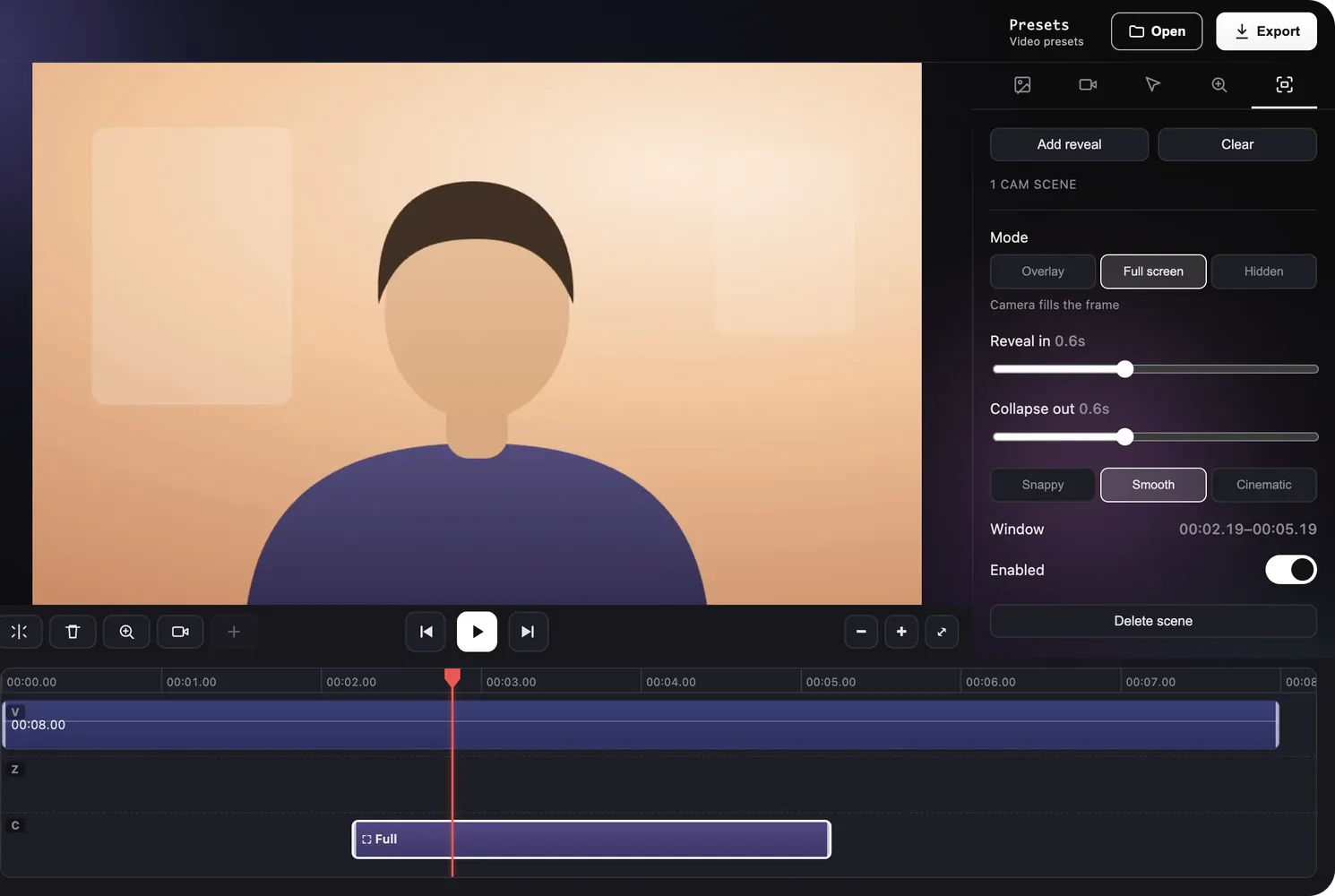
Pick a camera and your webcam is saved as its own track. In the editor it starts as a round overlay: move it to one of nine spots, resize it, change its shape or hide it. Cam scenes switch it to full screen for an intro or an outro, then back.

  1. Pick a camera
  2. Record your screen
  3. Add a cam scene in the editor

Webcam and cam scenes guideMake a tutorial video

The ScreenSnap Pro video editor with the webcam filling the frame and the Cam scenes tab set to Full screen

Edit

Edit with auto zoom, trim and silence removal

Every video recording opens in a timeline editor, so you can tighten it up before anyone presses play.

Video editor

A video editor built in

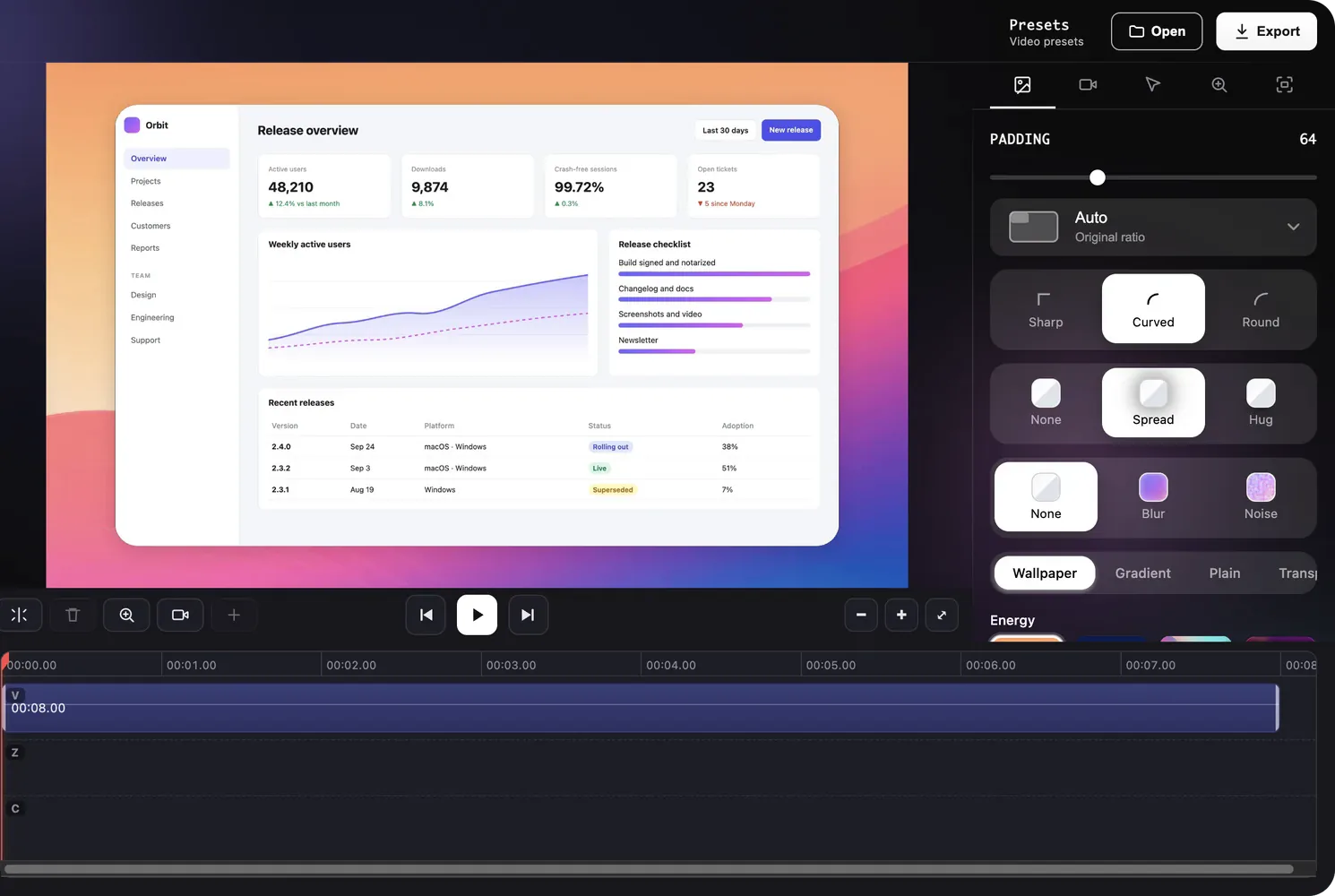
The first time you open a recording, zoom-ins are already placed from your pointer activity. Trim the start and end, split with S, speed up slow parts and cut the quiet bits with “Remove silence”. Then put the video on a wallpaper with padding, rounded corners and a shadow.

  • Auto zoom
  • Manual zoom up to 4×
  • Trim & split
  • Speed 0.25× to 2×
  • Remove silence
  • Backgrounds
  • Aspect presets
  • Presets

Video editor guideZoom-insBackgroundsEdit recordings on Windows

The video editor Background tab with padding, corners, shadow and wallpapers next to a styled screen recording

Export

Export clean MP4 or GIF, no watermark

Nothing ScreenSnap Pro saves carries a watermark: not the MP4, not the GIF, not the video behind a link.

MP4 · GIF · Create Link

Clean files, ready to send

Export an MP4 with your system audio and mic mixed in, at the original size, 720p or 1080p, with the quality you choose. Or record straight to GIF for a short, silent loop. Let the Quick Preview close without a choice and a plain MP4 is saved next to the recording anyway.

  1. Choose Video or GIF
  2. Record
  3. Export, or click “Create Link”

GIF recordings are silent, stop at 1 minute and are at most 1200 px wide or tall. For a longer or styled GIF, record a Video and export it as GIF. “Create Link” uploads an MP4 and copies an unlisted link: anyone with the link can open it, and it isn’t listed anywhere. Videos upload only when you click.

Export guideGIF recordingShare links

The Screen Recording bar set to GIF, with the format menu open and the camera, microphone and system audio buttons grayed out

Windows 10 and 11

Works on Windows 10 and Windows 11

One 64-bit installer for both, no screen permission to grant, and a fix ready for the day captures come out black.

  • 64-bit Windows 10 and 11

    Download the signed .exe installer, run it, and ScreenSnap Pro waits in the system tray. Updates download in the background.

  • No permission prompts

    Windows doesn’t ask for screen capture permission. For the mic and webcam, desktop apps must be allowed in Settings > Privacy & security (Settings > Privacy on Windows 10).

  • A fix for black captures

    HDR displays, dual-GPU laptops and remote sessions can record black. ScreenSnap Pro then offers “Relaunch in Compatibility Mode”. Still black? Turn off HDR, update the graphics driver or choose “Power saving” for it in Graphics settings.

  • One license, a PC and a Mac

    Each license has 2 seats in any mix of Windows and Mac. On a Mac, see the Mac screen recorder, or compare both on the screen recorder page.

Who it's for

What Windows users record with it

Recordings that explain something on a PC, made once and watched whenever the other person has time.

  • Training and tutorials

    Click through an app on the whole desktop, let auto zoom bring the viewer close, and cut the pauses with Remove silence. Your webcam can open and close the video full screen.

    Training video softwareMake a tutorial video

  • Bug reports and IT support

    Record the steps that lead to an error, File Explorer and settings windows included, or a silent GIF of up to a minute for the ticket. Create Link gives support a link instead of a large attachment.

    Bug report templateRecord a GIF on Windows

  • Meetings and calls

    Record a Teams, Zoom or Google Meet call with system audio for the other voices and your mic on its own track. Tell everyone on the call before you start, and follow your company's rules and local law.

    Record a Teams meetingRecord a Zoom meetingRecord a Google Meet

  • Async updates

    Walk a teammate through a pull request, a design or a weekly report with your webcam in the corner, then paste an unlisted link into the chat instead of booking a meeting.

    Loom alternatives for Windows

Compare

ScreenSnap Pro vs Snipping Tool, Game Bar, OBS and more

The built-in recorders are fine for a quick clip. Here is how the main screen recorders for Windows compare once you need the whole desktop, a webcam and an editor.

Feature comparison of Windows screen recorders: ScreenSnap Pro, Snipping Tool, Xbox Game Bar, OBS Studio, Loom, Camtasia, ShareX and Bandicam
FeatureScreenSnap ProSnipping ToolXbox Game BarOBS StudioLoomCamtasiaShareXBandicam
Price$34 onceFree, built inFree, built inFree, open sourceFrom $15/user/mo, billed yearlyFrom $179.88/yrFree, open source$33.26/yr or $53.90 once
Free or entry plan limitsOne plan, 2 computersNoneNoneNone5 min per video, 25 videosTrial and Starter watermarkedNone10 min per video + watermark
Also on MacYes, same licenseNoNoYesYesYesNoSeparate Mac app
What it recordsFull screen, areaArea; window in newer versionsOne app or game at a timeFull screen, window; area by croppingFull screen, window, areaFull screen, window, areaFull screen, window, areaFull screen, window, area
System audioYes, no driver neededYesYesYesYesYesYes, via a virtual audio deviceYes
Webcam overlayYes, with full-screen scenesNoNoYes, as a scene sourceYesYesNoYes
Video editorYes, timeline: trim, split, speedTrim in newer versionsNoNoTrim and stitch on BusinessYes, multitrack timelineTrim start and endTrim start and end
Auto zoomYes, from pointer activityNoNoNoNoYes, SmartFocusNoYes, Smart Zoom
Silence removalYesNoNoNoBusiness + AI planYes, Essentials and upNoNot listed
GIF exportYesYes, up to 30 s in newer versionsNoNoThumbnails onlyYesYesNot listed
Share linkYes, unlisted linkNoNoNoYesYes, 25 videosYes, many hostsNot listed

Competitor details checked on their websites in October 2026. Prices in USD.

Which screen recorder for Windows should you choose?

  • A quick clip of one area on Windows 11: the built-in Snipping Tool (Win+Shift+R).
  • Gameplay or a single app, with nothing to install: Xbox Game Bar (Win+Alt+R).
  • Streaming or complex scenes, for free: OBS Studio. See the OBS Studio alternatives if its setup is more than you need.
  • Free, Windows only, and you like to configure everything: ShareX.
  • A multitrack editor for long courses, on a yearly plan: Camtasia.
  • The whole desktop with system audio, mic and webcam, auto zoom and no watermark, paid once, on a PC and a Mac: ScreenSnap Pro.

The basics

What is a screen recorder for Windows?

A screen recorder for Windows is software that saves what happens on your PC screen as a video, usually with your computer’s sound and your voice, often with your webcam. Windows includes two basic ones, the Snipping Tool and Xbox Game Bar. Desktop apps add whole-desktop recording, an editor, GIF export and share links.

Screen recording shortcuts on Windows

Windows built-ins

Win+Shift+R
Snipping Tool: record an area (Windows 11)
Win+Alt+R
Xbox Game Bar: start or stop recording the app in front
Win+G
Open the Xbox Game Bar overlay
Win+Shift+Q
Stop a PowerPoint screen recording

PowerPoint records from Insert > Screen Recording, if you have Office. Every way to record on Windows

ScreenSnap Pro

PrtSc
Assign it to Record Screen: press to start, press again to stop
F6
Single keys work too, for example for Record Area
Esc
Skip the countdown, or cancel the display picker

Recording shortcuts aren’t set by default: right-click the tray icon and choose “Record Screen”, or assign “Record Screen”, “Record Area” and “Record Display” in Settings > Shortcuts. Only screenshots have default keys (Ctrl+Shift+1 and Ctrl+Shift+2). Shortcuts guide

Get ScreenSnap Pro

Record the whole desktop, not just one app

One license for your PC and your Mac, with screen recording, the video editor and every future update included. See what you get on the pricing page.

  • Windows 10 & 11, 64-bit
  • No watermark
  • Desktop & File Explorer
  • 2 seats, PC or Mac
  • 30-day money-back

FAQ

Windows screen recorder FAQ

Does Windows 11 have a free screen recorder?

Yes, two are built in. The Snipping Tool records an area of the screen with system audio and your mic when you press Win+Shift+R. Xbox Game Bar records one app or game at a time with Win+Alt+R. Neither adds a webcam overlay or auto zoom, and editing stops at a trim in newer Snipping Tool versions.

Snipping Tool screen recording

Does Windows 10 have a built-in screen recorder?

Yes, Xbox Game Bar. Press Win+Alt+R to record the app in front with system audio and your mic, but it records one app at a time and not the desktop or File Explorer. Snipping Tool recording is Windows 11 only. If you have Office, PowerPoint can also record the screen from Insert > Screen Recording.

Xbox Game Bar guide

How do I record my screen on Windows?

With ScreenSnap Pro, right-click its tray icon and choose Record Screen, turn on System audio, a microphone or a camera, then click Display or Area. Stop with the red square or the timer. The recording opens in the video editor, where you can trim it and export an MP4 or GIF, or click Create Link to share it.

Every way to screen record on Windows

How do I screen record on my PC with sound?

Turn on System audio before you start. ScreenSnap Pro then records the sound your PC plays, with no Stereo Mix or VB-Audio Cable, and your microphone on its own track. System audio can't be switched on mid-recording. If your mic or camera is missing, allow desktop apps in Settings > Privacy & security > Microphone or Camera.

Screen record with audioRecord computer audio

Why is Win+Alt+R not working?

Usually Xbox Game Bar is turned off, another app took the shortcut, or nothing it can record is in front. Check Game Bar in Settings > Gaming, close overlays such as Discord or NVIDIA, and open an app first, because Game Bar doesn't record the desktop or File Explorer. ScreenSnap Pro records the whole desktop instead.

Fix Xbox Game Bar not working

Why can't I screen record in Windows 11?

Usually the recorder or a Windows setting is in the way. Xbox Game Bar won't record the desktop or File Explorer, and streaming apps with DRM record as black. If your mic or camera is missing, allow desktop apps in Settings > Privacy & security. If ScreenSnap Pro captures come out black, use Relaunch in Compatibility Mode, turn off HDR or update your graphics driver.

Fix a black screen recording

What is the shortcut key for screen recording in Windows 11?

Win+Shift+R starts a Snipping Tool recording, and Win+Alt+R starts or stops an Xbox Game Bar recording. Win+G opens the Game Bar overlay. ScreenSnap Pro sets no recording shortcut by default: assign Record Screen, Record Area or Record Display in Settings > Shortcuts, Print Screen included, or start from the tray menu.

Set your own shortcuts

What is the best free screen recorder for PC?

OBS Studio is the most capable free screen recorder for Windows, ShareX is a strong free pick for quick clips and GIFs, and Xbox Game Bar and the Snipping Tool come built in. ScreenSnap Pro is a paid app: it costs $34 once, with no trial but a 30-day money-back guarantee, and adds a video editor with auto zoom.

Free screen recorders for Windows

Which screen recorder has no watermark?

ScreenSnap Pro, the Snipping Tool, Xbox Game Bar, OBS Studio and ShareX all save recordings without a watermark. Bandicam's free version adds one and stops each recording at 10 minutes, and Camtasia's Starter plan watermarks editor exports. With ScreenSnap Pro, every MP4 and GIF is clean, and so is the video behind a Create Link link.

Bandicam alternatives

Can I screen record for 2 hours?

Yes. ScreenSnap Pro has no time limit for video recordings; only GIF recordings stop at 1 minute. A long recording needs free disk space, and a crash brings it back as Recording Recovered on the next launch. Share links accept files up to 300 MB, so export a long video at a lower resolution or quality before you upload it.

Does ScreenSnap Pro work on Windows 10 and Windows 11?

Yes. ScreenSnap Pro runs on 64-bit Windows 10 and Windows 11 and installs from a signed .exe. One license has two seats, so you can use it on two PCs or on a PC and a Mac. It costs $34 once with lifetime updates, and screen recording needs an active license.

Installation guidePricing