Change or Turn Off Shortcuts
Assign, change, turn off or clear ScreenSnap Pro global and editor shortcuts, and fix conflicts with other apps on Mac and Windows.
Open the Shortcuts settings
All shortcuts live in one place. The top part, Global Shortcuts, holds the capture and recording shortcuts that work from any app. Below it, Editor Shortcuts holds the keys for editor tools and actions.
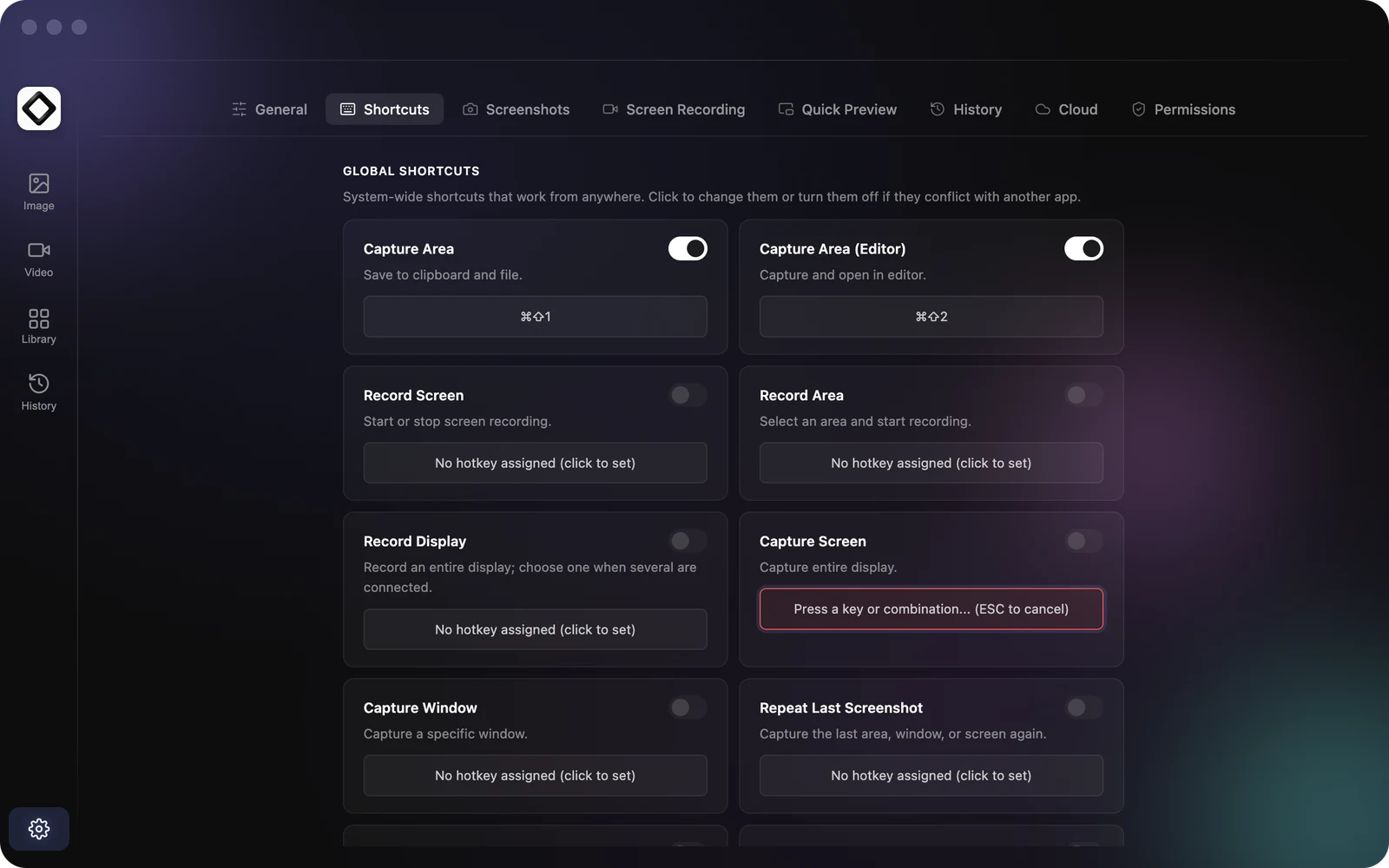
- 1Open Settings: click the gear icon at the bottom of the editor's left sidebar, or choose
Settings...from the ScreenSnap Pro menu. On Mac, click the icon in the menu bar. On Windows, right-click the icon in the system tray. - 2Select the
Shortcutstab.
Assign or change a global shortcut
Any global action can get a shortcut, including the ones that start empty, like Capture Screen, Recognize Text or Record Screen.
- 1Click the shortcut field under the action. A field without a shortcut ends in
(click to set). - 2The field changes to
Press a key or combination... (ESC to cancel). While it waits, all ScreenSnap Pro global shortcuts are paused, so nothing fires by accident. - 3Press the keys you want, for example
Cmd + Shift + 6on Mac orCtrl + Shift + 6on Windows forRecognize Text. - 4The field shows
Recording:with your keys and saves them after a short pause. If you press another combination before that, the newer one is used. - 5The shortcut works right away and appears next to the action in the menu bar or tray menu.
To back out without changing anything, press Esc, click the field again, or click anywhere else.
Keys you can use
A global shortcut can be a letter, number, function key, arrow key or Print Screen, on its own or together with modifiers: Cmd, Shift, Option and Control on Mac, or Ctrl, Shift and Alt on Windows. Space, Tab, Return, Backspace and Delete always need at least one modifier. If you pick a single key without a modifier (other than a function key or Print Screen), you'll see a Single-Key Shortcut warning: that key now triggers ScreenSnap Pro from any app, and other apps no longer receive it. If the keys aren't allowed at all, you'll see Unsupported Shortcut.
Turn a shortcut off or clear it
Each global shortcut has a switch next to its name. Turn it off to hand the keys back to other apps. ScreenSnap Pro remembers your combination and shows Disabled next to it, so you can turn the switch back on later to restore it. The switch is greyed out while an action has no shortcut. To remove a shortcut completely, click its field and press Backspace or Delete. Capture Area and Capture Area (Editor) always keep a combination, so use their switch if you want them off.
Conflicts and duplicates
ScreenSnap Pro makes sure one set of keys does only one thing.
- 1Two global shortcuts can't share keys. If you give an action keys that another action already uses, the other action's shortcut is cleared and you see
Duplicate Hotkey Cleared. - 2
Capture AreaandCapture Area (Editor)always keep their keys. If you record their keys for another action, the change is not saved and that action keeps its previous shortcut. - 3A new global shortcut also clears any editor shortcut with the same keys, because the global one would catch the key press first.
- 4If you switch a shortcut back on and its keys are now used by something else, ScreenSnap Pro asks you to choose another shortcut first.
- 5
Shortcut Unavailablewith a message that the shortcut could not be registered means your operating system or another app already owns those keys. Pick another combination, or quit the other app and turn the shortcut off and on again.
Use Print Screen on Windows
On Windows you can record Print Screen as a shortcut, for example for Capture Area. Windows can reserve that key for its own screen capture. If ScreenSnap Pro shows Print Screen is already in use, free the key:
- 1Open Windows Settings and search for "Use the Print Screen button to open screen capture".
- 2If that option is on, turn it off.
- 3If it is already off, close Snipping Tool and any other screenshot apps.
- 4In ScreenSnap Pro, go to Settings >
Shortcutsand turn the shortcut off and on again.
Change editor shortcuts
Editor shortcuts only work inside the editor, so they can reuse keys that other apps use. Changes apply to the editor right away.
- 1In
Editor Shortcuts, click the key next to a tool or action. - 2For a tool, press a single letter or number. Tool keys can't include modifiers.
- 3For an action like
SaveorUndo, press a combination that includesCmdorControlon Mac, orCtrlon Windows.Color Pickeris the exception: it can also be a single key such asTab, a letter, a number or a function key. - 4Press
Escor click elsewhere to cancel.
If another editor shortcut already uses the key, that shortcut is left without a key. Keys taken by a global shortcut, and Cmd + Q, Cmd + O and Cmd + , (Ctrl on Windows), can't be used in the editor and show Shortcut Unavailable.