Interface Overview
A tour of ScreenSnap Pro: the menu bar or tray menu, Capture Controls, Quick Preview and the editor with its Image, Video, Library, History and Settings tabs.
Where ScreenSnap Pro lives
ScreenSnap Pro runs in the background. On a Mac its icon sits in the menu bar at the top of the screen. On Windows it sits in the system tray on the taskbar. Day to day you mostly use keyboard shortcuts, the Quick Preview that appears after each capture, and the editor window.
The menu bar and tray menu
Click the menu bar icon on a Mac, or right-click the tray icon on Windows. The menu starts with Open Capture Controls…, followed by the capture and recording actions: Capture Area, Capture Area (Editor), Capture Area with Delay, Capture Screen, Capture Window, Recognize Text, Capture Website and Record Screen. Below them are the Capture Delay submenu, Open Editor, Open Video Project…, Open Screenshots Folder, Capture History, Check for Updates, Settings... and Quit ScreenSnap Pro. Any shortcut you have assigned is shown next to its item.
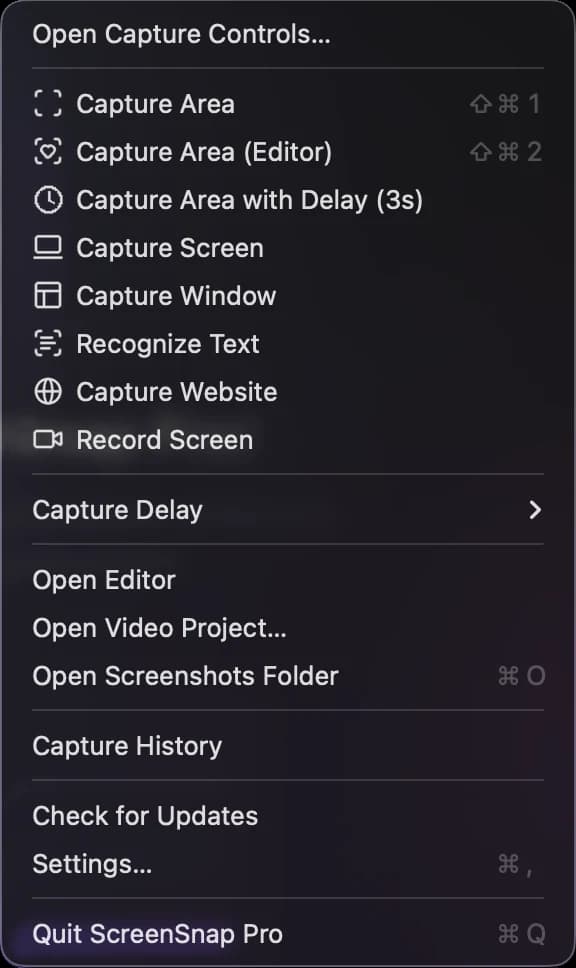
On Windows, a left click on the tray icon runs Capture Area (Editor) by default. You can change it to Capture Area, Show tray menu or Do nothing in Settings > General > Tray Icon Left-Click.
Capture Controls
Open Capture Controls… opens a capture bar where you switch between Screenshot, Screen Recording and Web Capture and start a capture with the mouse instead of a shortcut. It is handy while you are still learning the shortcuts. See Capturing Screenshots and Screen Recording.
Quick Preview
After each screenshot, a Quick Preview appears in a corner of the screen (bottom right by default). Drag it into any app to drop the file there, or hover over it to use Edit, Upload to Cloud (when cloud upload is on), Pin Screenshot, Copy Text (OCR) and Delete Screenshot. Its position, size and auto-close timing are in Settings > Quick Preview.
The editor window
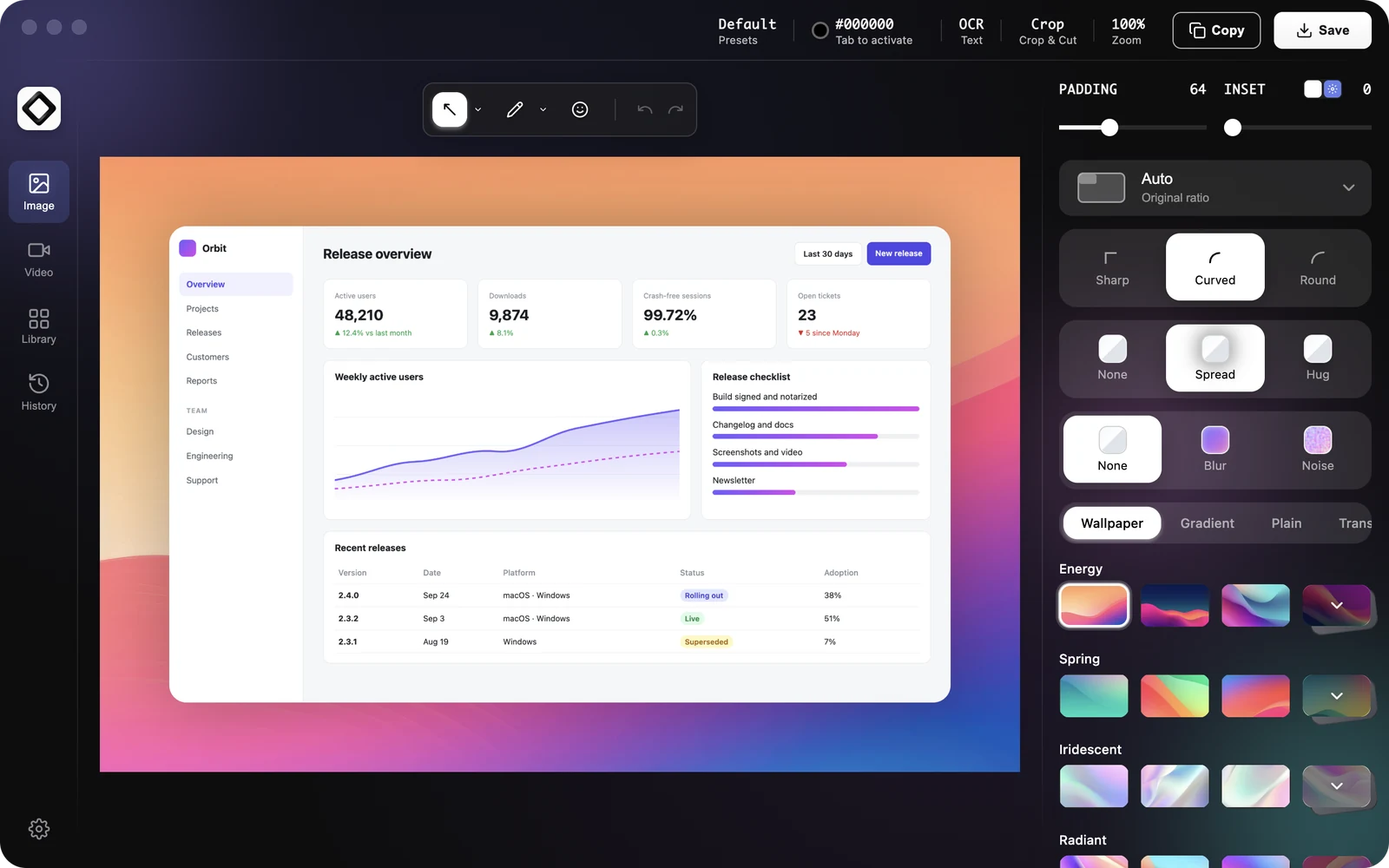
Open the editor any time with Open Editor in the menu. A rail on the left switches between Image for screenshots, Video for screen recordings, Library for your saved files and cloud uploads, History for recent captures, and the gear icon for Settings. With no image loaded, the Image tab shows Select an Image: click Choose Image, drop an image file onto the window, or take a screenshot.
The Image tab
Your screenshot sits in the middle on its background. The top bar holds Presets, the color readout for the color picker, the image size (click it to resize), OCR, Crop (with Crop and Cut modes), Zoom, and the Copy and Save buttons. The toolbar above the canvas has the annotation tools plus undo and redo; pick a tool to see its options, such as its color. The panel on the right styles the final image: Padding, Inset, corner radius (Sharp, Curved, Round), shadow (None, Spread, Hug), a background effect (None, Blur, Noise), the aspect ratio, and the background tabs Wallpaper, Gradient, Plain and Transparent.
Learn each area in Annotation Tools, Screenshot Backgrounds and Export Options.
The Video tab
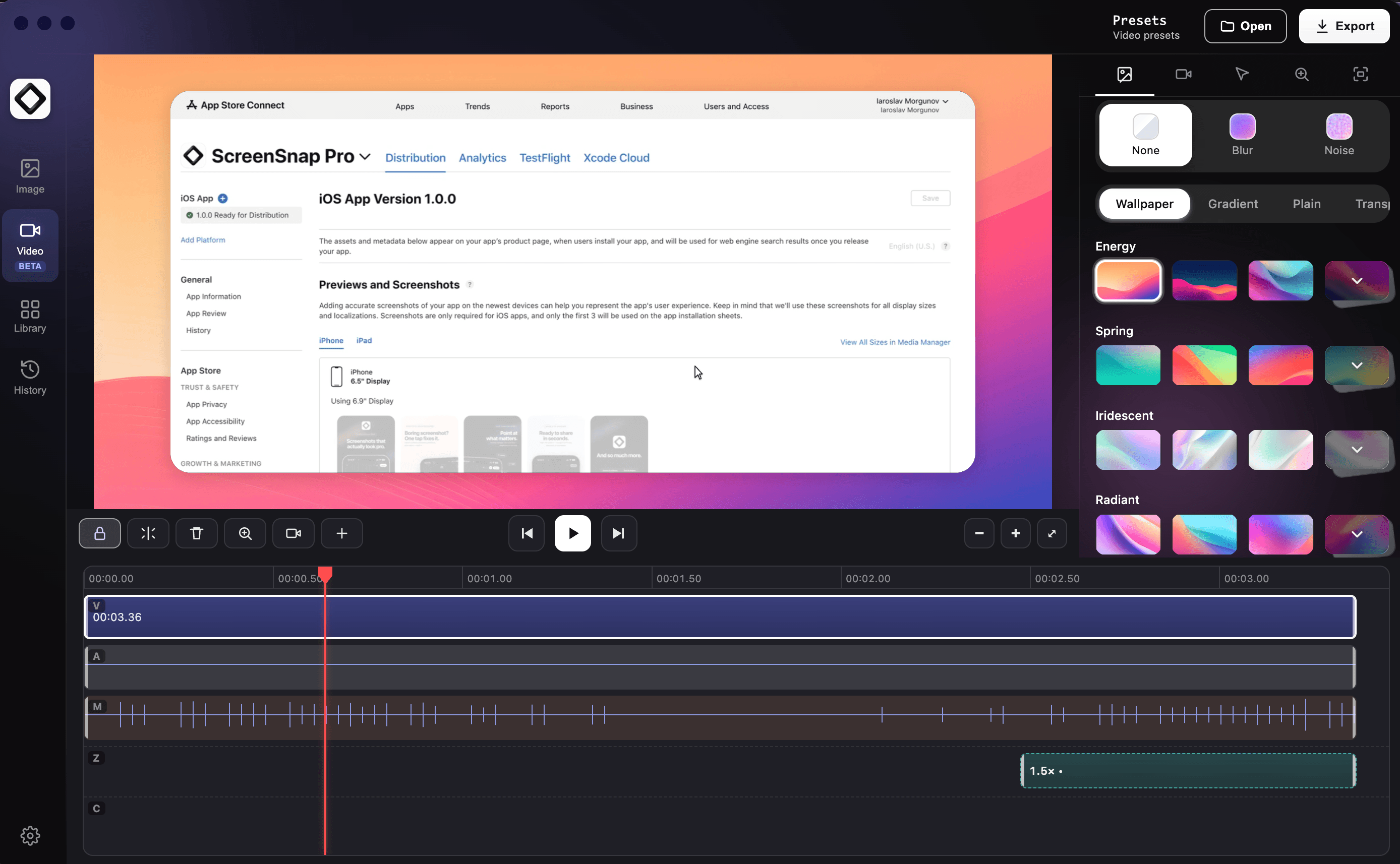
The Video tab is the editor for screen recordings: the recording plays on its background at the top, the timeline sits below, and style settings are on the right. Use Open to open a saved recording project or import a video file, and Export when you are done. See Screen Recording.
Library and History
Library collects your screenshots, recordings, GIFs and cloud uploads, with the filters All, Cloud, Images, Videos and GIFs and a grid or list view. Select a file to see its details. Depending on the file you can Open its link, Copy Link (or Create Link for a file that has no link yet), Edit in Editor, Open in Finder on a Mac or Show in Explorer on Windows, Save As in another format, or Delete it. History keeps private copies of your recent captures (for one week by default) so you can Restore a shot even after you deleted the original.
Settings
Click the gear icon at the bottom of the rail, or choose Settings... from the menu. Settings are split into the tabs General, Shortcuts, Screenshots, Screen Recording, Quick Preview, History, Cloud and, on a Mac, Permissions. General holds your license key, Language, Appearance (System, Light or Dark), Launch at Startup and the save folder. See Preferences for every option.