Aspect Ratio
Fit a screenshot to 16:9, 1:1, 9:16, Instagram, X, YouTube, Pinterest or Dribbble shapes without cropping, using the editor's aspect ratio presets.
How aspect ratio works
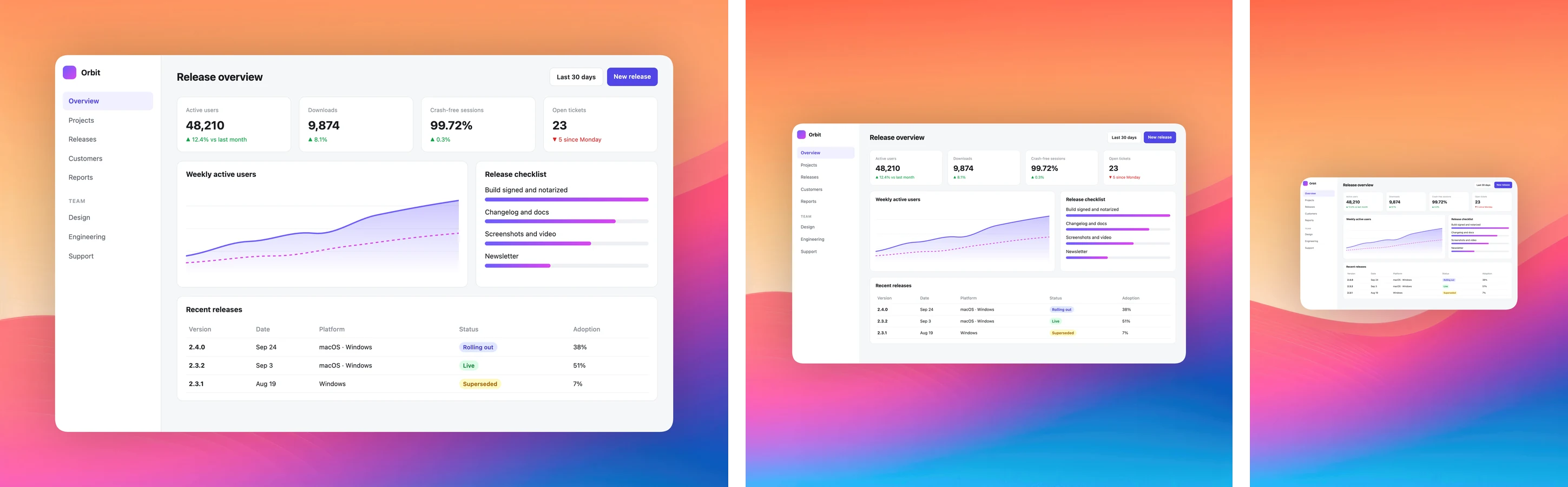
The aspect ratio menu sets the shape of the final image. Your screenshot is never cropped or stretched. ScreenSnap Pro keeps it centered and adds background on two sides until the whole image matches the ratio. Your padding (plus any inset) stays as the minimum space on the other two sides.
Choose a ratio
The aspect ratio button sits below the background effect buttons in the styling panel.
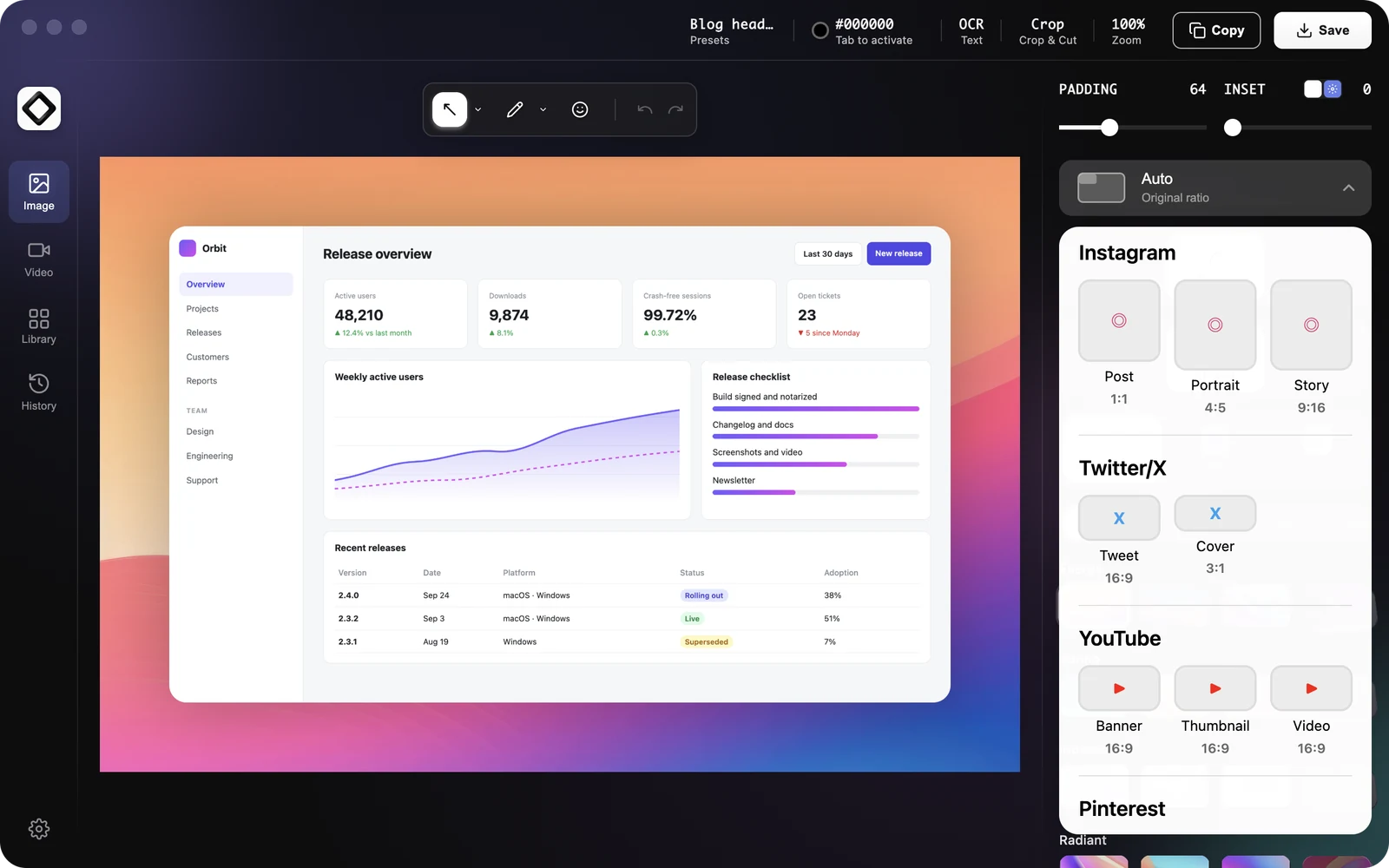
- 1Click the aspect ratio button. Until you choose something else it shows
AutoandOriginal ratio. - 2Pick a preset. Common ratios come first, followed by groups for Instagram, Twitter/X, YouTube, Pinterest and Dribbble.
- 3The button now shows your choice, for example
Instagram Storywith9:16. To go back to the screenshot's own shape, chooseAuto.
Available presets
Common: Auto (Original), 16:9 (Default), 3:2 (Classic), 4:3 (Standard), 5:4 (Photo), 1:1 (Square), 4:5, 3:4 and 2:3 (Portrait), and 9:16 (Story). Instagram: Post 1:1, Portrait 4:5, Story 9:16. Twitter/X: Tweet 16:9, Cover 3:1. YouTube: Banner, Thumbnail and Video, all 16:9. Pinterest: Long 10:21, Optimal 2:3, Square 1:1. Dribbble: Shot 4:3.
Ratio sets the shape, not the pixel size
A ratio preset does not resize your screenshot. The saved image keeps the screenshot at full resolution and grows the background around it, so its pixel size depends on your capture. After you pick 16:9, the button shows Default 16:9 with 1920 x 1080 underneath, but the export is not scaled to that size.
Tips
With a Transparent background, the added area is transparent too. You can change the ratio at any time, even after annotating: arrows, text and other marks stay attached to the screenshot. The chosen ratio is saved in presets, so you can keep one preset per place you post.
Tall ratios like 9:16 add a lot of background above and below a wide screenshot. Try a busy wallpaper with Blur, or a gradient, so the extra space does not look empty.
Aspect ratio for recordings
The video editor has its own aspect ratio menu: Auto, Wide (16:9), Square (1:1), Classic (4:3), Vertical (9:16), Tall (3:4), Portrait (4:5 and 2:3), Cover (3:1) and Long (10:21). More in Screen Recording.