Quick Access Overlay (Quick Preview)
Use the thumbnail that appears after each screenshot: drag it into any app, edit, pin, copy text, upload or delete it, and choose how it behaves.
What the Quick Access Overlay is
After you take a screenshot, a small thumbnail slides in at the corner of your screen. In the app and in Settings it is called Quick Preview. Your screenshot is saved and copied to the clipboard at the same time, so you can ignore the thumbnail and just paste, or use it to act on the capture right away.
When it appears
Quick Preview appears after Capture Area, Capture Area with Delay, Capture Screen, Capture Window, Repeat Last Screenshot and Capture Website, and when you restore a capture from Capture History. Capture Area (Editor) opens the editor instead, and Recognize Text only copies text. Screen recordings also end in Quick Preview, with buttons made for recordings.
Drag it into any app
Dragging the thumbnail is the fastest way to share a screenshot without saving or attaching anything by hand.
- 1Press and hold on the thumbnail.
- 2Drag it into a chat, an email, a document, a design tool, or a folder in Finder or File Explorer.
- 3Release to drop the screenshot file there.
Start the drag toward your other windows. Moving sideways toward the screen edge the thumbnail sits on dismisses it instead. Close after dragging (Settings > Quick Preview) is on by default, so the thumbnail disappears once you drop it.
Buttons on the thumbnail
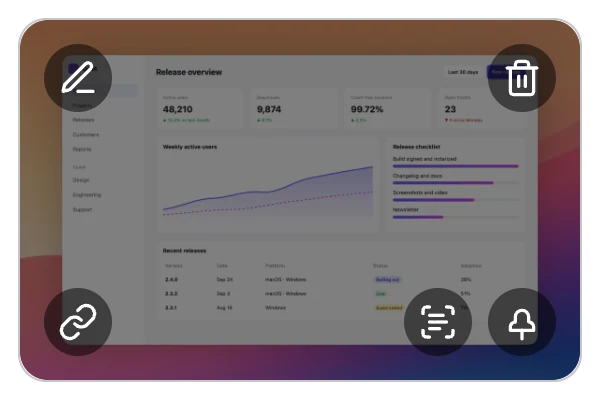
Hover over the thumbnail to show its buttons. Hovering also pauses auto-close.
- 1
Edit: opens the screenshot in the editor. - 2
Upload & copy link: uploads the screenshot to ScreenSnap Cloud and copies a share link. It appears when Cloud Upload is on and Auto Upload is off. - 3
Pin Screenshot: keeps the screenshot floating above all windows. See Pin Screenshots. - 4
Copy Text (OCR): copies all the text in the screenshot. A check mark confirms it and the thumbnail closes. - 5
Delete Screenshot: deletes the saved file from your computer and closes the thumbnail. - 6Click the image itself to open the file in your default image viewer.
Delete Screenshot removes the file from your save folder right away. It does not go to the Trash or Recycle Bin. If Capture History is on, a private copy stays in Capture History until it expires.
Share a link from the thumbnail
Click Upload & copy link and wait for the check mark. The thumbnail then closes and the share link is on your clipboard, ready to paste into a chat or an email. Uploading needs an active license and Cloud Upload turned on in Settings > Cloud.
Turn on Auto Upload in Settings > Cloud to upload every screenshot right after capture. The link then replaces the image on your clipboard, and the upload button no longer appears on the thumbnail. More in Share Links.
Dismiss it or let it close
Quick Preview closes by itself after 5 seconds by default. To dismiss it sooner, drag it toward the screen edge it sits against, or swipe sideways with two fingers on a trackpad. Dismissing only hides the thumbnail. Your file stays saved.
Take several screenshots in a row and up to three thumbnails stack in the corner. When a fourth one appears, the oldest closes.
Change position, size and timing
Open Settings > Quick Preview to adjust how the thumbnail behaves:
- 1
Position:Bottom Right(default),Bottom Left,Top RightorTop Left. - 2
Size:Extra small,Small,Medium (default),LargeorExtra large. - 3
Auto-close: when on (default), choose anIntervalof 1, 3, 5, 7, 9 or 11 seconds. When off, the thumbnail stays until you swipe it away or use one of its buttons. - 4
Close after dragging(on by default): dismiss the thumbnail after you drop it somewhere. - 5
Move to active screen(on by default): show the thumbnail on the display where your pointer is. When off, it always appears on the primary display.
Don't want a thumbnail at all? Turn off Settings > Screenshots > Display Quick Preview. Screenshots are still saved and copied.
After a screen recording
When a recording finishes, Quick Preview shows it with its own buttons: Open Video Editor to edit it, Create Link to share it, and Delete Recording, which moves the recording to the Trash on Mac or the Recycle Bin on Windows. See Screen Recording.