Website Capture
Capture any public web page from its address as a full-page or first-screen screenshot, in desktop, phone or tablet sizes, without opening a browser.
What Website Capture does
Website Capture turns a web address into a screenshot. You paste a URL, choose how much of the page and which device size you want, and ScreenSnap Pro saves the result like any other screenshot: in your save folder, on your clipboard and in Quick Preview. The page is loaded and rendered online, not in your browser, so you don't need to open it or scroll through it. Website Capture needs an active license and an internet connection.
Capture a web page
The page has to load before it can be captured, so give each capture a moment to finish.
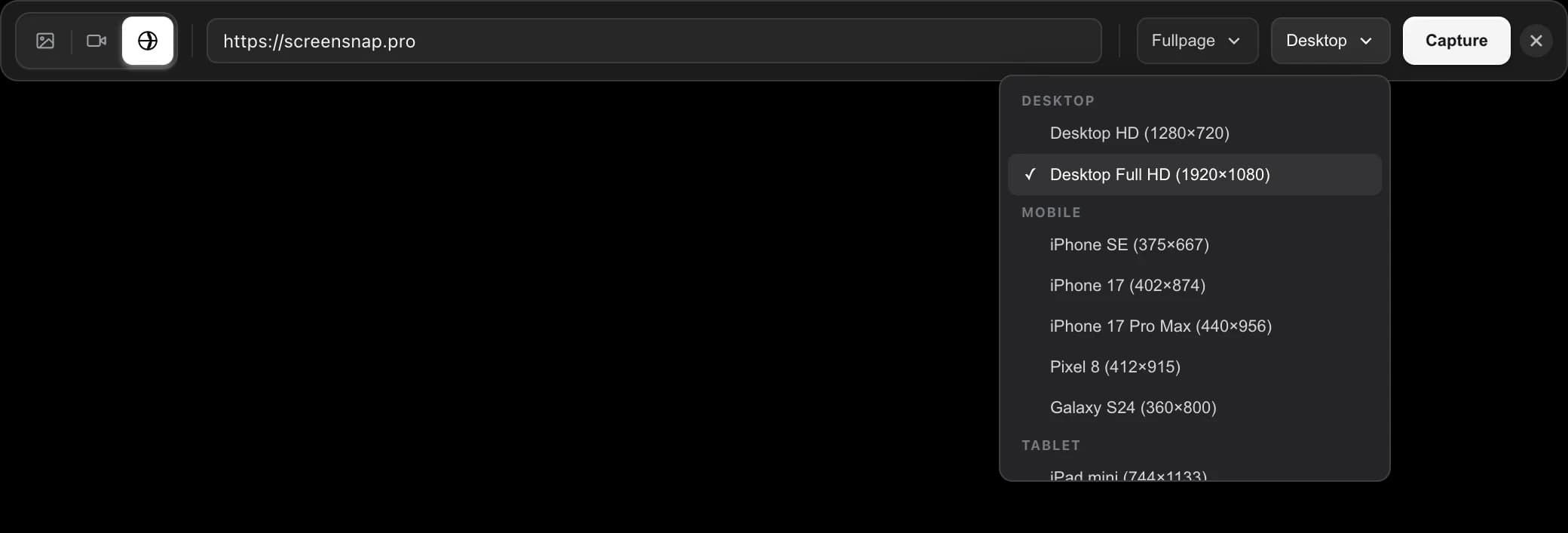
- 1Choose
Capture Websitefrom the menu bar or tray menu. It opens Capture Controls on theWeb Capturetab. You can also chooseOpen Capture Controls…and switch to that tab yourself. - 2Paste the address into the
Paste a website URLfield. - 3Choose
FullpageorFirst screen. - 4Choose a device size.
Desktop(1920×1080) is the default. - 5Click
Captureor press Enter. The button showsCapturing…while the page loads. - 6When it's done, the bar closes and the screenshot appears in Quick Preview.
Capture Website has no shortcut by default. Add one in Settings > Shortcuts > Capture Website. ScreenSnap Pro remembers the page mode and device size you used last. Closing the bar while it shows Capturing… cancels the capture.
Fullpage or First screen
Fullpage captures the whole page from top to bottom, including everything you would normally scroll to. First screen captures only what fits in one screen of the chosen device, for example 1920×1080 pixels with Desktop Full HD (1920×1080).
Very long pages are scaled down so the longest side of the image is at most 5,120 pixels. If the text in a full-page capture looks too small, or a long page takes too long to load, use First screen instead.
Device sizes
Choose the size the page is rendered at. The sizes are each device's screen size in CSS pixels. Phone and tablet sizes render at the device's pixel density (2x or 3x), so the saved image is sharper and larger than the numbers suggest.
- 1Desktop:
Desktop HD (1280×720)andDesktop Full HD (1920×1080). - 2Mobile:
iPhone SE (375×667),iPhone 17 (402×874),iPhone 17 Pro Max (440×956),Pixel 8 (412×915)andGalaxy S24 (360×800). - 3Tablet:
iPad mini (744×1133),iPad Air (820×1180),iPad Pro 13″ (1024×1366)andGalaxy Tab S10 (800×1280).
Which pages work
Website Capture works with public web addresses. You can paste an address with or without https://, and http:// addresses are captured over https. Local addresses such as localhost, and names without a domain, are not accepted. Because the page is loaded online rather than in your browser, it is captured the way a signed-out visitor sees it.
For a page behind a login, on your company network or running on your own computer, open it in your browser and use Capture Area or Capture Window instead.
If a capture fails
The capture bar shows what went wrong:
- 1"Enter a valid website address." Check the address for typos and make sure it includes a domain, like example.com.
- 2"The website took too long to load. Try First-screen mode or a different URL." Switch to
First screen, or try again later. - 3"Too many website captures. Please wait a moment and try again." Wait a little before the next capture.
- 4"Couldn't capture this website right now. Please try again." Try again in a moment, or open the page in your browser and capture it with
Capture Area.
If a license prompt appears instead of the capture bar, activate your license in Settings > General > License Key. See Activating Your License.