Export Video as MP4 or GIF
Export an edited recording from the ScreenSnap Pro video editor as an MP4 with audio or a looping GIF, choosing resolution, frame rate and quality.
Export your video
Everything you set in the video editor is included in the export: trims, speed changes, zoom-ins, background, webcam, cursor and audio levels.
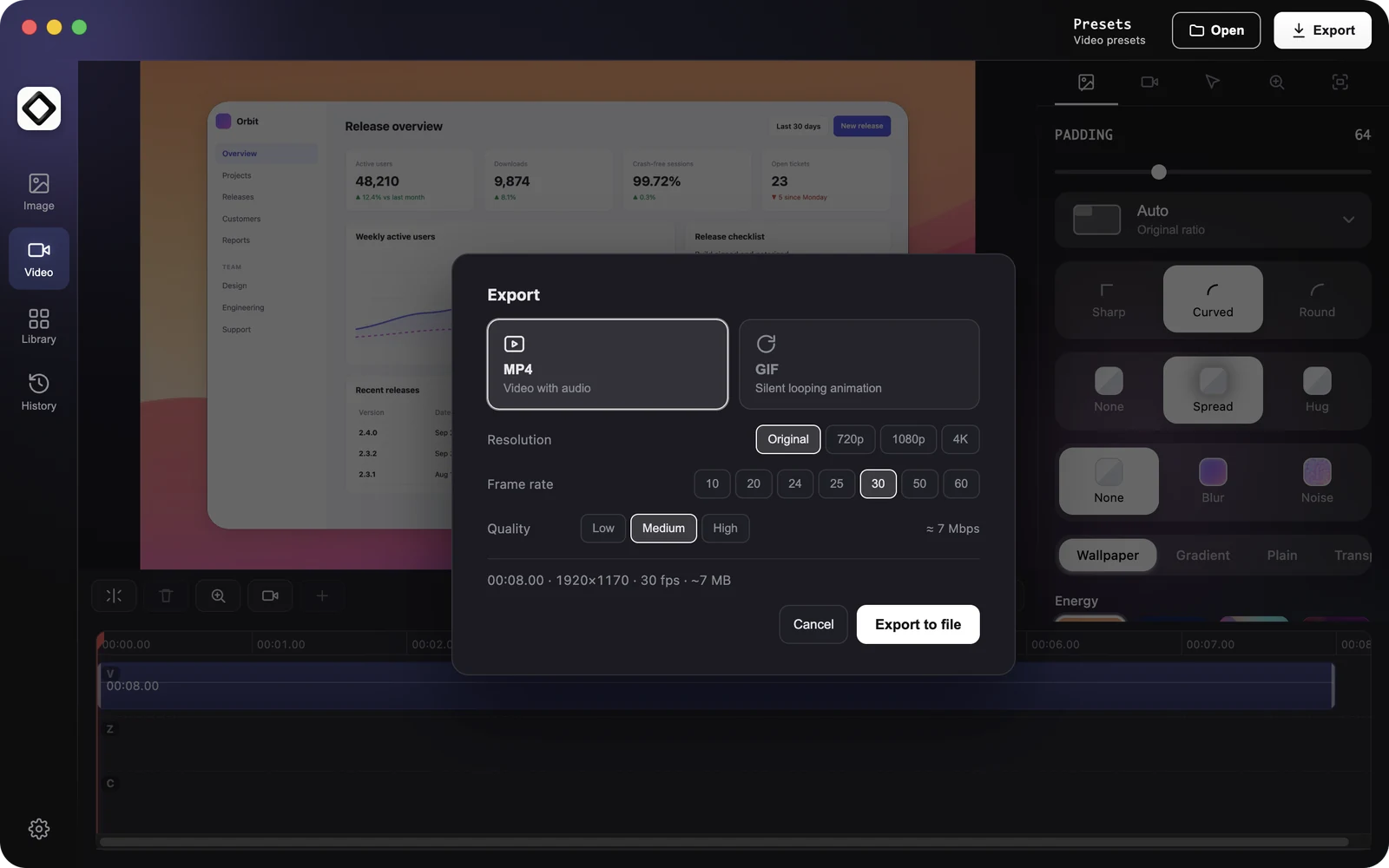
- 1Click "Export" in the top right of the video editor.
- 2Choose "MP4" ("Video with audio") or "GIF" ("Silent looping animation").
- 3Pick the "Resolution", the "Frame rate" and, for MP4, the "Quality".
- 4Click "Export to file". A progress bar shows the estimated time left. Click "Cancel" to stop.
- 5ScreenSnap Pro saves the file to your save folder, named with your "File Name Pattern", and shows "Saved" with the file name.
Export options
Below the options, a summary shows the length, output size in pixels and frame rate, plus an estimated file size for MP4.
- 1MP4 resolution: "Original" (the default), 720p, 1080p or 4K.
- 2GIF resolution: 480p (the default), 720p or 1080p.
- 3Frame rate: MP4 offers 10, 20, 24, 25, 30, 50 or 60 fps and starts at the rate closest to your recording. GIF offers 10, 15, 20, 25, 30 or 50 fps.
- 4Quality (MP4 only): "Low", "Medium" (the default) or "High". The approximate bitrate is shown next to it.
Resolution only scales down: if you pick a size larger than your recording, the video keeps its original size. For GIFs at 1080p or at 30 fps and above, the dialog warns that the file will be large and suggests 480p at 15 fps.
Sound in exports
MP4 exports mix the recording's system audio, your microphone and any audio tracks you added, at the volumes you set. GIFs are always silent. If a track cannot be added, the result says so, for example "Saved (system audio missing)", "Saved (mic track failed)" or "Saved (no audio)".
After export
A Quick Preview of the exported file appears in the corner of your screen. Drag it into a chat, email or document, click it to open the file, or click the upload button ("Create Link" for MP4, "Upload & copy link" for GIF) to upload it to ScreenSnap Cloud and copy a share link.
If ScreenSnap Pro cannot use your save folder, it asks where to save. If you close that dialog, the render is kept: click "Save…" to pick a location or "Discard" to throw it away.
Share without editing
In a hurry? After recording, click "Create Link" in Quick Preview to upload an MP4 and copy its link, or let the preview close and use the plain MP4 that ScreenSnap Pro saves next to the recording project. Both skip the editor, so they have no background, zooms or other styling.