Language & Appearance
Switch ScreenSnap Pro to one of 25 languages and choose a light, dark or system theme. Both changes apply instantly, with no restart.
Change the app language
The first time you open ScreenSnap Pro, it uses your system language if it is available, and English otherwise. You can switch at any time.
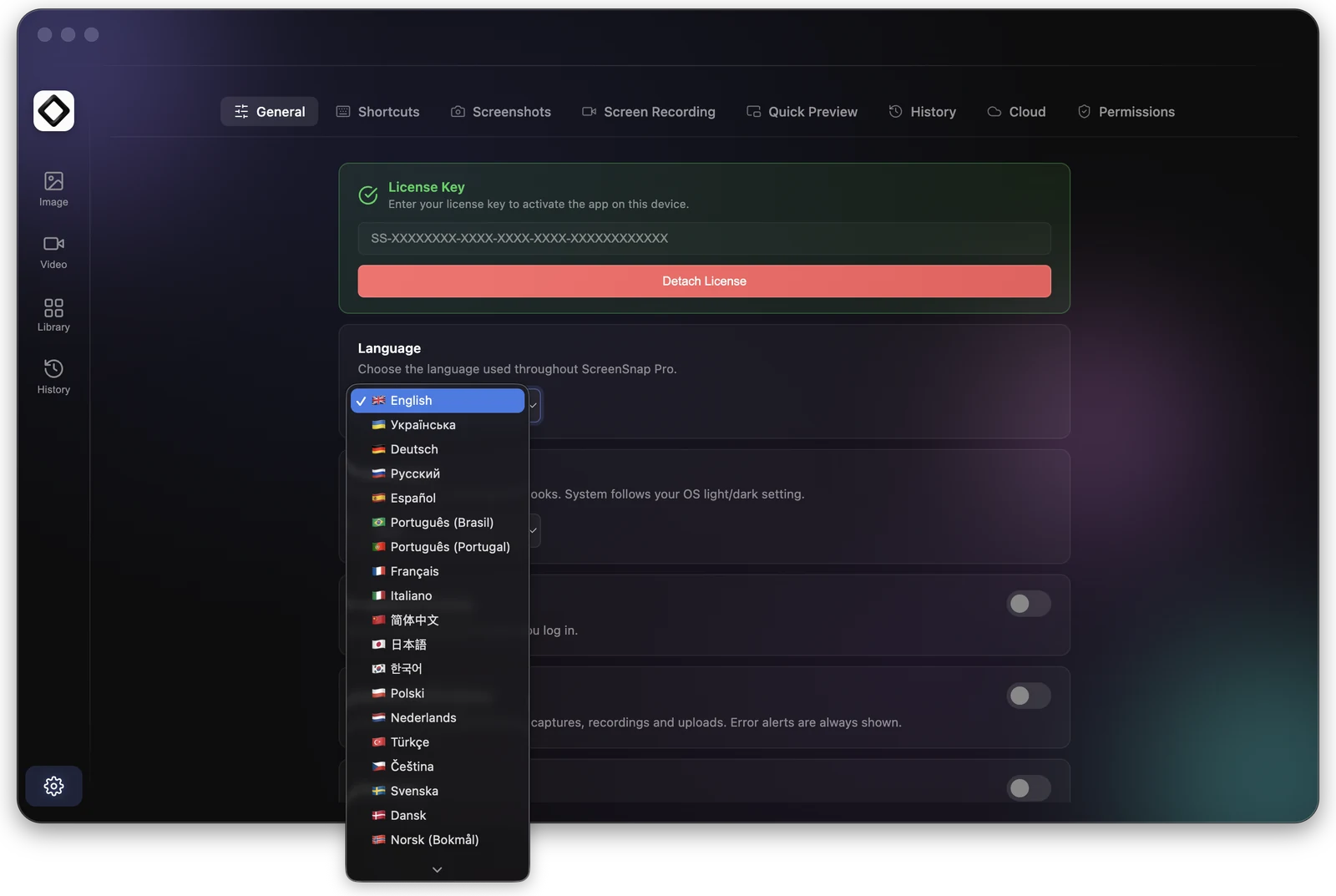
- 1Open Settings: click the gear icon at the bottom of the editor's left sidebar, or choose
Settings...from the ScreenSnap Pro menu. On Mac, click the icon in the menu bar. On Windows, right-click the icon in the system tray. - 2Stay on the
Generaltab. - 3Pick a language from the
Languagemenu.
The whole app switches right away, including the editor, the capture tools and the menu bar or tray menu. No restart is needed.
Available languages
ScreenSnap Pro is available in 25 languages: English, Ukrainian, German, Russian, Spanish, Portuguese (Brazil), Portuguese (Portugal), French, Italian, Chinese (Simplified), Japanese, Korean, Polish, Dutch, Turkish, Czech, Swedish, Danish, Norwegian (Bokmål), Finnish, Hungarian, Romanian, Greek, Hindi and Vietnamese. The Language menu lists each one in its own language, with a flag.
Light, dark or system theme
Use Appearance, right below Language on the General tab. System follows your operating system's light or dark setting, while Light and Dark stay fixed. ScreenSnap Pro starts in Dark. The new theme applies immediately to every ScreenSnap Pro window.