Text, Callouts, Counters & Drawing
Add text, speech-bubble callouts, numbered steps, emoji and freehand drawings in ScreenSnap Pro, and remove annotations with the Eraser.
Text
Shortcut 9. Click where the text should go and start typing. Press Enter for a new line. To finish, press Esc or Cmd + Enter (Ctrl + Enter on Windows), or click outside the text. An empty text box disappears when you finish. Double-click existing text to edit it again.
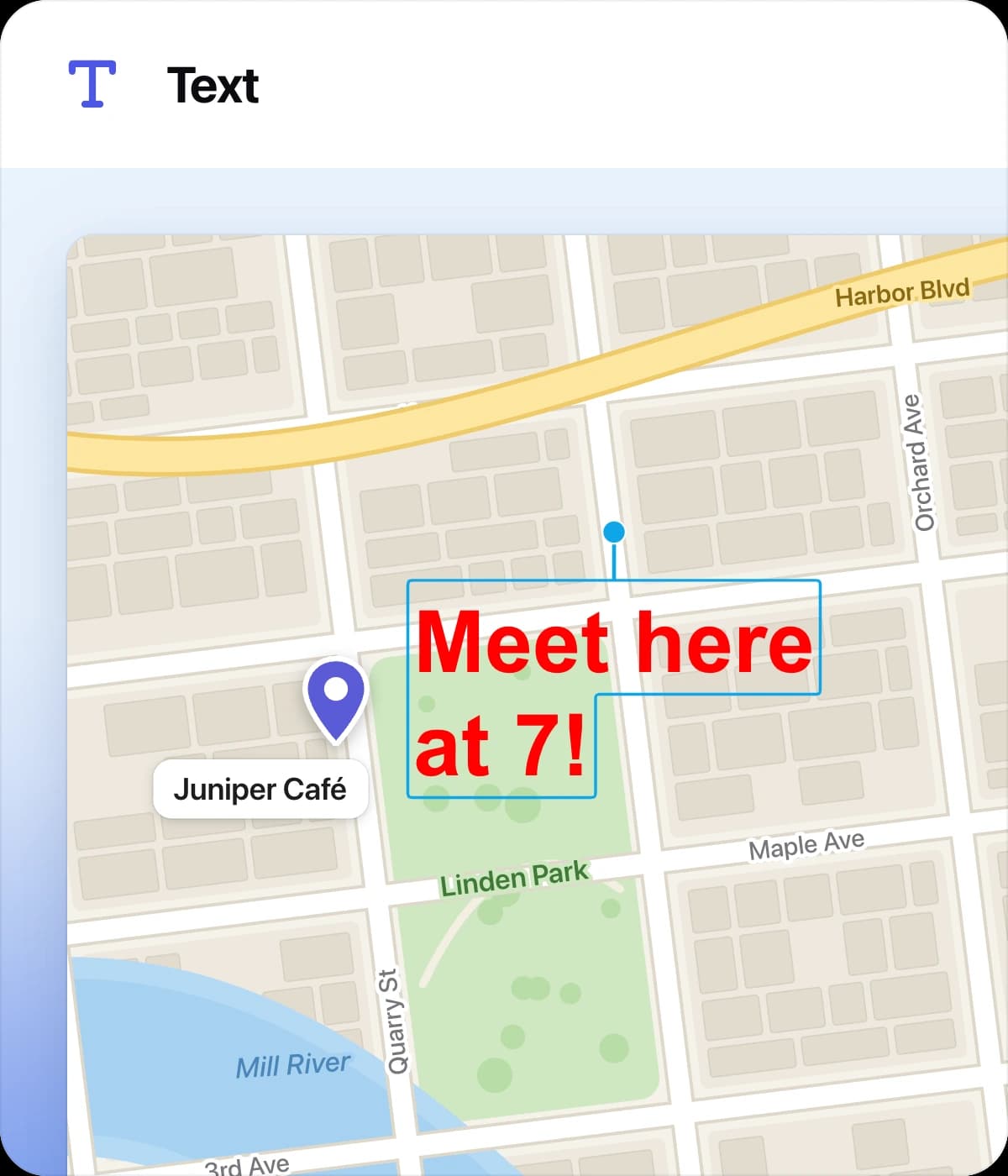
- 1
Font size: choose a size from 8 up to 72. New text starts at 32. - 2
Text style:Standard,Rounded,Monospaced,Outlined(with a white outline for busy backgrounds),Boxed,Rounded BoxedandMonospaced Boxed. In the boxed styles your color fills the box and the text is white. - 3
Bold,ItalicandUnderline: select some characters and click the button, or pressCmd + B,Cmd + IorCmd + U(Ctrlon Windows). With nothing selected, the change applies to what you type next. By default, new text is bold. - 4
Align left,Align centerandAlign rightfor text with several lines. - 5Color, from the shared palette.
Drag the round handle above a selected text to rotate it. Hold Shift to snap in 15° steps.
Callout
Shortcut C. A callout is a speech bubble with a pointer, good for review comments and explanations.
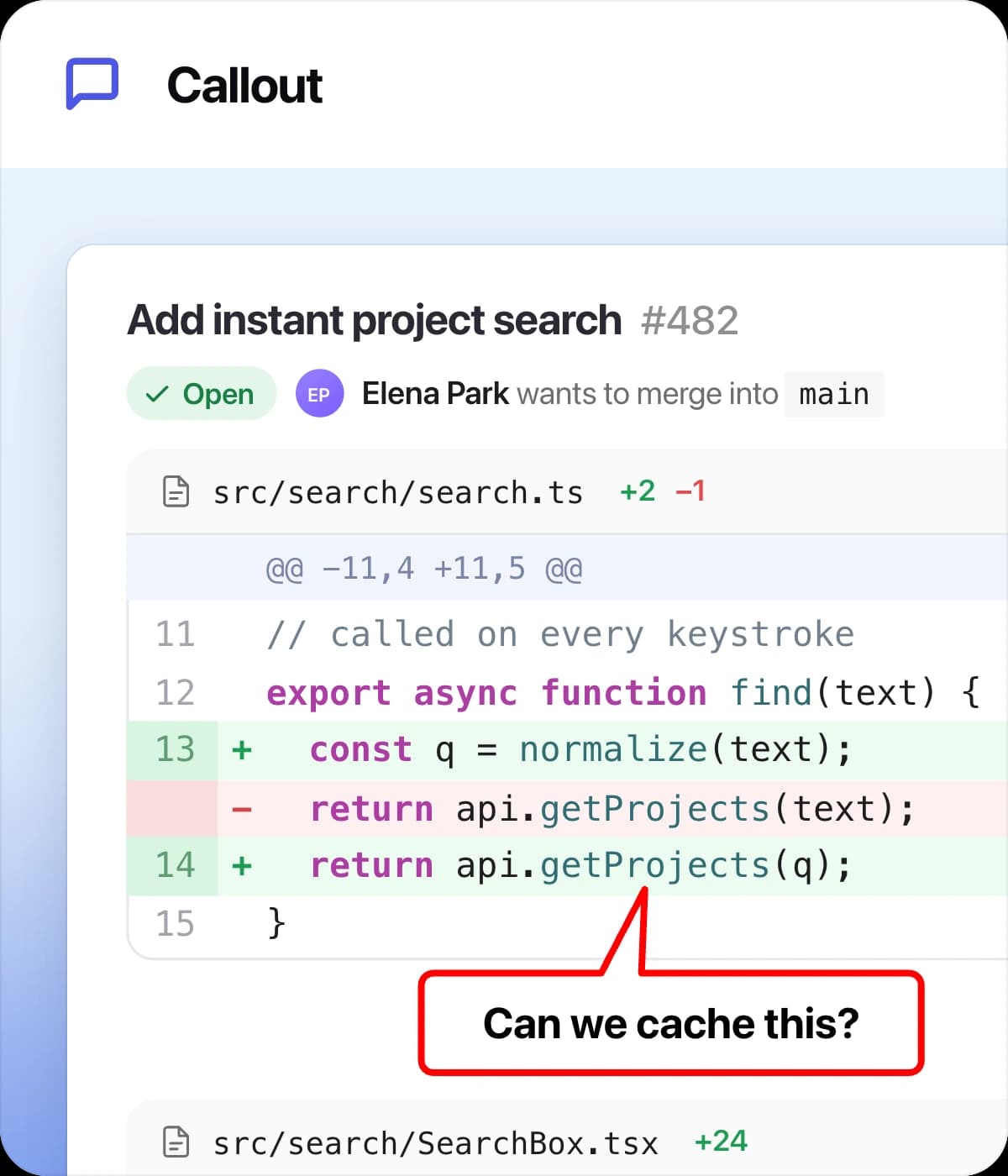
- 1Press on the spot the pointer should point at.
- 2Drag toward where the bubble should go, then release. A simple click instead places a standard-size bubble above the spot, or below it when there is no room above.
- 3Type your text right away.
Enteradds a new line. PressEscor click outside to finish. - 4Double-click the callout later to edit the text.
Drag the handle at the pointer tip to aim the pointer somewhere else. Hold Shift and drag the bubble to move it while the pointer tip stays on its target. In the settings panel you can change the border color, Border thickness, corner shape, Font size, Bold, Italic, Text alignment and Auto-fit height (the ↕ button), which resizes the bubble's height to fit your text.
Counter
Shortcut 0. Click to drop numbered circles: the first click places 1, the next 2, and so on. Use them to show the order of steps in a tutorial.
Settings: circle color and Counter size. Drag a counter to move it. If you delete a counter, the remaining ones are renumbered so the sequence has no gaps. New numbers continue after the highest one on the screenshot, and a newly opened image starts again at 1.

Combine counters with arrows or a Spotlight to walk someone through a screen step by step.
Emoji
Shortcut J, or click the Emoji button on the toolbar. The emoji picker opens with a search field, category tabs and your recently used emoji. Click an emoji and it is placed in the middle of the screenshot, already selected, and the editor switches back to selecting.
Drag the emoji to move it, drag a corner handle to resize it, and drag the round handle above it to rotate it. You can also hold Option (Mac) or Alt (Windows) and scroll to resize a selected emoji.

Pencil
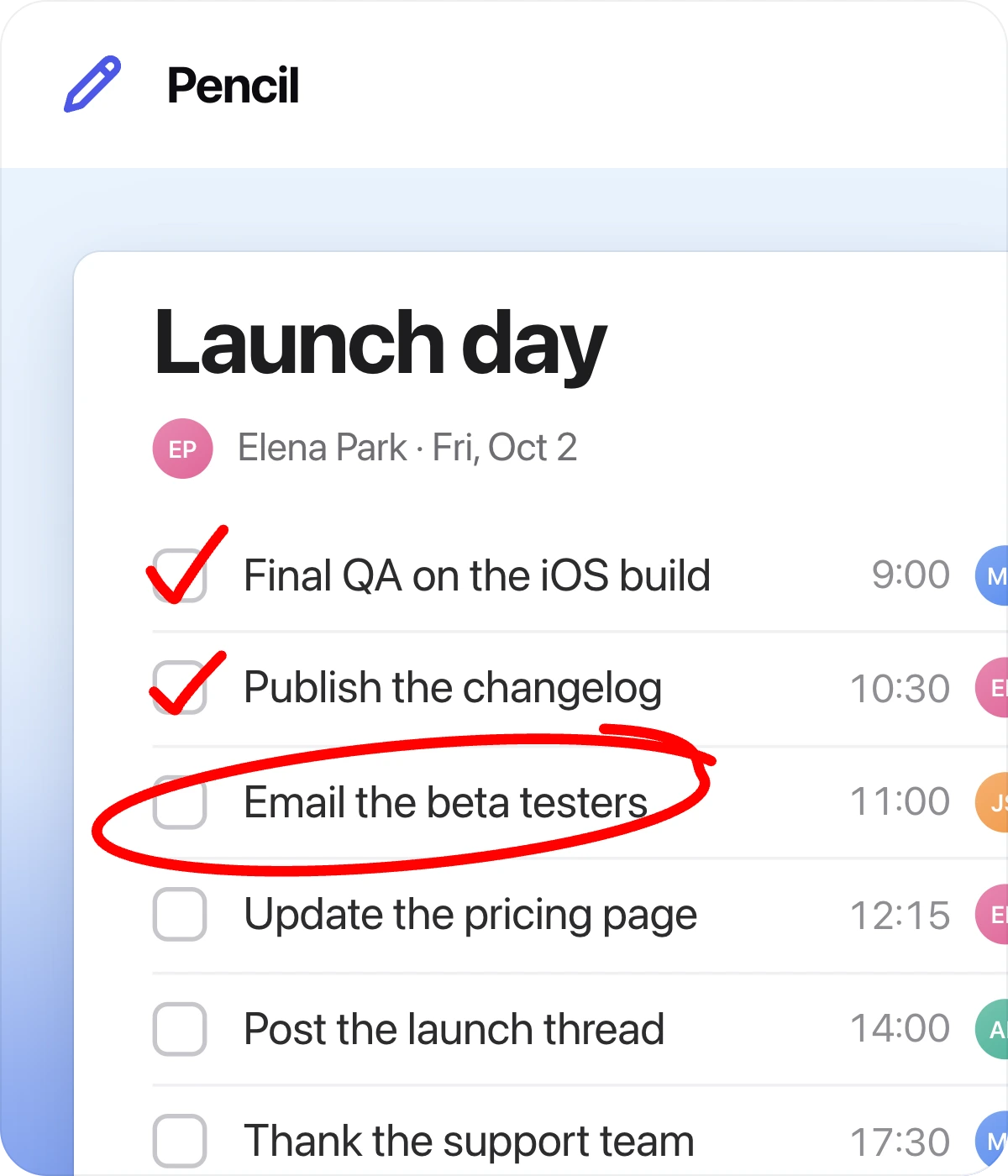
Shortcut P. Drag to draw freehand. Your stroke is smoothed automatically so mouse and trackpad lines look clean. Hold Shift when you let go to turn the stroke into a straight line from where you started. Settings: color and Pencil thickness.
Eraser
Shortcut E. Move the pointer over the screenshot: the annotation under it is highlighted. Click to delete it.
To delete several at once, Shift-click each one to mark it, then click any annotation without Shift: all marked annotations are deleted together. The Eraser only removes annotations, never the screenshot itself, and Undo brings back anything you erased by mistake.