Video Backgrounds and Frame
Place your screen recording on a wallpaper, gradient or color and set padding, aspect ratio, rounded corners and shadow in the ScreenSnap Pro video editor.
The Background tab
New recordings open with a wallpaper background, padding, rounded corners and a shadow. Change the look in the Background tab, the first tab in the video editor's right panel. Changes show in the preview right away and are included when you export.
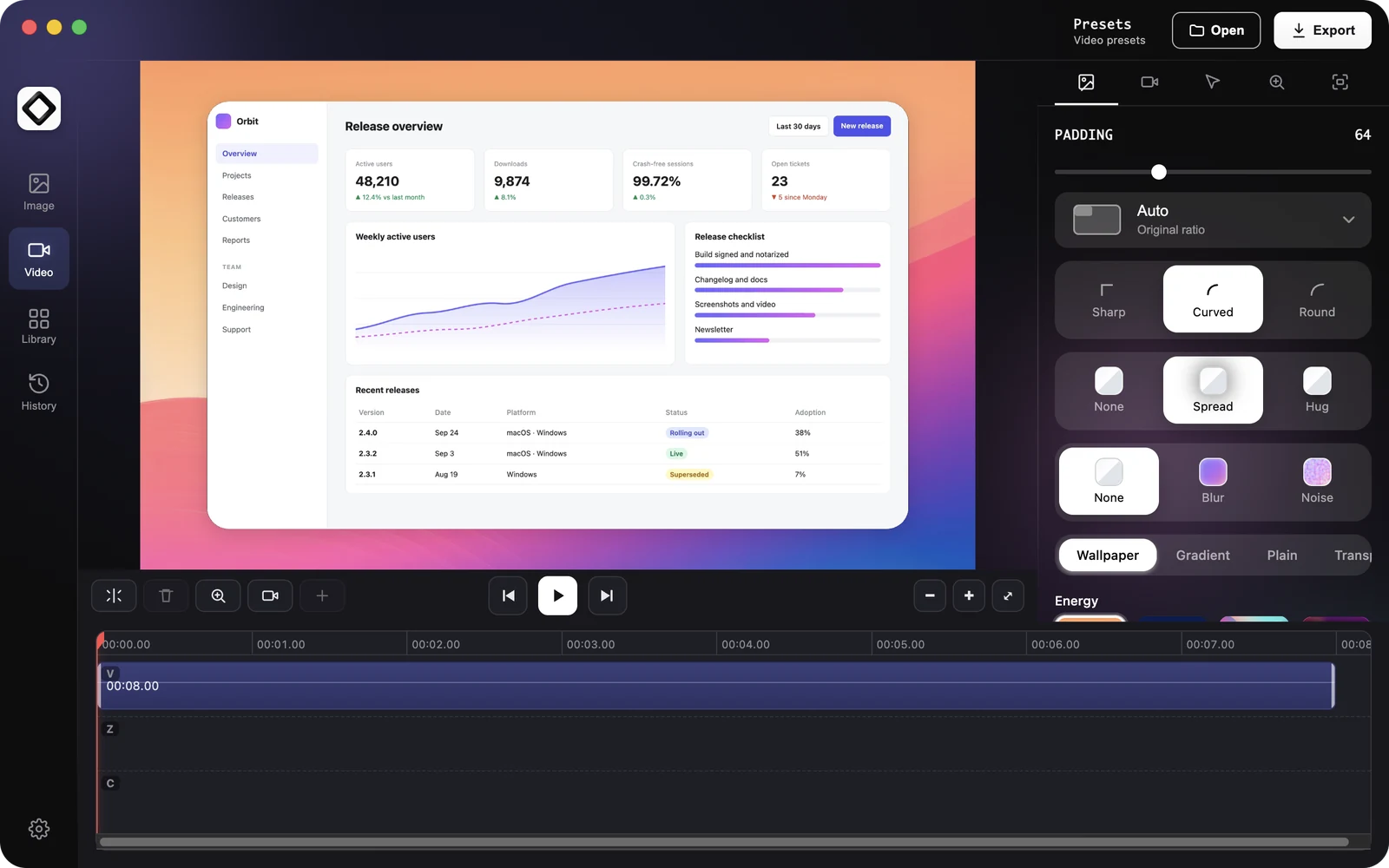
Choose a background
- 1"Wallpaper": pick a wallpaper from categories such as Energy, Spring, Iridescent and Sunset. Click "Add Image" to use your own JPG, PNG, WebP, GIF or BMP picture.
- 2"Gradient": choose a preset from Simple, Vibrant, Radial or Conic, or set two colors of your own and the "Gradient Angle".
- 3"Plain": one solid color from "Color Presets" or the color picker.
- 4"Transparent": no background. The preview shows a checkerboard, but MP4 and GIF files cannot store transparency, so this area exports as black.
Frame settings
- 1"Padding": the space between your recording and the edge of the video, from 0 to 200.
- 2Aspect ratio: "Auto" keeps the original ratio. You can also choose Wide (16:9), Square (1:1), Classic (4:3), Vertical (9:16), Tall (3:4), Portrait (4:5 or 2:3), Cover (3:1) or Long (10:21).
- 3Corner radius: the "Sharp", "Curved" and "Round" presets, or an exact value with the "Radius" slider.
- 4Shadow: "None", "Spread" or "Hug", with an "Opacity" slider.
- 5"Background effect": "None", "Blur" or "Noise", with an "Intensity" slider.
Found a look you like? Save it with "Presets" in the top bar and apply it to your next recording in one click.