Activating Your License
Activate your ScreenSnap Pro license key, use its 2 seats on any mix of Mac and Windows computers, move it to a new computer, and fix activation errors.
How the license works
One purchase gives you one license key with 2 seats. Each seat is one computer, and you can mix platforms freely: a Mac and a PC, two Macs or two PCs. The key is in the receipt email you get right after checkout. ScreenSnap Pro asks for it the first time you open the app, and features such as Save and Copy in the editor, cloud upload, screen recording and Capture Website need an active license.
Activate on a computer
Activation takes a few seconds and needs an internet connection.
- 1Open ScreenSnap Pro. On first launch the setup starts with
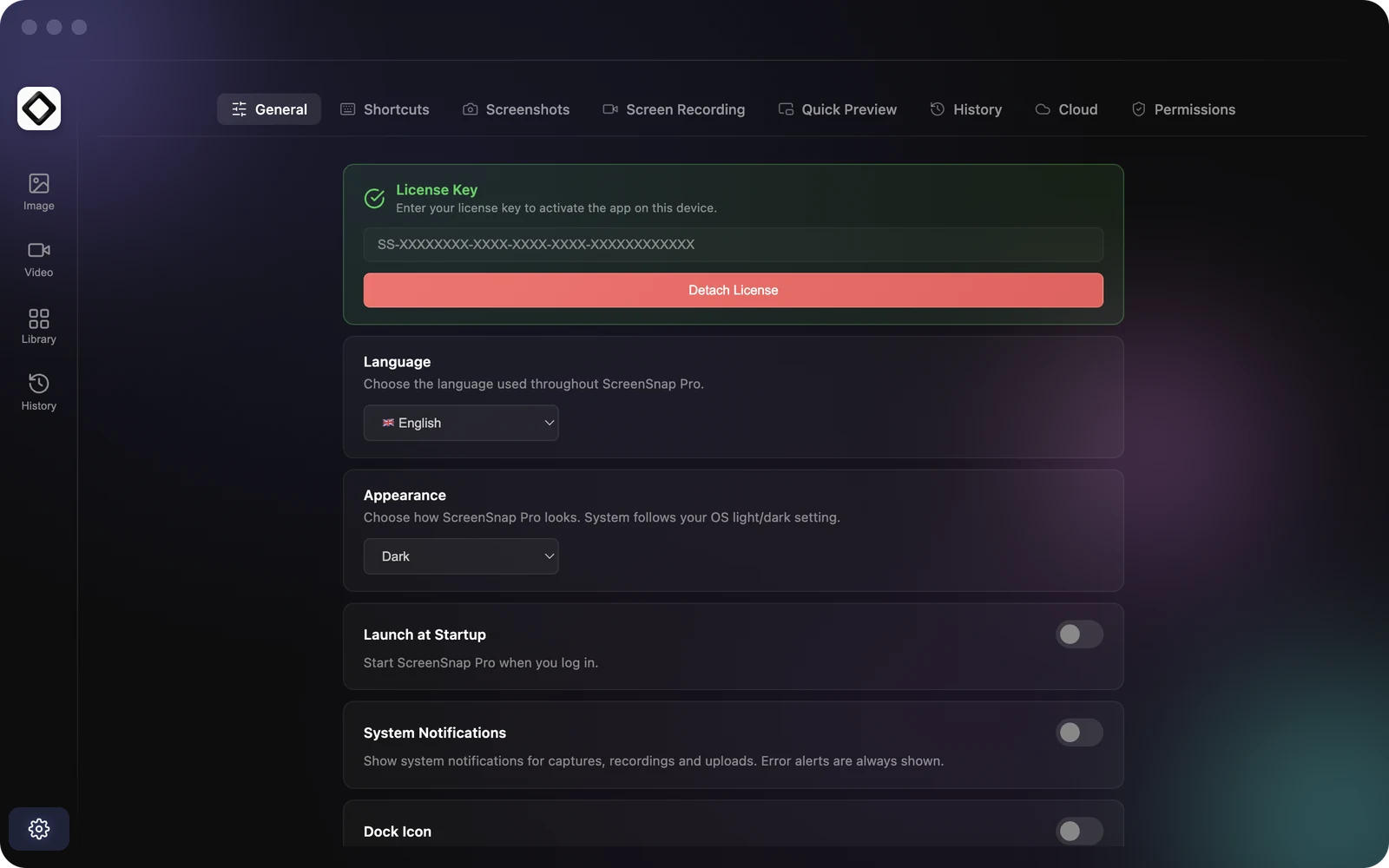
Welcome to ScreenSnap Pro!. On a computer that is already set up, open Settings >Generaland findLicense Key. - 2Paste your key into the
Enter your license keyfield. - 3Click
Activate Licenseand stay online until it finishes. - 4When the key is active, the button shows
✓ License Activatedin the setup, orDetach Licensein Settings.
Once activated, ScreenSnap Pro keeps working offline. It checks the license again when it starts and can reach the internet.
Use your second seat
Install ScreenSnap Pro on your second computer and activate it with the same key. Reinstalling on a computer that already has a seat gives it back its existing seat instead of using a new one, as the activation screen says: You can reactivate on the same device anytime.
Move your license to a new computer
Free the seat on the old computer before you activate the new one. Detaching needs an internet connection.
- 1On the old computer, open Settings >
General. - 2Under
License Key, clickDetach License. - 3In the
Detach License Keydialog, clickDetach Licenseto confirm. The seat is now free. - 4Activate the key on the new computer.
Uninstalling the app does not free a seat, so detach first. If the old computer is lost or no longer starts, contact support and ask for the seat to be freed.
Both seats are in use
If activation shows License is already activated on 2 device(s). Please deactivate another device first., the key is active on two computers already. Open Settings > General on one of them, click Detach License, then activate again on the computer you want to use.
Activation fails or the key is not accepted
When activation fails, ScreenSnap Pro shows a License Error message with the reason. Here is what the common ones mean.
- 1A network error, such as a message starting with
net::ERR: ScreenSnap Pro could not reach the license server. Check your connection, pause a VPN or firewall that might block it, and try again. - 2
Request timestamp is outside the allowed window: your computer's clock is wrong. Turn on automatic date and time in your system settings, then activate again. - 3The key is reported as invalid or not found: copy the whole key again from your receipt email, with no extra spaces, and paste it in.
- 4Still stuck? Contact support with the email address you used to buy.
License Issue notification on a Mac
If ScreenSnap Pro shows a License Issue notification when it starts, the license server did not confirm this computer's activation. Open Settings > General and activate the key again. If that fails, check the errors above or contact support. Starting without internet does not cause this: ScreenSnap Pro keeps working with your last successful activation.