Zoom-ins for Recordings
Add smooth zoom-ins to screen recordings in ScreenSnap Pro: generate them from pointer activity, or place, time and adjust each zoom yourself.
Automatic zoom-ins
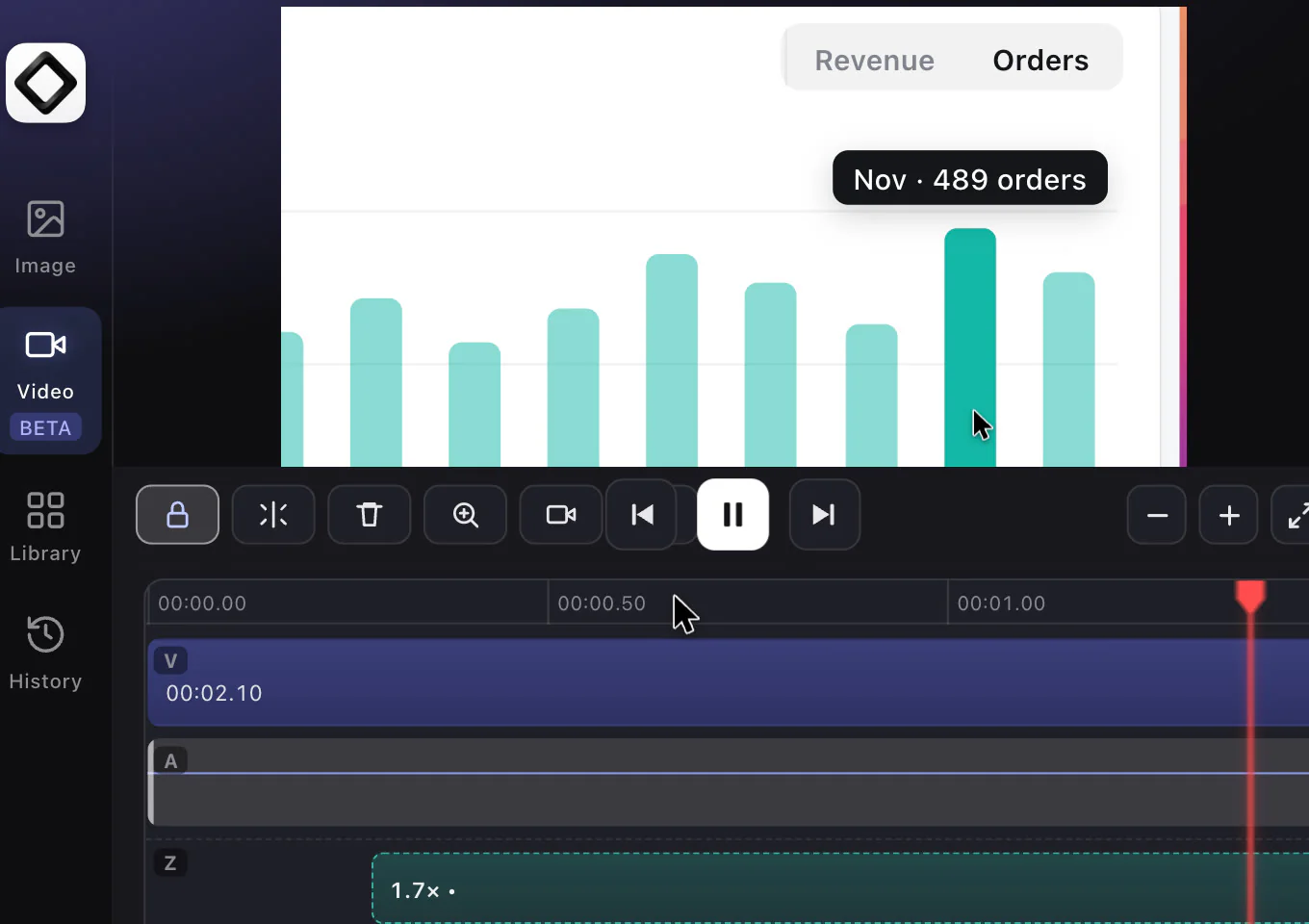
The first time you open a new recording, ScreenSnap Pro creates zoom regions from your pointer activity and places them on the Z lane of the timeline. Play the video to see them, then keep, adjust or delete them. In the Zoom tab, "Auto-zoom" generates them again at any time and keeps the zooms you added yourself. "Clear" removes the automatic zooms first. Click it again to also remove the ones you added.
Add a zoom yourself
Zoom regions never overlap, so a new zoom is placed in the free space at the playhead. If there is no room, nothing is added.
- 1Move the playhead to where the zoom should start.
- 2Click the magnifier button in the timeline tools ("Add zoom region at playhead").
- 3Drag the new region on the Z lane to move it, or drag its edges to change when it starts and ends.
- 4Keep it selected and open the Zoom tab to fine-tune it.
New zooms follow the pointer by default, which works well for demos where you click through an interface.
Adjust a zoom
Select a zoom region on the timeline, then use the Zoom tab:
- 1"Zoom level": from 1.0× to 4.0×.
- 2"Focus": "Follow cursor" keeps the pointer in view as it moves. "Fixed point" zooms into one spot that you set with "Focus X" and "Focus Y".
- 3"Ease in" and "Ease out": how long the zoom takes to move in and back out, up to 1000 ms each.
- 4"Delete region": removes the zoom.
More zoom options
Right-click a zoom region for "Duplicate", "Disable", "Change zoom level", "Apply zoom level to all other zooms", "Copy zoom range" and "Cut to clipboard". The same menu can disable, enable or remove all zoom ranges at once, or "Restore default zoom ranges" to bring back the automatic ones.
No automatic zooms?
Automatic zoom-ins need the pointer movement that ScreenSnap Pro saves with each recording. Videos opened with "Import video…" and recordings without pointer data show "No cursor data" in the Zoom tab, and "Auto-zoom" is unavailable. Add zoom regions with the magnifier button in the timeline tools instead, and set their "Focus" to "Fixed point" to choose where each zoom aims.