Save Folder, File Names and Formats
Choose where ScreenSnap Pro saves your screenshots, how the files are named, and which image format to use: PNG, JPEG, WebP or AVIF.
Where screenshots are saved
Out of the box, screenshots go to a folder called ScreenSnap Pro on your Desktop, on both Mac and Windows. ScreenSnap Pro creates the folder when it needs it. GIF recordings and videos you export from the video editor are saved there too. To open the folder, click the ScreenSnap Pro icon in the menu bar (Mac) or right-click it in the system tray (Windows) and choose Open Screenshots Folder.
Change the Save Folder
New files go to the folder you pick. Files you saved earlier stay where they are, and the Library switches to showing the new folder.
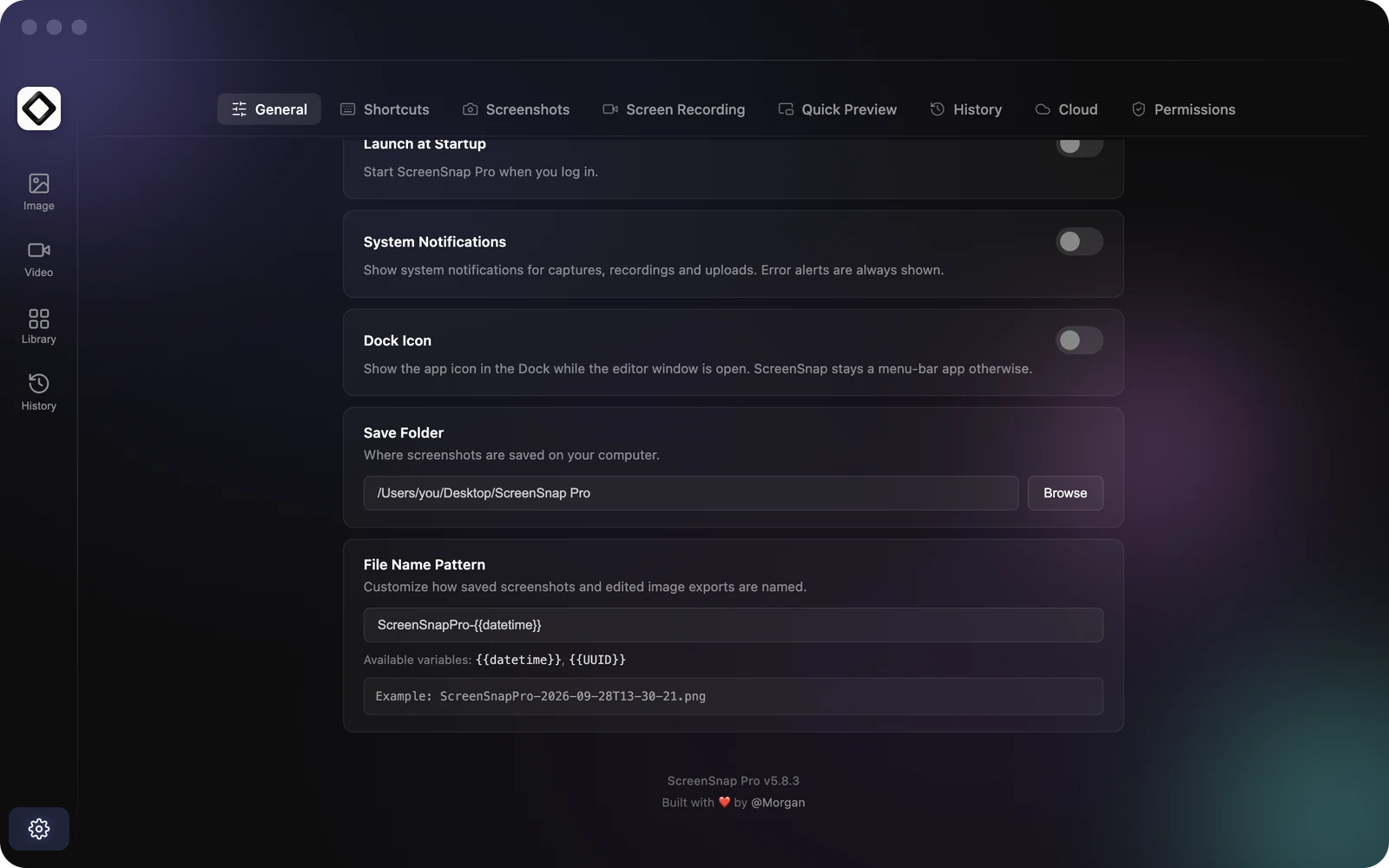
- 1Open Settings. The
Generaltab opens first. - 2Under
Save Folder, clickBrowse. - 3Pick a folder and confirm.
You can also choose the folder during onboarding, on the Screenshot Folder step.
Name files with a pattern
File Name Pattern in Settings > General sets how saved screenshots and edited image exports are named. It also names GIF recordings and exported videos. The default pattern is ScreenSnapPro-{{datetime}}, which gives names like ScreenSnapPro-2026-03-24T14-26-33.png. Type your own text around the two variables, {{datetime}} and {{UUID}}. The example under the field updates as you type, and the pattern is saved when you press Return or Enter, or click elsewhere.
Start the pattern with {{datetime}}, for example {{datetime}}-bug-report, if you want files to sort by date when sorted by name.
How the variables work
{{datetime}} inserts the date and time as year, month and day, then hours, minutes and seconds, like 2026-03-24T14-26-33. The time is in UTC, so it can differ from your local clock. {{UUID}} inserts a random unique ID in capital letters. Characters that aren't allowed in file names, such as /, : or ?, are replaced with -. If a file with the same name already exists, ScreenSnap Pro adds a number, like -2, instead of overwriting it, so a pattern without variables gives bug.png, bug-2.png, bug-3.png and so on. An empty pattern falls back to the default.
Choose a file format
Pick the format under Default Screenshot Format in Settings > Screenshots. It's used for new screenshots, for Save in the editor and as the suggested type in Save As. PNG is the default: it keeps maximum quality and supports transparency. JPEG makes files smaller but removes transparency; files end in .jpg and transparent areas become white. WebP balances smaller file sizes with good quality and supports transparency. AVIF gives the smallest high-quality files, but some apps and websites don't support it yet.
Rounded corners and transparent backgrounds need a format with transparency, so use PNG, WebP or AVIF for them. If you share cloud links, skip AVIF: ScreenSnap Cloud doesn't accept AVIF uploads.
Clipboard format
On Mac, copied screenshots use the same format as your saved files. On Windows the clipboard always gets a PNG image for compatibility, while saved files still use the format you picked.
Very large screenshots
When a screenshot is saved and copied after a capture, and when you use Save or Save As in the editor, images larger than 5120 pixels on their longest side are scaled down to 5120 pixels. Smaller images keep their full resolution, and Copy in the editor always copies the image at full size.
Troubleshooting: I can't find my screenshot
Choose Open Screenshots Folder from the ScreenSnap Pro icon menu to jump to the current Save Folder. A Capture Area (Editor) screenshot is only saved once you click Save in the editor. If you deleted a file, check Capture History: it keeps a private copy of your captures for 1 week by default, which you can change under Keep history for in Settings > History.