Troubleshooting
Fix common ScreenSnap Pro problems: captures that fail on Mac, black screenshots on Windows, silent shortcuts, missing Recognize Text and failed uploads.
Screenshots fail on Mac
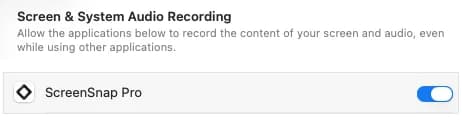
macOS only lets an app capture your screen after you allow Screen Recording. Without it, ScreenSnap Pro shows Screen Recording Permission Required instead of taking the screenshot.
- 1Click
Open System Preferencesin that dialog, or open Settings >Permissionsin ScreenSnap Pro and clickAllow Screen Recording. - 2In System Settings > Privacy & Security > Screen & System Audio Recording (called Screen Recording on older macOS versions), switch on ScreenSnap Pro.
- 3Click the ScreenSnap Pro icon in the menu bar, choose
Quit ScreenSnap Pro, then open the app again. - 4Check that the
Permissionstab now showsGranted.
If ScreenSnap Pro is already switched on but captures still fail, switch it off and on again, then restart the app. More in Permissions on macOS and Windows.
Screenshots are black on Windows
HDR displays, dual-GPU laptops, remote sessions and graphics driver issues can make Windows return a completely black image. When ScreenSnap Pro detects this, it shows Screen Capture Problem and offers a compatibility capture mode.
- 1Click
Relaunch in Compatibility Mode. ScreenSnap Pro restarts with a more compatible capture method. - 2Take the screenshot again.
- 3If the next dialog says
Screen captures are still coming out black., the cause is on the computer itself. Turn off HDR (Windows Settings > System > Display > Use HDR) and try again. - 4Update your graphics driver.
- 5On a dual-GPU laptop, set ScreenSnap Pro to "Power saving" in Windows Settings > System > Display > Graphics.
- 6Remote Desktop and some security or banking software can also block screen capture.
If the Windows Snipping Tool also captures a black screen, the problem is system-wide rather than in ScreenSnap Pro.
A shortcut does nothing
Work through this list in Settings > Shortcuts.
- 1Check that the action has a shortcut. Only
Capture AreaandCapture Area (Editor)are set out of the box. The others stay empty until you assign one. - 2Check that its switch is on. A turned-off shortcut shows
Disablednext to its keys. - 3If you saw
Shortcut Unavailable, your operating system or another app already uses those keys. Pick another combination, or quit the other app and turn the shortcut off and on again. - 4On Mac, open the
Permissionstab. IfAccessibility PermissionshowsNot granted, clickAllow Accessibility Accessand switch on ScreenSnap Pro in System Settings. - 5On Mac, macOS uses
Cmd + Shift + 3,Cmd + Shift + 4andCmd + Shift + 5for its own screenshots. If you assign one of these, turn off the matching macOS shortcut in System Settings > Keyboard > Keyboard Shortcuts > Screenshots, or choose different keys. - 6On Windows, if you see
Print Screen is already in use, follow the steps in Change or Turn Off Shortcuts. - 7Editor tool keys don't work while you type in a text field. Click the canvas, then press the key again.
- 8Make sure ScreenSnap Pro is running: its icon should be in the menu bar (Mac) or system tray (Windows).
Recognize Text is missing on Windows
On Windows, Recognize Text needs an OCR language pack. If none is installed, Recognize Text disappears from the tray menu, and its row in Settings > Shortcuts explains that it is not available.
- 1Open Windows Settings > Time & Language > Language & region.
- 2Add a language pack with OCR support.
- 3Restart ScreenSnap Pro.
On some managed PCs, Windows blocks the feature entirely. In that case the Recognize Text row is hidden from Settings. Ask your IT administrator if you need it. More in Text Recognition (OCR).
Cloud uploads fail
When an upload can't finish, ScreenSnap Pro shows an Upload Failed notification. The message tells you why.
- 1Check that
Cloud Uploadis on in Settings >Cloud. - 2If the message says cloud upload requires an active license, enter and activate your key under
License Keyin Settings >General. - 3
License Issuemeans your license key is expired, invalid or not found. Click the notification and activate your license again. - 4For any other message, check your internet connection. ScreenSnap Pro retries temporary failures automatically before it shows the error, so wait a moment and try the upload again.
Successful uploads only show a notification when System Notifications is on in Settings > General. Either way, the share link is copied to your clipboard when the upload finishes. More in Share a Link to a Screenshot or Recording.
Microphone or camera missing from recordings (Mac)
Both permissions are optional and stay off until you allow them.
- 1Open Settings >
Permissions. - 2Click
Allow Microphone AccessorAllow Camera Accessand confirm the macOS prompt. - 3If no prompt appears, open System Settings > Privacy & Security > Microphone (or Camera), switch on ScreenSnap Pro, then restart the app.
Choosing your microphone and camera is covered in Audio and Webcam Setup.
A feature asks for a license
Screen recording, Web Capture, cloud upload, and Save and Copy in the editor need an active license. If one of them opens the license prompt, enter your key under License Key in Settings > General and click Activate License. See Activating Your License.
Can't find ScreenSnap Pro
ScreenSnap Pro runs in the background. On Mac, look for its icon in the menu bar at the top of the screen. It has no Dock icon unless you turn on Dock Icon in Settings > General. Click the icon and choose Open Editor. On Windows, look in the system tray, and if the icon is hidden, click the arrow that shows hidden icons. Right-click the icon and choose Open Editor. A left-click starts Capture Area (Editor) unless you changed Tray Icon Left-Click. With Open Editor on App Launch on (the default), opening ScreenSnap Pro from the Start menu, desktop or taskbar also opens the editor.
Can't find a screenshot
Screenshots go to your Save Folder, by default a ScreenSnap Pro folder on your Desktop. Choose Open Screenshots Folder from the ScreenSnap Pro menu to jump there. A Capture Area (Editor) screenshot is only saved there once you click Save in the editor. Deleted a file by mistake? Capture History keeps a private copy of recent captures, for 1 week by default.
Still stuck?
Make sure you're on the latest version: open the ScreenSnap Pro menu and choose Check for Updates (it reads Install Update when an update is ready). See Updating ScreenSnap Pro. If the problem continues, contact support.