Capture History
Reopen recent screenshots from a private, time-limited history, even after deleting the original file, and choose how long ScreenSnap Pro keeps it.
What Capture History keeps
Capture History keeps a private copy of your recent captures so you can get them back later, even if you deleted the original from your save folder. It includes screenshots from every mode, including Capture Area (Editor), Recognize Text and Capture Website, plus GIF recordings. Screen recording projects are not copied; open those from the Video tab. History is stored in ScreenSnap Pro's app data on your computer, separate from your save folder. It is on by default and keeps captures for 1 week.
Open your history
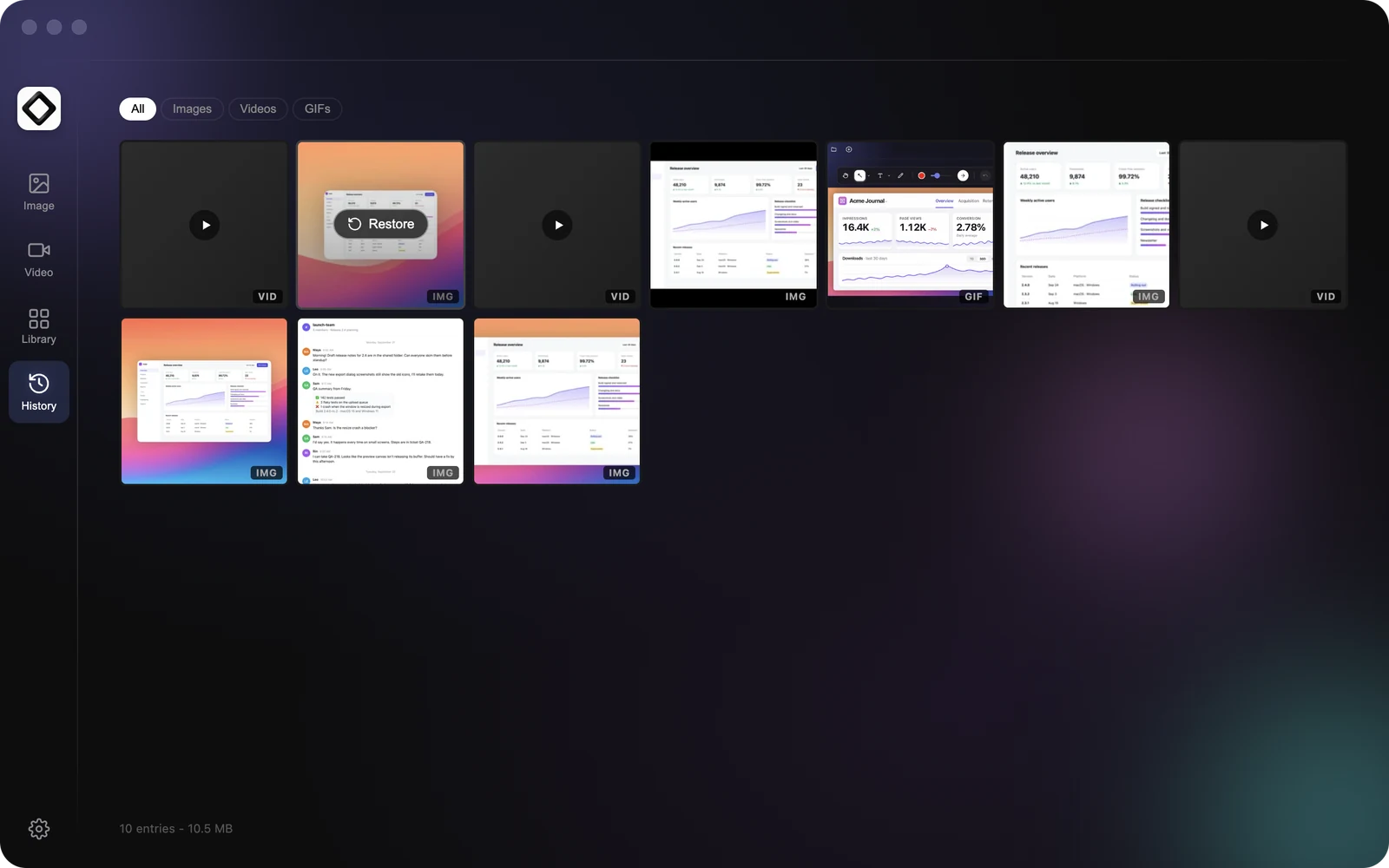
Restore reopens a screenshot in Quick Preview, where you can drag it into another app, edit it, pin it or copy its text. A GIF reopens in Quick Preview too, ready to drag. Videos open in your default video player.
- 1Choose
Capture Historyfrom the menu bar or tray menu, or clickHistoryin the app's left sidebar. - 2Use the filters at the top to show
All,Images,VideosorGIFs. The footer shows how many entries you have and how much space they use. - 3Hover over a capture to see its file name and how long ago you took it, then click
Restore.
Restoring doesn't put a file back in your save folder. To keep a copy, drag the Quick Preview thumbnail into a folder, or click Edit and save it from the editor.
Choose how long history is kept
Open Settings > History and pick a period under Keep history for: 1 day, 3 days, 1 week (default) or 1 month. Older entries are removed automatically. Choose None (disabled) to stop keeping history.
When history is turned off, the History tab says so and offers an Open Settings button to turn it back on.
Clear your history
To remove everything at once, open Settings > History, click Clear history now and confirm. This permanently deletes every stored history copy. Files in your save folder are not affected.