Auto Upload: A Link for Every Screenshot
Turn on Auto Upload and every screenshot you save is uploaded right away, with its share link copied to your clipboard and ready to paste.
How it works
With Auto Upload on, each screenshot is uploaded as soon as it's saved, and its share link is copied to your clipboard. Take a screenshot, give it a moment, and paste the link into a chat, a ticket or an email. It works with Capture Area, Capture Screen, Capture Window, Capture Area with Delay and Capture Website, with GIF recordings, and when you click Save in the editor.
Turn on Auto Upload
Auto Upload needs Cloud Upload and an active license.
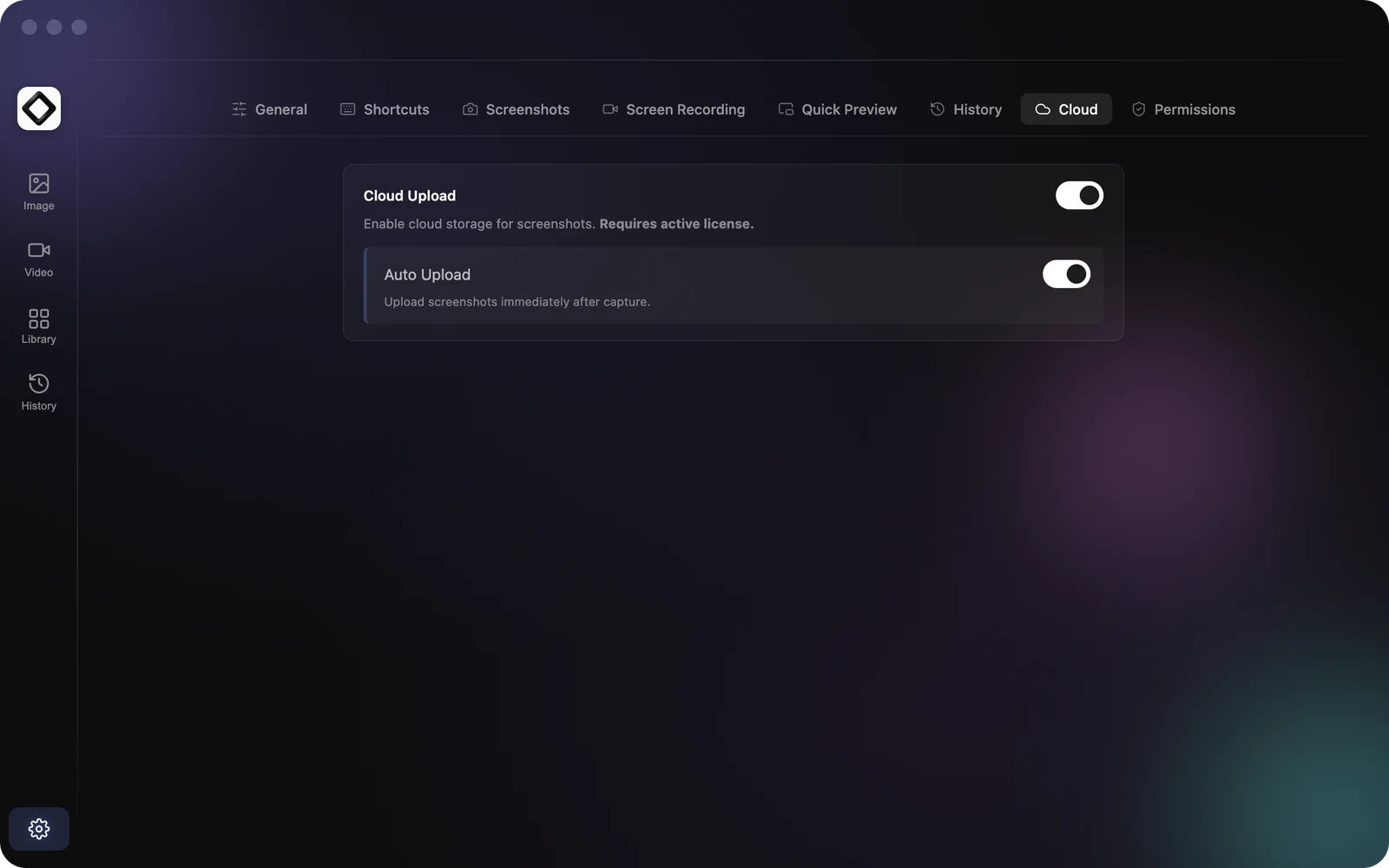
- 1Open Settings: click the ScreenSnap Pro icon in the menu bar (Mac) or right-click it in the system tray (Windows) and choose
Settings..., or click the gear icon at the bottom of the editor's left sidebar. - 2Open the
Cloudtab. - 3Switch on
Cloud Upload. TheAuto Uploadoption appears below it. - 4Switch on
Auto Upload.
What ends up on your clipboard
If Copy to Clipboard is on, the screenshot image is copied first. When the upload finishes, the link replaces it. To share the image itself, drag the Quick Preview into the app instead of pasting. While Auto Upload is on, the Quick Preview has no link button, because the upload is already on its way.
Turn off Copy to Clipboard in Settings > Screenshots if you only ever want the link on your clipboard.
Know when the link is ready
If the editor's Library tab is open, a placeholder marked uploading appears in the grid while the file uploads, and the file shows a cloud icon (Synced with Cloud) once it's done. On Mac, turn on System Notifications in Settings > General to get a Screenshot Uploaded! notification that includes the link. ScreenSnap Pro doesn't show upload notifications on Windows, so check the Library if you're not sure.
What isn't uploaded
Auto Upload only uploads files that are saved to your Save Folder as you capture. A Capture Area (Editor) screenshot uploads only when you click Save. Copy in the editor, Save As and Recognize Text never upload anything. Video recordings and anything you export from the video editor aren't uploaded automatically either: use Create Link or the link button on their Quick Preview.
Turn it off
Switch off Auto Upload in Settings > Cloud. Screenshots stop uploading on their own and the link button comes back on the Quick Preview, so you can still share single screenshots when you want to.