Best Training Video Software 2026: 9 Tools Compared
# Best Training Video Software for Onboarding & Internal Courses (2026)
Training video software helps L&D teams record, edit, and share staff training at scale. Tools like ScreenSnap Pro cover the screen-capture and screen-recording side on Mac and Windows. The best tools mix screen recording, simple editing, and a path to your LMS. Below, we compare nine tools across four price tiers, from free async recorders to full course-builders with AI avatars. You can match the tool to your team size and goals in a few minutes.
L&D buyers face a real problem. Most lists mix YouTube tools with course-builders, and prices range from free to $30,000 a year. We split this guide into four tiers: free, mid-market, course-builder, and AI. Each tool gets pricing, strengths, honest limits, and a fit call.
If you need an async recorder for onboarding, you do not need Articulate 360. If you build SCORM-tracked courses, Loom will not cut it.
Quick comparison: 9 training video tools at a glance
| Tool | Best for | Starting price | Recording | Editor | LMS export | AI features |
|---|---|---|---|---|---|---|
| ScreenSnap Pro | Async screen + webcam | $39 one-time | Yes | Trim only | No | No |
| Loom | Quick async explainers | Free / $15 mo | Yes | Light | Limited | Yes |
| ScreenPal | Affordable middle option | Free / $4 mo | Yes | Yes | Yes | Some |
| Camtasia | Polished tutorials | $179 one-time | Yes | Full | SCORM | Yes |
| iSpring Suite | PowerPoint-to-course | $470 yr | Yes | Yes | SCORM/xAPI | Yes |
| Articulate 360 | Interactive courses | $1,099 yr | Yes | Yes | SCORM/xAPI | Yes |
| Adobe Captivate | Legacy course-builder | $33 mo | Yes | Yes | SCORM/xAPI | Some |
| Vyond | Animated explainers | $299 yr | No | Animation | Video export | Yes |
| Synthesia | AI avatar videos | $29 mo | No | Yes | Video export | Yes |
What is training video software?
Training video software is any tool that helps you make video for staff learning. It covers three jobs:
- Recording. Capture your screen, webcam, mic, and system audio.
- Editing. Trim clips, add callouts, captions, quizzes, and brand colors.
- Delivery. Export in formats your LMS reads (MP4, SCORM, xAPI) or host via the vendor.
A general video editor like Premiere Pro can do the first two jobs. But L&D teams need extras: SCORM packages for tracking, quiz features, multi-language captions, and brand templates. That is the gap a training tool fills.
The four tiers:
- Free / cheap async. Loom, ScreenPal, ScreenSnap Pro. For team explainers and short how-tos.
- Mid-market editors. Camtasia. Polished tutorials, full timeline, MP4 or SCORM.
- Course-builders. iSpring, Articulate 360, Captivate. Quizzes, branching, SCORM/xAPI.
- AI-powered. Synthesia for avatars, Vyond for animation. No camera, no studio.
Tier 1: Free and cheap async recorders
These tools win on speed. You record an idea, hit share, and move on. They are not built for branching or SCORM packages.
1. ScreenSnap Pro: $39 one-time, no subscription
ScreenSnap Pro is our app. It is a Mac and Windows screen recorder built for fast async training videos. You get full screen plus webcam, mic, and system audio in one capture. It comes with 15 annotation tools and 500+ wallpaper backgrounds for the screenshot side. Pay $39 once and own it. No monthly fees. No seat licenses.
Pricing: $39 one-time, license for 2 computers (Mac or Windows).
Key features:
- Full recording suite: screen + webcam + mic + system audio
- GIF recording for short looping demos
- 15 annotation tools (arrows, blur, pixelate, counter, text)
- 500+ gradient backgrounds for thumbnail polish
- Optional cloud sharing with instant links
- OCR text extraction from any frame
- No watermarks on output
Who it is for: SaaS onboarding teams, small L&D teams, in-house trainers. Best for anyone who records 3 to 10 videos a week and wants a clean output with no subscription. Good if your "course library" is really a Notion page full of embedded videos.
Limitations: No built-in LMS export (no SCORM or xAPI). No AI avatars. Not a course-builder. There is no quiz engine, no branching, and no SCORM zip output. Trim is the only edit. For multi-track work, pair it with Camtasia or DaVinci Resolve.
Rating: (4.5/5)

2. Loom: async video, the obvious one
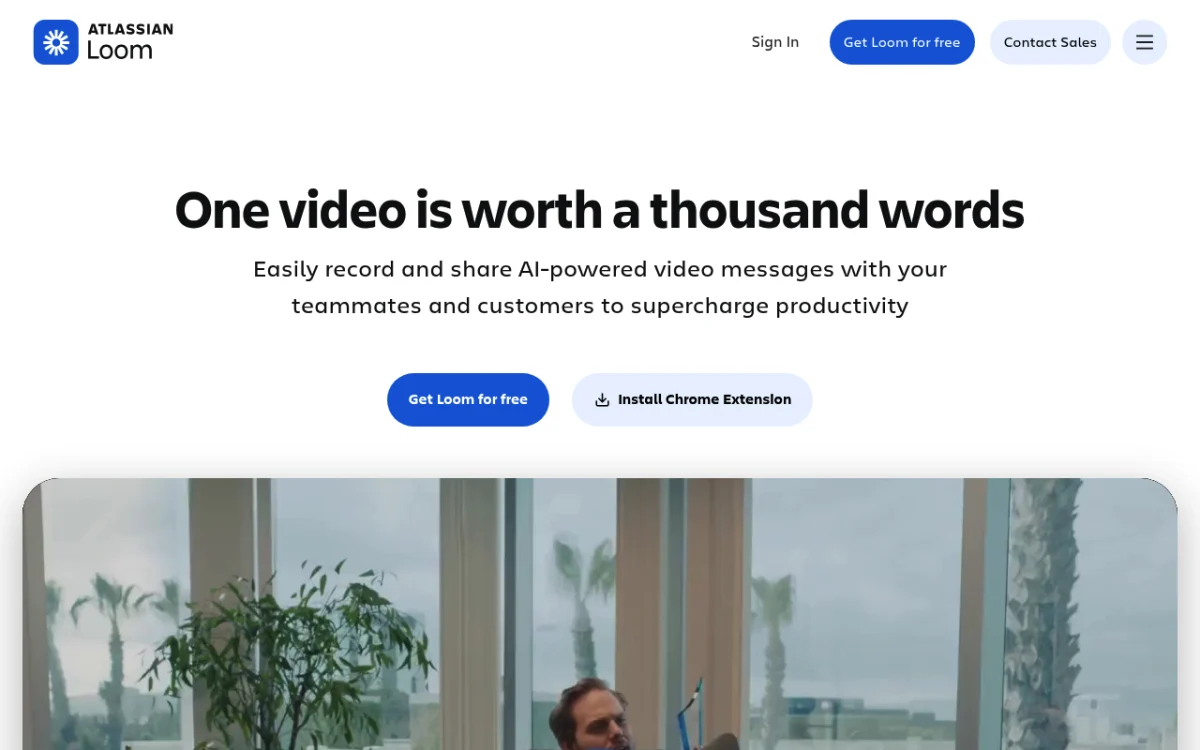
Loom is the default async video tool for most teams. It runs in a browser or a desktop app. It records screen plus webcam bubble and gives you a share link the moment you stop. Atlassian bought Loom in 2023.
Pricing: Free (25 videos, 5 min each) | Business $15/user/mo | Enterprise custom.
Key features:
- Screen + webcam + mic recording with one click
- Auto-transcripts and AI chapter titles
- Viewer analytics (who watched, how far)
- Comments on any timestamp
- Light editing (trim, stitch, blur)
Who it is for: Remote teams in Slack and Notion. Customer onboarding videos. Code reviews and design walkthroughs. The free tier covers a lot of small-team needs.
Limitations: Free tier caps at 5 minutes per video and 25 videos total. Fine for explainers, painful for a real onboarding plan. No SCORM export. Per-seat pricing scales fast: a 50-person L&D team is $9,000 a year.
Rating: (4.5/5)
3. ScreenPal: the affordable middle option
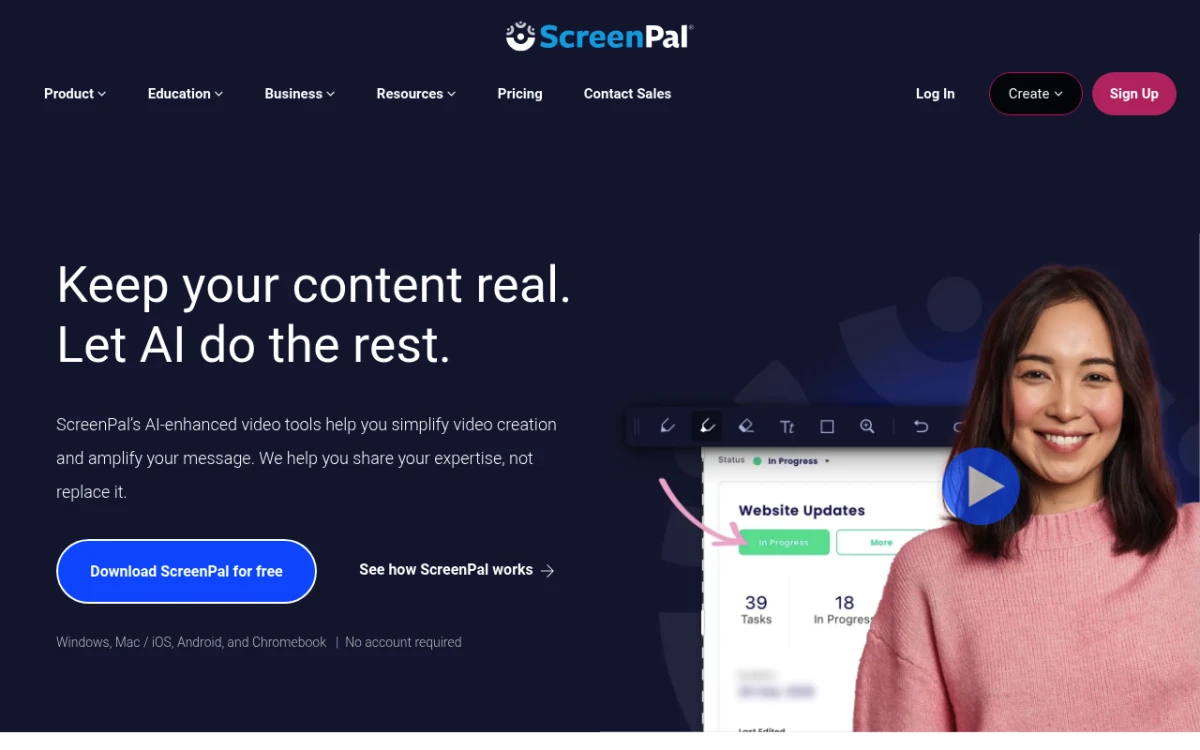
ScreenPal (once Screencast-O-Matic) sits between Loom and Camtasia. You get screen recording, a real timeline editor, and hosting at prices that undercut rivals.
Pricing: Free (15 min limit) | Solo $4/mo | Team $8/user/mo | Education plans.
Key features:
- Screen + webcam recording with green-screen support
- Timeline editor with overlays, captions, transitions
- Built-in stock library (music, images)
- LMS-ready exports (SCORM on higher tiers)
- Auto-captions and translations
Who it is for: Schools, community colleges, and budget-aware L&D teams that want more than Loom but cannot justify Camtasia.
Limitations: UI feels dated next to Loom. Editing is fine but less smooth than Camtasia. Solo tier is hosted-only.
Rating: (4/5)
Tier 2: Mid-market editors
When you need polished tutorials with multi-track editing, callouts, and SCORM, you move up.
4. Camtasia: TechSmith's full editor
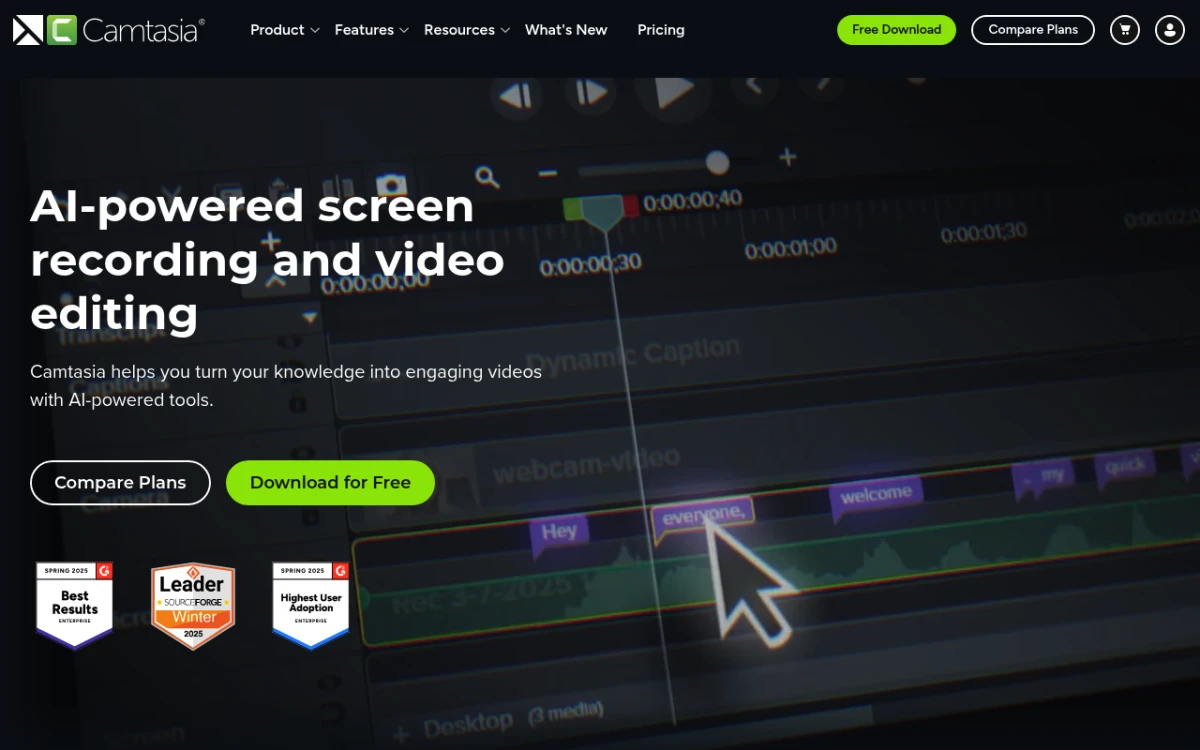
Camtasia is the long-running standard for tutorial creators. It pairs a screen recorder with a multi-track timeline editor, animated callouts, and direct SCORM export.
Pricing: $179 one-time or $99/year. Academic discounts apply.
Key features:
- Multi-track video editor with effects and transitions
- Cursor highlight and zoom-and-pan animations
- Quiz inserts that report scores to your LMS
- SCORM 1.2 / 2004 export
- Asset library (music, intros, motion graphics)
- AI script generation (added in 2024)
Who it is for: Solo trainers, in-house video teams, tech-ed groups. The one-time price matters for budget-locked groups.
Limitations: Desktop-only software, so you have real install and license work. The UI shows decades of feature build-up. Render times on long videos can drag.
Rating: (4.5/5)
Tier 3: Course-builders
Course-builders go beyond video. They handle quizzes, branching, drag-and-drop steps, and full SCORM/xAPI packages. Prices match the audience. These tools are bought by enterprise L&D, not solo creators.
5. iSpring Suite: PowerPoint-to-course
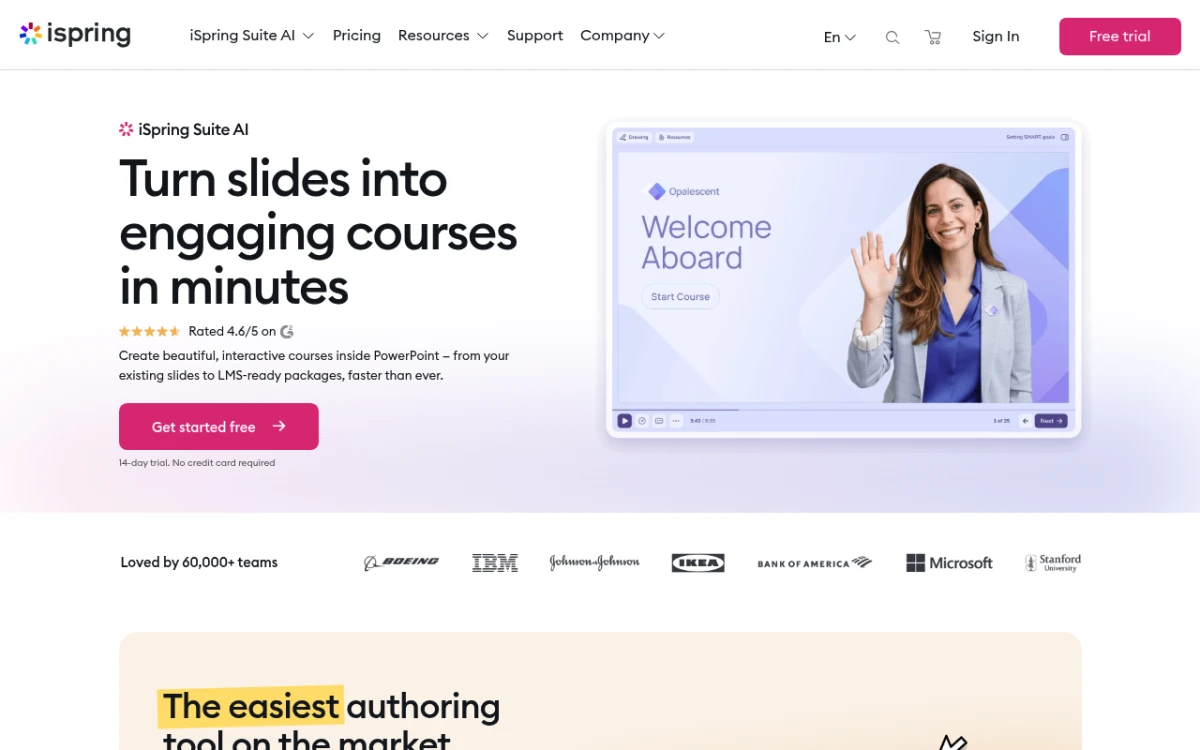
iSpring Suite is a PowerPoint plugin that turns slides into SCORM courses. If your subject experts build training in PowerPoint, iSpring is the easiest step up.
Pricing: iSpring Suite $470/author/year | iSpring Suite Max $770/author/year (with content library).
Key features:
- Lives inside PowerPoint with a familiar UI
- Quiz authoring (14 question types)
- Branching with characters and locations
- Screen recording built in
- SCORM 1.2/2004, xAPI, AICC export
- Role-play sims for soft-skills training
Who it is for: Compliance teams in regulated fields (health, finance, factories). Best when SCORM tracking is required and your SMEs know PowerPoint.
Limitations: Per-author pricing adds up fast. The PowerPoint hook feels limiting if your SMEs prefer Google Slides or Notion. Video editing is basic. Pair with Camtasia for polished motion design.
Rating: (4.5/5)
6. Articulate 360 / Storyline: the L&D heavyweight
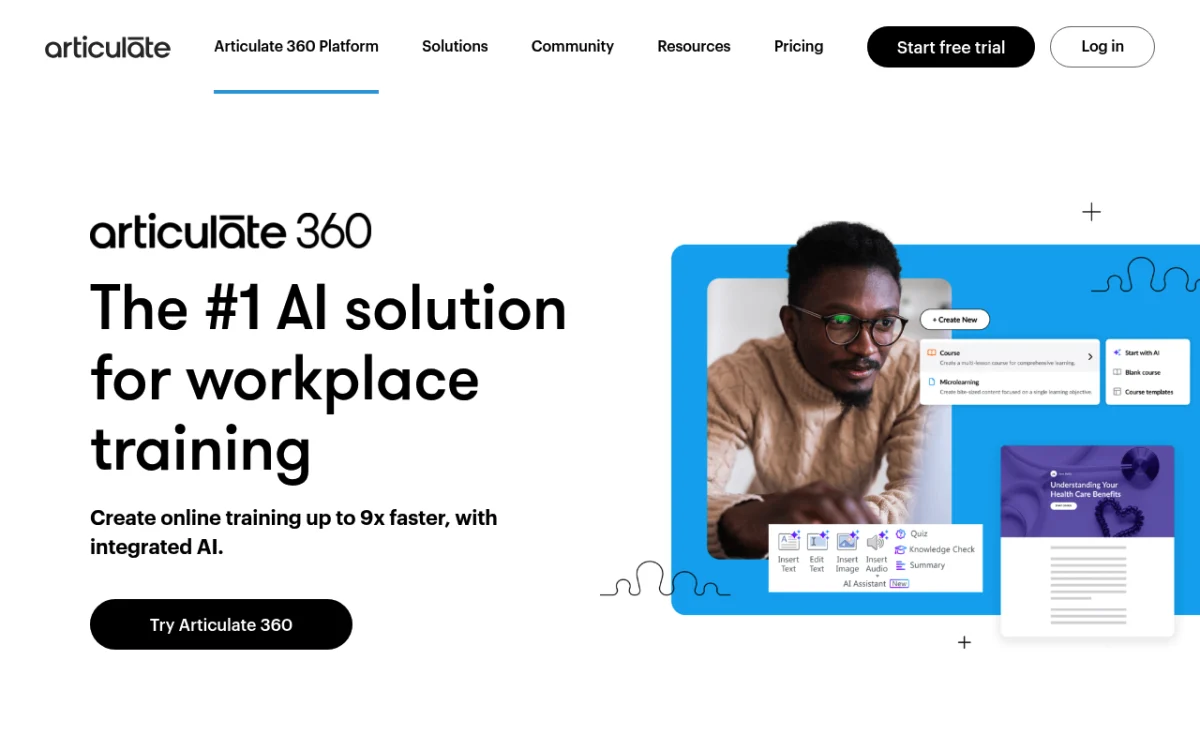
Articulate 360 is the suite most enterprise L&D teams pick. It includes Storyline (slide-based building), Rise (responsive web courses), and Review for feedback. The new Rise AI add-on builds first-draft courses from a prompt.
Pricing: Articulate 360 Teams from $1,099/user/year. Personal from $649/year.
Key features:
- Storyline: full timeline, triggers, variables, branching
- Rise: clean responsive courses for mobile-first learners
- Review 360: stakeholder comments on drafts
- Big template and asset library
- SCORM, xAPI, cmi5 export
- Rise AI: prompt-to-course build
Who it is for: Mid-market and enterprise L&D teams running set courses for hundreds or thousands of learners.
Limitations: Annual seat cost is the highest here. The full suite has a real learning curve. Junior L&D hires often need 3 to 6 months to get fluent in Storyline.
Rating: (5/5)
7. Adobe Captivate: the legacy option
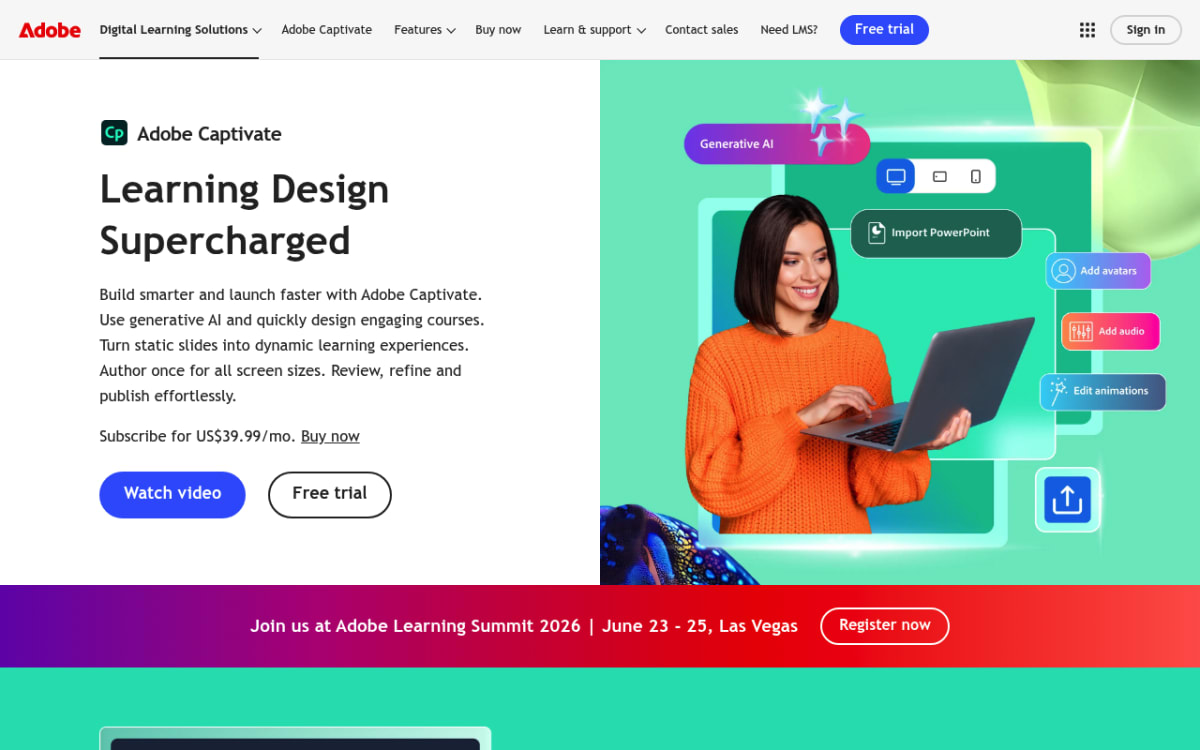
Adobe Captivate has been a course-builder for nearly two decades. The 2024 rebuild moved it closer to a modern responsive tool. It now ships on Adobe's subscription model.
Pricing: $33.99/month (single app), or part of Creative Cloud at some tiers.
Key features:
- Responsive course design with device preview
- Software sims (auto-record clicks and build steps)
- Quiz engine and branching
- SCORM, xAPI, AICC, cmi5 export
- VR / 360-degree training support
Who it is for: Teams already on Creative Cloud, or those building software sims. The auto-record "show me / let me try / test me" pattern is Captivate's signature.
Limitations: Power users find the new UI less flexible than Storyline for complex steps. Docs lag new features. Subscription pricing means you never own the tool.
Rating: (3.5/5)

Tired of plain screenshots? Try ScreenSnap Pro.
Beautiful backgrounds, pro annotations, GIF recording, and instant cloud sharing, all in one app. Pay $39 once, own it forever.
See pricing and featuresTier 4: AI-powered training video tools
These tools skip the camera. You write a script (or paste a doc) and get a finished video.
8. Synthesia: AI avatars at scale
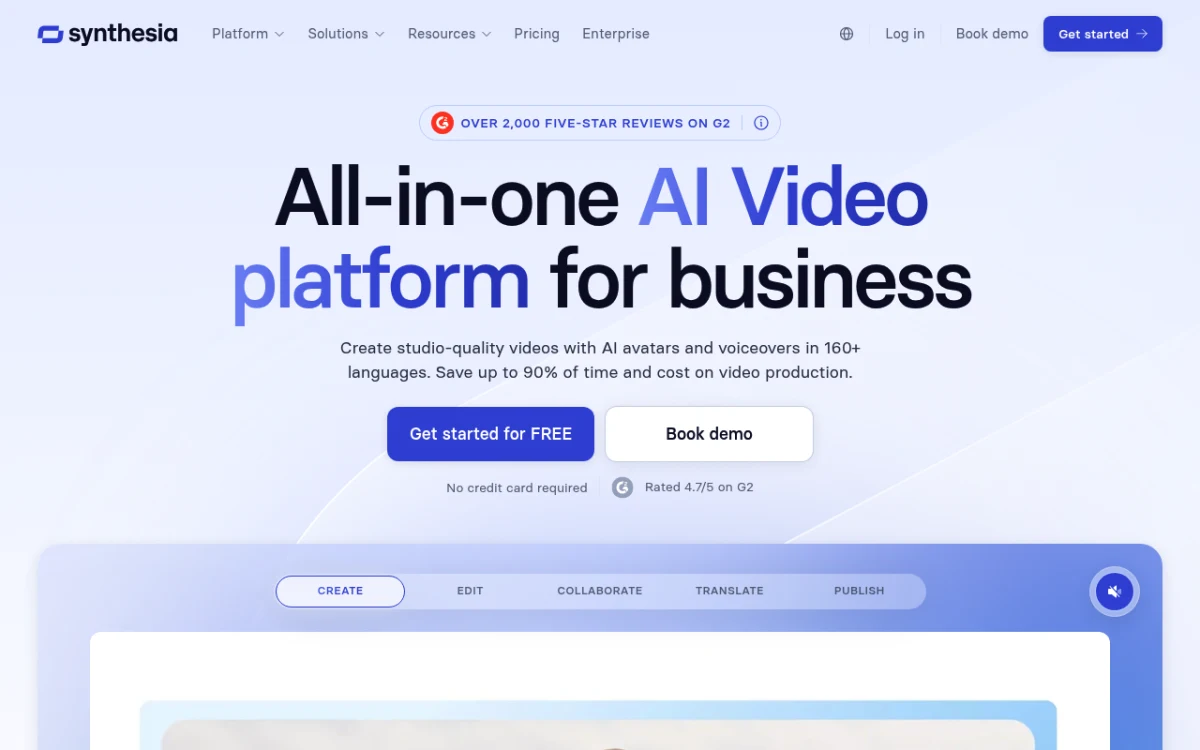
Synthesia makes training video from text. Pick an avatar, paste a script, get a lip-synced video in 140+ languages. It is the default for compliance training that updates often.
Pricing: Starter $29/month (10 min/month) | Creator $89/month (30 min) | Enterprise custom.
Key features:
- 230+ stock AI avatars; custom avatars on enterprise tier
- 140+ languages and accents
- AI script build from a prompt or PDF
- Screen recording embed
- Brand kit (logos, fonts, colors)
- MP4 export; LMS embed via SCORM on higher tiers
Who it is for: Compliance and policy teams. Global teams that translate training into many languages. Anyone who hates being on camera.
Limitations: Avatars still read as AI to most viewers. Fine for compliance, less great for warm leadership content. Per-minute caps on cheaper plans get tight fast.
Rating: (4.5/5)
9. Vyond: animated explainers
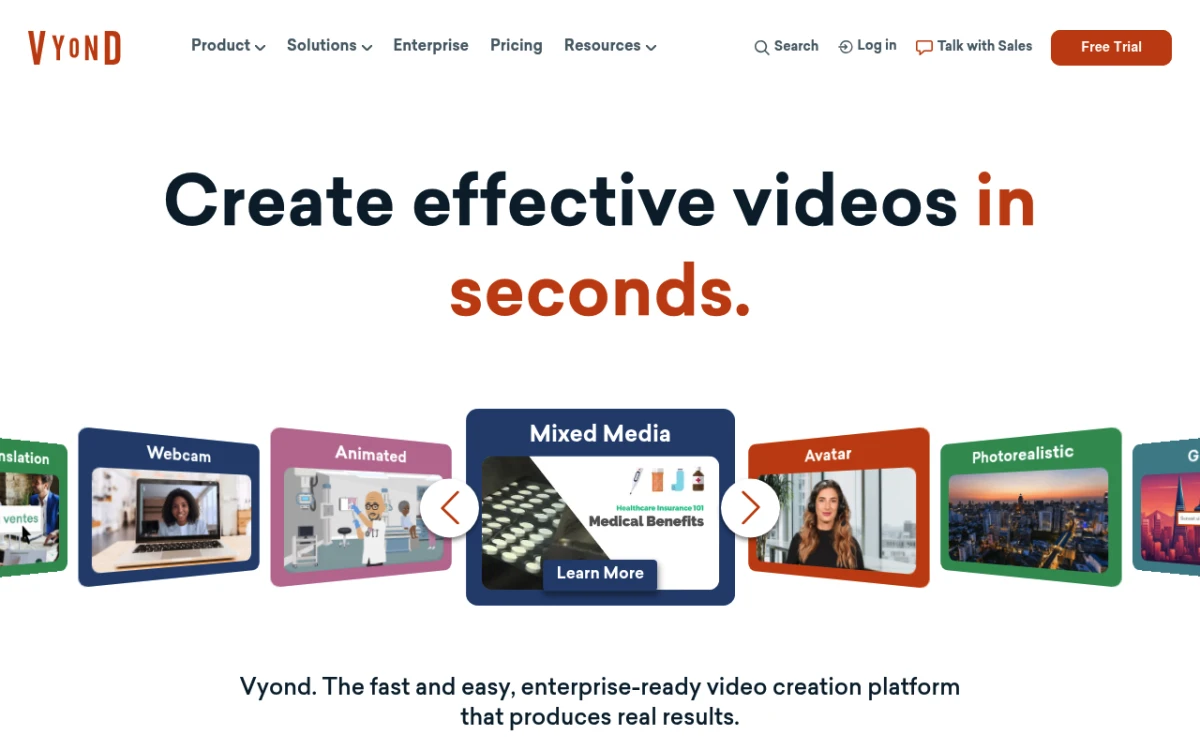
Vyond makes character-driven animated videos. Not a screen recorder. Not a course-builder. But it shows up next to training tools because animation is common for soft-skills work (harassment, ethics, customer service).
Pricing: Essential $299/year | Premium $649/year | Professional $999/year.
Key features:
- Drag-and-drop character animation
- Lip-sync from audio or text
- 3 visual styles (Contemporary, Business Friendly, Whiteboard)
- AI-assisted scene build
- MP4 export; no native SCORM (use a wrapper like iSpring)
Who it is for: Internal comms teams. Soft-skills and DEI training. Brands that want a unique look without a motion designer on staff.
Limitations: Templates can feel generic if your field uses Vyond a lot. No SCORM forces a wrapper. Annual pricing only.
Rating: (4/5)
Decision framework: which tool to pick
The right tool maps to team size, training goal, and budget. Here is a fast filter.
Startup or SaaS founder doing customer onboarding
You record 5 to 20 short videos for new users and async support answers. You do not need SCORM. You need fast capture, decent markup, and a clean share link.
Pick: ScreenSnap Pro ($39 one-time) or Loom Free. ScreenSnap Pro wins on price and offline use. Loom wins if you need viewer analytics.
Skip: Articulate 360 and Captivate. Too much for this job.
Solo trainer or course creator
You build one or two full courses to sell or use inside a company. You need a real editor, polish, and ideally SCORM if you plan to license courses to corporate buyers.
Pick: Camtasia ($179 one-time) for editing power and SCORM. Pair with our free image annotation tool for thumbnails, and the screenshot background generator for clean stills.
Skip: Articulate 360. The annual seat cost does not pay back at solo scale.
Mid-market L&D (50 to 500 staff)
You have a real course plan, several SMEs, and an LMS. You need SCORM/xAPI, quizzes, branching, and reports.
Pick: iSpring Suite if SMEs use PowerPoint. Articulate 360 if you have an in-house course designer. Synthesia for yearly compliance refreshes.
Skip: ScreenPal at this size. The editor is not enough.
Enterprise L&D (500+ staff)
You likely already use Articulate 360 or Captivate. The real question is what to add.
Pick: Synthesia for translated compliance. Vyond for soft-skills. Camtasia for product or tool tutorials. ScreenSnap Pro on each L&D analyst's machine for quick captures.
Remote technical teams
Recordings are mostly screen captures with code, dashboards, or product walkthroughs. You need clean screen recording and clear markup.
Pick: ScreenSnap Pro plus Loom. Use ScreenSnap Pro for polished docs assets, and Loom for fast Slack explainers. If you also clean up screenshots for docs, our social media image resizer sizes thumbnails for the LMS course tile.
Annotation and markup workflow
Every training video gets better with on-screen markup: an arrow on the button, a blur over a customer name, a counter for step order. Most guides skip this step.
You have two options:
- Annotate in-tool. Camtasia and ScreenPal have callout libraries. Loom has light shape and text overlays. Articulate Storyline lets you build markup that reacts to clicks.
- Annotate the still. Many trainers want a screenshot with a callout, not a video animation. For that, capture with ScreenSnap Pro, mark it up with the 15 tools (arrow, rectangle, blur, pixelate, counter), and drop the still into your video timeline.
Pro tip: train your SMEs on one markup style. One arrow color. One font for callouts. Blur for any PII. Mixed styles make a training library look messy. Our process documentation guide covers visual standards in more depth.
Cloud sharing and LMS handoff
The other gap in most guides is delivery. You can record the perfect video, but if your SMEs cannot get it to the LMS, the project stalls.
Three delivery patterns work well:
- Direct upload. Record, export MP4, upload to your LMS. Works with every tool here. Loses interactivity.
- SCORM/xAPI package. Camtasia, iSpring, Articulate 360, Captivate, and ScreenPal (paid tiers) make SCORM zips your LMS reads. Required for tracking.
- Hosted link. Loom and Synthesia host the video and embed via iframe. Lower friction but ties you to the vendor.
For most teams, mixing patterns is fine. Compliance modules go SCORM (so the LMS tracks who finished). Internal explainers stay as hosted Loom links. The SOP template guide shows the format most enterprise L&D teams use for the written half.
Troubleshooting common issues
A few real problems come up across all of these tools.
Audio is quiet or echoey. Use a USB headset mic, not your laptop mic. Record system audio on its own track and balance it in the editor.
Files too large for the LMS. Most LMSes cap uploads at 500MB or 1GB. Export at 1080p, not 4K. Use H.264 over H.265. Trim long pauses.
Captions are wrong. Auto-captions miss product names and acronyms. Build a glossary and find-and-replace on the SRT before you publish.
SCORM package will not load. Check that your LMS supports the SCORM version you exported (1.2 vs 2004 vs xAPI). Then unzip the package and check that imsmanifest.xml is at the root, not inside a subfolder.
For Mac-specific recording issues, our best screen recorder Mac guide has more fixes. Windows trainers can read free screen recorder Windows and Loom alternatives Windows for OS-level fixes.
Frequently asked questions
The bottom line
There is no single best training video software. The right tool maps to your team size and the kind of training you ship. For most small L&D teams and SaaS onboarding, a $39 one-time tool like ScreenSnap Pro plus a free Loom account covers 80% of what you need. Mid-market teams should add Camtasia for polish, or iSpring for SCORM. Enterprise teams already on Articulate 360 should layer Synthesia and Vyond for translated and animated content.
If you record more screenshots and short demos than long courses, ScreenSnap Pro gives you screen, webcam, mic, and system audio recording, 15 annotation tools, and 500+ wallpapers. It is $39 one-time, with no subscription, no watermarks, and a 30-day money-back guarantee. Pair it with our free image annotation tool for the still-image side of your library.

Morgan
Indie DeveloperIndie developer, founder of ScreenSnap Pro. A decade of shipping consumer Mac apps and developer tools. Read full bio
@m_0_r_g_a_n_