Process Documentation Guide 2026: Workflows + Screenshots
Process documentation is the written record of how a job actually gets done: the steps, the owners, the screenshots, and the signals that something went wrong. Done well, it shrinks onboarding time, protects knowledge when people leave, and gives audit and compliance teams a clear paper trail. This guide walks through the methodology end to end, with a 5-step framework you can run on any workflow. (For the screenshots themselves, a tool like ScreenSnap Pro keeps the capture-and-annotate step fast.)
If you're shopping for a tool instead of a method, we covered that in our roundup of the best process documentation tools. If you specifically need an SOP layout, check our standard operating procedure templates. This article is the methodology layer above both: how to think about, capture, and maintain process documentation regardless of which tool or template you pick.
What is process documentation?
Process documentation is a written, visual, or video record that explains how a recurring business activity is performed: who does it, in what order, with what inputs, and to what standard. It includes the artifacts (SOPs, runbooks, process maps, work instructions) plus the practice of keeping those artifacts current. The goal is reproducibility: any qualified person should be able to follow the doc and produce the same outcome.
People often blur the words process documentation, SOP, and runbook. They are not the same thing.
- Process documentation is the umbrella. It covers every artifact that explains how work gets done.
- A standard operating procedure (SOP) is one type of process doc: a step-by-step guide for a single repeatable task. Every SOP is process documentation, but not all process documentation is an SOP.
- A runbook is an SOP for systems work, often used during incidents or scheduled operations (a deploy, a database failover, a stuck job).
Think of process documentation as a portfolio. SOPs, runbooks, decision trees, and process maps are the items inside it.
Why process documentation matters
Teams that skip documentation usually pay for it later, whether in onboarding time, missed audits, or knowledge that walks out the door when someone resigns. Here is what good documentation actually buys you.
Faster onboarding. New hires can read the doc, watch the embedded recording, and try the work themselves. You stop relying on a single senior teammate to repeat the same explanation every quarter.
Knowledge retention. When the person who ran payroll for ten years takes a new job, their workflow does not leave with them. The doc captures the muscle memory their successor would otherwise have to rebuild from scratch.
Audit and compliance. SOC 2, ISO 27001, HIPAA, and most other frameworks require evidence that critical processes are written down, owned, and reviewed. A clean documentation library shortens audits and reduces remediation findings.
Consistency at scale. Five customer success reps doing the same task five different ways produces five different outcomes. Documentation aligns the work without micromanaging it.
Better delegation. A manager who has documented their process can hand it to a teammate without spending two hours in meetings. The doc carries the context.
Continuous improvement. You cannot improve what you cannot see. Writing a process down forces you to look at it, and that alone surfaces redundant steps, broken handoffs, and stale tooling.
Types of process documentation
There is no single right format. The format follows the audience and the level of detail the work demands.
| Type | Best for | Typical length |
|---|---|---|
| Process map | High-level view of who does what across teams | 1 page |
| SOP | Single repeatable task with a fixed outcome | 1-3 pages |
| Runbook | Systems operations, incidents, deploys | 2-5 pages |
| Work instruction | One step inside a larger SOP | Half a page |
| Decision tree | Branching workflows with conditional logic | 1 page |
| Role-based workflow | Cross-functional process per role | 2-4 pages |
| Knowledge base article | Self-serve answer to a single question | 1-2 pages |
A mature team usually needs more than one of these. A finance close, for example, might be a process map at the top, several SOPs underneath it, and a runbook for the closing systems job.
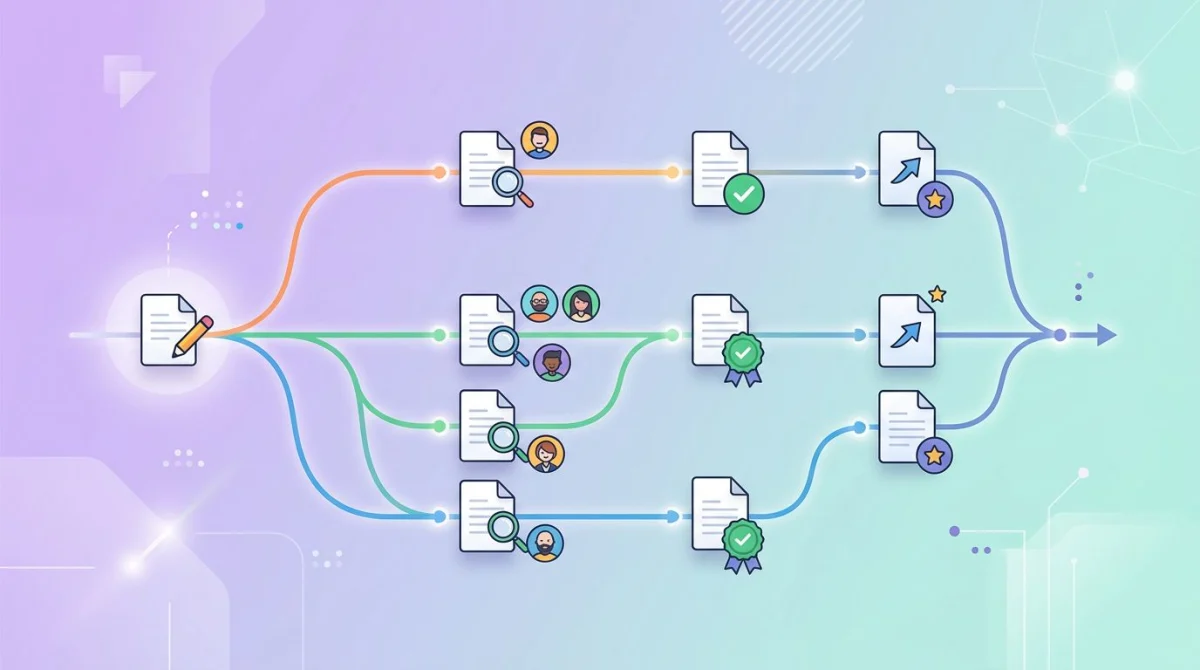
The 5-step process documentation workflow
Every framework you have seen (Atlassian, Asana, Process Street) boils down to roughly the same arc. Here is a tight version that works whether you are a two-person team or a regulated enterprise.
Step 1: Identify the process
Not every task deserves a doc. Writing a doc that nobody reads is worse than not writing one. It ages badly and erodes trust in the documentation library overall. Use three filters to decide which processes go first.
- Frequency. A task done weekly is a higher priority than one done every three years. Frequent tasks compound the savings.
- Complexity. A 30-step workflow with branches and handoffs needs documentation more than a 2-click task that anyone can guess.
- Business impact. Anything that affects revenue, compliance, security, or customer trust goes near the top, even if it is rare.
A simple way to rank: list every recurring process on your team, score each one on the three filters from 1 to 5, and start with the top of the list. Resist the urge to document everything at once. Ten well-maintained docs beat a hundred stale ones.
Step 2: Capture the current state
Before you write anything, watch the work happen. The gap between how a process is described in a meeting and how it actually runs on screen is almost always wider than people think.
Three capture techniques work well together.
- Interview the subject matter expert (SME). Block 30 minutes. Ask them to walk through the process out loud, in order, without skipping the small clicks. Record the call.
- Observe in real time. Sit with them (or share a call) while they actually do the task. Note every detail they treat as obvious.
- Screen-record the workflow. Capture an end-to-end recording of the SME running the process at normal speed. The recording becomes your source of truth for steps, timing, and screen state.
For step 3, any recording tool works. Built-in OS recorders (QuickTime on Mac, Xbox Game Bar on Windows) are fine for one-off captures. If you document processes regularly, a dedicated tool like ScreenSnap Pro saves time because you can record a video, capture supporting screenshots, and annotate them in the same app, on Mac and Windows. We come back to this in step 4.
Step 3: Structure the documentation
Once you have the recording and notes, decide on the format. Match the artifact to the work. Do not force a 30-step SOP onto a task that wants a one-page decision tree.
A reliable structure for most process docs:
- Title and purpose. One sentence: what this process does and why it exists.
- Owner and reviewers. A named person, not a team. Reviewers are the SMEs who sign off on changes.
- Scope. What is in scope, what is out, and what triggers the process.
- Inputs and prerequisites. Tools, access, data, approvals.
- Steps. Numbered, in order, in active voice. One action per step.
- Outputs. What the process produces and where the artifacts live.
- Exceptions. What to do if the happy path breaks.
- Version history. Date, author, summary of change.
Pick a depth level deliberately. A process for senior engineers can be terse because they only need the unusual bits. A process for a brand-new hire needs more screenshots, more context, and more "if you see X, do Y."
Step 4: Add visuals
Text-only process docs almost always fail in practice. People skim. They miss steps. They click the wrong button. Visuals fix that, but only if you put them in the right places and keep them tidy.
Three rules for visuals in process docs:
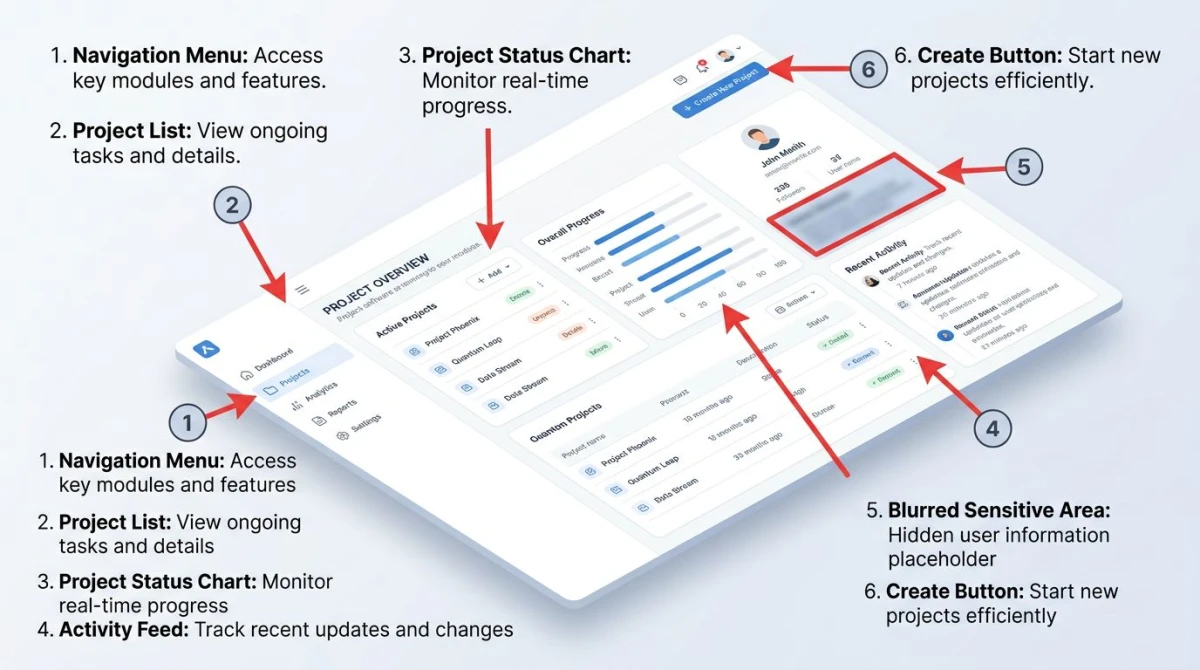
- Every UI step gets a screenshot. If a step says "Open the Settings panel," show what the Settings panel looks like.
- Annotate the action. A red box around the button, a number marker for the order, a short caption for the why.
- Strip noise. Crop out unrelated tabs, browser chrome, and personal info. Blur anything sensitive.
This is the part where ScreenSnap Pro fits naturally. It captures region, window, full-screen, scrolling-window-equivalent setups (via recordings), screen video, webcam, mic, and system audio, all in one app on Mac and Windows for $39 one-time, no subscription. The annotation toolkit covers 15 tools (arrows, numbered counter markers, blur, pixelate, highlighter, shapes, text), and the 500+ background gradients turn raw screenshots into doc-ready visuals in one click. If you only need to mark up an existing screenshot, our free image annotation tool handles arrows and callouts in the browser. For polished hero-style screenshots in a doc, the screenshot background generator wraps any image in a clean gradient frame.
For pure technique (when to crop, where to put callouts, what file size to target), our technical documentation screenshots guide covers the standards in depth.
Step 5: Review, version, publish
A doc that goes live without review is a draft pretending to be canonical. Build a tight loop: peer review, version control, owner assignment, then publish.
Peer review. Have one teammate run the process by following only the doc, with no help from the SME. Every place they get stuck is a place to clarify. This is the single highest-value step in the whole workflow.
Version control. Every doc has a version number, a last-updated date, and a one-line changelog at the bottom. If you live in a wiki, use the built-in history. If you live in Git, branch and PR every change.
Owner / DRI. A directly responsible individual (DRI) owns the doc. Their name is at the top. They approve changes and get pinged when the review cycle is due. No owner = no one keeps it current.
Publish in the right place. Customer-facing docs go in the help center. Internal SOPs go in the wiki. Runbooks live next to the systems they describe. Do not scatter them, because searchability matters more than aesthetics.

Tired of plain screenshots? Try ScreenSnap Pro.
Beautiful backgrounds, pro annotations, GIF recording, and instant cloud sharing, all in one app. Pay $39 once, own it forever.
See pricing and featuresBest practices: documentation people actually use
Most documentation libraries fail not because the content is bad, but because nobody trusts the content is current. These habits keep docs alive.
- Active voice, second person. "Click Save," not "The Save button should be clicked."
- One step per number. If a step has two verbs, split it.
- Screenshots for every UI step. Words alone lose to a clear image.
- Callouts on every screenshot. Red box around the click, number for the order, short caption for the why.
- Version control with a visible changelog. Readers want to see when something last changed and why.
- A scheduled review cycle. Quarterly for stable processes, monthly for fast-moving ones. Calendar invites, not hopes.
- A clearly named owner. Person, not team. The owner gets the review reminders.
- A "report a problem" link. Make it easy for readers to flag a stale step. Most stale docs are caught by readers, not auditors.
- Templates for common shapes. Same SOP layout every time. Readers learn where to look once and then trust it.
Compare these two examples. The first is what most docs look like. The second is what they should look like.

Common mistakes
The same five problems keep showing up across every documentation library we have audited.
Too long. A 40-page SOP for a 10-minute task tells you the writer was performing thoroughness, not solving for the reader. Cut it.
No screenshots. A pure-text doc for a UI workflow forces every reader to translate words into clicks. They will fail.
No owner. "The Ops team owns this" means nobody owns it. Pick a name.
No review cycle. Docs decay the moment a tool changes. Without a cycle, you find out from the reader who tried to follow the doc and got stuck.
Never updated after launch. The most common pattern. The doc is written for an audit, lands in a wiki, and never moves again. Six months later it does not match reality.
Buried in the wrong place. A perfect runbook nobody can find is the same as no runbook. If your search is bad, fix the search before writing more docs.
Written by the wrong person. Process docs written entirely by managers who do not run the process miss the small steps that matter. The SME has to be in the loop.
Choosing the right format and depth
Use this matrix to pick a format. The two axes are process complexity and how often the process runs.
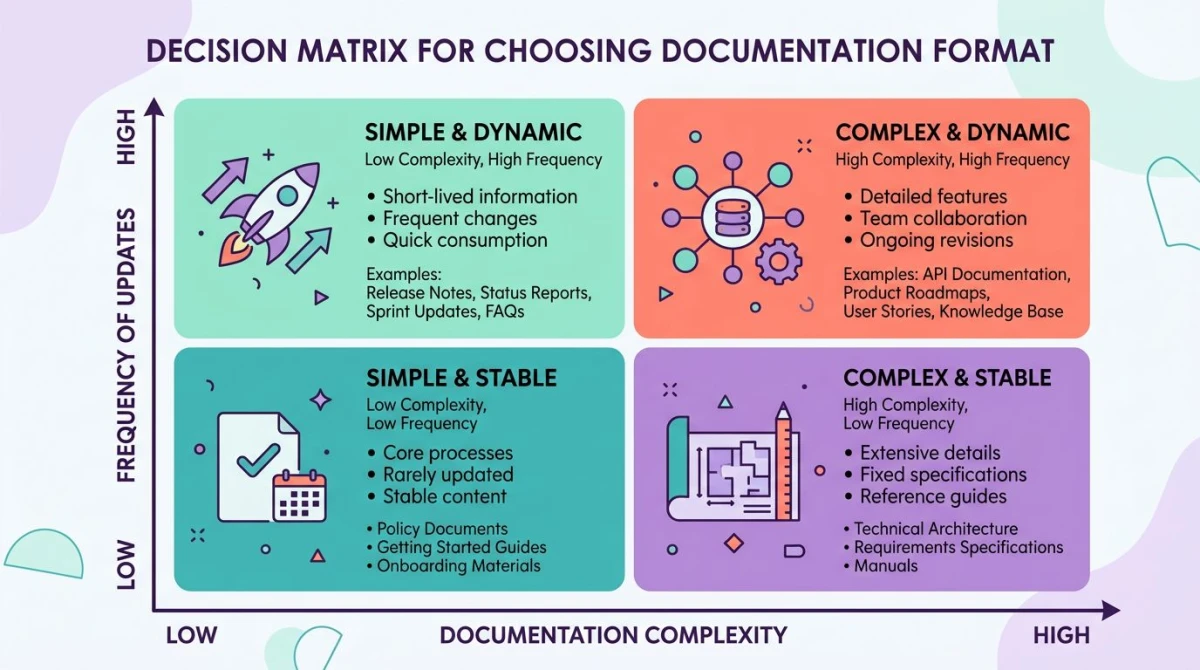
| Low complexity | High complexity | |
|---|---|---|
| High frequency | Short SOP or work instruction | Detailed SOP with screenshots and a video walkthrough |
| Low frequency | Knowledge base article | Runbook with decision tree and named owners |
A few rules of thumb that ride on top of the matrix.
- Audience that does the task daily can handle a tighter doc. They do not need every screenshot.
- Audience that does the task once a year needs the deepest doc. Treat them as if they have never seen the process before.
- Audience under regulatory pressure needs the most version control and review evidence, regardless of frequency.
- Cross-functional processes need a process map at the top, even if every sub-step has its own SOP underneath.
When in doubt, write the smallest useful doc, ship it, and let the first reader tell you what is missing.
Frequently Asked Questions
Wrapping up
Process documentation is not a one-time project. It is an ongoing practice: capture, structure, visualize, review, repeat. The teams that do it well treat documentation as part of the work, not a tax on top of it. They start small, pick the highest-impact processes first, give every doc a named owner, and rely on screenshots and recordings to do the heavy lifting that words cannot.
If you want a faster way to capture, annotate, and ship the visuals that make those docs land, ScreenSnap Pro is a one-time $39 purchase that covers screen recording, screenshots, and 15 annotation tools across Mac and Windows. No subscription, no watermark, license for two computers. It pairs naturally with whatever wiki or knowledge base you already use.
Need a starting template? Our SOP template guide has seven free layouts you can copy today.

Morgan
Indie DeveloperIndie developer, founder of ScreenSnap Pro. A decade of shipping consumer Mac apps and developer tools. Read full bio
@m_0_r_g_a_n_