How to OCR a PDF on Mac (5 Methods) - 2026 Guide
Got a scanned PDF and need to copy the text? Maybe it's a contract, a receipt, or a form someone emailed you as a scan. You try to select the text, but nothing happens. The PDF is just a flat image. (If you ever need to OCR a screenshot instead, our screenshot app ScreenSnap Pro has built-in text extraction.)
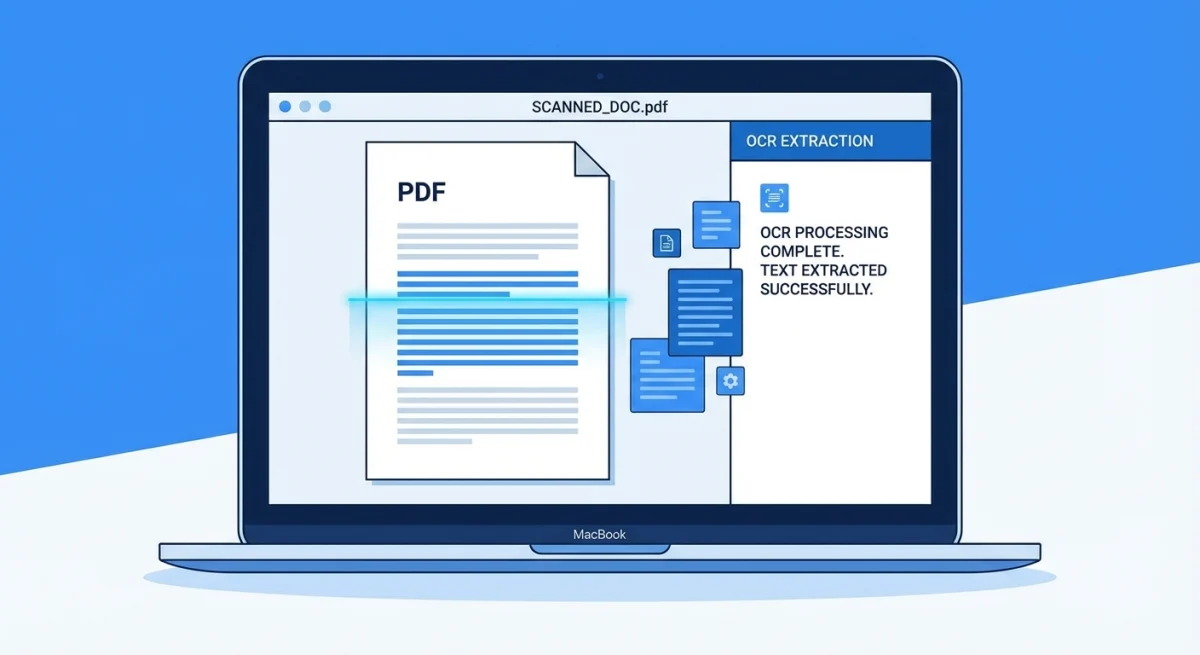
That's where OCR (optical character recognition) comes in. It reads the text in the image and turns it into real, selectable text you can copy and paste.
Here are five ways to OCR a PDF on Mac, from free built-in tools to full PDF editors.
Can Mac Preview OCR PDFs?
This is the first thing most people try. The short answer: sort of, but not well.
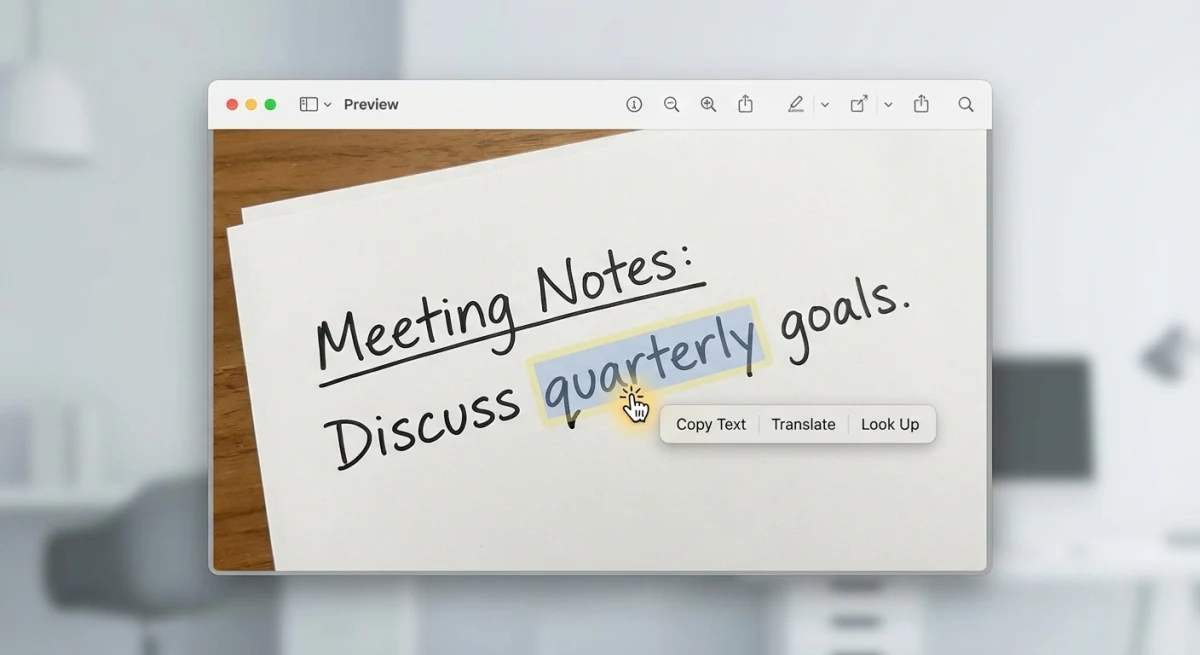
Mac's Preview app has Live Text. It can recognize text in images and photos. But for scanned PDFs, it's hit or miss. Live Text works on some pages and fails on others, especially with low-quality scans, small fonts, or multi-column layouts.
What Preview can't do:
- Add a text layer to a PDF (making it fully searchable)
- Handle batch OCR on multi-page documents
- Work reliably on low-quality scans
If you just need a quick line or two from a clear scan, Preview might work. For a full look at what Preview can do, see our Mac Preview app guide. For serious OCR, use one of the methods below.
Method 1: macOS Shortcuts (free, built-in)
Apple's Shortcuts app has an "Extract Text from Image" action. It works on PDF pages too. This is the best free option that's already on your Mac.
Set it up
- Open Shortcuts (find it in Spotlight or the Applications folder).
- Click + to create a new shortcut.
- Add these actions in order:
- Select Files. Set to allow multiple files
- Get Text from Input. This does the OCR
- Copy to Clipboard (or Quick Look to preview first)
- Name it something like "OCR PDF."
- Save it.
Use it
- Run the shortcut.
- Pick your scanned PDF.
- The text copies to your clipboard. Paste it anywhere.
Limits
- Works best on clear, high-contrast scans
- Single language only (no mixed-language support)
- Can struggle with handwriting or unusual fonts
- No way to make the PDF itself searchable, since it only extracts the text
Best for: Quick text grabs from clear scans. Free and no install needed.
Method 2: Quick OCR with ScreenSnap Pro
If you view the PDF on screen, you can grab the text without any PDF tools at all.
ScreenSnap Pro has a built-in OCR text extraction feature. It reads any text visible on your screen, including scanned PDFs open in Preview.
How it works
- Open the scanned PDF in Preview (or any viewer).
- Use ScreenSnap Pro's OCR shortcut.
- Select the area with the text you need.
- The text copies to your clipboard. Done.
This skips the whole "convert the PDF" step. You're not changing the file, just reading what's on screen. It works on any text, in any app, on any PDF.
When to use this
- You need a paragraph or two, not the whole document
- The PDF is in a language you can view on screen
- You don't need to make the PDF searchable, you just grab the text
- You're already using ScreenSnap Pro for screenshots and annotations
Pricing: $39 one-time. The OCR feature comes included, with no add-on needed.
Best for: Quick text grabs from any on-screen content. Fastest method for grabbing a few lines.
Students use this constantly: OCR the label off a lecture slide, then paste it into the back of an Anki image occlusion card instead of retyping it.
Method 3: PDF Expert (full PDF OCR)
PDF Expert is a Mac PDF editor that adds a real text layer to scanned PDFs. After OCR, the PDF becomes fully searchable: you can select text, use Find, and copy from any page.
How to use it
- Open the scanned PDF in PDF Expert.
- Click OCR in the toolbar (it auto-detects scanned pages).
- Pick the language and pages to process.
- Click Perform OCR.
- The text layer appears. You can now select and search text in the PDF.
Why choose PDF Expert
- Makes the entire PDF searchable (not just a one-time text grab)
- Handles multi-page documents well
- Supports 20+ languages
- The text layer stays in the PDF when you save it
- Also lets you edit, annotate, and sign PDFs
Pricing: $79.99/year or $139.99 one-time.
Best for: Users who work with scanned PDFs often and need full search and edit support.

Tired of plain screenshots? Try ScreenSnap Pro.
Beautiful backgrounds, pro annotations, GIF recording, and instant cloud sharing, all in one app. Pay $39 once, own it forever.
See pricing and featuresMethod 4: Adobe Acrobat Pro
Adobe Acrobat is the enterprise standard for PDF OCR. It has the most accurate text recognition and handles complex layouts well.
How to use it
- Open the scanned PDF in Acrobat Pro.
- Go to Tools → Scan & OCR → Recognize Text.
- Pick your settings (language, output type, pages).
- Click Recognize Text.
- Acrobat adds a text layer to the PDF.
When you need Acrobat
- Legal documents where accuracy is critical
- Complex layouts with columns, tables, and headers
- Batch OCR on hundreds of PDFs
- Your company already pays for Adobe Creative Cloud
Pricing: $29.99/month (Acrobat Pro).
For most people, this is overkill. PDF Expert or even the free methods handle everyday OCR needs. But if accuracy on complex docs is a must, Acrobat handles them well.
Best for: Enterprise teams, legal work, and high-volume batch processing.
Method 5: Online OCR tools (free, no install)
If you just need to extract text once and don't want to install anything:
Google Docs trick
This is the simplest free method:
- Upload the scanned PDF to Google Drive.
- Right-click the file → Open with → Google Docs.
- Google converts the PDF and runs OCR on it.
- The text appears in a new Google Doc. Copy what you need.
Google's OCR is solid for clear scans. It handles multiple languages well. The layout may be messy, but the text is usually accurate.
Smallpdf and iLovePDF
Both OCR2Edit and iLovePDF offer free online OCR:
- Upload your PDF.
- The tool runs OCR.
- Download the searchable PDF or copy the text.
Free tiers limit file size and number of conversions per day.
Privacy warning
Online tools upload your PDF to their servers. Don't use them for:
- Contracts or legal docs
- Tax returns or financial records
- Medical records
- Anything with personal info (SSN, addresses, passwords)
For private documents, stick with Shortcuts, ScreenSnap Pro, or PDF Expert, which all run locally on your Mac.
Best for: One-off text extraction from non-sensitive scans.
Which method should you use?
| Need | Best method | Cost |
|---|---|---|
| Copy a paragraph from a scan | ScreenSnap Pro OCR | $39 once |
| Quick text from a clear PDF | macOS Shortcuts | Free |
| Make a PDF fully searchable | PDF Expert | $80-140 |
| Batch OCR hundreds of PDFs | Adobe Acrobat | $20/month |
| One-time extract, non-sensitive | Google Docs | Free |
Most people just need a few lines of text. For that, Shortcuts or ScreenSnap Pro's OCR is the fastest path. You don't need a $20/month subscription to copy a paragraph from a receipt.
If you work with scanned PDFs daily (legal, medical, academic), invest in PDF Expert or Acrobat. The text layer they add makes documents searchable for good.
PDFs are only one source of locked text. For screenshots, images, and video frames as well, see our wider comparison of the best OCR software for Mac.
What is OCR and how does it work?
OCR stands for optical character recognition. It's a process that reads text in an image and turns it into real text you can copy, search, and edit.
Here's what happens behind the scenes:
- The software looks at the image and finds areas that look like text.
- It breaks each area into single characters.
- It matches each shape to a known letter or number.
- It outputs the text as a string you can use.
Modern OCR tools use machine learning to get better results. They can handle different fonts, sizes, and even some handwriting. But they still work best with clear, printed text on a clean background.
When OCR runs on a PDF, it can either:
- Extract the text. Gives you a plain text copy (what Shortcuts and ScreenSnap Pro do)
- Add a text layer. Puts invisible text on top of the scanned image, making the PDF searchable (what PDF Expert and Acrobat do)
The second option is better if you want to keep the PDF and search it later. The first is faster when you just need to grab some text right now.
You can also use our free text extraction tool to pull text from any image online. If you need to convert PDF pages to images first, our PDF to Image converter turns each page into a high-quality PNG or JPG.
Tips for better OCR results
OCR accuracy depends on the quality of the input. Here's how to get clean results:
- Scan at 300 DPI or higher. Low-resolution scans (150 DPI) cause OCR errors. If you can re-scan the document, use 300 DPI.
- Make sure the text is straight. Tilted or skewed scans confuse OCR engines. Flatten the page before scanning.
- Good contrast helps. Black text on white paper gives the best results. Colored backgrounds, low contrast, and faded ink cause problems.
- Set the right language. Most OCR tools default to English. If your document is in another language, change the setting before running OCR.
- Clean up margins. Dark edges, staple marks, and stray marks near text can confuse the OCR engine.
- Handle columns carefully. Multi-column layouts can merge text in the wrong order. For complex layouts, Acrobat handles columns best.
For more on working with text in images, check our full guide on copying text from screenshots on Mac.
Frequently Asked Questions

Morgan
Indie DeveloperIndie developer, founder of ScreenSnap Pro. A decade of shipping consumer Mac apps and developer tools. Read full bio
@m_0_r_g_a_n_