Visual Regression Testing Guide (2026): Tools & Setup
Visual regression testing compares screenshots of your app before and after code changes. It catches UI bugs that other tests miss. A broken layout, a shifted button, or a wrong color: pixel-level diffs catch them all. For ad-hoc visual checks outside CI, capture tools like ScreenSnap Pro make it quick to grab a baseline screenshot to compare against.
Unit and integration tests check logic and data. They won't tell you that a CSS change moved the checkout button off-screen. Visual tests fill that gap. They use screenshots as the source of truth for how your app should look.
What is visual regression testing?
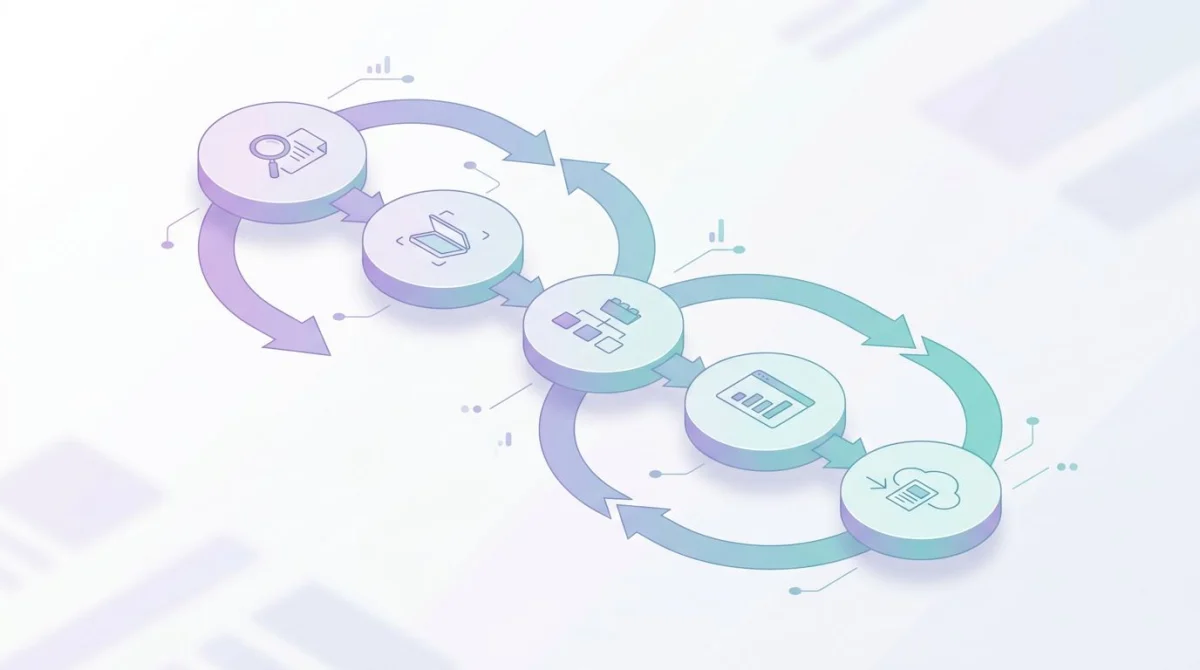
Visual regression testing works in three steps:
- Capture baseline screenshots of your app in a known good state
- Run the same captures after a code change
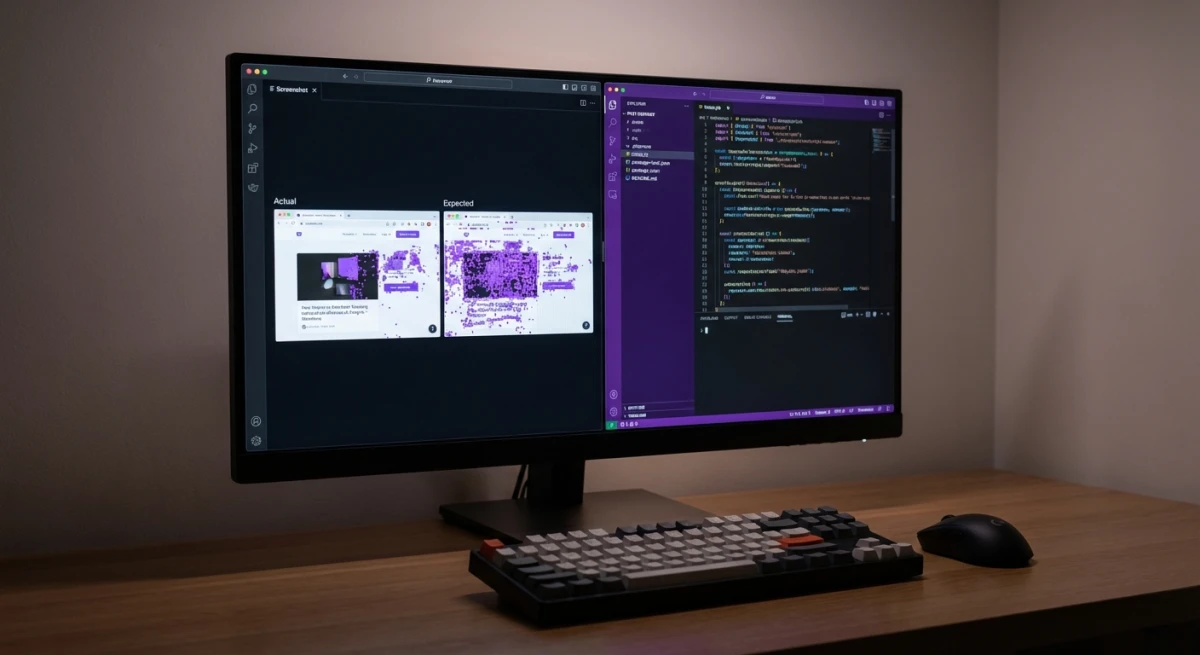
- Compare the two sets pixel by pixel and flag any differences
If the diff is zero, your UI hasn't changed. If the diff shows changes, you review them and either approve the update or fix the bug.
This approach catches issues that are hard to test any other way:
- Layout shifts from CSS changes
- Font rendering differences across browsers
- Missing or broken images
- Color changes from theme updates
- Responsive breakage on different screen sizes
- Z-index problems where elements overlap
The key idea: if it looks wrong to a human, a screenshot diff will catch it.
Why screenshots beat DOM assertions for UI testing
You could write DOM checks like "button has class .btn-primary." Or "header height equals 64px." But these tests break easily and miss the big picture.
DOM tests check code. Visual tests check what users see.
A DOM check won't catch that your button's text is cut off. It won't notice a font that failed to load. It won't flag that two stacked divs hide your call-to-action.
Screenshot diffs test the rendered output, the same thing your users see. One screenshot checks layout, color, spacing, font, and content all at once.
The trade-off? Screenshots are bigger and slower to compare. They can flag false positives from tiny rendering shifts. That's where good tooling and smart thresholds come in.
Playwright screenshot testing (setup + code)
Playwright has built-in visual comparison, with no plugins needed. It's the simplest way to add visual regression tests to a project.
Basic setup
npm init playwright@latestYour first visual test
import { test, expect } from '@playwright/test';

test('homepage looks correct', async ({ page }) => {
  await page.goto('http://localhost:3000');
  await expect(page).toHaveScreenshot('homepage.png');
});
The first run saves the screenshot as a baseline. On later runs, Playwright compares new screenshots against it. If they differ, the test fails.
Update baselines
When you make an intentional UI change, update the baselines:
npx playwright test --update-snapshotsElement-level screenshots
You don't have to capture the full page. Target specific components:
test('navigation bar looks correct', async ({ page }) => {
  await page.goto('http://localhost:3000');
  const nav = page.locator('nav');
  await expect(nav).toHaveScreenshot('navbar.png');
});
This is more stable than full-page shots. Changes elsewhere on the page won't cause false failures.
Setting diff thresholds
Pixel-perfect matching is too strict for most apps. Allow a small tolerance:
await expect(page).toHaveScreenshot('homepage.png', {
  maxDiffPixels: 100,       // allow up to 100 pixels to differ
  maxDiffPixelRatio: 0.01,  // or 1% of total pixels
  threshold: 0.2,           // per-pixel color difference tolerance
});
Start loose and tighten over time as you learn what works.
Full page captures
For scrolling pages, capture the full scrollable content:
await expect(page).toHaveScreenshot('full-page.png', {
  fullPage: true,
});
Cypress visual testing with plugins
Cypress doesn't include visual testing by default, but several plugins add it.
cypress-image-snapshot
The most popular free option:
npm install --save-dev @simonsmith/cypress-image-snapshot// cypress/support/commands.js
import { addMatchImageSnapshotCommand } from '@simonsmith/cypress-image-snapshot/command';
addMatchImageSnapshotCommand();
// In your test
describe('Dashboard', () => {
it('renders correctly', () => {
cy.visit('/dashboard');
cy.matchImageSnapshot('dashboard');
});
});Cypress + Percy
For cloud-based visual testing (covered below), Percy has a Cypress plugin:
npm install --save-dev @percy/cypresscy.visit('/dashboard');
cy.percySnapshot('Dashboard');Percy handles baseline management, cross-browser rendering, and review workflows in the cloud.
Cypress vs Playwright for visual testing
| Feature | Playwright | Cypress |
|---|---|---|
| Built-in visual testing | ✅ Yes | ❌ Needs plugin |
| Cross-browser screenshots | ✅ Chromium, Firefox, WebKit | ⚠️ Chromium-based only |
| Element screenshots | ✅ | ✅ (with plugin) |
| Full page screenshots | ✅ | ✅ (with plugin) |
| Parallel execution | ✅ | ✅ (paid) |
| Setup difficulty | Easy | Medium |
Our take: Playwright is the better choice for visual testing in 2026. Built-in support, cross-browser screenshots, and easier CI/CD setup give it the edge.
Percy and Chromatic: cloud visual testing
If you want visual testing without managing baselines yourself, cloud services handle the heavy lifting.
Percy (by BrowserStack)
Percy captures screenshots in the cloud across browsers and screen sizes. It stores baselines, runs diffs, and gives you a web dashboard for review.
How it works:
- Add the Percy SDK to your test suite
- Replace local screenshot calls with
percySnapshot() - Percy renders your pages in cloud browsers
- Review diffs in the Percy dashboard
- Approve or reject changes
Pricing: Free for 5,000 screenshots/month. Paid plans from $399/month for more volume and browsers.
Best for: Teams that test across many browsers and need a review flow. Designers and PMs can approve visual changes right in the dashboard.
Chromatic (by Storybook)
Chromatic is built for component libraries. If you use Storybook, it captures every story as a visual test.
How it works:
- Connect your Storybook to Chromatic
- Each push triggers visual snapshots of all stories
- Review diffs in the Chromatic UI
- Approve changes per component
Pricing: Free for 5,000 snapshots/month. Paid plans from $149/month.
Best for: Teams with Storybook-based design systems. If your components live in Storybook, Chromatic is the fastest path to visual testing.

Tired of plain screenshots? Try ScreenSnap Pro.
Beautiful backgrounds, pro annotations, GIF recording, and instant cloud sharing, all in one app. Pay $39 once, own it forever.
See pricing and featuresBackstopJS: free open-source option
BackstopJS is a standalone visual regression tool. It doesn't need a test framework. Define your scenarios in a JSON config and run them.
{
  "viewports": [
    { "label": "desktop", "width": 1920, "height": 1080 },
    { "label": "mobile", "width": 375, "height": 812 }
  ],
  "scenarios": [
    {
      "label": "Homepage",
      "url": "http://localhost:3000",
      "selectors": ["document"],
      "misMatchThreshold": 0.1
    },
    {
      "label": "Dashboard",
      "url": "http://localhost:3000/dashboard",
      "delay": 2000,
      "selectors": ["#main-content"]
    }
  ]
}
backstop test # run comparisons
backstop approve # accept current screenshots as new baselines
backstop reference # capture fresh baselinesBackstopJS generates an HTML report with side-by-side diffs. It's the best free option if you don't want to add visual testing to an existing test framework.
Limits: Slower than Playwright's built-in tests. Uses Puppeteer under the hood, so it only runs in Chromium. No built-in CI setup, so you wire it up yourself.
Setting up visual tests in CI/CD (GitHub Actions)
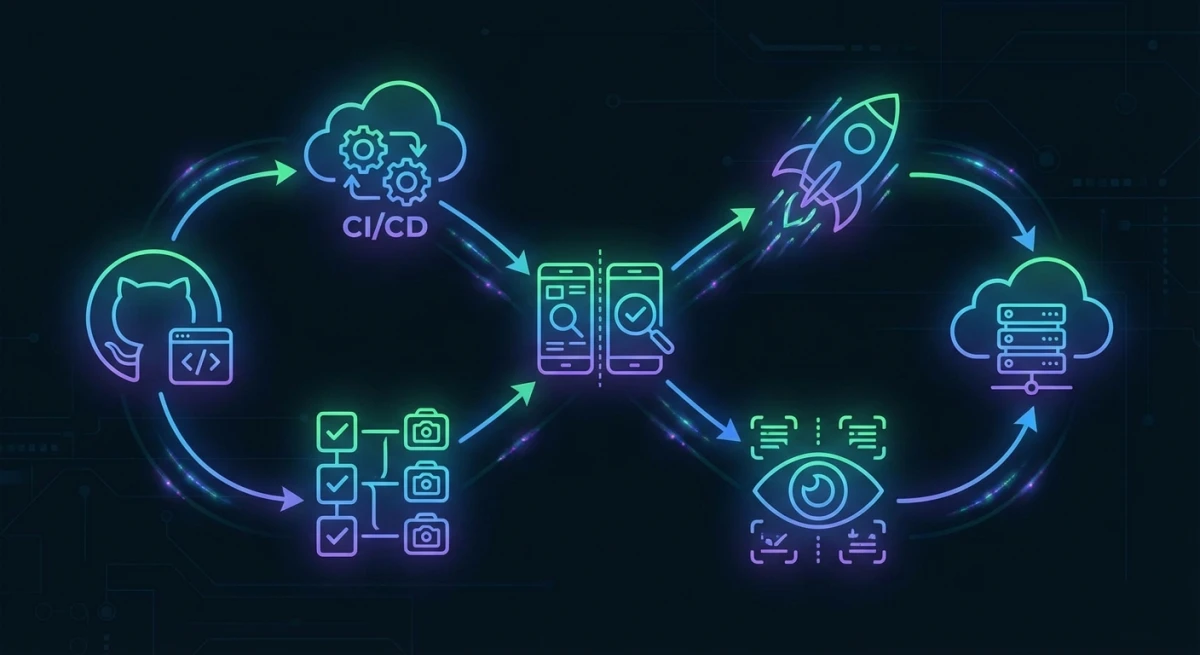
Visual tests belong in your CI pipeline. Here's a GitHub Actions setup for Playwright:
name: Visual Tests
on: [pull_request]

jobs:
  visual-tests:
    runs-on: ubuntu-latest
    steps:
      - uses: actions/checkout@v4

      - uses: actions/setup-node@v4
        with:
          node-version: 20

      - name: Install dependencies
        run: npm ci

      - name: Install Playwright browsers
        run: npx playwright install --with-deps chromium

      - name: Run visual tests
        run: npx playwright test --project=visual

      - name: Upload diff artifacts
        if: failure()
        uses: actions/upload-artifact@v4
        with:
          name: visual-diffs
          path: test-results/
Tips for CI visual testing
Pin browser versions. Different builds render pixels in slightly different ways. Pin your CI browser version to match your baselines.
Use Docker for consistency. Font rendering differs between macOS and Linux. Run visual tests in Docker so the CI machine matches your baseline setup.
Separate visual tests from other tests. Visual tests are slower and more fragile. Run them in their own CI job so they don't block your unit tests.
Store baselines in git. Check your baseline screenshots into the repo. This keeps them versioned and easy to review in PRs.
Best visual regression testing tools compared
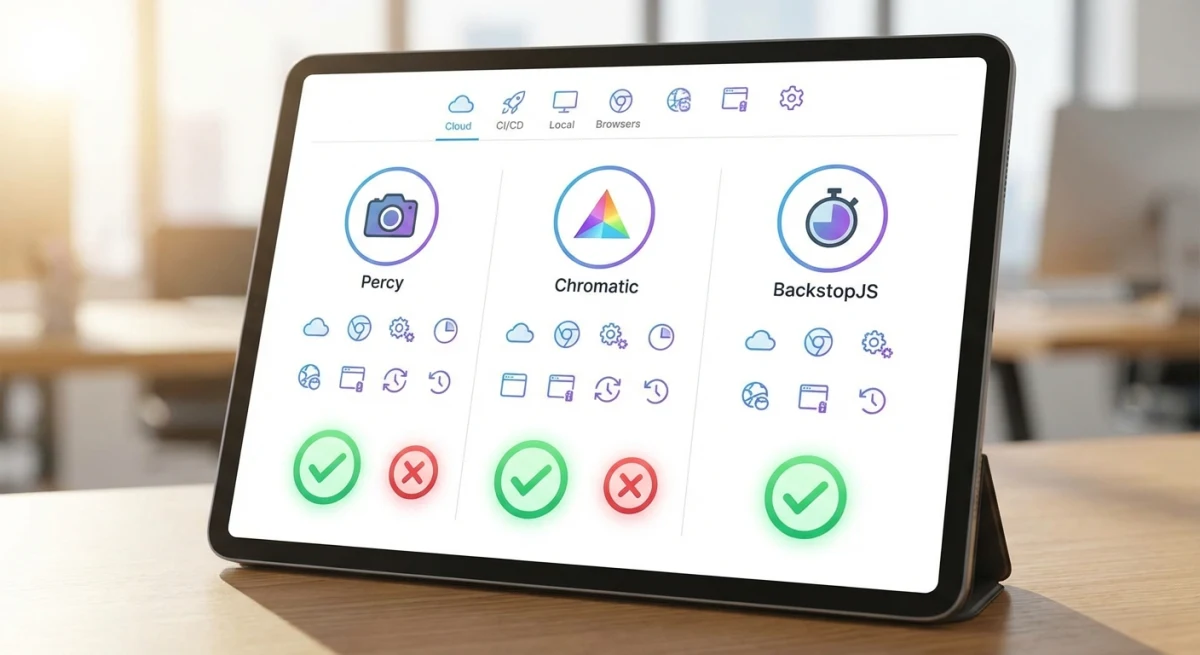
| Tool | Type | Price | Cross-Browser | CI Ready | Best For |
|---|---|---|---|---|---|
| Playwright | Built-in | Free | ✅ | ✅ | Teams already using Playwright |
| Cypress + plugin | Plugin | Free | ⚠️ Chromium | ✅ | Teams already using Cypress |
| Percy | Cloud | Free to $399/mo | ✅ | ✅ | Cross-browser testing at scale |
| Chromatic | Cloud | Free to $149/mo | ✅ | ✅ | Storybook-based design systems |
| BackstopJS | Standalone | Free | ❌ Chromium | Manual | Quick setup without test framework |
| Applitools | Cloud | Custom | ✅ | ✅ | AI-powered smart comparisons |
| Reg-suit | Standalone | Free | ❌ | ✅ | Lightweight, plugin-based |
Which tool should you pick?
- Starting fresh? Use Playwright. Built-in visual testing, cross-browser support, and the simplest setup.
- Already on Cypress? Add
cypress-image-snapshotfor free or Percy for cloud-based reviews. - Large team with designers reviewing? Percy or Chromatic. The review dashboard is worth the cost.
- Storybook components? Chromatic is purpose-built for this.
- Just want to try it? BackstopJS needs zero test framework knowledge.
Common pitfalls and how to avoid flaky tests
Visual tests are powerful but can be flaky. Here are the most common issues and how to fix them.
Anti-aliasing differences
Fonts and curves render differently across operating systems. Even browser versions can differ. A single pixel shift in font smoothing can fail a test.
Fix: Set a threshold of 0.2 to 0.3 for per-pixel comparison. This skips tiny anti-aliasing shifts but still catches real layout changes.
Dynamic content
Timestamps, ads, avatars, and live data change between runs. They cause false diffs.
Fix: Hide or mock dynamic elements before capturing:
await page.evaluate(() => {
  document.querySelectorAll('[data-testid="timestamp"]')
    .forEach(el => el.style.visibility = 'hidden');
});
await expect(page).toHaveScreenshot();
Animations
CSS animations and transitions can be mid-frame when the screenshot fires.
Fix: Disable animations in your test environment:
/* test.css */
*, *::before, *::after {
  animation-duration: 0s !important;
  transition-duration: 0s !important;
}
Flaky image loading
Images that load slowly can appear as blank spots in screenshots.
Fix: Wait for network idle before capturing:
await page.goto('http://localhost:3000', {
  waitUntil: 'networkidle',
});
Different screen sizes
A test that passes on your 1440px monitor may fail in CI on a different viewport.
Fix: Set explicit viewport sizes in your test config:
use: {
  viewport: { width: 1280, height: 720 },
},
Too many full-page screenshots
Full-page captures are fragile because any change anywhere on the page fails the test.
Fix: Use element-level screenshots for key parts. Test the header, hero, and footer on their own. Skip the one big full-page capture. This is like how you'd capture a single window instead of the full screen when taking manual screenshots.
Getting started checklist
Ready to add visual testing to your project? Follow these steps:
Step 1: Pick your tool
If you use Playwright or Cypress, start there. Built-in support means less setup. No test framework yet? Try BackstopJS. It runs on its own with just a config file.
Step 2: Start small
Don't try to test every page on day one. Pick 3-5 of your most important screens:
- Login page. First thing users see
- Dashboard or home. The main screen
- Checkout or key conversion page. Where money is made
- Settings page. Complex forms that break easily
- Mobile version of your most-visited page
Step 3: Capture baselines
Run your tests once to create baseline screenshots. Check them by eye to make sure they look right. These become the "known good" state for all future runs.
Step 4: Add to CI
Wire the tests into your CI pipeline (see the GitHub Actions example above). Run them on every pull request to catch visual bugs before merging.
Step 5: Set up a review process
When a visual test fails, someone decides: is this a bug or an expected change? Percy and Chromatic handle this in their web dashboards. With Playwright or BackstopJS, review the diff images in the CI artifacts.
Step 6: Handle false positives early
Your first few weeks will have some noise. Tune your thresholds, mock dynamic content, and disable animations. The tests get more stable as you dial in the settings.
Step 7: Expand coverage over time
Once the core pages are stable, add more screens. Component-level tests (a single button, card, or modal) are more stable and faster than full-page tests. Aim for a mix of both.
A good target: 80% component screenshots, 20% full-page screenshots. This gives broad coverage with fewer false alarms.
Manual screenshots still matter
Automated visual tests catch regressions in CI. But developers still need to capture and share screenshots by hand. Bug reports, PR descriptions, design reviews, and technical documentation all need manual screenshots.
For manual captures on Mac, tools like ScreenSnap Pro let you grab a screenshot, annotate it with arrows, and share via a link in seconds. You can also blur sensitive data before sharing in public channels.
When comparing screenshots by hand, an image annotation tool helps you mark up the exact differences before sharing with your team.
If you use Mac screenshot shortcuts for quick captures, you can edit them right away and paste into your PR or bug ticket.
The best workflow combines both: automated visual tests in CI to catch regressions, plus a fast manual tool for everything else.
Frequently Asked Questions

Morgan
Indie DeveloperIndie developer, founder of ScreenSnap Pro. A decade of shipping consumer Mac apps and developer tools. Read full bio
@m_0_r_g_a_n_