Best Code to Image Tools in 2026: 12 Free & Paid Options
Code to image tools turn your source code into eye-catching screenshots with syntax highlighting, gradient backgrounds, and clean styling. Whether you're sharing on Twitter, creating docs, or building a slide deck, these tools make your code look polished, and no design skills are needed. For full-screen captures of your IDE alongside these snippets, a screenshot app like ScreenSnap Pro handles the rest of the workflow.
Plain code snippets in blog posts or social media look bland. Code screenshots from your IDE often include distracting UI elements. Code to image generators solve both problems by creating clean, focused visuals that highlight your code.
In this guide, you'll find 12 of the best code to image tools, organized by free web apps, paid options with advanced features, and VS Code extensions for developers who never want to leave their editor.
Why Use Code to Image Tools?
A well-styled code image does more than look nice. Here's why developers, educators, and content creators reach for these tools:
Better reach on social media. Code images stand out in Twitter and LinkedIn feeds where plain text gets scrolled past. Gradient backgrounds and syntax colors grab attention. Visual content gets way more clicks than text-only posts.
Cleaner docs. Screenshots in your README, blog posts, or tutorials look better with the same styling throughout. Readers trust content that looks polished.
Slides that work. Pasting code into slides often breaks formatting or uses the wrong font. Code images keep their look in Keynote, PowerPoint, Google Slides, or any other app. (Not sure which monospaced typeface a snippet uses? A font identifier tool can name it from a screenshot.)
Better teaching. Highlighting lines or adding callouts helps learners focus on what matters. Blur the rest to guide their eyes.
Works everywhere. Code pasted into Slack, Discord, or email often loses its formatting. A code image looks the same no matter where you share it.
The tools below range from simple and free to feature-rich paid options. Pick based on your workflow and how often you share code.
Best Free Code to Image Tools
These web-based tools cost nothing and work directly in your browser. For quick social media posts or occasional use, they handle the job well.
Carbon
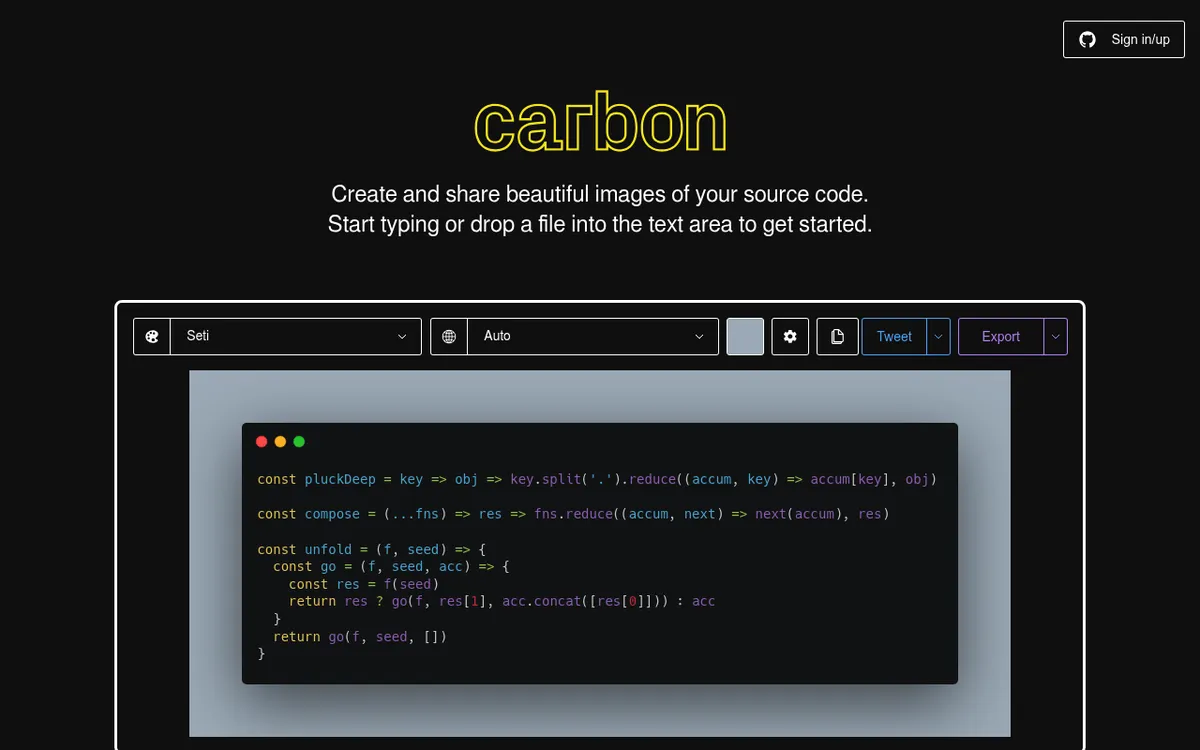
Carbon is the most popular code to image tool, and for good reason. It's been around since 2017 and has a massive community behind it. According to GitHub, the project has about 36,000 stars as of October 2026, making it one of the most loved developer tools in the screenshot space.
What makes it stand out:
- 29 built-in themes including Dracula, One Dark, and Night Owl, plus a custom theme creator
- 77 programming languages plus auto detect
- Export as PNG or SVG at up to 4x, or share a link that saves your settings in the URL
- Free and open source (MIT) on GitHub, though the last release shipped in 2022
- 4 window styles (None, BW, Sharp, Boxy) plus a window controls toggle
How to use it: Paste your code, pick a theme, adjust the padding, and export. That's it. Carbon's simplicity is its strength. You can also drag and drop files directly into the editor or import from GitHub gists.
Pro tip: Add ?code=your-code-here to the Carbon URL to pre-populate the editor. This works great for sharing templates with your team.
The tool works well for quick social shares, but you won't find advanced features like animations or team collaboration. For most developers, that's perfectly fine.
Ray.so
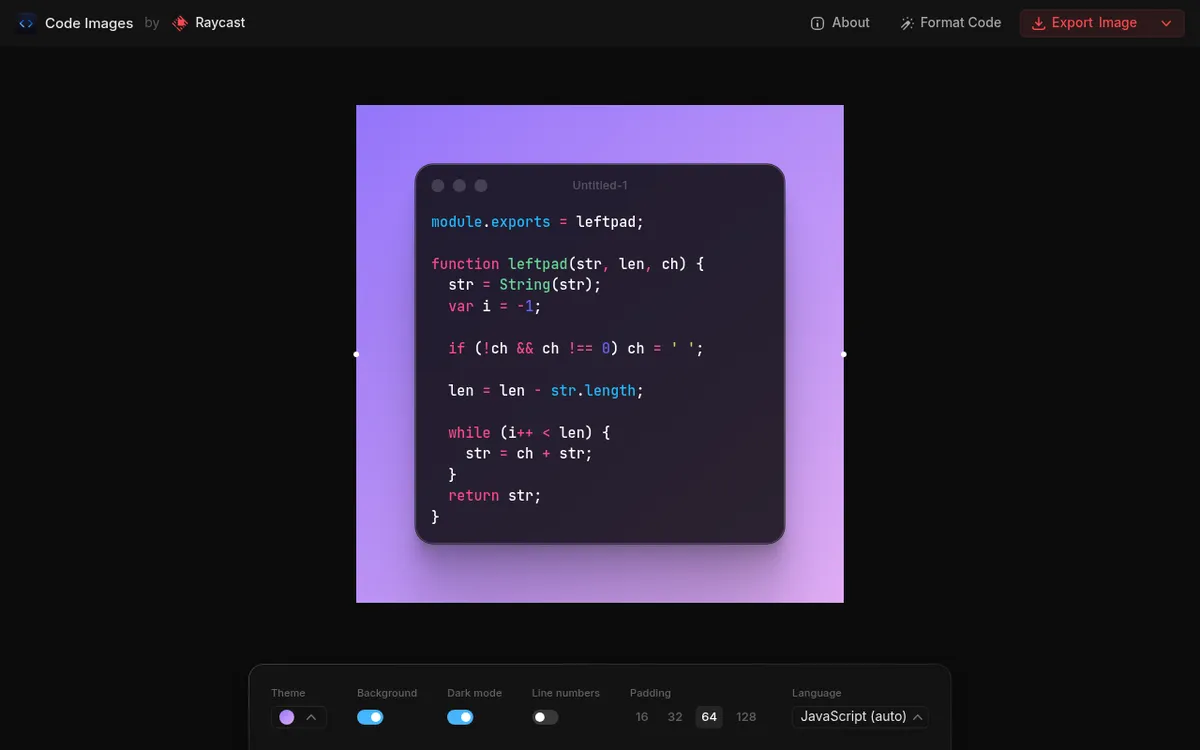
Ray.so comes from the team behind Raycast, and it shows. The interface is clean, modern, and fast. Everything loads instantly, and the keyboard shortcuts make the tool feel native to macOS.
Key features:
- Vibrant gradient backgrounds with 33 color themes, including brand themes like Vercel, Supabase, and Stripe
- Dark and light mode toggle
- Keyboard shortcuts for power users (press
?to see them all) - Export PNG or SVG at 2x, 4x, or 6x, or copy the image to your clipboard
- Padding and window control customization
- Support for 60+ programming languages plus auto detect
What sets it apart: Ray.so loads fast. Really fast. The gradient colors are picked to work well together, so there are no ugly clashes.
Ray.so keeps things simple. It does one thing well: makes your code look great with minimal clicks. No account needed: just paste and go.
CodeImage
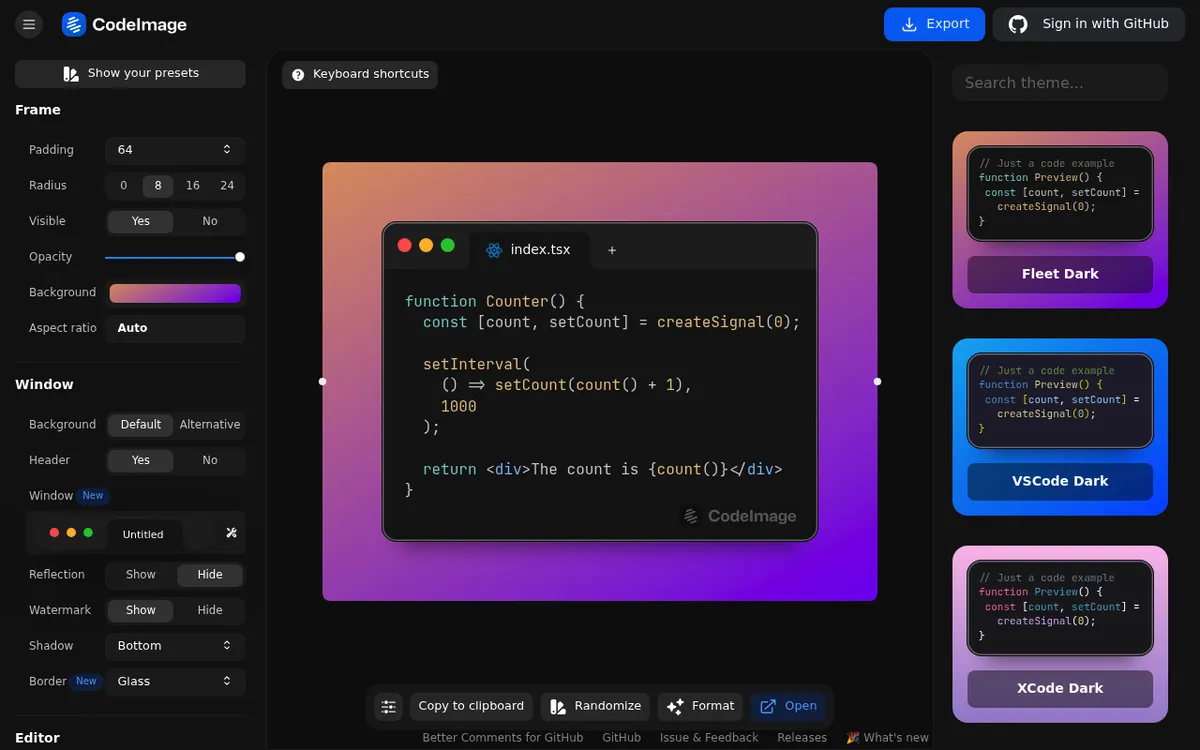
CodeImage is an open-source alternative that gives you more control over the final result.
Why developers like it:
- Frame styles (macOS, Windows, or none)
- Custom backgrounds and gradients
- 28 syntax themes and PNG, SVG, or JPEG export
- Sign in with GitHub to save projects and presets
- MIT licensed, so you can self-host it (there is no official guide)
Open source means you can view the code, add features, or host it yourself. Great for teams who care about privacy.
Showcode
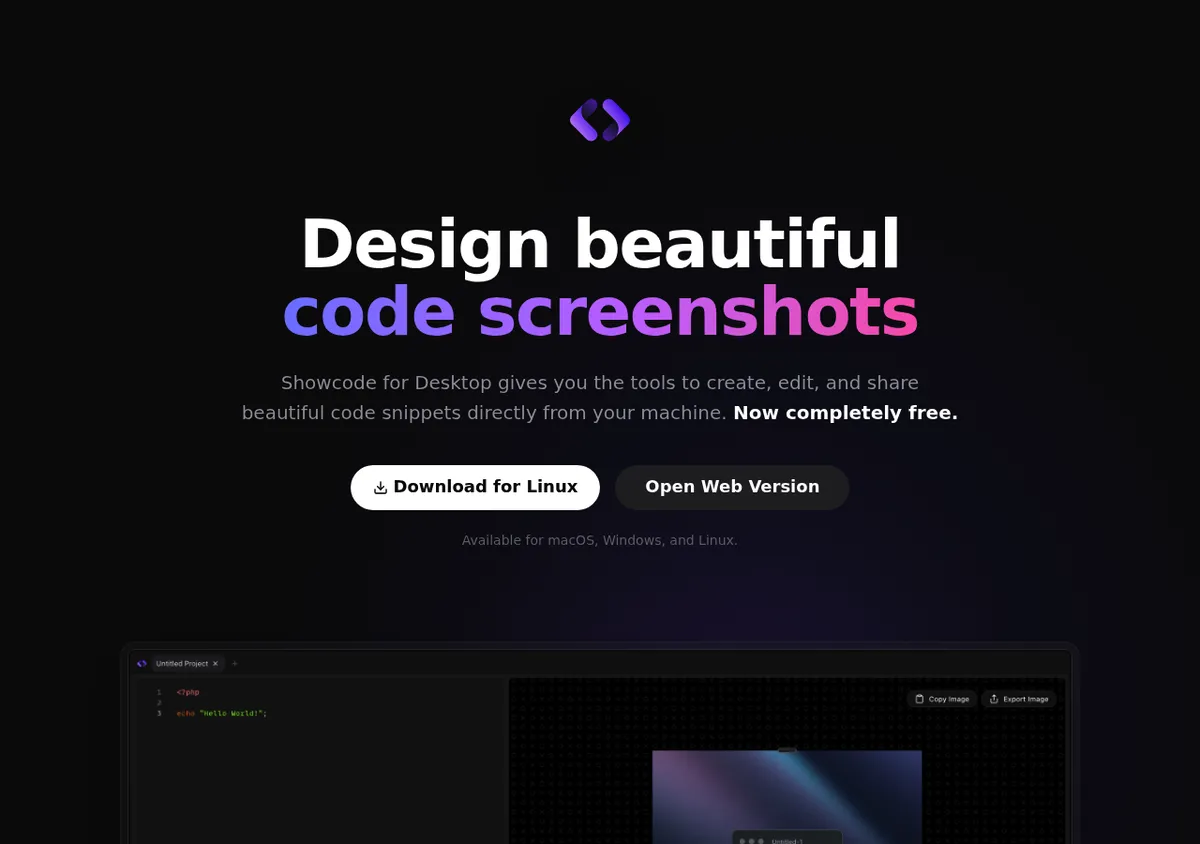
Showcode shows a live preview as you change settings. It also has a free API for auto-generating images, and free desktop apps for Mac, Windows, and Linux.
Notable features:
- Live preview while you edit
- Free API access
- Multiple editor panes and project tabs
- Multiple export formats (PNG, JPEG, and an SVG based HTML option)
Need to create code images with a bot or build script? Showcode's API makes that easy.
Chalk.ist
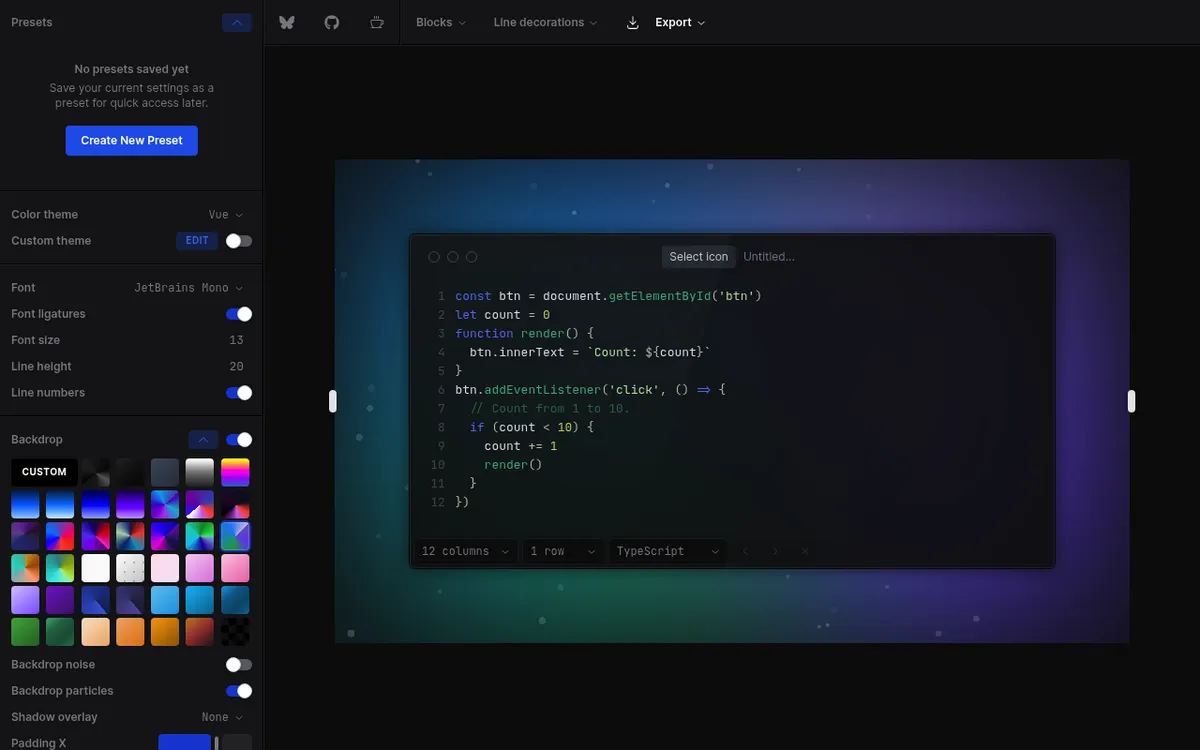
Chalk.ist does something most tools can't: put multiple code blocks in one image.
Best for:
- Before/after code diffs
- Side-by-side file views
- Step-by-step tutorials
Need to show a refactor or compare two versions? Chalk.ist beats stitching images by hand.
CodePNG
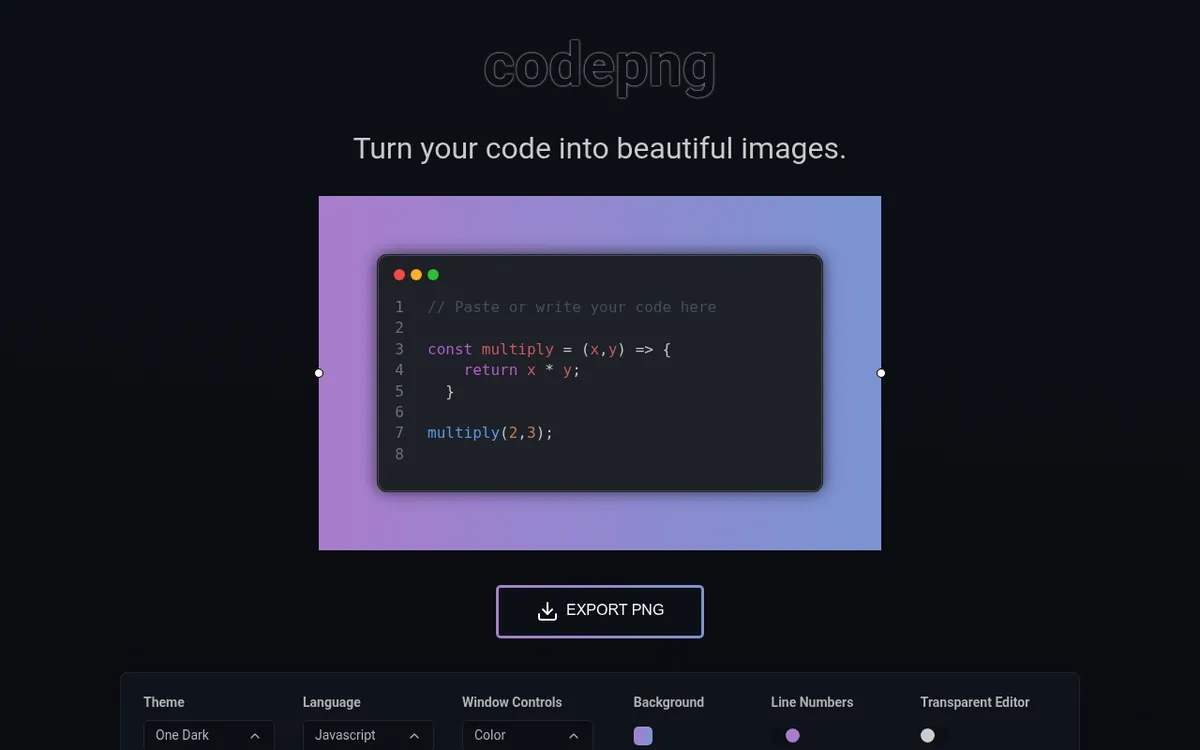
CodePNG takes the minimalist approach. Less options, faster workflow.
What you get:
- 12 themes, including One Dark, Dracula, and Tokyo Night
- Window controls (none, color, gray, or outline)
- 9 gradients, a custom two color gradient, or a solid background color
- Line number toggle
- PNG download (no SVG or clipboard copy)
If Carbon feels like too many choices, CodePNG gets you from code to image in under a minute.
10015.io Code to Image
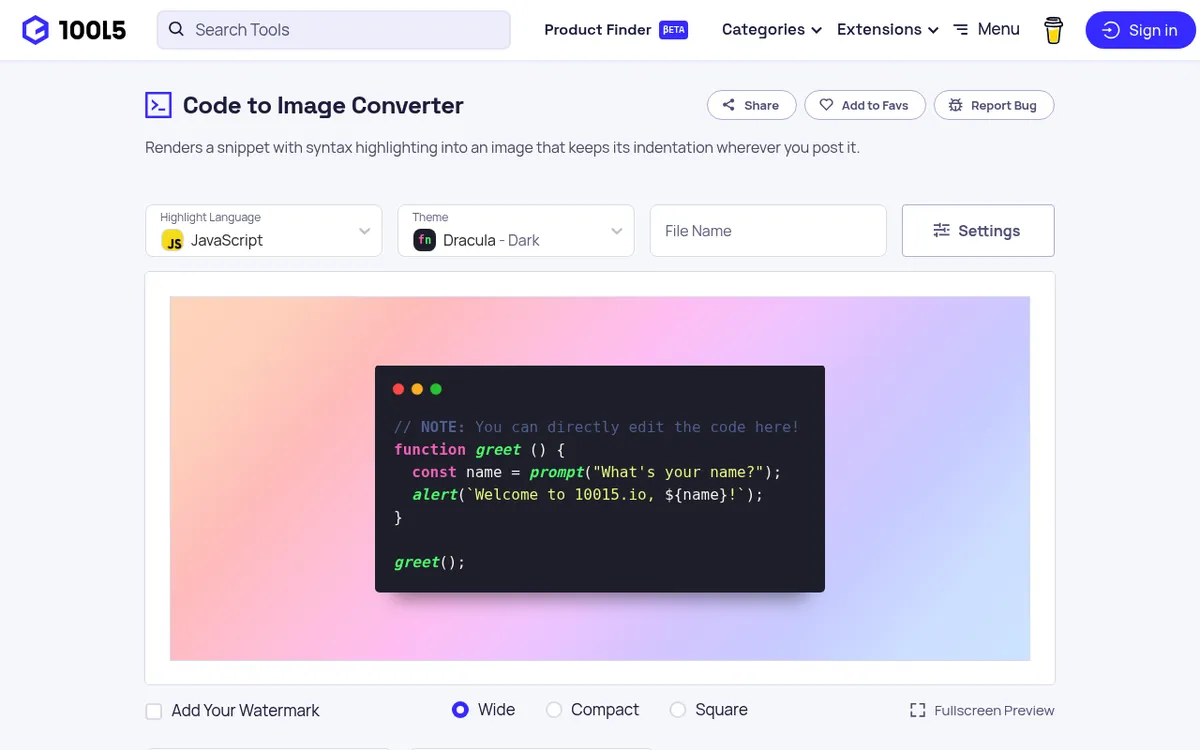
10015.io Code to Image offers deep styling options beyond what most free tools provide.
Highlights:
- 60+ syntax themes including Dracula, Nord, and Monokai
- Custom background colors and images
- 21 monospace fonts, including Roboto Mono, Space Mono, and PT Mono
- Shadow and padding controls
- PNG export at up to 4x, or copy the image to your clipboard
- Optional watermark that is off by default
When you need more control over fonts and backgrounds than Carbon offers, 10015.io fills that gap, and it is still free with no account needed.
Best Paid Code to Image Tools
When you need animations, team features, or advanced styling, these paid tools deliver more than the free options can.
Snappify
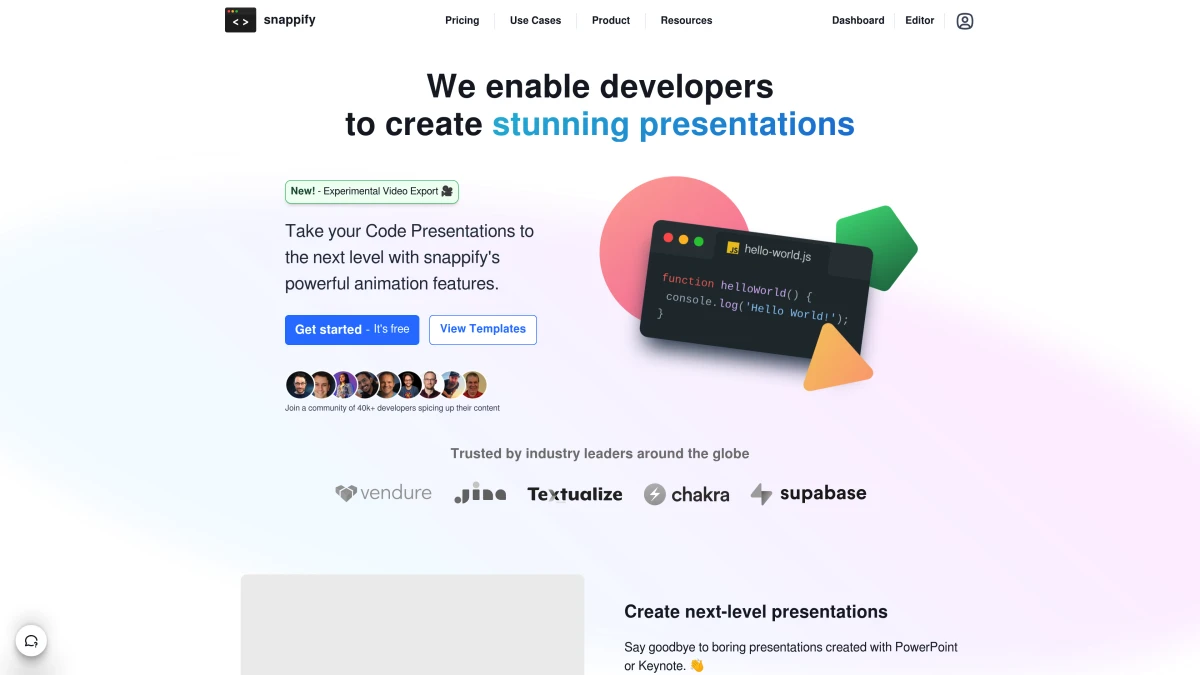
Snappify is the most loaded code screenshot tool out there. It goes beyond static images, since you can animate code changes to show how things evolve.
What sets it apart:
- Animated walkthroughs that show typing, adds, and deletes
- Line highlighting, blur, and fade controls
- Embed live snippets in Notion, Hashnode, Medium, any site
- VS Code and IntelliJ plugins
- Team sharing
- Snippet library
- Custom branding
More features: Build multi-step slides where viewers click through changes. Mark lines as added (green) or removed (red). Blur secrets. Fade out less important code.
Pricing: Free plan (3 saved snaps, watermark on slides and video), paid from $8/month, or $5/month billed yearly ($60/year)
For teachers, tech writers, and DevRels, Snappify's animations make hard topics easier to follow. Show code being added or removed step by step, which none of the free tools above can do. Viewers can also copy code from your embeds.
Pika Code
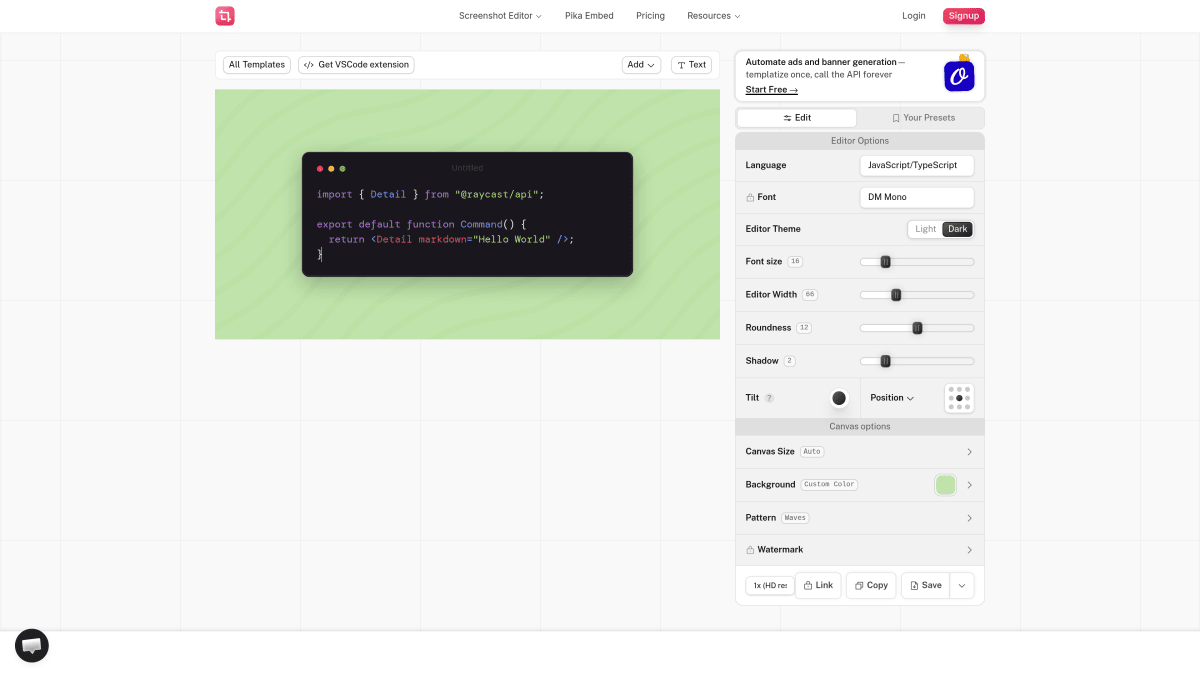
Pika Code focuses on unique background patterns that make your snippets stand out.
Key features:
- Distinctive background designs
- Professional aesthetic
- Quick export workflow
Pricing: Code images are free with no account or watermark. Pro costs $15/month or $150/year, and a $299 lifetime plan is available
When you want your code images to look different from everyone else's gradient backgrounds, Pika's patterns help you stand out.
HackReels
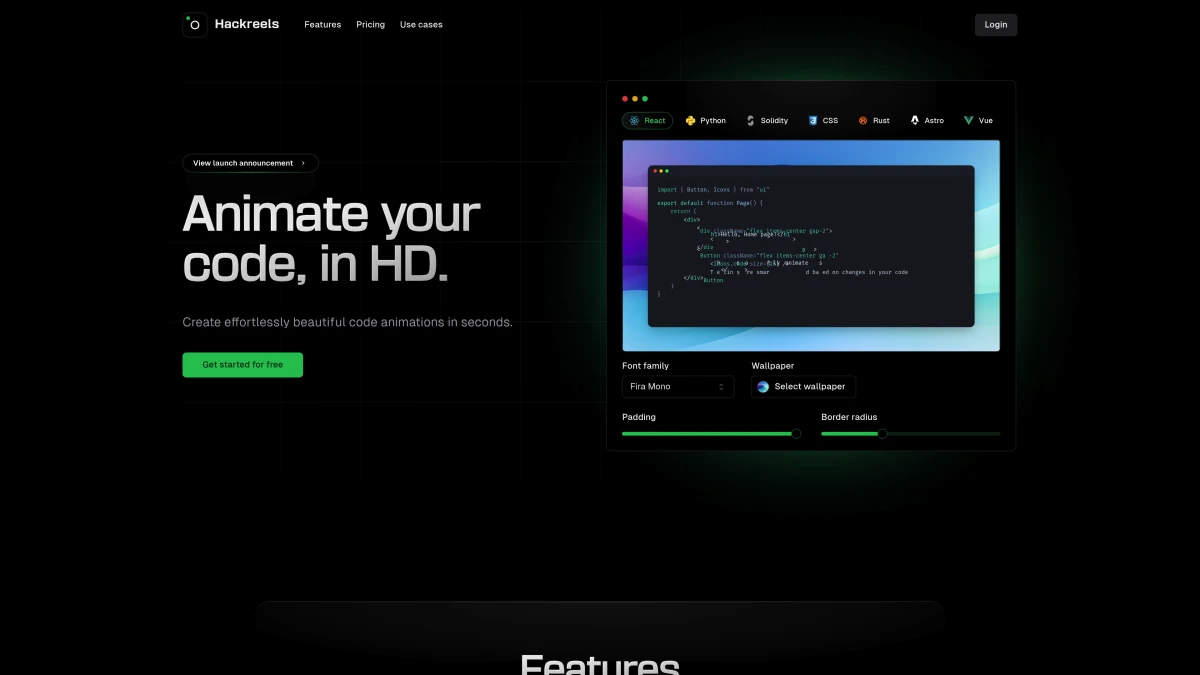
HackReels turns code into animated videos. It spots the diffs between snippets and animates the changes.
Best for:
- Code tutorial videos
- Social media reels
- Product demos
Export formats: 1080p from $9/month; 4K, GIF, and WebM from $19/month; ProRes and transparent video on the $59/month Premium plan
Pricing: Free plan with 1 min/month (720p, watermark, 10 second videos), paid from $9/month
If your audience likes video, HackReels fills the gap between static images and full screen recordings.
VS Code Extensions for Code Screenshots
If you spend most of your day in VS Code, these extensions let you capture code without opening a browser.
CodeSnap
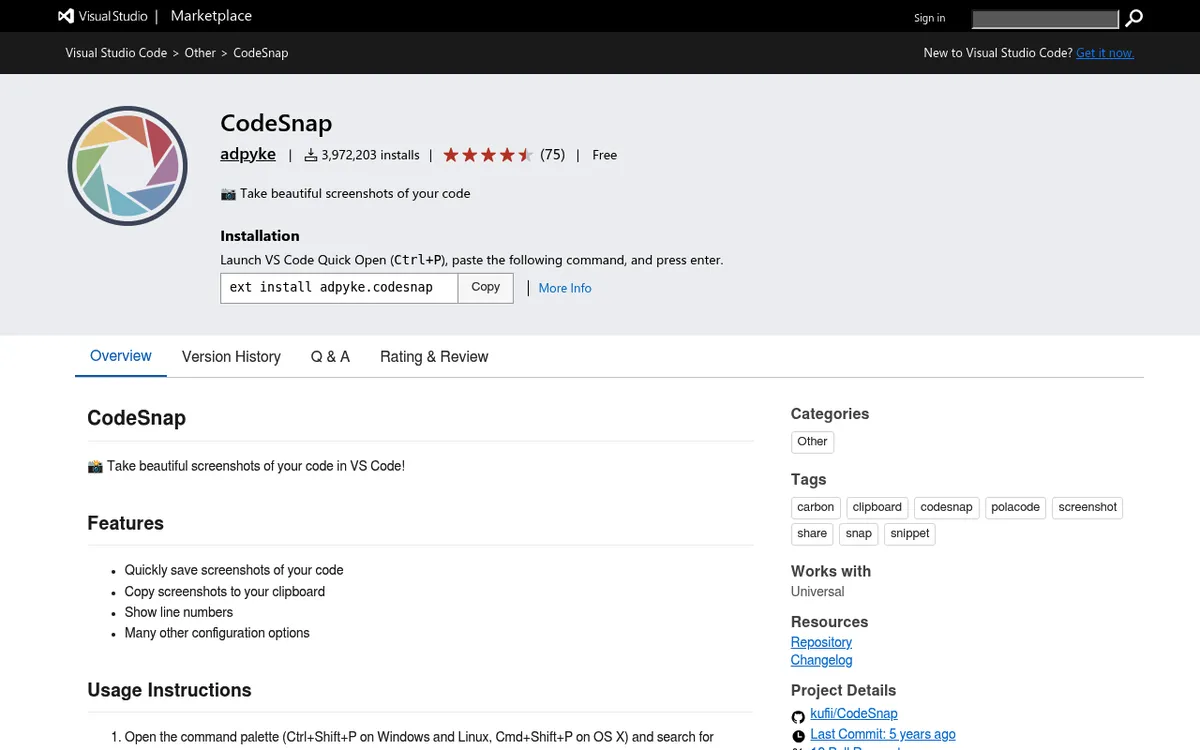
CodeSnap is one of the most installed VS Code extensions for code screenshots, with nearly 4 million installs. It is free and MIT licensed, but its last update was in July 2021.
How it works:
- Select your code
- Press
Ctrl+Shift+P(orCmd+Shift+Pon Mac) and runCodeSnap, or right click and choose CodeSnap - Adjust the preview window
- Save or copy the image
Why use it: Stay in your editor. Select code, run the command, done.
Polacode
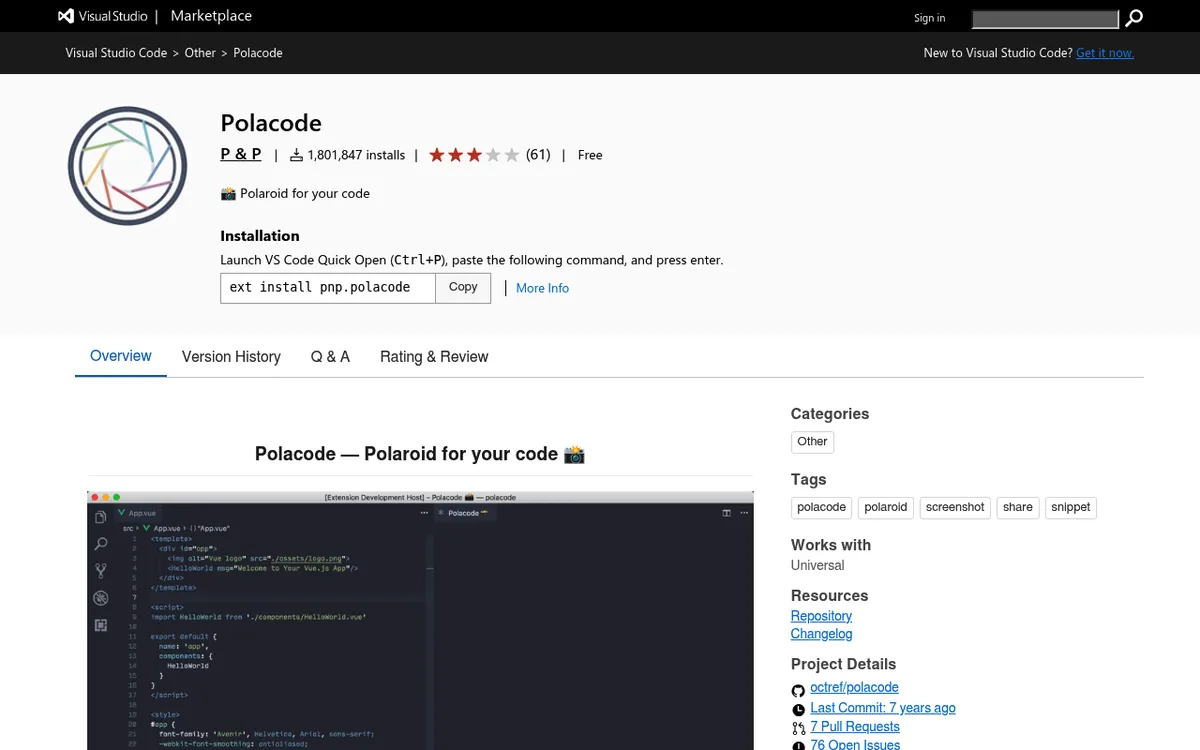
Polacode offers a similar workflow. Its tagline is "Polaroid for your code," but the output is a window style snippet on a colored or transparent backdrop.
Features:
- Uses your current VS Code theme
- Shadow, background color, and transparent background settings
- Simple and lightweight
- Not updated since 2019, with a 3.2 star rating
Both are free and fast, which is great for devs who hate context switching.

Tired of plain screenshots? Try ScreenSnap Pro.
Beautiful backgrounds, pro annotations, GIF recording, and instant cloud sharing, all in one app. Pay $34 once, own it forever.
See pricing and featuresHow to Enhance Your Code Images Further
Most code to image tools give you good results. But you can level up with a screenshot tool that adds backgrounds to screenshots.
Here's a workflow that produces polished results:
- Generate your code image with Carbon, Ray.so, or your preferred tool
- Capture or save the result as PNG for maximum quality
- Add a professional background using a tool like ScreenSnap Pro with its 500+ backgrounds, padding, and shadow
- Annotate if needed with arrows or callouts highlighting specific lines
- Share instantly via cloud link instead of attaching files
This two-step flow gives you more creative control than any single tool. You're not stuck with one tool's background options.
When to use this workflow:
- Featured images for blog posts that need exact brand colors
- Slide decks with consistent styling
- Adding callouts to highlight specific lines
- Custom backgrounds beyond the usual gradients
If you need to extract text from a code screenshot someone sent you, tools with OCR capabilities can copy text from any image, which is useful when you receive screenshots instead of actual code.
If you regularly share screenshots and need consistent styling, check out the best screenshot apps for Mac to find tools that complement your code image workflow.
Code to Image Tools Comparison
Choosing between 12 tools gets easier when you see them side by side:
| Tool | Price | Best For | Animations | API |
|---|---|---|---|---|
| Carbon | Free | Quick social shares | No | No |
| Ray.so | Free | Clean, modern aesthetic | No | No |
| CodeImage | Free | Self-hosting, privacy | No | No |
| Showcode | Free | Programmatic generation | No | Yes |
| Chalk.ist | Free | Multiple code blocks | No | No |
| CodePNG | Free | Minimalist workflow | No | No |
| 10015.io | Free | Advanced styling options | No | No |
| Snappify | From $8/mo ($5/mo yearly) | Animated explanations | Yes | Yes |
| Pika Code | Freemium | Unique backgrounds | No | No |
| HackReels | From $9/mo | Video content | Yes | No |
| CodeSnap | Free | VS Code users | No | No |
| Polacode | Free | VS Code with style | No | No |
For most developers: Start with Carbon or Ray.so. They're free, fast, and produce great results.
For educators and content creators: Snappify's animations justify the subscription if you explain code regularly.
For VS Code loyalists: CodeSnap keeps you in your editor.
Tips for Better Code Screenshots
Good results take more than picking the right tool. Follow these tips:
Keep it short. Share 10-20 lines max. Need more? Use multiple images or link to a gist.
Stay consistent. Pick one theme and stick with it. Your audience learns your style.
Check the language. Most tools auto-detect, but double-check the highlighting matches your code.
Test on your platform. Twitter crops images differently than LinkedIn. Preview before posting.
Think about contrast. Some themes are hard to read. Stick with Dracula, One Dark, or Monokai for clear text.
When you need to annotate screenshots on Mac professionally, dedicated screenshot tools offer more annotation options than code image generators include.
Frequently Asked Questions
Wrapping Up
The right code to image tool depends on how often you share code and where. For quick Twitter posts, Carbon or Ray.so work great and have no learning curve. If you teach or need animations, Snappify is worth the cost.
For devs who want the fastest screenshot workflow, pair a VS Code extension with a screenshot app that adds backgrounds. You get speed and polish.
Whatever you pick, styled code screenshots make your content more engaging. Grab a tool from this list and start sharing.

Morgan
Indie DeveloperIndie developer, founder of ScreenSnap Pro. A decade of shipping consumer Mac apps and developer tools. Read full bio
@m_0_r_g_a_n_