Best Xnapper Alternative for Mac (2026) | Screenshot Tools
An Xnapper alternative is a Mac screenshot tool that makes your captures look polished and pro. These tools (like ScreenSnap Pro) add gradient backgrounds, rounded corners, and clean styling. You don't need design skills to create share-ready images.
Looking for different pricing? Need more features or screen recording? Several great options exist.
Short answer: ScreenSnap Pro is the best Xnapper alternative for most Mac users. It matches Xnapper's one-click styling and adds screen recording, a video editor and 17 annotation tools for one $34 payment. CleanShot X suits power users, and Shottr is the best free pick.
Xnapper has earned a loyal following among content creators and developers. It's known for its dead-simple approach to making screenshots look great. But it's not the only option. Another tool might serve you better based on your needs.
In this guide, we'll look at the top Xnapper alternatives for Mac. We'll break down features, pricing, and ideal use cases. That way, you can pick the right tool for your work.
What is Xnapper and Why Look for Alternatives?
Xnapper is a Mac (and iOS) screenshot tool with one focus: making screenshots look beautiful, fast. It balances your screenshots, adds gradient backgrounds, and lets you mark them up. The whole flow takes about 2 seconds.
What Xnapper does well:
- Auto screenshot balancing and padding
- One-click background gradients
- Hides sensitive info (emails, API keys, credit cards)
- Built-in OCR for text extraction
- Preset system for consistent styling
- Social media aspect ratio presets
Xnapper's pricing:
- Free with watermark
- $29.99 for one Mac (Basic), with 1 year of updates
- $54.99 for two Macs, or $79.99 for three
- Team plan at $5 per device per month (billed yearly)
- After a year, renewing for more updates costs 40% less. The iOS app is a separate App Store purchase.
Xnapper excels at making screenshots pretty. But users often look for other options. Here's why:
- Need screen recording. Xnapper only captures still images, so there's no video or GIF recording
- Want cloud sharing. Xnapper's Mac app still lists cloud upload as "coming soon"
- More markup tools. Some workflows need counters, highlighters, or emoji
- Different backgrounds. More gradient choices or custom backgrounds
- Budget concerns. Some want free options or different pricing models
If any of these fit you, keep reading. We've tested the best options to help you find your perfect match.
One more thing: Xnapper was created by Tony Dinh, an indie developer known for quality Mac utilities. It's earned positive reviews on Product Hunt and the App Store. We're not here to dismiss Xnapper, because it's genuinely good. But other tools might suit your specific needs better.
Top Xnapper Alternatives Compared
Let's look at the three best screenshot apps for Mac that can replace or add to Xnapper.
ScreenSnap Pro
Best for: One-time purchase with the most styling options, plus screen recording

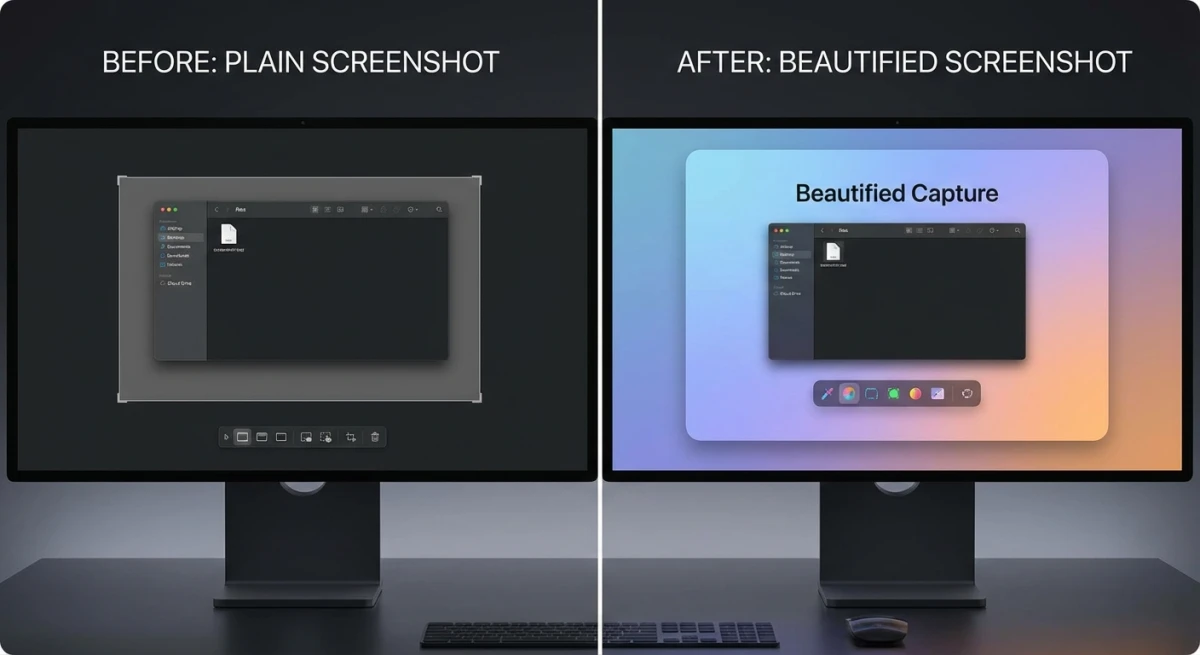
ScreenSnap Pro takes the styling-first approach and expands it. It offers 500+ wallpapers and optional cloud share links. It also records your screen, which Xnapper can't do. These fix the biggest gaps in Xnapper's current offering.
Key features:
- 500+ wallpapers. More variety than Xnapper's presets, plus 40 gradients
- Cloud share links. Get a short link to share, with no email attachments (optional)
- Screen recording. MP4 at up to 60fps with webcam, mic and system audio, or direct GIF recording
- Built-in video editor. Trim and cut clips, remove silences, and add cursor-follow auto zoom
- 17 annotation tools. Arrows, shapes, blur, pixelate, highlighter, spotlight, counter, plus emoji
- Pin screenshots. Keep captures visible while working
- OCR text extraction. Copy text from any image
- Full-page website capture. Paste a URL to capture a whole web page
Pricing: $34 one-time purchase with lifetime updates. One license covers 2 seats, in any mix of Mac and Windows. No subscriptions or renewal fees, and a 30-day money-back guarantee.
The biggest edge over Xnapper? Screen recording. Still images can't show a quick process or demo a bug. ScreenSnap Pro records MP4 or GIF directly. Then the video editor lets you trim and add zoom before you share. You don't need a separate screen recording tool.
Limitations: There's no auto-redaction, so you blur or pixelate by hand. It can't do scrolling capture of native app windows, and there's no iPhone or iPad app.
Learn more about adding beautiful backgrounds to screenshots with dedicated tools.
CleanShot X
Best for: Power users who need 50+ features
CleanShot X is the feature-packed option. Xnapper focuses on simplicity. ScreenSnap Pro balances features with ease-of-use. CleanShot X goes all-in on what it can do.
Key features:
- Scrolling screenshots
- Video and GIF recording, with a video editor and Smart Zooms
- Background tool for styled screenshots
- Self-timer capture
- Quick Access Overlay
- Advanced markup suite
- Cloud storage (1 GB on Basic, unlimited on Pro)
Pricing:
- Basic: $35 one-time with 1 year of updates, then an optional $19/year renewal
- Pro: $10/user/month billed yearly ($12 billed monthly), with unlimited cloud and team features
CleanShot X suits users who want a Swiss Army knife for screen capture. But this comes with more to learn. The learning curve is steeper than Xnapper or ScreenSnap Pro.
Want to know more? Check out our CleanShot X alternatives guide for a deeper comparison.
Shottr
Best for: Free option with solid basics
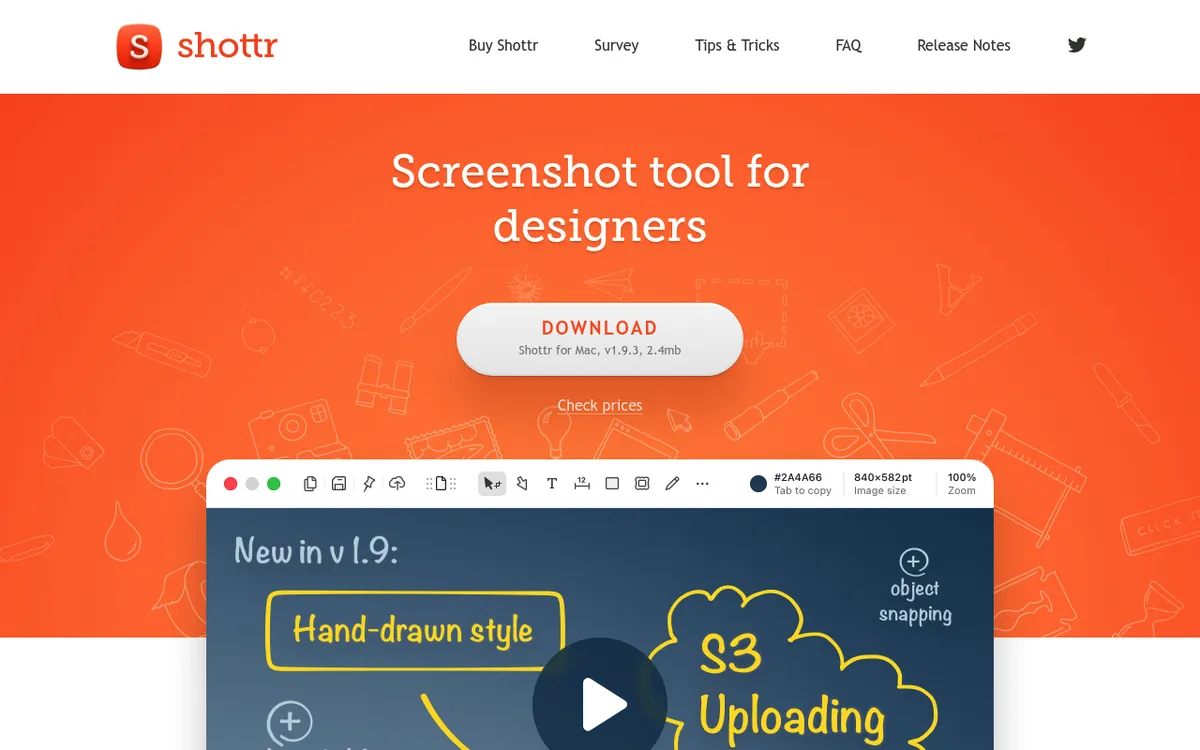
Shottr is the lightweight free option. Since version 1.8, it includes a Backdrop tool. This adds gradient backgrounds, shadows, and rounded corners, much like Xnapper's core feature.
Key features:
- Scrolling screenshots
- OCR text recognition
- Measurement tools (great for designers)
- Backdrop tool for styling
- Basic markup (arrows, shapes, text)
- S3 upload (must be activated)
- Free for personal use
Pricing: Free to use, but after 30 days it starts asking you to upgrade. Basic is $12 one-time and is required for commercial use. Friends Club is $30 one-time.
The catch? Shottr's styling features are newer and less refined. The Backdrop tool works, but it lacks preset variety. You won't get the same one-click polish as Xnapper or ScreenSnap Pro.
See our detailed ScreenSnap Pro vs Shottr comparison for more insights.
Feature Comparison Table
Here's how the top Xnapper alternatives stack up:
| Feature | ScreenSnap Pro | CleanShot X | Shottr | Xnapper |
|---|---|---|---|---|
| Gradient Backgrounds | ✓ 500+ wallpapers, 40 gradients | ✓ Limited | ✓ Basic | ✓ Presets |
| Screen Recording | ✓ MP4 + GIF | ✓ MP4 + GIF | ✗ | ✗ |
| Video Editor | ✓ Auto zoom | ✓ Smart Zooms | ✗ | ✗ |
| Cloud Sharing | ✓ Share links | ✓ 1 GB (Basic) | S3 upload | Coming soon |
| OCR/Text Extraction | ✓ | ✓ | ✓ | ✓ |
| Scrolling Capture | Websites only | ✓ | ✓ | ✗ |
| Auto-Redaction | ✗ Manual blur/pixelate | ✗ Manual blur/pixelate | ✗ | ✓ Excellent |
| Markup Tools | 17 tools | Advanced | Basic | Basic |
| Pricing Model | One-time, lifetime updates | One-time + optional renewal, or Pro plan | Free, paid for work use | One-time + optional renewal |
| Price | $34 one-time | $35 | Free ($12 for work use) | $29.99 |
| Platform | Mac + Windows | Mac | Mac | Mac + iOS |
Quick takeaway: Want great styling on a budget? ScreenSnap Pro has the most background options plus screen recording and a video editor. CleanShot X wins on raw feature count but costs more over time. Shottr is best if free matters most.
ScreenSnap Pro: The Best Value Alternative
Most users looking to replace Xnapper will find ScreenSnap Pro hits the sweet spot. Here's why:
More Backgrounds, More Variety
Xnapper includes preset backgrounds that work well. But the selection is limited.
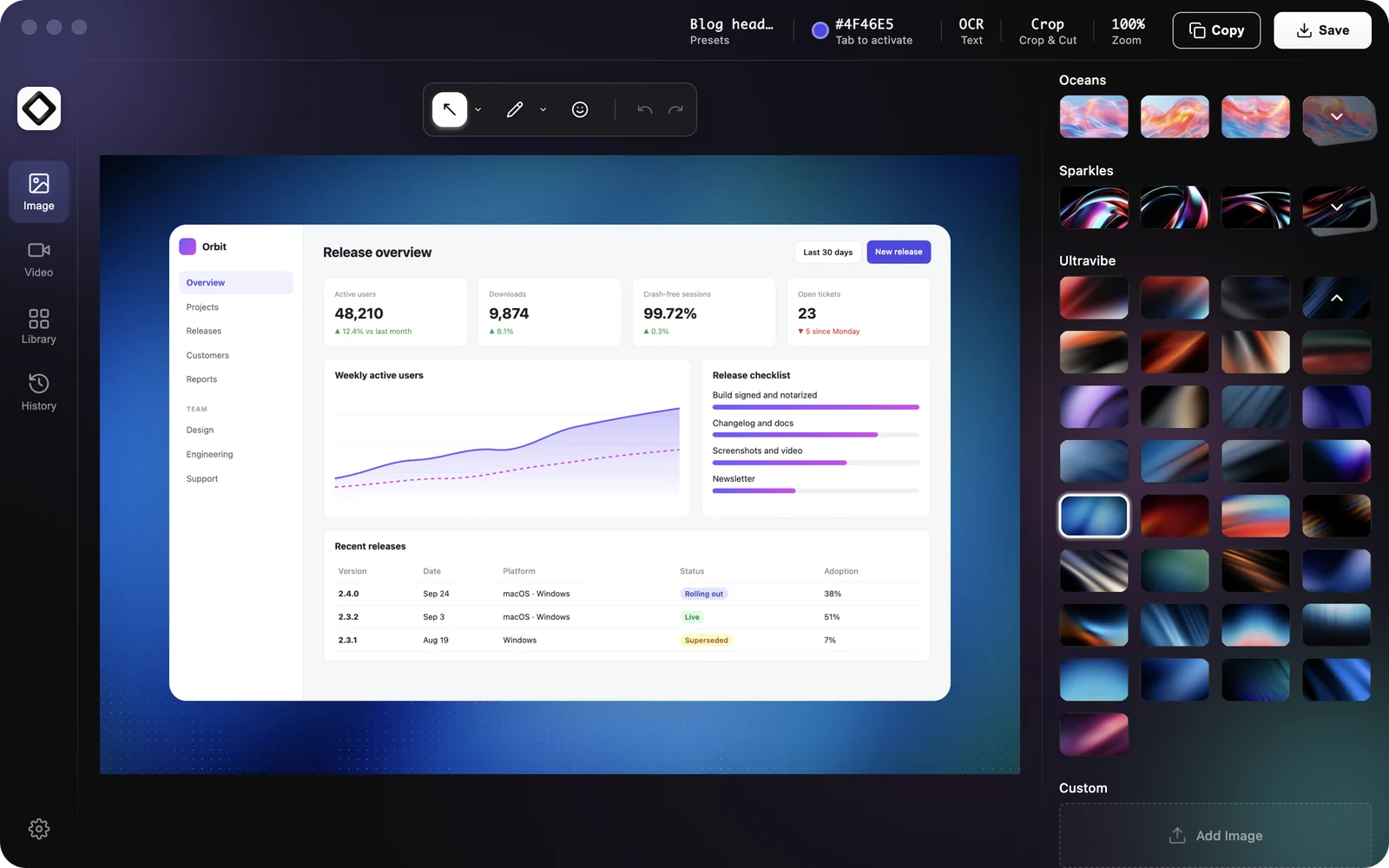
ScreenSnap Pro offers 500+ wallpapers in 21 collections, such as Energy, Sunset, Midnight, Liquid Glass and Oceans. You also get:
- 40 ready-made gradients, or your own two-color gradient
- 16 plain color presets and a color picker
- Your own images as backgrounds
- A transparent background for slides and designs
When you're creating content daily, variety matters. You don't want every screenshot looking the same across your blog, social media, and docs.
Screen Recording Changes Everything
This is the feature gap that drives many Xnapper users to look elsewhere. Still images can't show:
- How a UI animation works
- Bug reproduction steps
- Quick tutorials or demos
- Interactive feature previews
ScreenSnap Pro records GIFs natively. No need to record video and convert. Capture your screen and get a shareable GIF right away.
Need more than a GIF? It also records MP4 at up to 60fps with your webcam, mic and system audio. The built-in video editor trims, cuts and speeds up clips. It removes silences in one click and adds cursor-follow auto zoom. A short demo looks finished before you share it.
For developers filing bug reports or marketers creating demos, this alone makes the switch worth it.
Learn more about recording GIFs on Mac. For longer videos, see our guide to the best screen recorders for Mac.
Cloud Sharing That Actually Works
Xnapper's Mac app still lists cloud upload as "coming soon." Meanwhile, sharing screenshots via email or manual uploads wastes time.
ScreenSnap Pro includes optional cloud share links:
- Capture
- Style it
- Get a link
That's it. Paste the link into Slack, Discord, email or a ticket without file hassles.
Complete Markup Toolkit
Xnapper covers the basics: arrows, shapes, text, blur. ScreenSnap Pro includes 17 annotation tools:
- Arrows, lines and freehand paths
- Shapes (rectangles and ellipses, outlined or filled)
- Text labels and callouts
- Blur and pixelate tools
- Highlighter and spotlight
- Magnifier
- Counter/step numbers
- Pencil and eraser
- Plus emoji stamps
The counter tool is great for tutorials. Number your steps without adding text boxes by hand. Learn more about professional screenshot markup.
True One-Time Pricing
Xnapper and CleanShot X Basic are one-time purchases. But each includes only one year of updates, with optional paid renewals after that. ScreenSnap Pro is $34 once with lifetime updates. You pay once and own it forever. No subscriptions.
This matters more than ever in 2026. Subscription fatigue is real. Many pros now manage dozens of monthly software costs. A screenshot tool that just works (with no recurring charges) removes one more line item from your expenses.
Zero Watermarks from Day One
Xnapper's free tier adds watermarks. ScreenSnap Pro gives clean, pro output from the start.
When you're sharing screenshots with clients or posting online, watermarks hurt. They scream "I didn't pay for this tool." That hurts the pro look you're going for.

Tired of plain screenshots? Try ScreenSnap Pro.
Beautiful backgrounds, pro annotations, GIF recording, and instant cloud sharing, all in one app. Pay $34 once, own it forever.
See pricing and featuresWhen to Choose Each Tool
Different workflows call for different tools. Here's the full breakdown to help you decide:
Choose ScreenSnap Pro if:
- You need screen recording (MP4 or GIF) for demos or tutorials
- You want to edit recordings with trims and auto zoom in the same app
- Cloud share links are key to your workflow
- You want the most background variety (500+ wallpapers)
- Complete markup tools matter
- One-time pricing with lifetime updates appeals to you
- You work on both Mac and Windows (one license covers 2 seats)
ScreenSnap Pro is ideal for content creators, bloggers, and developers. Screen recording alone sets it apart from Xnapper. If you write tutorials, file bug reports, or create social content, you'll use it often. The cloud share links also speed up your workflow. No more attaching files to emails or uploading to Imgur.
Choose CleanShot X if:
- You want CleanShot's Studio Mode and Smart Zooms for recordings
- Scrolling screenshots of any app are a must
- You want 50+ features and don't mind the learning curve
- Team features/SSO login are requirements
- You're okay with optional yearly renewal for updates
- You want unlimited cloud storage and custom domain sharing (Pro plan)
CleanShot X is the power-user choice. It does almost everything, but you'll need time to learn it. The scrolling capture is great for web pages and long chats. Video recording with system audio suits those making tutorials or demos. But the complexity means it's overkill for simple styling tasks.
Choose Shottr if:
- Budget is your main concern (it's free for personal use)
- You need measurement tools for design work
- Scrolling screenshots matter more than styling
- Basic gradient backgrounds are good enough
- You're a designer who measures UI elements often
- You want to try styling features before paying
Shottr is perfect for designers on a budget. The measurement tools are unique: you can measure pixels, check color values, and verify spacing. The Backdrop tool added basic styling. It's not as polished as paid options, but the price (free for personal use, $12 for work) is hard to beat. Many users start with Shottr, then upgrade when they outgrow it.
Stick with Xnapper if:
- You only need still screenshot styling
- You also want to style screenshots on iPhone or iPad
- You already own it and it meets your needs
- Ultra-minimal UI is your top priority
- Auto-redaction of sensitive data is a must-have
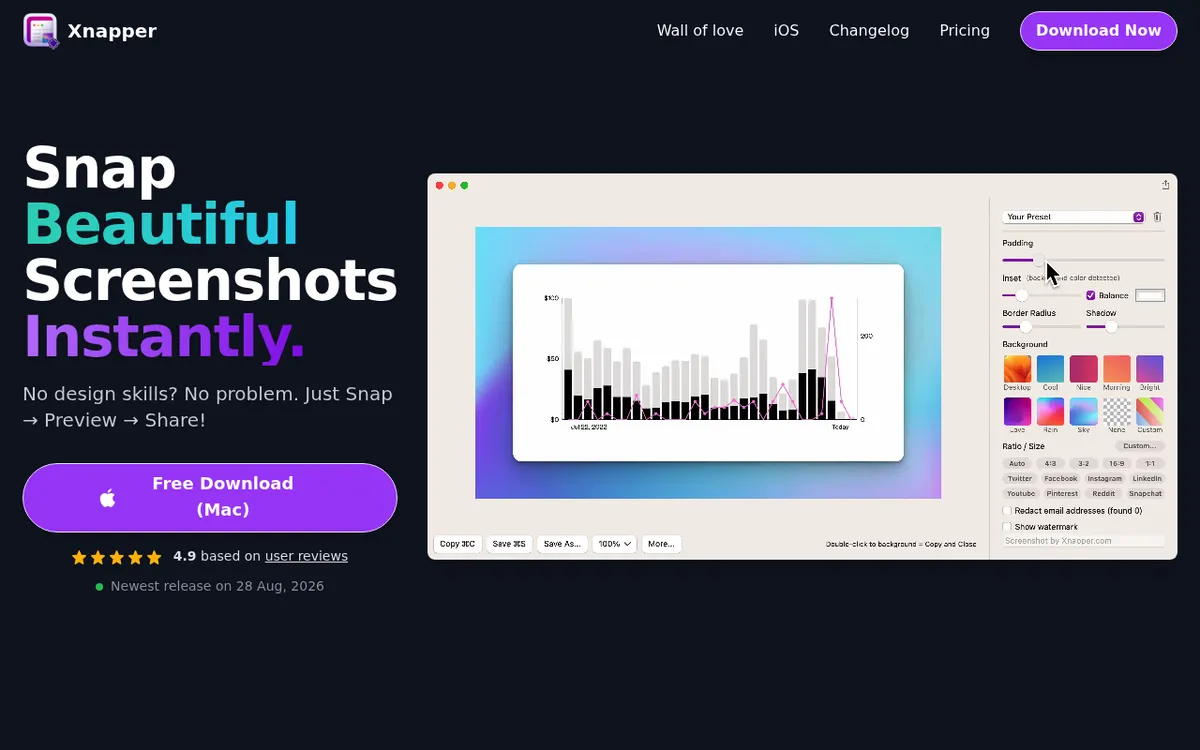
Xnapper shines for users who want the simplest possible workflow. Open it, capture, pick a background, share. If that's all you need, it's a great choice. The iOS app also lets you capture and style screenshots on your iPhone or iPad. It's a separate App Store purchase and still in beta.
How to Switch from Xnapper: Migration Tips
Switching screenshot tools is easy. Most captures are standalone files. But here are tips to make it smooth:
Keep Your Settings Consistent
Note your current Xnapper settings before switching:
- Padding amount (the space around your screenshot)
- Corner radius (how rounded the corners are)
- Favorite background colors
- Default export format (PNG vs JPEG)
Then recreate these in your new tool. ScreenSnap Pro's 500+ wallpapers include options similar to Xnapper's presets. You'll find matching gradients within a few clicks. Save the look as a preset so you can apply it in one click.
Update Your Keyboard Shortcuts
Xnapper uses ⌃⌥⌘4 by default. Set your new tool's shortcut to match. This keeps your muscle memory intact. You won't reach for the wrong keys.
In ScreenSnap Pro, go to Settings → Shortcuts to change the capture hotkey. Pick something easy to remember. Many users stick with Xnapper's default combo.
Test Your Workflow First
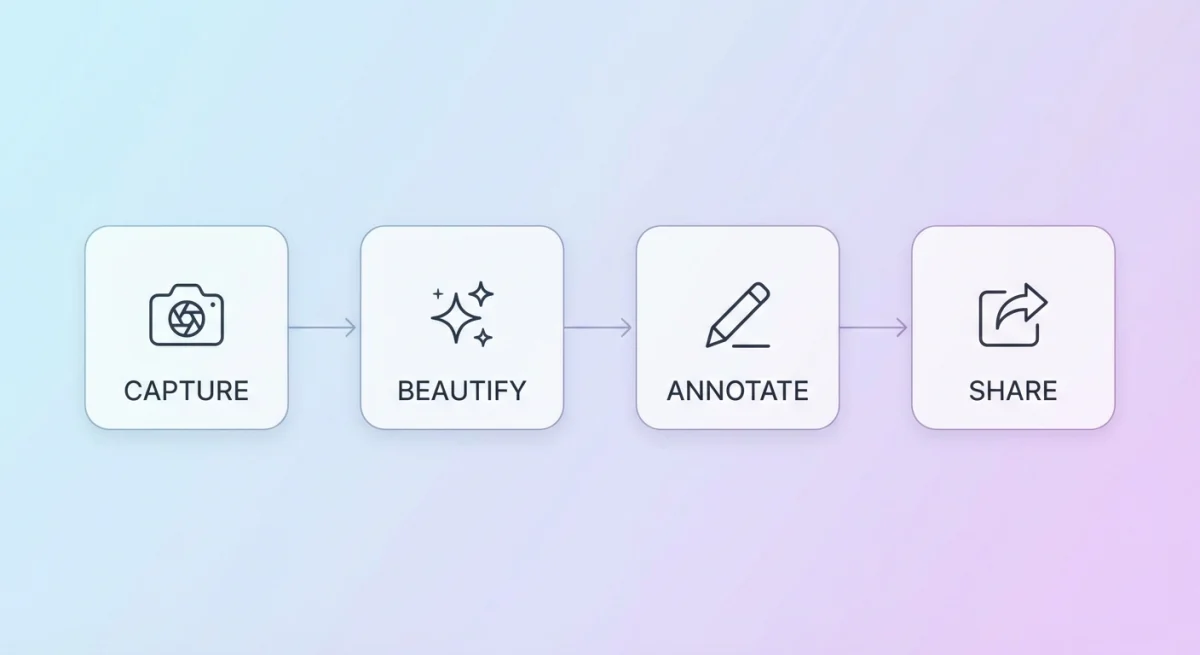
Run through a typical capture-edit-share cycle before fully switching:
- Take a screenshot
- Add a background
- Mark it up with arrows or text
- Share via your usual method (cloud link, copy to clipboard, save file)
If the new tool handles your workflow well, you're ready. If something feels off, adjust settings or try another option.
Consider Running Both Tools
You don't have to uninstall Xnapper right away. Some users keep both tools. Common setups include:
- Xnapper on iPhone. Style screenshots on your iPhone or iPad
- ScreenSnap Pro for recordings. Capture motion when needed
- Different shortcuts for each.
⌃⌥⌘4for still shots,⌃⌥⌘5for GIFs
macOS handles multiple screenshot apps fine. Just use different hotkeys to avoid conflicts.
Move Your Old Screenshots
If you styled many screenshots in Xnapper, they're saved as regular image files. They'll work anywhere. No special export needed. Just find them in your usual save folder.
For guides on keyboard shortcuts, see our article on Mac screenshot shortcuts.
Handling Sensitive Information
One area where Xnapper shines is auto-redaction. It detects and offers to hide:
- Emails
- Credit cards
- IP addresses
- API keys
ScreenSnap Pro and CleanShot X both offer blur and pixelate tools for hiding sensitive info. But they require you to select what to hide by hand.
If auto-redaction is critical (say, you're a security researcher or handle customer data), factor this into your choice.
That said, manual redaction gives you more control. Auto-detection sometimes misses things or flags false positives. Manual selection means you decide exactly what to hide.
Frequently Asked Questions
The Bottom Line
Xnapper remains an excellent screenshot styling tool. But it's not alone in the market. Your ideal option depends on what's missing from your workflow:
- Need screen recording + styling? → ScreenSnap Pro
- Want 50+ features and don't mind learning? → CleanShot X
- Budget-conscious with basic needs? → Shottr
For most users seeking an Xnapper alternative, ScreenSnap Pro offers the best balance. You get 500+ backgrounds, 17 annotation tools, screen recording with a built-in video editor, and cloud share links. It's all one $34 payment with lifetime updates.
Ready to upgrade your screenshot workflow? Get ScreenSnap Pro and see the difference pro styling tools make.

Morgan
Indie DeveloperIndie developer, founder of ScreenSnap Pro. A decade of shipping consumer Mac apps and developer tools. Read full bio
@m_0_r_g_a_n_