Best Monosnap Alternative for Mac in 2026 (7 Picks)
Looking for a Monosnap alternative for your Mac? You're not alone. Many users get tired of cloud limits and monthly fees. Monosnap works, but it has gaps that frustrate daily users — and apps like ScreenSnap Pro plug those gaps with a one-time license and richer capture tools.
Good news: macOS has great screenshot apps in 2026. Some are free. Others cost a one-time fee. All of them fix the problems that make people leave Monosnap.
This guide shows you 7 solid picks. We cover free tools and pro options. By the end, you'll know exactly which app fits your workflow.
Why Look for a Monosnap Alternative?
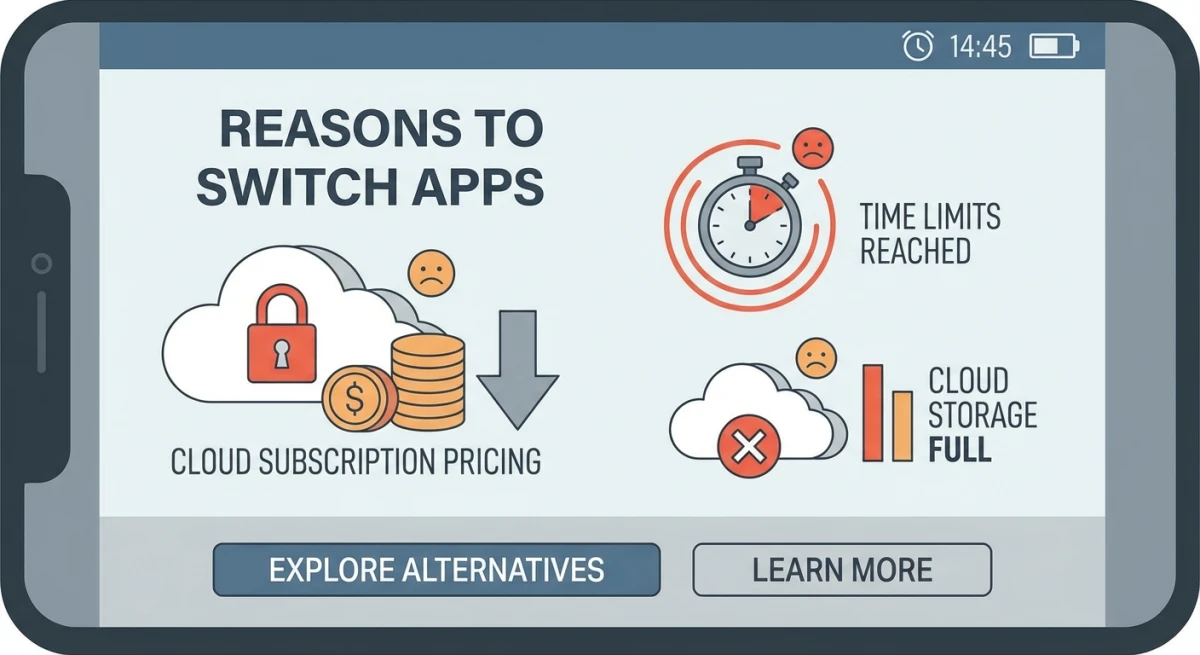
Monosnap has fans. But many users are switching in 2026. Here's why the search for alternatives keeps growing.
Cloud Storage Limits
Free Monosnap gives you limited cloud space. Hit the cap? You pay or delete files. This gets old fast if you take lots of screenshots for work.
The 2GB free tier sounds okay at first. But if you share bug reports and design notes daily, a week of use can fill it up.
Better tools save files on your Mac first. No cloud needed unless you want it. Your screenshots stay yours.
Monthly Fees Add Up
Monosnap pushes paid plans hard. Want team tools? Pay monthly. Want more storage? Pay more. Just need basic shots? You still face upsells.
Their paid plans start at $5/month. That's $60/year for what other apps give you free. Over three years, you've spent $180 on screenshot software.
Tools like ScreenSnap Pro charge once. You own it forever. No stress about renewals.
Basic Markup Tools Fall Short
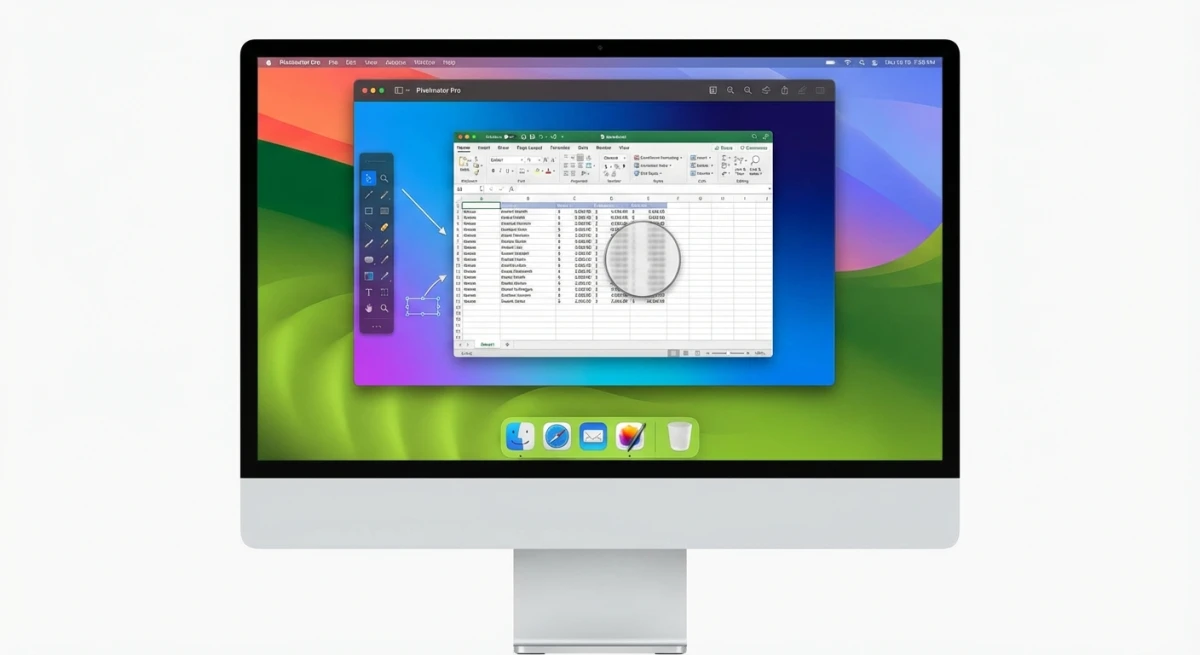
Monosnap has arrows and shapes. That's about it. For many users, this isn't enough.
It lacks a proper blur tool for hiding private info. You need blur when sharing shots with clients or on social media. No step numbers for guides. No nice backgrounds for marketing.
No Linux Support
Need Monosnap for Ubuntu? It doesn't exist. The app is Mac and Windows only. This causes issues for devs who use both.
Want tools that work on multiple systems? Check our ShareX for Mac guide.
Privacy Concerns Grow
Monosnap sends files to their cloud by default. This bugs users who care about privacy. Devs sharing code want more control over where files go.
A local-first app keeps files on your Mac. You pick when and where to upload. This matters more than ever in 2026.
Users Expect More Now
Users want more from screenshot tools:
- Scrolling capture for full web pages and long docs
- Pretty backgrounds for social posts and slides
- GIF recording for quick demos without video apps
- OCR to grab text from any image fast
Monosnap covers some of these. Other tools do them all — and better.
Quick Look: Monosnap Alternatives for Mac
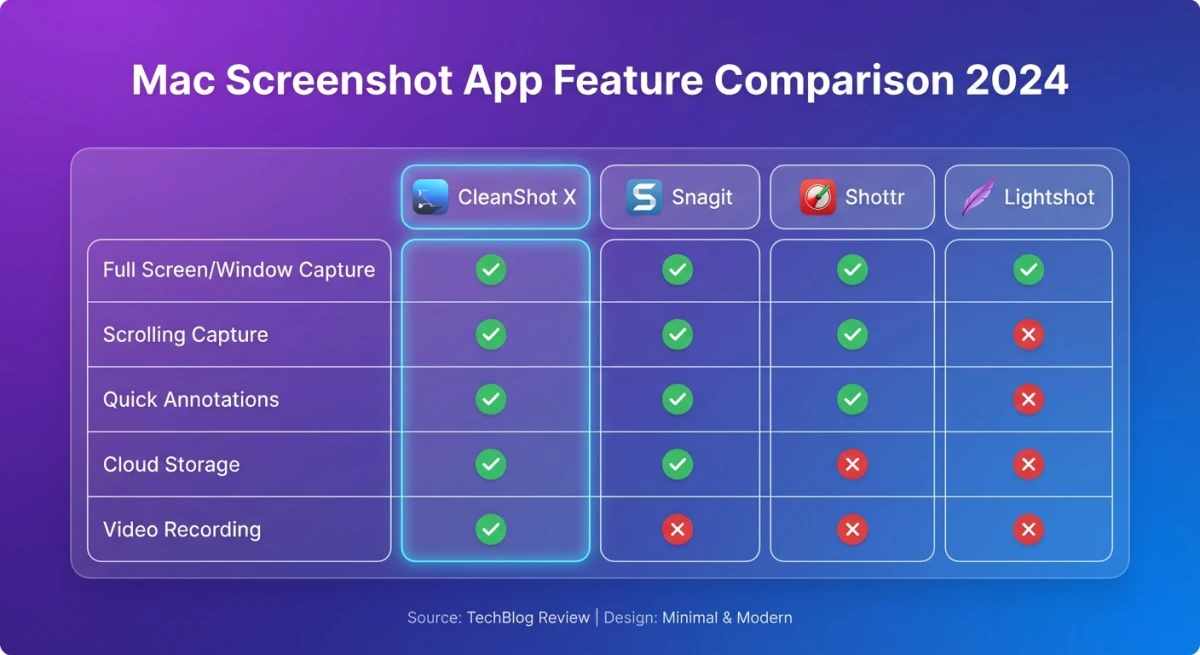
| App | Price | Markup | Cloud | GIF | Backgrounds | Best For |
|---|---|---|---|---|---|---|
| ScreenSnap Pro | $39 once | ✅ 15 tools | ✅ Optional | ✅ | 150+ | Creators, marketers |
| CleanShot X | $29/year | ✅ Full | ✅ Built-in | ✅ | Few | Power users |
| Shottr | Free | ✅ Full | ✅ S3 | ❌ | ❌ | Devs, designers |
| Snagit | $63 once | ✅ Lots | ✅ | ✅ | ❌ | Enterprise teams |
| Lightshot | Free | ✅ Basic | ✅ | ❌ | ❌ | Quick shares |
| Greenshot | N/A Mac | — | — | — | — | Windows only |
| macOS Built-in | Free | ✅ Markup | ❌ | ❌ | ❌ | Light use |
1. ScreenSnap Pro — Best Overall Monosnap Alternative
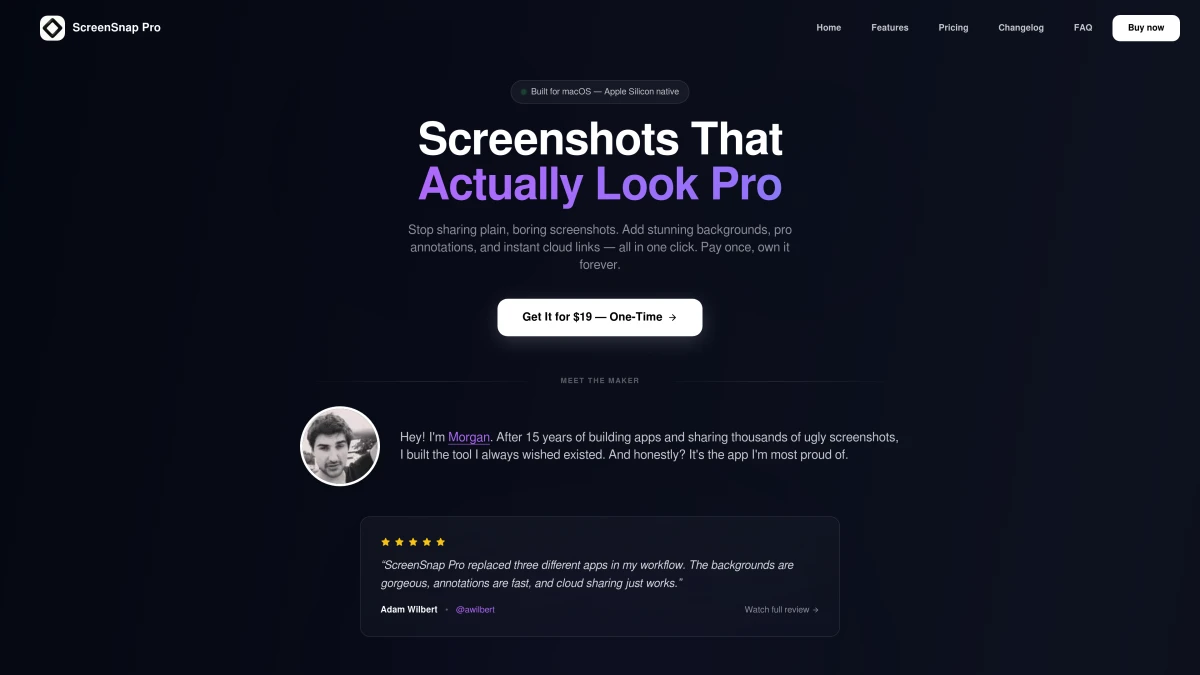
Price: $39 one-time | Works on: macOS 11.0+
Tired of Monosnap's cloud focus and recurring fees? ScreenSnap Pro fixes that. Pay once. Use forever. No monthly bills eating into your budget.
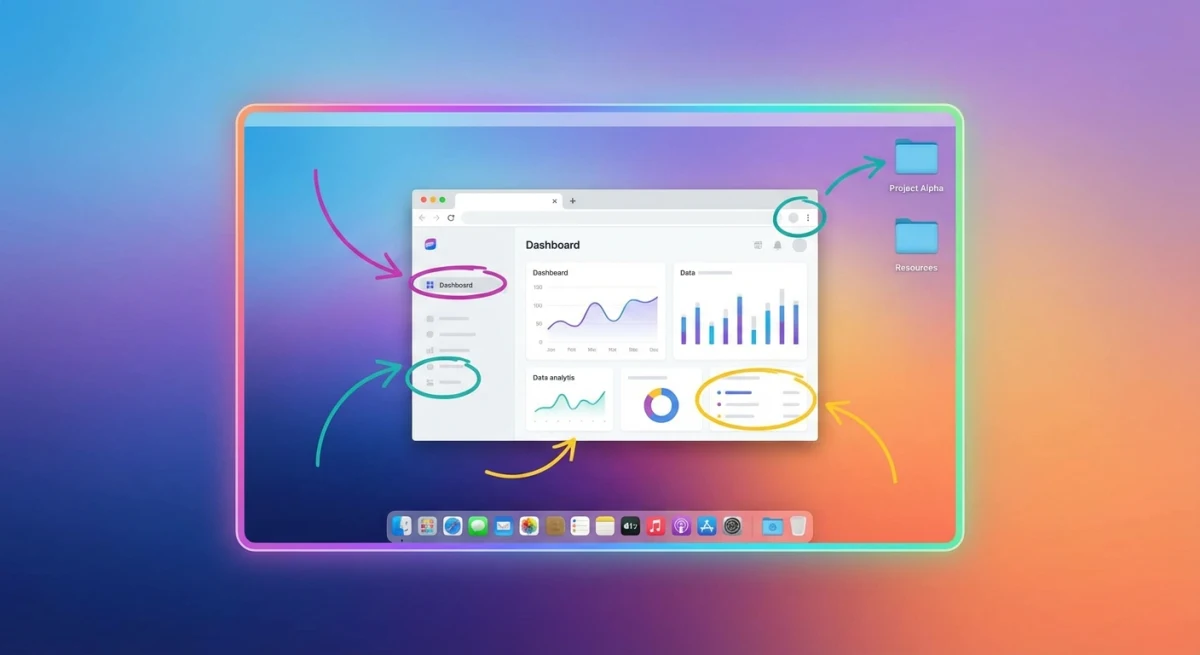
Why Pick This Over Monosnap
Beautiful Backgrounds
Get 500+ wallpapers built in. They transform plain screenshots into professional visuals. Perfect for social media, presentations, and marketing materials. What used to take 10 minutes in Photoshop happens in one click.
Files Stay Local First
Screenshots save to your Mac by default. Cloud sharing is there when you want it — instant links for quick shares. But it's never forced. You control your data.
Better Markup Tools
15 annotation tools come built-in. Blur private info before sharing. Add numbered steps for tutorials. Drop in emojis for personality. Highlight important areas. Create real documentation, not marked-up screenshots.
GIF Capture Built In
Record your screen directly as a GIF. No video app needed. No conversion step. Perfect for bug reports, feature demos, and quick tutorials. See our GIF recording guide for workflow tips.
ScreenSnap Pro: Pros and Cons
Pros:
- One-time $39 price — own it forever
- 500+ professional backgrounds
- 15 annotation tools including blur and pixelate
- GIF recording without extra software
- OCR text extraction from any image
- Quick overlay stays in your workflow
- Pin screenshots to stay visible on screen
- No watermarks on any output
- Full keyboard shortcut support
Cons:
- No scrolling capture (yet)
- Mac only — no Windows or Linux version
Who Should Choose ScreenSnap Pro
Content creators sharing on Twitter, LinkedIn, or Instagram get beautiful shots without design skills. The backgrounds alone save hours.
Developers documenting bugs or features get fast captures with meaningful annotations. GIF recording shows issues better than static screenshots.
Marketers creating product shots, comparison graphics, and social content find everything they need in one tool.
Anyone tired of subscriptions who wants pro features for a single payment.
Real Use Case
A marketing manager captures 20+ screenshots daily for social media. With Monosnap, she'd pay $60/year for decent cloud limits. With ScreenSnap Pro, she paid $39 once two years ago. Still works perfectly. The backgrounds make her posts stand out. Total savings: $91 and counting.
2. CleanShot X — Best for Power Users Who Don't Mind Subscriptions
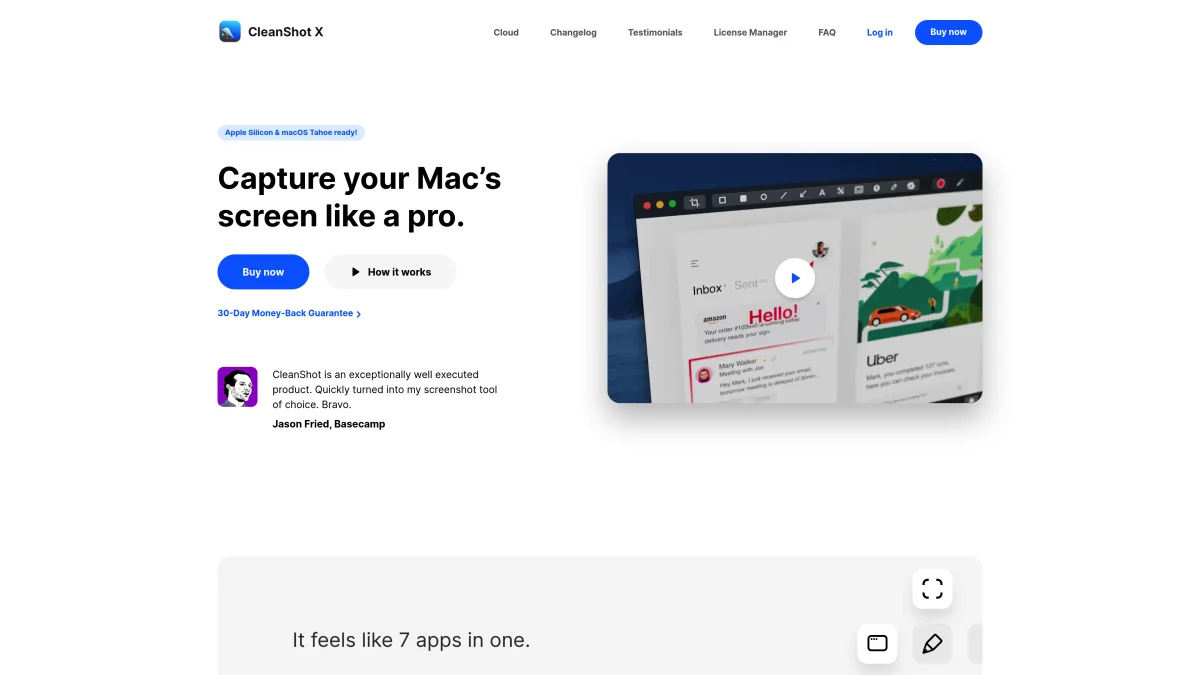
Price: $29/year | Works on: macOS
CleanShot X gets mentioned everywhere for good reason. It's packed with advanced features that power users love.
What Makes CleanShot X Special
Scrolling Screenshots
Capture entire web pages, long documents, and chat threads in one image. This feature alone drives many users to CleanShot X. The stitching is seamless.
1GB Free Cloud Storage
Instant shareable links without setup. Upload happens in the background. Links copy to clipboard automatically.
Screen Recording with Audio
Record your screen with system audio and mic. Edit clips right in the app. Export to MP4 or GIF.
Desktop Icon Hiding
Messy desktop? CleanShot X hides icons automatically during capture. Your screenshots look clean every time.
History Panel
Access recent captures quickly. Re-annotate or re-share without hunting through folders.
CleanShot X: Pros and Cons
Pros:
- Scrolling screenshot capture
- Screen recording with audio
- 1GB cloud included
- Quick access history panel
- Hides desktop clutter automatically
- Annotation tools are comprehensive
- Regular feature updates
- Large user community
Cons:
- Yearly subscription ($29/year, then $8/year for cloud)
- Can feel complex for simple needs
- Subscription fatigue is real
- Cloud storage ties you to their service
Who Should Choose CleanShot X
Technical writers capturing documentation need scrolling screenshots for long pages.
Video creators who want screen recording with audio in the same tool.
Teams comfortable with ongoing costs who need consistent updates.
Real Use Case
A technical writer documents software for enterprise clients. She captures full-page screenshots of complex interfaces daily. Scrolling capture saves her from stitching images manually. The $29/year feels worthwhile for the productivity gain.
CleanShot X vs Monosnap
Both have cloud sharing. CleanShot X wins on scrolling capture and audio recording. Monosnap wins on initial price (free tier exists). If you need scrolling screenshots badly, CleanShot X is the answer. It's also a solid choice in any Monosnap vs Skitch comparison since Skitch is essentially abandoned.
3. Shottr — Best Free Screenshot Tool for Mac
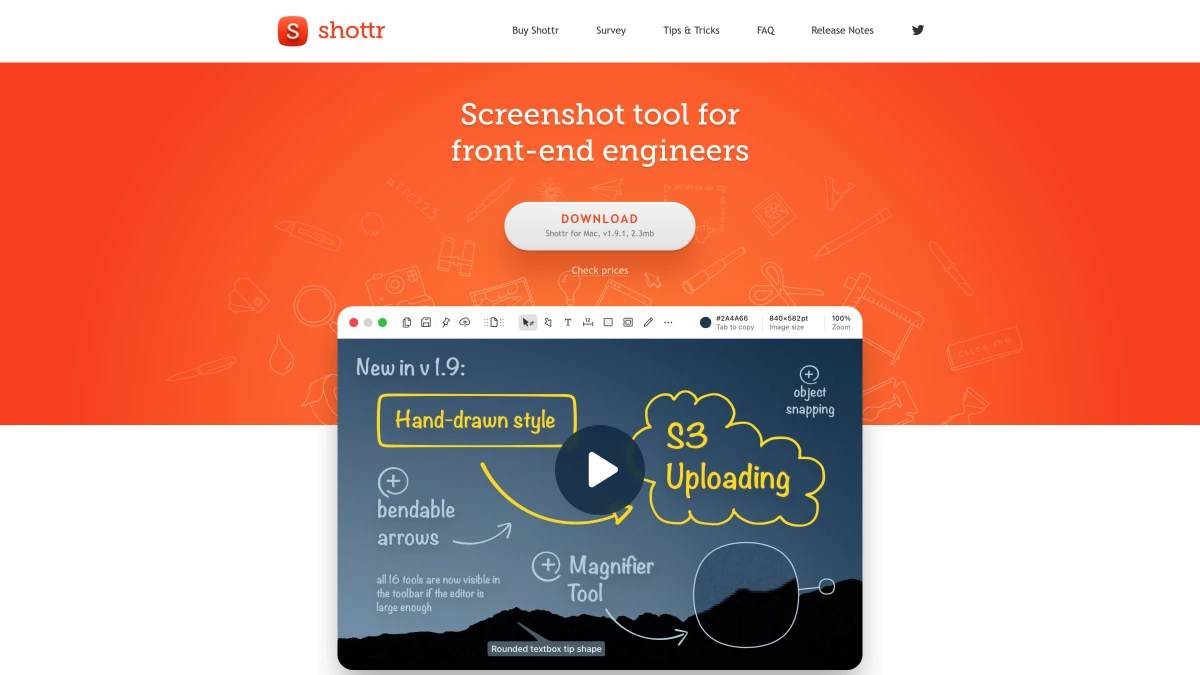
Price: Free (paid tier for extras) | Works on: macOS
Shottr is lightweight and fast. It focuses on screenshots, not cloud services. The developer built it for his own use and shows in the thoughtful features.
Why Developers Love Shottr
Pixel-Perfect Precision
Zoom preview shows exactly what you're capturing. Measure distances between UI elements. Perfect for designers checking spacing and alignment.
Built-in OCR
Copy text from any image instantly. Screenshots of error messages become searchable text. Grab phone numbers from photos. Extract data from locked PDFs.
Scrolling Capture
Capture full web pages and long documents. Shottr handles the stitching automatically.
Color Picker
Sample colors from anywhere on screen. Get hex codes, RGB values, or HSL. No separate color picker app needed.
Privacy-First Design
No cloud push whatsoever. Files stay local. Want cloud sharing? Connect your own S3 bucket. You control everything.
Shottr: Pros and Cons
Pros:
- Completely free for most features
- Pixel perfect screenshot precision
- OCR text extraction built in
- Scrolling screenshot support
- Color picker tool included
- Measuring tools for UI work
- Lightning fast performance
- No cloud dependencies
Cons:
- No GIF recording capability
- No backgrounds or beautification
- Some advanced features require paid tier
- Less polished interface than premium tools
- No quick cloud sharing option
Who Should Choose Shottr
UI/UX designers measuring spacing and checking alignments constantly.
Developers who need pixel perfect screenshots for bug reports.
Privacy-focused users who want zero cloud involvement.
Budget-conscious users who want pro features for free.
Real Use Case
A frontend developer debugs CSS issues daily. She uses Shottr's measurement tools to verify padding and margins. The pixel zoom preview catches single-pixel misalignments. OCR copies error messages instantly. All free. No account needed.
Shottr vs Monosnap
Shottr wins on privacy and precision tools. Monosnap wins on easy cloud sharing. If you're looking for a mac screenshot free option with serious capabilities, Shottr delivers. For screenshot tool with blur features, both work — Shottr's blur is effective but basic.

Tired of plain screenshots? Try ScreenSnap Pro.
Beautiful backgrounds, pro annotations, GIF recording, and instant cloud sharing — all in one app. Pay $39 once, own it forever.
See what it does4. Snagit — Best for Enterprise Teams
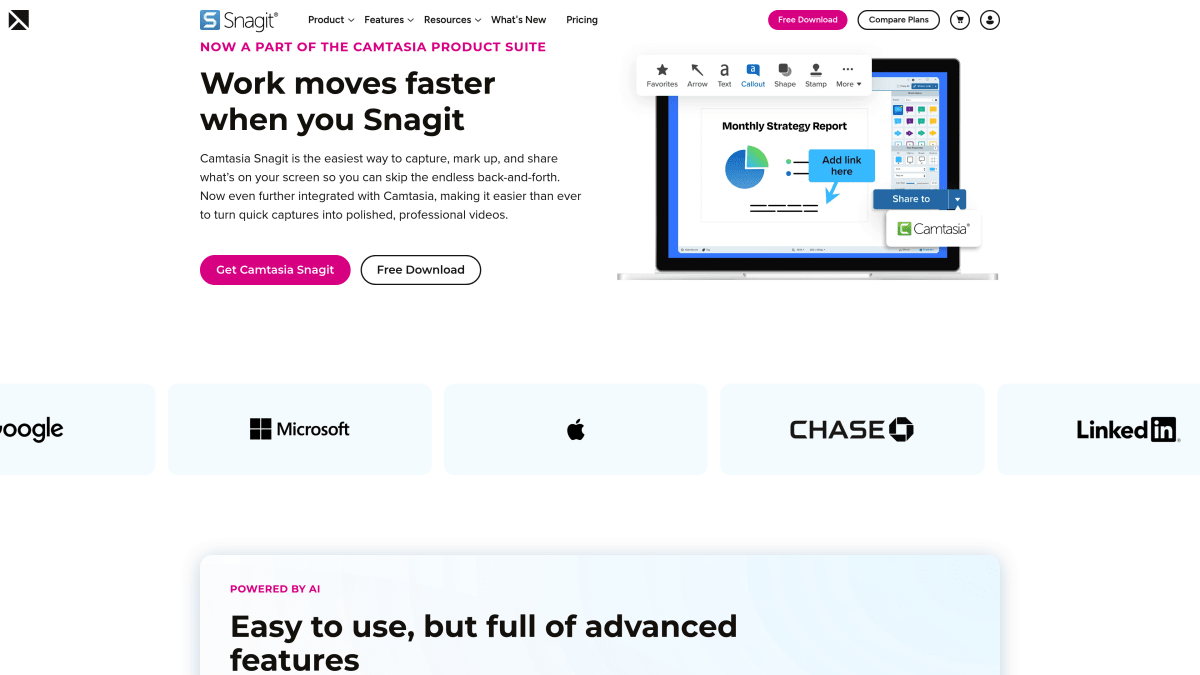
Price: $63 one-time | Works on: macOS, Windows
Snagit by TechSmith is the enterprise heavyweight. It's been around since Windows 3.1 and keeps evolving.
When You Need Serious Capabilities
Templates for Documentation
Pre-built layouts for tutorials, step guides, and process documentation. Consistent output without design skills.
Video Recording and Editing
Record screen with annotations in real-time. Trim clips. Add callouts. Export professional videos.
Text Replacement
Swap text in screenshots. Update outdated UI text without retaking shots. Fix typos in captured images.
Smart Organization
Library stores thousands of screenshots with tags and search. Find any capture instantly.
Cross-Platform Support
Works on Mac and Windows. Teams using both can share templates and workflows.
Snagit: Pros and Cons
Pros:
- One-time purchase (with optional maintenance)
- Most comprehensive feature set
- Templates speed up documentation
- Video recording with editing
- Scrolling screenshot capture
- Library organization for thousands of files
- Cross-platform consistency
- Established company with long support history
Cons:
- $63 is steep for individuals
- Interface feels overwhelming
- Not very Mac-native in design
- Annual maintenance plan adds cost
- Heavy resource usage
- Overkill for simple screenshot needs
Who Should Choose Snagit
Enterprise documentation teams creating training materials.
Technical writers producing consistent, branded content.
Support teams building knowledge bases with lots of visuals.
Real Use Case
An IT training department creates onboarding materials for 500+ employees yearly. Snagit templates ensure consistency across all documentation. The library organizes 10,000+ screenshots by topic. When UI changes, text replacement updates existing screenshots quickly. The $63/seat cost is nothing compared to the time saved.
See our Snagit alternative guide if Snagit feels like too much tool.
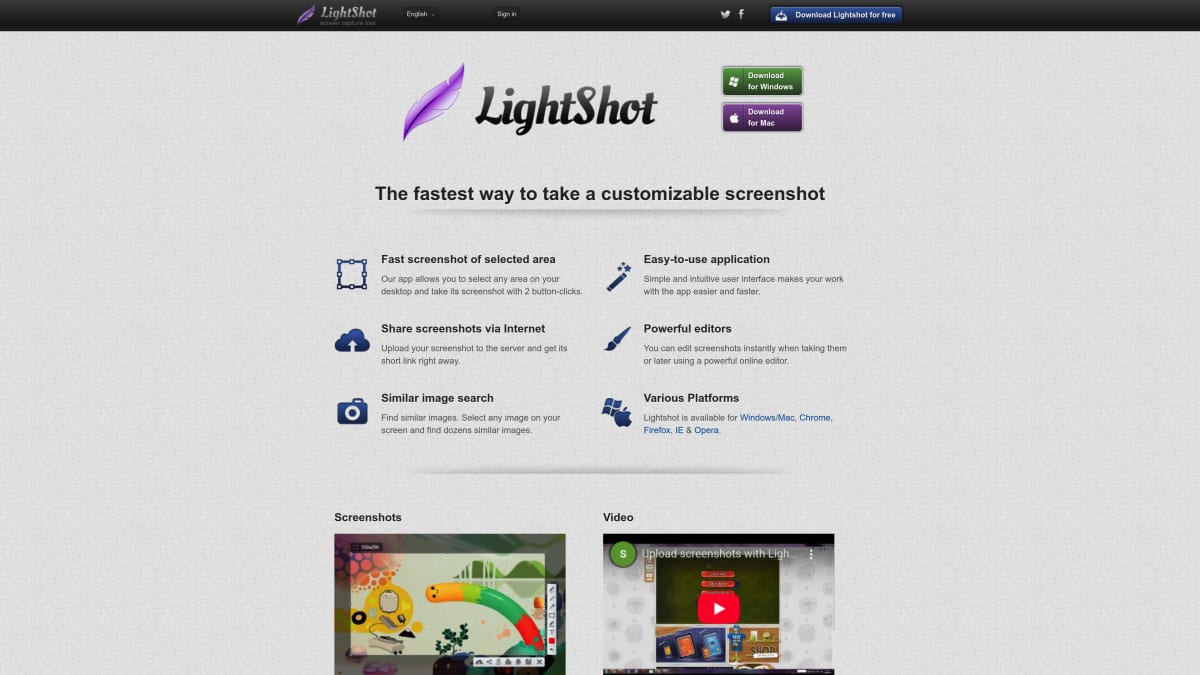
5. Lightshot — Best for Quick, Basic Shares
Price: Free | Works on: macOS, Windows
Lightshot keeps things dead simple. Capture. Mark up. Share a link. That's it.
When Lightshot Works Well
Simple Workflow
Select a region. Add an arrow or text. Click share. Get a link. The whole process takes seconds.
Cross-Platform
Same experience on Mac and Windows. Teams with mixed setups stay consistent.
Zero Learning Curve
Nothing to configure. Install and start capturing. Perfect for non-technical users.
Lightshot: Pros and Cons
Pros:
- Completely free forever
- Simple and fast
- Cross-platform support
- Instant cloud links
- Similar to print screen workflow
- No account required for basic use
Cons:
- Limited annotation tools
- No blur or pixelate feature
- Mac version has shortcut conflicts
- Old interface design
- No GIF recording
- Privacy concerns with automatic uploads
- No scrolling capture
- Occasional stability issues on Mac
Who Should Choose Lightshot
Casual users who share screenshots occasionally.
Quick communicators who need instant links without fuss.
Users switching from Windows familiar with the print screen workflow.
Real Use Case
A project manager shares quick screenshots in Slack throughout the day. Nothing fancy — just "look at this" moments. Lightshot's instant links work perfectly. The basic arrows are enough. For anything more complex, she switches to ScreenSnap Pro.
Check our Lightshot alternative guide for options when basic isn't enough.
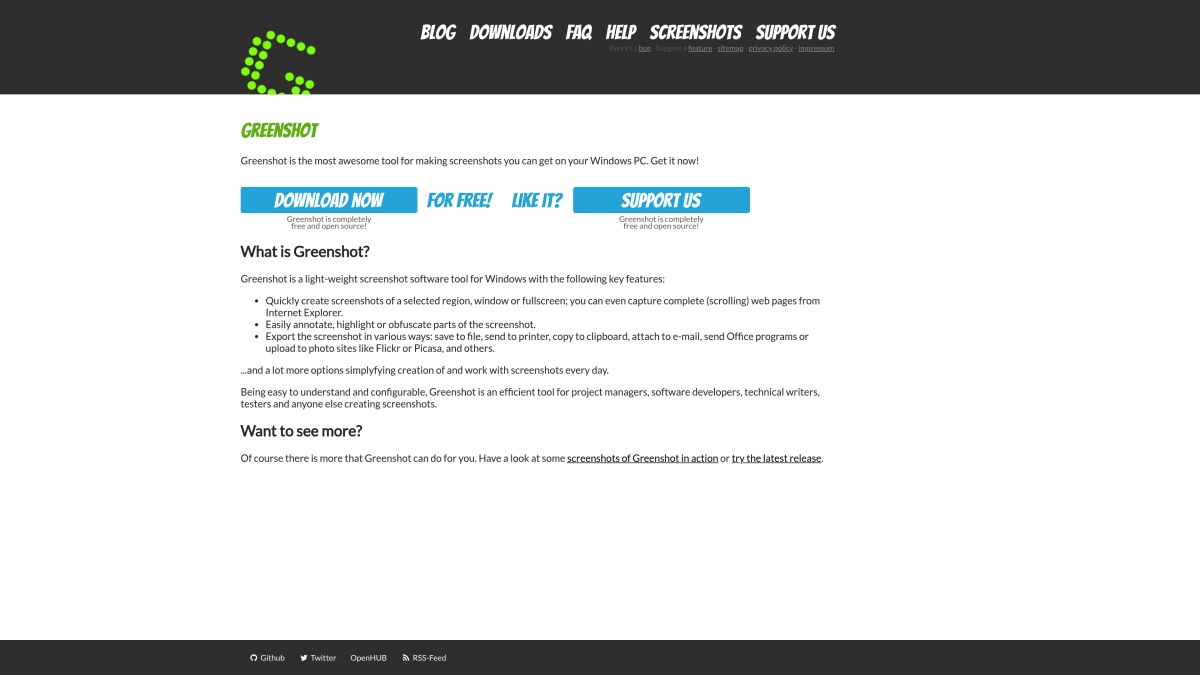
6. Greenshot — Windows Only (Not Available for Mac)
Price: Free (Windows) | Works on: Windows only
Important clarification: Greenshot is not available on Mac.
You might see "Greenshot" in the Mac App Store. It's not the same app. It's an unrelated copycat using the name. The real Greenshot is Windows only and has been for years.
What Greenshot Does on Windows
On Windows, Greenshot is excellent. It's free, open-source, and feature-rich. Many Mac users loved it before switching platforms.
Features Windows users enjoy:
- Region, window, and full screen capture
- Built-in image editor
- Direct export to various services
- Print screen replacement
- Active development community
Greenshot Alternatives for Mac Users
Coming from Windows and missing Greenshot? Here are your best options:
ScreenSnap Pro — Similar one-click workflow with better backgrounds
Shottr — Free, lightweight, developer-focused
Lightshot — Closest to Greenshot's simple approach
Our Greenshot for Mac guide covers the full transition.
What About ShareX?
Similar situation. ShareX is another beloved Windows screenshot tool that doesn't exist on Mac. Users searching for ShareX Monosnap comparisons or Mac alternatives should check our ShareX for Mac guide.
7. macOS Built-in Screenshot — Best for Occasional Light Use
Price: Free | Works on: macOS
Your Mac has screenshot tools built right in. Press ⌘ + Shift + 3/4/5 and start capturing. For occasional use, this might be all you need.
What macOS Screenshot Does
Multiple Capture Modes
⌘ + Shift + 3— Full screen capture⌘ + Shift + 4— Region selection⌘ + Shift + 5— Options panel with recording
Basic Markup
Quick annotations through Preview or the screenshot thumbnail. Add text, shapes, arrows, and signatures.
Screen Recording
Record your screen (video, not GIF). No system audio capture though — a significant limitation.
Timed Captures
Set a 5 or 10 second delay. Useful for capturing menus and tooltips.
Apple's screenshot guide covers all the keyboard shortcuts.
macOS Screenshot: Pros and Cons
Pros:
- Already installed, completely free
- Works reliably
- Keyboard shortcuts are fast
- Basic markup available
- Screen recording included
- No extra software to maintain
Cons:
- No cloud upload option
- No beautiful backgrounds
- Markup tools are very basic
- No GIF recording
- No scrolling capture
- No blur or pixelate
- No OCR text extraction
- Screenshots need manual sharing
Who Should Use macOS Built-in
Occasional screenshot takers who rarely share visuals.
Users with simple needs — just capture and save locally.
People avoiding third-party apps for any reason.
Real Use Case
A finance professional takes maybe 5 screenshots per month — mostly receipts for expense reports. The built-in tool captures what she needs. Saves to Desktop. Done. No need for a dedicated screenshot app.
When to Upgrade
If you're using macOS screenshots daily, you'll hit limitations fast:
- No quick cloud sharing
- No annotation tools beyond basics
- No way to make screenshots look professional
That's when tools like ScreenSnap Pro or Shottr make sense.
Which Monosnap Alternative Should You Pick?
Here's the decision guide based on your actual needs:
| Your Priority | Best Pick | Why |
|---|---|---|
| One-time price, no recurring fees | ScreenSnap Pro | $39 once, pro features forever |
| Maximum features, okay with yearly cost | CleanShot X | Scrolling capture + audio recording |
| Free, developer-focused precision | Shottr | Pixel-perfect tools, zero cost |
| Enterprise documentation at scale | Snagit | Templates + library + support |
| Quick shares, nothing fancy | Lightshot | Simple and free |
| Basic needs only | macOS Built-in | Already on your Mac |
Most Monosnap Users Should Try ScreenSnap Pro
Here's why: If you're leaving Monosnap, you probably want:
- Better markup tools (ScreenSnap has 11, including blur)
- No monthly fees (one-time $39 purchase)
- Optional cloud (use it or don't)
- Professional output (500+ wallpapers)
ScreenSnap Pro checks every box. It's the natural upgrade path.
Frequently Asked Questions
Wrap Up
Monosnap served its purpose. But in 2026, better screenshot tools exist for Mac users. Some are free. Some cost once. All beat Monosnap's limitations on cloud caps, markup tools, and recurring fees.
Quick recommendations:
- ScreenSnap Pro — Pro features, one price, optional cloud. Best for most users leaving Monosnap.
- Shottr — Free, precise, developer-focused. Best free option with real features.
- CleanShot X — Most powerful if you're okay with yearly payment. Best for scrolling captures.
Ready to upgrade your screenshot workflow? Try ScreenSnap Pro free — your screenshots will look more professional immediately.

Morgan
Indie DeveloperIndie developer, founder of ScreenSnap Pro. A decade of shipping consumer Mac apps and developer tools. Read full bio
@m_0_r_g_a_n_