ShareX for Mac: 7 Best Alternatives in 2026
Looking for ShareX for Mac? Here's the short answer: ShareX doesn't exist for macOS. It's Windows-only. That's unlikely to change. The good news: Mac alternatives like ScreenSnap Pro cover the same screenshot, recording, and annotation ground.
But don't worry. Several Mac alternatives offer the same powerful features. Screenshot capture, screen recording, annotations: it is all covered.
Switching from Windows? Just heard about ShareX? This guide covers the 7 best alternatives for macOS. We'll compare features and pricing. You'll find the right tool for your workflow.
Why ShareX Isn't Available for Mac
ShareX is an open-source screenshot tool. It's wildly popular on Windows. The app is free and packed with features. Custom capture regions, annotation tools, GIF recording, cloud upload. It has everything. So why no Mac version?
It comes down to how it's built. ShareX uses Windows-only tech. That means .NET Framework and Windows APIs. These won't work on macOS. The developers considered a Mac port years ago. But it would mean building from scratch. That's a huge task for a volunteer team.
The good news? macOS has tons of screenshot tools. Many match or beat ShareX. Some are free. Others cost a one-time fee. A few need subscriptions. Let's find your best fit.
What Makes ShareX Great (And What to Look For)
Before we list options, let's look at what ShareX users love. These features help you find the right Mac match.
Many capture modes: ShareX offers full screen, active window, region, scrolling, and freehand. Grab exactly what you need. No cropping later.
Built-in markup tools: Arrows, shapes, text, blur, pixelate, numbered steps, speech bubbles are all built in. Mark up screenshots right after capture. No need for another app.
GIF recording: One of ShareX's best features. Record your screen as a GIF directly. No video files. No extra steps. Perfect for tutorials and bug reports.
Cloud upload: ShareX works with many cloud services. Capture, upload, get a link. All in one smooth flow. No manual file handling needed.
Custom actions: Perhaps ShareX's most underrated feature. Set up actions that run after capture. Resize, add watermarks, upload, copy to clipboard. Fully automated.
Free and open-source: No cost, no subs, no limits. Donations fund it. A loyal community keeps it running.
When picking an option, focus on features you actually use. A developer sharing bug reports has different needs. A designer making marketing images needs different tools. Not every ShareX feature exists on Mac. Focus on what matters most.
7 Best ShareX Alternatives for Mac in 2026
Here are the 7 best ShareX alternatives for Mac in 2026:
- ScreenSnap Pro: best overall ShareX replacement ($34 one-time)
- CleanShot X: most feature-rich option ($35+)
- Shottr: best free option (free for personal use)
- Flameshot: best open-source option
- Monosnap: best for cloud-first workflows (free, paid from $3/month)
- Lightshot: best for quick screenshots (free)
- macOS Built-in Screenshot: best for minimalists (free)
Let's explore each option in detail.
1. ScreenSnap Pro: Best Overall ShareX Replacement
Pricing: $34 one-time purchase (2 seats, any mix of Mac and Windows)

Want the closest Mac match to ShareX? ScreenSnap Pro delivers. Like ShareX, it puts screenshots, screen recording, GIFs, markup tools, and sharing into one app. It also adds a timeline video editor for your recordings. All for a one-time price.
Key features:
- Capture modes: area, window, full screen, delayed, and Area to Editor
- Full-Page Website Capture. Paste any URL and grab the first screen or the full page, in desktop, phone, or tablet sizes, with no scroll-and-stitch
- 17 annotation tools plus emoji, including blur, pixelate, counter, callout, and arrows
- Screen recording to MP4 at up to 60fps, with webcam, mic, and system audio
- Built-in video editor: trim, split, speed, silence removal, auto zoom that follows the cursor, plus music and voiceover tracks
- GIF recording directly to a file or a share link
- Optional cloud share links for quick sharing
- 500+ backgrounds for polished screenshots
- OCR text extraction from images
- Pin screenshots to stay on top
ScreenSnap Pro nails the capture-to-share flow. ShareX users will feel at home. Take a screenshot. Mark it up. Share a link. All in seconds. Record a demo, cut the silences, and export it without opening another app. Pay once, own it forever. No monthly fees like many rivals. Still use a Windows PC at work? One license covers 2 seats, so a Mac and a PC both work. For web work the new Full-Page Website Capture replaces ShareX's scrolling mode; for in-app scrolling of native Mac windows (long PDFs in Acrobat, Slack threads, Excel sheets), Shottr or CleanShot X still win.
The catch: No ShareX-style custom actions or scripting, and it isn't open source. It also needs macOS 15 or later.
Best for: Developers, designers, and anyone who wants ShareX-like features plus a video editor, without subscriptions.
2. CleanShot X: Most Feature-Rich Option
Pricing: $35 one-time (CleanShot Basic, with 1 year of updates), or $10 per user/month billed yearly for CleanShot Pro
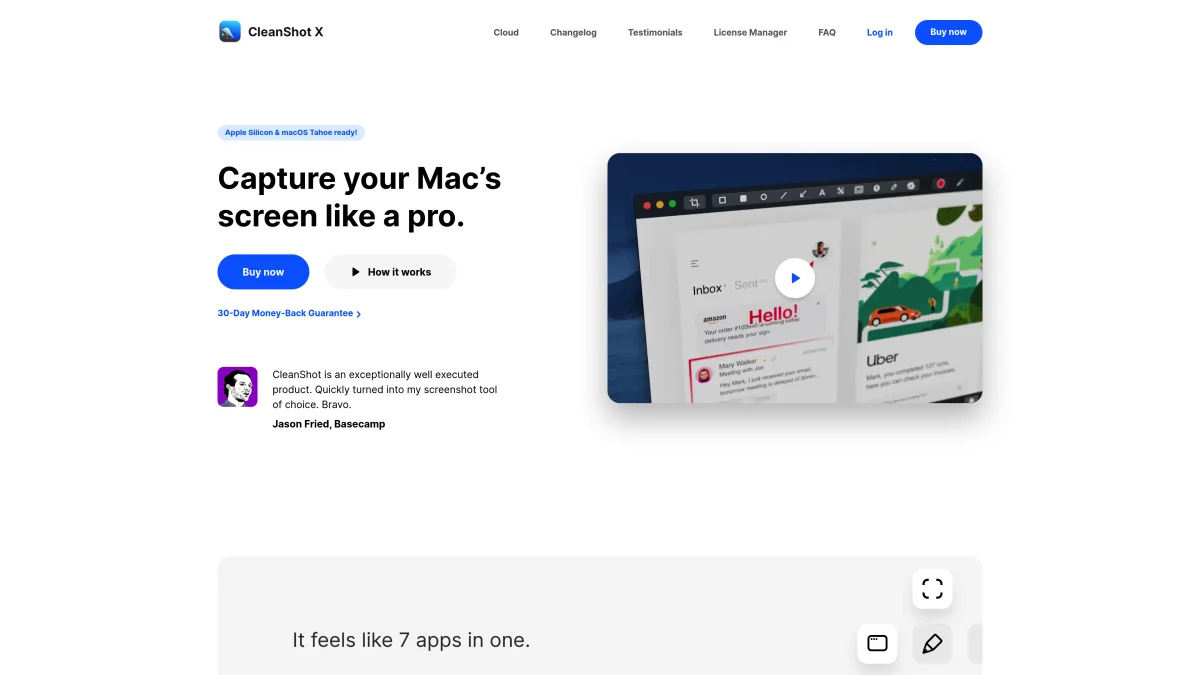
CleanShot X is the top pick in most "ShareX for Mac" threads. And for good reason. It's polished, powerful, and gets regular updates. Check our CleanShot X options guide for more info.
Key features:
- Scrolling capture for long webpages
- Screen recording with video editing
- Built-in annotation tools
- Quick access overlay
- Cloud sharing (1 GB on Basic, unlimited on Pro)
- OCR text recognition
CleanShot X shines in polish and style. Screenshots look great right away. The Quick Access overlay keeps recent captures one click away.
The catch: Recording and the video editor are in both plans, but the one-time license only includes 1 year of updates. After that, updates cost $19/year. Unlimited cloud storage needs the Pro subscription. It also needs macOS 13 or later.
Best for: Users who want premium polish and don't mind paying again for updates or cloud storage.
3. Shottr: Best Free Option
Pricing: Free for personal use; $12 one-time license for commercial use
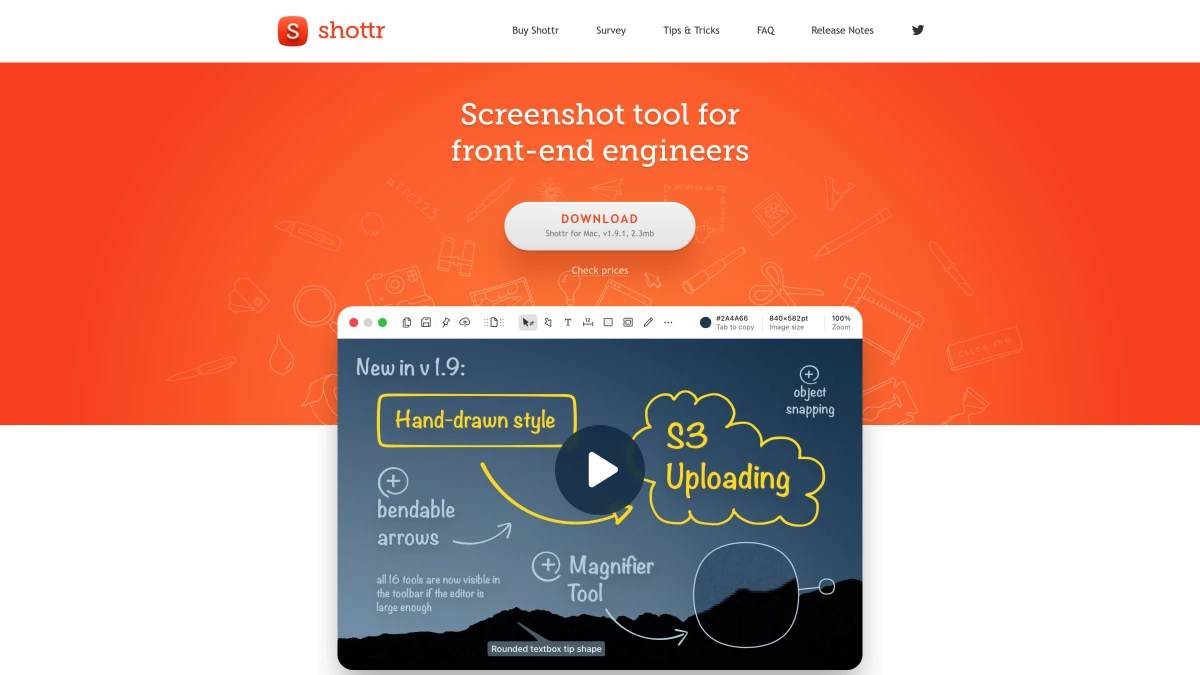
Shottr does a lot for a free app. It handles most ShareX-style tasks. Zero cost for personal use. See how it stacks up in our ScreenSnap Pro vs Shottr guide.
Key features:
- Region, window, and full screen capture
- Scrolling screenshots
- Basic annotation (arrows, shapes, text)
- OCR text extraction
- Pixel-perfect measurement tools
- Color picker
Shottr is built by one developer. Made for speed. It launches fast, captures fast, and stays out of your way. The markup tools are more limited than paid options. They cover the basics well. After 30 days, the free version starts asking you to upgrade.
What's missing: No screen recording or GIFs, cloud upload only to S3 storage, fewer annotation options.
Best for: Budget-conscious users, developers who need measurement tools, anyone testing before committing to paid options.
4. Flameshot: Best Open-Source Option
Pricing: Free and open-source
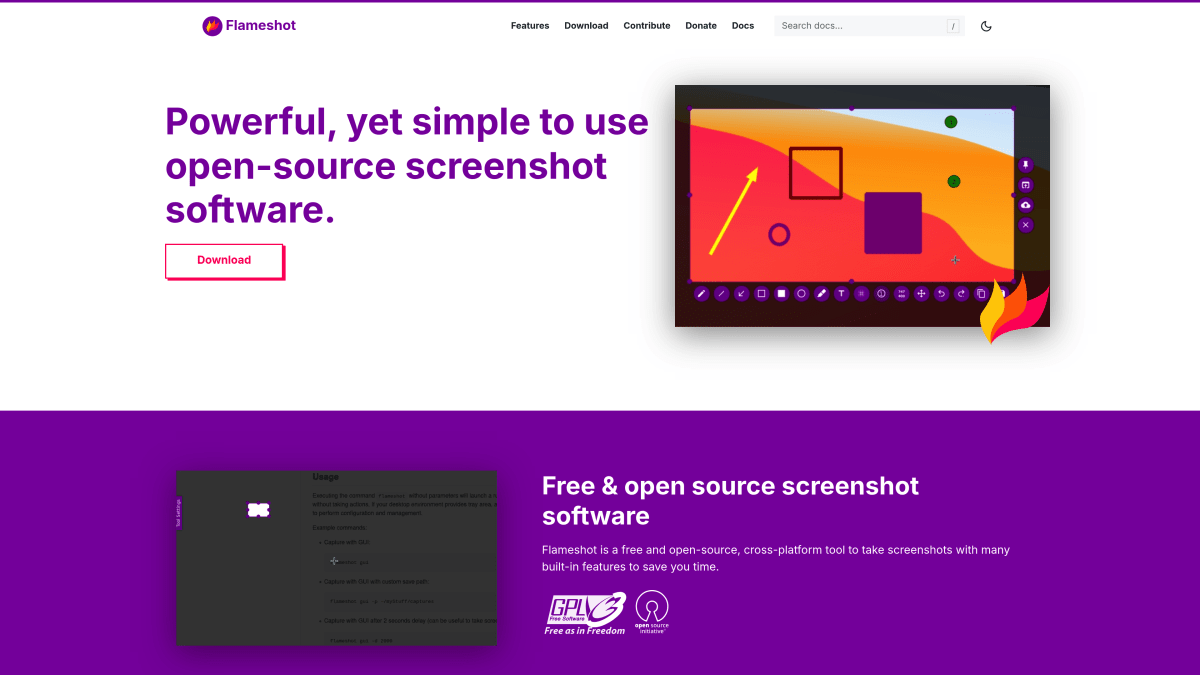
Coming from ShareX's open-source world? Flameshot shares that spirit on Mac. It's free. Built by the community. Easy to tweak.
Key features:
- Flexible capture interface
- Built-in markup tools, including a numbered counter
- Pin screenshots to the desktop
- Works on Mac, Linux, and Windows
- Custom keyboard shortcuts
Flameshot's interface shows up right when you capture. Mark up instantly. It's not as smooth as paid options. But the price (free) and freedom are hard to beat. Curious how it actually holds up day to day? Our Flameshot for Mac review covers the install steps, the macOS quirks, and when it makes sense.
What's missing: No screen recording or GIFs, no scrolling capture, and no cloud upload in the official builds (Imgur upload is turned off). The current Mac build is for Apple Silicon only. Expect occasional rough edges.
Best for: Open-source enthusiasts, Linux users switching to Mac, anyone wanting cross-platform consistency.
5. Monosnap: Best for Cloud-First Workflows
Pricing: Free for non-commercial use; paid plans cost $3/month (non-commercial) or $10/month (commercial), or $2.50 and $5 a month billed yearly
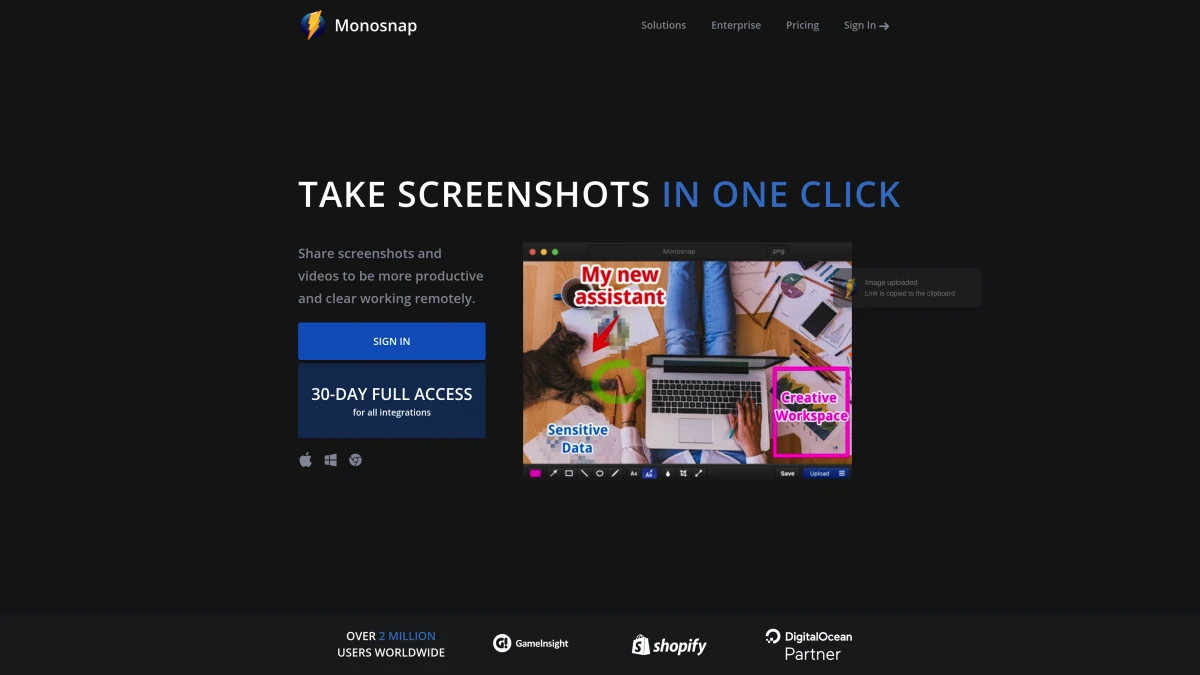
Monosnap focuses on cloud storage and team sharing. Share lots of screenshots with teammates? It makes that flow faster.
Key features:
- Screenshot and video recording
- Cloud upload with short share links
- Team management on Commercial plans
- Basic annotation tools, including blur
- Links to Dropbox, Google Drive, AWS S3, Google Cloud, and more (paid plans)
The free tier is for personal, non-commercial use. It includes 2 GB of cloud storage and videos up to 5 minutes. Paid plans add more storage, unlimited video, bigger files, and the storage integrations.
What's missing: Annotation tools feel dated, requires account creation, subscription model for serious use.
Best for: Teams, enterprise users, anyone deeply integrated with cloud workflows.
6. Lightshot: Best for Quick Screenshots
Pricing: Free
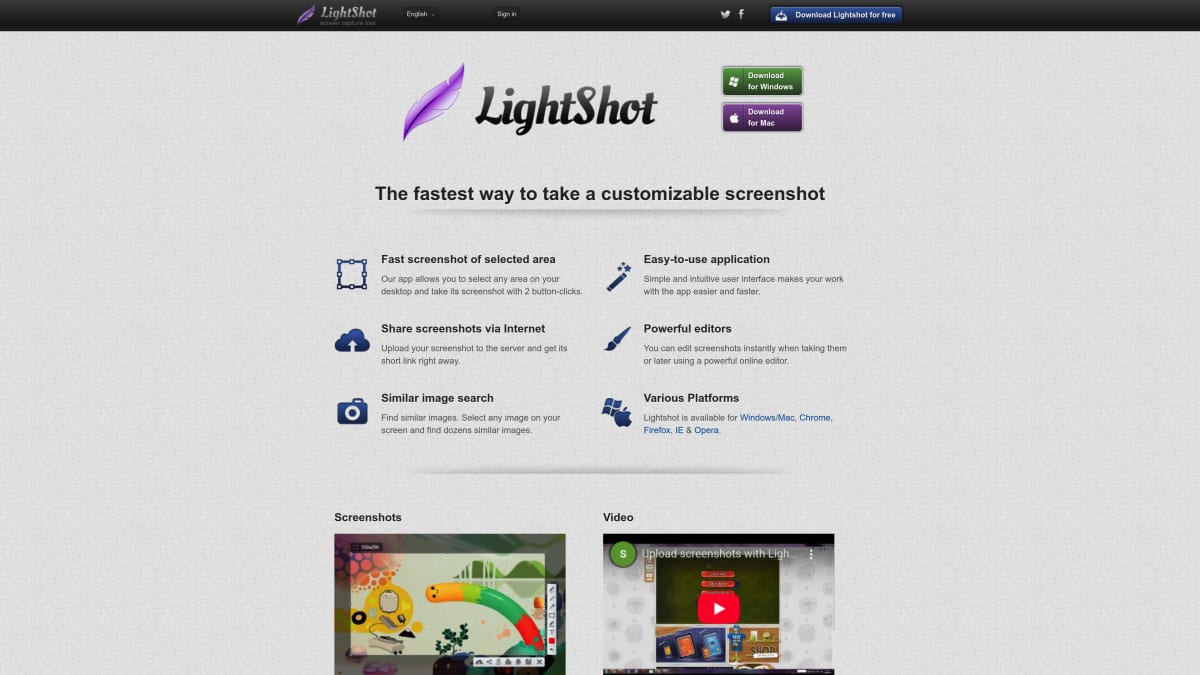
Lightshot keeps things simple. Capture a region. Annotate quickly. Share. That's it. Looking for more options? Check our Lightshot alternatives for Mac.
Key features:
- Two-click screenshot capture
- Basic annotation (arrows, text, lines)
- Direct upload to prnt.sc
- Browser extension available
- Minimal resource usage
Lightshot is all about speed. Hit the shortcut (⌘ + Shift + 9 on Mac). Drag a region. Add a note if needed. Share. For quick "look at this" screenshots, it's hard to beat.
What's missing: No screen recording or GIFs, limited annotation tools, and every prnt.sc upload is public to anyone with the link.
Best for: Quick screenshots for sharing, users who value simplicity over features.
7. macOS Built-in Screenshot: Best for Minimalists
Pricing: Free (included with macOS)
Don't overlook what Apple gives you. Modern macOS has solid screenshot tools. Many users never find them.
Key features:
⌘ + Shift + 3: Full screen capture⌘ + Shift + 4: Region selection⌘ + Shift + 5: Screenshot/recording toolbar- Timer delay options
- Floating thumbnail for quick markup
- Basic markup in Preview
- Screen recording with mic audio (system audio on macOS 27 or later)
The ⌘ + Shift + 5 toolbar debuted in macOS Mojave. It raised the bar. Set where to save. Toggle the floating thumbnail. Pick capture modes. All without extra apps.
What's missing: No cloud upload, limited annotation in Preview, no GIF recording, no scrolling capture.
Best for: Users who rarely need screenshots, minimalists, anyone avoiding third-party apps.
For more details on the built-in options, check out our complete guide to Mac screenshot shortcuts.
Feature Comparison Table
| Feature | ScreenSnap Pro | CleanShot X | Shottr | Flameshot | Monosnap | Lightshot | macOS Built-in |
|---|---|---|---|---|---|---|---|
| Price | $34 once | $35+ | Free/$12 | Free | Free/$3+/mo | Free | Free |
| Region Capture | ✓ | ✓ | ✓ | ✓ | ✓ | ✓ | ✓ |
| Window Capture | ✓ | ✓ | ✓ | ✓ | ✓ | ✓ | ✓ |
| Scrolling Capture | Websites ✓ / In-app ✗ | ✓ | ✓ | ✗ | ✗ | ✗ | ✗ |
| Screen Recording | ✓ (MP4, 60fps) | ✓ | ✗ | ✗ | ✓ | ✗ | ✓ |
| GIF Recording | ✓ | ✓ | ✗ | ✗ | ✓ | ✗ | ✗ |
| Annotation Tools | 17 tools + emoji | 10+ tools | Basic | Basic | Basic | Basic | Limited |
| Blur/Pixelate | ✓ | ✓ | ✓ | ✓ | ✓ | ✗ | ✗ |
| Cloud Upload | Share links | 1 GB (Pro: unlimited) | S3 only | ✗ | ✓ | ✓ (public) | ✗ |
| OCR Text | ✓ | ✓ | ✓ | ✗ | ✗ | ✗ | ✗ |
| One-time Purchase | ✓ | ✓ | ✓ | N/A | App Store only | N/A | N/A |
Which ShareX Alternative Should You Choose?
Here's the decision framework:
Choose ScreenSnap Pro if:
- You want ShareX-like features without subscriptions
- You record videos and want to edit them in the same app
- GIF recording and annotation matter equally
- You value one-time pricing, with 2 seats for a Mac and a PC
- Cloud sharing is part of your workflow
Choose CleanShot X if:
- You prioritize polish and presentation
- Video recording is important
- You don't mind paying $19/year for updates after the first year
Choose Shottr if:
- You want free and capable
- You need measurement/pixel tools for development
- GIF recording isn't essential
Choose Flameshot if:
- Open-source matters to you
- You use multiple operating systems
- You're comfortable with occasional rough edges
Choose macOS Built-in if:
- You rarely take screenshots
- Simplicity trumps features
- You want zero additional software

Tired of plain screenshots? Try ScreenSnap Pro.
Beautiful backgrounds, pro annotations, GIF recording, and instant cloud sharing, all in one app. Pay $34 once, own it forever.
See pricing and featuresGIF Recording: A Key ShareX Feature
One of ShareX's most loved features is direct GIF recording. Capture your screen as a GIF. No video steps in between. This is great for:
- Bug reports showing behavior
- Quick tutorials
- Social media content
- Documentation
On Mac, not all options have this. ScreenSnap Pro and CleanShot X both do GIF recording well. This feature matters to you? Skip tools that lack it.
For a deeper dive, see our guide on how to record GIFs on Mac.
Annotation Tools Compared
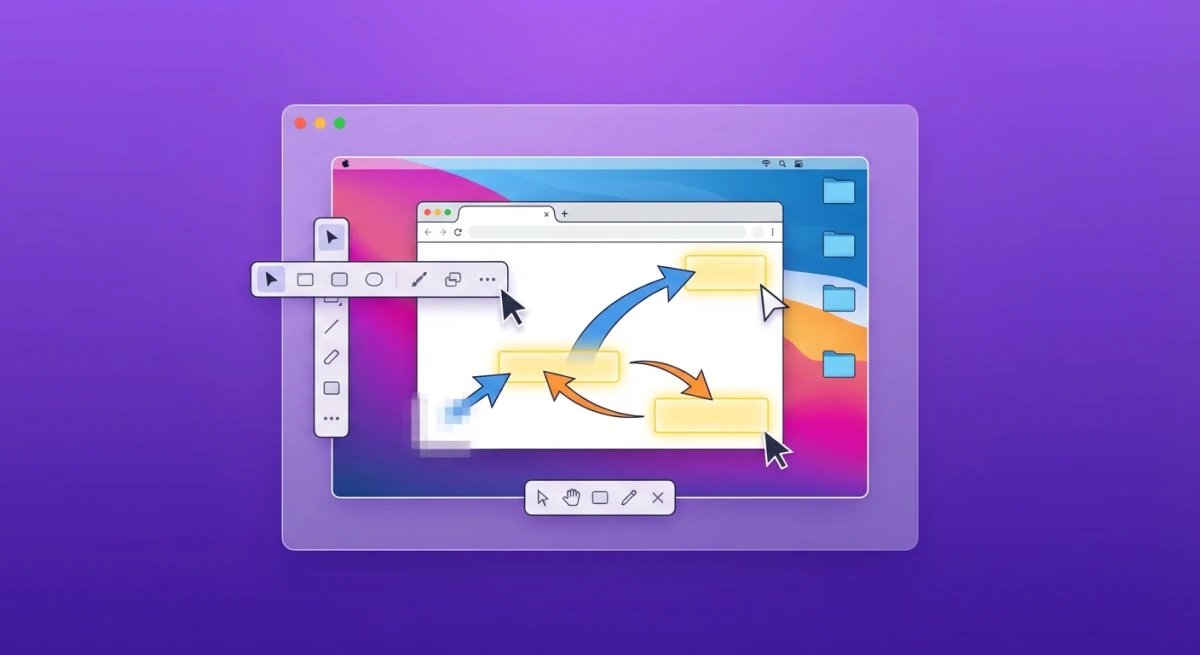
ShareX's markup tools are top-tier. Arrows, shapes, blur, pixelate, speech bubbles, numbered steps. When moving to Mac, markup power matters.
The best markup comes from ScreenSnap Pro and CleanShot X. ScreenSnap Pro has 17 tools plus emoji: blur, pixelate, counter, callout, and more. CleanShot X offers a full toolkit with polish. Shottr and Flameshot cover basics, with fewer extras. Flameshot does have a numbered counter.
If markup is key to your work, read our full guide on how to mark up screenshots on Mac.
Can You Run ShareX on Mac with Wine or Virtualization?
Yes, in theory. You could run ShareX via Wine, CrossOver, or a Windows VM. In practice? Not worth the hassle:
- Wine/CrossOver: ShareX has issues, especially with capture
- Virtual machines: Adds bloat and can't capture the Mac desktop
- Boot Camp: defeats the goal, since you would be in Windows
Options built for macOS work much better. Save VMs for apps with no real alternatives.
Frequently Asked Questions
Tips for Transitioning from ShareX to Mac
Switching from Windows to Mac means relearning habits. The good news? Most concepts transfer directly. And if ShareX wasn't your only Windows capture tool, we've also looked at how Snipaste's pin-to-desktop workflow translates to Mac. Here are tips to make the transition smoother:
Learn new shortcuts: Mac uses ⌘ + Shift combos instead of the Windows Print Screen key. Start with the built-in ⌘ + Shift + 5 toolbar. Most third-party apps let you customize shortcuts to match your muscle memory. ScreenSnap Pro and CleanShot X both support custom key bindings.
Set your save spot: ShareX saves screenshots to a configured folder automatically. On Mac, you'll need to set this up in your chosen app. The built-in tools default to Desktop, but you can change this. See our guide on changing screenshot location on Mac.
Set up cloud early: Did you rely on ShareX's cloud upload feature? Turn on your Mac app's cloud integration right away. This keeps your capture-upload-share workflow smooth from day one. Both ScreenSnap Pro and Monosnap offer instant cloud upload with shareable links. For a rundown of every way to get a URL for an image, see our guide on converting an image to a link on Mac.
Rebuild your presets: Some Mac apps save markup styles and preferences. Had set colors, arrow sizes, or text formats in ShareX? Take time to recreate them in your new tool. ScreenSnap Pro remembers your last-used annotation settings.
Give it time: Every app has quirks. Use your new tool for a few days before judging. Small gripes often fade once you learn the workflow. The muscle memory will come.
Know the limitations: Some ShareX features simply don't have Mac equivalents. The extensive automation and scripting? Not available. But most daily screenshot needs are covered. Focus on what you actually use, not what you might use someday.
Choosing the Right Tool for Your Use Case
Different workflows need different tools. Here's a quick guide based on common use cases:
For developers sharing bug reports: Choose ScreenSnap Pro or Shottr. Both offer quick capture, annotation, and sharing. Shottr's measurement tools help with UI debugging. ScreenSnap Pro's GIF and MP4 recording captures behavior that screenshots can't show.
For designers creating marketing assets: ScreenSnap Pro or CleanShot X. Both offer polished output and professional backgrounds. ScreenSnap Pro includes 500+ backgrounds for instant beautification. CleanShot X has more visual polish.
For support teams documenting issues: Monosnap works well for teams. Cloud storage, team management, and links to cloud drives streamline the handoff process.
For content creators making tutorials: ScreenSnap Pro shines here. You get GIF and MP4 recording, numbered annotation steps, and a video editor with auto zoom and silence removal. CleanShot X offers similar capabilities, including its own video editor.
For casual users with basic needs: Start with macOS built-in tools or Shottr. Both are free for personal use. Both handle simple captures well. Upgrade later if you need more.
Making the Switch
Leaving ShareX for a Mac option doesn't mean giving up speed. The Mac screenshot scene has grown a lot. Several tools match or beat what ShareX does on Windows. The key is finding what fits your needs.
For most ShareX users, ScreenSnap Pro hits the sweet spot. Familiar features. Clean, simple design. The markup tools feel natural. GIF and MP4 recording just work, and the video editor is built in. Cloud upload creates shareable links in seconds. Just like you're used to.
On a budget? Start with Shottr. It's free for personal use. Does a lot for daily screenshot tasks. You can go paid later if you need more.
Ready to level up your screenshots? Check our list of the best screenshot apps for Mac. More picks in our Greenshot for Mac and Snagit options guides.
Whatever you pick, good ShareX options exist for Mac. You don't have to settle. Switching systems doesn't mean downgrading tools.

Morgan
Indie DeveloperIndie developer, founder of ScreenSnap Pro. A decade of shipping consumer Mac apps and developer tools. Read full bio
@m_0_r_g_a_n_