Flameshot for Mac: Review & 5 Better Alternatives (2026)
Flameshot is one of the most popular free screenshot tools on Linux. If you're moving to Mac, you might wonder: does Flameshot Mac work well? The short answer is: it works, but with big limits. macOS isn't Flameshot's home turf. You'll notice that fast. Mac alternatives like ScreenSnap Pro cover the same ground without the workarounds.
In this guide, we'll cover:
- How to install Flameshot on macOS
- The main problems you'll hit
- Five Mac tools that work better out of the box
What is Flameshot?
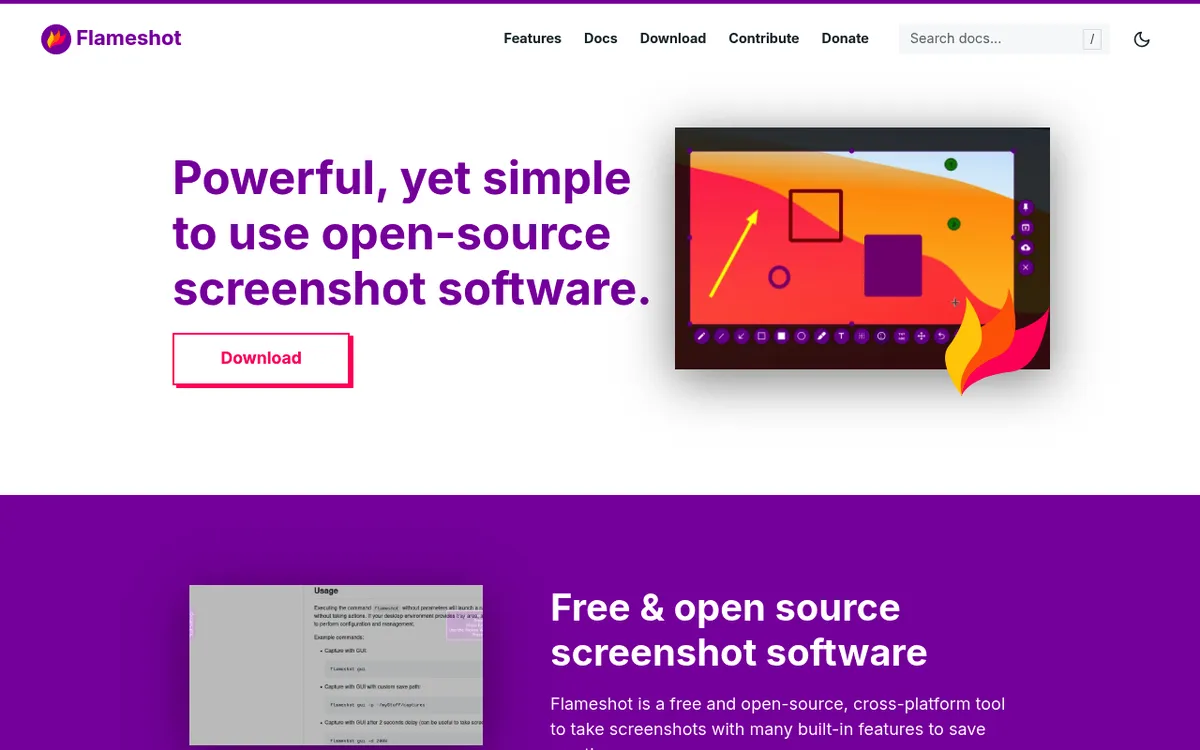
Flameshot is a free screenshot tool made for Linux. It lets you take screenshots and mark them up right away. You get arrows, shapes, text, blur, and more, all in one tool.
Why Linux users love it:
- It fills a gap most Linux desktops don't cover
- It's totally free and open source
- It works from the command line (great for devs)
- You can set it up to save files, add delays, or run on a hotkey
On Linux, it works well. On Mac? That's a different story.
How to install Flameshot on macOS
Getting the Flameshot download on Mac used to take one Homebrew command. That changed in September 2026. Here are your options now:
Direct DMG download (best choice):
Go to the Flameshot GitHub releases page. Download the latest .dmg file. Drag the app to your Apps folder.
MacPorts:
sudo port selfupdate && sudo port install flameshot
Homebrew (no longer works):
Homebrew disabled its Flameshot cask on September 1, 2026. The reason: the app fails Apple's Gatekeeper check. So brew install --cask flameshot now stops with an error, even though the Flameshot site still lists Homebrew.
Don't skip this step!
After you install, you must grant screen access. Go to:
System Settings → Privacy & Security → Screen Recording
On newer macOS, this list is called Screen & System Audio Recording. Add Flameshot to the list and turn it on. Without this, Flameshot can't capture anything. macOS blocks all screen access by default to keep you safe.
Flameshot macOS limitations you should know
Here's where things get rough. Flameshot on macOS isn't the same as on Linux. Here are the main pain points:
Only works on macOS 14 or newer
Recent Flameshot builds need macOS 14 (Sonoma) or later. Running an older Mac? You'll hit problems. You might need to build from source, and that means:
- Installing Xcode
- Adding Qt libraries
- Setting up CMake
That's a lot of work just to take screenshots.
You'll see a security warning
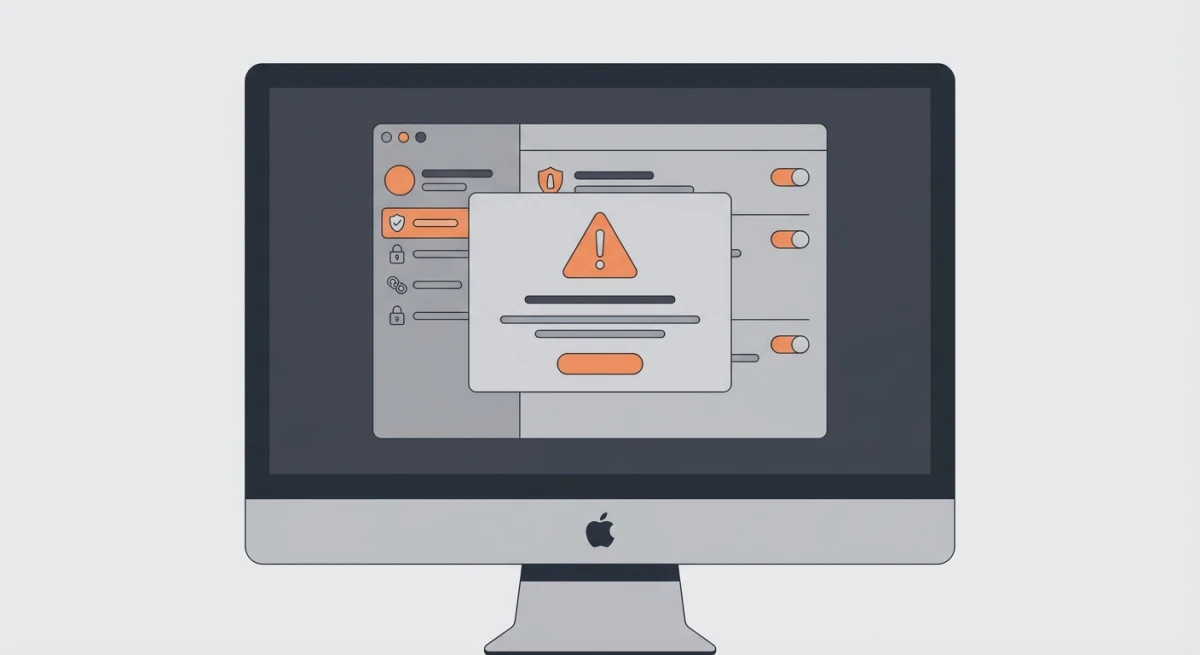
Flameshot isn't notarized by Apple. When you first open it, macOS shows a scary warning and refuses to launch it. The old right-click and "Open" trick no longer works on recent macOS.
Here's the fix:
- Try to open Flameshot once, then close the warning
- Open System Settings and click Privacy & Security
- Scroll down and click "Open Anyway" next to the Flameshot note
- Click "Open" when the warning shows again
Apple explains these steps in its guide to opening apps that aren't notarized. You only do this once. But it feels clunky for a tool you'll use all day.
Some features don't work
Not all Flameshot features work on Mac. The macOS security model is strict. Here's what you might miss:
- Some markup tools act strange
- The menu bar icon comes and goes
- Global hotkeys need extra setup
- No quick share options (official builds dropped Imgur upload in v13)
It doesn't feel like a Mac app
Flameshot was made for Linux desktops like KDE and GNOME. On Mac, it sticks out. You won't find:
- Real menu bar support
- Sharp Retina display text
- Drag-and-drop to the share sheet
- Quick Look previews
The system tray icon acts weird. Windows don't play nice with Spaces or Stage Manager. If you're used to how Mac apps work, Flameshot feels like a port, because it is.

Tired of plain screenshots? Try ScreenSnap Pro.
Beautiful backgrounds, pro annotations, GIF recording, and instant cloud sharing, all in one app. Pay $49 once, own it forever.
See pricing and featuresWho should use Flameshot on Mac?
Despite the limitations, Flameshot still makes sense for some users:
Cross-platform teams: If your team uses Linux, Windows, and Mac, Flameshot gives everyone the same tool. Same hotkeys, same workflow. That consistency can outweigh the Mac quirks.
Open source advocates: You want to support free software. Flameshot is GPLv3, fully transparent, and community-driven. No tracking, no accounts, no cloud dependencies.
Command line power users: Flameshot's CLI works on Mac (with caveats). You can script captures, automate workflows, and integrate with other tools. Most Mac screenshot apps don't offer this.
Budget of zero: If you can't spend anything and need more than the built-in tool offers, Flameshot is there. It's not perfect, but it's free.
Who should skip Flameshot? If you want a polished Mac experience, look elsewhere. The security warnings, missing features, and non-native feel add friction. For most Mac users, the alternatives below save time and frustration.
5 better Flameshot alternatives for Mac
Want a Flameshot alternative that works well on macOS? These five tools cover every need, from free to pro-grade.
1. ScreenSnap Pro: best for developers
Price: $49 one-time (pay once, own forever)

If you loved Flameshot for its markup tools and keyboard flow, ScreenSnap Pro is the closest match on Mac. It earns the top spot because it adds what Flameshot will never have: a screen recorder and a video editor, in the same app, for one $49 payment.
What you get:
- 17 markup tools (arrows, shapes, text, blur, pixelate, callouts, counters and more)
- Screen recording to MP4 at up to 60fps, with webcam, mic and system audio
- Direct GIF recording
- A built-in video editor: trim, split, speed up, cut silences in one click, auto zoom
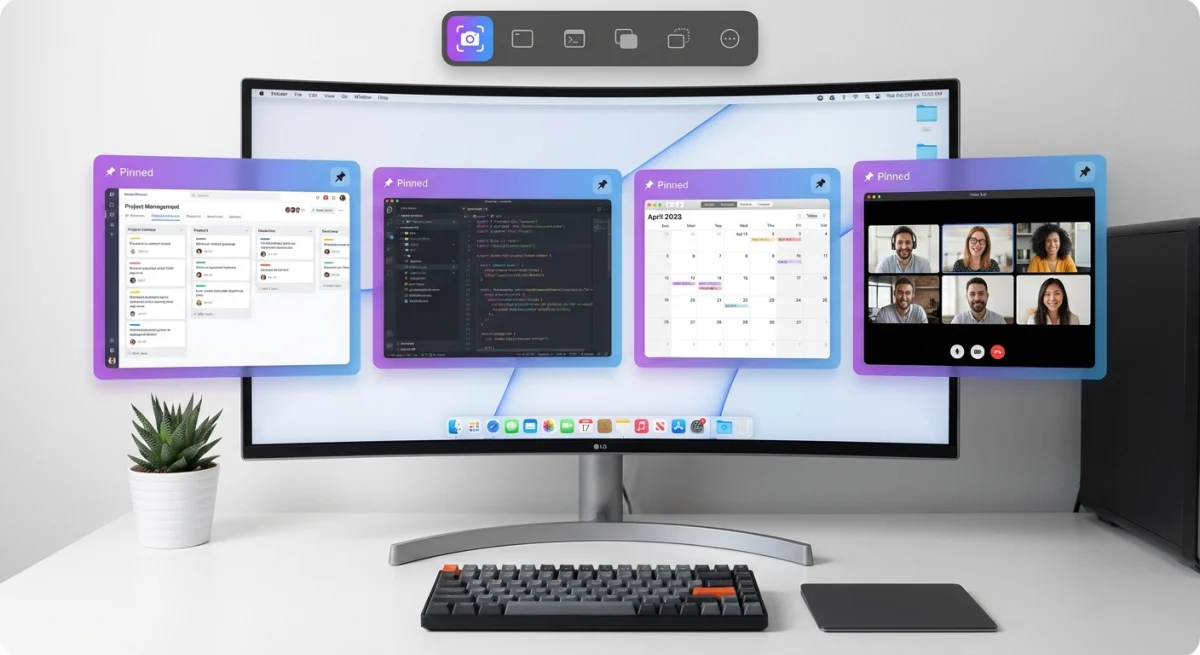
- Pin mode to keep shots on screen
- OCR to copy text from images
- 500+ backgrounds for polished shots
- Scrolling Capture for long pages, PDFs and chats in any app window
- Full-page capture of any website from its URL
- Optional cloud links for quick sharing
Why devs love it:
- One price, no subscription, lifetime updates
- One license covers 2 seats, in any mix of Mac and Windows
- Quick overlay for marking up without losing focus
- Works great for bug reports and docs
- Runs natively on Apple Silicon and Intel Macs
What's missing: There's no CLI and no Linux version, so it won't replace Flameshot's scripts. And it isn't open source.
Unlike Flameshot, ScreenSnap Pro runs smoothly on macOS. You get Retina support, menu bar access, drag-and-drop from the preview, and real hotkeys.
Workflow example: Capture a bug, add numbered steps with the counter tool, blur sensitive data, and share a cloud link in Slack, all in under 10 seconds. That's the kind of speed Flameshot aims for on Linux, but ScreenSnap Pro actually delivers on Mac. Need to show the bug in motion? Record a short MP4, trim it in the editor, and send that instead.
2. Shottr: closest to Flameshot (free)
Price: Free to use (it asks you to upgrade after 30 days). Basic license $12 one-time, needed for commercial use. Friends Club $30 one-time.
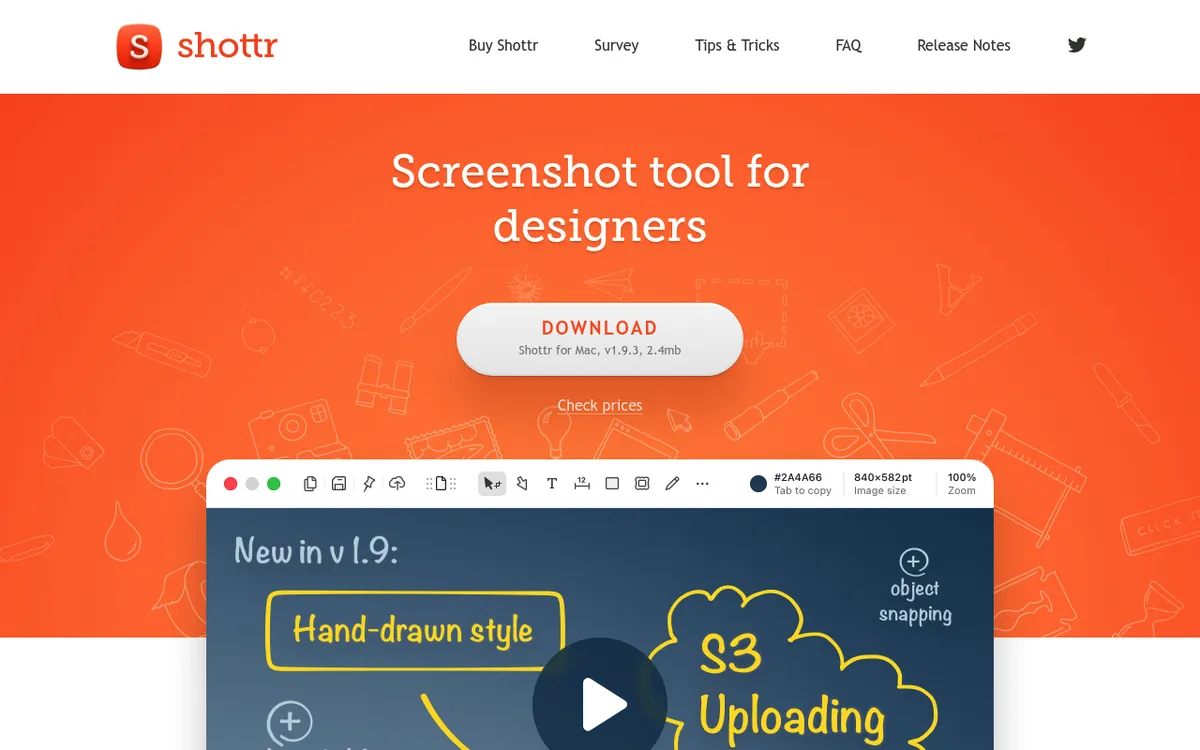
Shottr shares Flameshot's spirit: fast, light, keyboard-first. No bloat.
Key features:
- Scrolling capture for long pages
- OCR text extraction
- Markup tools for quick edits
- Pixel measurement overlay
- Window capture with automatic shadow removal
- Gradient backgrounds with shadows and rounded corners
What's missing:
- No command line mode
- No cloud service of its own (S3 upload needs your own bucket)
- No GIF or video recording
Best for: Designers who need pixel-perfect measurements and quick edits. The ruler overlay shows exact dimensions between elements, which is useful for UI work.
For fast captures with markup, Shottr is great. And it's truly Mac-native, not a port. The developer actively maintains it and responds to feature requests.
3. CleanShot X: most features
Price: $35 one-time with 1 year of updates, then $19/year to keep updating. Pro plan (unlimited cloud, team features): $10 per user/month, billed yearly.
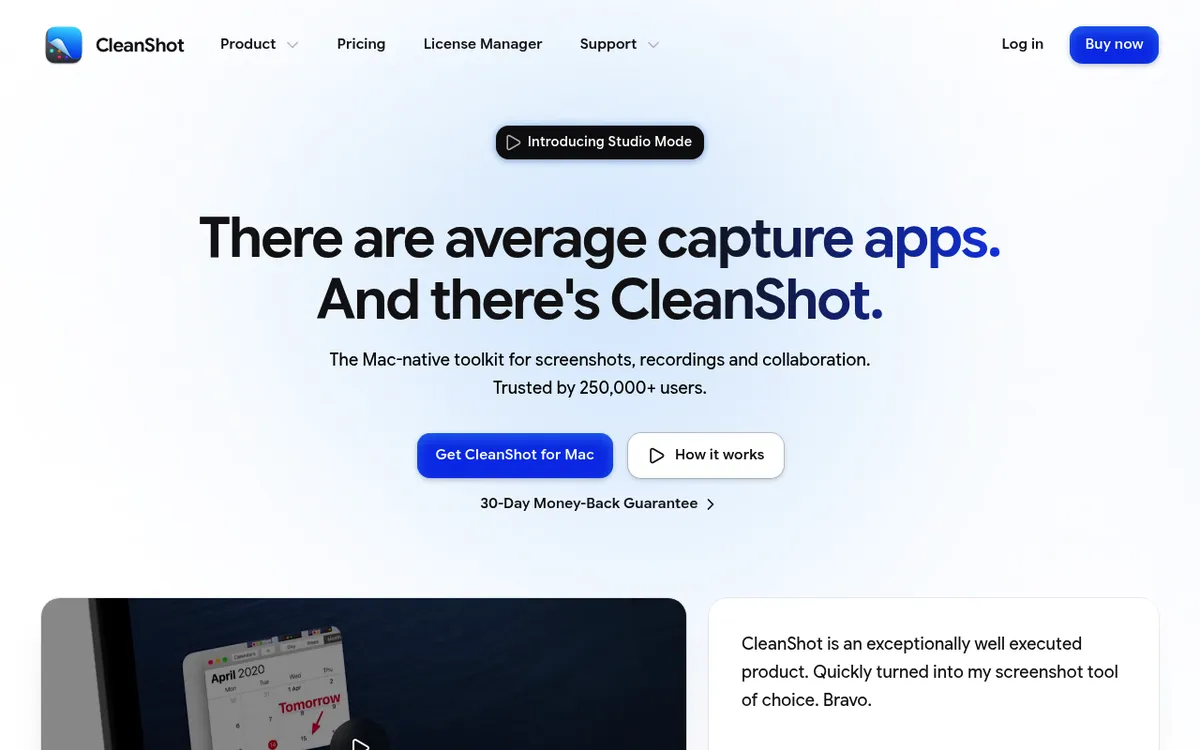
CleanShot X is the power user's pick. It has nearly every feature you can think of:
- Scrolling screenshots
- Screen recording (video and GIF)
- A video editor with smart zooms (new in version 5.0)
- Cloud storage with 1GB included
- Full markup suite with auto-numbering
- History panel for recent captures
- Self-timer and delay options
- Text recognition (OCR)
The catch: Updates aren't forever. After the first year, new versions cost $19 a year, and unlimited cloud means the Pro plan. Keep it updated for three years and you've paid $73. Compare that to $49 once, with lifetime updates, for tools with similar markup.
Best for: Content creators and marketers who need every bell and whistle. The all-in-one panel gives quick access to your capture history, which saves time when you're grabbing multiple shots for a blog post or presentation.
4. macOS built-in Screenshot + Preview (free)
Price: Free (comes with your Mac)
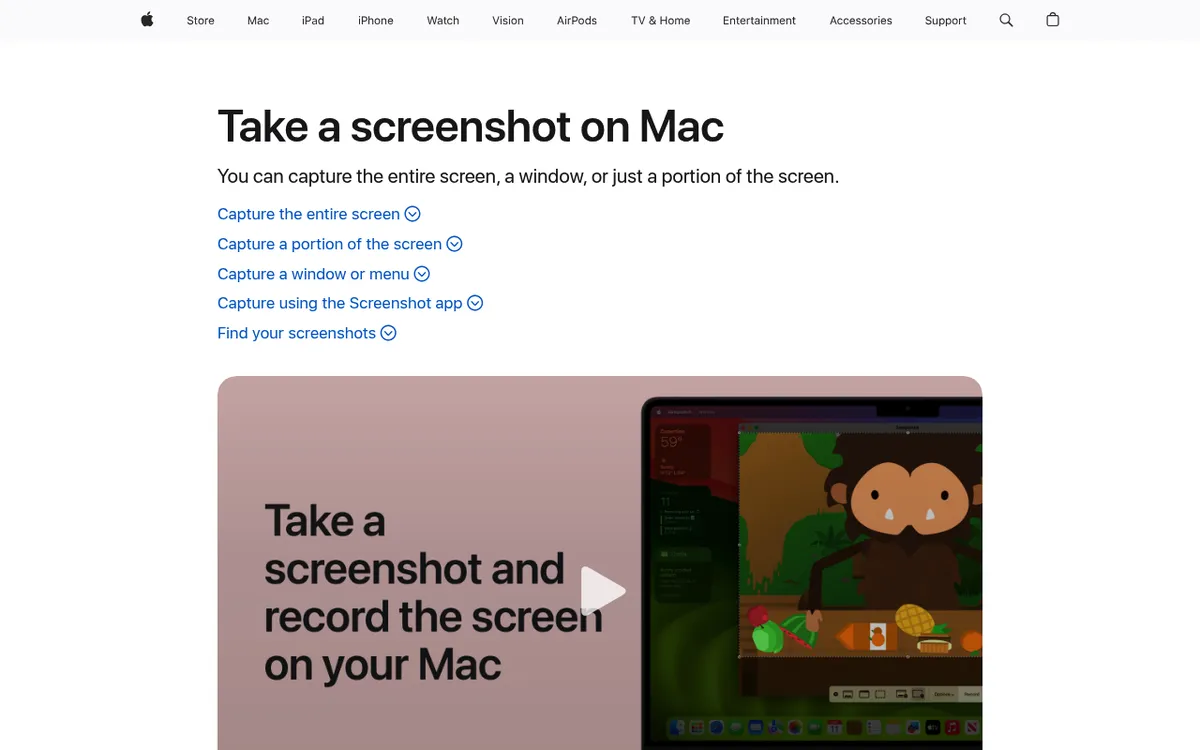
Before you install anything, try what's already there. Press ⌘ + Shift + 5 to open Apple's Screenshot app.
What it can do:
- Full screen, window, or region capture
- Basic markup in Preview (arrows, shapes, text)
- Timer delay (5 or 10 seconds)
- Save to clipboard or file
- Screen recording (no GIF, just .mov video)
- Capture specific windows with shadow
What it can't do:
- Cloud sharing
- GIF recording
- Blur for private info
- Advanced markup (no counters, limited shapes)
- Scrolling capture
Best for: Light users who take a few screenshots a week. The Preview app handles basic markup like arrows and text boxes. No install, no learning curve.
Pro tip: Press ⌘ + Shift + 4, then hit Space to switch to window mode. Click any window to capture it with a nice drop shadow.
5. Skitch: simple and familiar
Price: Free (the in-app purchases are Evernote Premium plans)
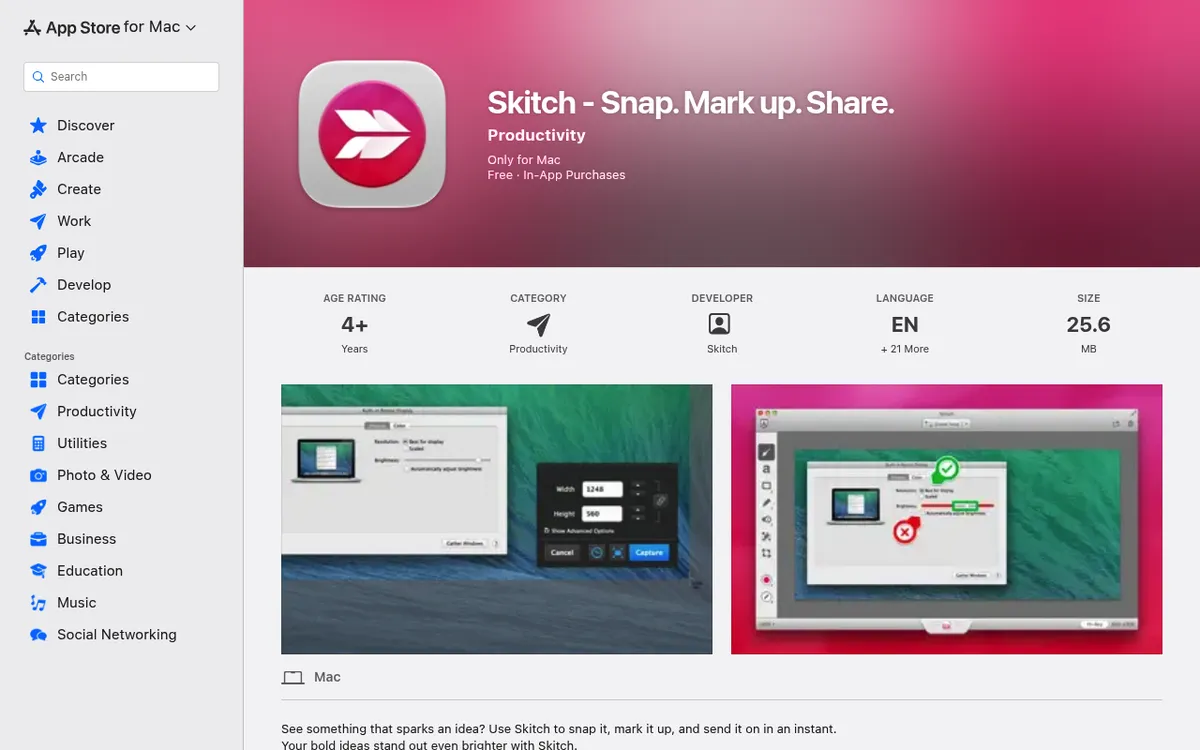
Skitch (from Evernote) keeps things dead simple:
- Arrows and shapes
- Text labels
- Basic pixelate tool
- Drag in, mark up, share
- Syncs to Evernote (if you use it)
The downside: Skitch hasn't been updated since July 2020. It lacks:
- Scrolling capture
- OCR
- GIF recording
- Proper blur tools
- Retina-quality exports
Best for: Quick one-off annotations when you don't want to learn a new tool. The bold arrow style is iconic, and you've probably seen it in countless tutorials online.
For light, rare markup tasks, it works. Power users will outgrow it quickly. If Skitch feels too limited, ScreenSnap Pro or Shottr are natural upgrades.
Feature comparison table
| Feature | ScreenSnap Pro | Flameshot | Shottr | CleanShot X | macOS Built-in | Skitch |
|---|---|---|---|---|---|---|
| Price | $49 once | Free | Free, $12 license | $35 + $19/yr updates | Free | Free |
| Mac app, not a Linux port | ✅ | ❌ | ✅ | ✅ | ✅ | ✅ |
| Markup tools | ✅ (17 tools) | ✅ | ✅ | ✅ | Basic | Basic |
| Screen recording | ✅ (MP4, 60fps) | ❌ | ❌ | ✅ | ✅ (.mov) | ❌ |
| Video editor | ✅ | ❌ | ❌ | ✅ | ❌ | ❌ |
| GIF recording | ✅ | ❌ | ❌ | ✅ | ❌ | ❌ |
| Cloud sharing | ✅ | ❌ | S3 only | ✅ | ❌ | ❌ |
| OCR | ✅ | ❌ | ✅ | ✅ | Live Text | ❌ |
| Scrolling capture | ✅ | ❌ | ✅ | ✅ | ❌ | ❌ |
| Backgrounds | ✅ (500+) | ❌ | ✅ | ✅ | ❌ | ❌ |
| CLI support | ❌ | ✅ | ❌ | ❌ | screencapture | ❌ |
| Open source | ❌ | ✅ | ❌ | ❌ | ❌ | ❌ |
Which Flameshot alternative is right for you?
Pick based on what matters most to you:
If you want markup power in a polished Mac app:
- ScreenSnap Pro or CleanShot X
If you also record your screen:
- ScreenSnap Pro (recorder and video editor included)
If you want free + light:
- Shottr
If you don't want to install anything:
- macOS built-in Screenshot + Preview
If you want max simplicity:
- Skitch
Coming from Linux and used Flameshot for tech docs or bug shots?
ScreenSnap Pro is your best bet. It matches Flameshot's markup depth. Plus you get extras like cloud links, MP4 and GIF recording, and a built-in video editor.
If you're also moving from other Linux or Windows tools, check out:
And if you relied on Snipaste's pin-to-desktop trick on Windows, our Snipaste for Mac guide shows how to get that workflow natively on macOS.
For a full rundown of Mac screenshot tools, see our best screenshot apps for Mac guide.
Frequently Asked Questions
- A security warning on first launch (you need "Open Anyway" in System Settings)
- Fewer features than the Linux version
- An interface that doesn't feel Mac-native
- Markup tools
- OCR
- Scrolling capture
- Pixel ruler
- Launches right away
- Needs no setup
- Works perfectly with macOS

Morgan
Indie DeveloperIndie developer, founder of ScreenSnap Pro. A decade of shipping consumer Mac apps and developer tools. Read full bio
@m_0_r_g_a_n_