Snagit for Mac 2026 Review + Better Alternatives
Snagit for Mac is TechSmith's flagship screenshot and screen recording tool. It started on Windows. The Mac version came years later. The app packs tons of features. These include scrolling capture, video recording, annotations, and AI tools. But at $39/year, many Mac users wonder if it's still worth it in 2026, especially with one-time-purchase alternatives like ScreenSnap Pro on the table.
This honest Snagit Mac review covers what it does well, where it falls short, and better options for most users.
What is TechSmith Snagit?
TechSmith Snagit is a screen capture and recording tool. It launched in 1990 for Windows. The Mac version came years later.
The core idea: Capture your screen, mark it up, share it fast.
But Snagit goes way beyond basic screenshots. Here's what sets it apart:
- Scrolling capture. Grabs entire webpages or documents
- Video recording. Records your screen with webcam overlay
- Built-in editor. Dozens of annotation tools
- AI features. Background removal, text recognition, noise cleanup
It's popular in big companies. Teams like having the same tool on Mac and Windows. TechSmith also makes Camtasia (video editing) and Screencast (cloud hosting). So Snagit fits into a larger ecosystem.
Here's the catch: The Mac version has always felt like a port. It works fine. It works. But it's not as polished as Mac-native apps.
Hands-on Testing: How Snagit Actually Performs on Mac
I spent two weeks testing Snagit on an M2 MacBook Air. Here's what I found.
First Launch: Slow and Heavy
The app takes about 3 seconds to fully load. That's slow for a screenshot tool. For comparison, most Mac-native capture apps load in under a second.
The install size is 420MB. That's huge. Shottr is under 10MB. ScreenSnap Pro is under 50MB. Snagit is a heavyweight.
Once running, Snagit uses about 150-250MB of RAM. The helper process stays active in the background. On my M2, I didn't notice major slowdowns. But users on older Macs report CPU spikes.
Capture Speed: A Mixed Bag
Here's what works well:
- Region capture responds quickly after you press the shortcut
- Window capture correctly detects app windows
- Fullscreen capture works without issues
But there's a delay. You press the shortcut. Then wait 1-2 seconds. Then the capture UI appears. For quick grabs, that lag adds up.
The scrolling capture feature is genuinely impressive. I tested it on long web articles and PDFs. It scrolls automatically and stitches everything together. No other tool I've tried does this as reliably.
Video Recording: Where Snagit Shines
This is Snagit's strongest feature. You can:
- Record your screen in MP4 format
- Add a webcam overlay (picture-in-picture)
- Switch between screen and webcam during recording
- Trim clips in the built-in editor
- Apply AI noise removal to audio
If you make tutorials or demos, this is valuable. Most screenshot tools don't record video at all. Snagit fills a real gap here.
The Editor: Powerful but Clunky
Snagit's editor has everything:
- Arrows, shapes, lines
- Text and callouts
- Blur and pixelate tools
- Stamps and stickers
- Step counter (great for tutorials)
- Borders and shadows
But the editor feels heavy. Opening it takes a moment. The interface doesn't match macOS design patterns. Buttons and menus feel "Windows-y."
For quick markups, it's overkill. For detailed documentation, it gets the job done.

AI Features: Nice but Not Essential
Recent versions added AI tools:
- Background removal. Works okay, not perfect
- Text recognition (OCR). Reliably extracts text from images
- Audio noise removal. Helps clean up video recordings
These features work. But they're not game-changers. Dedicated tools often do each task better.
Sharing Workflow: Too Many Clicks
After capturing, Snagit opens the editor. From there, sharing takes several steps:
- Click the Share button
- Pick your target (Slack, Drive, email, etc.)
- Sign in if you haven't linked the service
- Confirm settings and send
Compare that to tools with built-in cloud sharing. With ScreenSnap Pro, you capture and get a shareable link in one step. No editor detour needed.
If you share lots of screenshots at work, this extra friction adds up fast. Over a week, you might lose 10-15 minutes just clicking through share dialogs.
Snagit for Mac: Key Features Breakdown
Let me break down each major feature in detail.
Screenshot Capture
Snagit handles all the basics:
- Region capture. Drag to select any area
- Window capture. Click to grab a specific window
- Fullscreen capture. Grabs everything on screen
- Menu capture. Captures dropdown menus
- Timed capture. Set delays up to 60 seconds
The standout feature is panoramic scrolling capture. It automatically scrolls a webpage or document. Then it stitches everything into one long image. If you need scrolling screenshots on Mac, this is best-in-class.
You can also lock aspect ratios to 4:3 or 16:9. Helpful for presentations.
Video Recording
Unlike most screenshot tools, Snagit records video. Here's what you get:
- MP4 recording of your screen
- Webcam overlay in picture-in-picture mode
- Audio capture from your microphone
- Webcam switching. Toggle between views during recording
- Built-in trimming. Cut clips without external software
- AI noise cancellation. Cleans up background noise
Note: Snagit makes GIFs from your video recordings. You record a video first, then save it as an animated GIF. Tools like ScreenSnap Pro record straight to GIF instead.
Annotation and Editing
Snagit's editor includes:
- Arrows and shapes
- Text boxes and callouts
- Blur and pixelate (for sensitive info)
- Stamps and emoji
- Step counter. Numbers each annotation automatically
- Borders, shadows, and effects
- Color adjustments and filters
For professional screenshot annotation, the toolkit is complete. It just feels heavy for simple markups.
Export and Sharing
Snagit exports to 19 file formats. That's more than any competitor:
- PNG, JPG, GIF, BMP, TIFF
- PDF, MP4, AVI
- And more
It integrates with:
- Slack, Microsoft Teams
- Google Drive, Dropbox, OneDrive
- Box, FTP, and others
One gap: There's no built-in cloud storage. You need a third-party service. Tools like ScreenSnap Pro include cloud sharing built-in.
Snagit Mac Pricing in 2026
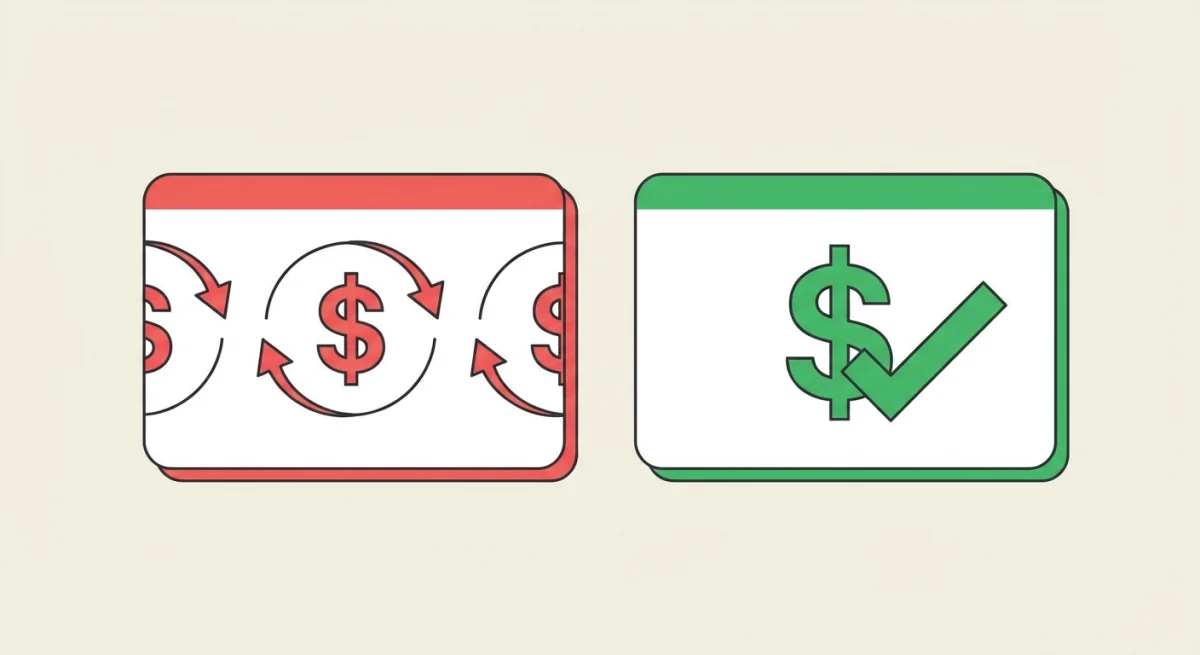
Here's where things get tricky. TechSmith moved to subscription-only pricing. You can't buy Snagit outright anymore.
| Plan | Cost | Who It's For |
|---|---|---|
| Individual | $39/year | Personal use |
| Business | $48/year | Team licenses |
| Education | $39.36/year | Schools and teachers |
| Students | $19.99/year | Verified students |
What this costs over time:
- Year 1: $39
- Year 3: $117
- Year 5: $195
That adds up fast for a screenshot tool. One-time purchase apps cost $29-$49 once. Then you're done.
The subscription switch has sparked lots of complaints. One Reddit user called it: "Another great product ruined by annualization."
For a deeper dive, see our Snagit pricing analysis.
Pros and Cons Summary
What Snagit Does Well ✅
- Scrolling capture is the best available
- Video recording with webcam sets it apart
- 19 export formats. Unmatched variety
- Cross-platform. Same experience on Mac and Windows
- Step counter is perfect for tutorials
- Enterprise integrations with Teams, Slack, cloud services
Where Snagit Falls Short ❌
- $39/year subscription with no buy-once option
- 420MB install. Bloated for a capture tool
- 1-2 second startup delay. Hurts quick captures
- High resource use. Can spike CPU on older Macs
- Mac feels like a port. Not native design
- GIFs take an extra step. You record a video, then save it as a GIF
- No screenshot backgrounds. Can't beautify captures

Tired of plain screenshots? Try ScreenSnap Pro.
Beautiful backgrounds, pro annotations, GIF recording, and instant cloud sharing, all in one app. Pay $49 once, own it forever.
See pricing and featuresInstallation and Setup Experience
Getting Snagit running on Mac takes some patience. Here's what to expect.
Download and Install
The download is large. Over 400MB for the installer. On a typical connection, expect 2-5 minutes just for the download.
Installation requires giving Snagit several system permissions:
- Screen Recording. Needed for captures
- Accessibility. For keyboard shortcuts
- Microphone. If you want audio in videos
- Camera. For webcam overlay
macOS will prompt for each one. You'll need to visit System Settings multiple times. Count on 5-10 minutes for a clean setup.
First Run Setup
On first launch, Snagit walks you through a tutorial. It's helpful. But it adds another few minutes. You can skip it if you're familiar with capture tools.
The app creates a capture history database. This can grow large over time. Some users report the library hitting several GB after months of use. Plan to clean it out occasionally.
Keyboard Shortcuts
By default, Snagit uses these shortcuts:
⌘ + Shift + C: All-in-one capture⌘ + Shift + O: Capture window⌃ + ⇧ + O: Capture region
These work fine. But they differ from macOS norms. You can change them in settings. Most users remap to match their habits.
The shortcut system feels Windows-first. Some combos clash with other Mac apps. Expect to spend time tweaking.
Updates and Maintenance
Snagit checks for updates on its own. TechSmith pushes patches every 4-6 weeks. Most updates are small bug fixes. Major feature drops happen 1-2 times per year.
The auto-update process is smooth. But each update needs a restart. If you're in the middle of work, the "Update Available" popup can be annoying.
One thing to watch: Snagit's capture library grows over time. Every screenshot and recording gets saved there. After a few months, the database can hit several GB. Go to File > Manage Library now and then to clear old captures. Or set Snagit to auto-delete items after 30 days in the settings.
Uninstalling Snagit
If you decide Snagit isn't for you, removal takes a few steps:
- Quit Snagit and its helper process (check Activity Monitor)
- Drag the app from Applications to Trash
- Remove leftover files in
~/Library/Application Support/TechSmith/ - Delete preferences in
~/Library/Preferences/(search for "techsmith") - Remove the login item in System Settings > General > Login Items
A cleaner option: use a tool like AppCleaner (free) to catch all the scattered files in one go. Snagit leaves more behind than most Mac apps because of its library database and helper processes.
What Real Users Say
I researched Reddit, MacUpdate, and user forums. Here's what people say.
"It's Become Bloatware"
Users on r/software describe Snagit as bloated. The 420MB install is huge. One user wrote: "A monstrosity that takes 1-2 seconds to start the screenshot process, another 2 seconds to open the editor."
For a tool built for speed, that lag defeats the purpose.
Another user on MacUpdate noted: "The helper app constantly runs in the background. I've seen it use 25% CPU for no apparent reason."
Subscription Fatigue is Real
The pricing change is Snagit's most hated update. MacUpdate reviewers score value at 2.5/5 while features get 5/5. The tool is good. The pricing model is the problem.
One longtime user shared: "I owned Snagit for 10 years. Paid once, got updates. Now they want $39 every year? No thanks."
The student pricing ($19.99/year for verified students) helps. But for everyone else, it stings.
Mac Version Feels Secondary
Snagit targets both platforms. So the interface doesn't feel native on macOS. It uses different keyboard conventions. The editor looks out of place next to Mac apps.
A common complaint: "Buttons are in weird places. The design clearly came from Windows first."
TechSmith does update both versions together now. Still, the Mac version lags in polish.
Overkill for Most People
One MacUpdate reviewer put it simply: "If you don't need scrolling capture, there is absolutely no reason to pay for this."
Most Mac users just need basic screenshots and simple markups. macOS offers built-in screenshot shortcuts that handle 80% of use cases for free.
Quick Look at Alternatives
If Snagit doesn't fit your needs, you have options. For a full breakdown, check our best Snagit alternatives for Mac guide.
Here's a quick comparison:
| Feature | Snagit | ScreenSnap Pro | CleanShot X | Shottr | macOS |
|---|---|---|---|---|---|
| Price | $39/year | $49 one-time | $29 once | Free | Free |
| Screenshots | ✅ | ✅ | ✅ | ✅ | ✅ |
| Scrolling | ✅ | ✅ | ✅ | ✅ | ❌ |
| Video | ✅ | ❌ | ✅ | ❌ | Basic |
| GIF | ✅ (from video) | ✅ | ✅ | ❌ | ❌ |
| Annotations | ✅ | ✅ | ✅ | Basic | Basic |
| Backgrounds | ❌ | ✅ (150+) | ✅ | ❌ | ❌ |
| Cloud | External | Built-in | Paid add-on | ❌ | ❌ |
| Mac + Windows | ✅ | ✅ | ❌ | ❌ | ❌ |
Quick picks:
- ScreenSnap Pro. Best value. One-time purchase. Screenshots, scrolling capture, GIFs, annotations, cloud, backgrounds.
- CleanShot X. Great for scrolling capture and video. One-time $29.
- Shottr. Best free option. Fast and capable.
- macOS built-in. Already on your Mac. Handles basic needs.
Note: This article is a Snagit review. If you've already decided to switch away from Snagit, check our dedicated best Snagit alternatives for Mac guide for a deeper look at each option.
Who Should Still Use Snagit?
Snagit isn't bad. It's powerful. But it's priced for specific users. Keep Snagit if:
- You need video recording with webcam and audio. No lightweight tool matches this.
- You work on Mac and Windows. Snagit gives identical tools on both.
- Your company pays for it. Snagit makes sense on a business expense account.
- You rely on scrolling capture daily. It's the most reliable option.
- You use TechSmith's ecosystem. Camtasia and Screencast integration adds value.
If two or more apply, Snagit might be worth the subscription.
Final Verdict: Is Snagit Worth It?

For enterprise teams: Yes, probably. Video recording, cross-platform support, and scrolling capture justify the cost. The TechSmith ecosystem adds value for teams already invested.
For individual Mac users: Probably not. You're paying $39/year for features you might never use. Lighter tools cover screenshots, GIFs, and more. One-time purchases mean no ongoing fees.
The bottom line: Snagit remains capable and feature-rich. But the subscription pricing hurts. The performance bloat means it's no longer the obvious choice. In 2026, the Mac screenshot landscape has better options. Excellent alternatives respect your wallet and your system resources.
If you want a streamlined workflow without the subscription, try ScreenSnap Pro. Pay once. Own it forever.
Frequently Asked Questions

Morgan
Indie DeveloperIndie developer, founder of ScreenSnap Pro. A decade of shipping consumer Mac apps and developer tools. Read full bio
@m_0_r_g_a_n_