LiceCap for Mac: Review & 5 Better Alternatives (2026)
LiceCap for Mac is a lightweight, no-frills GIF recorder. It's been around since the early 2010s. If you're searching for a way to capture your screen as a GIF on Mac, you've probably stumbled across it — alongside modern options like ScreenSnap Pro. But the last update was June 2022. Is this classic tool still worth downloading?
This guide gives you an honest review of LiceCap in 2026. We'll cover its strengths and weaknesses. Plus, we'll show you five modern alternatives that might serve you better.
What Is LiceCap?
LiceCap is a free, open-source screen-to-gif tool. It's made by Cockos Incorporated—the same team behind REAPER. Launched in 2011, it quickly became a favorite among developers and designers. Technical writers who needed animated GIFs loved it too.
The appeal was simple: resize a transparent window over your screen, hit record, and get a GIF. No complicated settings. No bloat. Just capture and save.
For years, LiceCap was a common GIF capture solution on Mac. Alternatives were either expensive or overly complex. Its tiny download size (under 1MB) earned it a loyal following. The simple approach helped too.
LiceCap for Mac in 2026: Does It Still Work?
Yes, LiceCap still works on modern macOS. You can download LiceCap for Mac from the official Cockos website. The current version (1.32) runs on macOS 10.7 through 12.x and supports both Intel and M1 Macs.
However, there are some important caveats.
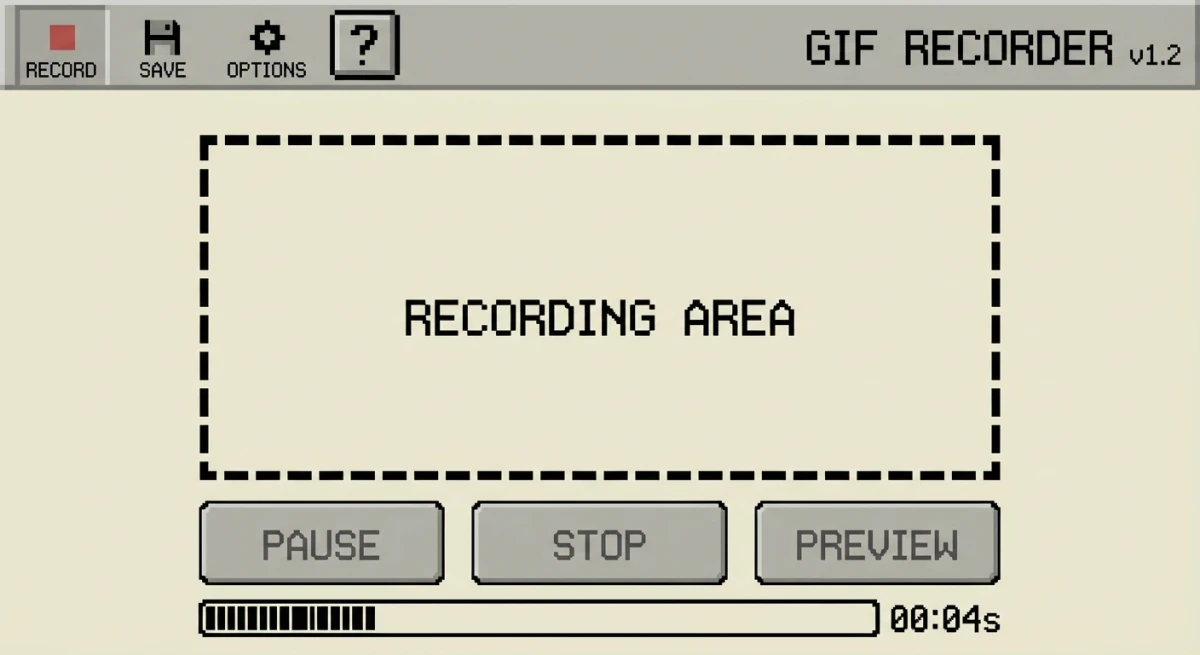
What's showing its age
- No native Apple Silicon support: LiceCap works on M1/M2/M3 Macs. But it runs through Rosetta 2 emulation. That means more battery and CPU drain.
- Dated interface: The UI looks like it's from 2011. That's because it is. No dark mode. No modern macOS design. The controls feel clunky.
- No cloud sharing: You record a GIF. It saves to a file. That's it. No instant link sharing or upload integration.
- No annotation tools: Need to add arrows, text, or blur? You'll need a separate app.
- Limited format options: You get GIF and LCF only. No WebP, no video export.
Despite these limits, LiceCap searches remain steady. The core functionality still works. If you just need a basic GIF and don't care about polish, LiceCap gets the job done.
LiceCap Pros and Cons
Let's break down what LiceCap does well and where it falls short:
| Pros ✅ | Cons ❌ |
|---|---|
| Tiny file size (<1MB) | Dated interface |
| Completely free and open source | No Apple Silicon optimization |
| Direct GIF output | No cloud sharing |
| Can pause/resume recording | No annotation tools |
| Move capture frame while recording | No macOS dark mode |
| Simple, no-frills design | Limited to GIF/LCF formats |
| Global hotkey support | No modern window capture |
The bottom line: LiceCap is still functional, but it feels like using a flip phone in 2026. It works, but you're missing out on a lot.
5 Better LiceCap Alternatives for Mac
If you want a more modern gif recorder mac experience, here are five alternatives that go beyond what LiceCap offers:
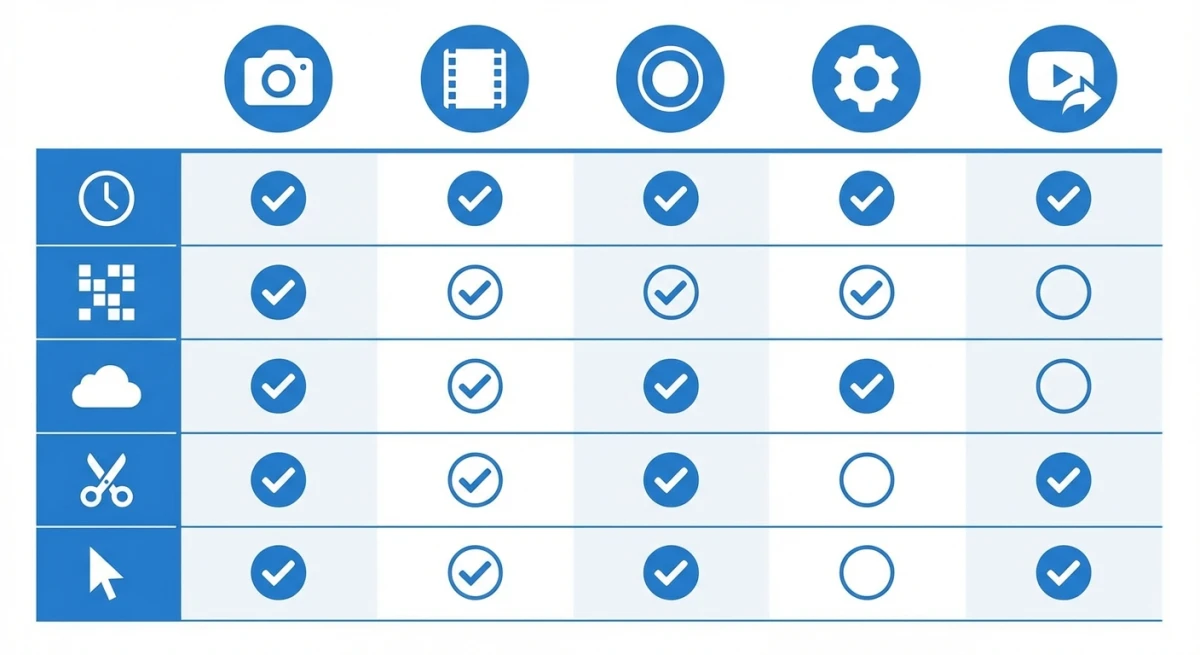
1. ScreenSnap Pro
Best for: Professionals who want beautiful output without subscriptions
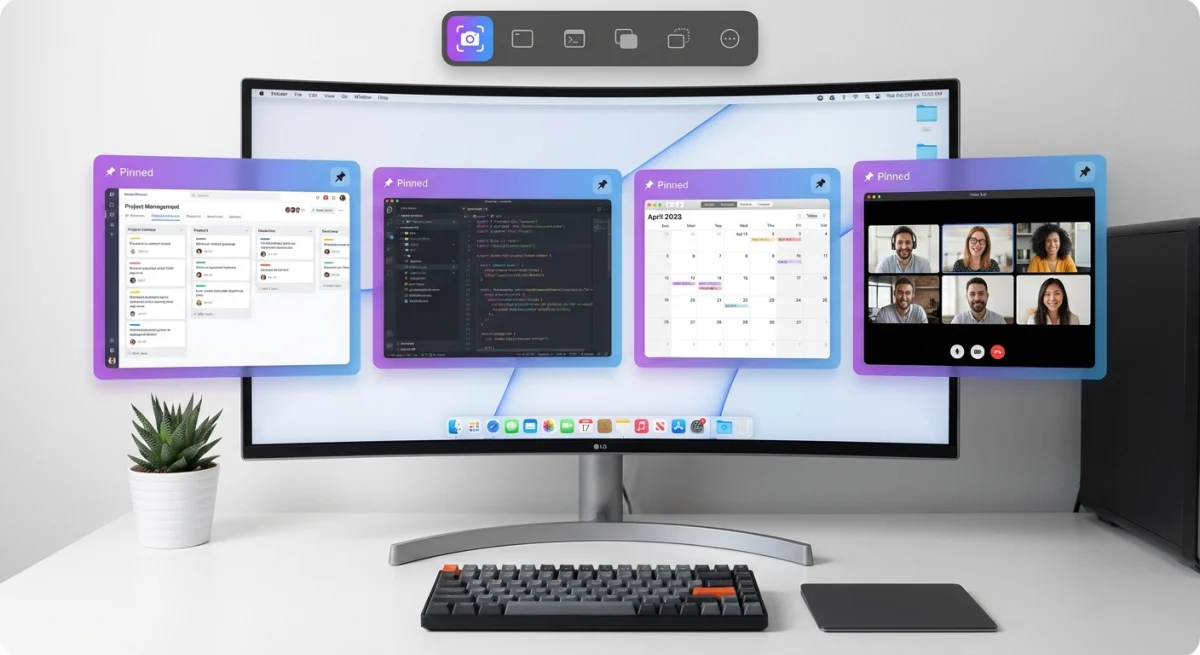
ScreenSnap Pro is a Mac-native screenshot and GIF recording app that's optimized for Apple Silicon. Unlike LiceCap's raw GIF output, ScreenSnap Pro adds 500+ wallpapers that make your recordings look polished.
Key advantages over LiceCap:
- Cloud sharing: Get an instant shareable link without email attachments
- One-time purchase: Pay once, own forever (no subscription)
- 15 annotation tools: Arrows, shapes, blur, text, and more
- Native Apple Silicon: Built for M1/M2/M3 Macs
- OCR text extraction: Copy text from any recording frame
If you've outgrown LiceCap and want professional results, ScreenSnap Pro bridges the gap between "free and basic" and "enterprise subscription."
2. Kap
Best for: Developers who want open-source with modern design
Kap is a free, open-source screen recorder. It's built by the team at Wulkano. The macOS-native interface makes LiceCap look ancient.
Kap exports to GIF, MP4, WebM, and APNG. It integrates with Dropbox and Imgur for quick sharing. The menu bar app stays out of your way until you need it.
Limitation: No annotation tools built-in.
3. Gifox
Best for: Menu bar power users
Gifox lives in your menu bar and captures GIFs with minimal friction. It supports window capture, selection capture, and full-screen recording.
Gifox includes a built-in editor for trimming and adjusting your GIFs before export. It's lightweight but more polished than LiceCap.
Limitation: Paid app ($14.99), though there's a free version with watermarks.
4. GIPHY Capture
Best for: Casual users who want something free
GIPHY Capture is a free app from GIPHY. It records your screen and exports to GIF. Basic trimming and caption tools are included.
We've covered this app in depth in our GIPHY Capture alternatives guide. The short version: it's good for quick, casual GIFs. But it lacks power features of dedicated tools.
Limitation: Max 30-second recordings, GIPHY branding in exports.
5. CleanShot X
Best for: Users who want the most features (and don't mind subscriptions)
CleanShot X is the premium option. It does screenshots, screen recording, GIFs, scrolling capture, and OCR. The polish is incredible.
The catch? It uses a subscription model for cloud features. Prefer one-time purchases? Check out our CleanShot X alternative comparison.
Limitation: Subscription pricing for full features.
LiceCap vs ScreenSnap Pro: Quick Comparison
For a direct comparison between LiceCap and a modern licecap alternative:
| Feature | LiceCap | ScreenSnap Pro |
|---|---|---|
| Price | Free | One-time purchase |
| GIF Recording | ✅ | ✅ |
| Apple Silicon | Rosetta | Native |
| Cloud Sharing | ❌ | ✅ |
| Backgrounds | ❌ | 500+ gradients |
| Annotations | ❌ | 15 tools |
| OCR | ❌ | ✅ |
| File Size | <1MB | ~25MB |
| Last Updated | 2022 | 2026 |
Both tools record GIFs. The difference is everything that happens after you hit stop.

Tired of plain screenshots? Try ScreenSnap Pro.
Beautiful backgrounds, pro annotations, GIF recording, and instant cloud sharing — all in one app. Pay $39 once, own it forever.
See what it doesWhen LiceCap Is Still the Right Choice
LiceCap isn't obsolete—it just serves a specific use case. You might still want LiceCap if:
- You need the smallest footprint: At under 1MB, LiceCap is lighter than any alternative. This matters for developers with strict software policies.
- You don't need cloud or annotations: Just dropping GIFs into Slack or GitHub? The raw file is enough. Bug reports don't need beautiful backgrounds.
- You value open-source: LiceCap's GPL license lets you inspect, modify, and redistribute the code. Privacy-focused users like this openness.
- You're on an older Mac: Running macOS 10.7-10.12? LiceCap still supports those older systems.
- Nostalgia: Sometimes old tools just feel right. There's something satisfying about simple software.
For quick internal demos, Slack bug reports, or GitHub issues where polish doesn't matter, LiceCap remains a solid choice. Just don't expect it to impress anyone with the output quality.
The key question: how often do you record GIFs, and who sees them? If it's once a month for internal use, LiceCap is fine. If it's daily and client-facing, the investment in a modern tool pays off quickly.
How to Get LiceCap on Mac
If you want to try LiceCap:
- Visit cockos.com/licecap
- Download the macOS DMG (v1.32, 876KB)
- Open the DMG and drag LiceCap to Applications
- Grant screen recording permission when prompted
- Launch and resize the frame over your capture area
- Click Record, do your thing, click Stop
That's it. No account required, no setup wizard, no cloud config. LiceCap mac download is one of the simplest installs you'll find.
Tips for Better GIF Recordings
Whether you stick with LiceCap or switch to a modern alternative, these tips will help you create better GIFs:
Keep recordings short
GIFs are meant to be quick loops. Aim for 5-15 seconds maximum. Longer recordings balloon in file size. They also lose viewer attention. Need to show a longer process? Break it into multiple GIFs or use video instead.
Use a clean desktop
Before recording, close unnecessary windows and hide your dock if possible. A cluttered desktop distracts from what you're trying to show. Many users find our screenshot background generator helpful for creating polished mockups.
Mind your mouse movements
Jerky, erratic mouse movements make GIFs hard to follow. Move slowly and pause briefly on key elements. Your viewers will thank you.
Optimize file size after recording
Raw GIF files can be massive. After recording, run your GIF through compression to reduce file size without visible quality loss. Our free GIF compressor can cut file sizes by 50-80%.
Consider your frame rate
LiceCap lets you set the max frame rate. For UI demonstrations, 10-15 FPS is usually enough. Higher frame rates mean larger files with smaller visual gains.
Modern GIF Recording Workflow
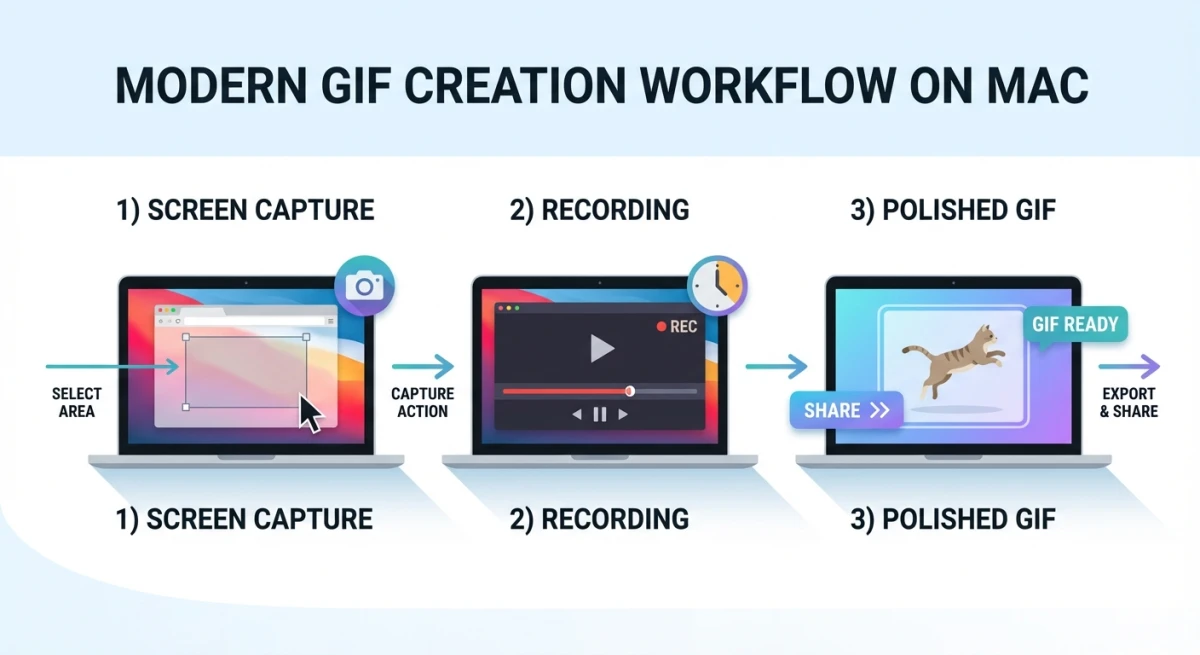
If you're looking to level up your GIF game, here's what a modern workflow looks like:
- Capture: Use a tool with instant selection and keyboard shortcuts
- Polish: Add backgrounds, annotations, or trim the recording
- Share: Generate a cloud link or export to your preferred format
Tools like ScreenSnap Pro and Kap handle all three steps. LiceCap only does step one.
For more on optimizing your recordings, check out our guide on how to record GIFs on Mac. And if your GIFs are too large for Slack or Discord, you can compress them with our free tool.
Frequently Asked Questions
The Bottom Line
LiceCap for Mac is a nostalgic trip back to simpler times. It still works, it's still free, and it still records GIFs. But in 2026, you're leaving a lot on the table by sticking with a tool that hasn't been updated in years.
If you record GIFs regularly—for bug reports, tutorials, documentation, or social media—upgrading to a modern alternative will save you time and improve your output quality. Tools like ScreenSnap Pro give you cloud sharing, beautiful backgrounds, and native Apple Silicon performance without the subscription pricing of enterprise tools.
LiceCap earned its place in Mac history. But history is exactly where it belongs.
Looking for more screenshot and recording tools? Check out our best screenshot apps for Mac roundup or learn how to record GIFs on Mac with modern tools.

Morgan
Indie DeveloperIndie developer, founder of ScreenSnap Pro. A decade of shipping consumer Mac apps and developer tools. Read full bio
@m_0_r_g_a_n_