Giphy Capture for Mac: 5 Better GIF Recorders (2026)
Giphy Capture was once the go-to GIF recorder for Mac. It was free and simple. But it went years with barely any updates, and its 30-second cap never budged. Many users now want more capable tools for modern macOS, including our own GIF and screen-recording app ScreenSnap Pro.
Feeling stuck with Giphy Capture's limits? You're not alone. This guide shows you five better options that give you:
- More features
- Better quality
- Active updates
Let's find the right tool for you. We'll cover free open-source apps and pro-level tools worth the price.
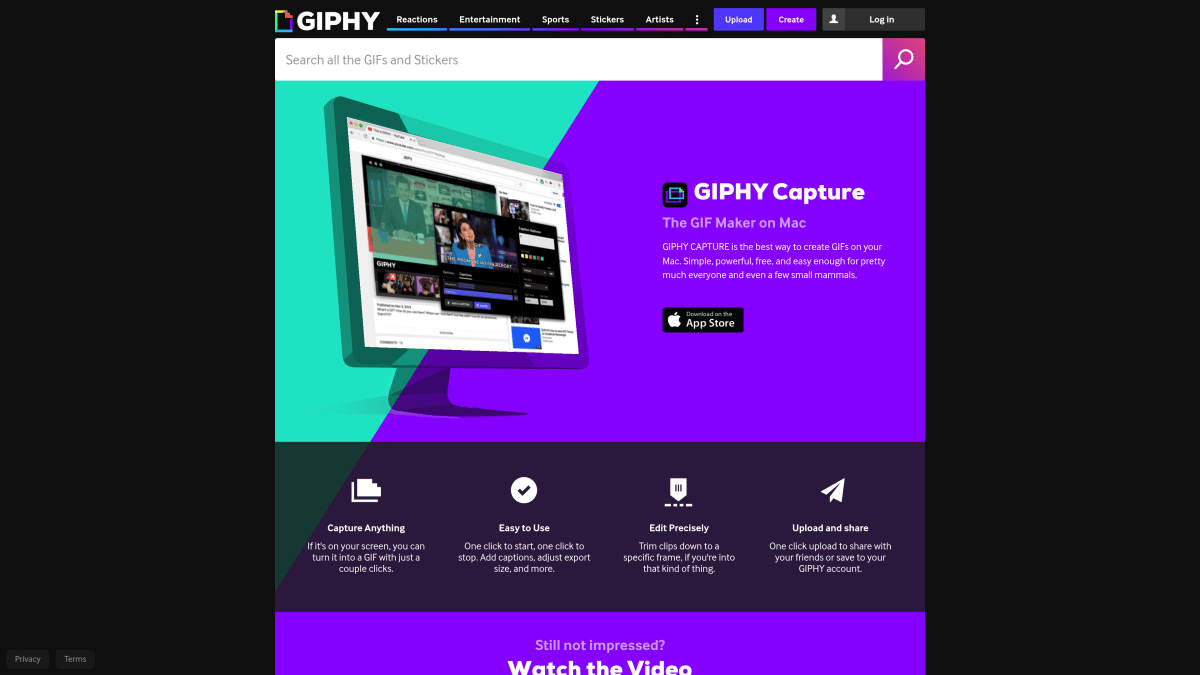
Can You Still Download GIPHY Capture for Mac?
Yes. GIPHY Capture is still listed on the Mac App Store, and giphy.com links to it. Recent 2026 patches even added native Apple Silicon support. But recordings are still capped at 30 seconds, and beyond bug fixes the app hasn't gained a new feature in years. If those limits hold you back, the five alternatives below go further.
What is Giphy Capture?
Giphy Capture (also called the Giphy app or screen giphy tool) is a free Mac app. It records your screen and saves it as a GIF. No video files. No need to convert. Just click and record.
Giphy (the company behind the world's largest GIF search engine) made this app. They launched it back in 2016. The goal was simple: make GIF creation easy for everyone.
A Brief History of Giphy Capture
When Giphy Capture first hit the Mac App Store, it was a hit. GIF culture was booming. Twitter and Slack users loved sharing short clips. The app filled a gap that no other free tool did.
At its peak, the app saw millions of downloads. Tech blogs praised its simple design. Users loved that there were no watermarks and no catch. It just worked.
Then development slowed to a crawl. After version 4.1 in 2018, a single small patch arrived in 2021, followed by years of silence. No new features. No word on why.
In 2020, Facebook (now Meta) bought Giphy for $400 million. The focus shifted to their web platform and mobile apps. The Mac desktop app was left behind.
Today, Giphy Capture is still on the Mac App Store, and a round of patches in mid-2026 finally delivered a native Apple Silicon build. But those updates were maintenance, not momentum. The 30-second cap remains, the toolset is unchanged, and rivals have spent those years pulling ahead.
Key Features of Giphy Capture
Even though it's old, here's what Giphy Capture offered at its best:
- Direct GIF recording. No video files to convert
- Frame rate control. Pick smoother GIFs or smaller files
- Trim and loop tools. Basic edits before you export
- Upload to Giphy. Share straight to their site
- Totally free. No cost and no watermarks
For basic gif capture, it worked great. But times have changed.
The Problem: Abandoned Software
Here's what most Giphy Capture reviews skip: the app went nearly five years between updates, and the patches that finally landed in 2026 were stability fixes, not new features.
Relying on an app in maintenance mode brings real trade-offs:
- Late Apple Silicon support. A native build only arrived in 2026, years after M1 Macs launched
- Screen Recording permissions. Modern macOS requires app approval
- No new features. While rivals keep improving
- Hard limits stay. The 30-second cap has never been lifted
Why Look for Giphy Capture Alternatives?
Beyond being old, Giphy Capture has real limits that bug power users.
1. File Size Limits
Giphy Capture caps recordings at 30 seconds. It also limits file sizes for uploads.
Making longer tutorials? You'll hit these walls again and again. This is a pain when you need to edit screen recordings or create polished work.
2. No Annotation Tools
Need to add an arrow pointing to a button? Want to blur private info? Giphy Capture can't do it.
You'd have to export your GIF. Then open it in another app. That's extra work nobody wants.
3. No Cloud Sharing
It talks to Giphy's platform. But there's no way to get a private link. You either share to the public Giphy site or handle files yourself.
4. Basic Editing Only
You can trim the start and end. You can tweak the loop. That's it.
Modern tools give you much more:
- Frame-by-frame control
- Speed changes
- Cropping
- Text and shapes
5. No Browser Extension
Unlike some tools, there's no Giphy Capture Chrome extension. No web version either. You're stuck with the desktop app and its 30-second cap.
Want to record GIFs on Mac with modern tools? Read on for better options.
Top 5 Giphy Capture Alternatives for Mac
1. ScreenSnap Pro: Best Overall
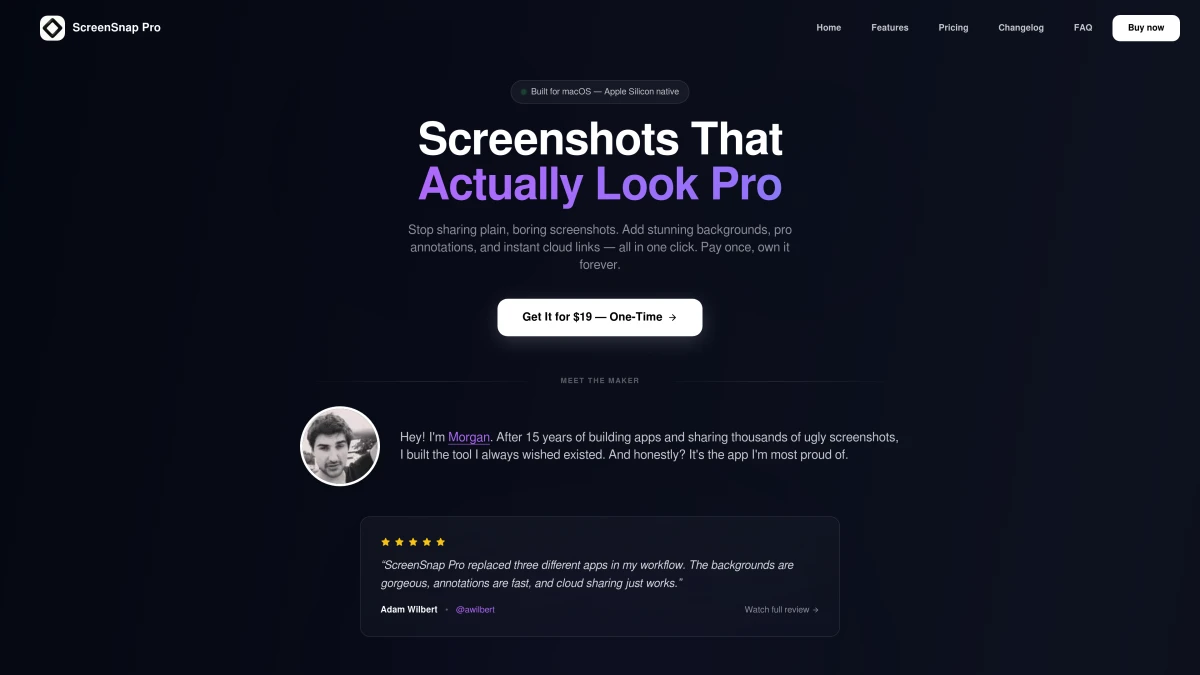
Price: One-time purchase (no subscription)
Best for: Pros who need GIF recording + annotation + cloud sharing
ScreenSnap Pro has everything Giphy Capture lacks. It's a Mac-native app built for modern workflows. Record your screen to GIF, add notes and arrows, then upload to the cloud with one click.
What makes it great:
- Direct GIF recording. No need to convert video
- 15 annotation tools. Arrows, shapes, blur, text, and more
- Instant cloud upload. Get shareable links in seconds
- 500+ wallpapers. Make screenshots look polished
- OCR text extraction. Copy text from any image
- No watermarks. Ever
- Apple Silicon native. Built for M1, M2, M3, and M4 Macs
The pricing is fair. Pay once and own it forever. All future updates are free.
Keyboard shortcuts:
⌘ + Shift + 5: Start GIF recording⌘ + Shift + 4: Take a screenshot⌘ + U: Upload to cloud
Limitations: It's not free. But the one-time cost beats paying monthly forever.
2. Kap: Best Free Option
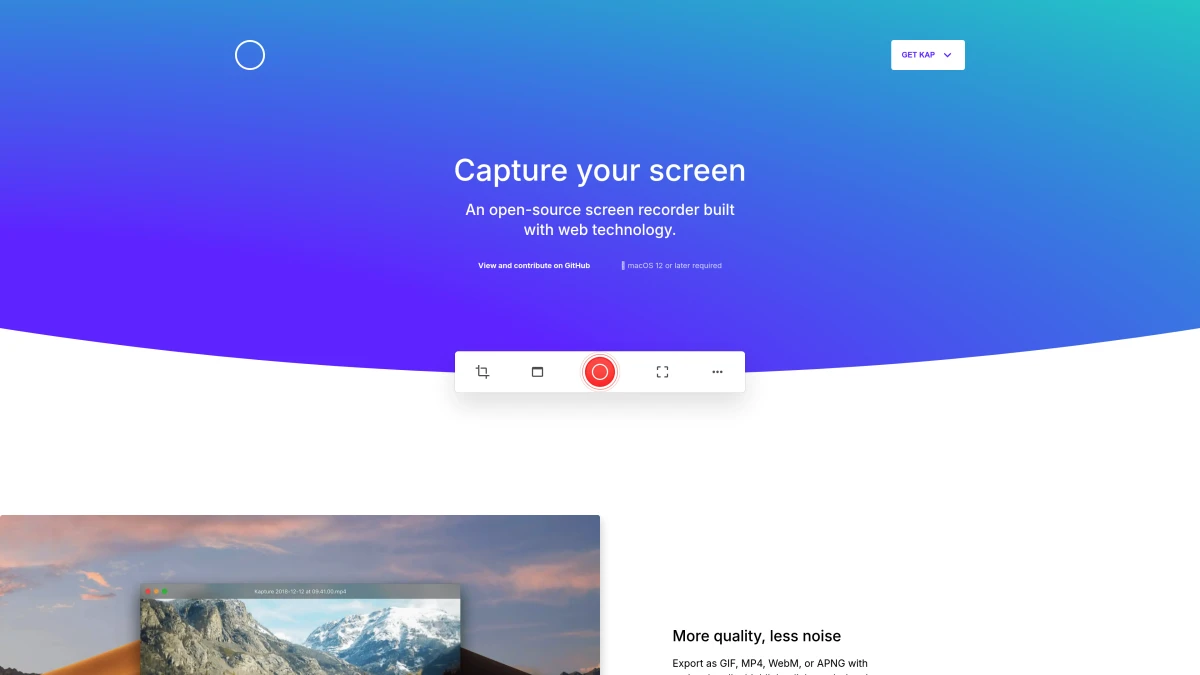
Price: Free (open-source)
Best for: Developers who want a solid free tool
Kap is an open-source screen recorder. Developers love it. With 19,000+ GitHub stars, it gets regular updates. It exports to GIF, MP4, WebM, and APNG.
Key features:
- Totally free. No trials, no limits, no catch
- Many export formats. GIF, MP4, WebM, APNG
- Plugin system. Add features you need
- Quick access. Lives in your menu bar
- Active updates. New features still coming
Kap does the basics well. Record, trim, export as GIF. It's what Giphy Capture should have become.
Keyboard shortcuts:
⌘ + Shift + 5: Open Kap⌃ + ⌘ + K: Start recording (custom)⌃ + ⌘ + S: Stop recording (custom)
You can set your own shortcuts in Kap's settings. Most users pick what feels natural.
Limitations: No cloud sharing. Limited editing tools. Can slow down on longer recordings. Read our full Kap review for details.
3. LICEcap: Best for Simplicity
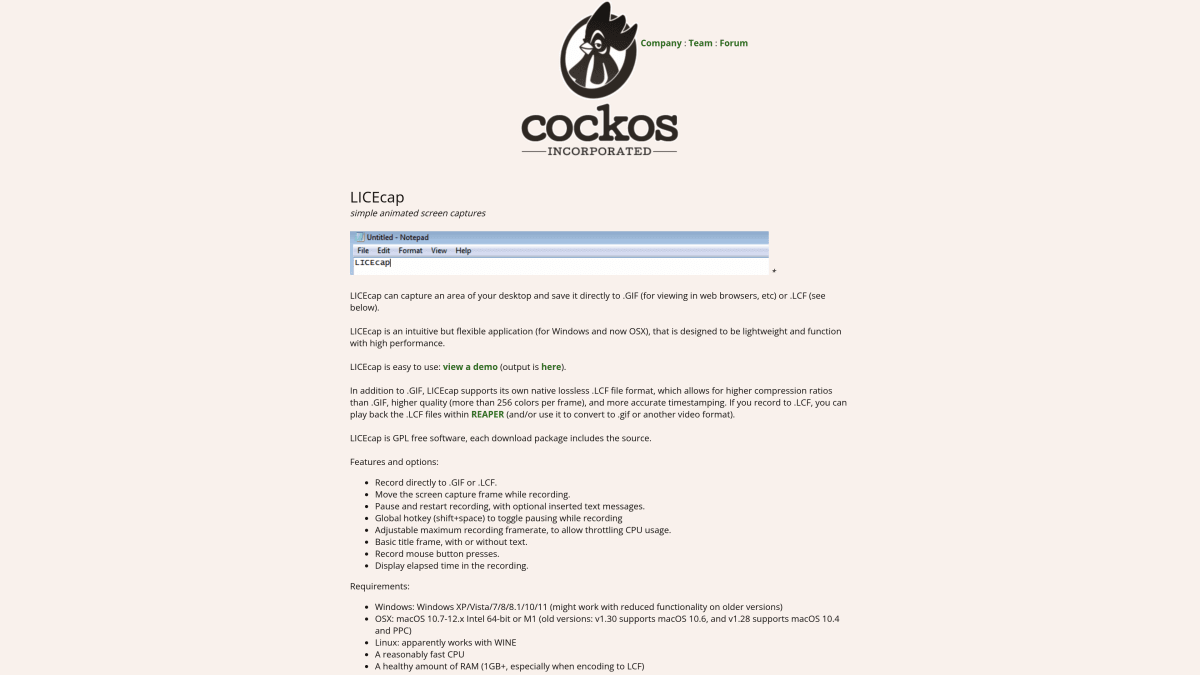
Price: Free
Best for: Users who want the smallest, simplest GIF recorder
LICEcap is tiny. Just 670KB. It does one thing: record your screen to GIF. No extras. No learning curve. No fuss.
Key features:
- Super lightweight. Only 670KB total
- Direct GIF output. No extra steps
- Frame rate control. Balance quality and size
- Movable frame. Adjust the capture area while recording
- Cross-platform. Works on Mac and Windows
Need quick screen demos without bells and whistles? LICEcap delivers. It's been around since 2011 and still works fine.
Keyboard shortcuts:
- LICEcap is mouse-based. Click buttons to start and stop.
- No built-in shortcuts, but you can use a Mac tool like Shortcuts to add them.
Limitations: No editing at all. The look is dated. No cloud features. Last update was 2022.
4. CleanShot X: Feature-Rich Screenshot Suite
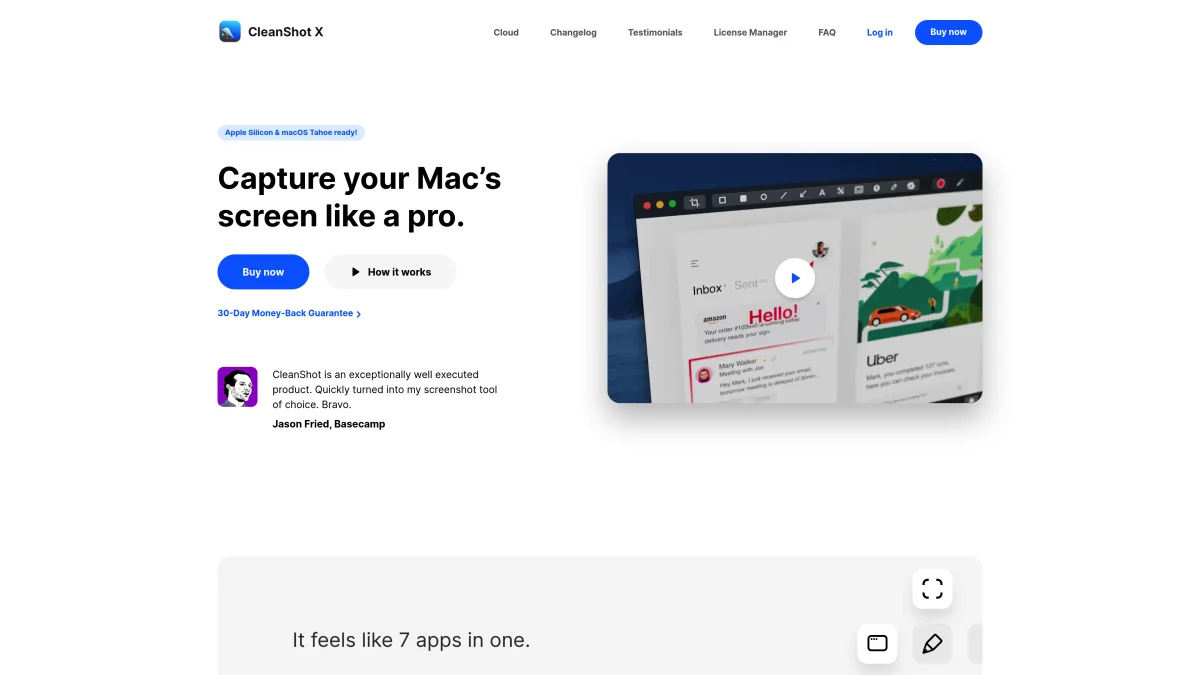
Price: $29 one-time (cloud costs extra)
Best for: Power users wanting a complete toolkit
CleanShot X is a popular screenshot app for Mac. It also does solid GIF recording with tons of extras.
Key features:
- GIF and video recording. With built-in annotations
- Scrolling capture. For long web pages
- Powerful annotation tools. Blur, arrows, text, highlights
- Quick access overlay. Fast edits right after capture
- Cloud upload. Shareable links (needs add-on)
- Self-destruct links. For private content
CleanShot X goes way beyond GIF recording. It's a full visual toolkit. The annotation features are top-notch.
Keyboard shortcuts:
⌘ + Shift + 5: Record screen (GIF or video)⌘ + Shift + 4: Capture area⌘ + Shift + 3: Capture full screen
All shortcuts can be changed in the app settings.
Limitations: The base price covers local features. Cloud sharing needs a monthly fee. This adds up if you just want GIF recording.
5. Gifox: Best for Window-Focused Recording
Price: Free basic, Pro via in-app purchase (Mac App Store)
Best for: Users who need pixel-perfect window or region recording
Gifox is a polished Mac-native GIF recorder and editor. It's built for short product demos, screencasts, and bug reports, with a clever window-tracking mode that follows a window even when it moves or gets covered by others.
Key features:
- Window selection mode. Track a specific window even when moved
- Region or fullscreen capture. Pick exactly what you record
- Smart compression. Smaller files, good quality
- Frame rate and loop control. Fine-tune the output
- Batch conversion. Turn videos or image sequences into GIFs
- Menu bar workflow. Start and stop recordings from the status bar
Want to convert video to GIF on Mac? Gifox gives you precise region tracking and clean export defaults.
Keyboard shortcuts:
⌘ + Shift + 6: Start a recording (configurable)⌘ + .: Stop the current recording- Custom shortcuts can be assigned from preferences
Limitations: The free tier adds a watermark and caps recording length. Heavy frame-by-frame editing still requires a dedicated video editor.

Tired of plain screenshots? Try ScreenSnap Pro.
Beautiful backgrounds, pro annotations, GIF recording, and instant cloud sharing, all in one app. Pay $34 once, own it forever.
See pricing and featuresGiphy Capture Alternatives: Feature Comparison
| Feature | Giphy Capture | ScreenSnap Pro | Kap | LICEcap | CleanShot X | Gifox |
|---|---|---|---|---|---|---|
| Price | Free | One-time | Free | Free | $29+ | Free / Pro IAP |
| Direct GIF Recording | ✅ | ✅ | ✅ | ✅ | ✅ | ✅ |
| Video Recording | ❌ | ❌ | ✅ | ❌ | ✅ | ❌ |
| Annotation Tools | ❌ | ✅ (15 tools) | ❌ | ❌ | ✅ | ❌ |
| Cloud Sharing | Giphy only | ✅ | ❌ | ❌ | ✅ (paid) | ❌ |
| Instant Link | ❌ | ✅ | ❌ | ❌ | ✅ | ❌ |
| Advanced Editing | Basic | Basic | Basic | ❌ | Good | Good |
| Apple Silicon | ✅ | ✅ | ✅ | ✅ | ✅ | ✅ |
| Last Updated | 2026 (fixes only) | 2026 | 2025 | 2022 | 2026 | 2025 |
| No Watermarks | ✅ | ✅ | ✅ | ✅ | ✅ | Pro only |
Quick-Start Guide: How to Choose
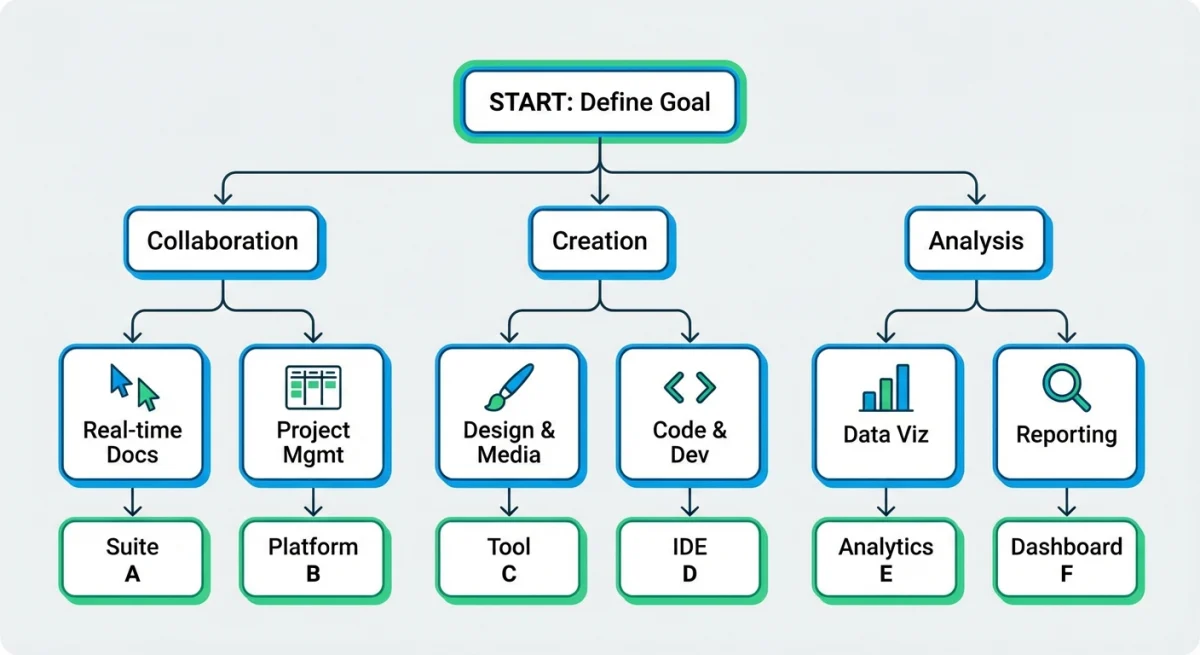
Not sure where to start? Here's a simple guide based on what you need.
I just want something free
Go with Kap. It's free, open-source, and gets regular updates. It exports to GIF and other formats. No catch, no limits.
If you want even simpler, try LICEcap. It's tiny and does the bare minimum.
I need to share GIFs with my team
Pick ScreenSnap Pro. Record, annotate, upload. Get a link in seconds. It's built for team workflows and fast sharing.
I want the most features
CleanShot X covers the widest feature range here. It does screenshots, GIFs, videos, scrolling capture, and more. But be ready to pay extra for cloud features.
I record a lot of product demos
Gifox is your tool. Window tracking, tight compression, and a menu-bar workflow that stays out of the way. Free to try, with a Pro upgrade via in-app purchase.
Which Alternative Should You Choose?
The best Giphy Capture alternative depends on how you work. Here's a deeper look.
Choose ScreenSnap Pro if you:
- Share GIFs often via Slack, email, or docs
- Need annotations like arrows, blur, or text
- Want cloud sharing with instant links
- Prefer paying once instead of monthly
- Value a polished Mac-native feel
Choose Kap if you:
- Want a solid free option with no strings
- Need multiple formats (GIF, MP4, WebM)
- Like open-source software
- Don't need cloud sharing or fancy editing
- Are fine with community-driven updates
Choose LICEcap if you:
- Want the simplest, smallest tool
- Only need basic GIF recording
- Don't care about editing or sharing
- Just want software that "works"
Choose CleanShot X if you:
- Need a full screenshot + recording toolkit
- Want scrolling capture with GIF support
- Already use it and want one app for everything
- Don't mind paying more for cloud features
Choose Gifox if you:
- Record product demos or bug reports often
- Need to capture a specific window that moves around
- Want a clean menu-bar workflow instead of a full app window
- Are happy to start on the free tier and upgrade later
Making the Switch from Giphy Capture
Moving to a new tool is easy. Here's how to do it step by step.
Step 1: Download Your New App
Pick one from the list above. All have simple installers:
- ScreenSnap Pro. screensnap.pro
- Kap. getkap.co
- LICEcap. cockos.com/licecap
- CleanShot X. cleanshot.com
- Gifox. Mac App Store
Step 2: Grant Screen Recording Access
Modern macOS needs your okay before apps can record. Here's how:
- Open System Settings (or System Preferences on older macOS)
- Go to Privacy & Security
- Find Screen Recording in the sidebar
- Toggle on your new app
If the app you just installed is missing from the Screen Recording list, our screen recording on Mac guide walks through the exact steps to grant access.
Step 3: Learn the Shortcuts
Each app has different keyboard shortcuts. Take a few minutes to learn them. Most let you set your own.
Quick tip: Write your shortcuts on a sticky note until they become habit.
Step 4: Do a Test Recording
Before using your new app for real work:
- Start a short recording (5-10 seconds)
- Stop and check the output
- Try any editing tools
- Test sharing if the app has cloud features
This catches any issues before they matter.
Step 5: Remove Giphy Capture
Once you're happy with your new tool, remove the old one:
- Open Finder
- Go to Applications
- Drag Giphy Capture to the Trash
- Empty Trash
Using macOS's built-in tools? Check out QuickTime screen recording as another option.
Frequently Asked Questions
Conclusion
Giphy Capture served Mac users well when it launched. But years of near-silence and a 30-second cap that never budged mean it's time to move on.
The good news? You have great choices now:
- ScreenSnap Pro. Polished cloud sharing and annotations
- Kap. Open-source and totally free
- LICEcap. Dead simple and tiny
- CleanShot X. Powerful and feature-packed
- Gifox. Precise window-focused recording
Each of these beats an app that stopped evolving years ago.
For most users, ScreenSnap Pro hits the sweet spot. It balances features, ease of use, and fair pricing. This is especially true if you share GIFs often and want built-in annotations.
On a tight budget? Kap gives you solid power at no cost.
Want even more options? Check out our guide to the best screenshot apps for Mac.
Whatever you pick, you'll wonder why you stuck with Giphy Capture for so long.

Morgan
Indie DeveloperIndie developer, founder of ScreenSnap Pro. A decade of shipping consumer Mac apps and developer tools. Read full bio
@m_0_r_g_a_n_