Kap for Mac Review: Free Screen Recorder + Alternatives (2026)
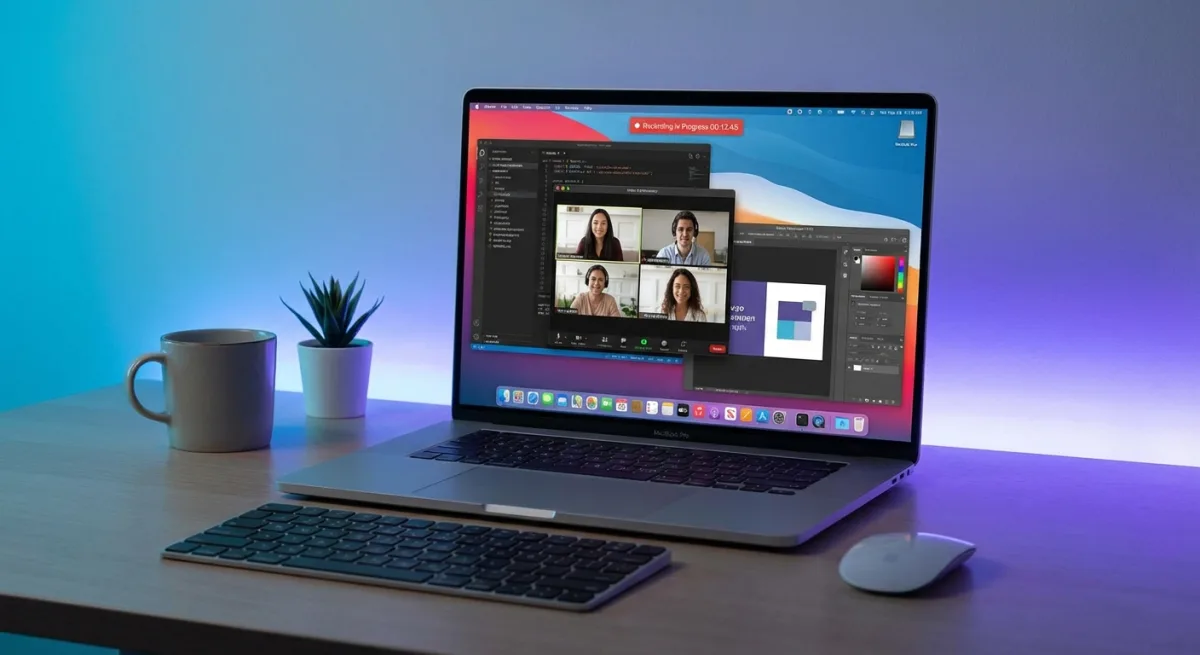
Kap screen recorder is a free, open-source screen recording app for Mac. It's built with web technology and has over 19,000 stars on GitHub. That makes it one of the most popular options for creating GIFs on macOS. But is it the right choice for you, or would a more polished app like ScreenSnap Pro serve you better?
In this review, we'll cover what makes Kap great. We'll also show where it falls short. And we'll share alternatives that might serve you better.
TL;DR: Kap is solid for basic GIF recording. It's free, open source, and has no watermarks. But it lacks annotation tools, cloud sharing, and uses more memory than native apps. Best for: developers who need quick GIF demos. Consider alternatives if you need editing or faster workflows.
What is Kap Screen Recorder?
Kap is an open-source screen recorder built by Wulkano. It uses Electron and web technologies under the hood.
The app launched in 2016. It quickly gained popularity among developers. Why? It offers a free, no-frills way to create GIFs and screen recordings on macOS.
The name "Kap" comes from the Icelandic word for "capture." Fitting for a screen capture tool!
Many GitHub projects fade over time. Not Kap. The community keeps it updated. They also add new features through plugins.
Here's what makes it stand out:
- Completely free. No trials, no watermarks, no paid tiers
- Open source on GitHub with 19k+ stars
- Multiple export formats. GIF, MP4, WebM, APNG
- Plugin system for extra functionality
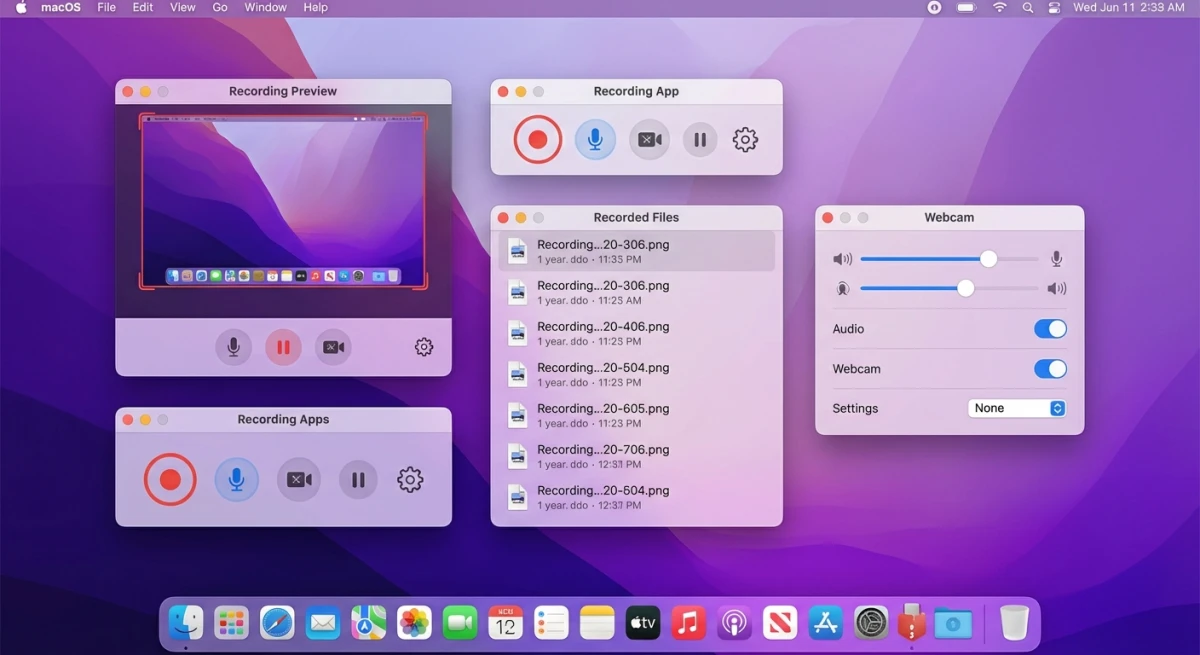
- Menu bar access for quick recordings
- Customizable keyboard shortcuts
You can install Kap via direct download or through Homebrew:
brew install --cask kapThe app sits in your menu bar. It's ready to capture screen regions, windows, or your entire display with a single click.
It's especially popular with developers. They use it for creating quick bug reproductions and feature demos. These work great in GitHub issues or Slack channels.
Kap Review: Features and Capabilities
What Kap Does Well
1. GIF Recording Made Simple
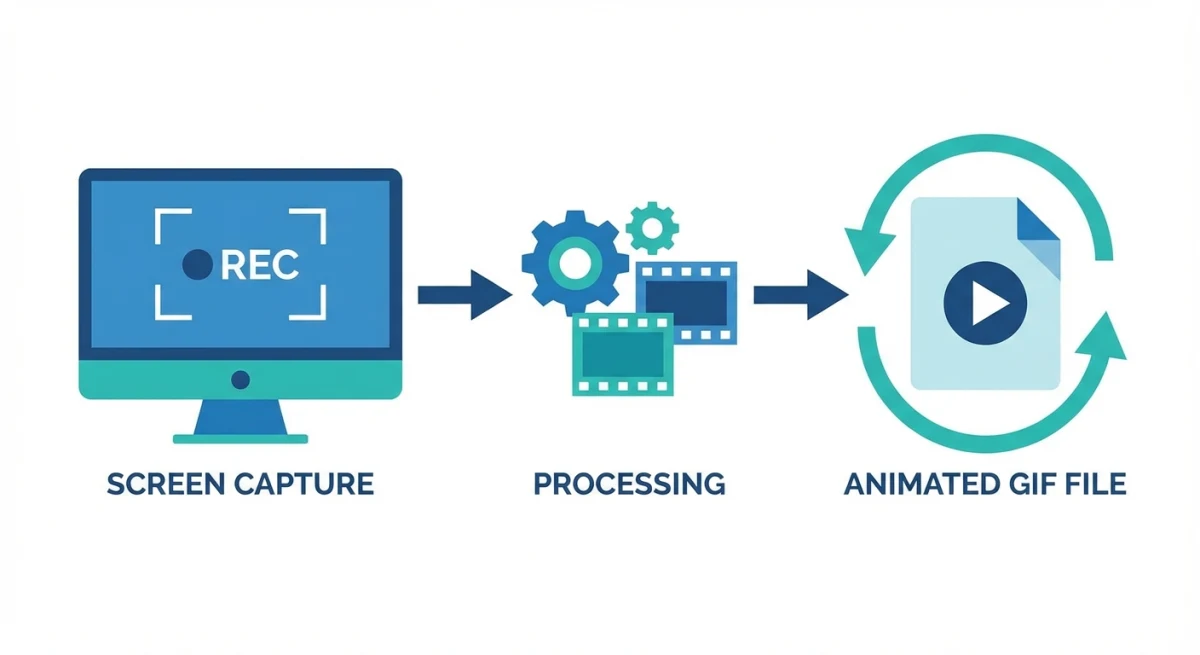
Kap excels at creating GIFs from your screen. No need to convert MOV to GIF later. Just select your area, record, and export. The whole workflow stays simple.
2. Multiple Export Options
Choose from several output formats:
| Format | Best For |
|---|---|
| GIF | Quick demos, bug reports, social media |
| MP4 | Longer recordings, better compression |
| WebM | Web embedding, open format |
| APNG | High-quality animated images |
3. Adjustable Settings
You can tweak the frame rate (up to 60 FPS), quality, and size. The app won't hog your system. And output quality stays decent.
4. Plugin Ecosystem
Kap supports plugins for uploading directly to services like:
- Imgur
- Giphy
- S3
- Custom destinations
5. It's Actually Free
No account required. No "premium" features locked behind paywalls. Just download and use. For an open-source screen recorder for Mac, that's refreshing.
Where Kap Falls Short
1. Electron Overhead
Kap is built on Electron. What does that mean for you? Electron apps run like a web browser in the background. This uses more of your Mac's resources.
Here's what to expect:
- Memory usage: 200-400MB while running
- Startup time: Slower than native Mac apps
- Recording lag: Can stutter during high-res captures
- Battery drain: Higher than native alternatives
Got an older Mac? Or prefer apps that open fast? The extra load can be annoying. Native Mac apps use just 50-100MB for the same task.
2. Limited Editing
Kap records well. But editing? Not so much.
What you can do:
- Trim the start and end of recordings
- Adjust export settings
What you can't do:
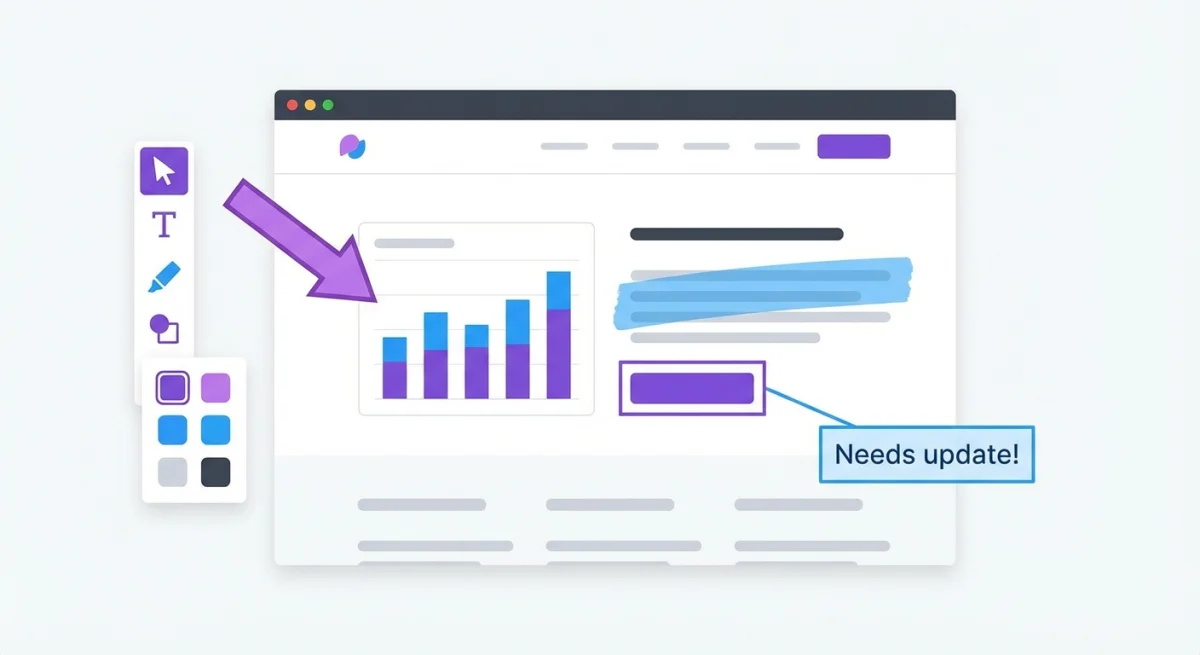
- Add arrows or annotations
- Add text overlays
- Blur sensitive info
- Redact passwords or data
Need to edit screen recordings or add callouts? You'll need another app. This is Kap's biggest gap for pro use.
3. No Cloud Sharing
Kap saves files to your Mac. There's no built-in cloud sharing.
Want to share a GIF? Here's your workflow:
- Record and export the file
- Open a browser
- Upload to Imgur, Giphy, or another service
- Copy the link
- Paste where you need it
Now compare that to tools with built-in cloud sharing. Record, click share, done. That's it. The extra steps in Kap add up fast.
4. No Audio Recording
Kap focuses on visual recording only. Need screen recording with audio on Mac? You'll need to look elsewhere.
5. Slow Development Pace
The project is maintained. But updates come slowly. Electron makes it harder to keep up with macOS changes.
Who is Kap Best For?
Based on our testing, Kap works best for certain users.
Kap is great for:
- ✅ Developers. Quick bug reproduction GIFs for GitHub issues or Slack
- ✅ Open source fans. You prefer community-built tools
- ✅ Casual users. You record once a week or less
- ✅ Budget-conscious users. Free is the right price
Kap might not be ideal if you:
- ❌ Need annotation tools (no arrows, text, or blur)
- ❌ Want instant cloud sharing (manual uploads add friction)
- ❌ Record audio (Kap is video-only)
- ❌ Have an older Mac (Electron's overhead is noticeable)
- ❌ Record daily (frequent users need faster workflows)

Tired of plain screenshots? Try ScreenSnap Pro.
Beautiful backgrounds, pro annotations, GIF recording, and instant cloud sharing, all in one app. Pay $34 once, own it forever.
See pricing and featuresKap Alternatives: 4 Options for More Features
If Kap's limitations affect your workflow, consider these alternatives:
1. ScreenSnap Pro: Best for Annotation + Cloud Sharing
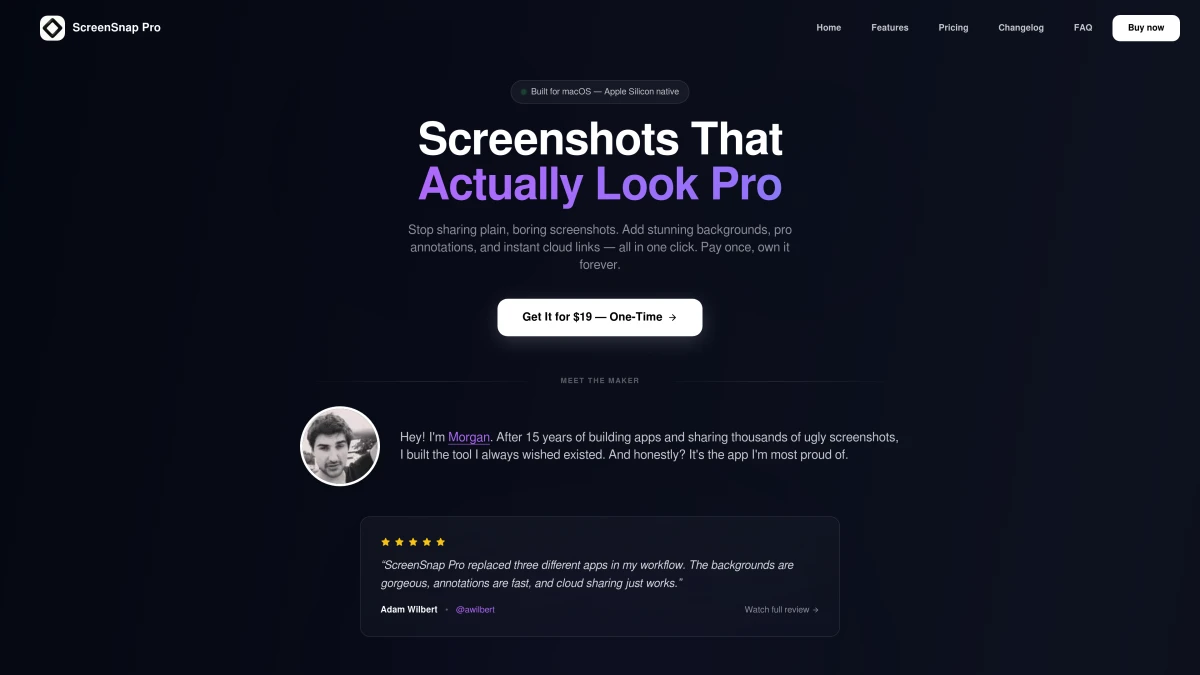
ScreenSnap Pro fills the gaps Kap leaves:
Key advantages over Kap:
- Built-in annotation. Arrows, shapes, text, blur, pixelate
- Cloud sharing. Instant shareable links, no manual uploads
- Beautiful backgrounds. 500+ wallpaper options for polished screenshots
- OCR text extraction. Copy text from any image
- One-time purchase. Pay once, own forever (no subscriptions)
ScreenSnap Pro handles both screenshots, GIF recording, and screen recording. It's a true screenshot app for Mac that covers multiple use cases. And it's native Mac software, so it's faster and lighter than Electron apps.
Best for: Developers, designers, and marketers who need annotation tools and fast cloud sharing.
2. CleanShot X: Most Feature-Rich
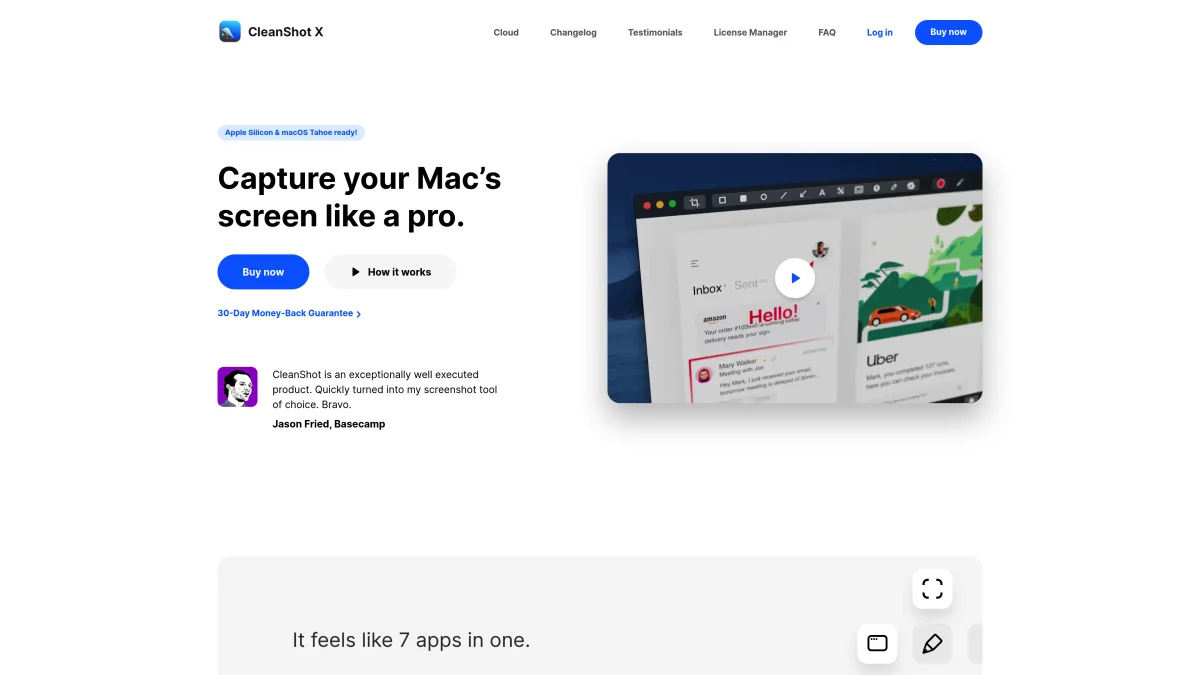
CleanShot X is the premium option with extensive features:
Key features:
- Scrolling screenshots
- Screen recording with audio
- Built-in annotation
- OCR and text recognition
- Cloud storage (with subscription)
Pricing: $29 one-time or $8/month for cloud
Best for: Power users who want maximum functionality. Just note the subscription for cloud features.
3. LICEcap: Ultra-Lightweight
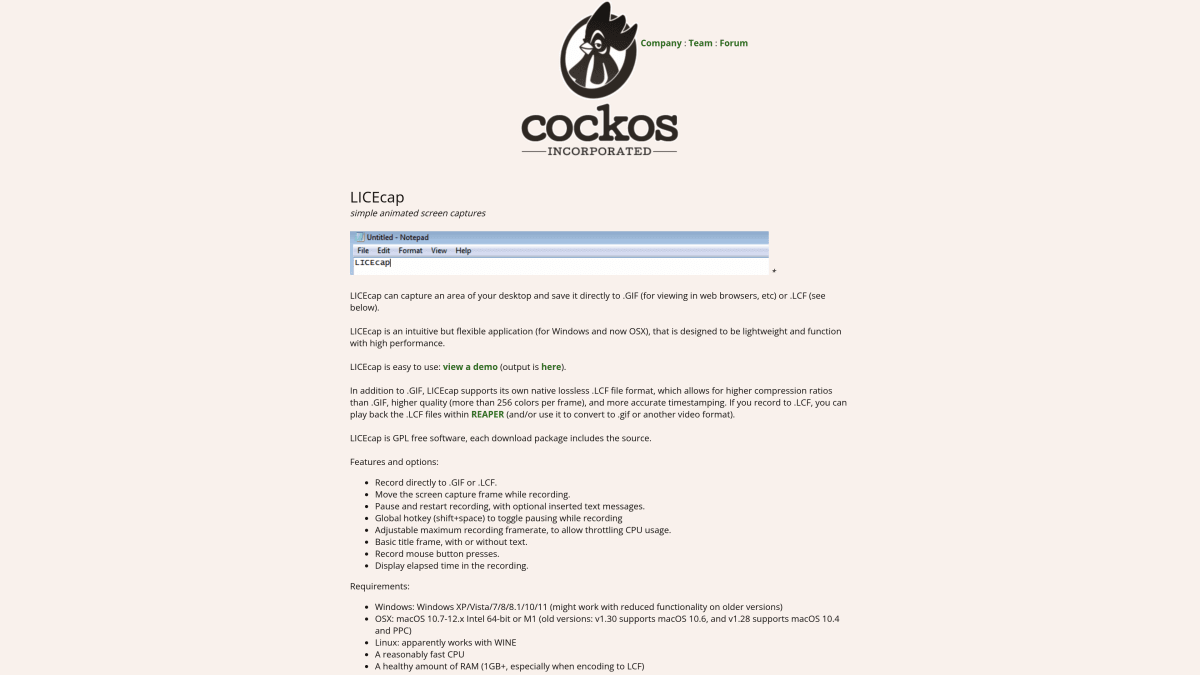
LICEcap takes the opposite approach from Kap. Minimal features, minimal resources.
Key features:
- Tiny footprint (~500KB)
- Direct GIF output
- No Electron, no bloat
- Cross-platform (Mac, Windows)
Limitations: Very basic, no editing, dated interface
Best for: Users who only need simple GIF recording with zero overhead.
4. QuickTime Player: Already Installed
Don't overlook what's already on your Mac.
Key features:
- Pre-installed on every Mac
- Screen and window recording
- Basic trim editing
- Zero additional software needed
- Reliable and well-maintained by Apple
- Native performance (no Electron overhead)
Limitations: No GIF export, limited editing, no annotation
Here's a tip: Record with QuickTime, then convert to GIF later. Use FFmpeg or an online tool. Yes, it's an extra step. But QuickTime's output is high quality. It compresses well too.
To start a QuickTime screen recording:
- Open QuickTime Player
- Go to File → New Screen Recording
- Click the record button
- Select area or full screen
- Click to start, click menu bar to stop
Best for: Quick recordings when you don't want to install anything. Great if you're short on disk space too.
Honorable Mentions
A few other tools worth considering:
- Gifox. Mac App Store option with nice UI, freemium model
- Shottr. Free, lightweight screenshot tool (screenshots only)
- OBS Studio. Free and powerful, but complex for simple tasks
Kap vs ScreenSnap Pro: Feature Comparison
Here's how Kap stacks up against ScreenSnap Pro:
| Feature | Kap | ScreenSnap Pro |
|---|---|---|
| Price | Free | One-time purchase |
| GIF Recording | ✅ Yes | ✅ Yes |
| Screenshots | ❌ No | ✅ Yes |
| Annotation Tools | ❌ No | ✅ 11+ tools |
| Blur/Pixelate | ❌ No | ✅ Yes |
| Cloud Sharing | ❌ Plugins only | ✅ Built-in |
| Beautiful Backgrounds | ❌ No | ✅ 150+ options |
| OCR Text Extraction | ❌ No | ✅ Yes |
| Pin to Screen | ❌ No | ✅ Yes |
| Resource Usage | High (Electron) | Low (Native) |
| Export Formats | GIF, MP4, WebM | GIF, PNG, JPG |
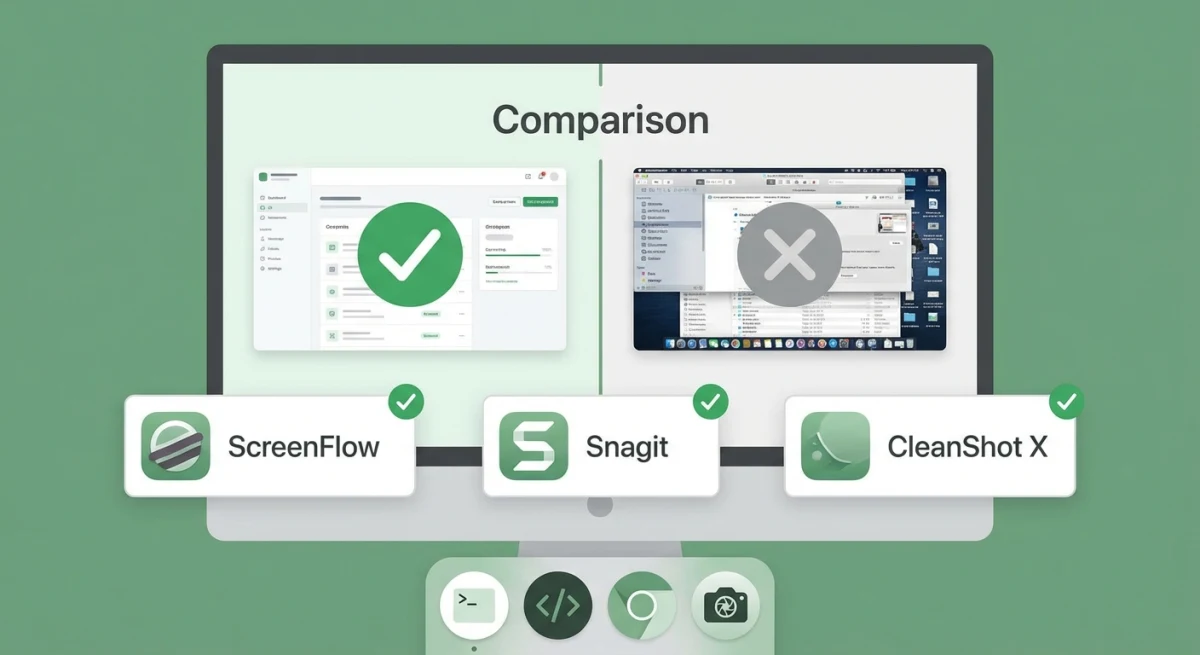
The bottom line: Kap is excellent for free, basic GIF recording. ScreenSnap Pro makes sense when you need annotation, pro presentation, or faster workflows.
Final Verdict: Kap Screen Recorder Review Summary
Choose Kap when:
- Budget is your main concern
- You only need occasional GIF recordings
- Basic trimming is enough for you
- You prefer open-source software
- You're fine uploading files manually
Choose a paid alternative when:
- You record or screenshot frequently (daily or weekly)
- You need to annotate, blur, or edit recordings
- Instant cloud sharing would save you time
- You want pro-looking output for clients
- Performance matters (native apps are faster and lighter)
Our take: For many users, Kap is a solid starting point. It does one thing well and costs nothing.
But if you want more, pay attention to the friction:
- Adding arrows to explain a bug
- Blurring sensitive data before sharing
- Skipping the manual upload step
Hit these pain points regularly? Tools like ScreenSnap Pro pay for themselves quickly. A one-time purchase beats wasting 5 minutes per recording.
Frequently Asked Questions
- Open Kap preferences
- Go to the Plugins tab
- Search for available plugins (Giphy, Imgur, S3, etc.)
- Click Install

Morgan
Indie DeveloperIndie developer, founder of ScreenSnap Pro. A decade of shipping consumer Mac apps and developer tools. Read full bio
@m_0_r_g_a_n_