8 Best Screen Studio Alternatives for Mac (2026)
Looking for a Screen Studio alternative? Screen Studio makes gorgeous recordings with automatic zoom effects. But it's now subscription-only ($9/month billed yearly, or $29/month), and it only works on Mac. Below are 8 alternatives, including free and open-source options, a cross-platform pick, and a one-time-purchase Mac+Windows tool.
Quick rundown:
- ScreenSnap Pro. Best one-time purchase: recorder, video editor with auto zoom, and screenshots in one app (Mac + Windows, $34 lifetime)
- FocuSee. Best cross-platform with AI auto-zoom
- Tella. Best web-based option for design-first videos
- OBS Studio. Best free option (no auto-zoom)
- Descript. Best for text-based editing of recordings
- Cap. Open-source recorder with auto-zoom (Mac, Windows, Linux; free for personal use)
- OpenScreen. Free MIT-licensed recorder with click-based auto-zoom
- Kap. Free open-source capture for quick GIFs and clips (no auto-zoom)
Why Look for a Screen Studio Alternative?
Screen Studio built its name on one thing: making screen recordings look polished. The auto-zooms and smooth cursor tracking are great. But that magic comes with trade-offs.
Pricing That's Hard to Justify
Screen Studio's pricing has changed a lot. It started at $89 for a lifetime license, then rose to $149. Now new buyers can't get a one-time license at all.
Screen Studio is subscription-only: $9/month billed yearly ($108 a year) or $29/month. Over three years, the yearly plan adds up to $324.
For indie creators and small teams, this is steep. It's now in the same price range as full video editors. Many are asking: does an auto screen recorder justify this high price tag?

Mac-Only Limitation
Looking for "Screen Studio for Windows"? Stop now. There's no Windows version. The developers say there are no near-future plans to add one.
This hurts remote teams. You need the same output whether your designer uses a MacBook or your dev uses Windows. Tools like ScreenSnap Pro, FocuSee and OBS Studio fix this because they run on both platforms.
Video-Only Focus
Screen Studio only does video (it can export a GIF). What about screenshots? Or marked-up bug reports? You'll need another app.
Tools like ScreenSnap Pro (screenshots, recording, GIFs and video editing) and CleanShot X (screenshots + video) handle multiple capture types in one app.
Think about your day:
- Record a 2-minute how-to
- Grab screenshots for docs
- Mark up bug reports
- Make GIF demos for GitHub
Running many apps slows you down. The best tools handle all capture types in one place.
What to Look for in a Screen Studio Alternative
Before diving into tools, here's what actually matters:
Auto-Zoom and Cursor Tracking
This is Screen Studio's star feature. It's why people pay top dollar. Good tools should offer the same kind of zoom effects.
Look for tools that let you change:
- Zoom timing
- Zoom strength
- Cursor glow
Some apps do this on their own (like ScreenSnap Pro or FocuSee). Others need you to set keyframes (like Camtasia). Auto saves time but gives less control. Manual takes longer but is more exact.
Think about how often you'll use these effects:
- Quick team demos → auto-zoom may be overkill
- Polished marketing videos → worth the time
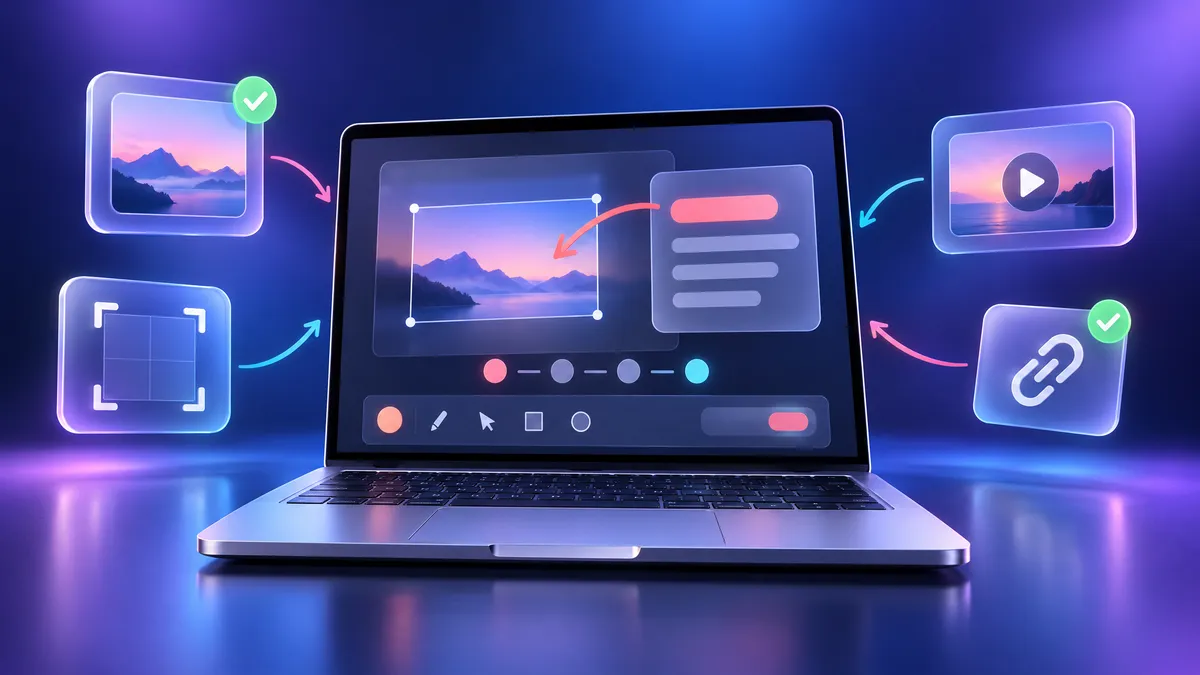
Screen Recording + Screenshots
Why use two apps when one will do? The best Snagit options combine video and screenshots in one tool. GIF capture is a nice bonus, and it's perfect for Slack or GitHub issues.
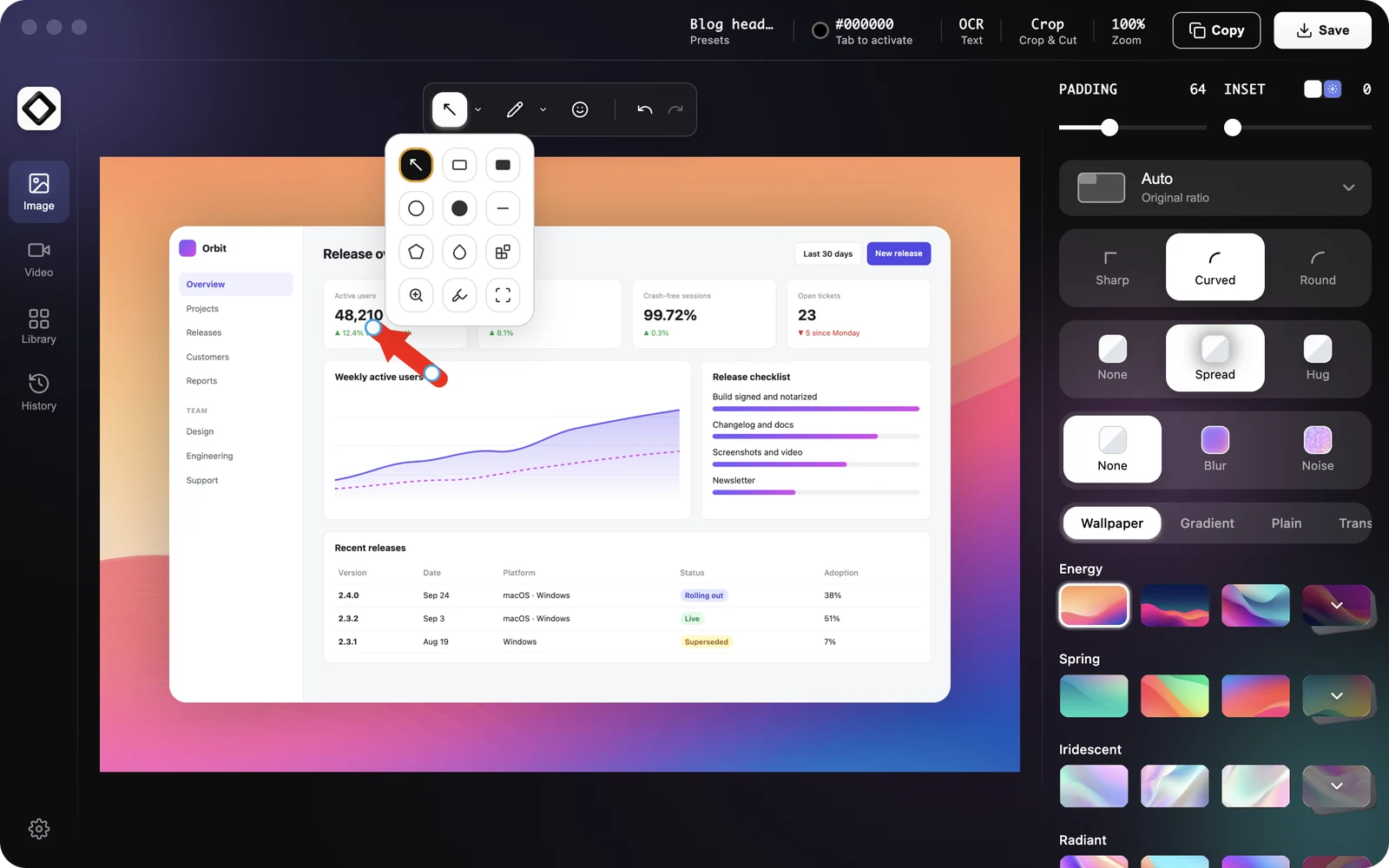
Annotation Tools
Raw clips rarely tell the whole story. You'll want:
- Arrows and shapes
- Text labels
- Blur tools to hide private info
- Glow effects
Some tools include these while you record. Others add them after in an editor.
Pricing Model: One-Time vs Subscription
This is where tools really differ. Screen Studio used to sell one-time licenses, but new buyers can only subscribe now. Your options:
- One-time. Pay once, own forever (ScreenSnap Pro, CleanShot X)
- Monthly/yearly. Ongoing fees, always up to date (Screen Studio, Loom, Tella)
- Free/Open Source. No cost, more setup needed (OBS Studio)
Top 5 Screen Studio Alternatives for Mac
I tested dozens of screen recording tools. Here are five established picks that truly match Screen Studio's quality, followed by three newer free and open-source options further down.
1. ScreenSnap Pro: Best One-Time Purchase
Price: $34 (one-time) | Platform: macOS + Windows

Screen Studio's switch to a subscription sent you here? As a Mac screen recorder with auto zoom, ScreenSnap Pro offers the best value. It's a screen recorder and video editor plus a screenshot tool in one app. You pay $34 once, a small slice of what Screen Studio costs over time. No watermarks. No monthly fees.
One license covers 2 seats in any mix of Mac and Windows, with lifetime updates.
What makes it stand out:
- Screen Recording. MP4 at up to 60fps with webcam, mic and system audio, or record straight to GIF
- Built-In Video Editor. A multi-track timeline to trim, split, cut and change speed, plus B-roll, music and voiceover tracks
- Auto Zoom. Zoom follows your cursor, and you can add manual zooms where you want them
- One-Click Silence Removal. Cut dead air without scrubbing the timeline
- Polished Frames. Backgrounds, a webcam overlay and aspect presets, with MP4 or GIF export
- 17 Markup Tools Plus Emoji. Arrows, shapes, blur, pixelate, spotlight, callouts, counters and more
- OCR and Share Links. Copy text from any capture, or upload it for a quick share link
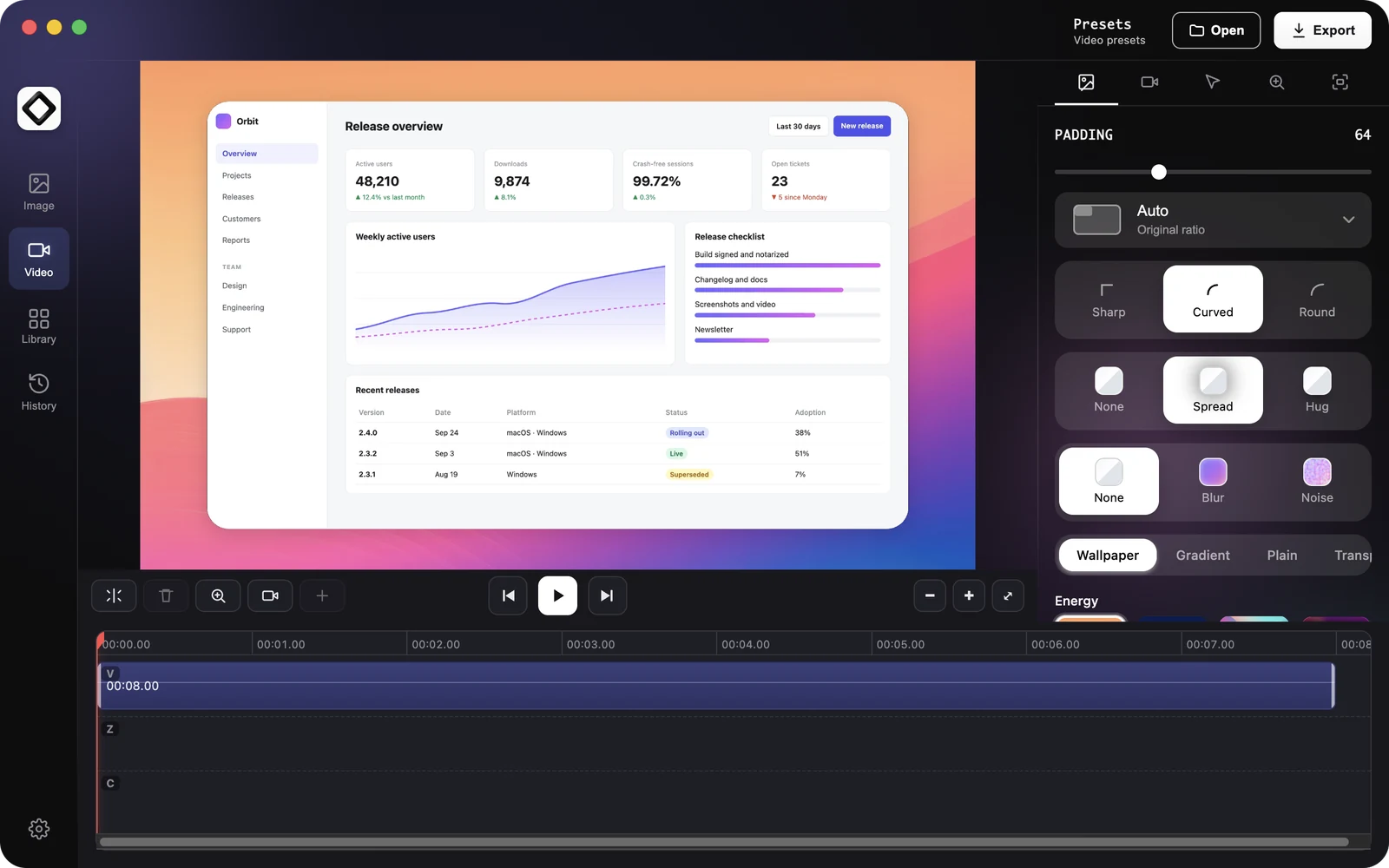
The honest trade-off: ScreenSnap Pro has no captions or subtitles. If you need them, FocuSee or Descript is the better pick. It also can't live stream, so use OBS Studio for that.
Best for: Devs, designers, and creators who want polished recordings and screenshots in one app, without monthly fees.
The OCR feature alone is worth the price for devs. You can grab text from error messages, terminal output, or any screen. Paired with markup tools, you'll make clear bug reports faster than typing them out. And since video projects reopen, you can fix one zoom next week without recording again.
2. FocuSee: Best Cross-Platform Option
Price: From $49.99/year or $19.99/month; $199.99 lifetime | Platform: macOS + Windows
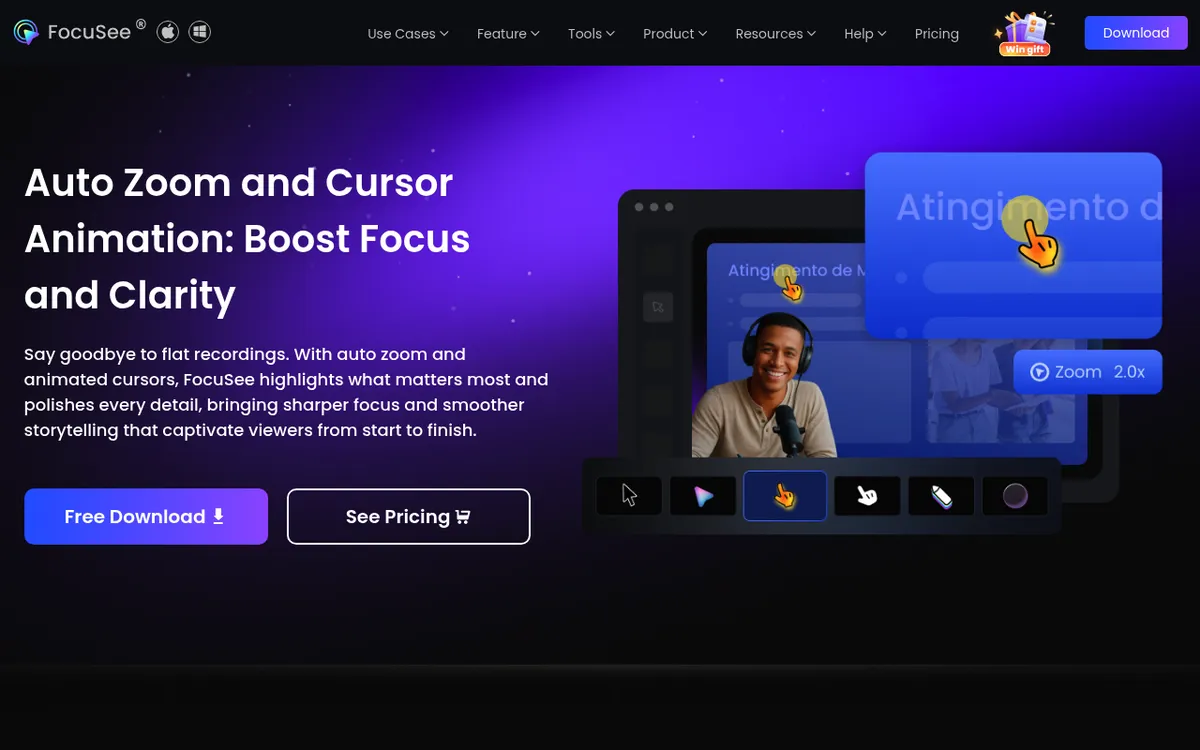
FocuSee is built for Screen Studio users who need Windows support. It has the same auto-zoom and cursor tracking. And it runs on both platforms.
Key features:
- Auto Zoom Effects. Smart cursor tracking with smooth moves
- AI Editing. Cuts noise and filler words
- AI Captions. Subtitles in 55+ languages
- Motion Blur. Same polished feel as Screen Studio
- AI Avatar. Create on-screen hosts
The honest trade-off: The AI tools cost extra. Captions, filler-word removal and avatars need the Advanced plan ($79.99/year) and its AI credits. The $199.99 lifetime plan only covers FocuSee 2.x, so the next major version is a paid upgrade. But for teams needing the same tools on Mac and Windows, this cost may be worth it.
Best for: Teams on both Mac and Windows who need the same workflow.
A note on FocuSee's AI: It's cool but still growing. The auto filler-word remover works well for casual clips. But it can cut real words by mistake. Always check before you post. That said, for high-volume how-tos, these AI tricks save hours.
3. Tella: Best Web-Based Solution
Price: $13-19/user/month billed yearly ($26-39 monthly) | Platform: Web, Mac app, Windows app (beta)
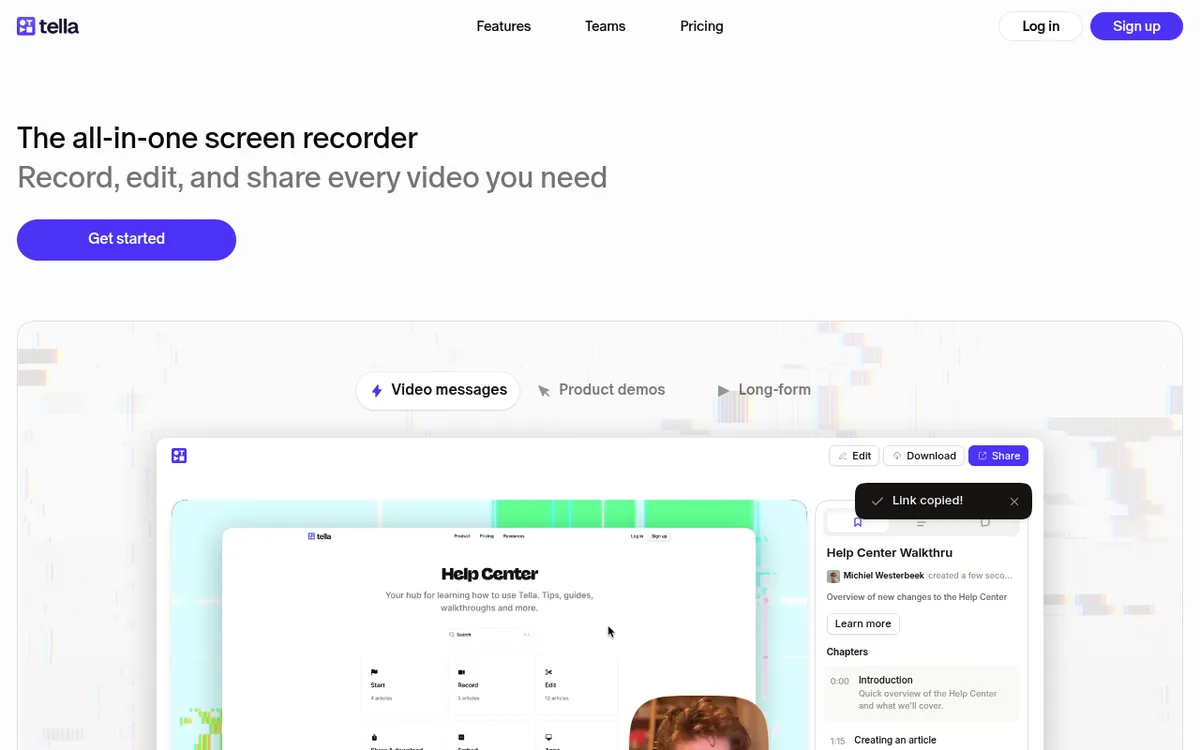
Tella takes a fresh path. It started in the browser, and you can still record there with nothing to install. There's also a Mac app, a Windows app in beta, and a Chrome extension. Your videos live in the cloud, so there are no storage worries.
Key features:
- Segment Recording. Record in chunks, stitch them together
- Speaker Notes. Built-in script to keep you on track
- Custom Backgrounds. Pro clips without green screens
- Templates. Ready-made layouts for many video types
- Auto Zoom. Adds zoom effects for you, like Screen Studio
- Direct Upload. Send to YouTube, embed anywhere
The honest trade-off: Tella is cloud-first, so you need a good connection to edit and share. There's no free plan, only a 7-day Pro trial. If you mostly want recording Mac system audio into local files, a desktop recorder is simpler.
Best for: Remote hosts and creators who work on many devices.
Tella's segment mode is worth a look. Instead of one long take, you record in short chunks. Made a mistake? Just redo that part. It feels more like making a slide deck than old-school video work.
4. OBS Studio: Best Free Option
Price: Free | Platform: macOS 13+, Windows, Linux
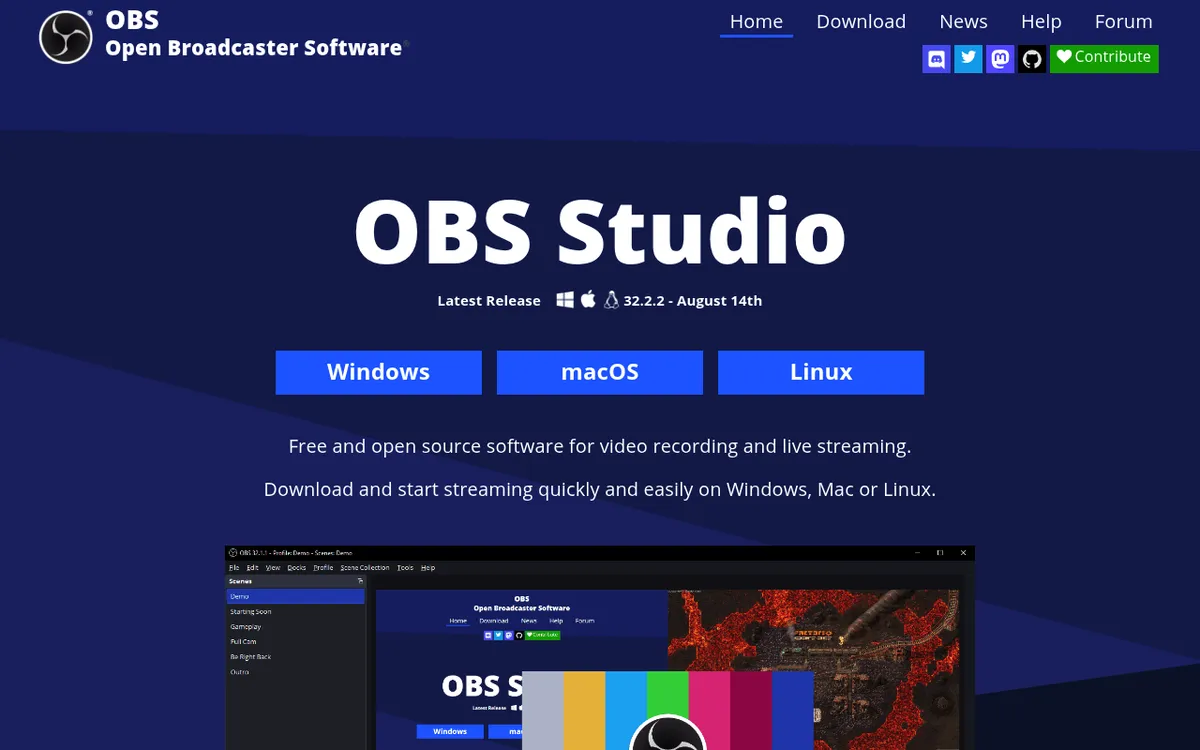
OBS Studio is a free, open-source screen recorder. It's flexible and costs nothing. It lacks Screen Studio's auto polish. But it gives you full control.
Key features:
- Multi-Source Recording. Mix screen, webcam, images, and browser
- Scene Switching. Smooth, broadcast-style cuts
- Custom Filters. Fix colors, add green screen, clean audio
- Live Streaming. Stream to Twitch, YouTube, or your own server
- Plugin Add-ons. Extend with community tools
The honest trade-off: OBS has a steep learning curve. The layout was built for streamers, not quick clips. There's no built-in auto-zoom, so you'll need plugins. There's no editor either, so you'll trim in another app.
Best for: Power users, streamers, and those willing to learn for max freedom.
OBS is worth the effort. Once set up, you can capture pro-quality video with one key press. Many pros use OBS to record, then edit in other apps.
5. Descript: Best for Text-Based Editing
Price: Free (720p, watermarked); paid $16-50/month billed yearly | Platform: macOS 14+, Windows 11, web
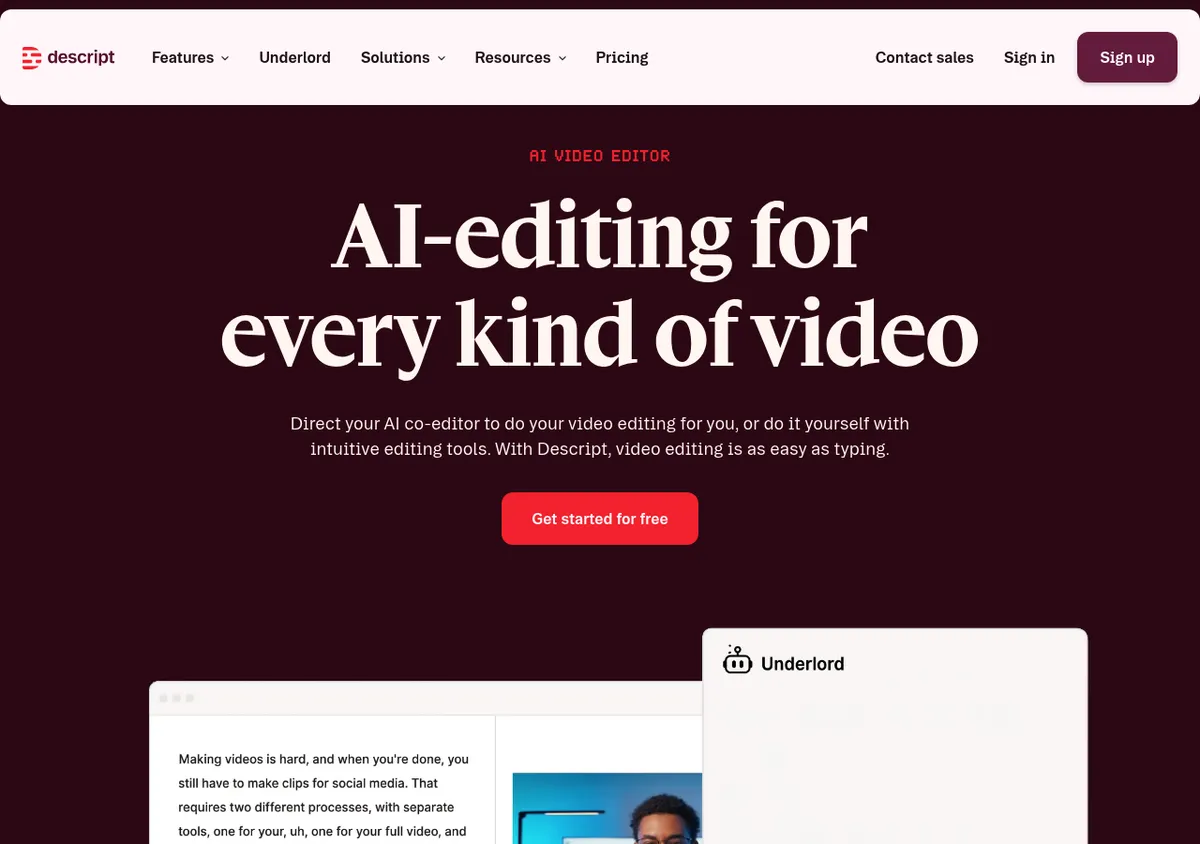
Descript changed how video editing works. Record your screen and Descript types out every word. Delete text from the script. The video updates on its own.
Key features:
- Text-Based Editing. Edit video by editing the script
- AI Voice Clone. Fix audio slips without re-recording
- Filler Word Removal. Auto-cuts "um," "uh," and pauses
- Studio Sound. AI-boosted audio cleanup
- Screen Recording Built-in. Capture screen and webcam at once
The honest trade-off: Descript shines for voice-over content. It lacks Screen Studio's motion effects. If your videos have little speech, you won't gain much from text editing.
Best for: Podcasters, teachers, and anyone making talk-heavy content.
Descript's AI speech is cool. It makes an AI clone of your voice. Made a slip? Type the right words and Descript speaks them in your voice. It works well for small fixes. Just be open about it: always note when AI made the audio.

Tired of plain screenshots? Try ScreenSnap Pro.
Beautiful backgrounds, pro annotations, GIF recording, and instant cloud sharing, all in one app. Pay $34 once, own it forever.
See pricing and featuresFree and Open-Source Screen Studio Alternatives (New in 2026)
A newer wave of free and open-source recorders has picked up steam over the past year, and unlike OBS, some of them cover Screen Studio's signature auto-zoom out of the box. They are younger projects than the tools above, so expect rougher edges. But the price is hard to argue with.
6. Cap: Open-Source Recorder with Auto-Zoom
Price: Free for personal use; Desktop License $29/year or $58 once; Cap Pro $12/user/month | Platform: macOS, Windows (beta), Linux | License: Open source
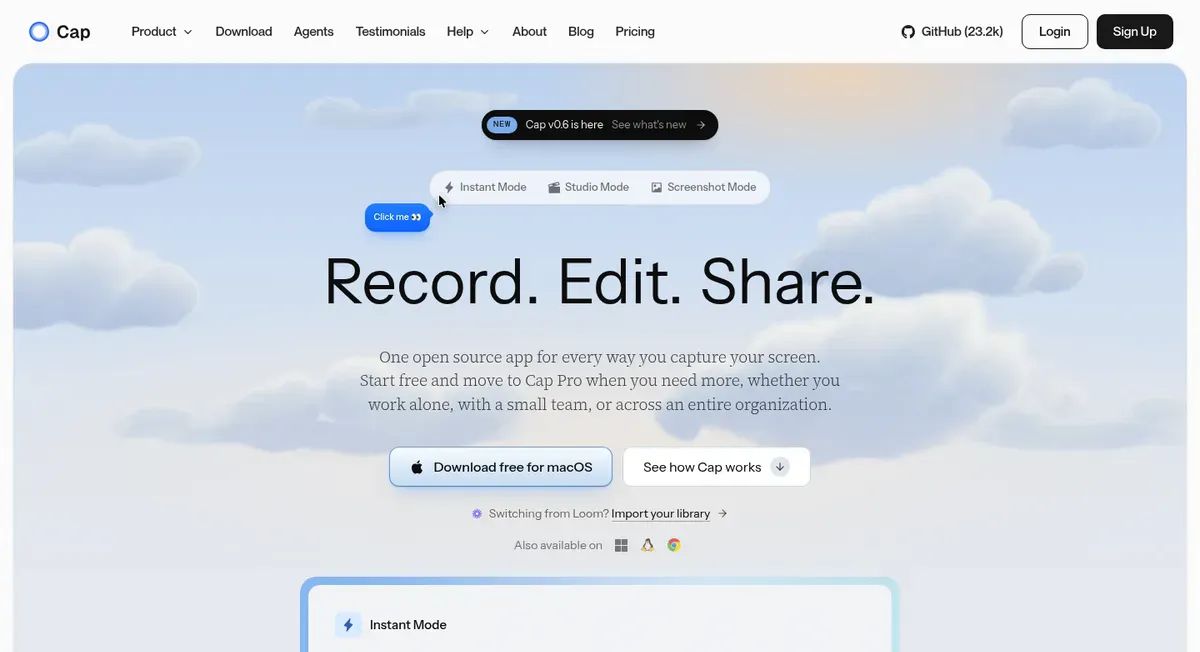
Cap is an open-source screen recorder with apps for macOS, Windows (beta) and Linux. Its Studio Mode zooms in automatically when you click, and you can adjust or add zoom effects afterward in its timeline editor. Recordings stay on your machine unless you opt into cloud sharing.
One caveat: the free tier is for personal use only, and its cloud share links stop at 5 minutes. Commercial use requires a paid license. We take a closer look in our Cap.so review.
7. OpenScreen: Free MIT-Licensed Recorder
Price: Free | Platform: macOS 13+, Windows, Linux | License: MIT (open source)
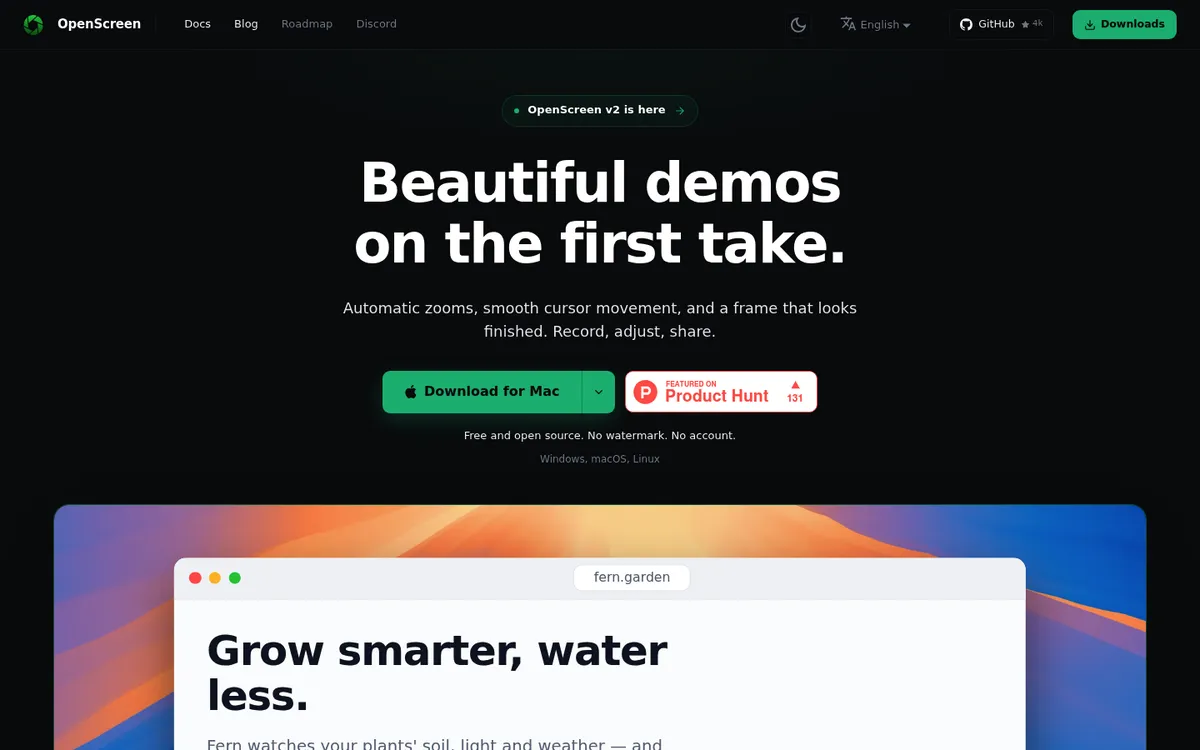
OpenScreen is a free, MIT-licensed recorder with automatic click-based zooms (depth, duration, and easing are all adjustable) plus manual zoom placement. It exports MP4 and GIF and runs on all three desktop platforms.
One caveat: it began as a side project, and the original developer said it was not production grade. That repository is now archived. Development goes on as a community project, made with the original author's approval, and version 2.0 shipped in October 2026. On a Mac, mic recording needs macOS 15 or later.
8. Kap: Free Open-Source Capture for Quick Clips
Price: Free | Platform: macOS 12 or later | License: MIT (open source)
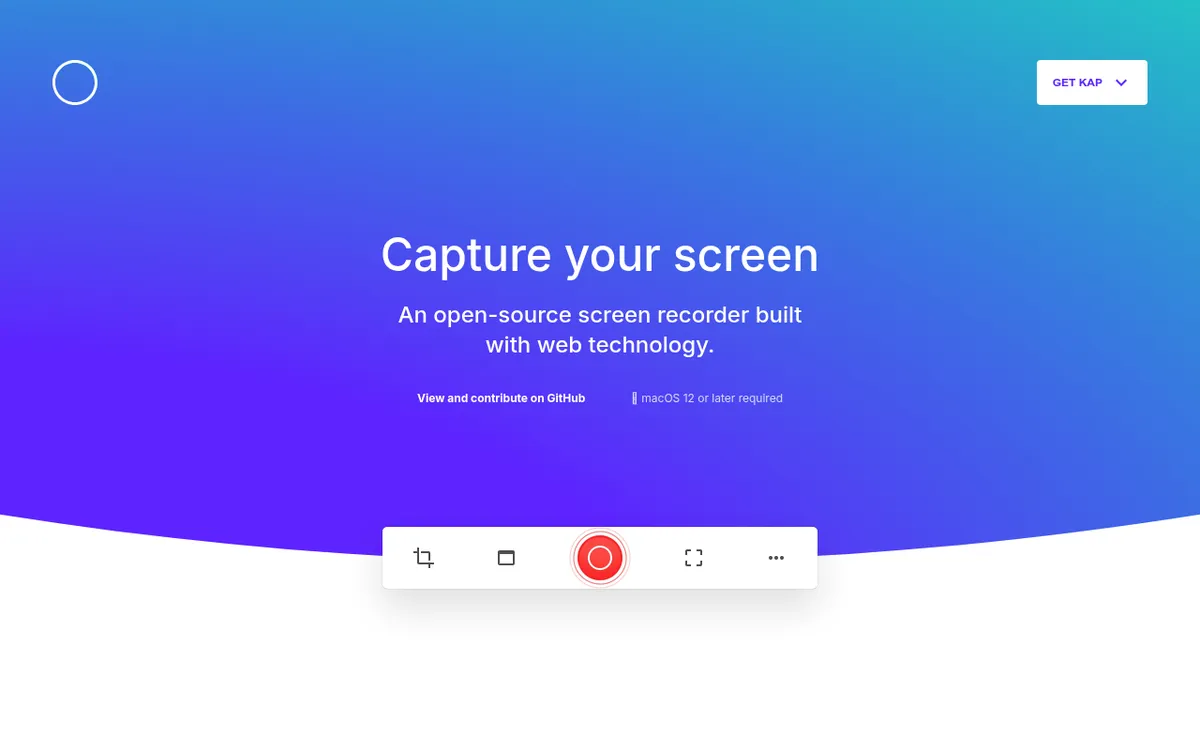
Kap is a free, open-source macOS recorder built for quick captures. It exports GIF, MP4, WebM, and APNG, can highlight your clicks, and supports trimming.
One caveat: there is no auto-zoom or motion editing. Kap records what is on screen and leaves the polish to you. Updates are rare, too: the latest release, 3.6.0, came out in October 2022. See our full Kap review for details.
Screen Studio Alternatives Comparison Table
| Feature | ScreenSnap Pro | FocuSee | Tella | OBS Studio | Descript |
|---|---|---|---|---|---|
| Price | $34 one-time | From $49.99/yr | $13-19/mo (yearly) | Free | Free-$50/mo (yearly) |
| Platform | Mac + Windows | Mac + Windows | Web, Mac, Win (beta) | Mac/Win/Linux | Mac, Windows, web |
| Auto-Zoom | ✅ | ✅ | ✅ | ❌ (plugins) | ❌ |
| Video Editor | ✅ | ✅ | ✅ | ❌ | ✅ |
| Screenshots | ✅ | ❌ | ❌ | ❌ | ❌ |
| GIF Recording | ✅ | ✅ | ❌ | ❌ | ❌ |
| Annotations | ✅ 17 tools + emoji | ✅ | ✅ | ❌ | ✅ |
| AI Features | Silence removal, OCR | Noise removal, captions | Silence removal, AI titles | ❌ | Transcription, voice clone |
| Best For | Recording + screenshots in one app | Cross-platform teams | Remote presenters | Power users | Narrated content |
The free and open-source picks (Cap, OpenScreen, Kap) are covered in their own section above: all three cost nothing to start, Cap and OpenScreen include auto-zoom, and Kap keeps things simple with GIF-friendly exports.
How to Choose the Right Alternative
Still not sure? Here's a quick guide:
Think About What You Make
Different tools shine at different tasks. Ask: what do I create most?
- Team docs. Speed and markup matter more than polish. Go with ScreenSnap Pro or CleanShot X.
- Marketing clips. Polish matters. ScreenSnap Pro covers auto zoom and backgrounds. FocuSee or Descript add captions.
- Course videos. Long talks gain from Descript's text-based editing.
- Bug reports. Screenshots with notes beat video. ScreenSnap Pro wins here.
- Live streaming. OBS Studio is the only real choice.
Choose ScreenSnap Pro if:
- You want one-time pricing, not a subscription
- You need screen recording AND screenshots in one app
- You want auto zoom and a built-in video editor
- Quick GIF demos and markup tools are part of your work
Choose FocuSee if:
- Your team uses both Mac and Windows
- Auto-zoom is a must-have
- You're okay paying for high-end features
Choose Tella if:
- You work on many devices
- You prefer web-based tools
- You make polished video talks
Choose OBS Studio if:
- Budget is your main concern
- You're fine with tech setup
- You want max control
Choose Descript if:
- Your content has lots of speech
- You want text-based video editing
- Audio quality is key
Choose Cap, OpenScreen, or Kap if:
- Your budget is zero but you still want auto-zoom (Cap, OpenScreen)
- You prefer open-source software you can inspect and modify
- Quick GIF clips are all you need (Kap)
Frequently Asked Questions
The Bottom Line
Screen Studio made "polished screen recording" a thing. But its high price isn't the only way to get pro results.
For most Mac users, ScreenSnap Pro gives the best balance. It records, edits with auto zoom, and takes screenshots in one app, for a one-time price. FocuSee wins for Mac + Windows teams. OBS Studio can't be beat on price, though Cap and OpenScreen now bring free, open-source auto-zoom to the table, and Kap covers quick GIF clips. And Descript changes how you edit voice-over content.
The right pick depends on your workflow. But one thing's clear: you have options now that didn't exist when Screen Studio came out.
Many of these tools are free or have a trial, and ScreenSnap Pro comes with a 30-day money-back guarantee. Spend an hour testing your top two picks with a real task. You'll quickly see which one fits how you work.
Ready to step up your screen recording game? Get ScreenSnap Pro and see how much time pro-grade captures can save you.

Morgan
Indie DeveloperIndie developer, founder of ScreenSnap Pro. A decade of shipping consumer Mac apps and developer tools. Read full bio
@m_0_r_g_a_n_