How to Screenshot on Mac: Complete Guide for Every Mac (2026)
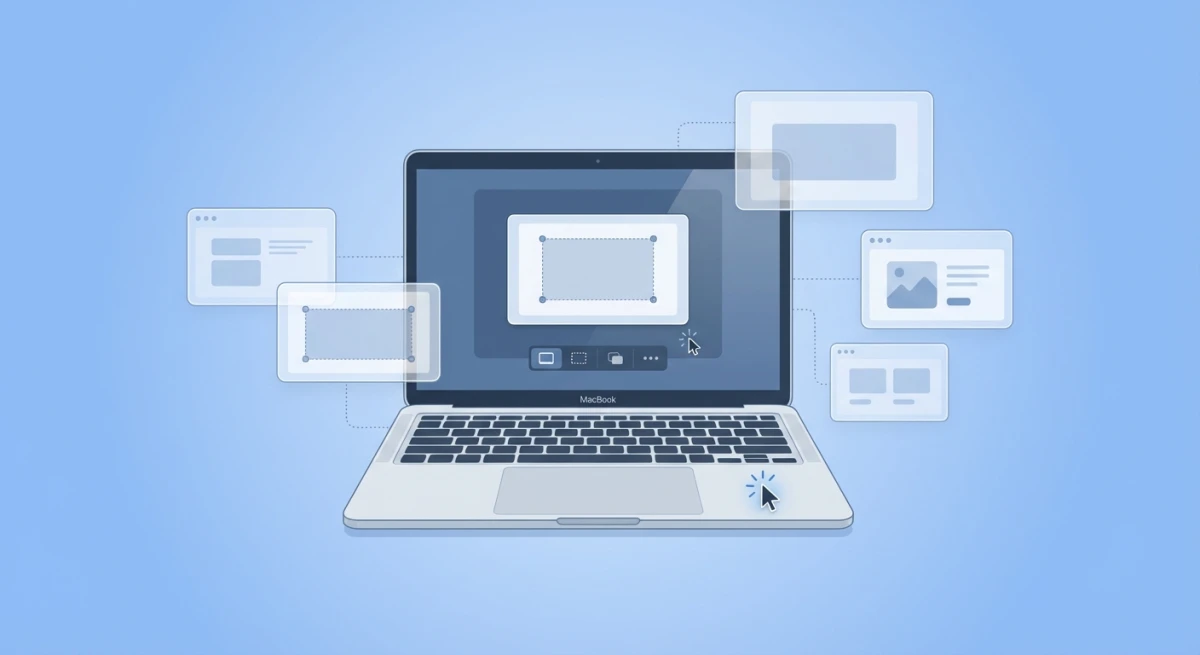
To take a screenshot on Mac, press ⌘ + Shift + 3 to capture the whole screen, or ⌘ + Shift + 4 to select an area. Hold Control with either shortcut to copy the screenshot to the clipboard instead of saving it to the Desktop. Press ⌘ + Shift + 5 for the full toolbar with window capture and screen recording.
On a Windows machine instead? Start with how to screenshot on any computer and find your keys first.
A screenshot on Mac saves your screen as an image file. Need to document a bug? Save a receipt? Create a tutorial? Share something with your team? macOS has built-in tools that make it easy, and apps like ScreenSnap Pro extend them with markup and instant cloud sharing. These tools work the same way on MacBook Air, MacBook Pro, iMac, and Mac Mini.
Here's a quick reference if you just need the shortcuts:
| Action | Keyboard Shortcut |
|---|---|
| Capture entire screen | ⌘ + Shift + 3 |
| Capture selected area | ⌘ + Shift + 4 |
| Capture specific window | ⌘ + Shift + 4, then Space |
| Open Screenshot toolbar | ⌘ + Shift + 5 |
| Copy to clipboard (add) | Hold Control with any shortcut |
These shortcuts work on all Mac models: M1, M2, M3, M4, and Intel machines running macOS Mojave or later. For the official reference, see Apple's screenshot documentation.
How to Screenshot on Mac with Keyboard Shortcuts
The fastest way to capture your screen is with keyboard shortcuts. Press a key combo, and the image saves right to your desktop. Learn these shortcuts once, and you'll take screenshots in under a second.
All Mac screenshot shortcuts follow a pattern: ⌘ + Shift + [number]. The number determines what type of capture you're making.
Capture Your Entire Screen
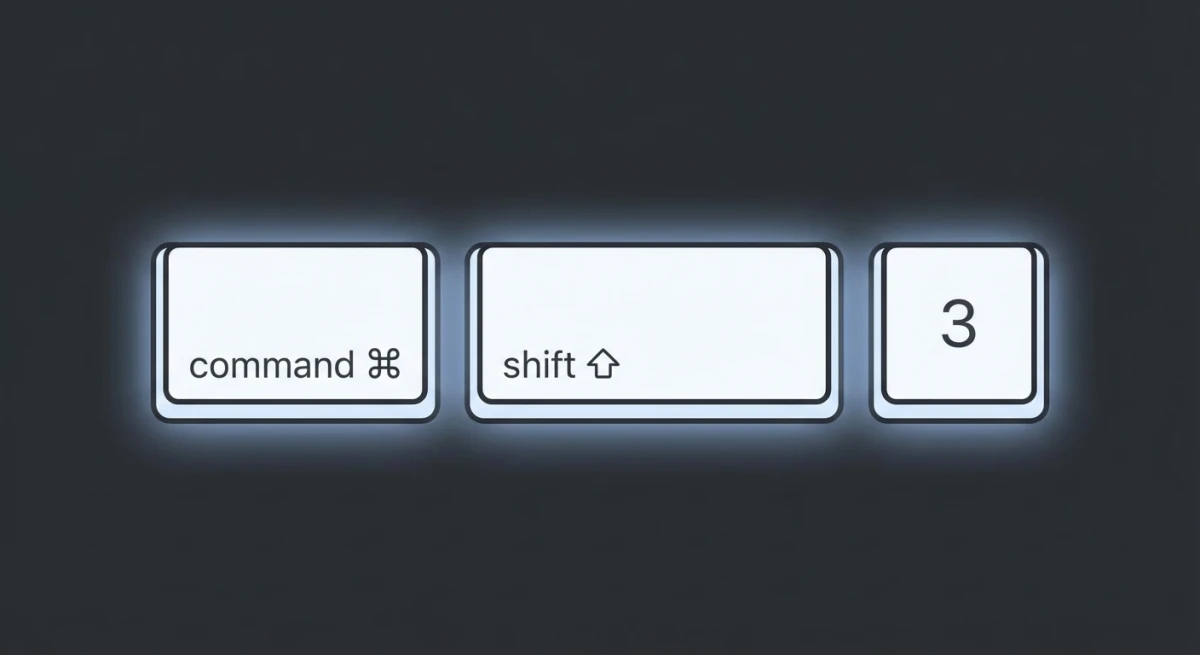
Press ⌘ + Shift + 3 to capture everything visible on your screen.
The screenshot saves to your desktop immediately. You'll see a thumbnail preview in the bottom-right corner. Click it to edit, or let it disappear to save as-is.
Best for: Quick captures when you need everything visible, documenting your workspace, capturing error messages.
Capture a Selected Area
Press ⌘ + Shift + 4 to turn your cursor into a crosshair. Click and drag to select the exact area you want. Release the mouse to take the screenshot.
Pro tips while selecting:
- Hold
Shiftto lock one axis (move only left/right or up/down) - Hold
Optionto resize from the center outward - Press
Spaceto move your selection box around - Press
Escapeto cancel and start over
This is the most popular Mac screenshot shortcut. It gives you exact control over what gets captured. Check out our guide to taking partial screenshots on Mac for more tips.
When this works best:
- Capturing a chart or graph from a report
- Grabbing a section of a webpage without the browser chrome
- Taking clean screenshots for presentations
- Cropping out distracting elements in real-time
Capture a Specific Window
Press ⌘ + Shift + 4, then press Space.
Your cursor turns into a camera icon. Hover over any window and click to capture just that window, complete with a subtle drop shadow that makes it look polished.
Pro tip: Hold Option while clicking to remove the shadow. This is useful when you need a clean capture for documentation or design work.
Window capture works on more than app windows. You can also capture:
- The Dock
- The menu bar
- Menu dropdowns
- Notification Center
- Spotlight search
- Desktop wallpaper (click anywhere on the desktop)
For more window capture techniques, see our guide on how to screenshot a window on Mac.
Capture the Touch Bar (Older MacBook Pro)
If you have a MacBook Pro with Touch Bar (2016-2020 models), press ⌘ + Shift + 6 to capture what's displayed on it.
This creates a wide, thin screenshot of your Touch Bar, useful for creating tutorials or documenting custom Touch Bar setups.
Copy to Clipboard Instead of Saving a File
Sometimes you don't want a file. You just want to paste the image right away.
Add Control to any screenshot shortcut:
⌘ + Control + Shift + 3: Full screen to clipboard⌘ + Control + Shift + 4: Selection to clipboard⌘ + Control + Shift + 4 + Space: Window to clipboard
Then paste with ⌘ + V into Messages, Slack, email, or any app.
This is one of the most underrated features for fast screenshot workflows. See our dedicated guide on copying screenshots to clipboard on Mac for more tips.
Method 2: Screenshot Toolbar (Visual Control)
Not a keyboard person? The Screenshot toolbar offers a visual interface instead.
Press ⌘ + Shift + 5 to open it. A floating panel appears at the bottom of your screen. This method works on macOS Mojave (2018) and later.
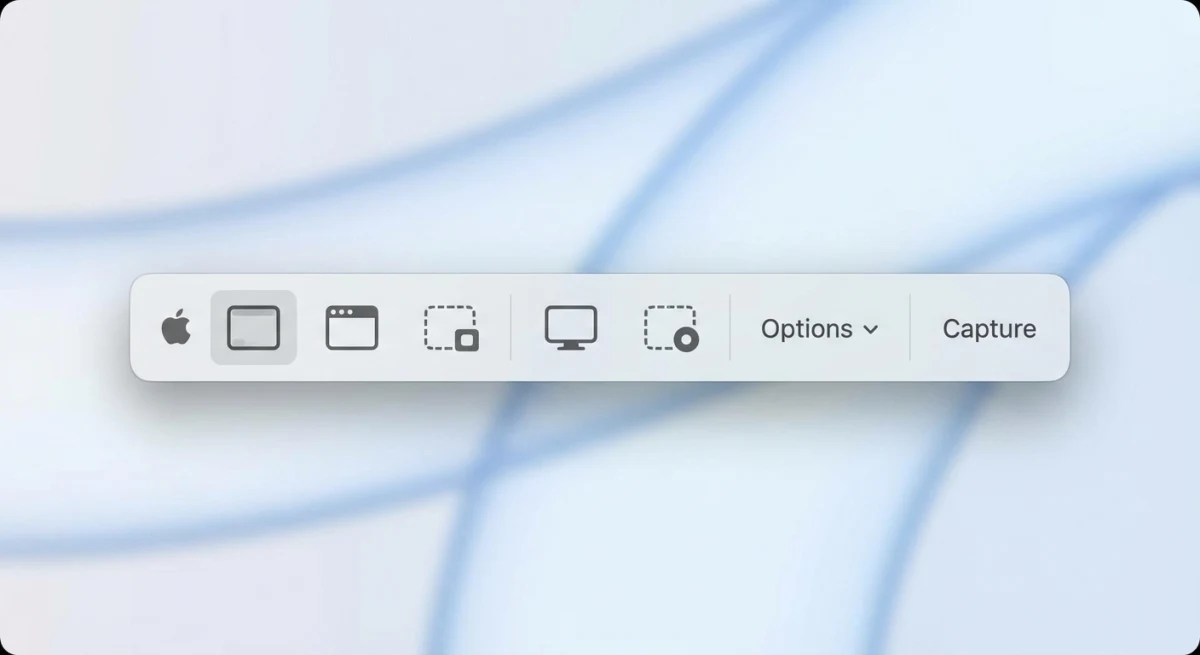
The toolbar includes:
- Capture Entire Screen. Same as
⌘ + Shift + 3 - Capture Selected Window. Same as
⌘ + Shift + 4+Space - Capture Selected Portion. Same as
⌘ + Shift + 4 - Record Entire Screen. Video recording
- Record Selected Portion. Video recording of an area
Screenshot Toolbar Options
Click Options in the toolbar to access settings:
| Option | What It Does |
|---|---|
| Save to | Choose Desktop, Documents, Clipboard, Mail, Messages, or Preview |
| Timer | 5 or 10 second delay before capture |
| Show Floating Thumbnail | Preview in corner after capture |
| Remember Last Selection | Reuse your previous selection area |
| Show Mouse Pointer | Include cursor in screenshots |
The 5-second timer is especially useful for capturing dropdown menus, hover states, or anything that disappears when you press keys. Check out our guide on timed screenshots on Mac for more techniques.
Screenshot Toolbar Keyboard Navigation
Once the toolbar is open:
- Press
1,2, or3to select screenshot modes - Press
4or5to select recording modes - Press
Enterto capture with current settings - Press
Escapeto close the toolbar
Method 3: Preview App
Preview isn't just for viewing PDFs. It can also take screenshots.
- Open Preview (in Applications or via Spotlight:
⌘ + Space, type "Preview") - Go to File > Take Screenshot
- Choose from:
- From Selection
- From Window
- From Entire Screen
This method is useful when you want to immediately edit the screenshot in Preview's markup tools. You can crop, annotate, and adjust colors before saving.
Method 4: Third-Party Screenshot Tools
Built-in methods cover most needs. Third-party tools add extras:
- Instant cloud sharing. Get links immediately
- Scrolling capture. Capture entire web pages
- GIF recording. Motion without video files
- Annotation tools. Arrows, text, blur
- Custom backgrounds. Professional look
- OCR text extraction. Copy text from images
- Pin screenshots. Keep captures visible
When Built-In Tools Are Enough
For occasional screenshots, macOS has you covered:
- Saving receipts
- Capturing error messages
- Quick shares with colleagues
The keyboard shortcuts are fast, free, and universal.
When to Consider Upgrading
Third-party tools make sense if you:
- Take 10+ screenshots daily
- Annotate before sharing
- Share on Slack, Discord, or in docs
- Need GIF recording for demos
- Want professional-looking captures
ScreenSnap Pro, a screenshot tool for Mac and Windows, combines capture, annotation, and cloud sharing in one shortcut. For comparisons, see our guide on the best screenshot apps for Mac.
Screenshots on Different Mac Models
Good news: screenshot shortcuts work the same on every Mac. MacBook Air, MacBook Pro, iMac, and Mac Mini all use identical methods.
MacBook Air (M1, M2, M3)
Use all standard shortcuts covered above. No Touch Bar means ⌘ + Shift + 6 doesn't apply.
Resolution: Retina displays create 2x screenshots. A 1440×900 display produces a 2880×1800 pixel file.
MacBook Pro (M1 Pro, M2 Pro, M3 Pro/Max)
Works the same as MacBook Air. Older models (2016-2020) with Touch Bar can use ⌘ + Shift + 6.
Notch models (14" and 16"):
- Full-screen screenshots include the notch area
- Notch appears as black background
- Full display resolution is preserved
iMac (24" M1, M3, M4)
Same shortcuts, but larger display means larger files.
Typical file sizes:
| iMac Model | Resolution | File Size |
|---|---|---|
| 24" M1/M3/M4 | 4480 × 2520 | 8-15 MB |
| 27" (older Intel) | 5120 × 2880 | 12-20 MB |
Tip: Use ⌘ + Shift + 4 to capture only what you need.
Mac Mini and Mac Studio
With external monitors:
- Screenshots capture at your monitor's resolution
- Multi-monitor setups save separate files per display
- Use
⌘ + Shift + 3to capture all screens at once
External Keyboard Shortcuts
Using a non-Apple keyboard (like a Windows keyboard)? Screenshot shortcuts still work:
- Windows/Super key = Command (⌘)
- Alt = Option
- The shortcut becomes
Win + Shift + 3/4/5

Tired of plain screenshots? Try ScreenSnap Pro.
Beautiful backgrounds, pro annotations, GIF recording, and instant cloud sharing, all in one app. Pay $34 once, own it forever.
See pricing and featuresWhere Do Mac Screenshots Go?
By default, screenshots save to your Desktop with names like:
Screenshot 2026-02-04 at 2.30.15 PM.pngIf you don't see your screenshot:
- Check your Desktop folder in Finder (files might hide behind windows)
- Verify you didn't accidentally save to clipboard (did you hold
Control?) - Check iCloud Desktop sync if enabled (files might still be uploading)
Change the Default Save Location
Using Screenshot toolbar:
- Press
⌘ + Shift + 5 - Click Options
- Under "Save to," choose a folder or click Other Location
Using Terminal:
defaults write com.apple.screencapture location ~/Pictures/Screenshots
killall SystemUIServer
Replace ~/Pictures/Screenshots with your preferred path. Create the folder first.
For detailed instructions, see our guide on how to change screenshot location on Mac.
Change the Default File Name
The default naming is verbose. To simplify it:
defaults write com.apple.screencapture name "Screenshot"
killall SystemUIServer
How to Change Screenshot Format (PNG vs JPG)
Mac saves screenshots as PNG by default, which means high quality but larger files.
Switch to JPG
defaults write com.apple.screencapture type jpg
killall SystemUIServer
Switch Back to PNG
defaults write com.apple.screencapture type png
killall SystemUIServer
When to Use Each Format
- PNG. Best quality, supports transparency, ideal for most uses
- JPG. Smaller files, good for photos, no transparency
- PDF. When you need to send to someone who might print it
For more customization options, check out our complete Mac screenshot settings guide.
Edit Screenshots with Markup
After taking a screenshot, you can instantly edit it using macOS's built-in Markup tools.
Quick Edit via Floating Thumbnail
When the thumbnail appears in the bottom-right corner:
- Click the thumbnail before it disappears (about 5 seconds)
- Use Markup tools to annotate:
- Sketch. Draw freehand
- Shapes. Add rectangles, circles, arrows
- Text. Insert text annotations
- Signature. Add your signature
- Magnifier. Highlight specific areas
- Click Done to save changes
Drag the Thumbnail Directly
You can drag the floating thumbnail directly into:
- Messages conversations
- Email compose windows
- Slack channels
- Finder folders
- Any app that accepts images
No need to wait for the file to save or hunt for it on your desktop.
For professional-grade annotations with blur, pixelation, and numbered steps, see our guide on how to annotate screenshots professionally.
Troubleshooting: Screenshot Not Working?
If your screenshot shortcuts aren't working, don't panic. Most issues have simple solutions.
1. Check Keyboard Shortcuts Are Enabled
This is the most common fix.
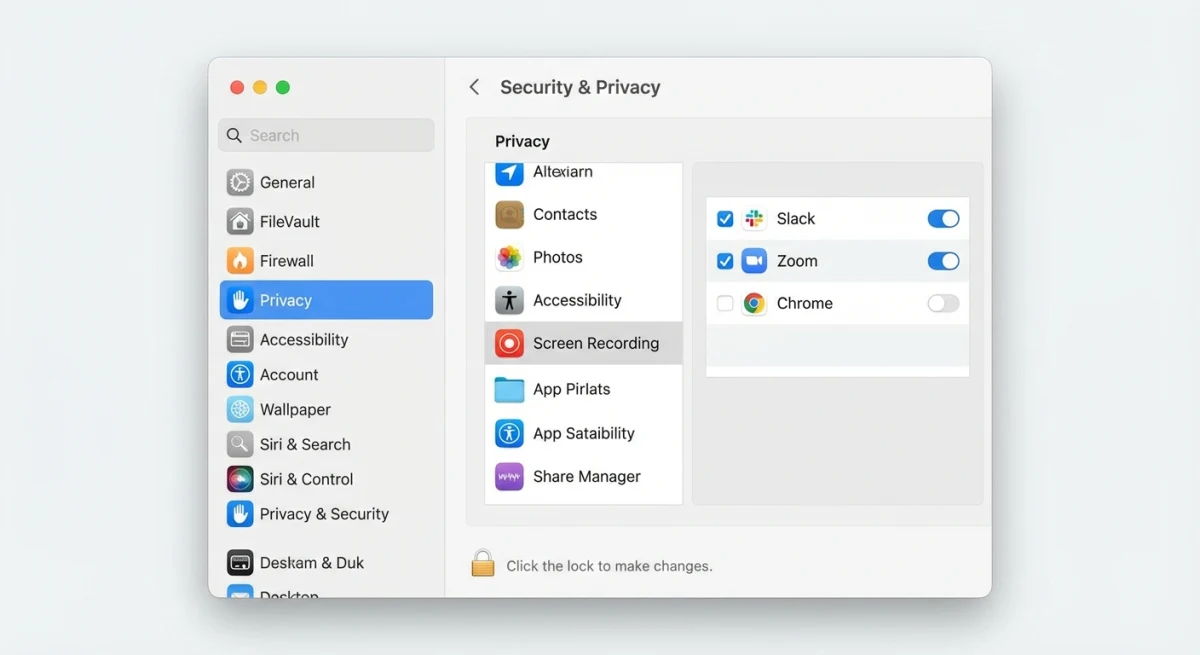
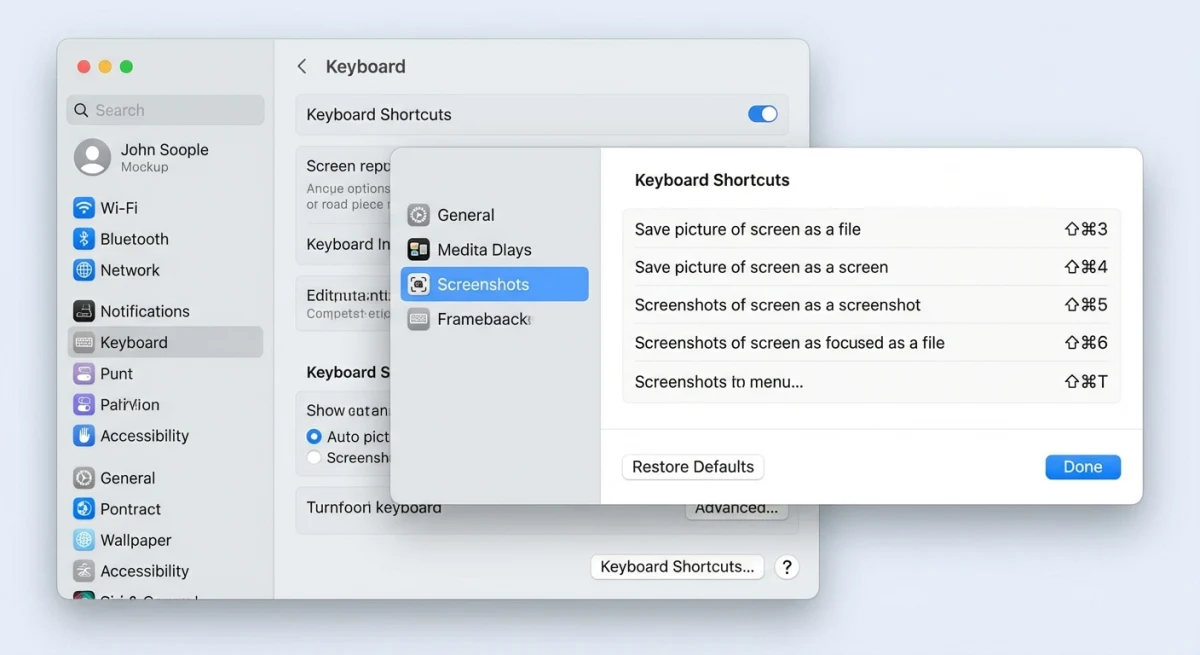
- Open System Settings > Keyboard > Keyboard Shortcuts
- Select Screenshots in the sidebar
- Make sure all shortcuts are checked
- Click "Restore Defaults" if anything looks wrong
2. Check for Conflicting Apps
Some apps intercept screenshot shortcuts. Common culprits:
- Screen recording software (OBS, Loom)
- Remote desktop apps (TeamViewer, Parallels)
- Clipboard managers (Alfred, Paste)
- Other screenshot tools
Quick fix: Quit non-essential apps and test again.
3. Check App-Specific Restrictions
Certain apps block screenshots for security:
- Apple TV app. Blocks during playback
- Netflix, Disney+, Hulu. Blacks out video content
- Banking apps. Blocks sensitive screens
This is intentional, not a bug.
4. Reset NVRAM
For Intel Macs:
- Shut down completely
- Turn on and hold
Option + Command + P + R - Keep holding for 20 seconds
For Apple Silicon (M1/M2/M3/M4):
- Shut down your Mac
- Wait 30 seconds
- Restart, and NVRAM resets automatically
5. Check Disk Space
Screenshots can't save if your disk is full. Make sure you have at least 5-10 GB free. Check in Apple Menu > About This Mac > More Info > Storage.
6. Try a Test User Account
Sometimes the issue is tied to your user profile.
- Open System Settings > Users & Groups
- Create a new admin account
- Log out and log into the new account
- Try taking a screenshot
If it works in the new account, the issue is with your user settings. You may need to reset your preferences.
7. Update macOS
Bugs in older macOS versions can break screenshots. Check for updates in System Settings > General > Software Update. Install any pending updates and restart.
8. Boot into Safe Mode
Safe Mode disables third-party software. This helps find conflicts.
Apple Silicon Macs:
- Shut down your Mac
- Hold the power button until "Loading startup options" appears
- Hold
Shiftand click "Continue in Safe Mode"
Intel Macs:
- Restart and hold
Shiftright after the startup sound - Release when you see the login window
Test screenshots in Safe Mode. If they work, a third-party app is causing the issue.
For a complete guide with more fixes, see Mac screenshot not working? 10 fixes.
Pro Tips for Better Screenshots
Use Quick Look for Fast Review
Select any screenshot file and press Space to preview it instantly. Press Space again to close. In Quick Look, press ⌘ + L to rotate or use arrow keys to flip through multiple files.
Quick Delete Bad Screenshots
Took a screenshot and immediately realized it's wrong? Click the thumbnail, then press ⌘ + Delete to trash it before it saves.
Create a Screenshots Folder
Instead of cluttering your desktop:
- Create a folder:
~/Pictures/Screenshots - Set it as default location
- Add to Dock or Finder sidebar for quick access
Use the Timer for Tricky Captures
For dropdown menus, hover states, or anything that disappears when you press keys:
- Press
⌘ + Shift + 5 - Click Options > 5 Seconds
- Click Capture
- Set up your shot during the countdown
Capture Specific Menu Items
To capture a dropdown menu cleanly:
- Open the menu you want to capture
- Press
⌘ + Shift + 4 - Press
Spaceto enter window mode - Move the camera cursor over the menu (it highlights separately)
- Click to capture just the menu
Copy Text from Screenshots
macOS can read text in images. Here's how:
- Open the screenshot in Preview or Quick Look
- Hover over text and it becomes selectable
- Select and copy with
⌘ + C
For better text extraction, see our guide on copying text from screenshots on Mac.
Batch Rename Screenshot Files
Got a folder full of "Screenshot 2026-02-04 at..." files? Rename them all at once:
- Select all the files in Finder
- Right-click and choose Rename
- Pick a format (add text, replace text, or number them)
- Click Rename
This turns messy file names into "Project-001.png" style names.
Frequently Asked Questions
Wrapping Up
You now know every way to take a screenshot on Mac:
⌘ + Shift + 3for full screen⌘ + Shift + 4for selections⌘ + Shift + 5for the toolbar with all options- Preview for immediate editing
- Third-party tools for advanced features
These shortcuts work identically on MacBook Air, MacBook Pro, iMac, Mac Mini, and Mac Studio, whether you have an M1, M2, M3, M4, or Intel chip.
For most people, the keyboard shortcuts handle 90% of screenshot needs. When you need more (instant cloud sharing, annotations, or GIF recording), tools like ScreenSnap Pro fill the gap between basic captures and professional-quality visuals.
Related guides:

Morgan
Indie DeveloperIndie developer, founder of ScreenSnap Pro. A decade of shipping consumer Mac apps and developer tools. Read full bio
@m_0_r_g_a_n_